Registration and QR Code Generation
Simply fill in your company name, your email, and a password in the registration form https://freshqr.online/en/registration. Nothing else is required at the start, and you don’t even need to confirm any email. After registration, a 30-day free trial period begins automatically.
The system will automatically generate QR codes after registration. To try them out, you can simply scan them from your PC monitor. Later, you can print them on paper.
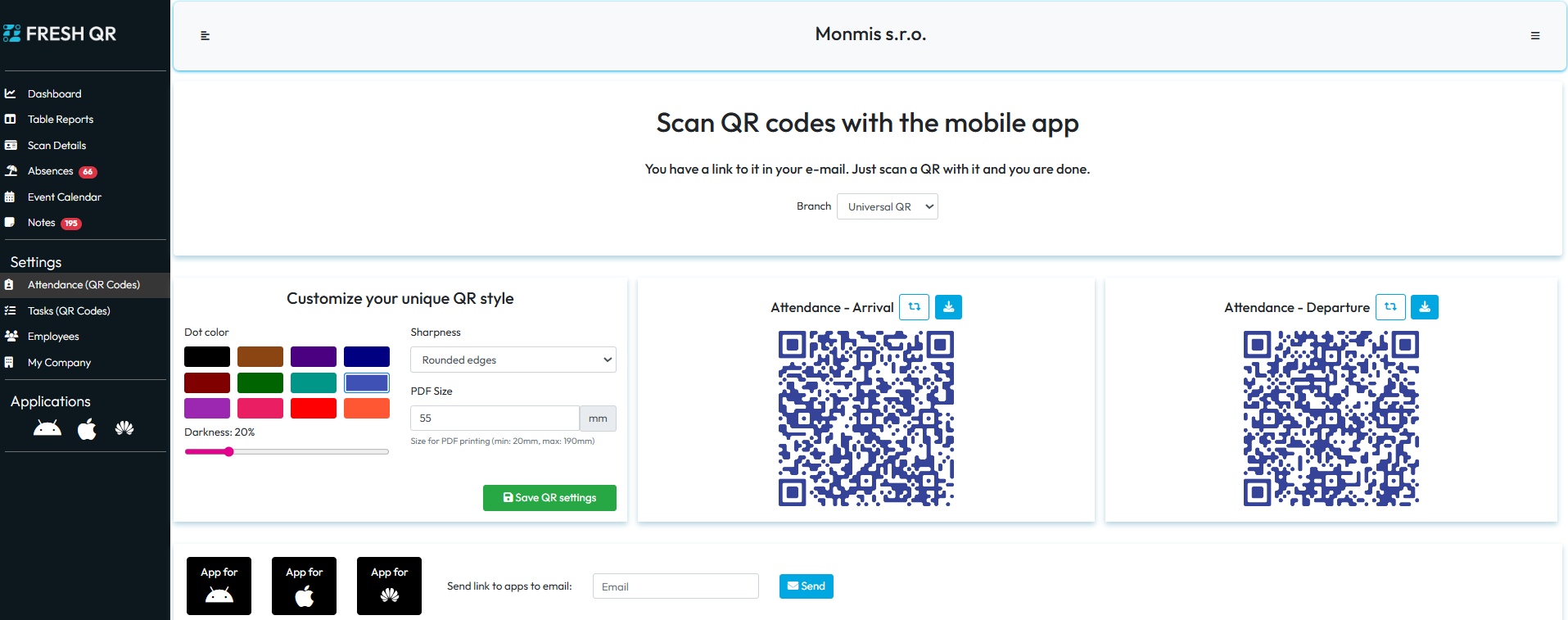
Install the mobile app and scan the “arrival” QR code
Immediately after registration, the system will send you an email with links to the mobile app for Android, iOS, and Huawei. If you don’t see it in your inbox, please check your SPAM folder. Then:
- Open the email directly on your mobile device and click the appropriate button (Android, iOS, Huawei). You will be redirected to the app store.
- Download the app.
- Open the app, tap the “QR” button on the home screen, and scan the first QR code.
- In the menu item “My Details,” fill in your name.
Scans are displayed immediately on the web
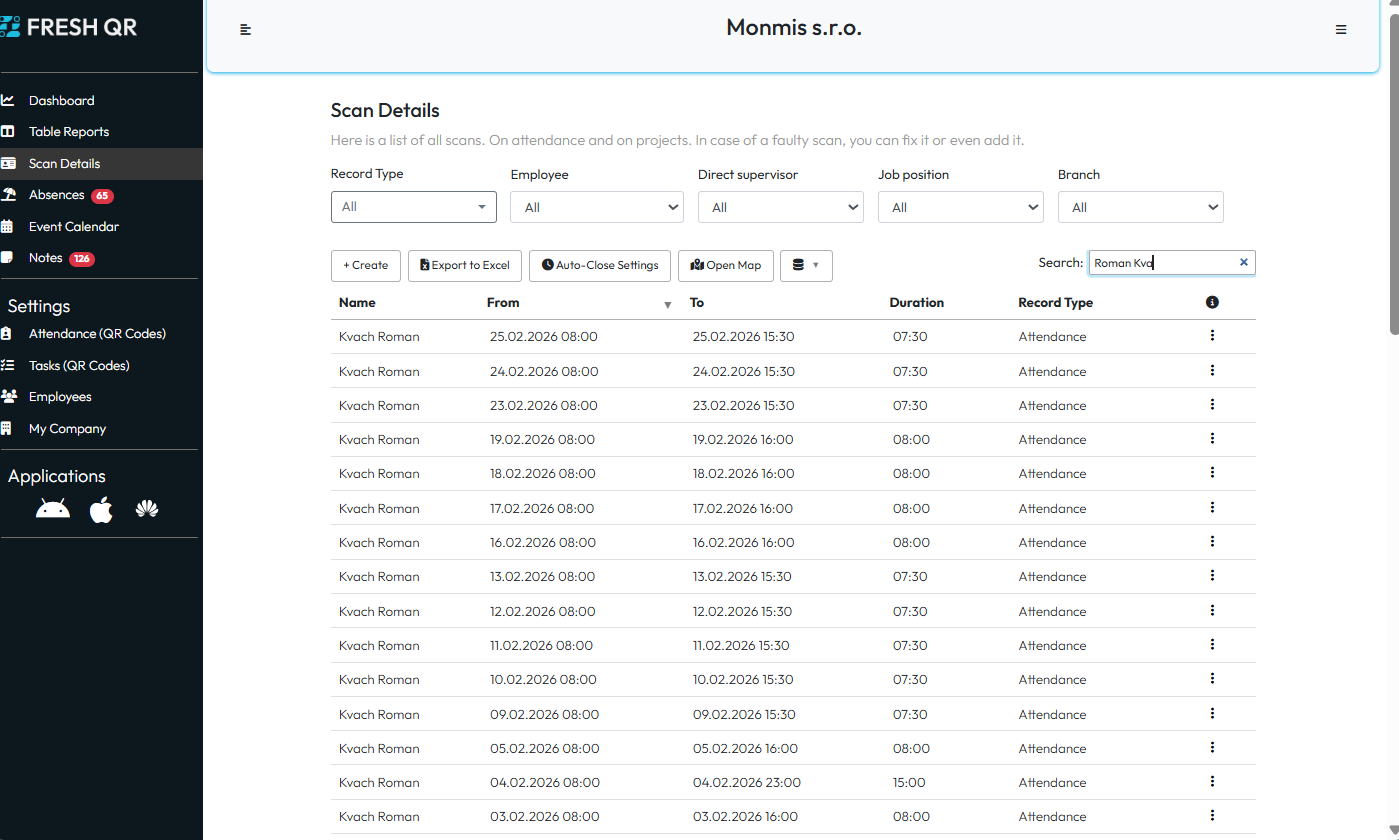
The details of each scan can be viewed in the Absences section. This includes the name, time, duration, branch, and GPS location.
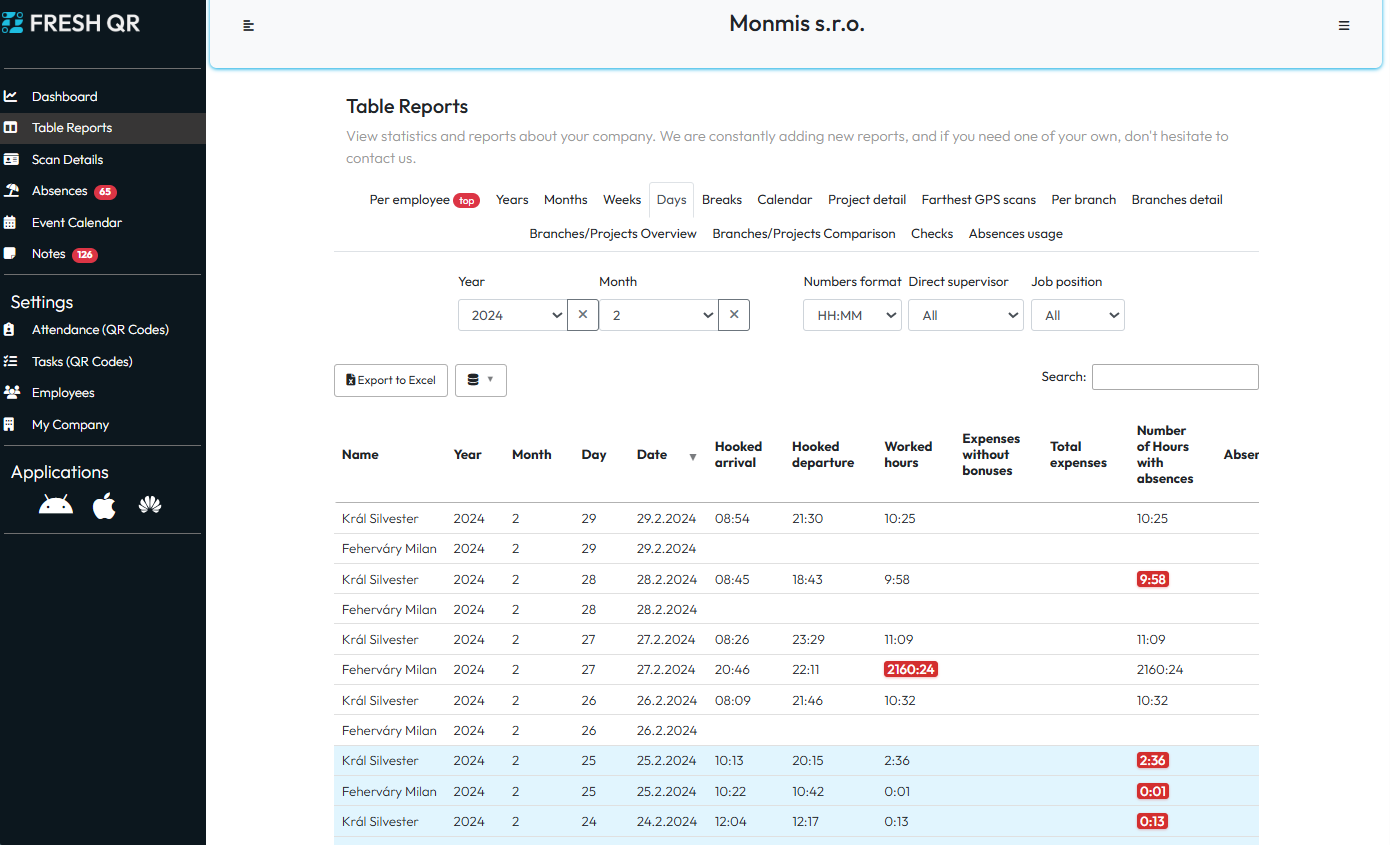
When you also scan the “departure” QR code, the first row will appear in the Table Reports. Reports provide a key overview that you will use regularly. All reports can be filtered and exported to Excel.
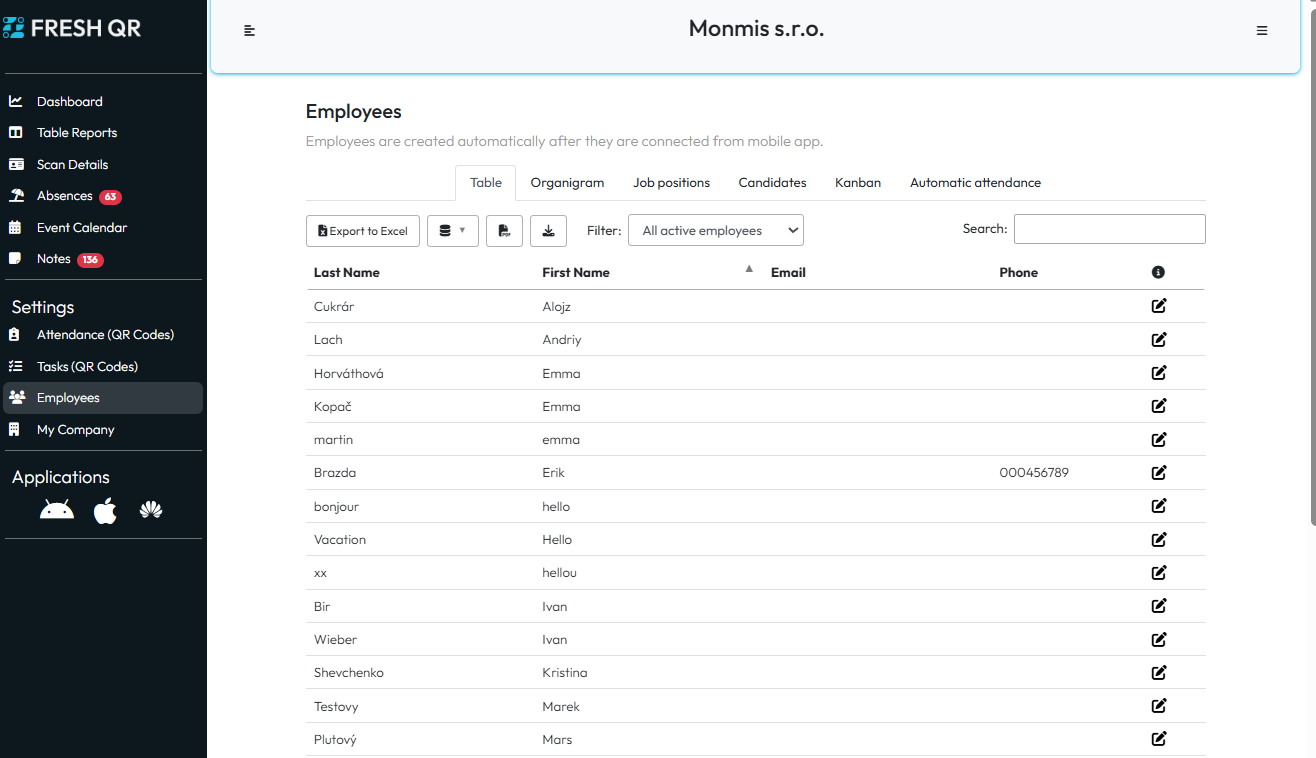
Employees are added to the list automatically
Employees will appear in the list automatically immediately after scanning their first QR code. The system recognizes that the QR code belongs to your company, so it can link it correctly. Each employee must enter at least their name in the mobile app so you know who it is; otherwise, it will appear as an empty row.
In each employee’s detail section, there is a Monthly Report, which shows pre-filtered attendance data for that employee and month. The Monthly Report can be exported not only to Excel but also to PDF in a graphical format.