Attendance API key: connect FreshQR to your systems
On this page
Quick answer
An attendance API key lets your own software read FreshQR data. Go to My Company › API Keys, click Create New API Key, name it, tick only the permissions it needs and create it. Copy the key straight away – it is shown only once – and pass it safely to whoever builds the integration.
#What it's good for
- Your payroll, HR or reporting tool gets hours, absences and project time without anyone retyping them from Excel.
- Each key gets only the data it needs, for example reports only.
- You see when a key was last used and can switch it off at any time.
#Who it's for
A good fit for
- Companies with their own developer, an IT supplier or a payroll office that imports data automatically.
- Larger companies that want attendance in their own dashboards.
Not the right fit for
- Most small companies. Exporting timesheets to Excel is simpler and needs no programming.
- Real-time push or ready-made connectors. The API answers requests; it doesn’t send data on its own.
#Step by step
-
Open API Keys.
Go to My Company › API Keys. Without any key yet, the tab says Integrate Fresh QR with your tools with the button Create your first API key.
The Owner and Administrators can create, revoke and delete keys. Accounts with Company Settings: View & Edit see the list only.

Create the first API key with one button -
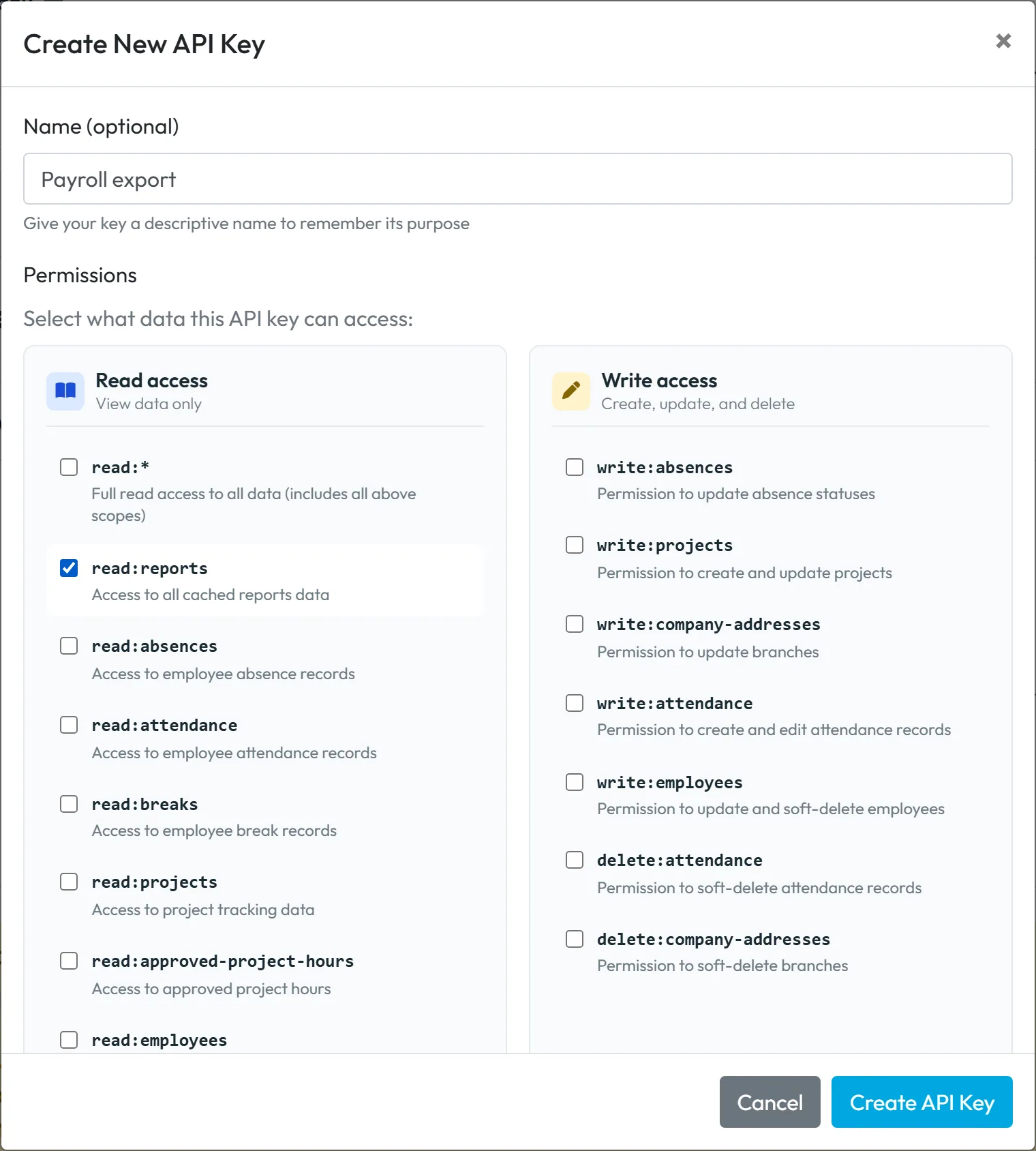
Name the key and choose permissions.
Click Create New API Key. Give it a name that says what it is for, for example “Payroll export”. Under Permissions, tick what the key may do:
- Read access – for example read:reports (all report data), read:attendance, read:absences, read:projects, read:employees. read:* gives every read permission at once.
- Write access – lets the integration change data in FreshQR as well. Give these only if the integration really needs them.
A payroll import usually needs read:reports and nothing else.
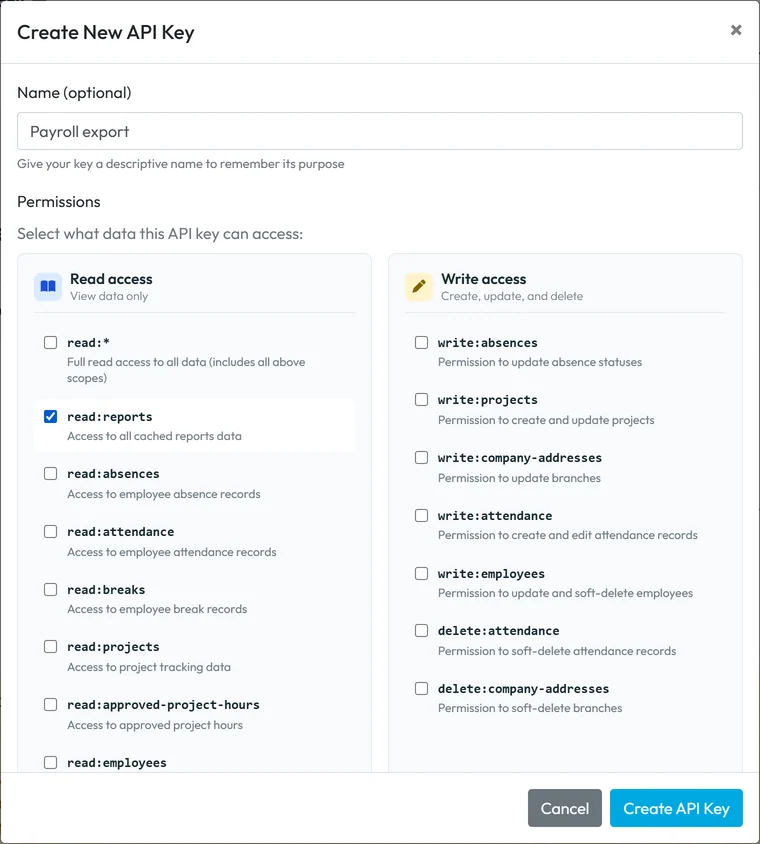
Give a key only the permissions it needs -
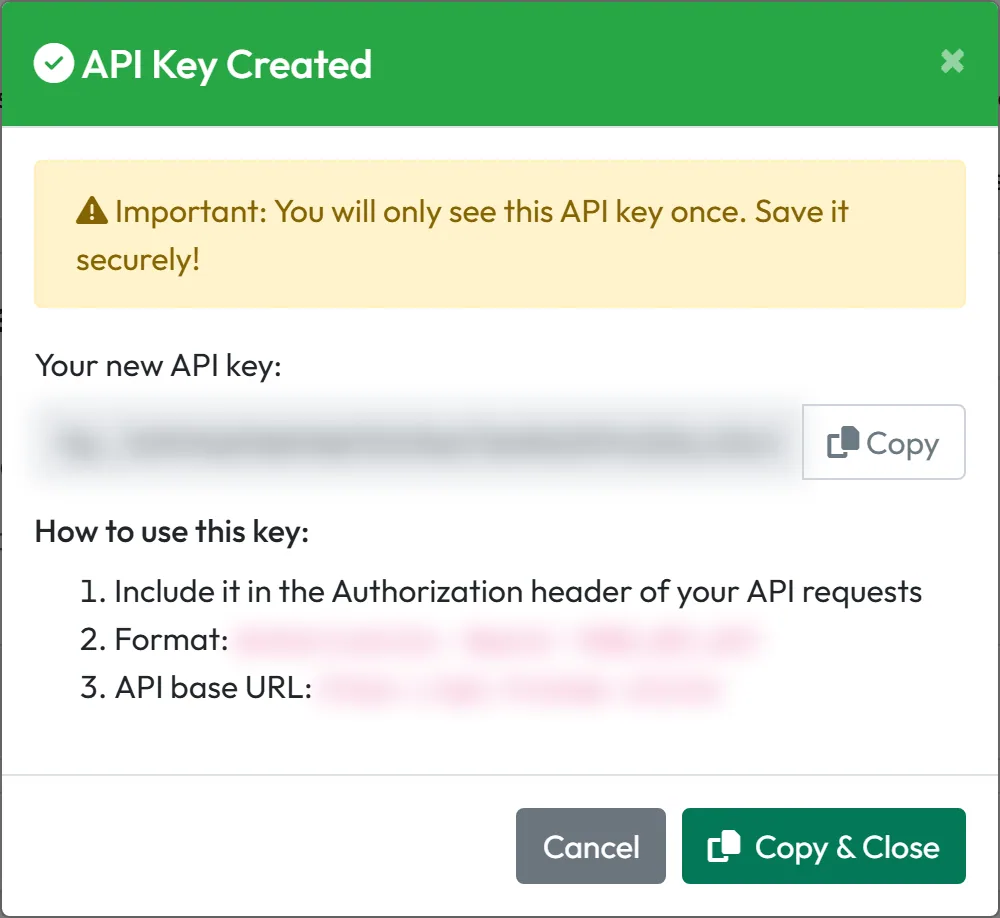
Copy the key – it is shown only once.
Click Create API Key. The window API Key Created shows the key with the warning
Important: You will only see this API key once. Save it securely!
Click Copy & Close and store it in a password manager or send it to your developer through a secure channel – not in a plain e-mail or chat.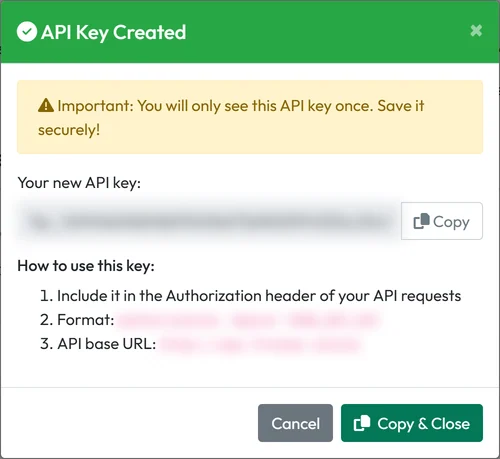
Copy the key right away -
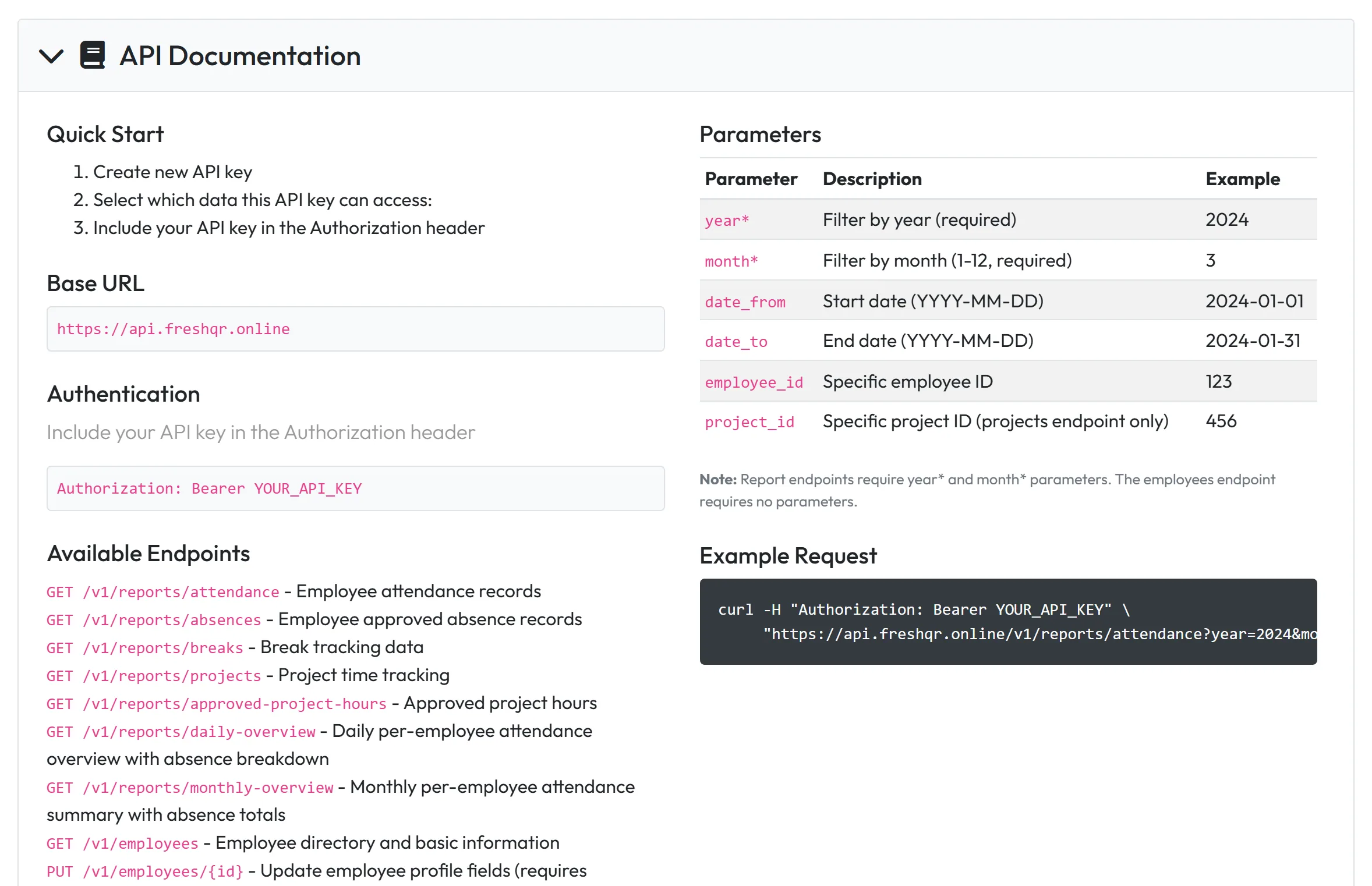
Give your developer the documentation.
Expand API Documentation at the bottom of the tab. It shows the base URL, how to send the key in the Authorization header, the available endpoints, the parameters (report calls need a year and a month) and an example request. That is what your developer needs to start.
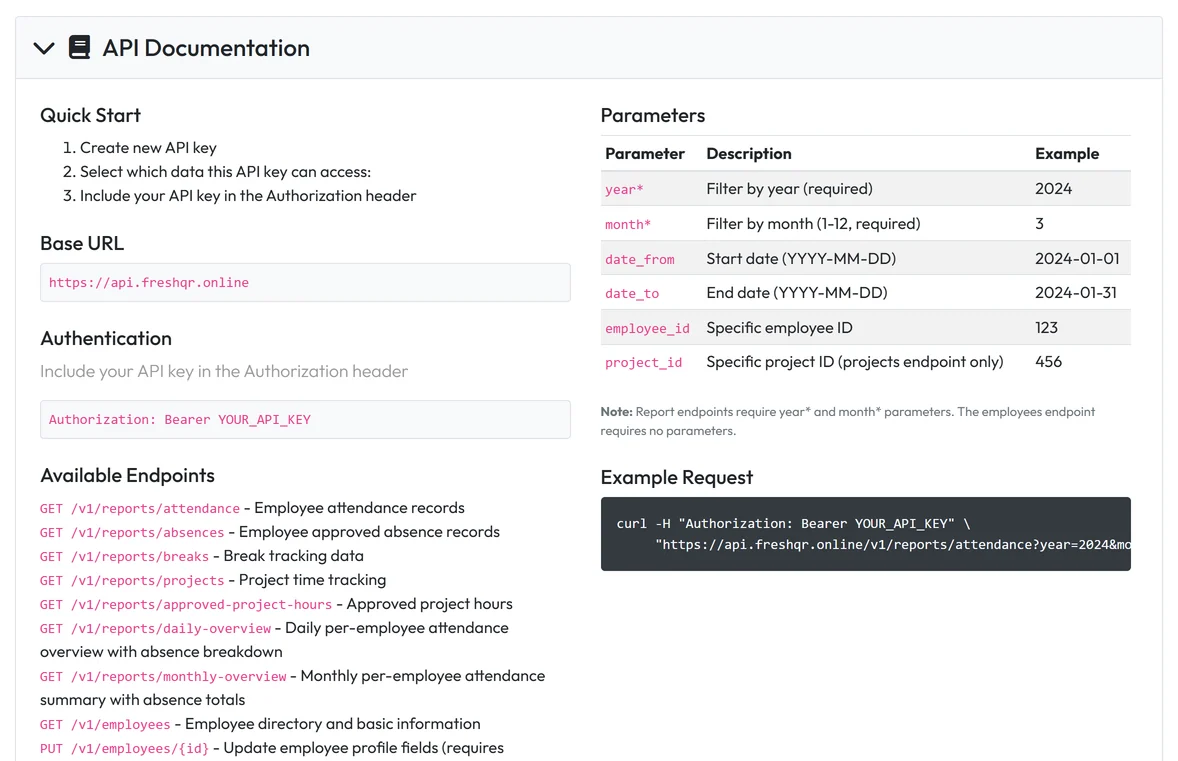
The API documentation is right in the app -
Keep an eye on the key.
The list shows each key’s Scopes, Status, Created and Last Used (Never until the first call). The orange note Not used in 30+ days helps you spot keys nobody needs any more; a brand-new key that hasn’t been used yet can show it too.

Your API keys and when they were last used


#Revoking and deleting keys
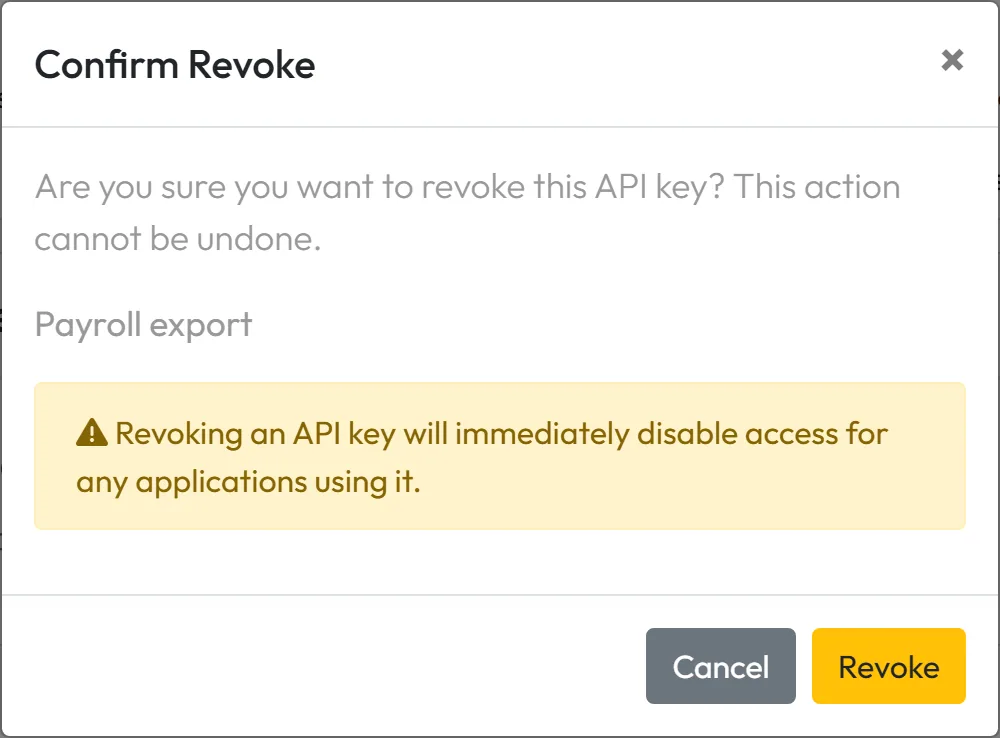
- RevokeThe yellow button revokes a key. FreshQR asks for confirmation and warns that
Revoking an API key will immediately disable access for any applications using it.
The key stays in the list with the status Revoked, so you can see it existed.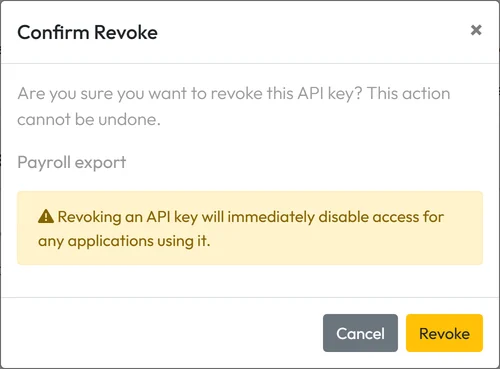
A revoked key stops working at once - DeleteThe red bin deletes a key after Confirm Delete; it disappears from the list. Both revoking and deleting are final.

A revoked key stays listed until you delete it - Change permissionsA key can’t be edited. Create a new key with the right permissions, give it to your developer, then revoke the old one.

#Special cases and tips
- The key was lost
- It can’t be shown again. Create a new key and revoke the old one.
- A key sees the whole company
- Permissions limit the type of data, not branches or employees. A key with read:reports reads the reports of everyone in the company.
- The person who created the key leaves
- The key belongs to the company, not to the user account. Deleting that account doesn’t switch the key off – revoke it if it is no longer needed.
#Frequently asked questions
Who can create API keys?
The Owner and Administrators. Company Settings: View & Edit can see the list but not create or revoke keys.
Can I see the key again later?
No. It is shown only once, when you create it. Create a new key if it was lost.
Is there a webhook or automatic push?
No. Your system asks the API for data when it needs it.
Why don’t the API numbers match the web reports?
For work durations, the API has fields ending in _as_in_reports_minutes. Those match the numbers in Table Reports and exports – tell your developer to use them.
Is the API a good fit for a simple monthly payroll export?
Usually Excel export is enough. The API pays off when another system should pick up the data automatically.
#Related
You are hereAPI Keys and REST API
Administrator
Web app (administrator)Mobile app (employee)



