Attendance reports in FreshQR: tabs, filters and pinned views
On this page
Quick answer
All attendance reports in FreshQR live under Table Reports in the left menu. Each tab looks at the same data from a different angle: a month calendar, totals per month, breaks, branches. Pick the period, click Add filter to narrow the list by branch, position or tag, and pin a filter to keep it next time.
#What it's good for
- Answers like “how many hours did Niamh work in September?” or “who worked last Saturday?” without building a spreadsheet from raw clock-ins.
- One filter bar for every tab: choose a branch once and every tab you open shows that branch.
- Each manager pins their own filters, so a site supervisor opens the reports already filtered to their team.
- Every table can be exported to Excel for the accountant – see Export to Excel and PDF.
#Who it's for
A good fit for
- Owners and office staff who prepare hours for payroll every month.
- Companies with several branches, sites or positions that want to look at one group at a time.
- Supervisors who check their own team’s hours every week.
Not the right fit for
- If you only need one employee’s month on one page, open the monthly employee report instead.
- A screen in the office that shows who is in right now is the Dashboard, not a report.
#Which tab answers which question
| Tab | What it shows | More |
|---|---|---|
| Per employee | One block per employee for the month: every day with arrival, departure, hours, breaks and overtime. The tab has the red top badge. | Monthly employee report |
| Calendar | The whole month on one screen: employees in rows, days in columns, monthly total on the right. | Approving attendance |
| Years, Months, Weeks, Days | Totals per employee for each period. | Excel export |
| Project detail | Hours per project, day by day. | Project report |
| Breaks, Farthest GPS scans | Every break of the month; the scans made farthest from the branch or site. | Breaks and Farthest GPS scans |
| Per branch, Branches detail, Branches/Projects Overview, Branches/Projects Comparison | Hours and costs per branch or project, plan against reality, side-by-side comparison. | Branch reports |
| Checks (Beta) | Missing scans, very short or very long days, weekend work and requests nobody has approved. | Checks |
| Absences usage | How much of each absence pool (leave allowance) has been used. | Leave allowance |
A tab appears only when there is data for it. A company without project scans has no Project detail tab, and the two Overview and Comparison tabs need a setting described in Branch reports. If you are new and see only a few tabs, nothing is wrong.
#Step by step
-
Open Table Reports.
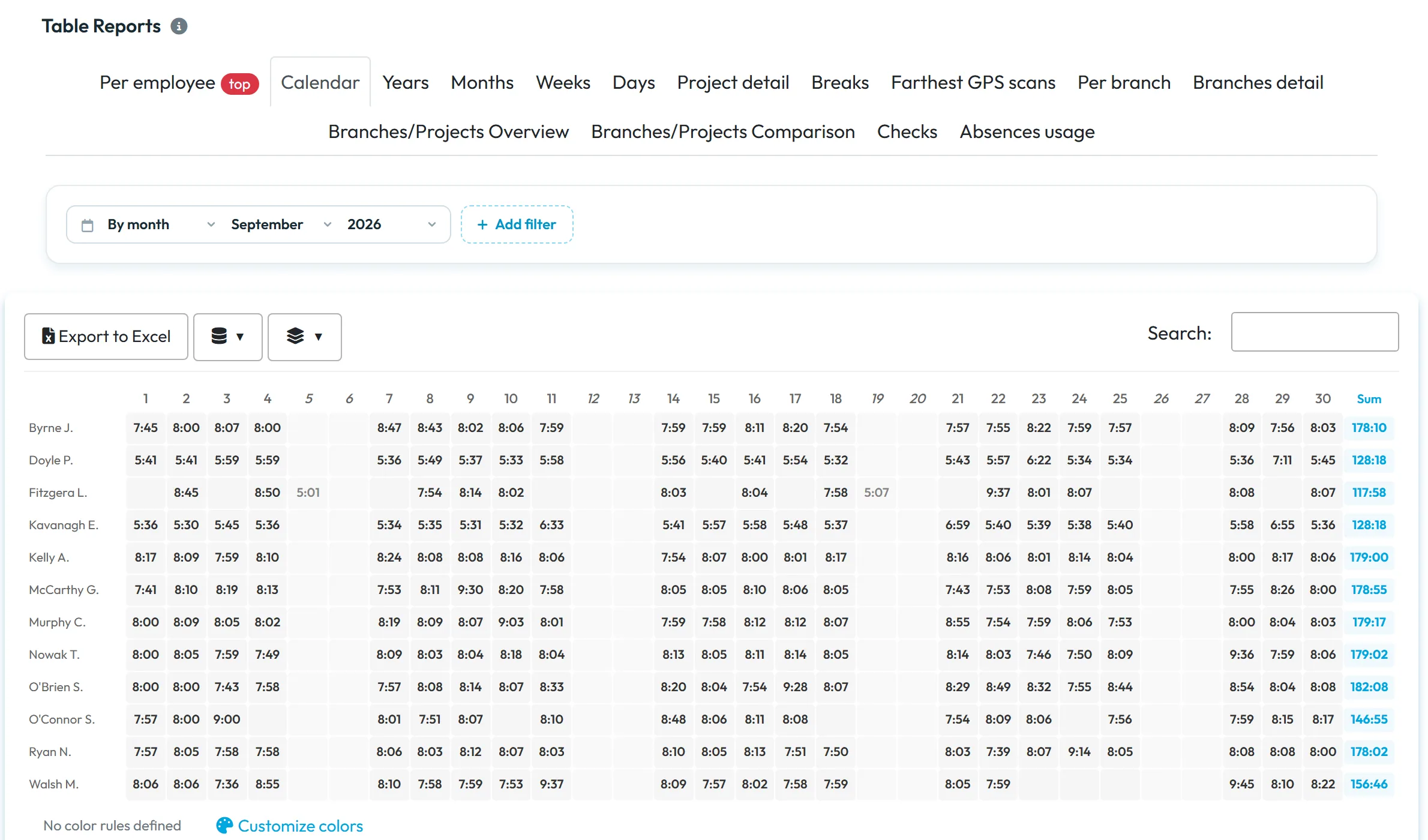
Click Table Reports in the left menu. The page opens on the Calendar tab: every employee’s hours per day for the month, with the monthly sum in the last column. In the example, office administrator Niamh Ryan and the rest of the Brightway team are listed for September.
The report opens on the latest month with data, which can be a future month if you plan shifts ahead – check the period selector before you read the numbers.
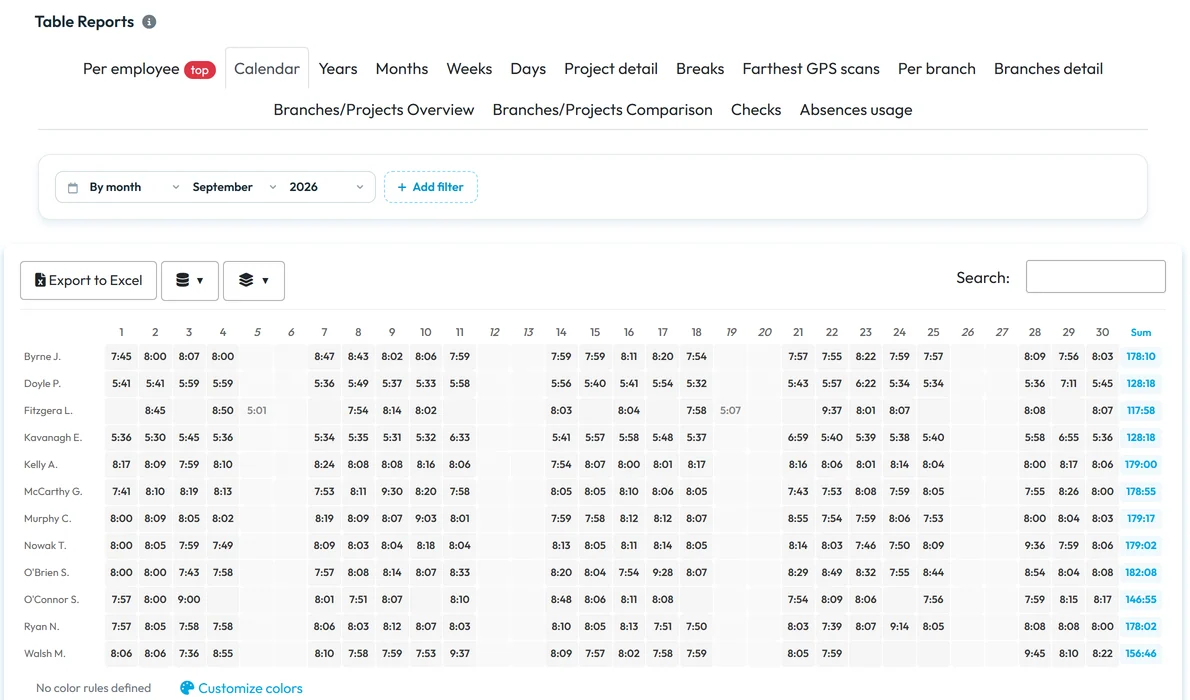
The Calendar tab shows the whole month on one screen -
Choose the period and the tab.
Use the period selector at the top (for example By month, September, 2026), then click the tab you need. The period stays the same when you switch tabs, so you can move from the Calendar to Months and back without picking the month again.
The Calendar tab shows worked hours only. Approved leave and sick days don’t appear in its cells – you find them in Per employee and in the monthly report.
-
Add a filter.
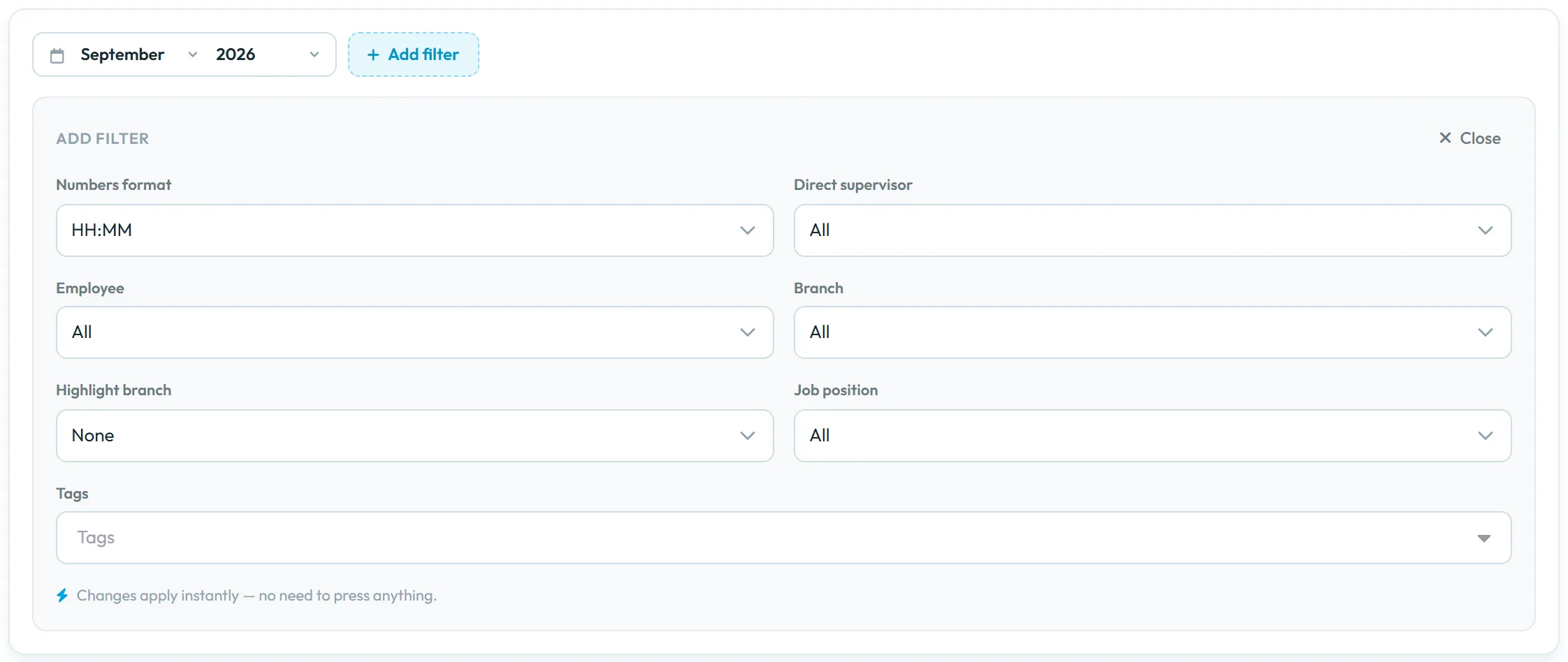
Click Add filter. The panel offers only the fields that make sense for the current tab, for example Numbers format, Direct supervisor, Employee, Branch, Job position and Tags. As the panel says,
Changes apply instantly — no need to press anything.
Typical uses: Branch = Head office to see only office staff, Job position = Window Cleaner, or Tags = Keyholder. Tags are the labels you create under My Company › Tags.
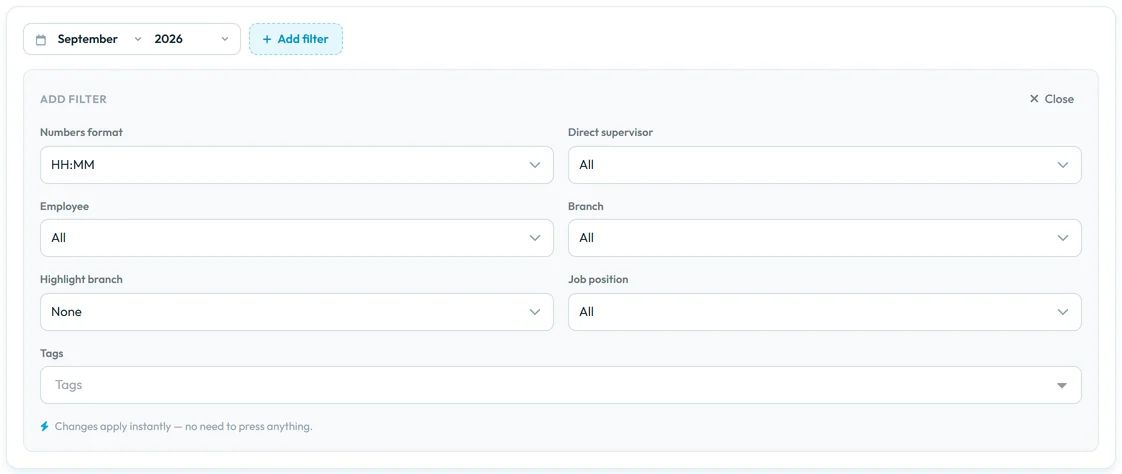
Filters apply instantly – there is nothing to confirm -
Pin the filter you use every time.
Every active filter shows as a chip under the period selector. You can change its value right on the chip, and the × removes it. The pin icon on the chip says
Pin filter (applied automatically next time)
: click it and the filter is applied the next time you open the reports.Pinned filters are saved for your user account only. A site supervisor can pin their own team with Direct supervisor, while the office keeps seeing everyone.

Pinned filters are remembered for your account only -
Read totals and export them.
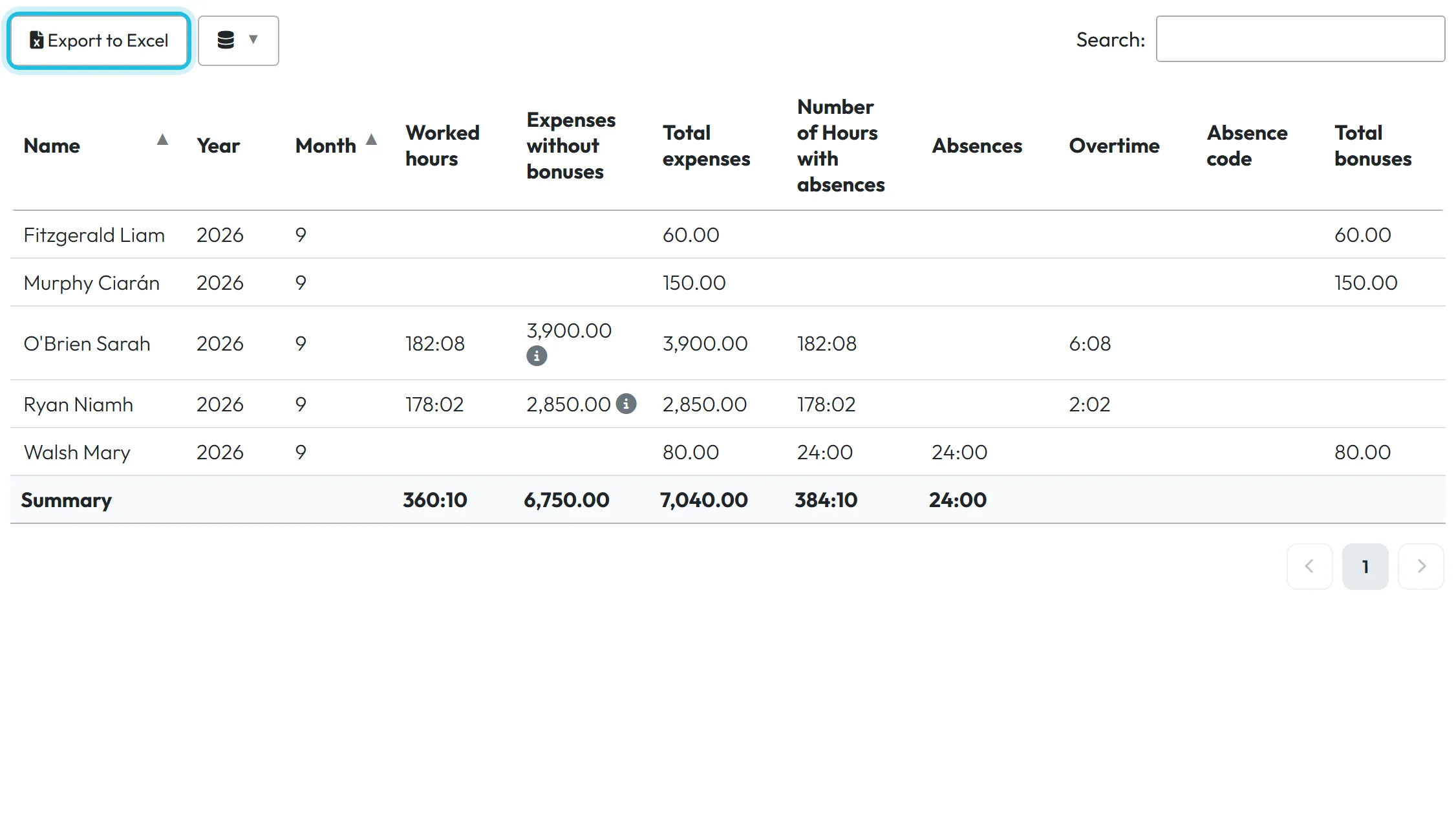
The Months tab (and likewise Years, Weeks, Days) lists the totals per employee. The Export to Excel button above the table downloads the table as you see it. On the Weeks tab you also choose whether a week runs Mon - Sun or Sun - Sat.
Numbers format switches between decimal hours (Numeric, e.g. 7.95) and hours and minutes (7:57).
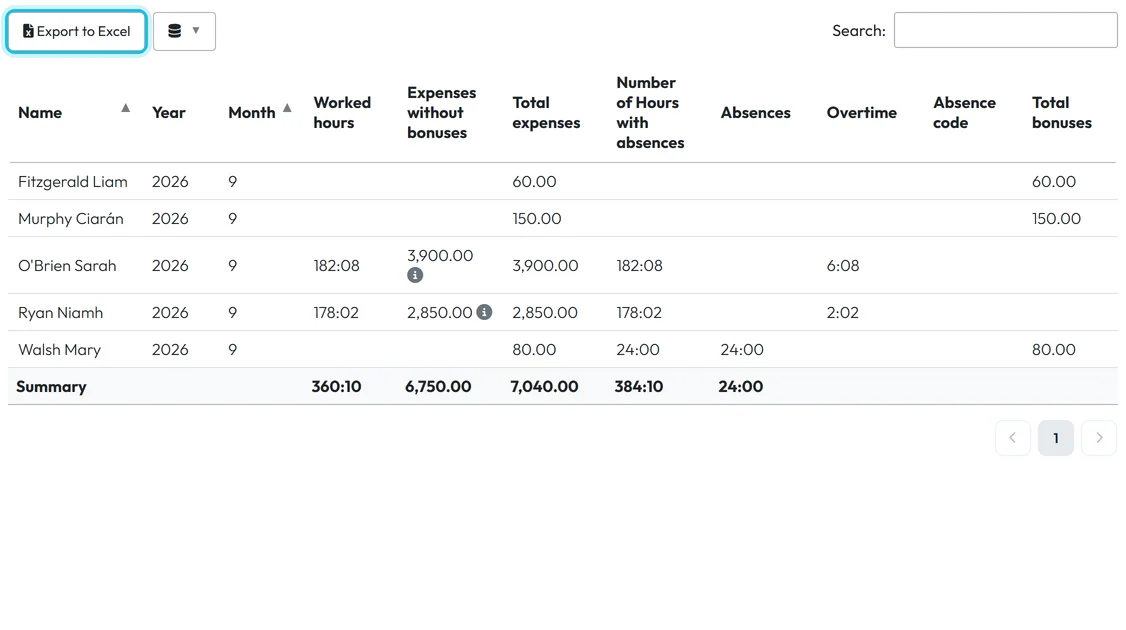
Every table tab has its own Excel export -
Fix a day straight from the report.
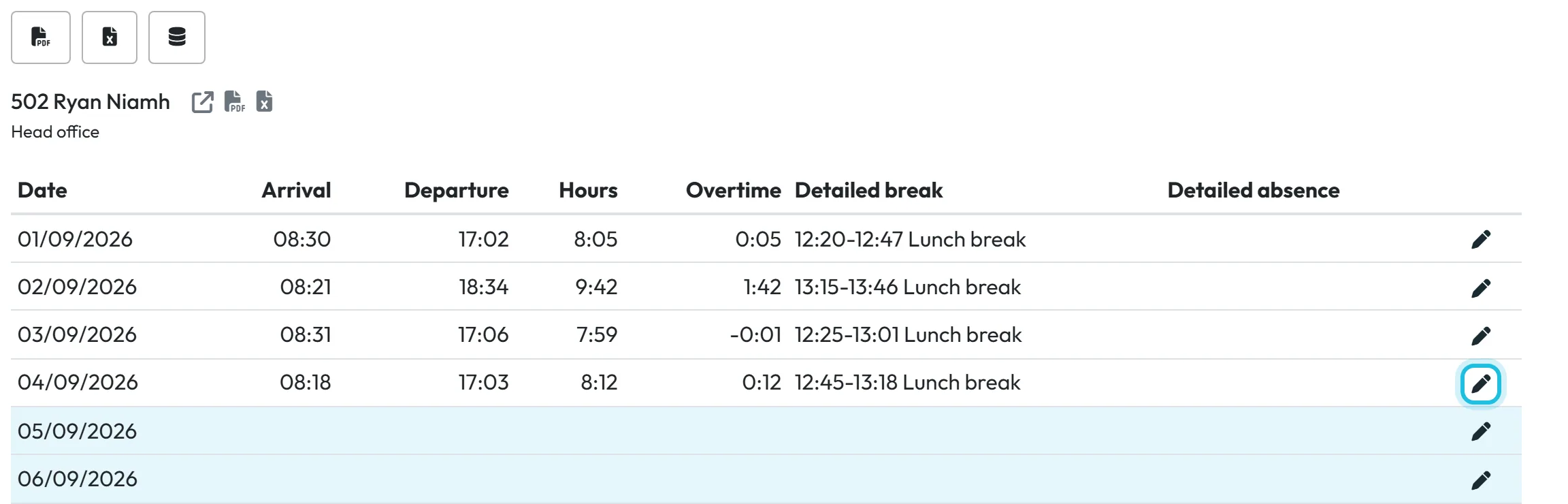
In Per employee, each day row ends with a pencil. It opens that day’s records – scans, breaks, absences – so you can correct a forgotten departure without leaving the report. How editing works is described in Scan Details.
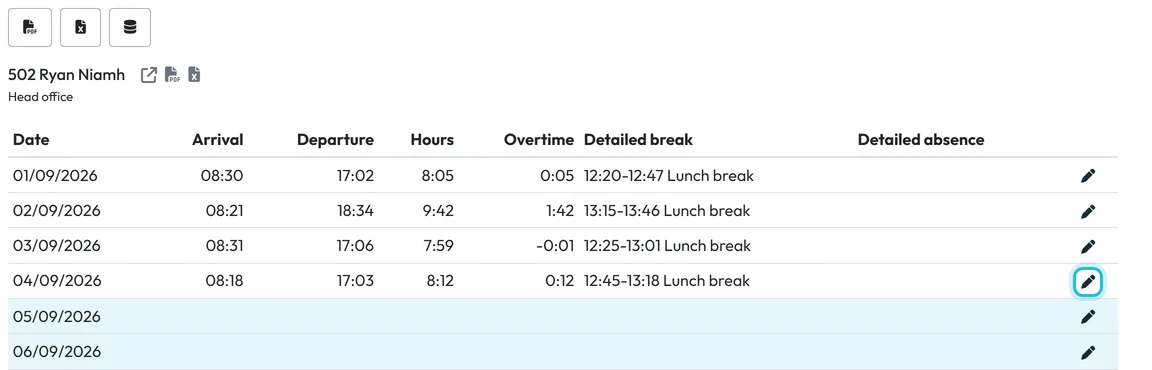
The pencil opens the day’s records for correction

#Other ways to look at hours
- One employee at a timeOpen Employees, click the person and go to the Monthly report tab. It is the same data as Per employee, for one person, with a summary under the table – see Monthly employee report.
- Live view on the DashboardFor “who is here right now” rather than “how many hours last month”, use the Dashboard.
- Employees in the appEmployees see their own hours in the app under Reports, if you allow it – see Reports in the mobile app.
#Special cases and tips
- A tab is missing
- Tabs appear only when there is data for them. Branches/Projects Overview and Branches/Projects Comparison also need the setting Calculate worked hours per branch – see Branch reports. Branch Manager and Project Manager accounts see fewer tabs by design.
- Hours differ from the raw scans
- Reports use worked time after rounding, anchoring and automatic breaks, not the raw scan times. The rules are set in Work Schedules.
- A colleague sees different filters
- Pinned filters belong to each user account. Your pins don’t change what anyone else sees.
- An old month has disappeared
- The month is probably in a locked period with the mode Hide, which removes it from every report and export.
- “No attendance records for this period”
- Nobody scanned in the chosen period, or your filter leaves nobody in the list. Remove the chips one by one to see which filter is too narrow.
#Frequently asked questions
Who can open Table Reports?
The Owner, Administrators, both Manager roles and accounts with a Reports role. Branch and Project Manager accounts see only their own branches or projects and fewer tabs. A user account linked to an employee sees that employee and the people below them in the organigram.
Do filters apply to the Excel export?
Yes. The export contains the employees and the period you have on screen.
Can I save a filter for all managers?
No. Pinned filters are personal. Each manager pins their own.
Do unapproved absence requests count in reports?
No. Only approved absences count. A request still waiting for a decision is left out until someone approves it.
Why is the report showing a month in the future?
It opens on the latest month with data, and planned shifts count as data. Pick the month you want in the period selector.
#Related
You are hereTable reports – tabs and filters
Web app (administrator)Mobile app (employee)



