Employee notes: read and handle notes from your staff
On this page
Quick answer
Employee notes are short texts your staff add to a day in the FreshQR app, such as “Left early – dentist”. In the web app, click Notes in the left menu; the red number shows unread notes. Read each one, open that day’s attendance if needed and click Mark as read. An e-mail rule can tell you about new notes.
#What it's good for
- The reason behind an odd day sits right next to it: “worked at the other site in the afternoon”, “alarm code changed”.
- The unread counter tells you at a glance whether there is anything new, without asking around.
- Supervisors can get an e-mail about notes from their own people.
- Notes appear in reports too, so payroll sees them at month end.
#Who it's for
A good fit for
- Field and shift teams – cleaning crews, site staff, hospitality – who report small things from the job.
- Payroll staff who need to know why a day looks different.
Not the right fit for
- Conversations. There is no reply to a note, and the employee doesn’t see that you have read it. Talk to them, or create a todo if something needs doing.
- Leave requests. Those go through Absences – see Request leave.
#Step by step
-
Look at the counter.
The red number next to Notes in the left menu is the number of unread notes. How employees write them is described in Add a note to your timesheet.
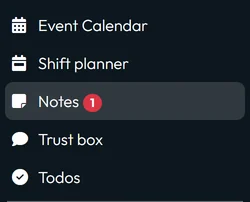
The counter shows unread notes -
Open Notes.
Click Notes. The Daily notes tab lists the notes, and if you can edit notes the Status filter starts on Unread. Each note shows its date, the employee’s name and the text.
Two icons help with context: the arrow next to the name opens the employee’s profile in a new tab, and the calendar icon on the right opens Employee Day Records – that day’s scans and absences.

Unread notes with Mark as read -
Mark the note as read.
Click Mark as read on the note. A tick with the date and time replaces it. To go through everything at once, use Mark all as read. When nothing is left, the list says Great, you read all notes.
Read status is shared: once anyone marks a note as read, it is read for every manager. Changed your mind? The crossed-out eye icon marks it unread again.

A read note shows when it was read -
Find older notes of one person.
Set Status to All and pick the person in User Name. The × next to the field clears it. Export to Excel downloads the notes with the filters you have set.
-
Get an e-mail about new notes (optional).
In My Company › Notifications, switch on New employee note and choose the recipients. With Direct supervisor, each note goes to the team lead of the employee who wrote it. Several new notes arrive together in one e-mail. More in Email notifications.

E-mail the team lead about new notes



#Where else notes show up
- In Table ReportsNotes can appear as a column or a row next to the day in the Per employee report and its exports – choose Notes (Column) or Notes (Row) in a timesheet template.
- In the Event CalendarA small number on a day in the staff leave calendar means there are notes for that day; click it to read them.
- In ChecksThe attendance exceptions report (Beta) counts unread notes among the things to look at before closing the month.
#Special cases and tips
- Notes can change after you read them
- Employees can still edit their own note in the app later. If a note matters for payroll, read it again before you close the month.
- A team lead sees fewer notes
- An account linked to an employee sees only notes of its own team in the organigram.
- Deleting a note
- The red × deletes a note after Are you sure? › Yes, delete. Use it for duplicates or mistakes.
#Frequently asked questions
Does the employee know I have read their note?
No. Read status is visible only in the web app.
How do I respond to a note?
Talk to the employee, or create a todo for them if something needs doing. Notes themselves have no reply button.
Can colleagues read each other’s notes?
No. A note is visible to the employee who wrote it and to web accounts that can open Notes or reports.
Do notes change the hours worked?
No. A note is text only. To change attendance, edit the scans.
Who can mark notes as read?
The Owner, Administrators, Manager: Full Access except Company settings and Notes: View & Edit. Notes: View Only can read but not mark them.
#Related
You are hereEmployee notes
Administrator
Employee
Web app (administrator)Mobile app (employee)



