Concurrent absence limit: how many people can be off at once
On this page
Quick answer
The concurrent absence limit caps how many employees can have approved leave on the same day. Set Max Concurrent Employees on a leave allowance under Absences › Absence types. When the cap is reached, the employee’s app refuses new requests for those days, and in the web app you see a red warning before approving.
#What it's good for
- A cleaning crew, a kitchen or a production line keeps enough people: if four of six want the same week, the app stops the fourth request.
- Employees find out at once that the dates are taken and pick others, instead of waiting for a “no”.
- Approvers see the warning, the day it happens and the names involved before they click Approve.
#Who it's for
A good fit for
- Small shift-based teams where every absence is felt: hospitality, retail, cleaning and facility services, production, care.
- Companies with peak seasons when only a few people can be away.
Not the right fit for
- Offices where it doesn’t matter how many people are away at once.
- Companies where the manager plans everyone’s leave centrally anyway – you are already the limit.
- If you need a different cap per branch or team: the limit applies to the whole company.
#How the count works
- The cap belongs to a leave allowance (for example Annual leave) and covers every absence type assigned to it.
- For each day of a new request, FreshQR counts the other employees who already have an approved absence in that allowance. Requests with status Entered don’t count.
- The request itself adds one person. With a cap of 2 and two colleagues already off, a third request is over the limit.
- The limit is company-wide. There is no separate value per branch, project or team.
| Where | What happens at the cap |
|---|---|
| Employee’s app | The request is refused and nothing is saved – also for types that are approved automatically. |
| Absences list (web) | A warning icon in the Type column; you can still approve. |
| Request detail (web) | A red warning box and a count row in Who else is out; you can still approve. |
| + Create (web) | No check. |
#Step by step
-
Set Max Concurrent Employees on the allowance.
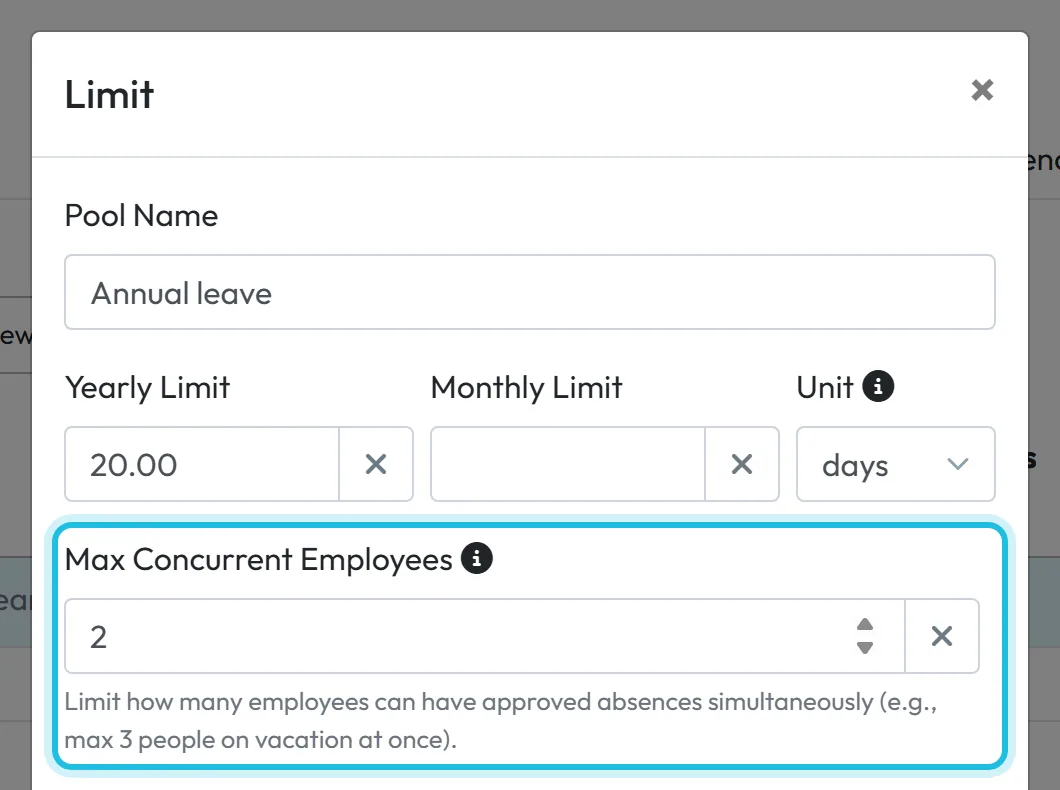
Go to Absences › Absence types and click the pencil on the header of the allowance, for example Annual leave. In Max Concurrent Employees enter the number of people who may be off at the same time – say 2 – and save. Leave it empty for no cap. Only the Owner and Administrators can change it.
Make sure every type that should count is assigned to the allowance – see Leave allowance and absence pools.
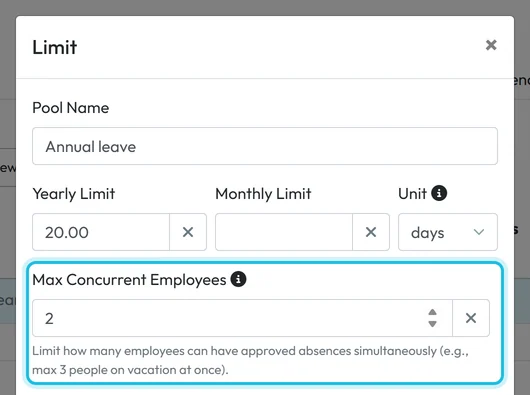
At most 2 people on leave at the same time -
Know what the employee sees.
When an employee taps Finish on a request that would go over the cap, the app shows a message like
Sorry, too many colleagues (2) are already off from "Annual leave" on 2026-11-17. Please choose a different date.
The number in brackets is your cap, the name is the allowance and the date is the first day that is full, written year-month-day. Nothing is saved; the employee picks other dates. Their side is described in Requesting leave and other absences.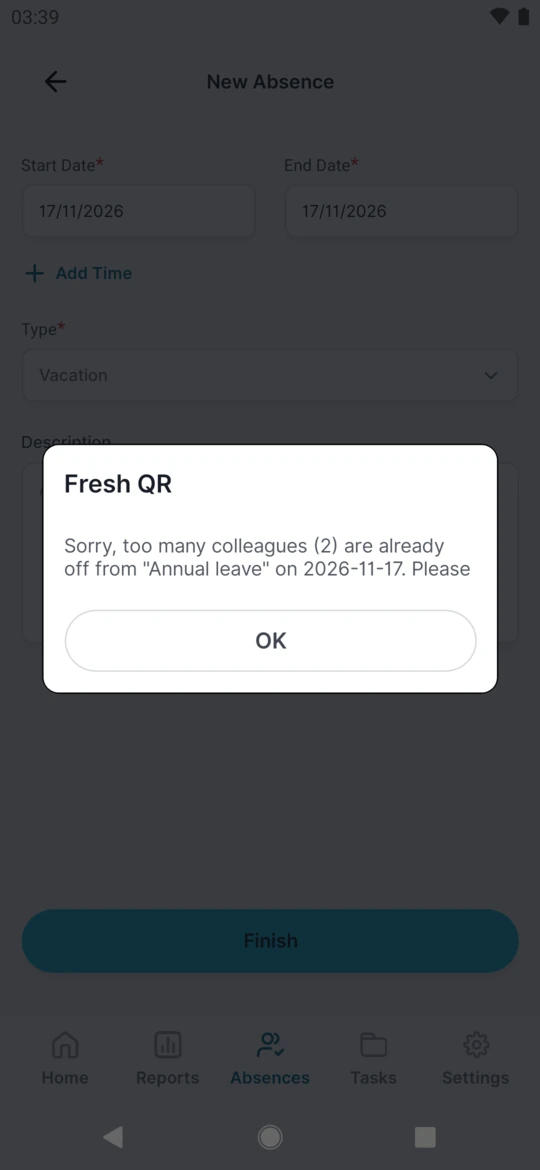
On a full day the app does not save the request -
Spot over-limit requests in the Absences list.
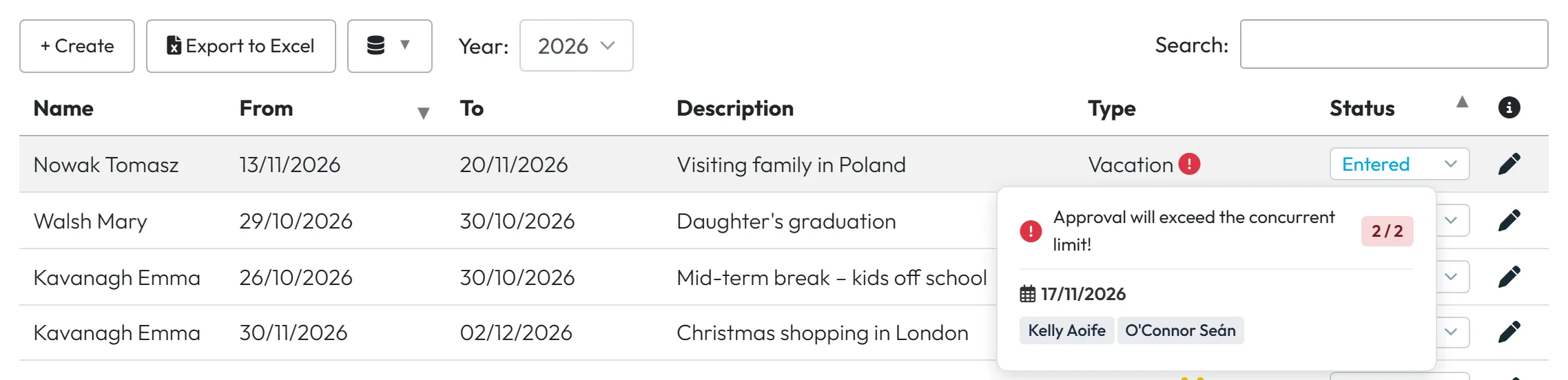
In the Absences list, requests and approved absences of a capped allowance get an icon in the Type column: a yellow people icon while the day is within the cap, a red exclamation mark when it is over. Hover over the icon to see the busiest day, the count and the names.
You see these mainly for absences you entered yourself, requests sent before you set the cap, or ones approved anyway.
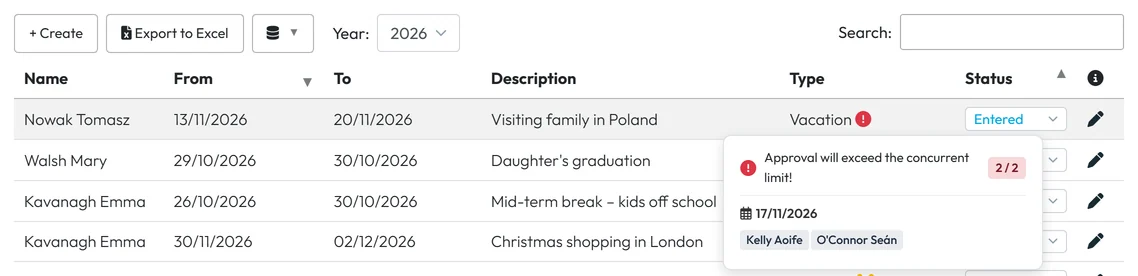
The red icon warns before you approve -
Read the warning on the request.
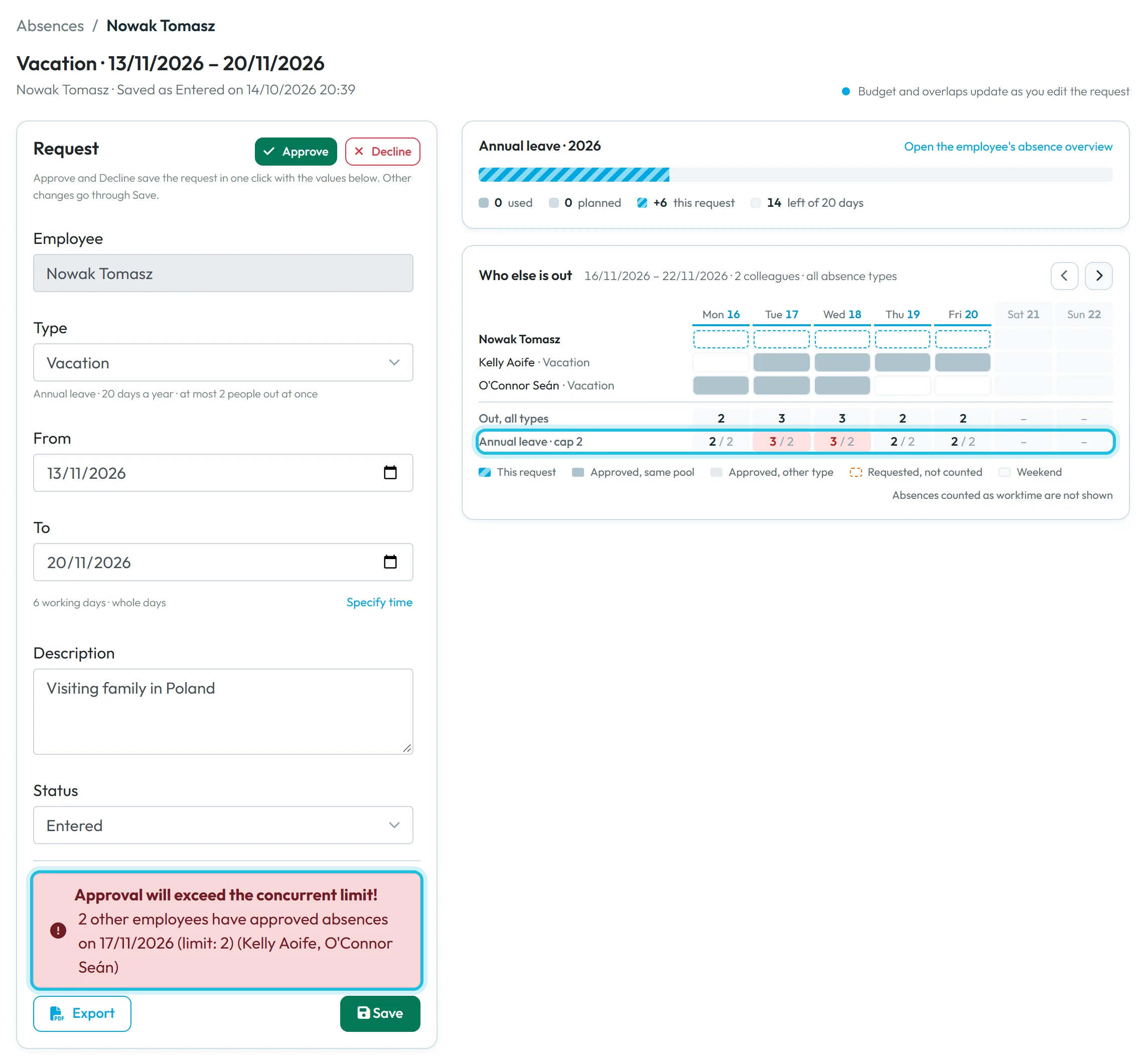
Open the request. Above the buttons, a red box says
Approval will exceed the concurrent limit!
(orConcurrent limit exceeded!
for an absence that is already approved), followed by a line such as “2 other employees have approved absences on 17/11/2026 (limit: 2)” and the names. Colleagues outside your team are counted but not named.Under Who else is out, an extra row – for example Annual leave · cap 2 – shows the count per day and marks the days over the cap in red. If the request starts in a quiet week, click Next week to reach the full day.
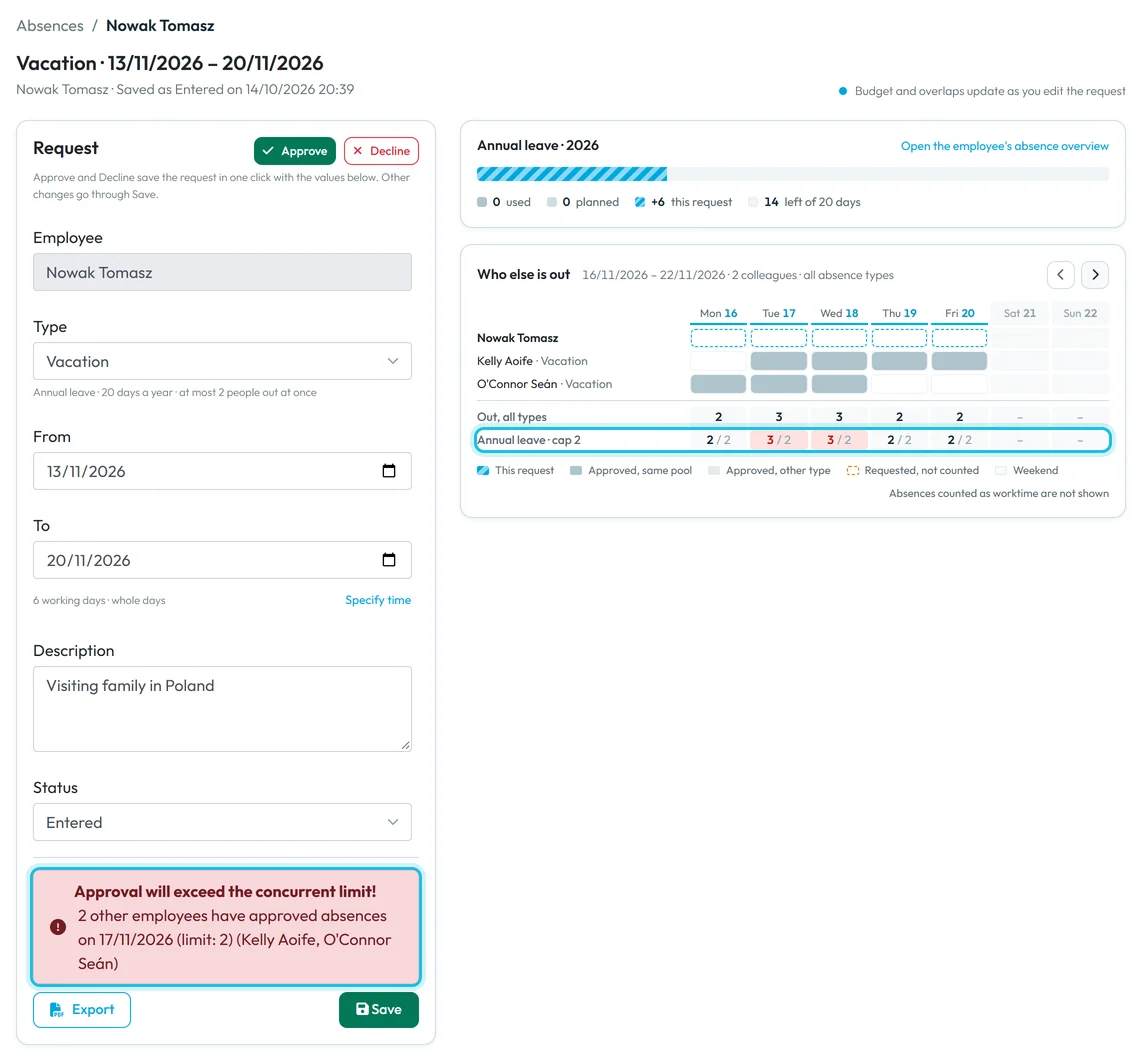
The request detail shows the same warning -
Decide.
The web app only warns. You can still click Approve – for example when someone else has agreed to cover – or Decline and ask the employee for other dates. The steps are in Approving leave requests.
#Other ways to avoid leave clashes
- Let employees see each other’s leaveTurn on the team absence calendar in the app, so people check who is off before they ask.
- Look at the monthThe Event Calendar shows everyone’s approved and requested leave for the month in one view.
#Special cases and tips
- Existing absences over the new cap
- Setting the cap doesn’t change anything already approved. Those absences stay, and you see the red warning on them.
- Other absence types
- Only types assigned to the same allowance count. A doctor visit in the doctor-visit allowance doesn’t count towards the cap on annual leave.
- Entering leave yourself
- + Create doesn’t check the cap, so you can always enter an absence. The warning icon then shows in the list.
- Valid values
- Any whole number from 1 to 1000. Empty or 0 means no cap.
#Frequently asked questions
Do requested absences count towards the cap?
No. Only approved absences of other employees count. The request being checked adds one.
Can I set the cap per branch or team?
No. The cap belongs to a leave allowance and applies to the whole company.
Can I approve leave over the cap?
Yes. The web app shows a warning but lets you approve. The employee’s app, however, refuses requests that would go over the cap.
Does the cap apply to automatically approved types?
Yes. If the type is in a capped allowance, the app refuses the request in the same way.
What does the number in the employee’s error message mean?
It is the cap you set, not the number of colleagues who are off.
#Related
You are hereConcurrent absence limit
Administrator
Employee
Web app (administrator)Mobile app (employee)



