Attendance QR codes: print, style and regenerate them
On this page
Quick answer
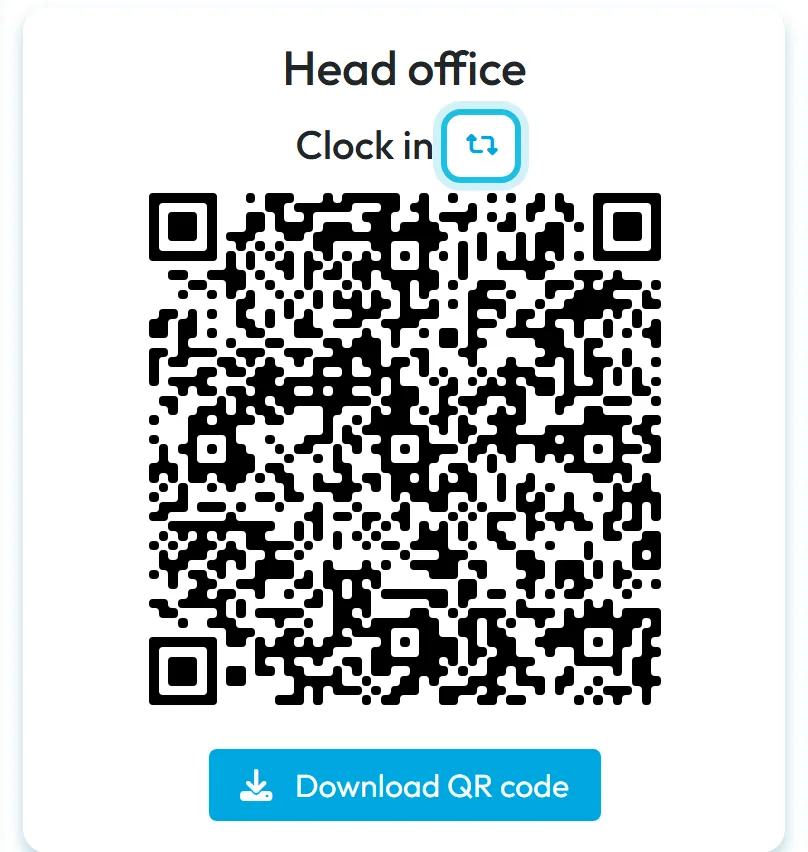
You find each attendance QR code in the web app under Attendance (QR Codes). Every branch has two: Clock in and Clock out. Click Download both QR codes on the same PDF, print the page and hang it by the entrance. Employees scan the codes with their own phones. The codes don’t expire; they change only when you regenerate them.
#What it's good for
- No time clock, card reader or fob system. A sheet of paper on the wall and your staff’s phones are enough.
- Each branch has its own codes, so the reports show who worked where.
- You can set the colour and print size to suit your company and the space on the wall.
- If a code leaks, you create a new one in seconds – and any scans of the old one are clearly marked.
#Who it's for
A good fit for
- Fixed workplaces: offices, depots, cafés, shops, plants and warehouses.
- Companies that want attendance without buying hardware. For a comparison with time clocks, see the time clock alternative page.
Not the right fit for
- Work on jobs and client sites. Projects have their own single code in the project detail – see Projects and project QR codes.
- Staff without a phone. Everyone scans on their own phone; FreshQR has no shared scanning device. For staff with fixed hours, automatic attendance records the days without a scan.
#Step by step
-
Open Attendance (QR Codes).
In the left menu, click Attendance (QR Codes). You’ll see two large codes, Clock in and Clock out, for the selected branch. Your company got its first branch with codes at sign-up. In the employee app the same scans are called arrival and departure.
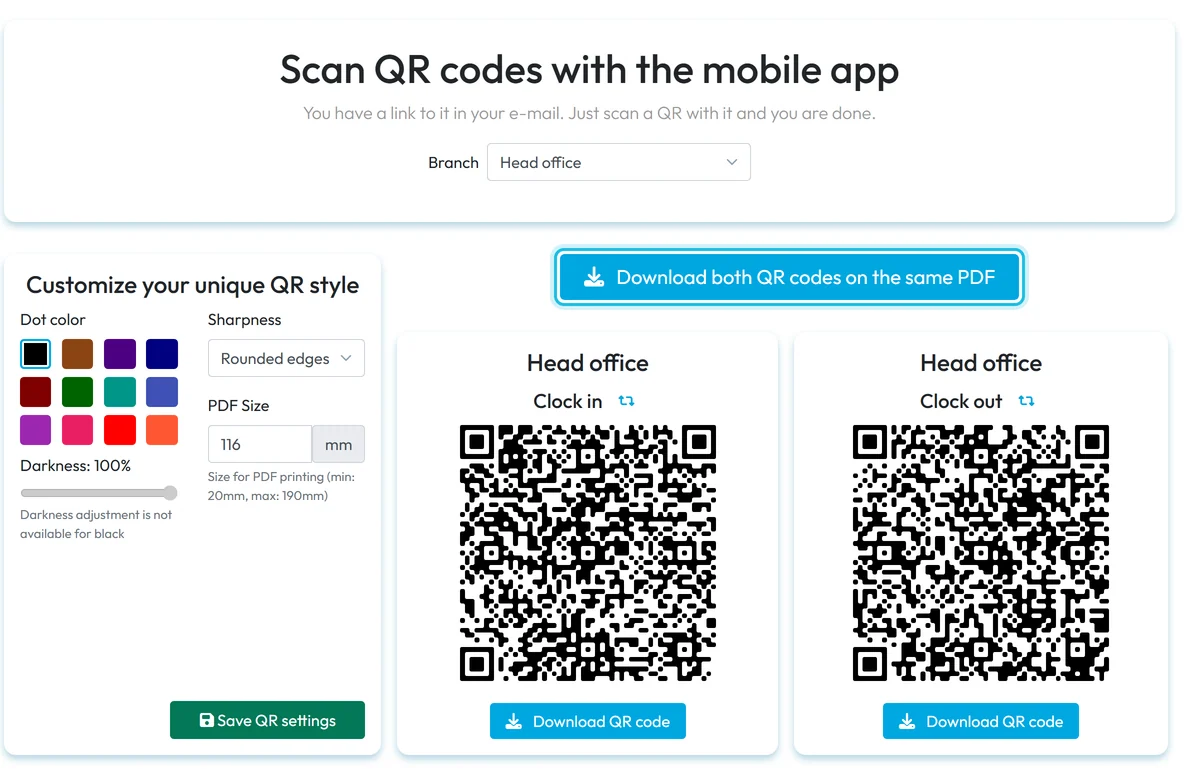
Every branch has its own clock-in and clock-out QR code -
Choose the branch.
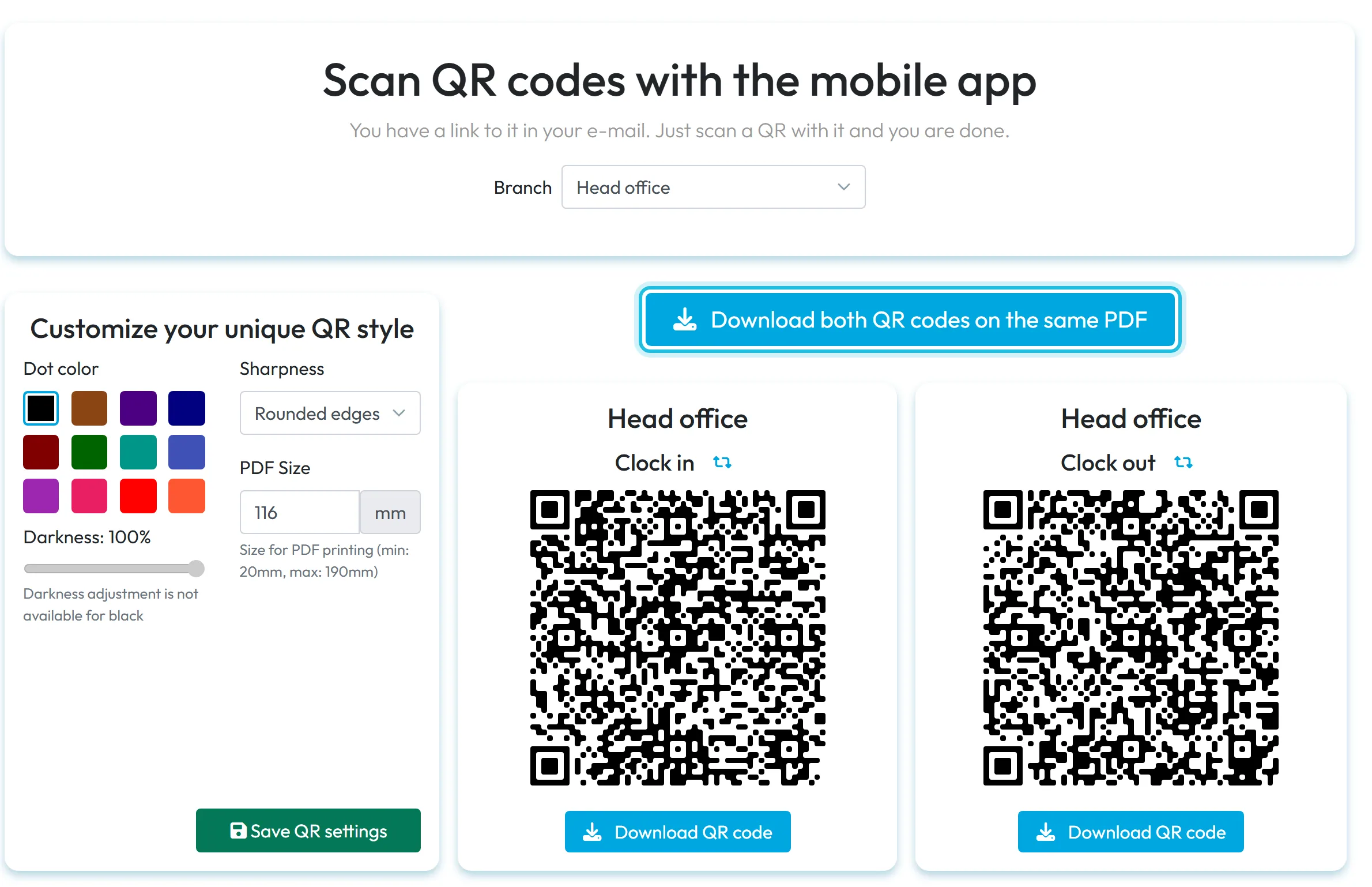
If you have more than one branch, pick the right one in the Branch field at the top. The app remembers your choice. Before printing, check which branch is selected – each one has different codes. You add new branches in My Company › Branches, see Branches.

Pick the branch to see its QR codes -
Change the look if you like.
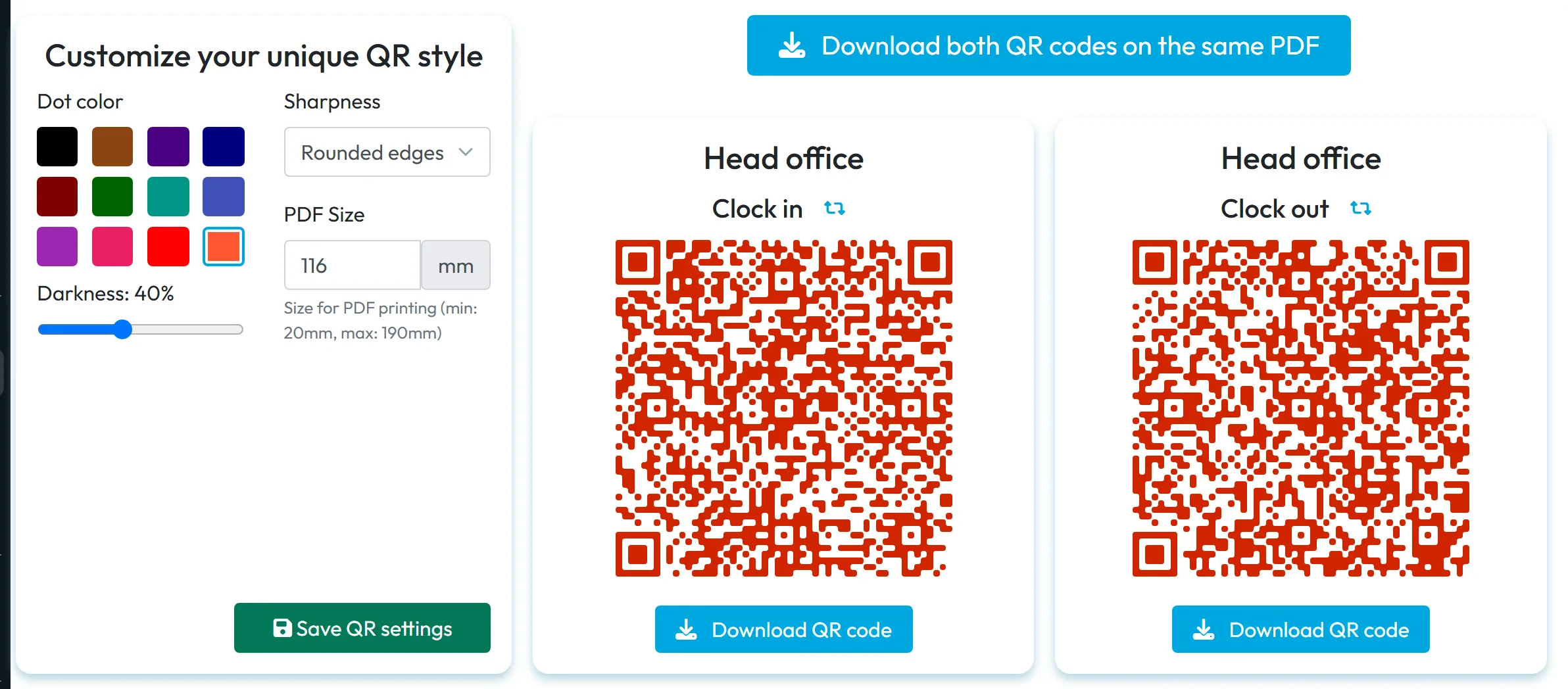
The panel Customize your unique QR style offers Dot color, Sharpness (rounded or sharp edges), Darkness and PDF Size from 20 to 190 mm. Darkness can’t be changed for black. Choosing a colour can reset Darkness, so set it last. Save with Save QR settings. Light colours are harder to read, so test the code with a phone straight from the screen before you print.
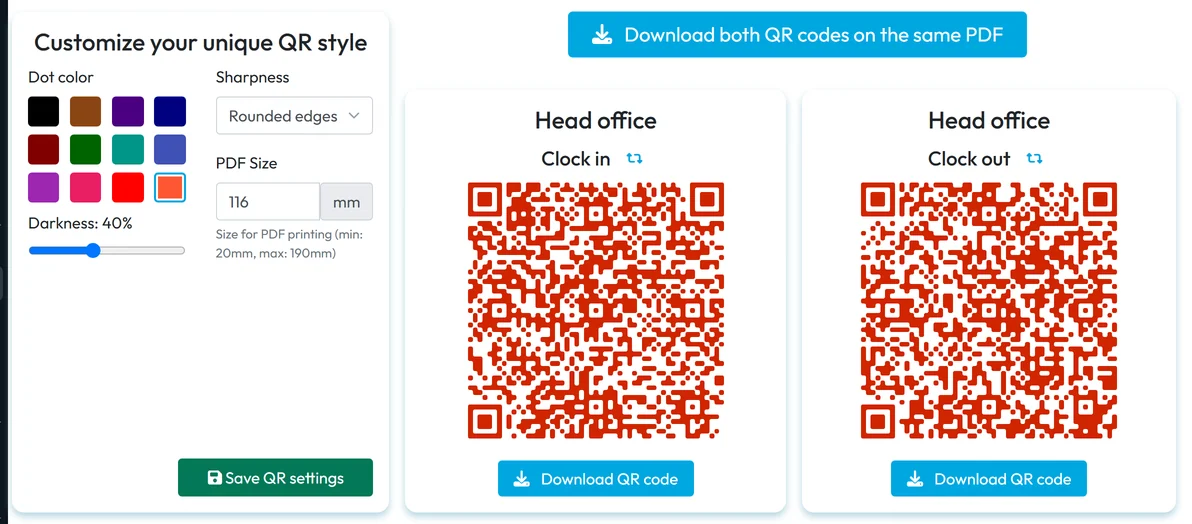
Adjust the colour and print size before printing -
Download the PDF.
Download both QR codes on the same PDF puts both codes on one page – handy when they hang side by side. If you want them in two different places, use Download QR code under each code instead. -
Print and put them up.
Put Clock in by the staff entrance and Clock out by the exit. If people come and go through the same door, hang both side by side and make the difference obvious. At Brightway’s Equipment depot in Ballymount both codes hang next to the store room door, where staff collect their equipment.
- Hang the code at eye level, somewhere well lit.
- If you laminate it, use a matt pouch. Gloss reflects light and phones read the code less easily.
- Don’t hang it where it can be seen from the street.
What scanning looks like on the employee’s phone is shown in Clocking in and out with a QR code.

#What happens when someone scans
- Clock in opens an attendance record at the branch whose code was scanned. The time and the phone’s GPS position are saved with the scan.
- Clock out closes the record.
- A second clock-in in a row isn’t recorded – the employee sees
You have already scanned this code
. A clock-out without an open clock-in doesn’t work either – the phone saysScan Arrival first, please
. - Clock out can be scanned at a different branch from the one where the employee clocked in. If you don’t want that, switch on Block attendance closing on different branch in Mobile App Settings.
- The first scan from a phone that isn’t connected to a company yet also links it to your company, and the employee gets the branch of the code they scanned.
All the messages an employee might see on the phone are explained in Invalid or already scanned QR code.
#When a QR code leaks: regenerate it
Sometimes someone takes a photo of the code and tries to clock in from home. In that case, regenerate the code:
- On the Attendance (QR Codes) page, click the arrows icon next to the Clock in or Clock out title. When you hover over it, the tooltip says Regenerate QR code.
- The old code is replaced by a new one immediately, with no confirmation.
- Download and print the new code and swap it on the wall.
A scan of the old printed code is still recorded after you regenerate. In Scan Details, though, its clock-in time is shown in red, with the explanation In this case, an invalid version of the QR code was scanned
. So that such a scan doesn’t slip past you, switch on the rule Unauthorized scan detected in My Company › Notifications. Its hint says: Unauthorized scan refers to scanning an old QR code after regenerating it. Notifications are sent within 30 minutes.
See Email notifications and Scan details.
#Other ways to use the QR codes
- A code on the screenThe code doesn’t have to be printed. When you train new people, they can scan it straight from your monitor. That’s exactly what the wizard after sign-up does – see Getting started after sign-up.
- Inviting employeesAt the bottom of the page is the field Send link to apps to email:. Use it to send an employee the store links for the Fresh QR app. See How to add employees.
- Codes for client sitesFor work at client buildings or building sites, create projects. Each project has one code for clocking in and out – see Branches or projects – which to choose.
#Special cases and tips
- You regenerated by mistake
- The old code can’t be brought back. Print the new code and replace the old one. Until you do, scans are still recorded but marked in red. So don’t click the regenerate icon just to try it out.
- Someone scans a photo of the code at home
- A QR code can’t tell where the phone is. That’s why FreshQR saves the GPS position and the distance from the branch with every scan – see GPS location check and accuracy. Even stronger proof is a required photo on scan.
- The phone won’t read the code
- Better light usually helps, or replacing a damaged or dirty print. The messages on the phone are explained in Invalid or already scanned QR code.
- One code for clocking in and out
- Not for a branch – Clock in and Clock out are always two codes. A single code for both is what projects use.
- Several entrances
- You can print the same code several times and hang a copy at each entrance. All copies work the same way.
#Frequently asked questions
Do attendance QR codes expire?
No. A code stays valid until you regenerate it.
Can I have one QR code for all branches?
No. Each branch has its own pair of codes. That’s how you see which branch an employee worked at.
What do employees scan the code with?
The free Fresh QR app on their own phone. The ordinary phone camera doesn’t record attendance.
Can someone scan a photo of the code?
Technically, yes. That’s why the GPS position is saved with each scan and you can require a photo. If a code leaks, regenerate it.
What paper should I print the codes on?
Ordinary A4 paper is fine. For codes that stay up for a long time, laminate them in a matt pouch.
#Related
You are hereClock-in and clock-out QR codes
Web app (administrator)Mobile app (employee)



