Absence types in FreshQR: what each setting does
On this page
Quick answer
Absence types decide how each absence is counted: vacation, sick leave, doctor visit, home office and so on. Set them up under Absences › Absence types. Each type has a name the employee sees in the app, a short code for reports, an optional leave allowance, and switches such as Automatically approved or Ignored during non-working days.
How to turn it on
Every company starts with 13 ready-made absence types and two leave allowances (vacation and doctor visits), so you can use FreshQR without changing anything. Open the tab when you want to rename a type, add your own or change how a type is counted.
- Absences
- Absence types
- Who can turn it on
- Owner and Administrator. Managers, including Absences: View & Edit, don’t see this tab.
- What changes
- The employee’s app picks up the change the next time the absence screen loads: new names, new types and the new order appear in the Type list. A flag change recalculates reports, except inside locked periods.
- Applies to
- The whole company. Absence types can’t differ per employee; only the leave allowance can be set individually.
#What it's good for
- Absences are counted the way your company works: vacation skips weekends, home office counts as work, on-call time is kept apart.
- Requests that never need a decision, such as a doctor visit, can be approved automatically.
- Each type can draw on a leave allowance, so the balance and the warnings know which absences use up which days.
- The order you set is the order your employees see in the app, with the most common type pre-selected.
#Who it's for
A good fit for
- Every company at setup – a quick look at the defaults is worth five minutes.
- Companies with their own kinds of absence, such as blood donation, training days or a “sick day” without a doctor’s note.
- Companies that hand absence data to payroll and need each type counted correctly.
Not the right fit for
- A small team that is happy with the 13 default types doesn’t need to touch anything here.
- If you only want to change how many days someone gets, go to Leave allowance and absence pools instead.
#The default absence types
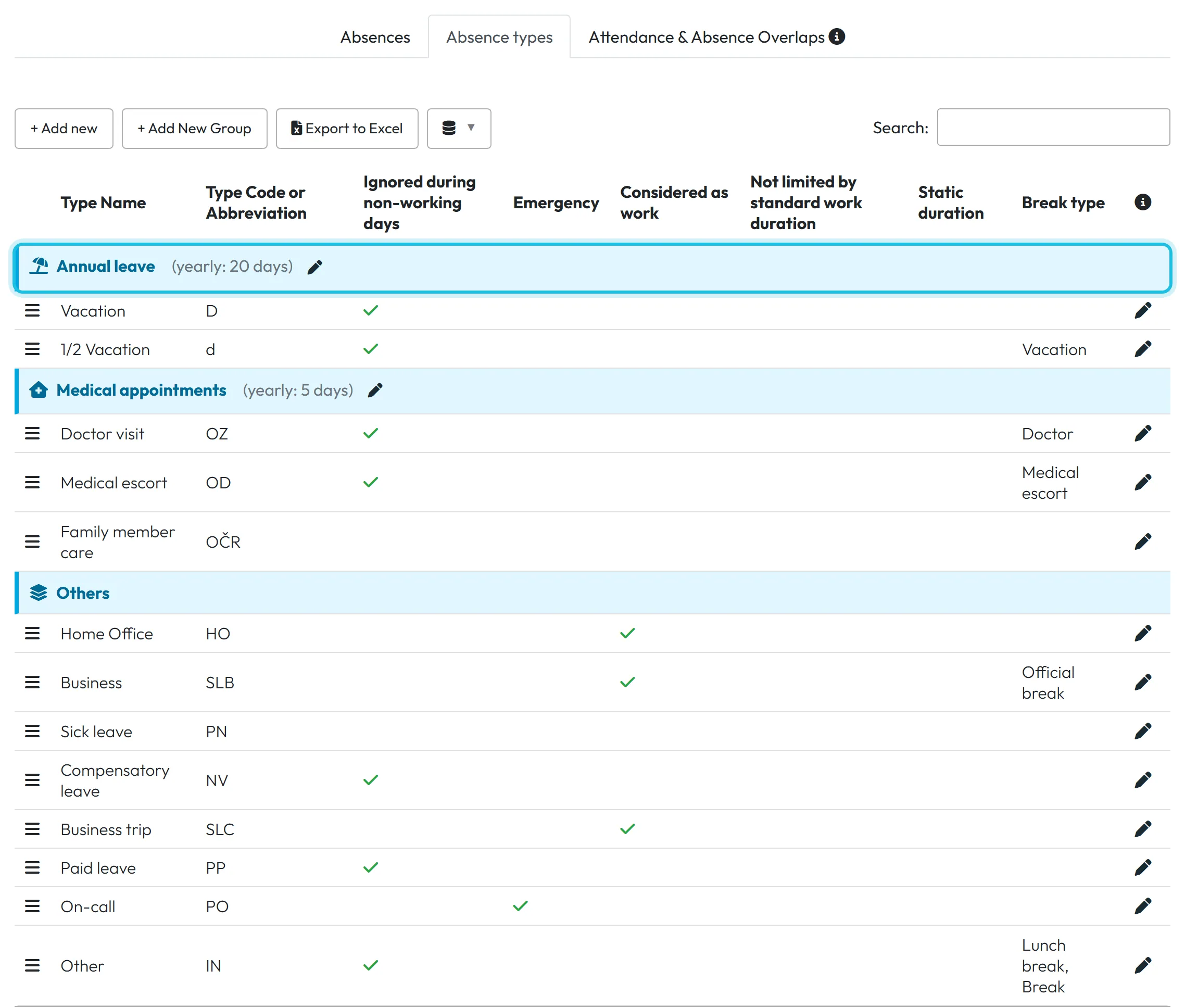
A new company gets these types. You can rename, re-order or delete any of them.
| Type | Typical use | Skips non-working days |
|---|---|---|
| Vacation, 1/2 Vacation | Annual leave, counted against the vacation allowance (20 days by default) | Yes |
| Doctor visit, Medical escort | Own doctor visit or accompanying a family member; doctor-visit allowance (7 days by default) | Yes |
| Family member care | Looking after a sick family member | No |
| Sick leave | Illness | No |
| Home Office, Business, Business trip | Work done away from the QR code – counted as work | No |
| Compensatory leave | Time off in lieu of overtime | Yes |
| Paid leave | Other paid time off, e.g. a company closure | Yes |
| On-call | Standby time | No |
| Other | Anything else | Yes |
#Step by step
-
Open the Absence types tab.
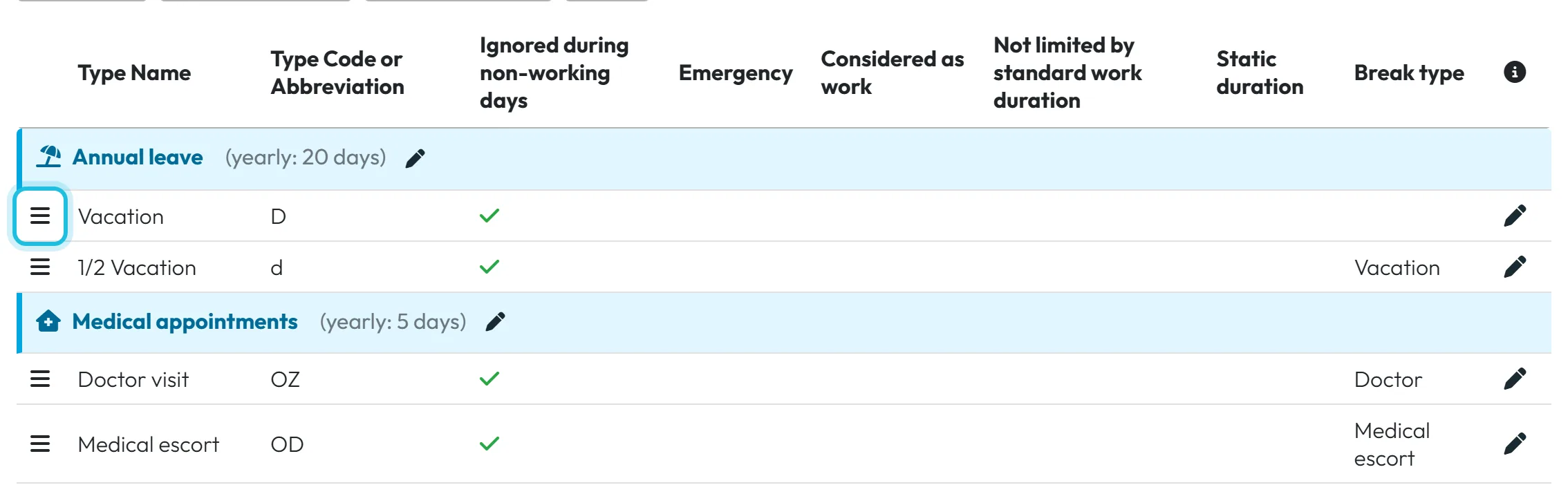
Click Absences in the left menu, then the Absence types tab. Types are grouped by leave allowance – the group header shows the allowance’s name and its yearly value, for example Annual leave with 20 days. Types without an allowance are under Others.
-
Edit a type or add a new one.
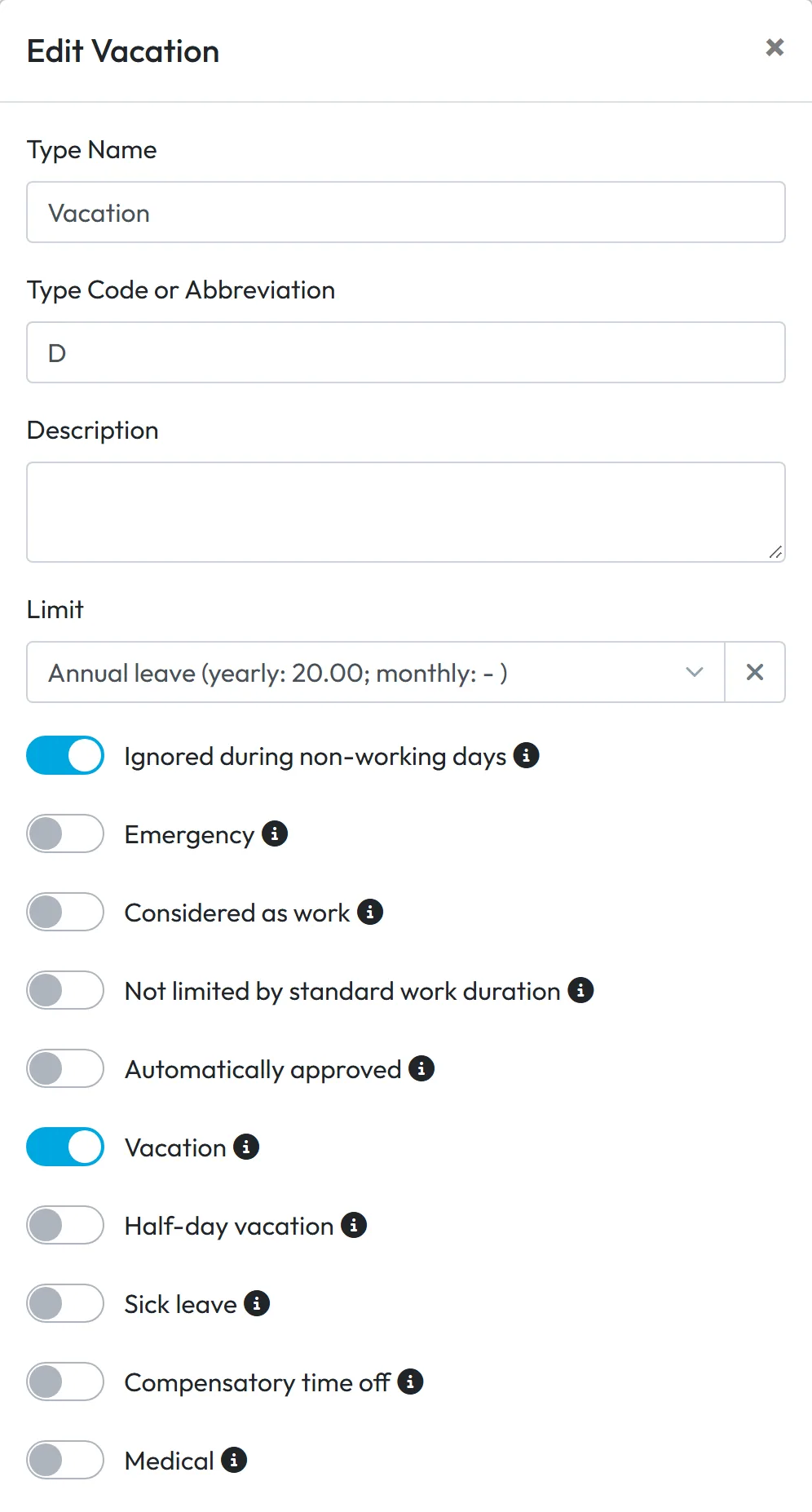
Click the pencil on a row to edit it, or + Add new in the toolbar to create a type (the form is titled Add New Absence Type). Fill in Type Name and Type Code or Abbreviation, and choose the Limit if the type should use up an allowance – for example, put a new “Training day” type under no allowance and a “Sick day” type under its own one.
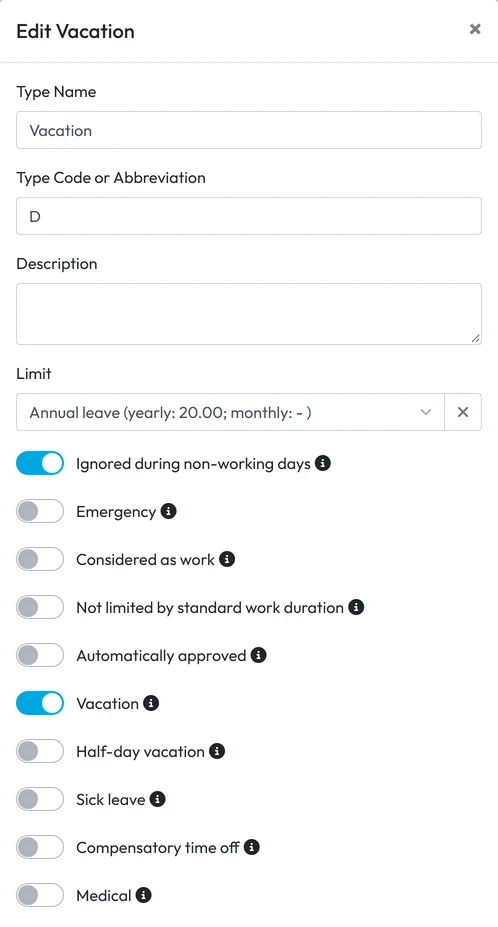
Settings of the Vacation type -
Switch on the options the type needs.
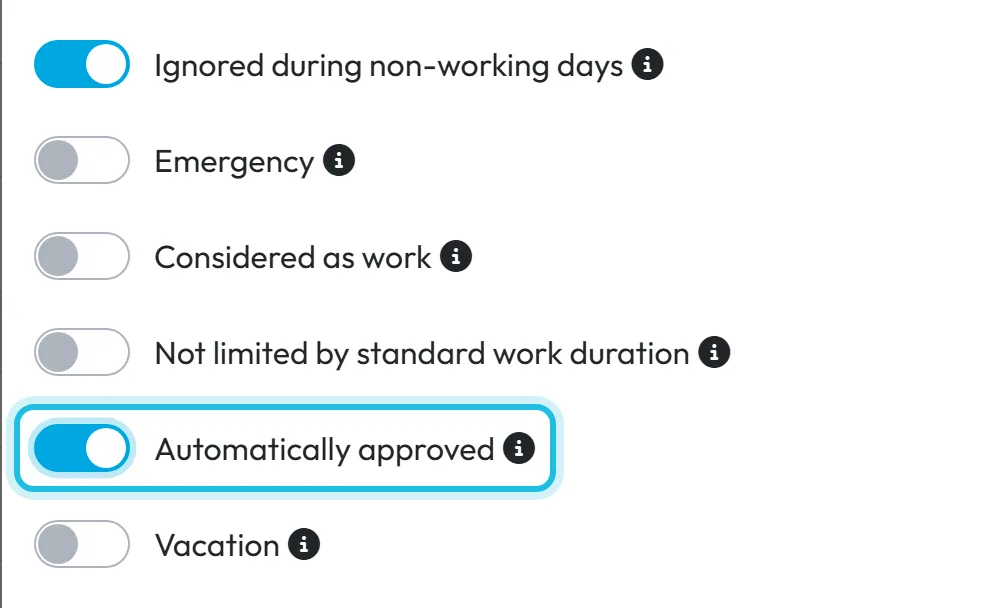
Tick the switches that describe the type – the table below the steps explains each one. The most common choice is Automatically approved for doctor visits, so those requests don’t wait for anyone. Save the form. The change shows in the employees’ app the next time they open the absence screen.
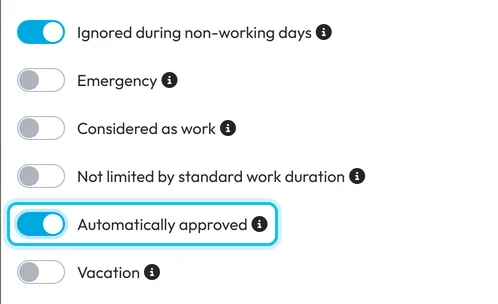
Automatically approved skips the approval step -
Link scan marks if you use automatic absences.
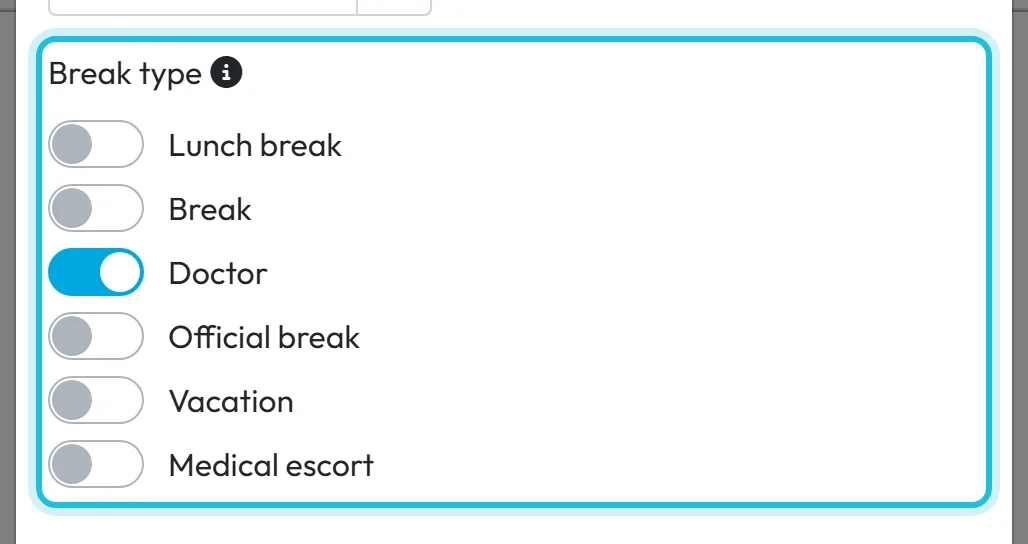
Under Break type, switch on the mark that should turn into this type – for example Doctor on the Doctor visit type. This matters only when Automatic absences is on. On a new company, check that the marks your employees use are linked.
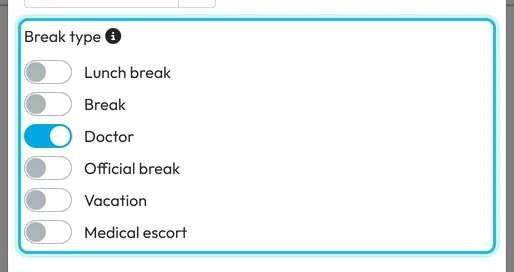
Break type links a marked scan to this absence type -
Put the types in a sensible order.
Drag a row by its handle to move it. This is the order employees see when they request leave in the app, and the first type is pre-selected there – so keep the most common type at the top. The forms in the web app list types alphabetically.
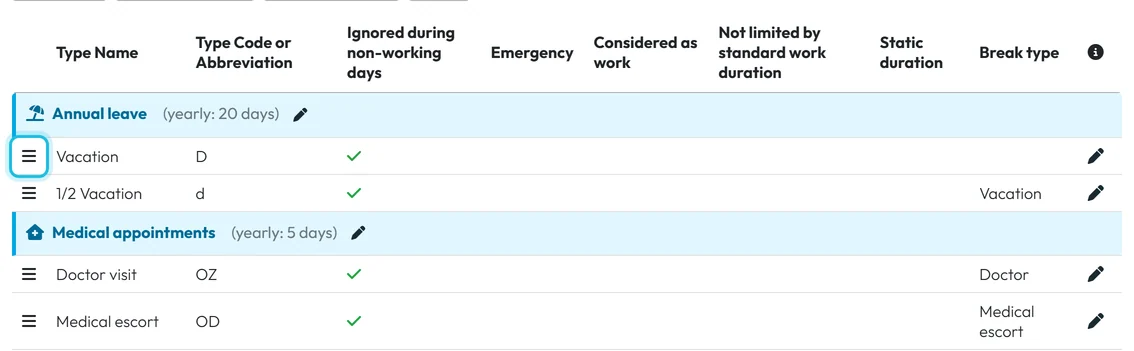
Drag the handle to change the order -
Show the switches as columns to compare types.
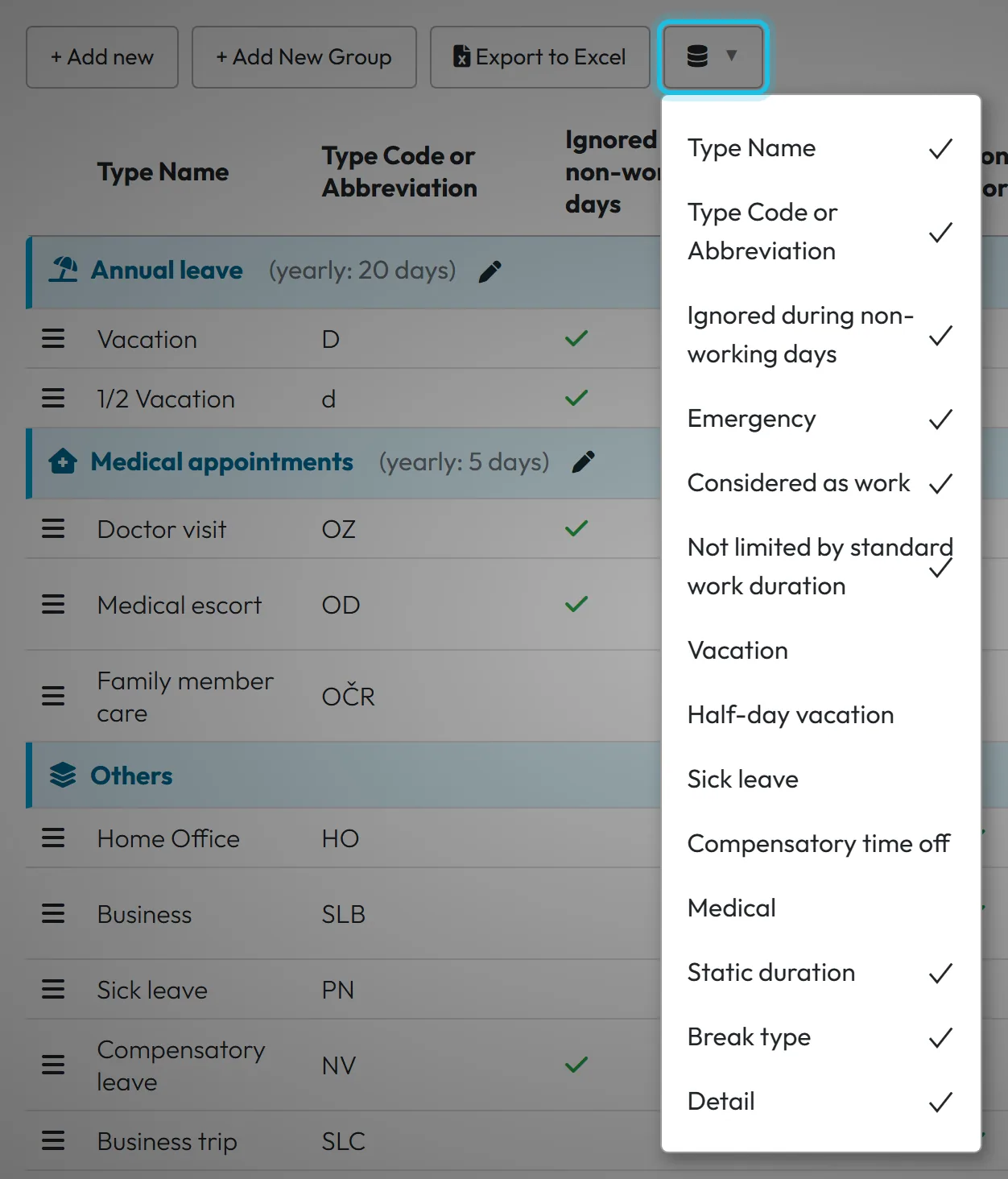
The flag columns are hidden by default. Open the column chooser in the toolbar and tick the ones you want to see side by side. Export to Excel exports the list.
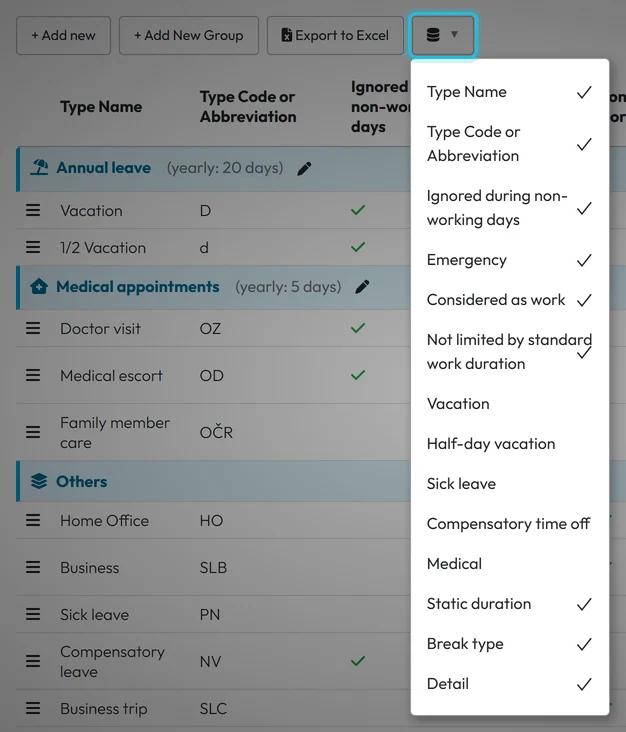
Show or hide columns
#Every setting in the type form
| Field | What it does |
|---|---|
| Type Name | Required, up to 50 characters. This is what the employee sees in the app. |
| Type Code or Abbreviation | Required, up to 10 characters. Used where space is short: reports, calendar cells, the overlaps table. |
| Description | An internal note for admins. |
| Limit | The leave allowance (absence pool) this type draws on. One per type; the × clears it. If approving an absence would go over the allowance, FreshQR asks you to confirm – see approving leave. |
| Ignored during non-working days | Whole days that fall on a weekend, a public holiday or a day without a schedule are left out. Use it for vacation, so a two-week holiday counts only working days. Absences with exact times are kept. |
| Emergency | Marks on-call time: the time counts as passive on-call, and work done inside it as active on-call. |
| Considered as work | For home office, business trips and work without a QR code. The time counts as work. |
| Not limited by standard work duration | Normally, when attendance and an absence fall on the same day, the absence is shortened so the day doesn’t exceed a normal working day. With this on, the full absence counts. |
| Automatically approved | Requests of this type from the mobile app are saved as Approved straight away. |
| Vacation, Half-day vacation | Mark the type as leave; a half-day vacation counts as half a working day in exports. Half-day can only be ticked together with Vacation. |
| Sick leave | Marks illness; exports count it on weekends and holidays too. |
| Compensatory time off | Time off that draws on overtime – see Automatic absences and compensatory time off. |
| Medical | Labels the type as doctor-related, for example Doctor visit. It is only a label: to make the type use up the doctor-visit allowance, set the Limit field. |
| Static duration | Empty means the length follows the dates and times. A value (HH:MM) makes every calendar day of the absence count exactly that long, and any times are ignored. |
| Break type | Links a scan mark from the app (for example Doctor) to this type for automatic absences. Each mark can belong to one type only. |
| Special codes | Shown only when FreshQR support has turned on a payroll export for your company; the code is written into the export. |
The Vacation and Medical switches don’t attach a type to an allowance by themselves. Use the Limit field for that.
#Special cases and tips
- Hiding a type from employees
- Delete the type (bin icon,
Are you sure?
, Yes, delete) and it disappears from the app; there is no separate “hidden” switch. Existing absences keep their type name. - Weekends counted as vacation
- Check that Ignored during non-working days is on for the type. Both default vacation types have it.
- “Emergency” means on-call
- The switch is labelled Emergency in the English app, but it marks on-call standby time – the default type using it is called On-call.
- “Break type already exists”
- A scan mark can be linked to only one absence type. Remove it from the other type first.
- Two types that look the same
- Business (counted as work) and Business trip are separate default types. Rename them if the difference isn’t clear to your team.
#Frequently asked questions
Can different employees have different absence types?
No. Absence types are the same for the whole company. The leave allowance, however, can be set individually.
How do I stop doctor visits from needing approval?
Edit the Doctor visit type and switch on Automatically approved. Requests of that type from the app are then saved as Approved.
What happens to old absences if I delete a type?
They stay, with the type name. New requests can no longer use the type.
Why does sick leave count on weekends?
The default Sick leave type does not have Ignored during non-working days switched on, so every calendar day of the illness counts.
Who can change absence types?
Only the Owner and Administrators. Other roles don’t see the Absence types tab.
#Related
You are hereAbsence types and their settings
Web app (administrator)Mobile app (employee)



