Employee work schedule: hours, rounding and automatic breaks
On this page
Quick answer
An employee work schedule in FreshQR tells the app how many hours someone should work each day. Overtime, the length of whole-day absences and planned breaks are calculated from it. You manage schedules in My Company › Work Schedules: weekly hours, who they apply to, rounding of scan times and automatic breaks. Rounding doesn’t change the original scan time.
#What it's good for
- Overtime and absences are calculated from the expected hours, not guessed.
- Different hours for the office, the depot or one person – each gets the right schedule.
- A clock-in a few minutes before the shift can count from the shift start, so early arrivals don’t inflate the hours.
- Lunch is deducted automatically after a set number of worked hours, without anyone scanning out.
#Who it's for
A good fit for
- Every company. Even if you change nothing, the default schedule decides what counts as overtime.
- Teams with fixed hours, such as an office open 8:30 to 17:00.
- Companies that want a break deducted automatically or scan times rounded.
Not the right fit for
- Teams planned shift by shift. If you use the shift planner, the published shifts set the expected hours instead – see Shift planner templates.
#What a schedule decides
- Expected hours per day. The difference between worked and expected hours is that day’s overtime, positive or negative – see Overtime.
- Working and rest days. Work on a rest day counts entirely as overtime.
- How long a whole-day absence is. A day of annual leave is worth the hours of that day in the schedule.
- Rounding and hooks. Whether scan times are adjusted before they count.
- Automatic breaks. Whether a break is deducted without anyone scanning it.
Every company starts with the schedule Every day 8 hours. Despite its name it counts 8 hours Monday to Friday, with no fixed start or end, no breaks and no rounding.
#Step by step
-
Open Work Schedules.
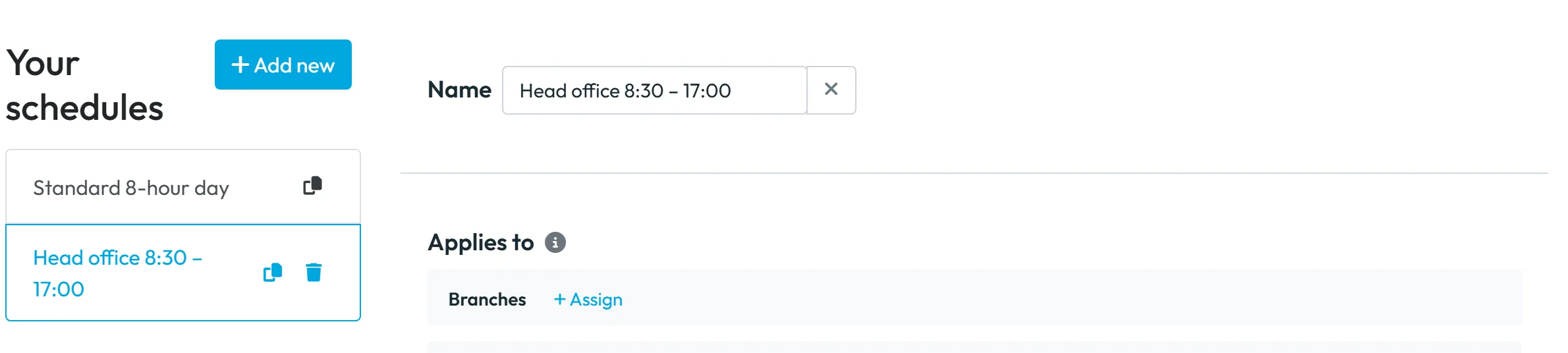
Go to My Company › Work Schedules. On the left is Your schedules. Click a schedule to edit it, or + Add new to create another one. Give it a clear Name, for example “Head office 8:30 – 17:00”.
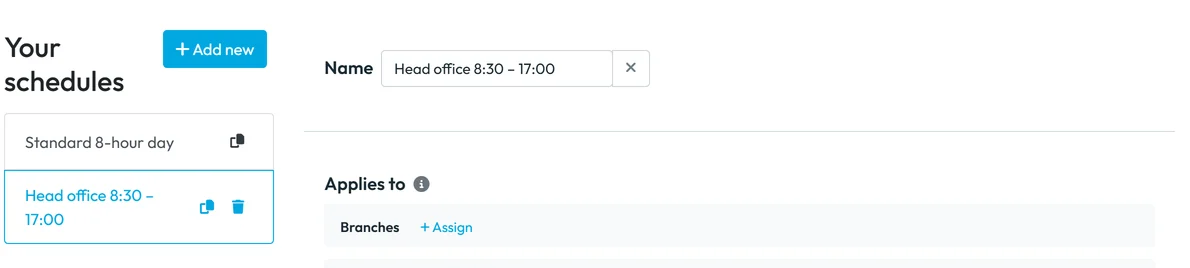
Each schedule has its own name -
Set the weekly hours.
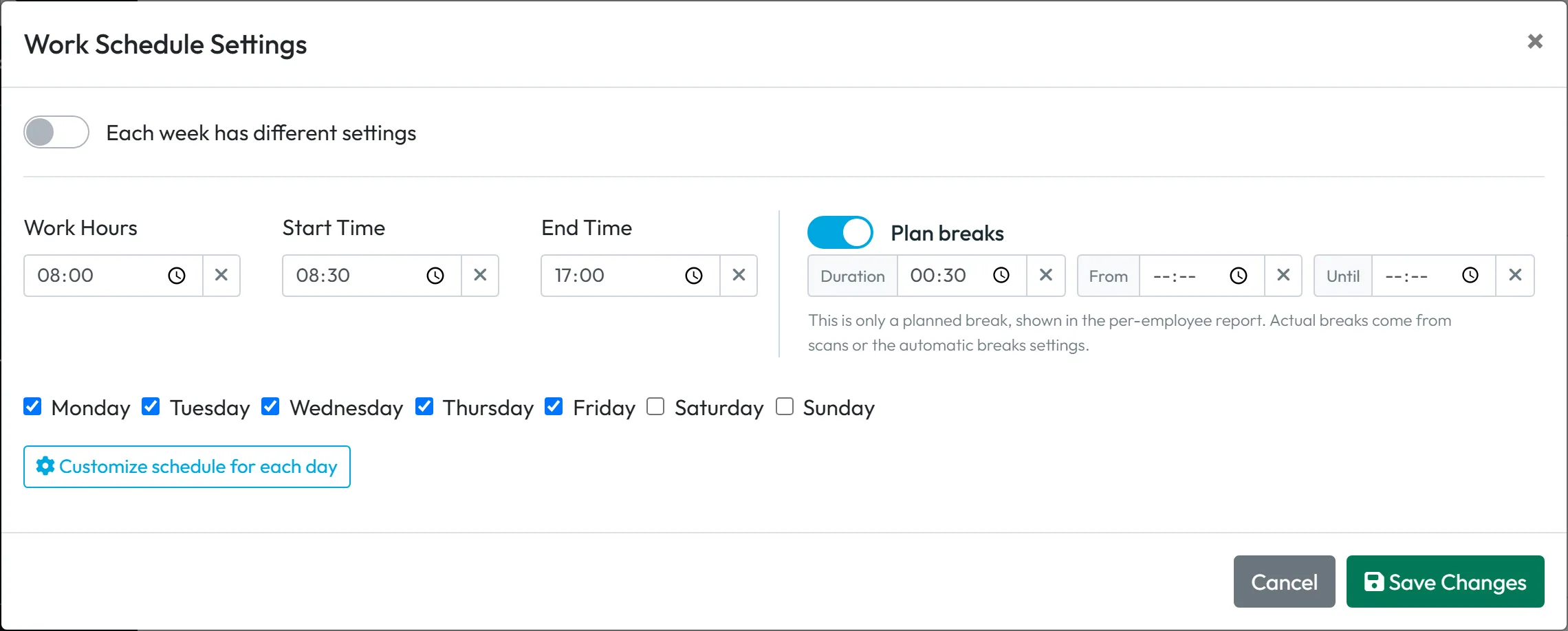
Open the weekly pattern. In the Work Schedule Settings window fill in Work Hours and, if your team has fixed times, Start Time and End Time. Tick the working days. For Brightway’s Head office that is 8 hours, 08:30 to 17:00, Monday to Friday.
Plan breaks adds a planned break with a duration or a time. The app says:
This is only a planned break, shown in the per-employee report. Actual breaks come from scans or the automatic breaks settings.
So a planned break alone deducts nothing – for that, use automatic breaks below.Different hours on different days? Click Customize schedule for each day. Hours that alternate every two weeks? Switch on Each week has different settings and set both weeks; Swap weeks swaps them if they start the wrong way round. Note that Save Changes in this window saves the whole schedule straight away, a new one included.
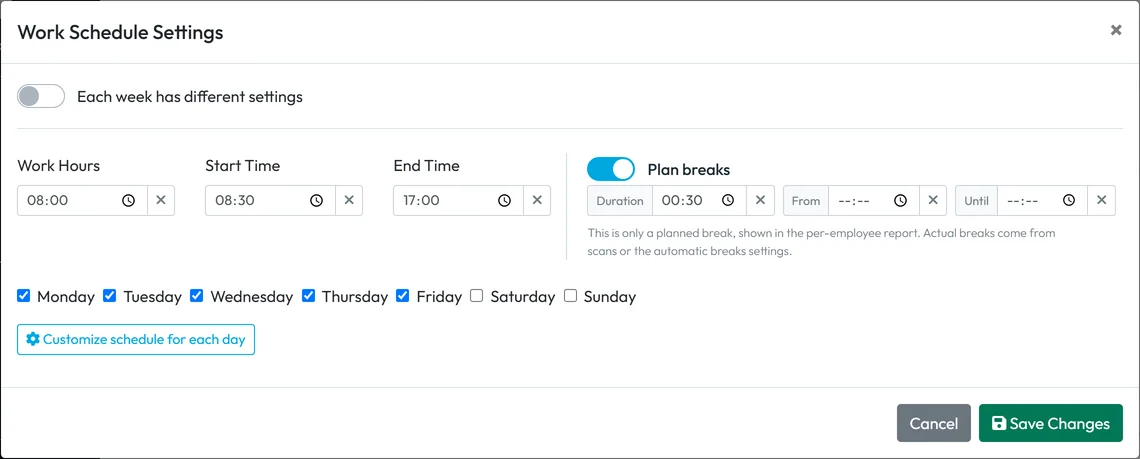
Set the working days and times -
Choose who the schedule applies to.
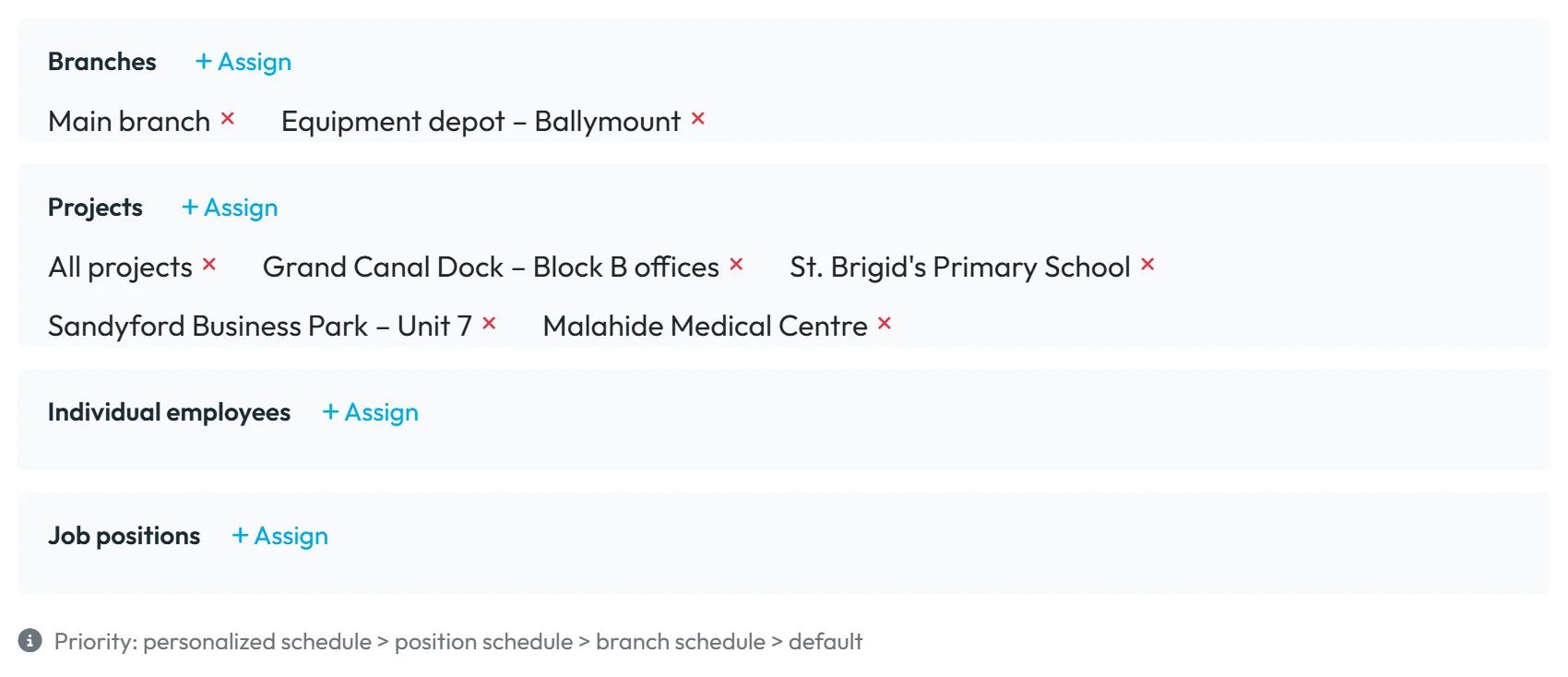
In Applies to, use + Assign next to Branches, Projects, Individual employees or Job positions. Individual assignments have a validity period, so a change can start on a given date. A new schedule has to be saved before you can assign employees or positions.
When more than one schedule could apply, the app follows the rule shown under the section:
Priority: personalized schedule > position schedule > branch schedule > default
. So Niamh Ryan’s own schedule beats the office administrator position schedule, which beats the Head office schedule. In the employee’s profile you see either Using default branch schedule or their individual one.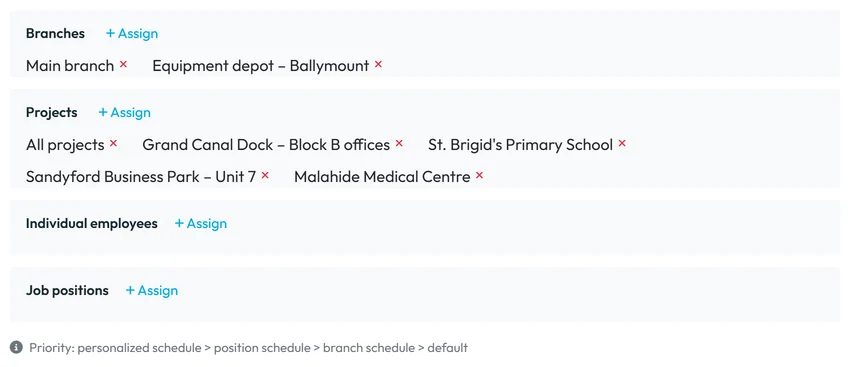
Assign a schedule to branches, projects, positions or people -
Choose how scan times are rounded.
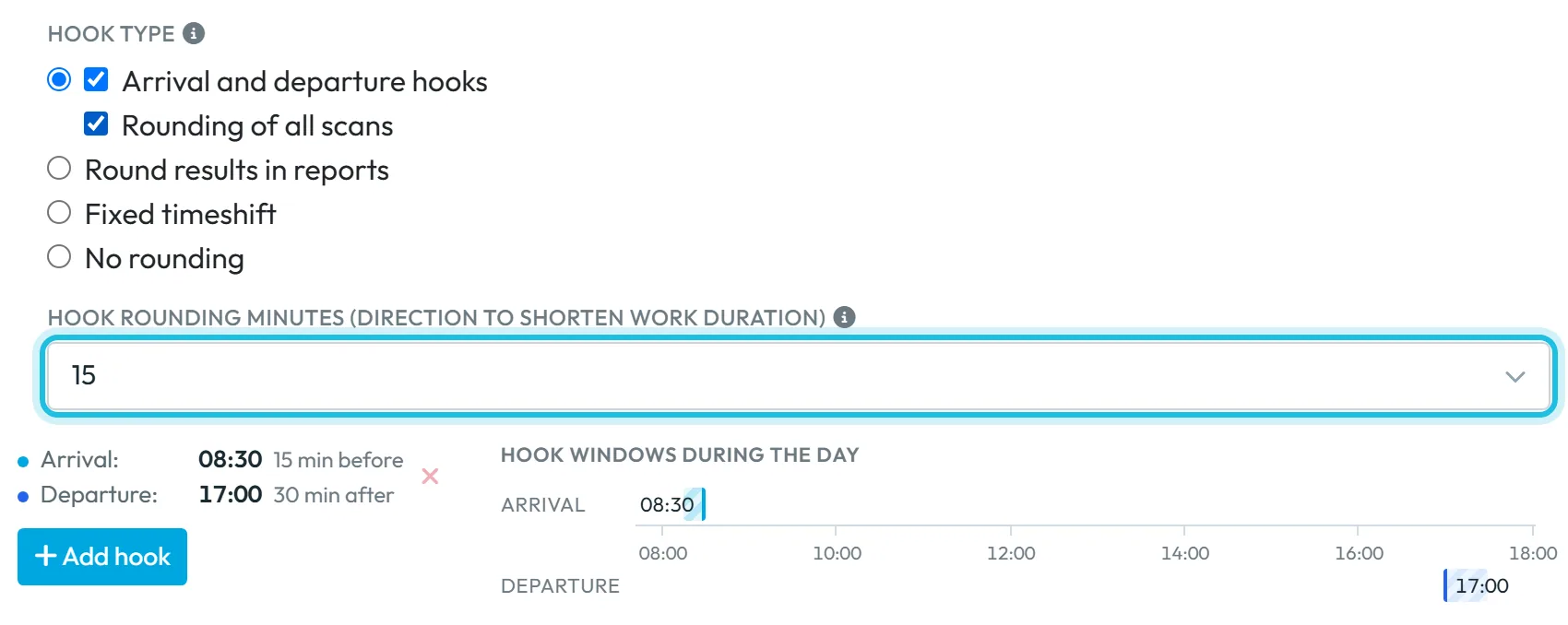
The section Rounding & Hooks has a Hook type with these options:
- No rounding – times count exactly as scanned.
- Arrival and departure hooks – scans shortly before the shift start, or shortly after the shift end, are anchored to the shift time. Scans outside that window stay as they are.
- Rounding of all scans – a tick box under hooks. Every scan is rounded to the chosen minutes (1, 5, 10, 15, 30 or 60), in the direction that shortens the working time: clock-ins up, clock-outs down.
- Round results in reports – scans stay as they are; the day’s results in the reports are rounded to the chosen minutes.
- Fixed timeshift – moves the clock-in later and the clock-out earlier by a fixed number of minutes, between 1 and 60.
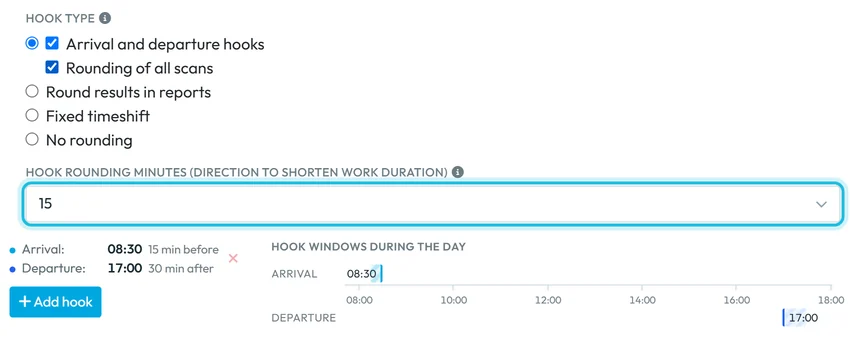
Hooks combined with rounding to 15 minutes -
Add a hook for the shift start and end.
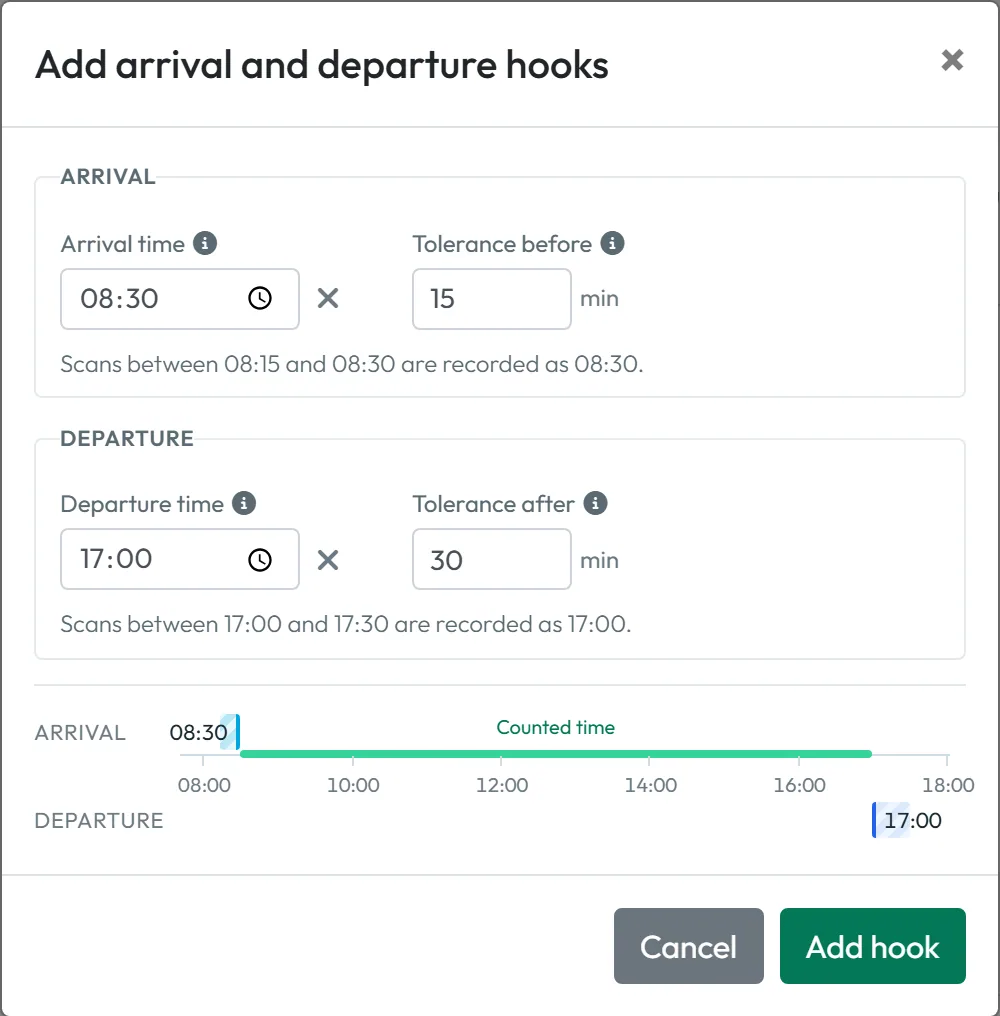
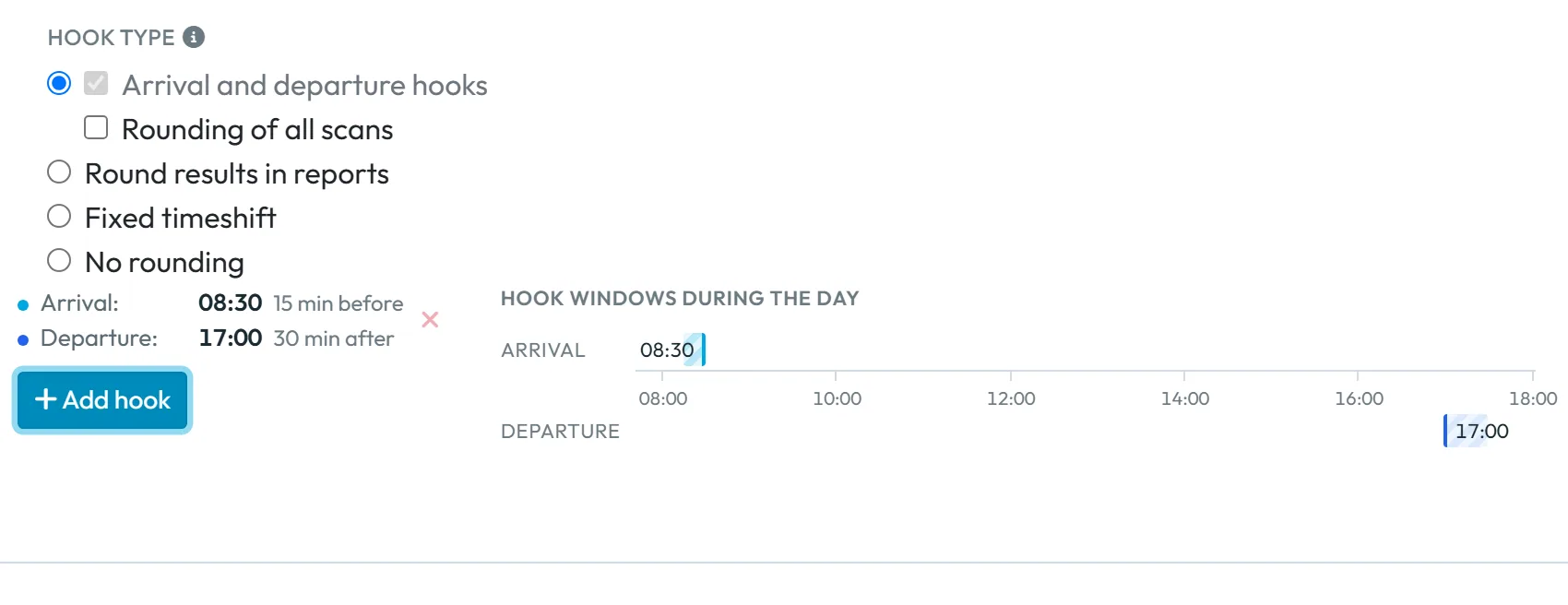
With Arrival and departure hooks selected, click + Add hook. Enter the Arrival time with Tolerance before and the Departure time with Tolerance after. The window explains it in plain words, for example
Scans between 08:15 and 08:30 are recorded as 08:30.
, and draws the counted time on a timeline. For split shifts, add more than one pair; Hook windows during the day shows them all.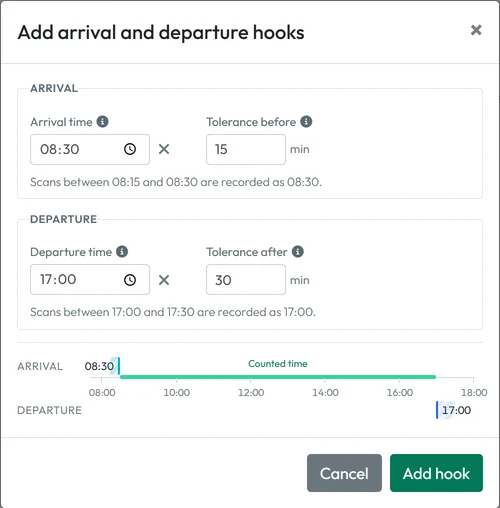
The tolerance decides which scans snap to the shift time -
Deduct breaks automatically.
Under Automatic break deduction choose:
- Turned off – only breaks that are scanned or entered by hand count.
- Fixed breaks –
Automatically deducts break time at fixed intervals (e.g., 12:00-12:30)
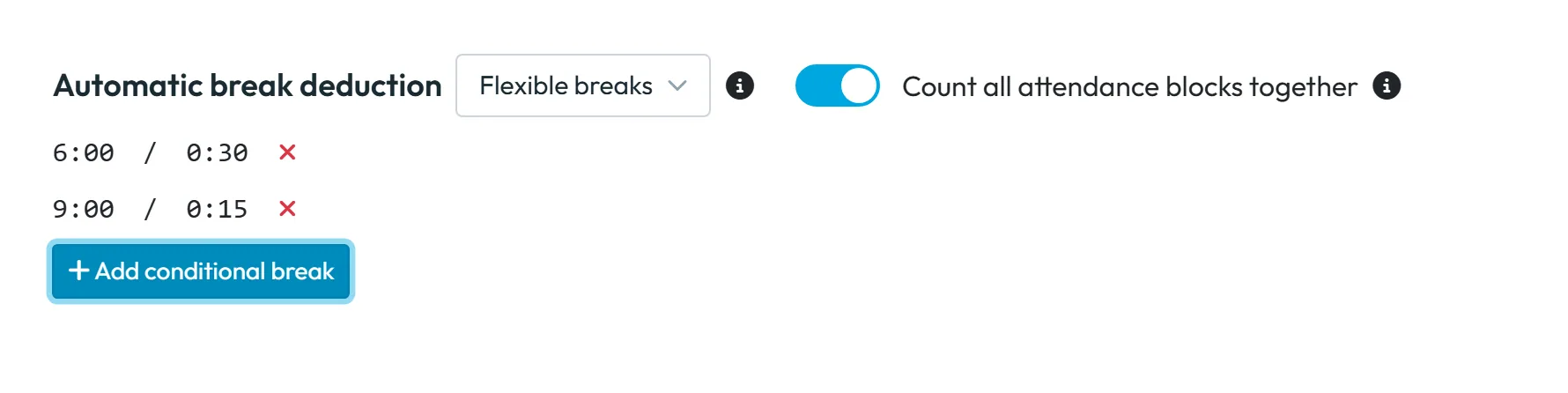
. Add each with Add fixed break. - Flexible breaks – a break deducted once someone has worked a set number of hours, whenever in the day that is. Add each step with + Add conditional break, for example 30 minutes after 6 hours and another 15 minutes after 9 hours.
With flexible breaks, Count all attendance blocks together decides whether the hours of all a day’s records are added up (on) or each record is judged on its own (off). Save the schedule.
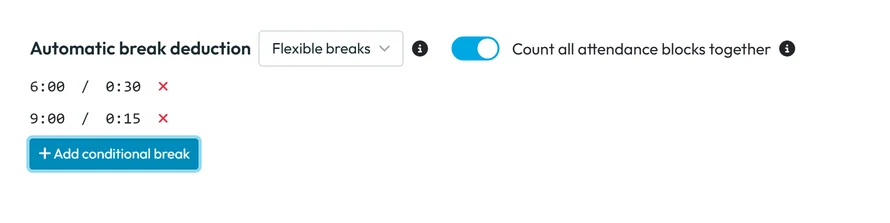
The break is deducted by worked hours
#Worked examples and related settings
- The same day with each rounding option
Brightway’s Head office schedule runs 08:30–17:00. Sarah O’Brien scans in at 08:21 and out at 17:12. This is what counts in the reports:
Hook type Settings Counted time No rounding – 08:21–17:12 Arrival and departure hooks 08:30, 15 min before; 17:00, 30 min after 08:30–17:00 Arrival and departure hooks the same, but she scans in at 08:05 08:05–17:00 (08:05 is outside the 15 minutes) Rounding of all scans 15 minutes 08:30–17:00 Fixed timeshift 5 minutes on both sides 08:26–17:07 In Scan Details you always see both: Real arrival is the scan, From is the counted time. See Scan details.
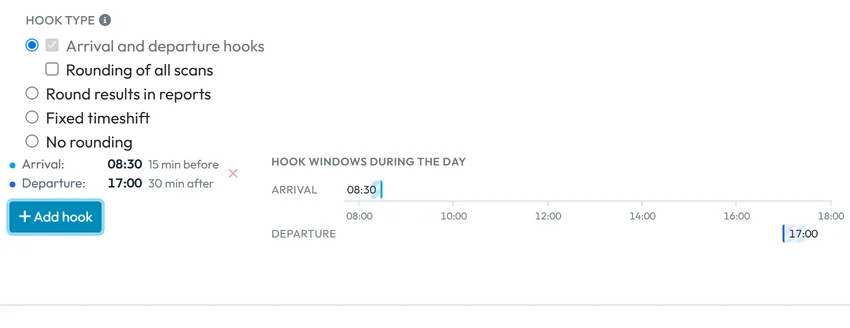
Scans shortly before the shift start count from the start - A manual break on one dayA break added by hand in Scan Details replaces all automatic breaks for that day – the app says so in the edit form.
- Shift planner instead of schedulesOnce the shift planner is switched on, a yellow banner on this tab says that standard schedules and personal worktime are ignored from that date and that the expected working time comes from the Shift Planner. Shift templates then carry their own breaks and rounding. See Turning on the shift planner.
- Night workHours worked at night are counted separately by a company-wide window, not by the schedule. See Night shifts and attendance past midnight.
#Special cases and tips
- This schedule is overlapping with other schedules
- Two schedules can’t apply to the same branch, project, position or person at the same time. Remove the assignment from the other schedule, or limit the validity dates.
- Someone always has overtime on Saturday
- Saturday is a rest day in their schedule, so every hour counts as overtime. If Saturday is a normal working day for them, tick it in their schedule.
- A part-timer gets negative overtime every day
- They are probably on the branch’s full-time schedule. Give them a schedule with their own hours, for example 6 hours a day, under Individual employees.
- Rounding looks unfair
- Rounding of all scans always shortens the working time. Hooks only touch scans just before the start or just after the end. Choose what matches your agreements with staff.
#Frequently asked questions
Does rounding change what the employee scanned?
No. The real scan time is kept and shown as Real arrival and Real departure. Only the counted time changes.
What schedule does an employee without their own schedule get?
Their position’s schedule, otherwise their branch’s schedule, otherwise the company default.
Can I deduct lunch without people scanning out?
Yes. Use Flexible breaks, for example 30 minutes after 6 worked hours, or Fixed breaks at a set time.
What are hooks?
The app’s name for anchoring: a scan shortly before the shift start counts as the start, and one shortly after the end counts as the end.
Is the planned break deducted?
No. Plan breaks only shows the break in the per-employee report. Deductions come from scans or automatic breaks.
#Related
You are hereWork schedules, rounding and breaks
Web app (administrator)Mobile app (employee)



