Event Calendar: a staff leave calendar for the month
On this page
Quick answer
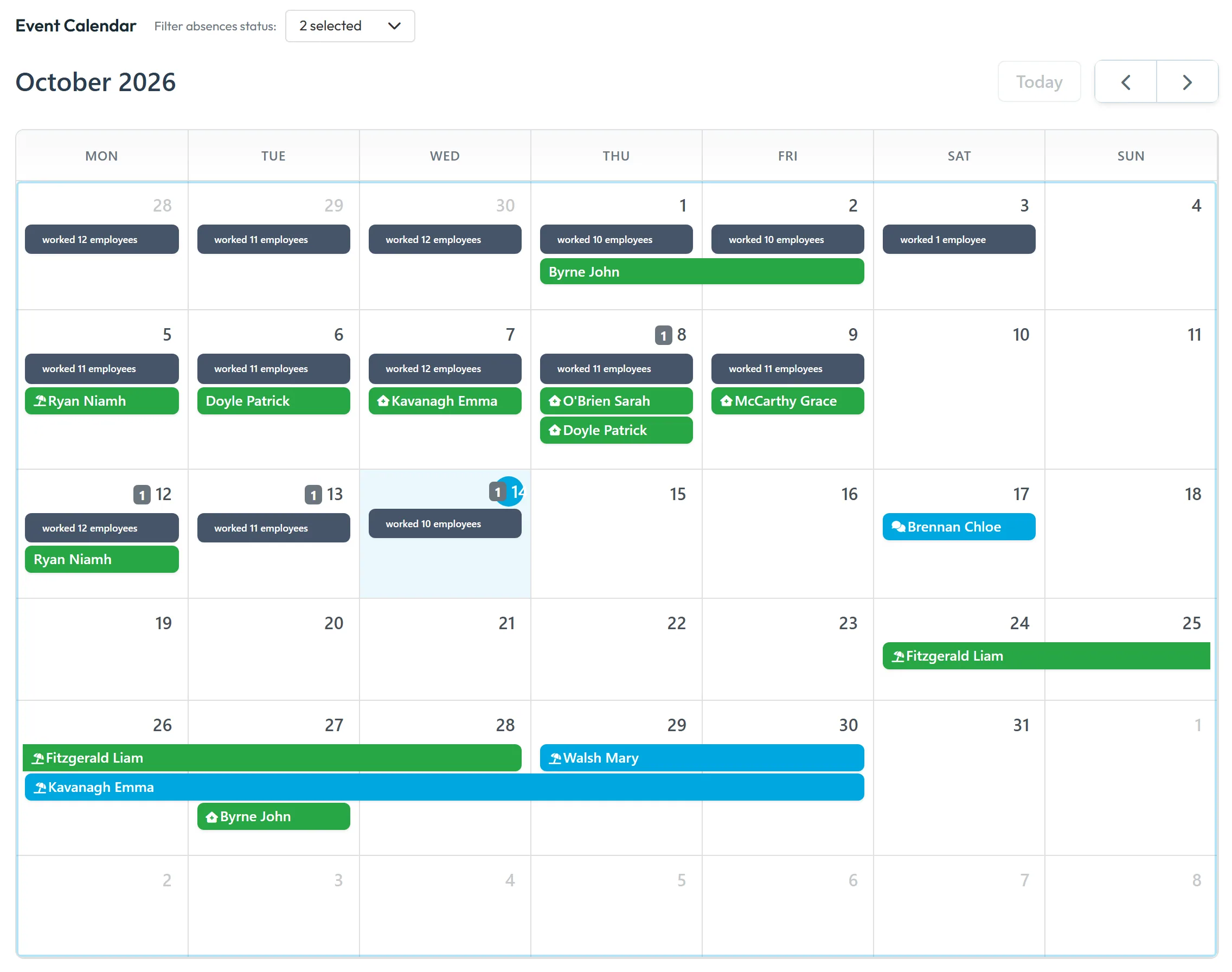
The Event Calendar is FreshQR’s staff leave calendar for managers. It shows the month with every absence as a coloured bar – green for approved, blue for requested – plus how many employees worked each day and the notes for that day. Hover a bar for details, click it to open the absence.
#What it's good for
- One monthly picture of who is off, instead of scrolling through the Absences list.
- Pending requests sit next to approved leave, so you see a clash before you approve.
- Each day shows how many people actually worked, with a click-through to who, where and for how long.
- Notes and the planned dates of people on the Candidates tab are on the same page, which helps when you plan the month.
#Who it's for
A good fit for
- Owners and managers who plan cover a few weeks ahead.
Not the right fit for
- Very small teams that manage fine from the Absences list.
- Employees – they don’t see this calendar. In the app they have the team absence calendar, which shows approved absences only.
#What the calendar shows – and what it doesn’t
| Shown | Not shown |
|---|---|
| Absences as bars, coloured by status: Entered (waiting) blue, Approved green, Declined red, Canceled grey | Public holidays |
| worked N employees per day | Shifts from the shift planner |
| A badge with the number of notes for the day | Project deadlines |
| Planned dates of people added by hand on the Candidates tab (blue and green) | Contract end dates – those have their own e-mail notification |
The calendar is read-only: you can’t create or drag anything in it. To add an absence, use + Create in Absences.
#Step by step
-
Open the Event Calendar.
Click Event Calendar in the left menu. The current month opens, with weeks starting on Monday. Use Today and the arrows to move between months. Each absence bar shows the employee’s name and the icon of its leave allowance.
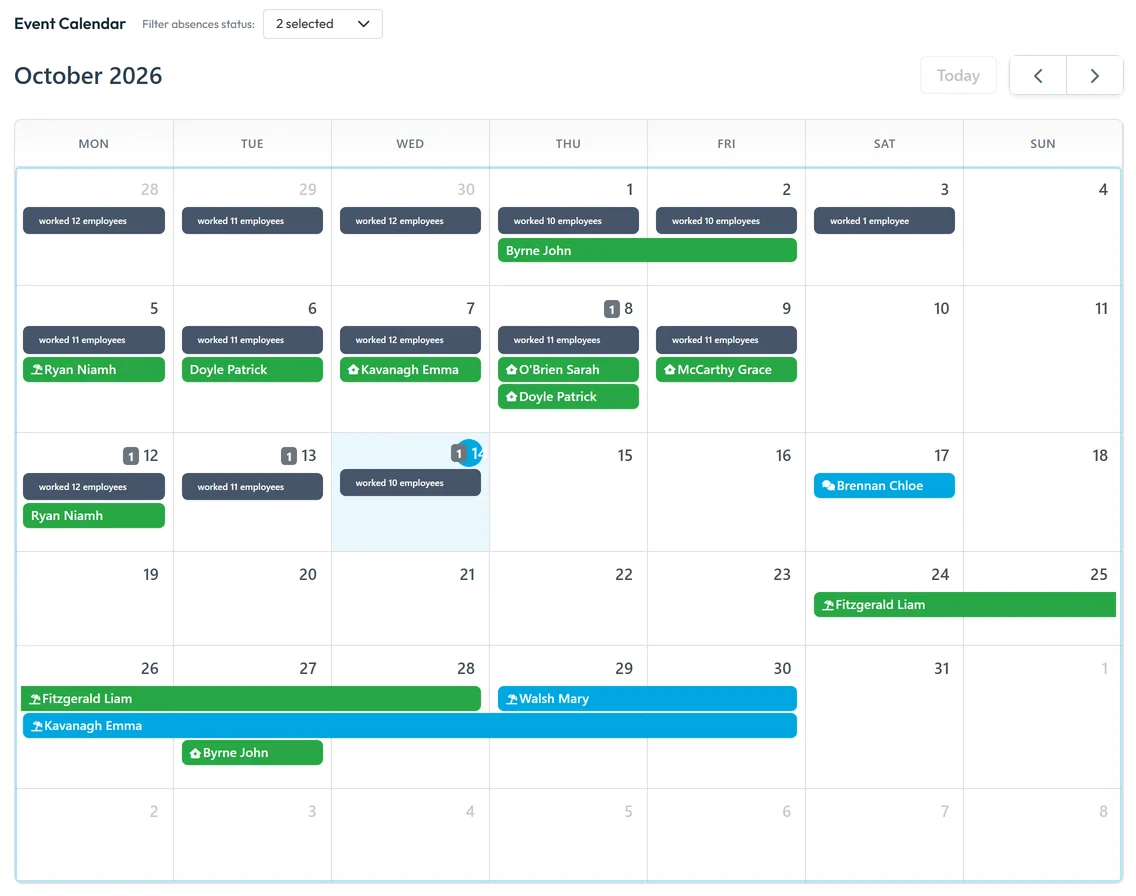
Who is off this month at a glance -
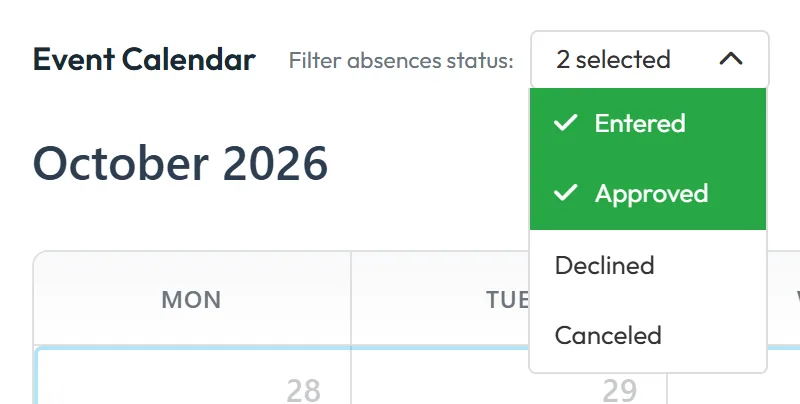
Choose which statuses to show.
Open Filter absences status and tick the statuses you want. By default you see Entered and Approved. Tick only Entered to see just the requests that still need a decision. Your browser remembers the choice.
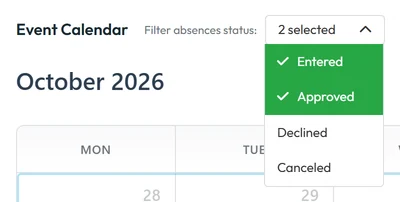
Choose which statuses to show -
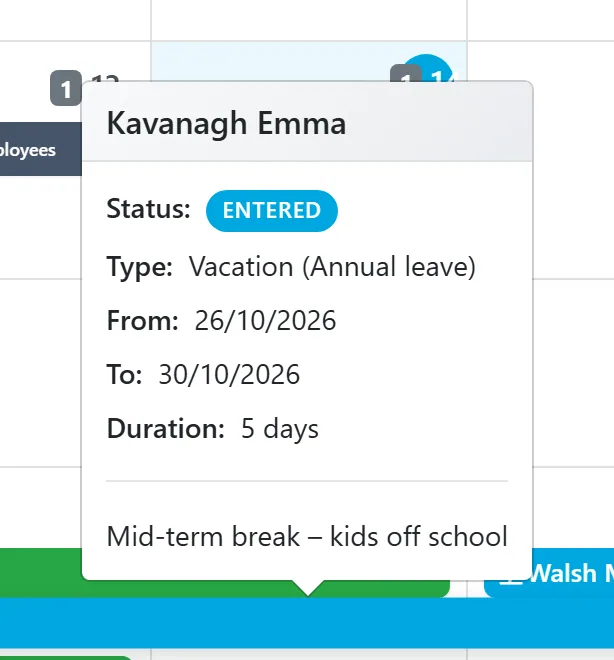
Hover over an absence for the details.
Point at a bar to see the status, the type (with the allowance it belongs to), the dates, the length and the description. Click the bar to open the absence itself – from there you can approve or decline a request.
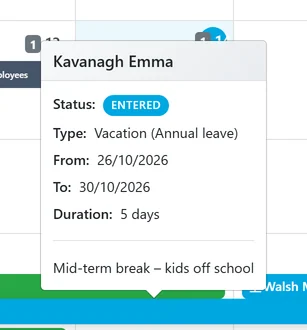
Hover an absence for details -
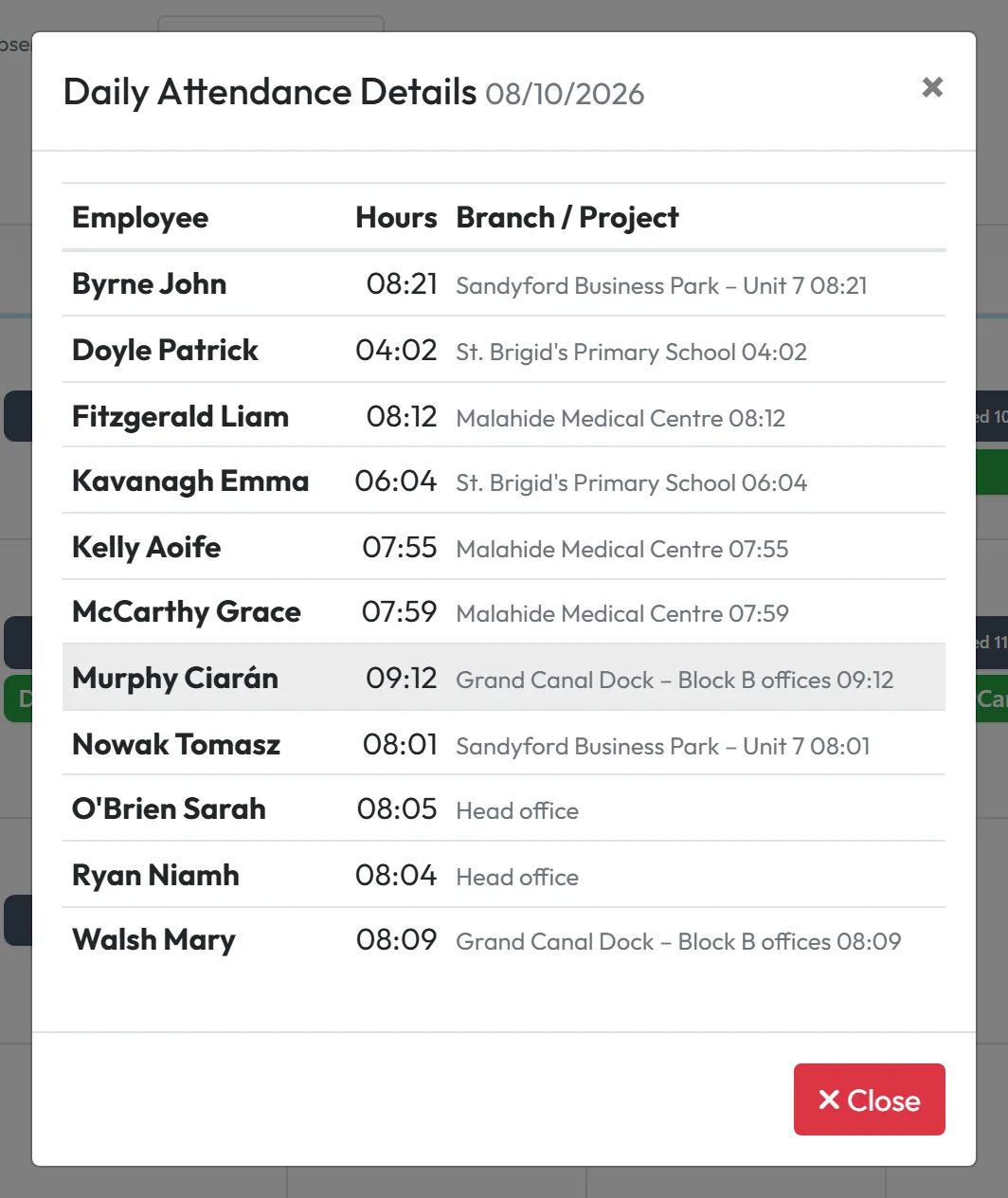
Click “worked N employees” to see who worked.
The grey line in each day shows how many people clocked in. Click it to open Daily Attendance Details: each employee, their hours and the branch or project. For the live view of today, see Who is at work right now.
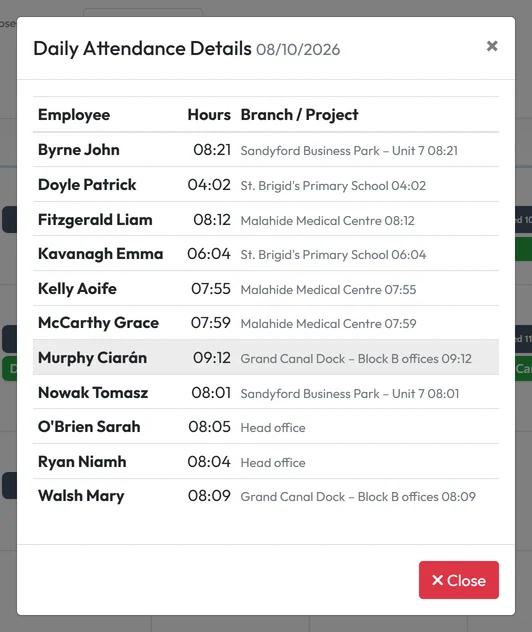
Click a day to see who worked -
Open the notes for a day.
A small badge with a number means there are notes for that day – click it to read them (see Employee notes).
#Special cases and tips
- Some employees are missing
- A user account linked to an employee sees only that employee and their team in the organigram. An admin can tick Also see same-position employees in calendar on the account (My Company › User accounts) so it also shows colleagues in the same job position. That option affects only this calendar.
- Holidays aren’t marked
- The calendar doesn’t mark public holidays. Keep that in mind when you count free days.
- Declined requests don’t show
- Declined and Canceled absences are hidden by the default filter. Tick them in Filter absences status if you need them.
#Frequently asked questions
How do I add an absence that is missing in the calendar?
In Absences › + Create – see Adding an absence. Once saved, it appears in the calendar; the calendar itself only displays.
Who can open the Event Calendar?
The Owner, Administrators, both Manager roles and users with Calendar: View Only or Calendar: View & Edit.
Do employees see this calendar?
No. Employees can have their own team absence calendar in the app, if you allow it, and it shows approved absences only.
Why are some bars blue?
Blue bars are requests with status Entered – they still wait for a decision. Approved absences are green.
#Related
You are hereEvent Calendar
Administrator
Employee
Web app (administrator)Mobile app (employee)



