Email notifications for managers: set up attendance alerts
On this page
Quick answer
Email notifications for managers are set in My Company › Notifications. Switch on a rule – for example New absence request – choose recipients from your user accounts or pick Direct supervisor, and click Save. Every rule is off until you turn it on. Employees never get these e-mails.
How to turn it on
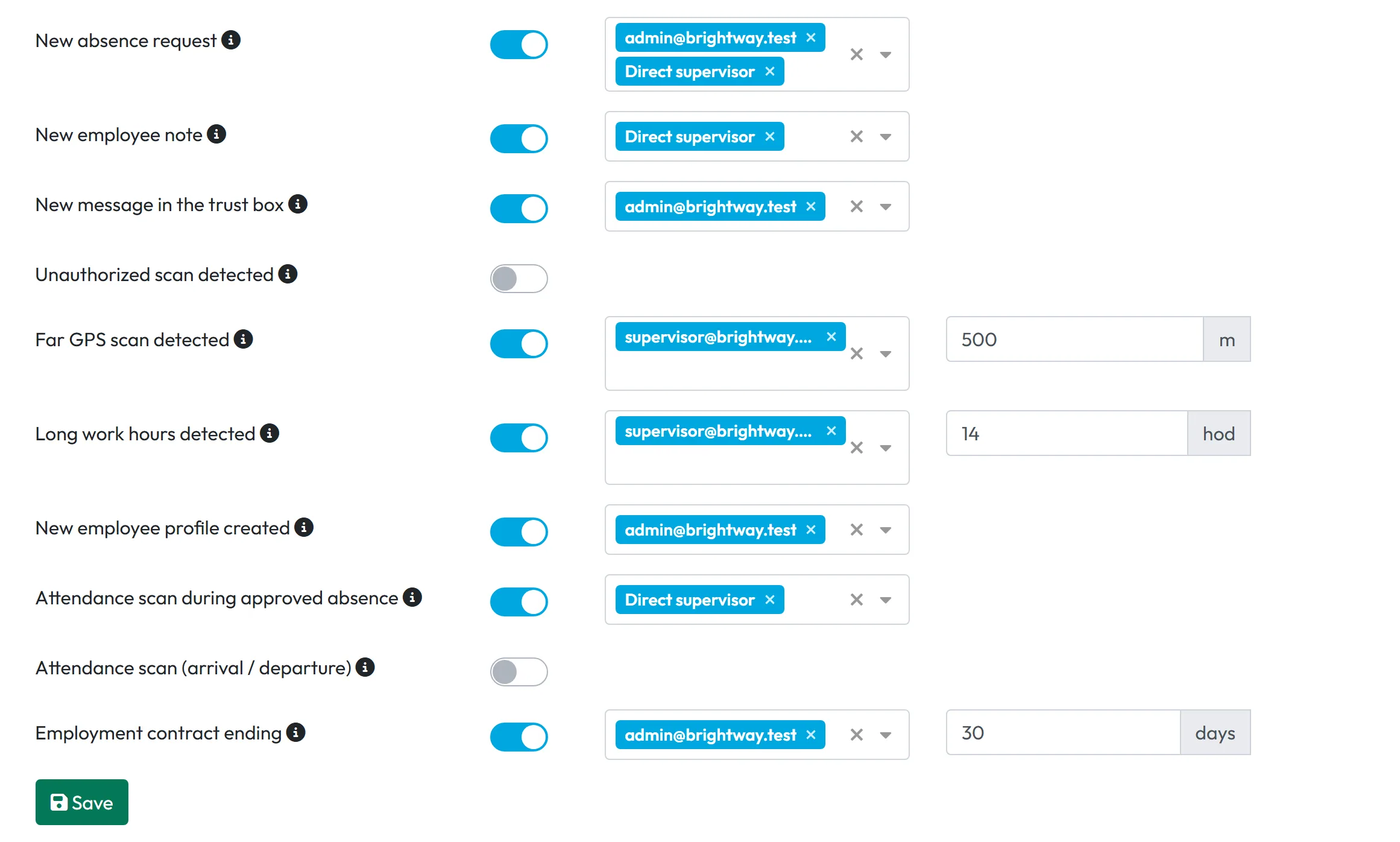
All rules are off for a new company. Go to My Company and click the Notifications tab – open it this way so the current settings load before you change anything. Switch on the rules you want, choose recipients and click Save at the bottom; nothing is saved until you do.
- My Company
- Notifications
- Who can turn it on
- The Owner, Administrators and Company Settings: View & Edit. Manager: Full Access except Company settings doesn’t see this tab.
- What changes
- Chosen web user accounts start getting e-mails. Nothing changes in the employees’ app.
- Applies to
- The whole company, rule by rule. Recipients are user accounts; with Direct supervisor each e-mail goes to the team lead of the employee concerned.
#What it's good for
- You don’t have to sit in FreshQR all day to notice a leave request, a note from site or a scan 20 km away.
- Direct supervisor sends each team lead only the events of their own people.
- Signals of mistakes or misuse – an old printed QR code, a scan far from the site, a 14-hour shift – reach you within half an hour.
#Who it's for
A good fit for
- Companies with team leads who approve leave and check their crew.
- Owners who want to hear about unusual scans without checking reports every day.
- HR and payroll staff who track new starters and contract ends.
Not the right fit for
- Telling employees anything. FreshQR sends employees no e-mail and no push notification – not about approved leave, not about todos.
- Real-time alerts. E-mails go out within about 10 or 30 minutes, bundled.
- Todos. There is no e-mail rule for todos or their comments.
#The rules at a glance
| Rule | When the e-mail comes |
|---|---|
| New absence request | Within 10 minutes of a new leave or absence request. Several requests are listed in one e-mail. See Approve leave requests. |
| New employee note | Within 10 minutes of an employee writing a note in the app. See Employee notes. |
| Unauthorized scan detected | Within 30 minutes of a scan of an old QR code after you regenerated it. See Attendance QR codes. |
| Far GPS scan detected | Within 30 minutes of a scan farther than the Minimum distance you set. The app recommends 500 m to 1 km. See GPS attendance tracking. |
| Long work hours detected | After the departure scan of an arrival–departure pair longer than the Minimum duration (at least 4 hours). Useful for forgotten clock-outs. |
| New employee profile created | Within 10 minutes of someone new connecting the app to your company. See Adding employees. |
| Attendance scan during approved absence | Within 30 minutes when an employee scans on a day of approved leave, at most once a day per employee. See Clocked in during leave. |
| Attendance scan (arrival / departure) | For every arrival and departure, grouped, within 30 minutes. Only for small teams. |
| Employment contract ending | The chosen number of Days in advance before a contract ends, and again on the day. See Contract end date reminders. |
#Step by step
-
Open the Notifications tab.
Click My Company in the left menu, then the Notifications tab. Each rule has a switch, and the ⓘ next to its name explains when it fires.
-
Switch on a rule.
Click the switch of the rule, for example New absence request. A recipient field appears next to it (choose recipients).
-
Choose the recipients.
Open the field and pick user accounts by their e-mail address. The first option in the list, Direct supervisor, sends each e-mail to the team lead of the employee concerned – and to that team lead’s co-managers. You can combine both: Direct supervisor plus the office account, for example.
Direct supervisor works only if the team lead has a user account linked to their own employee profile and is set as the employee’s supervisor – see Organigram and User accounts and roles.

The office and the team lead both hear about new requests -
Fill in the limit where there is one.
Three rules need a number:
- Far GPS scan detected – the minimum distance in metres, for example 500.
- Long work hours detected – the minimum duration in hours, at least 4. A smaller number shows Minimum duration is 4 hours.
- Employment contract ending – how many days in advance, at least 1.

Set the distance that triggers the e-mail -
Click Save.
Click Save at the bottom of the tab. Changes to switches and recipients are applied only then.

Too small a value isn’t saved



#Special cases and tips
- A team lead gets nothing
- Their user account isn’t linked to their employee profile, or the employee has no supervisor set. Direct supervisor then has nobody to send to.
- Every scan by e-mail
- With Attendance scan (arrival / departure) on, a busy company gets a lot of e-mail. For larger teams, use the real-time attendance overview instead.
- Stopping e-mails
- Recipients can’t unsubscribe themselves. Switch the rule off or remove the recipient, then click Save.
#Frequently asked questions
Does the employee get an e-mail when I approve their leave?
No. FreshQR sends employees no e-mail and no push notification. They see the status icon in the app.
Can an employee receive these notifications?
Only if they also have a web user account and you pick it as a recipient.
Will I get one e-mail per request?
No. Events that come in together are bundled, so one e-mail can list several requests or scans.
Is there an e-mail for todos?
No. Check the Todos board or the Recently Completed card instead.
Who can change the rules?
The Owner, Administrators and accounts with Company Settings: View & Edit.
#Related
You are hereEmail notifications
Web app (administrator)Mobile app (employee)



