Organigram: supervisors, co-managers and who sees whom
On this page
Quick answer
The organigram in FreshQR is drawn from one field: each employee’s Superior employee. Set it in the employee profiles, then open Employees › Organigram to see who reports to whom. Link a team lead’s user account to their profile and they see only their own people; a co-manager can share the same team.
#What it's good for
- Each team lead sees and approves only their own people – not the whole company’s attendance, absences and wages.
- E-mail alerts can go to the Direct supervisor instead of a fixed list, so a leave request from a cleaner reaches their site supervisor, not the owner.
- A deputy or second shift lead can look after the same team as a co-manager, without moving anyone.
- Everyone in the office can see the structure at a glance, and click a person to trace their reporting line.
#Who it's for
A good fit for
- Companies with two or more levels: operations manager › site supervisors › cleaning crews, or head chef › kitchen staff.
- Companies where team leads approve leave or check hours for their own crew.
- Teams with a deputy who covers when the supervisor is off.
Not the right fit for
- A small company where one person manages everyone. Leave the supervisor field empty – nothing breaks, and the owner sees all anyway.
- Drawing a chart of roles. That is the position chart under Job positions, which grants no access.
#Step by step
-
Give every employee a supervisor.
Open each employee’s profile, choose the person they report to in Superior employee and click Update – see Employee profile. Leave it empty for the person at the top, for example the operations manager.
For new starters there is a shortcut: give each branch a Default supervisor in Branches. New employees who first check in at that branch get that person as their supervisor automatically.
-
Open the organigram.
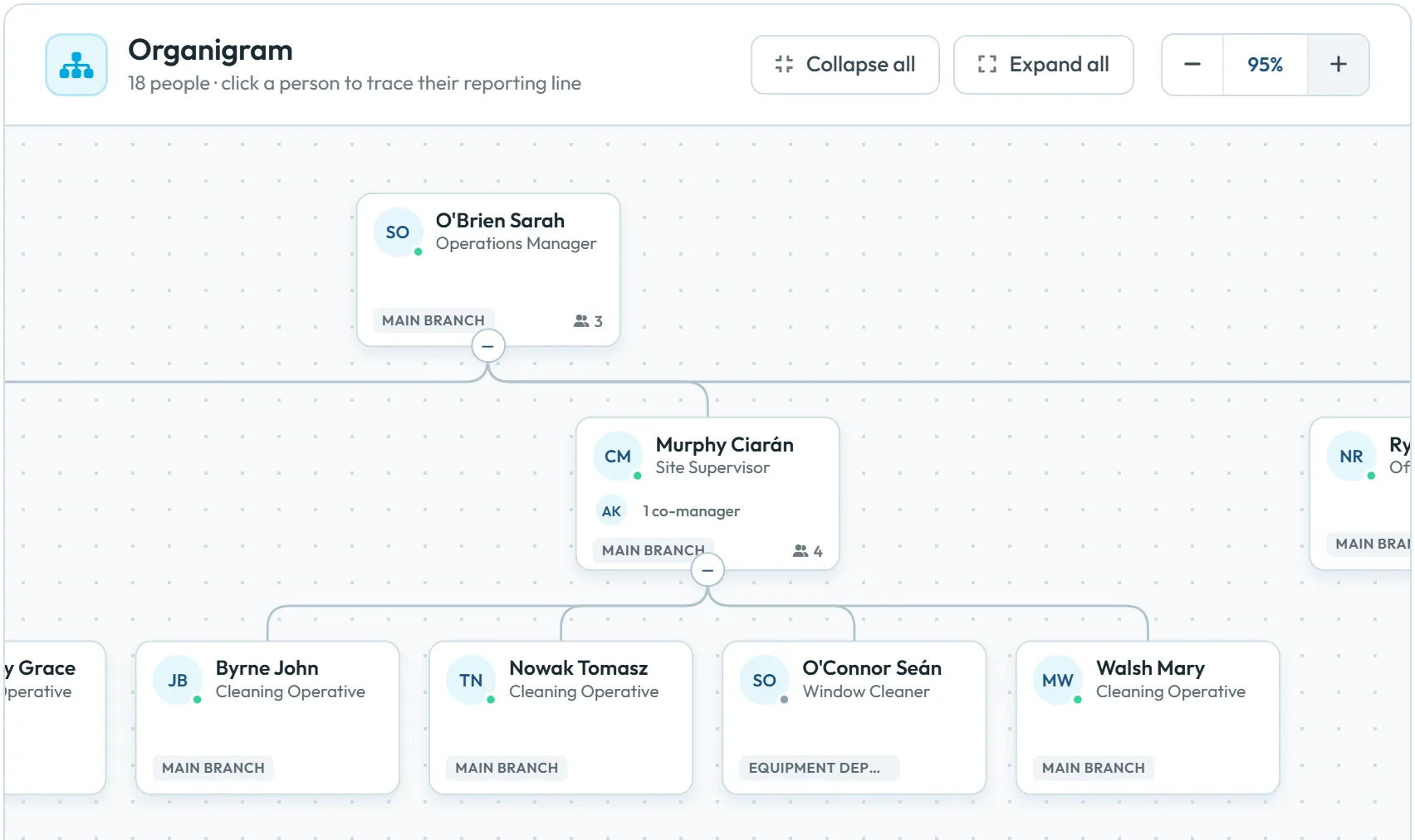
Go to Employees › Organigram. The header shows how many people are in the chart, for example “18 people · click a person to trace their reporting line”. People without a supervisor are at the top.
Each card shows the name, position, branch and the number of direct reports. Hover over a card to see the e-mail and phone. Fold a branch of the chart with the small button under a card, use Collapse all and Expand all, and zoom with − and +.
The chart is read-only: you change supervisors in the employee profiles, not by dragging cards. Candidates that have a name also appear as cards at the top, next to people without a supervisor.
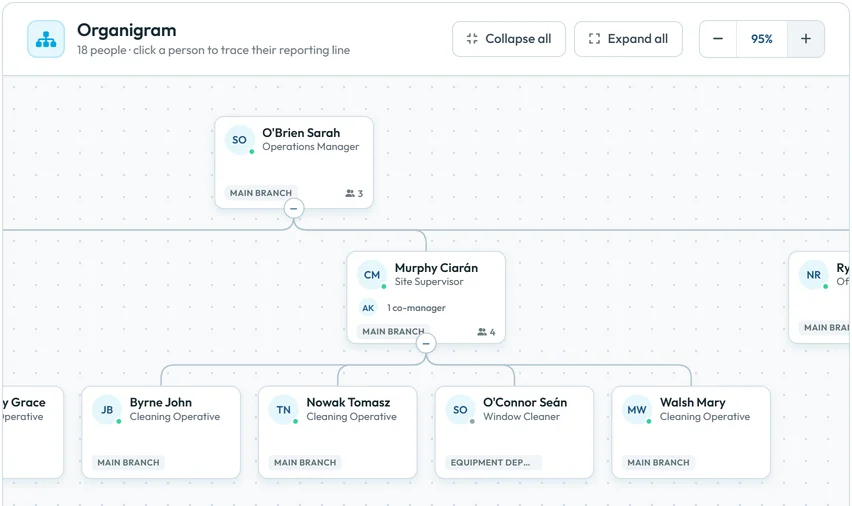
Who reports to whom, drawn from the supervisor field -
Trace someone’s reporting line.
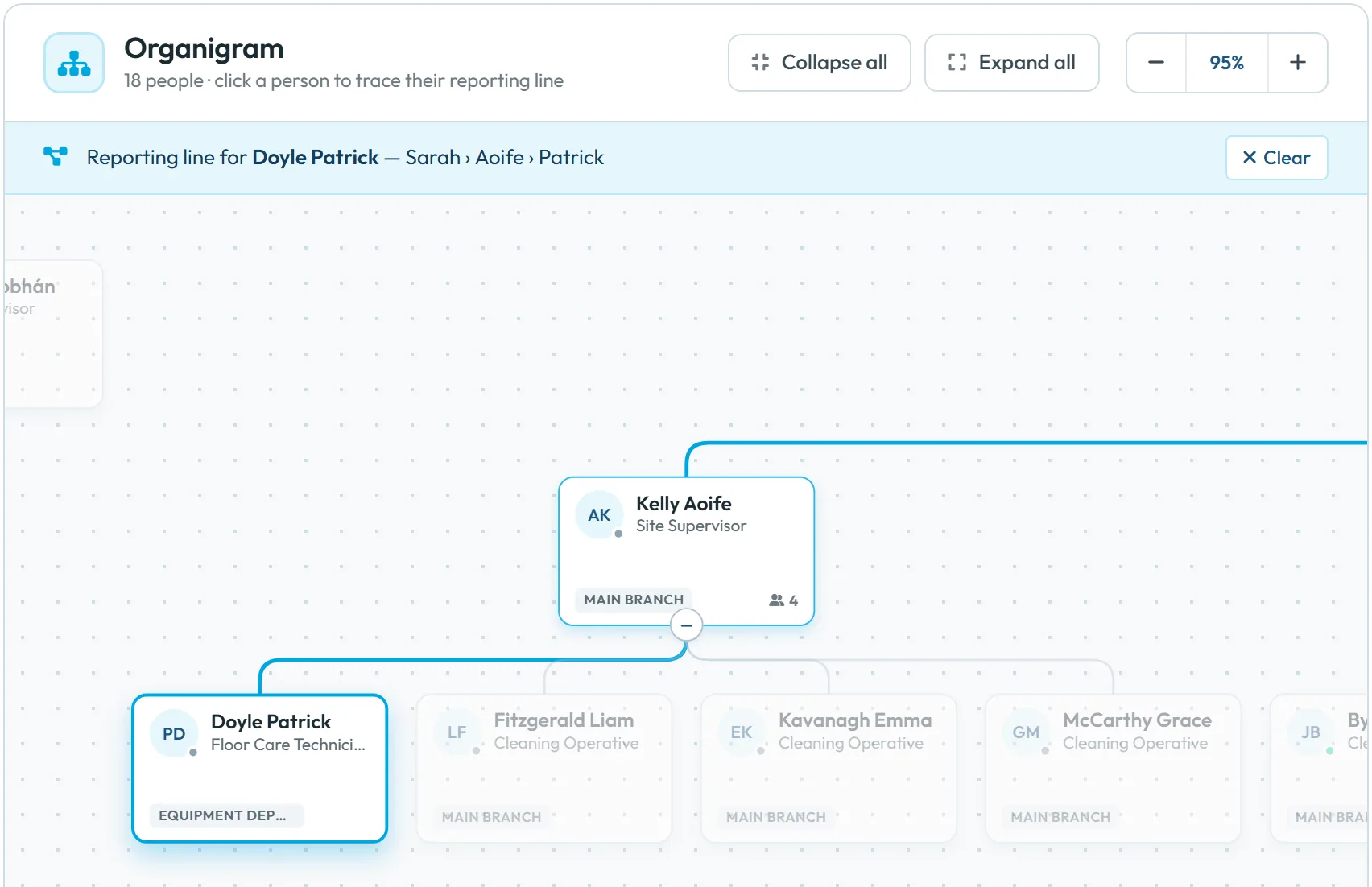
Click a card. The path up to the top is highlighted, and a banner names it – for example “Reporting line for Doyle Patrick — Sarah › Aoife › Patrick”. Clear removes the highlight.
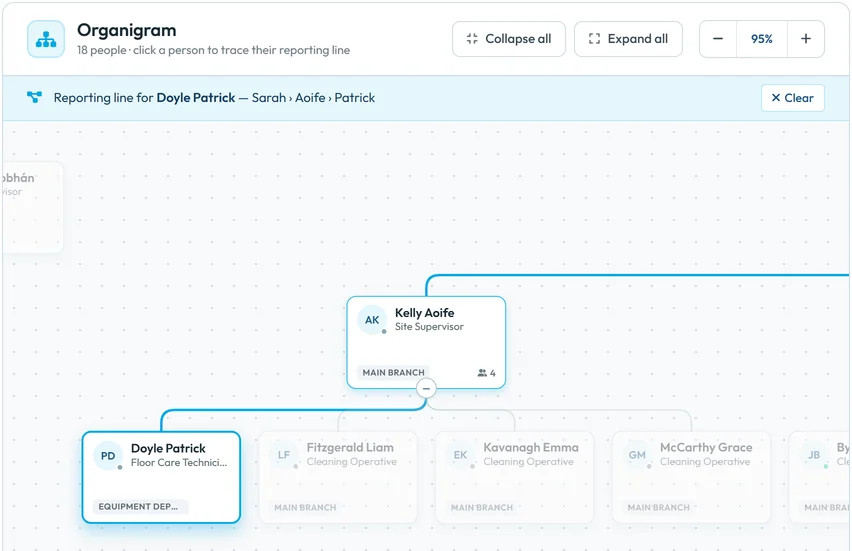
Click a person to see their reporting line -
Limit a team lead to their own team.
This is what makes the organigram useful. Three things must be true:
- The team members have the team lead (or someone below them) as Superior employee.
- The team lead has a user account with a role that isn’t Owner or Administrator – for example Absences: View & Edit. Owners and Administrators always see everyone.
- In My Company › User accounts, that account is linked to the team lead’s own profile in Link to employee – see User accounts and roles.
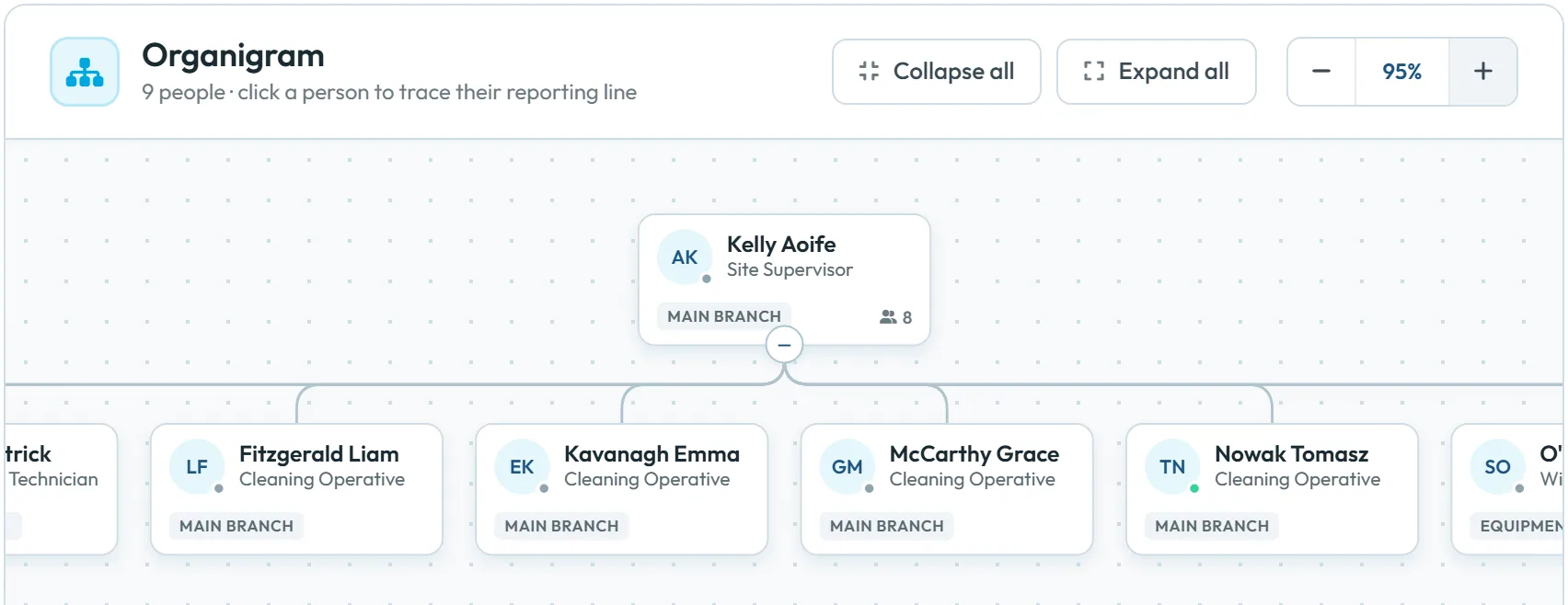
From then on the account sees the team lead and everyone below them, all levels down, in the employee list, absences, scans and most reports. An account that isn’t linked to an employee sees the whole company – the most common surprise.
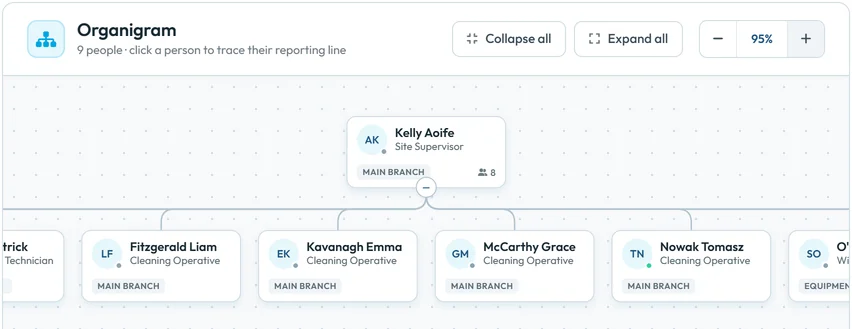
A linked account sees only its own team -
Add a co-manager.
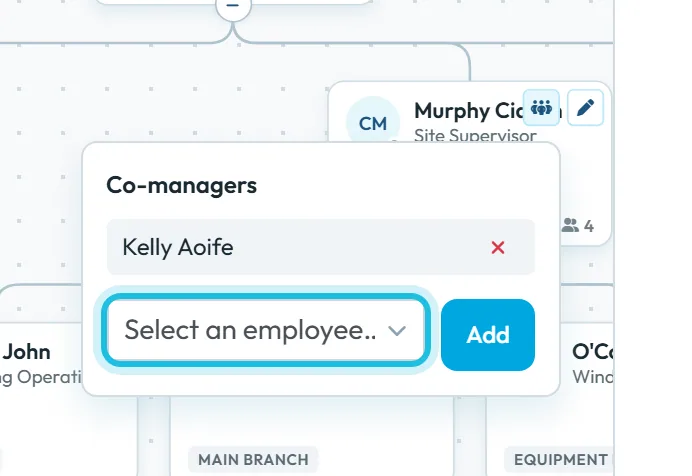
On the team lead’s card, click the people icon (Manage co-managers). In Select an employee… pick the deputy and click Add. The message Co-managers updated confirms it and the card shows 1 co-manager.
Example: Aoife Kelly becomes co-manager of Ciarán Murphy’s team. Her linked account now also sees everyone below Ciarán – but not Ciarán himself – and she gets the Direct supervisor e-mails for his crew too. The list offers only people outside Ciarán’s own reporting line. To remove a co-manager, open the same popover and click the red × next to the name.
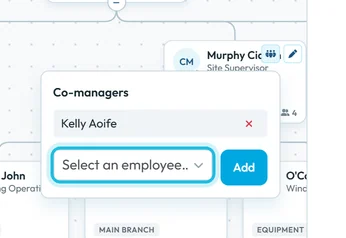
A co-manager shares the team
#Where else the supervisor matters
- E-mail alerts. Many rules in Email notifications can go to the Direct supervisor – new absence requests, employee notes, far GPS scans, contracts ending. It goes to the user account linked to the employee’s direct supervisor and that supervisor’s co-managers, not to higher levels.
- Leave approval. A linked team lead approves only the requests of their own people – see Approve leave requests.
- Reports. Table Reports have a Direct supervisor filter.
- The team absence calendar in the app. The company can let employees see the absences of their subordinates – see Team absence calendar.
#Special cases and tips
- A manager sees everyone
- Their account isn’t linked to an employee, or it has the Owner or Administrator role. Link it in My Company › User accounts.
- A manager sees nobody
- The profile their account is linked to was merged into another one or deleted. Link the account to the current profile.
- Deleting a supervisor
- Their team stays attached to the deleted person and moves to the top of the chart, out of sight of higher managers. Give the team a new supervisor before you delete.
- Direct supervisor e-mails don’t arrive
- The supervisor has no user account linked to their profile, so there is nobody to send it to. Create an account for them and link it.
- People without a name
- Profiles with no first or last name aren’t drawn. Fill in the name in the profile and they appear.
#Frequently asked questions
Can an employee have two supervisors?
No, one. If two people lead the same team, make the second one a co-manager of the first.
How do I change who reports to whom?
Set the Superior employee in each profile, or a Default supervisor on the branch for new people. The organigram updates by itself; you can’t drag cards in the chart.
Does the employee see their supervisor in the app?
No. The hierarchy is used in the web app, in e-mail alerts and, if you turn it on, in who they see in the team absence calendar.
Is the organigram the same as the job positions chart?
No. The organigram shows people and controls who sees whom. The job positions chart only shows how roles relate and grants no access.
What does the green dot on a card mean?
The person clocked in during the last 24 hours and hasn’t clocked out yet. Grey means not at work.
#Related
You are hereOrganigram, supervisors and co-managers
Administrator
Web app (administrator)Mobile app (employee)



