Attendance change log: who changed what and when
On this page
Quick answer
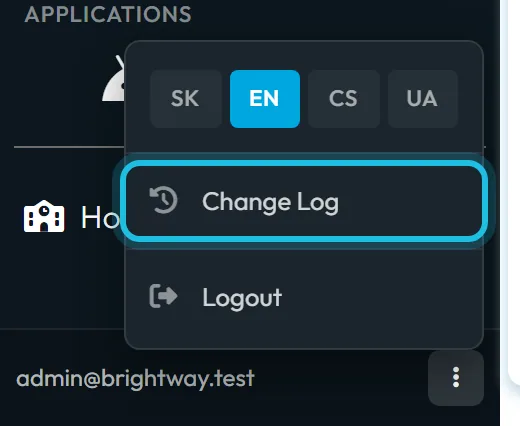
The attendance change log lists edits to attendance and absences: who made each change, when, the field, the old value and the new one. Open it from the three-dot menu next to your e-mail at the bottom of the left menu › Change Log. Search for a name or a date and export the rows to Excel.
#What it's good for
- Disputes about hours are settled with facts: who moved Liam’s arrival from 19:40 to 19:45, and when.
- You see who approved or declined an absence, and who deleted a scan.
- Several people can edit attendance without losing track of who did what.
#Who it's for
A good fit for
- Companies where shift leads, supervisors and payroll all edit attendance.
- Anyone who has to explain a corrected timesheet to an employee or an auditor.
Not the right fit for
- Tracking changes to settings, wages, schedules or user accounts. Those aren’t in the change log.
- Seeing who logged in or who viewed data. The change log records edits only.
#Step by step
-
Open the Change Log.
At the bottom of the left menu, click the three dots next to your e-mail address and choose Change Log. The page describes itself as a “Technical history of changes made in absences and attendance.”
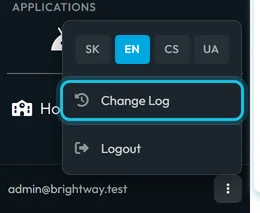
The Change Log is in the menu next to your e-mail -
Read a row.
The newest changes are at the top. Each row shows:
- Who changed – the e-mail of the user account, with the date and time. Automatic changes, such as closing a forgotten departure, show System.
- Table name and Column name – what was changed, for example an attendance record’s Time From, or an absence’s status. Some rows show technical names as they are stored.
- Old value and New value. A deleted scan shows the record as the old value and Deleted as the new one.
- Metadata – which employee and which record, for example “Fitzgerald Liam 14/10/2026 19:45 – 15/10/2026 00:16”.

Who changed what, with old and new values -
Search for an employee or a date.
Type into Search – a surname, a date, or a word like Deleted. With several words, every word must match. The list shows 50 rows at a time; Load More adds the next 50.
Typical searches: the employee’s surname and the date of the disputed day; the surname and the absence status to see who approved it; Deleted to find removed scans.

Search narrows the log to one employee -
Export to Excel.
Click Export to Excel. The file contains the rows currently loaded on the page, so search first or click Load More until everything you need is shown.


#What is recorded
| Change | In the change log? |
|---|---|
| Adding, editing or deleting a scan in the web app – see Edit attendance records | Yes, field by field |
| Approving, declining or editing an absence – see Approve leave requests | Yes |
| Automatic closing of a forgotten departure – see Forgot to clock out | Yes, as System |
| Marking an employee note as read – see Employee notes | Yes |
| The employees’ own scans from the app | No – they are the original records, not changes |
#Special cases and tips
- No filters
- There are no filters by date, account or type of change – the search box does that job. Combine words, for example a surname and a date.
- Locked periods
- Locking and unlocking periods has its own history on the Locked Periods tab – see Lock attendance records.
#Frequently asked questions
Can entries be deleted from the Change Log?
No. The app has no function to delete or edit entries.
Why does it say System?
The change was made automatically – for example a forgotten departure closed by a rule.
Can I see who approved a leave request?
Yes. Search for the employee’s surname; the row with the status change shows the account that made it and when.
Does it show changes to wages or settings?
No. The Change Log covers mainly attendance and absences, plus a few related records such as notes marked as read.
Does it record who logged in?
No. It records changes only.
#Related
You are hereChange Log
Web app (administrator)Mobile app (employee)



