Automatic attendance and closing forgotten clock-outs
On this page
- Quick answer
- How to turn it on
- What it's good for
- Who it's for
- Set up automatic attendance
- An absence instead of attendance
- A temporary rule
- Attendance for past days
- Forgot to clock out? Close open attendance automatically
- Add a closing rule
- Order of the closing rules
- Other ways to deal with forgotten clock-outs
- Special cases and tips
- Frequently asked questions
- Related
Quick answer
Automatic attendance in FreshQR creates records without anyone scanning. A rule under Employees › Automatic attendance sets who, which days, which branch or absence, and the times. A separate feature handles staff who forgot to clock out: Scan Details › Auto-Close Settings closes open records at a set time or after set hours.
How to turn it on
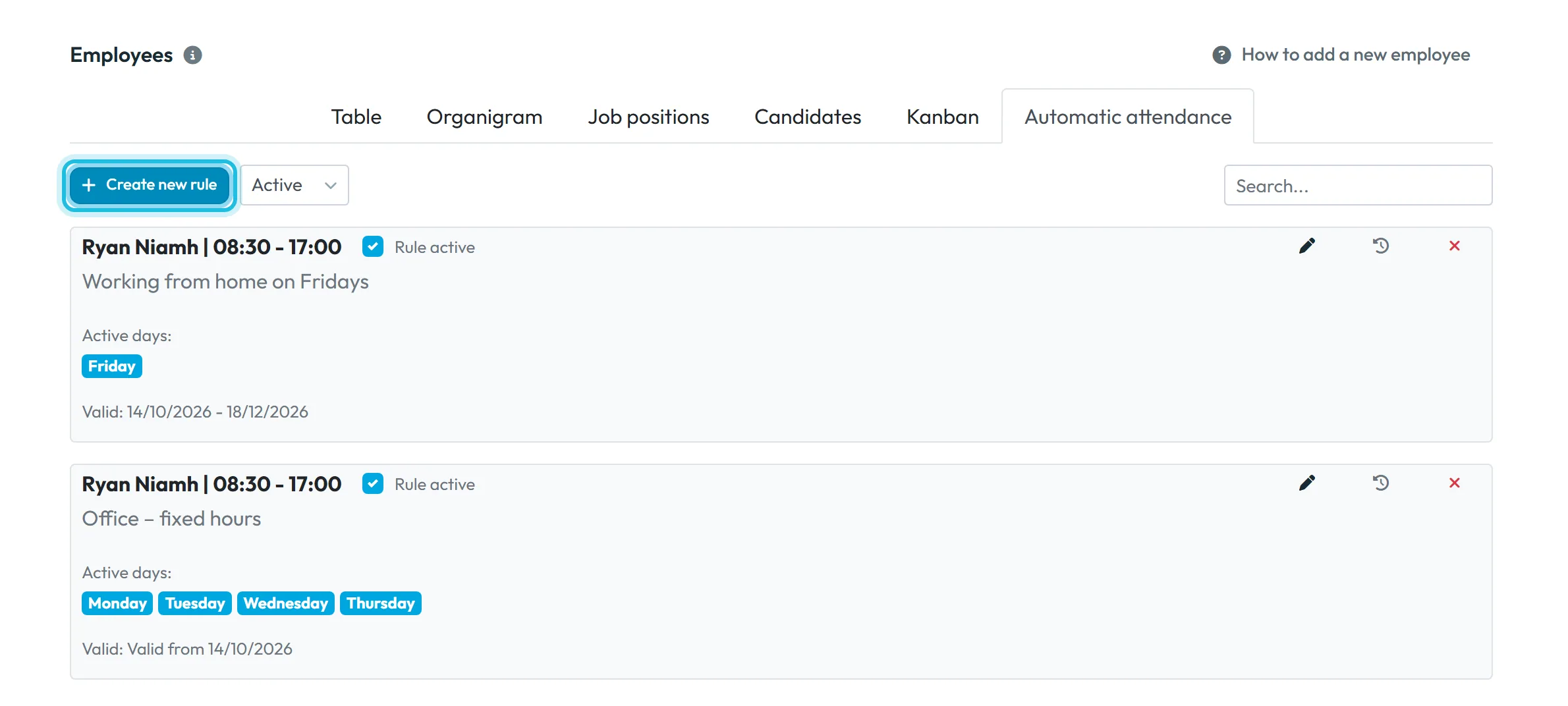
Automatic attendance: there are no rules at the start. Create the first one with Create new rule on the Automatic attendance tab. Closing forgotten clock-outs is set up separately, as described below.
- Employees
- Automatic attendance
- Create new rule
- Who can turn it on
- The Owner, Administrators and roles allowed to edit employees.
- What changes
- The selected employees get attendance records or approved absences without scanning. They count in the reports like any other record.
- Applies to
- Each rule applies to the employees you select in it.
#What it's good for
- People with fixed hours who don’t scan still appear in the reports and in payroll.
- Regular absences, such as working from home every Friday, don’t need entering every week.
- A forgotten stretch of days can be filled in afterwards in one go.
- No more 20-hour days in the reports because someone forgot to scan out.
- The next morning’s clock-in works normally, because the previous record is already closed.
#Who it's for
A good fit for
- An owner or director who doesn’t scan but needs to be in the attendance records.
- Office staff with fixed hours, for example an office administrator working 8:30 to 17:00, and regular absences such as working from home or set days off.
- Teams where forgotten clock-outs happen regularly: evening cleaning, late closing, shift work.
Not the right fit for
- If you need proof that someone was at work. A rule records a plan, not a scan – with no GPS and no photo.
- People who scan shouldn’t get an automatic attendance rule, so they don’t end up with two records on the same day.
- If you need the real departure time for every day. A closing rule only estimates it; combine the clock-out reminder on the phone with manual fixes instead.
#Set up automatic attendance
-
Open Automatic attendance.
In the left menu, click Employees and open the Automatic attendance tab. The filter next to the button switches between active and other rules. Click Create new rule.
-
Choose the days.
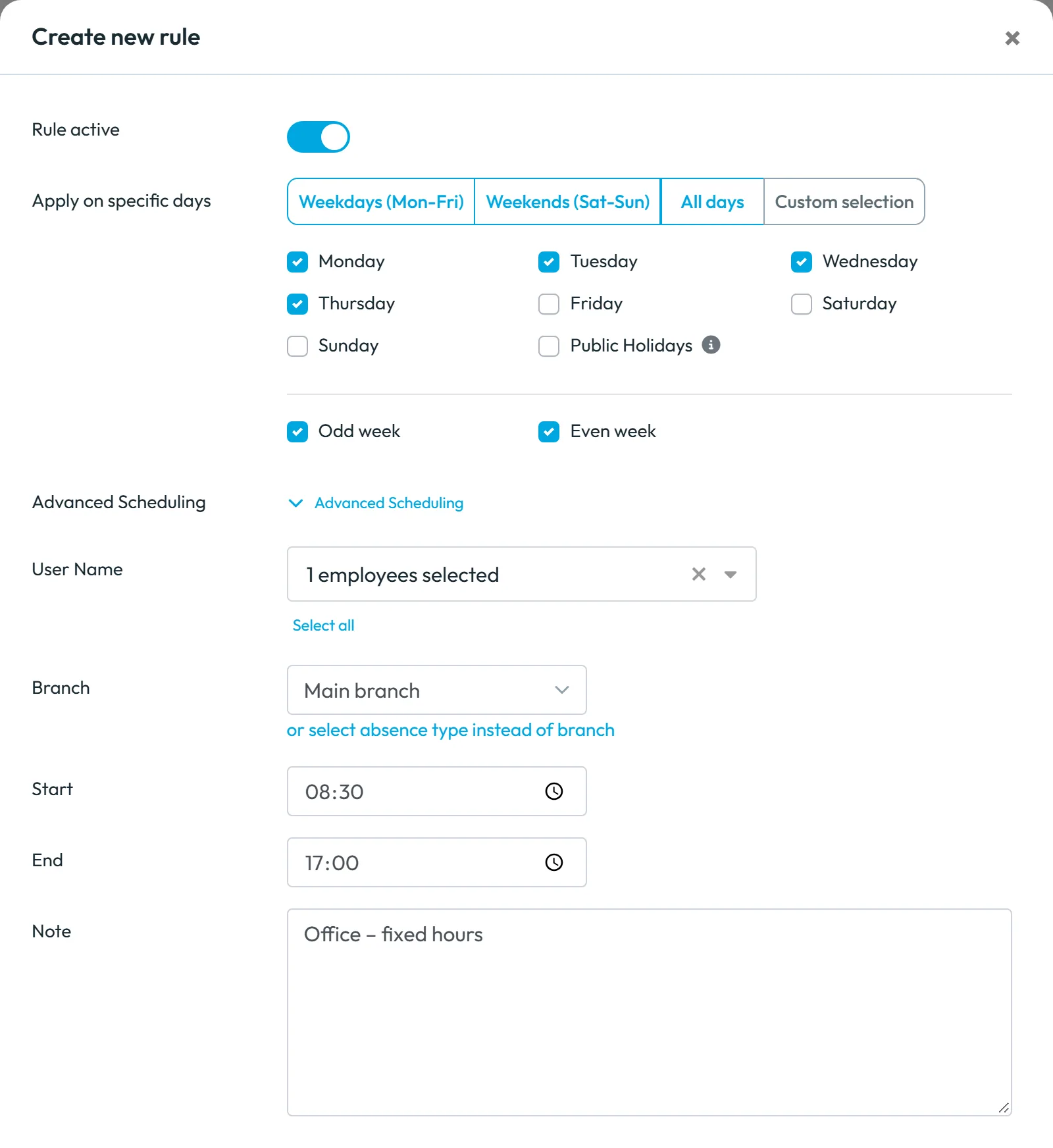
Under Apply on specific days pick Weekdays (Mon-Fri), Weekends (Sat-Sun), All days or Custom selection, then untick individual days as needed. Niamh Ryan, Brightway’s office administrator, is in the Head office from Monday to Thursday – Friday is unticked. Below the days are Odd week and Even week; with both ticked, the rule applies every week. For hours that alternate every two weeks, create two rules: one with only Odd week ticked, the other with only Even week and the other days.
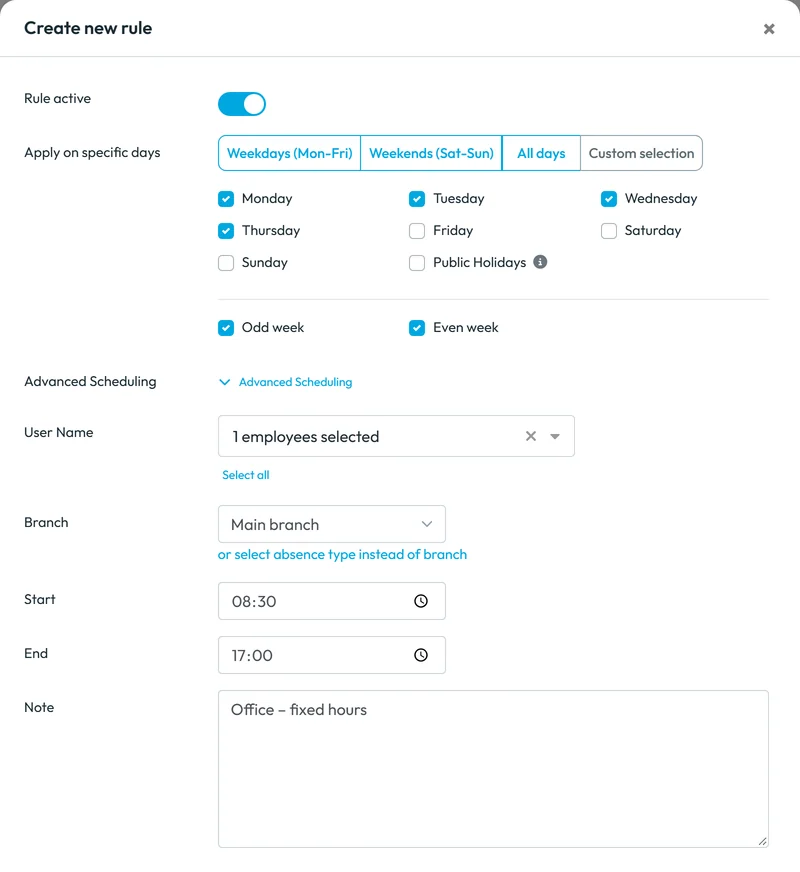
A rule for office hours, Monday to Thursday, 08:30–17:00 -
Choose the employees and the branch.
In User Name pick one or more employees; Select all picks everyone. Then choose the Branch where the attendance is recorded.
-
Enter the times and a note, then save.
Fill in Start and End, for example 08:30 and 17:00. In Note, write why the rule exists – the note is shown under the name in the list of rules. Leave Rule active switched on and save the rule.
-
Check the records.
The records the rule creates appear in Scan Details and in the reports as ordinary attendance. See Scan details.
#An absence instead of attendance
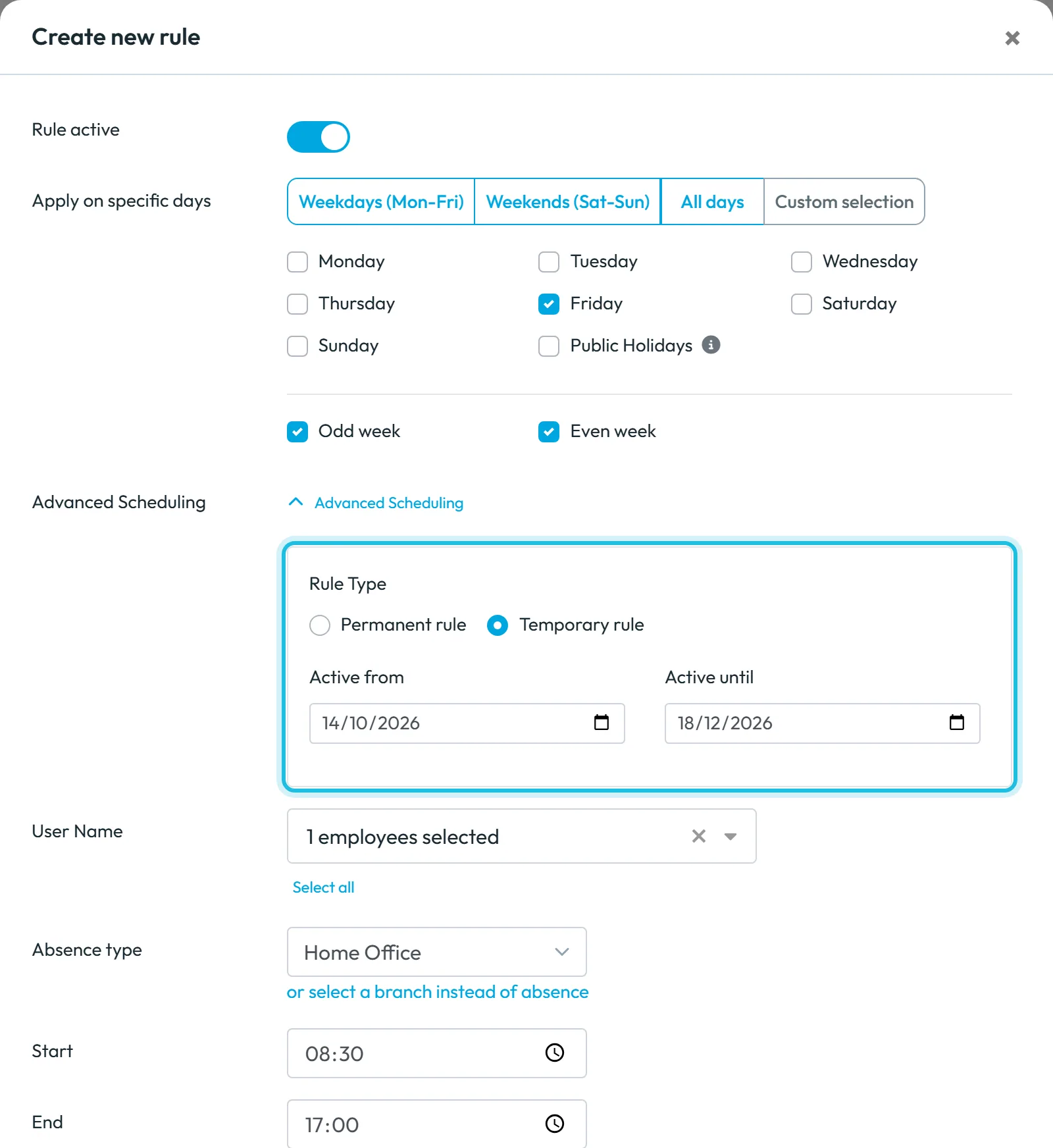
Under the Branch field, click or select absence type instead of branch and pick a type, for example Home Office. On the selected days the rule then records an approved absence. That’s how Niamh has working from home every Friday. Start and End are required here too. The rule card in the list doesn’t show the absence type, so put it in the note, for example “Working from home on Fridays”.
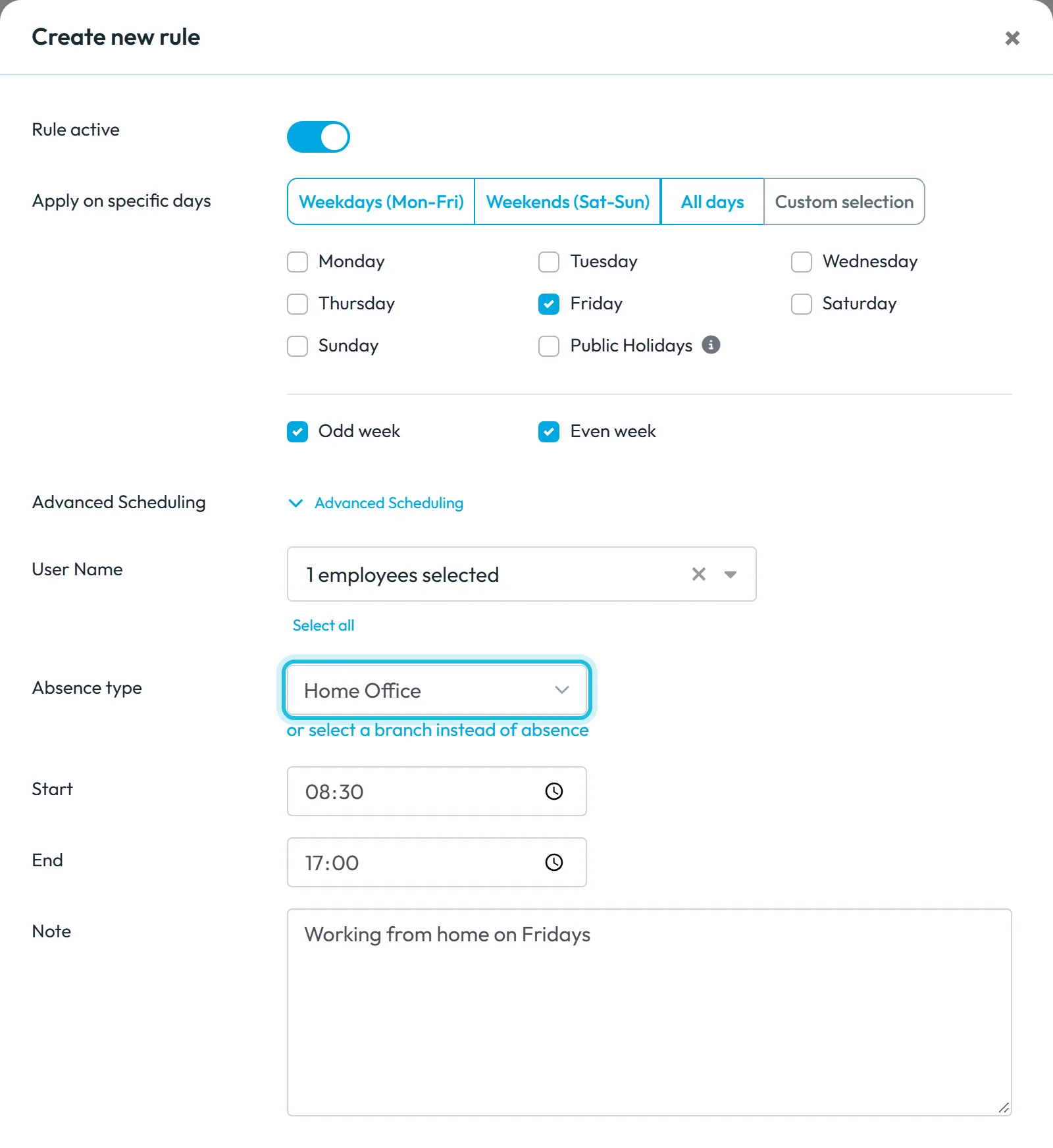
#A temporary rule
Open Advanced Scheduling and choose Temporary rule with the dates Active from and Active until. Useful, for example, for working from home while the office is being refitted. A Permanent rule has no end date.
#Attendance for past days
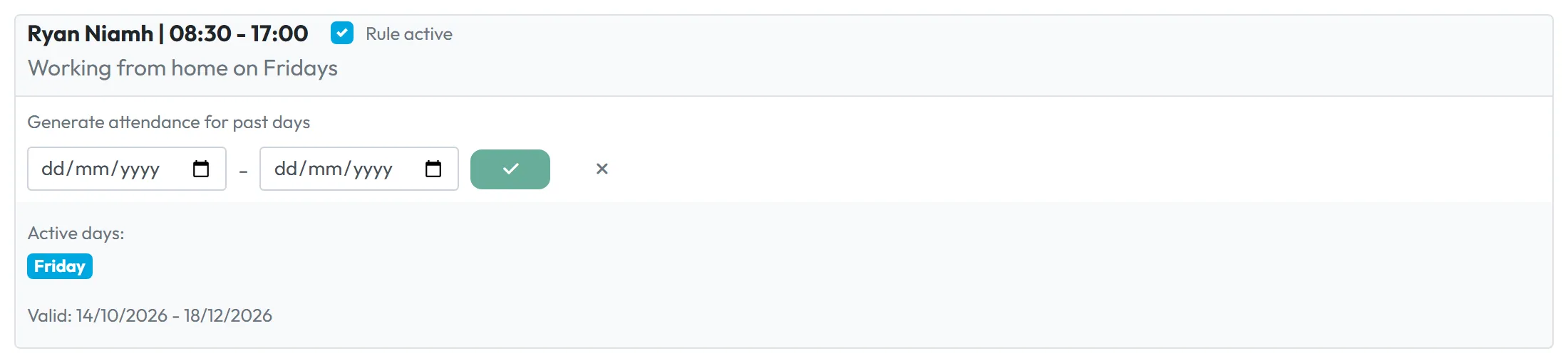
On the rule card, click the clock icon with the arrow. Generate attendance for past days appears right in the card with a from – to date range. Confirm with the tick and the rule creates records for those days. Then check the result in Scan Details.
#Forgot to clock out? Close open attendance automatically
When an employee forgot to clock out, their attendance record stays open. FreshQR can close such records by rule: at an exact time, for example 23:30, or after a set number of worked hours. The closing time is an estimate. This is a separate feature from automatic attendance – it never creates records, it only closes open ones.
How to turn it on
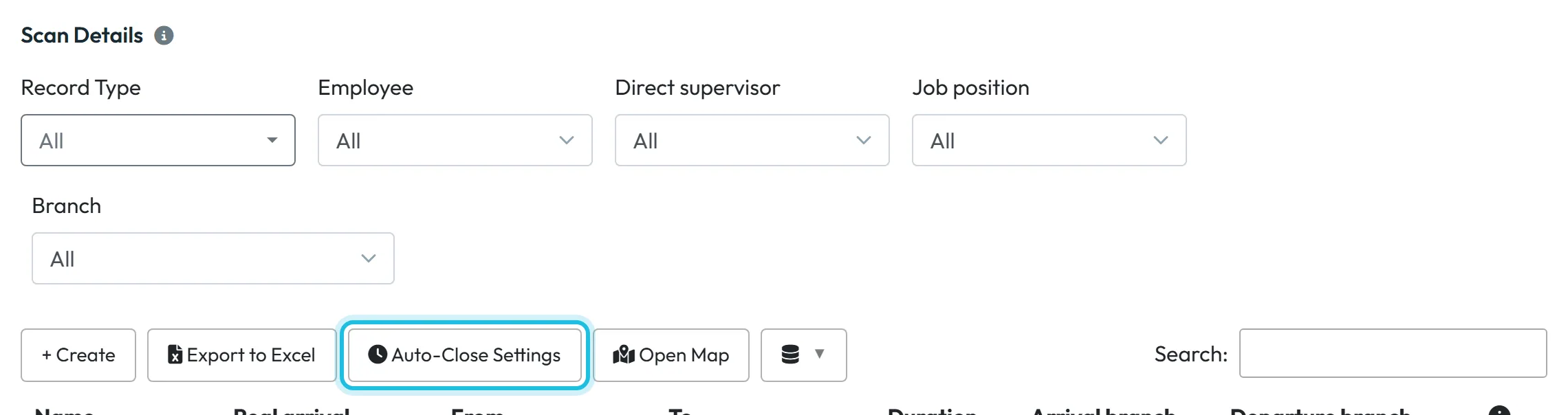
There are no rules at the start, so open records stay open until someone scans out or you close them by hand. In Scan Details click Auto-Close Settings above the table and create the first rule with Add Rule. Anyone who can edit Scan Details can do it – the Owner, Administrators and the role Scans Detail: View & Edit; others don’t see the button. Open records that match a rule get a departure time automatically; nothing changes in the way employees scan. The rules apply to the whole company, and each one can be limited to certain days, branches and employees.
The window explains the feature under Automatic Departure Closure: This prevents incomplete records in the system, but the estimated departure time may not reflect the actual time the employee left.
At the bottom it says Automatic processing runs every 15 minutes
.
#Add a closing rule
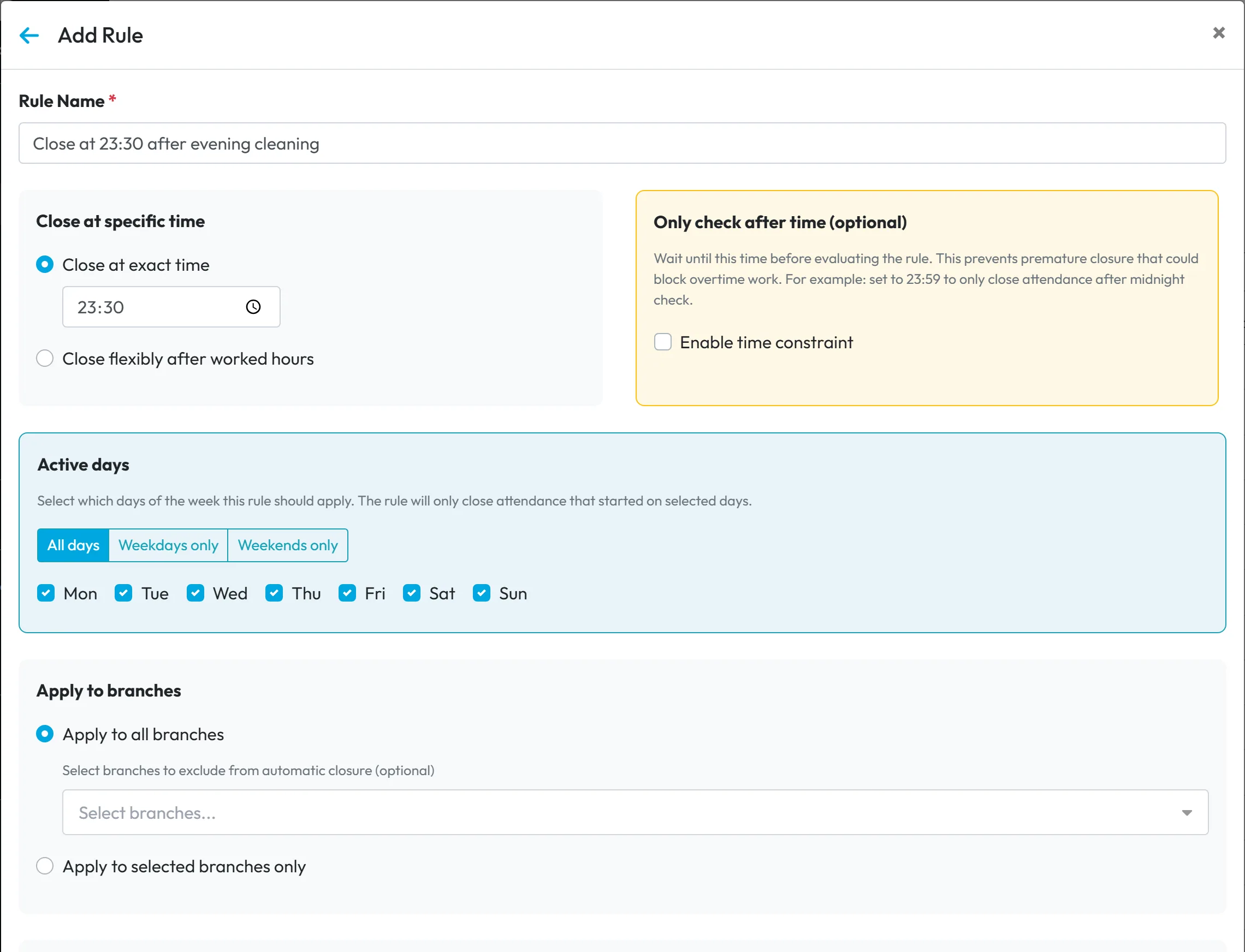
- Add a rule and choose how it closes. Click Add Rule and fill in the Rule Name. Then choose Close at exact time – for example 23:30, which suits a team with a fixed end, such as Brightway’s evening crew at Malahide Medical Centre, who finish by 23:00 – or Close flexibly after worked hours – for example after 12:00, meaning 12 hours from clock-in, which suits staff with changing hours. The form shows
Format: HH:MM (e.g., 08:00 or 24:00). Range: 00:30 to 24:00
. An exact time of 00:00 isn’t allowed, because it would be before any clock-in that day; the app suggests 23:59 instead. - Let overtime finish first, if needed. The box Only check after time (optional) holds the rule back until a set time. Tick Enable time constraint and enter the time. The form explains:
This prevents premature closure that could block overtime work. For example: set to 23:59 to only close attendance after midnight check.
- Pick the days, branches and employees. Under Active days choose All days, Weekdays only, Weekends only or tick individual days. The rule only closes attendance that started on those days. Under Apply to branches choose all branches, with optional exceptions, or selected branches only. Do the same for employees – for example everyone except the night security guard. Save the rule.
#Order of the closing rules
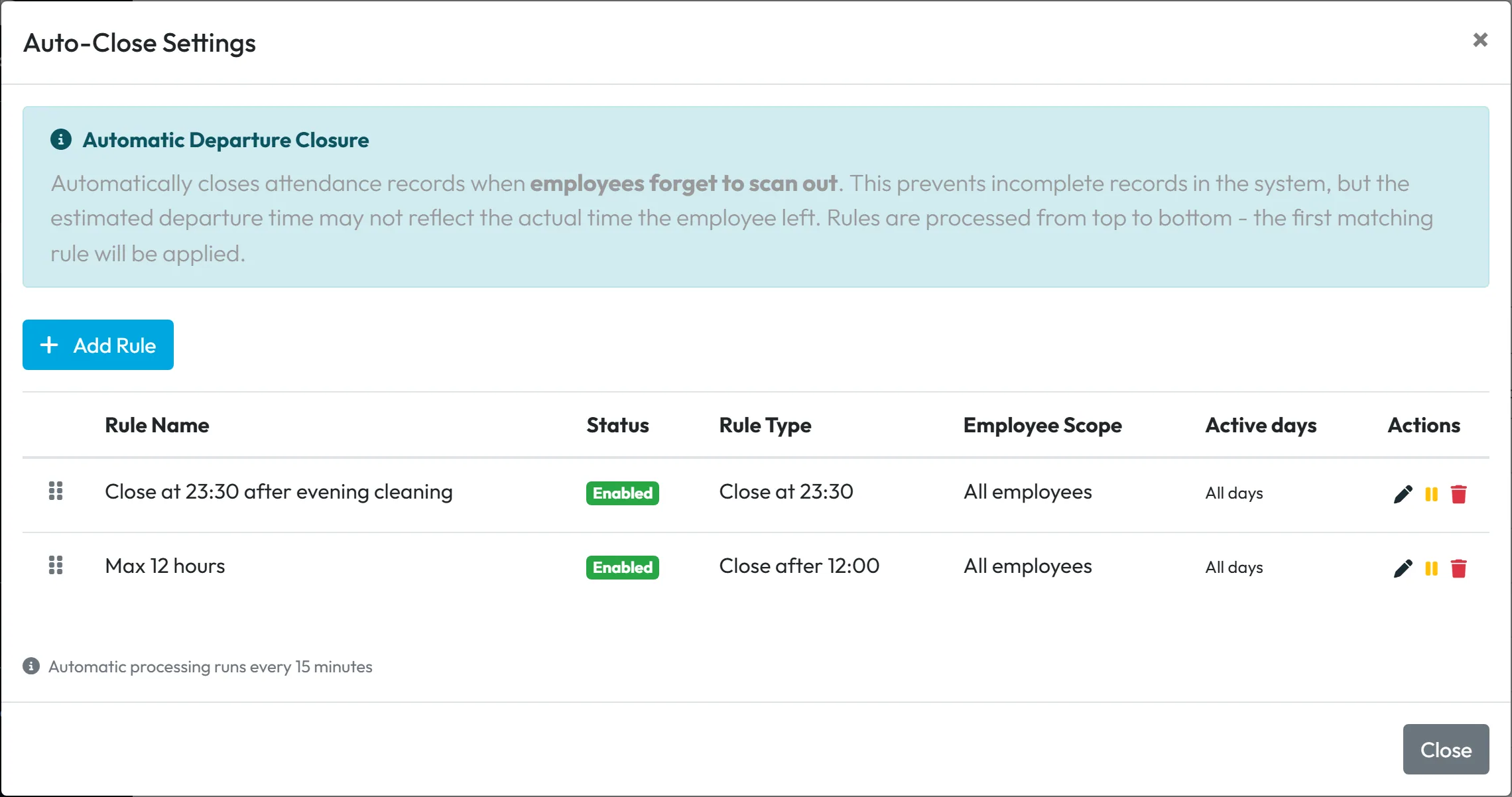
The list shows Rule Name, Status, Rule Type, Employee Scope and Active days. Rules are processed from top to bottom - the first matching rule will be applied.
Drag a rule by the handle on the left to move it. Put specific rules, such as one for a single branch, above general ones. A rule type shown as Close after 12:00 means after 12 worked hours, not at noon. The pause icon in the Actions column switches a rule off without deleting it – handy over Christmas or during a stock-take; the pencil edits it and the bin deletes it.
#Other ways to deal with forgotten clock-outs
- Fix it by handIf you know when the person really left, enter the time in Scan Details with Edit. This also works for a record a rule has already closed. See Scan details.
- A reminder on the phoneThe app can remind employees to clock out after a set number of hours (Clock-out reminder after (hours) in Mobile App Settings). See Clock-out reminder.
- Find the open recordsThe Checks report lists missing scans for a whole period. See Checks (Beta).
#Special cases and tips
- An automatic attendance rule is no longer needed
- Switch off Rule active, or delete the rule with the × on its card.
- A record needs correcting
- Edit a record created by a rule in Scan Details like any other – for example when the office administrator left early that day.
- A different feature with a similar name
- Automatic absences turn marked breaks into absences and have nothing to do with these rules. See Automatic absences and compensatory time off.
- Check the first week
- After you create an automatic attendance rule, look at the employee’s days in Scan Details or the monthly report for the first week. That way you spot a wrong branch or time before payroll. See Monthly employee report.
- No closing rule set up yet
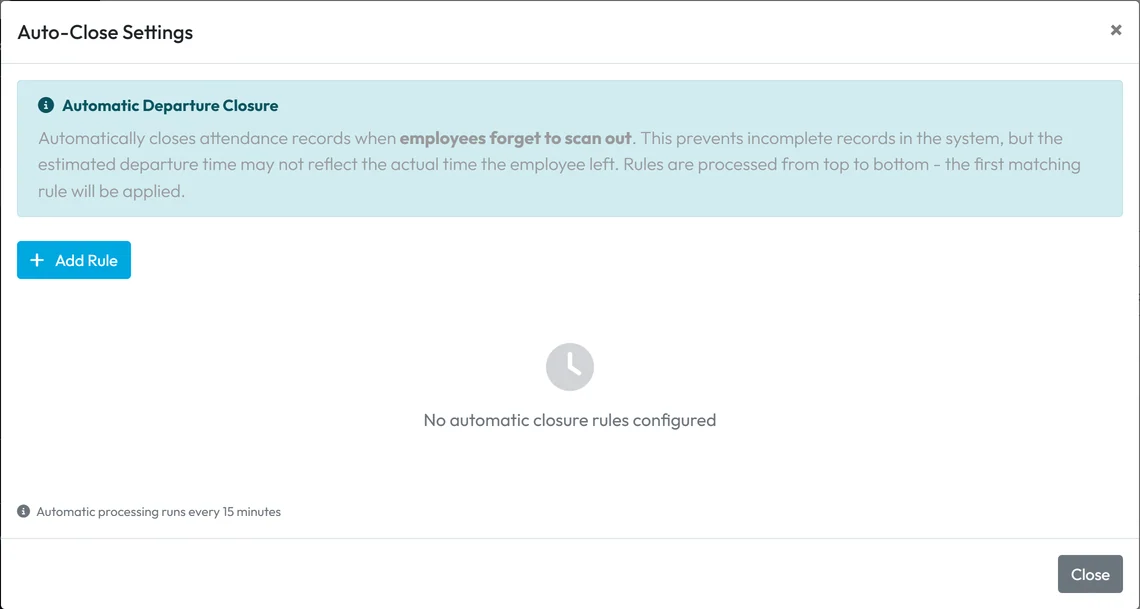
- Until you add one, the Automatic Departure Closure window shows only the description, Add Rule and the 15-minute note.
No rule is set up at the start - Night shifts
- For teams that work past midnight, prefer Close flexibly after worked hours, or use Only check after time. A fixed evening time could close a shift that has only just started. See Night shifts and attendance past midnight.
- The estimated closing time affects overtime
- A rule that closes too late adds hours; one that closes too early cuts them. Choose the time or the number of hours to match your real shifts. The calculation is explained in Work schedules, rounding and breaks.
#Frequently asked questions
Does the employee need the app for automatic attendance?
Only once, to get into your employee list: the profile is created when their phone joins the company with one scan or the company code. From then on the rule creates their records without a phone.
Can a rule record an absence?
Yes. Instead of a branch you pick an absence type, and the rule records an approved absence.
Can I fill in attendance for last month?
Yes. On the rule card use the past-days icon and choose the date range.
Is automatic attendance proof that someone was at work?
No. It’s a record based on a plan, with no scan, GPS or photo.
Is the automatic closing time the real departure?
No, it’s an estimate. If you know the real time, correct it in Scan Details.
How quickly does a closing rule close a record?
The app processes the rules every 15 minutes.
Can I have different closing rules for different branches?
Yes. Each rule can apply to selected branches and employees. The first matching rule from the top is used.
Will a closing rule cut off people who are still working?
It can if the time is too early. Choose enough hours, or tick Enable time constraint under Only check after time.
#Related
You are hereAutomatic attendance and departure closure
Web app (administrator)Mobile app (employee)



