How to clock in with a QR code – and clock out again
On this page
- Quick answer
- What it's good for
- Who it's for
- Step by step
- Clock out for a lunch break or a doctor visit
- What your employer sees from the mark
- Taking a workplace photo when you scan
- Clock-out reminder: “Still at work?”
- Arriving at one branch and leaving from another
- Other things that may pop up when you scan
- Special cases and tips
- Frequently asked questions
- Related
Can't see this option in the app? Your employer has to turn on Mark next scan as…, the workplace photo and the clock-out reminder.
Guide for administrators: Mobile app settings →
Quick answer
To clock in with a QR code, tap Scan QR on Home and point your phone at the Arrival code. The app confirms something like “Started at 07:58”. At the end of your shift, scan Departure. Going to lunch or the doctor? Turn on Mark next scan as…. If your employer wants a workplace photo, tap Capture after the scan.
#What it's good for
- No paper sheet and no time clock – just your phone and the code on the wall.
- You see straight away that your arrival was recorded, with the exact time.
- It works without signal too – the scan is saved and sent later.
- A doctor visit marked on your scan can be recorded as an absence automatically, without a separate request.
- A workplace photo is attached to the scan – no need to send photos of the job to your manager on WhatsApp.
#Who it's for
A good fit for
- Staff with a fixed workplace: depots, offices, kitchens, shops, warehouses, client sites with a printed code.
- Anyone who leaves and comes back during a shift – for lunch, a GP appointment, or a run to the supplier for the company.
Not the right fit for
- People who move between places with no printed code – projects or clocking in without a QR code suit them better, if their employer uses them.
#Step by step
-
Open the app on Home.
Before you arrive, the status top right says Logged Out and the Scan QR button is below. The button is only there on today’s page – if you have browsed back to an earlier day, return to Today.
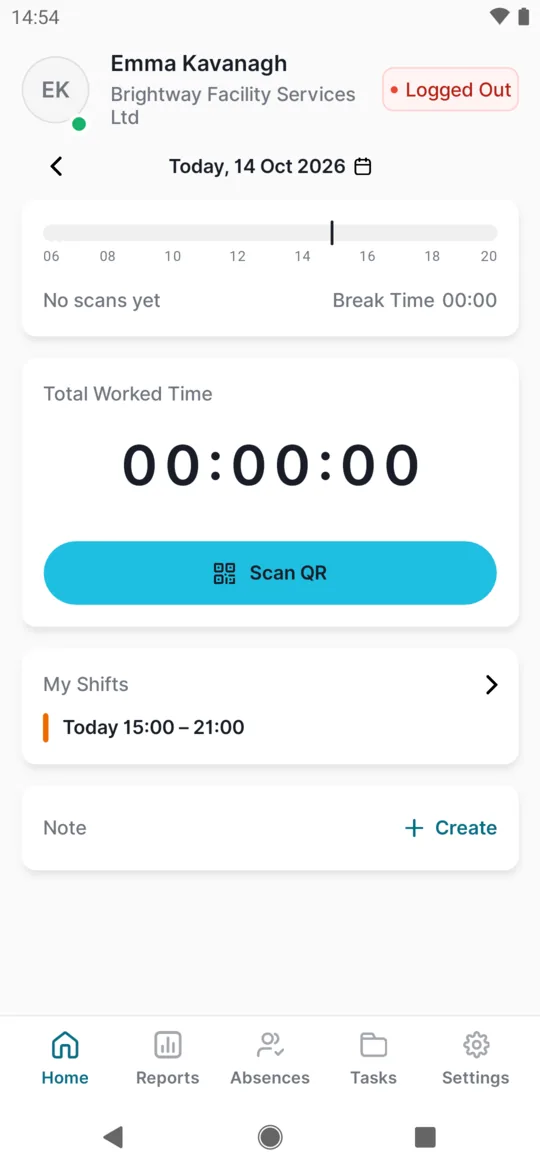
Before arrival: Logged Out -
Tap Scan QR and point the camera at the Arrival code.
The camera opens. The first time, allow the camera – and location too, if your employer uses it. Hold the phone about 15 to 30 cm from the Arrival code. It reads the code by itself; you don’t press anything.
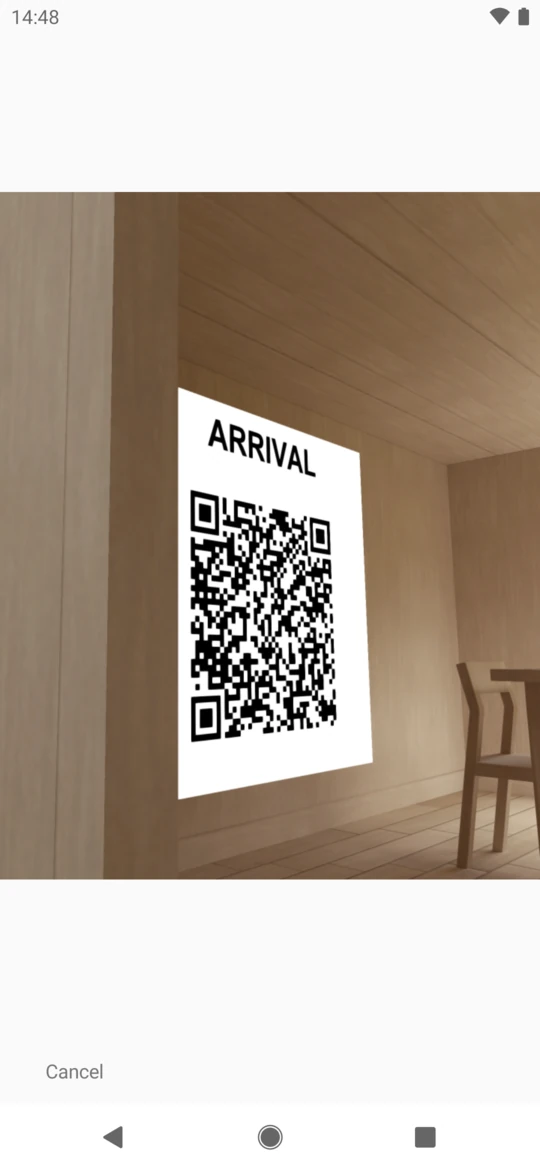
Point the camera at the Arrival QR code -
Wait for the confirmation and tap OK.
The camera closes and
Processing...
shows for a moment. Then you see a confirmation with a green tick, for exampleStarted at 07:58
. Only this confirmation means your arrival is recorded. Tap OK to close it.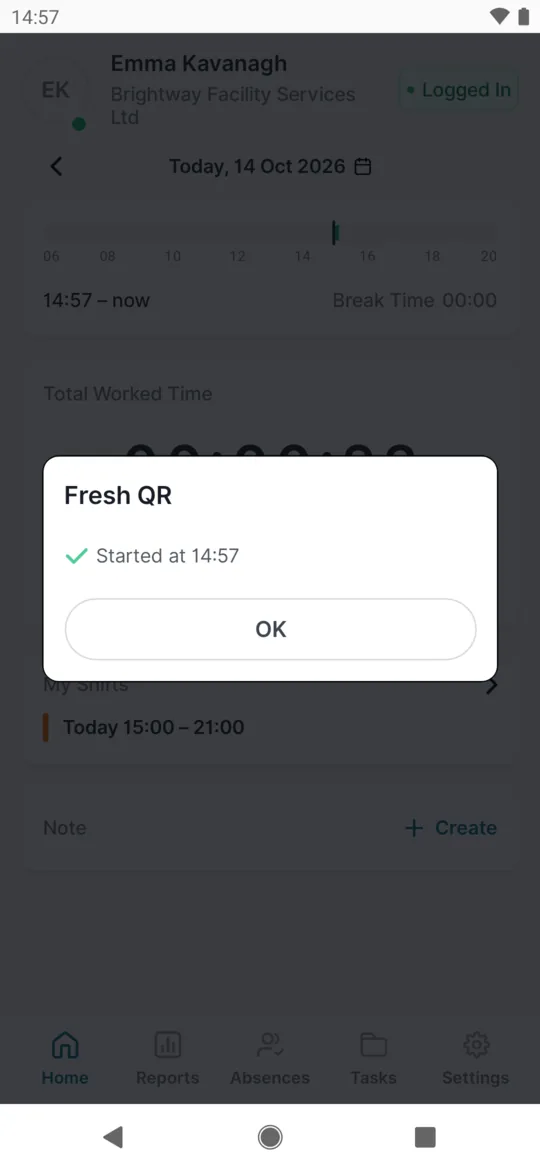
Your arrival is recorded -
Check that it says Logged In.
The status changes to Logged In – here it means clocked in, not logged into the app. If your employer allows it, your worked time starts counting and your arrival appears on the day’s timeline. What else Home shows is in Day overview and hours worked.
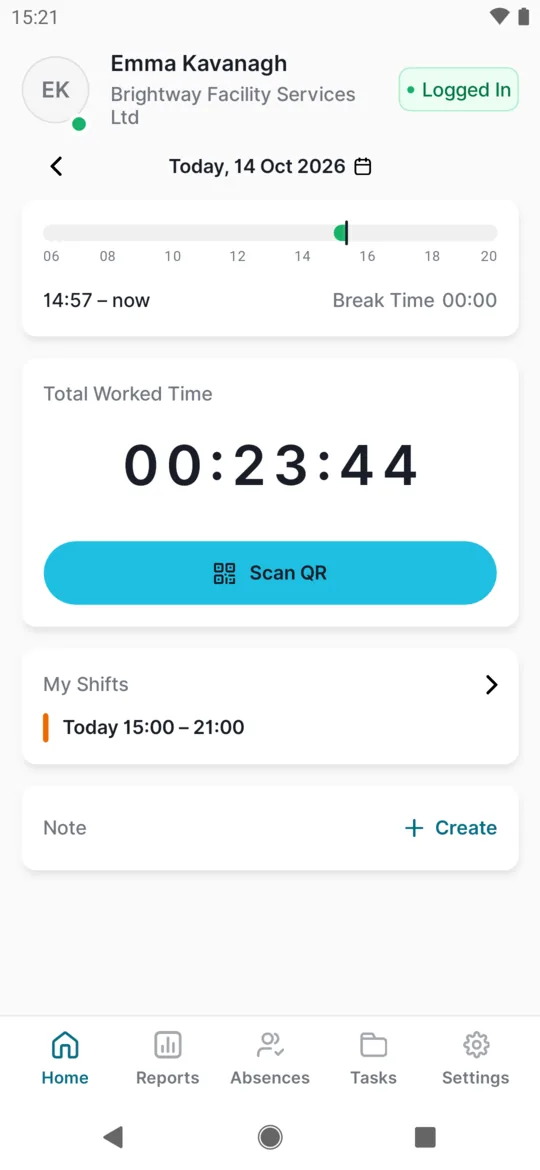
After arrival the worked time runs -
At the end of your shift, scan the Departure code.
Tap Scan QR again and point the phone at the Departure code. You see something like
Closed at 16:02 Duration: 08:04
. If your employer doesn’t show worked time in the app, the duration is left out. The status goes back to Logged Out.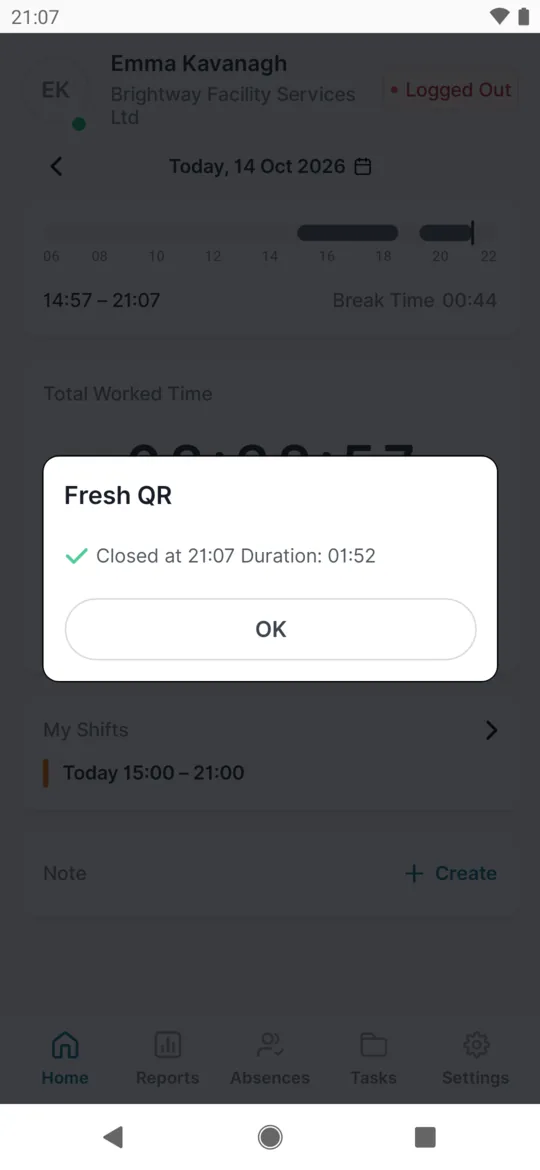
At departure you also see the duration
#Clock out for a lunch break or a doctor visit
If your employer wants you to clock out for lunch, scan Departure when you leave and Arrival when you come back. Whether you should is your employer’s rule – the system can also take off automatic breaks by itself.
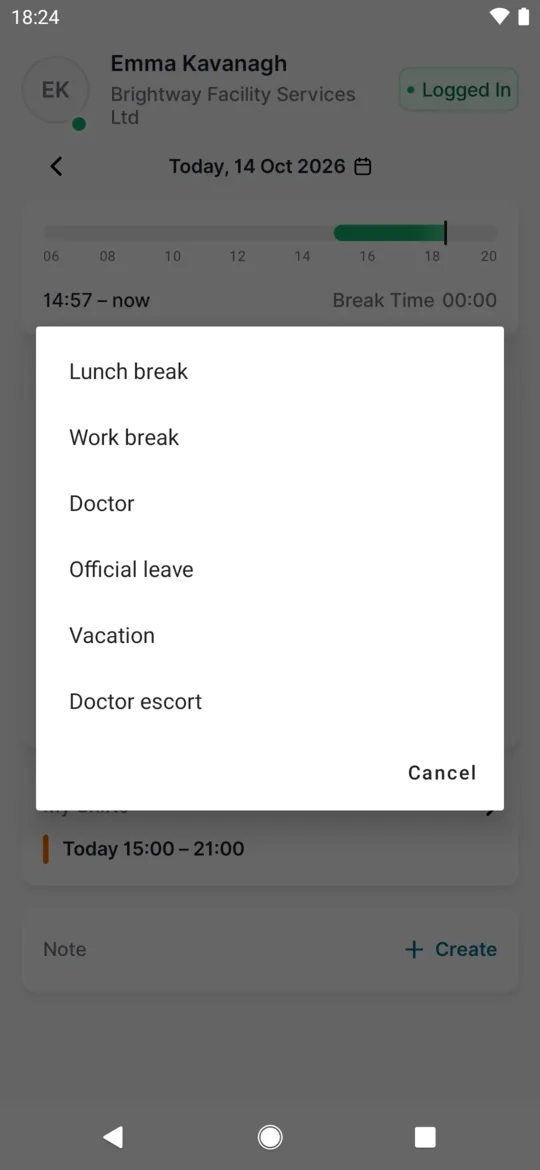
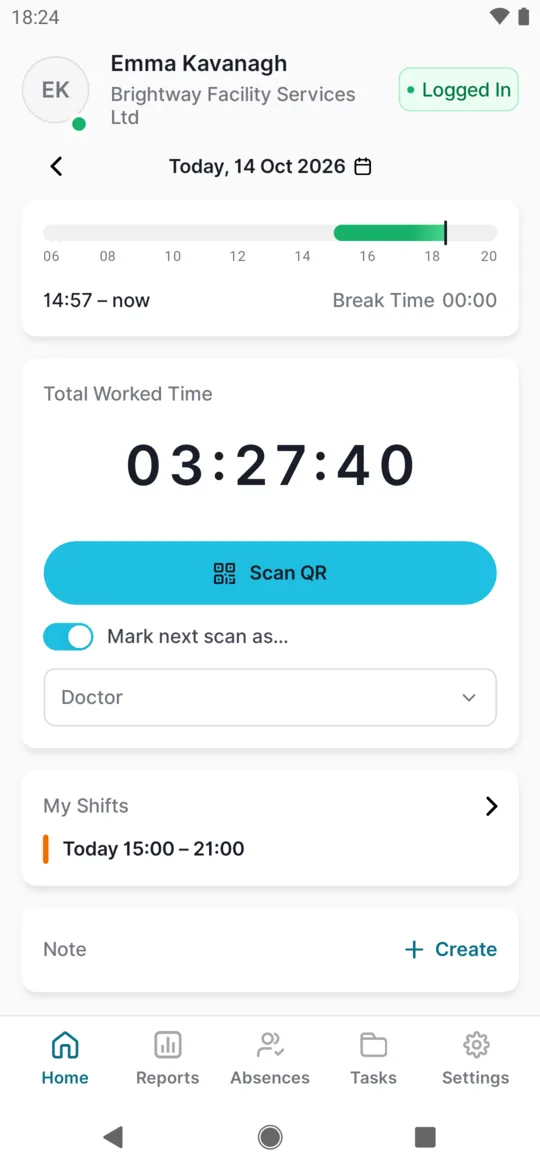
If your company has Mark next scan as… turned on, you can tell your employer why you are leaving:
- Turn on Mark next scan as…. On Home, under Scan QR, tap the switch. A row with the reason appears below it; Lunch break is selected to start with.
- Pick the reason. Tap the reason row and choose one of six options: Lunch break, Work break, Doctor, Official leave, Vacation or Doctor escort – for example when you take your child to the dentist. Vacation is for leaving during a shift; proper leave is requested in advance under Absences – see Requesting leave.
- Check your choice and scan Departure. The reason you picked is shown under the switch. Scan the Departure code as usual. The mark applies to this one scan only.
- When you are back, scan Arrival. You don’t mark your return – scan the Arrival code and carry on working.
The switch also works with the button for clocking in without a QR code. If it is missing, your employer has hidden it. If they have just turned it on, close the app completely and open it again – the setting arrives after a restart.
#What your employer sees from the mark
Your employer handles the mark in the web app. They see the time between your departure and your return under the reason you chose, for example in the breaks report. If your company uses automatic absences, a Doctor mark can become an approved absence straight away.
You won’t see the reason in the app. In your day detail the gap appears as a work interruption.
#Taking a workplace photo when you scan
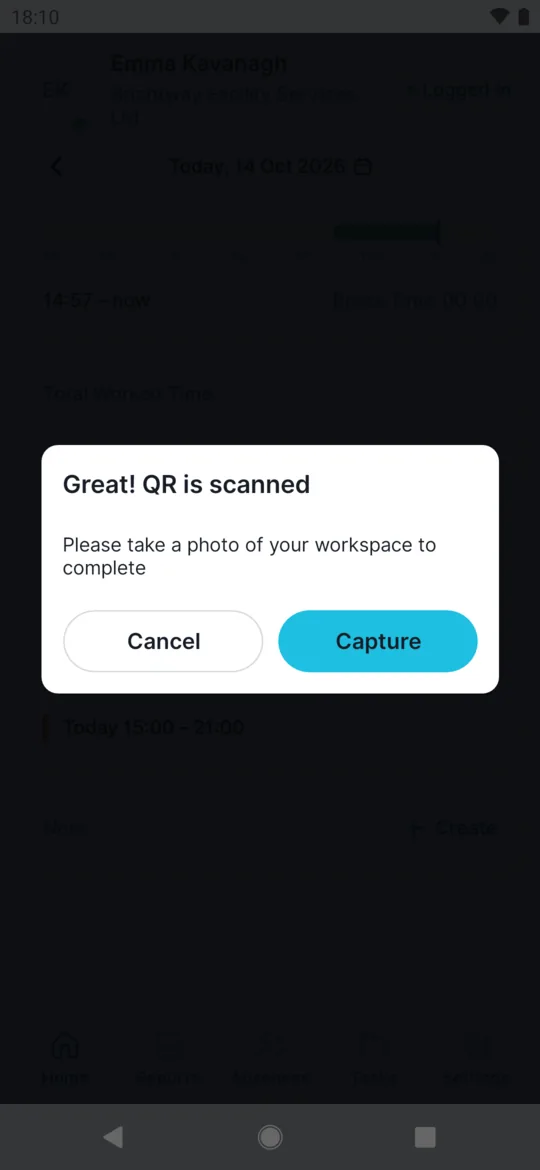
Some employers want a photo of where you are with each scan – typically in cleaning, maintenance, building work and on-site service. Your employer turns this on (see Required photo on scan). The photo is then required for arrival and departure, when you clock in without a QR code and on projects. Without it, the scan is not recorded.
- Scan the code as usual. Right after the scan you see Great! QR is scanned with the text
Please take a photo of your workspace to complete
. The window says “QR” also when you clocked in with the button without a QR code; the steps are the same. - Tap Capture. Your phone’s camera opens. You can only take a new photo – you can’t pick one from your gallery.
- Take the photo and confirm it. Photograph where you are working – the entrance, the clean meeting room, the finished job. On older Android phones the app may also ask for access to storage; allow it.
- Wait for the scan confirmation. After
Processing...
you see the usual confirmation, for exampleStarted at 07:58
. The photo is sent along with the scan.
Nothing checks the photo automatically – your manager looks at it.
#Clock-out reminder: “Still at work?”
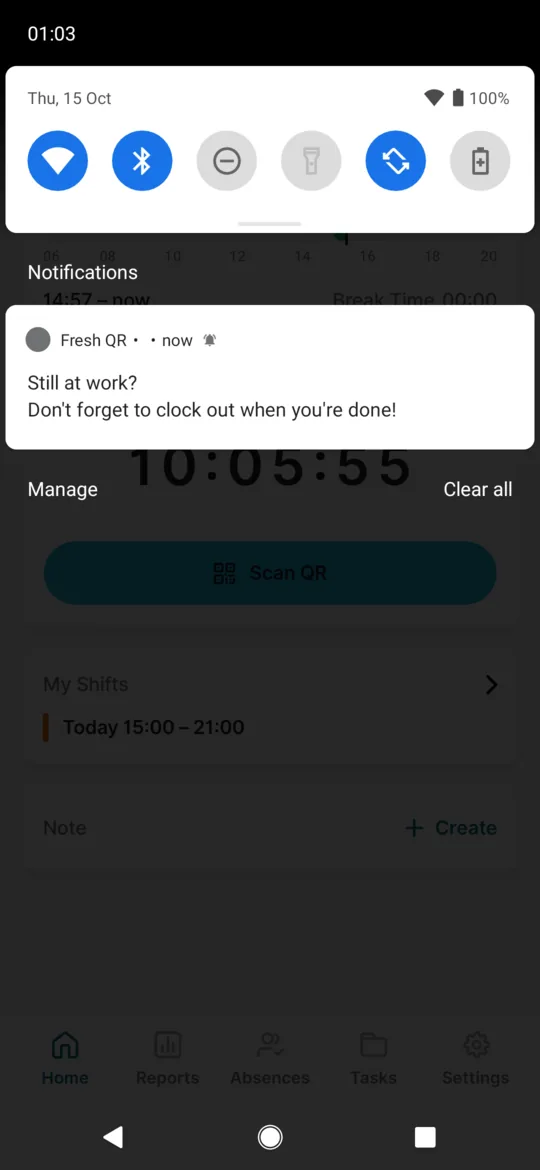
If your employer has turned it on, your phone reminds you to scan out once you have been clocked in longer than they allow – say 10 hours. You see something like Still at work? Don’t forget to clock out when you’re done!
The wording can also be Quick reminder
or 10 hours already?
– the second one appears whatever number of hours your employer has set. Tap it to open the app. If you are still working, do nothing; if you have already left, scan Departure or tell your manager when you finished. The reminder doesn’t clock you out.
The hours count from the moment the app first sees your open arrival – if you scanned in the app, that’s the moment of the scan. Your phone schedules the reminder itself, so it comes even without internet. For it to appear, allow notifications for Fresh QR – the app asks once on first start. You can’t set the time yourself; your employer does, and a change reaches the app after a restart.
Besides this reminder the app only reminds you about scans made without internet that are still waiting to be sent. It doesn’t notify you when your leave is approved, when a new shift plan is out or when you get a new task – check those in the app itself.
#Arriving at one branch and leaving from another
Say Ciara starts at the Sandyford depot and finishes at the city office. She can usually scan Departure at the office. Some employers block this – then she sees Closing attendance on a different branch is not allowed
and has to scan Departure at the branch where she arrived.
#Other things that may pop up when you scan
- No signal – the scan is kept in the Scan Queue and sent later. See Scanning without internet.
- “Still at work?” – if you forget to clock out, your phone may remind you, as described in Clock-out reminder.
#Special cases and tips
- You scanned Arrival twice
- The app answers
You have already scanned this code
and nothing changes – your first arrival counts. If you meant to leave, scan the Departure code. - You forgot to clock in this morning
- The app refuses a departure without an arrival:
Scan Arrival first, please
. Scan Arrival now and tell your manager when you really started. They correct the time in the web app.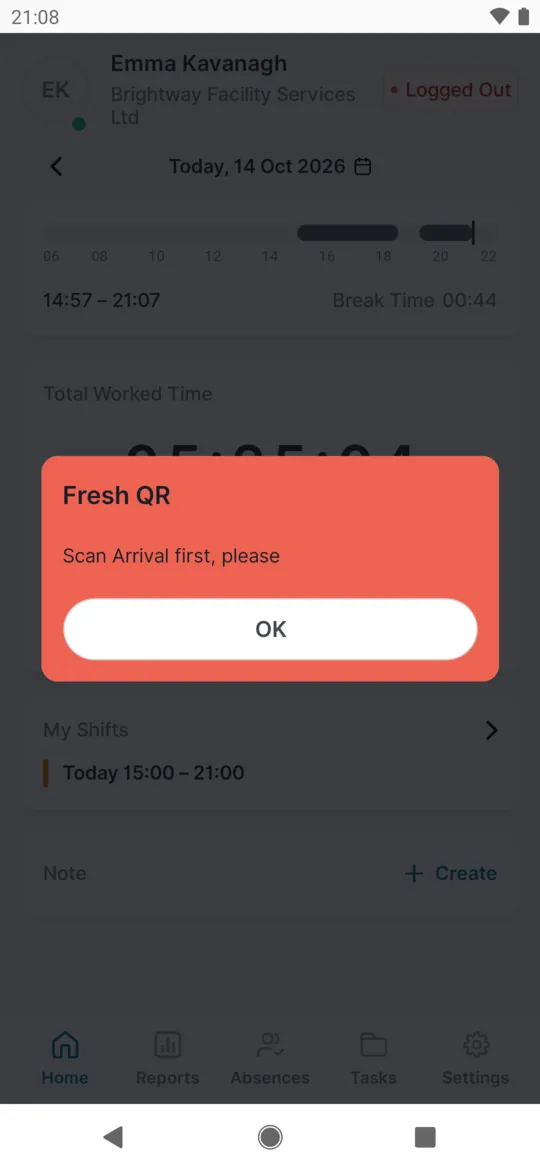
A departure without an arrival is refused - You forgot to clock out last night
- Your attendance stays open and the time keeps running overnight – Home still says Logged In the next morning. Tell your manager. Some employers use automatic closing of forgotten departures; otherwise your manager fixes the time.
- The clock-out reminder didn’t come
- Check that Fresh QR is allowed to show notifications and that battery saver isn’t restricting it. You also won’t get a reminder if your employer hasn’t turned it on, or if you clocked in on a different phone.
- The reminder came later than you expected
- The hours count from when the app saw your open arrival. If your manager recorded your arrival for you, what counts is when you next opened the app.
- You tapped Cancel instead of taking the photo
- The app shows
Work Place Image is mandatory for attendance.
and the scan is not saved. Scan the code again and take the photo this time.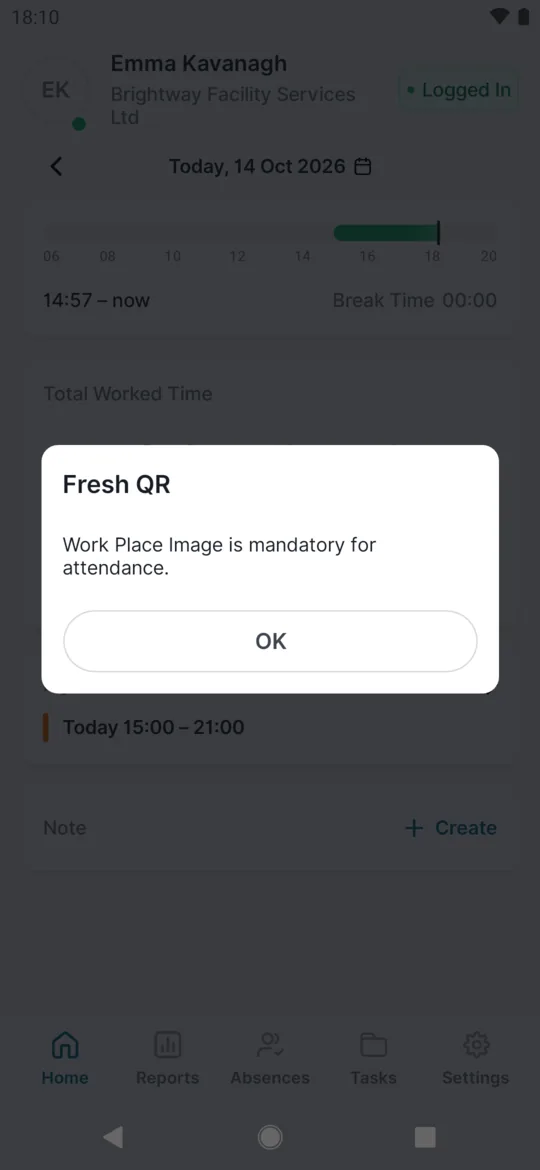
Without the photo the scan is not saved - You scanned the wrong code before the photo
- The app asks for the photo as soon as it reads a code, before it checks the code. If you scanned something else by mistake, you see
Qr code is invalid
after the photo. See Invalid or already scanned QR code. - No signal with a mark or a photo
- Marking works offline too: the mark is saved with the scan in the Scan Queue. A workplace photo is kept on your phone together with the scan and sent once you are online.
- The code won’t read
- Wipe the camera lens, switch a light on, or stand so the light doesn’t reflect off the code. If you get an error message, see Scanning problems.
#Frequently asked questions
Can I clock in for a colleague?
No. A scan is always recorded for the owner of the phone. Everyone scans on their own phone.
Does the app track me during my shift?
No. It reads your location only at the moment you scan, and only if your employer uses location.
Which time is recorded?
The time of the scan, shown in the confirmation. How that time is rounded in your timesheet is set by your employer in the work schedule.
Do I need internet?
Not necessarily. Without internet the scan is saved on your phone and sent when you are back online.
I forgot to mark the scan. What now?
Tell your manager – they can correct it in the web app. An earlier scan can’t be changed on the phone.
Is lunch taken off even if I don’t mark it?
If your employer uses automatic breaks in the work schedule, the system takes them off by itself. The mark only says why you were away.
Who sees my workplace photo, and for how long?
People in your employer’s web app who have access to scans. Photos are kept for 3 months.
Where does my employer get the QR codes?
They print them from the web app – see QR codes for arrival and departure.
#Related
You are hereClocking in and out with a QR code
Administrator
Employee
Web app (administrator)Mobile app (employee)



