How to approve leave requests in FreshQR
On this page
Quick answer
To approve leave requests in FreshQR, click Absences in the left menu – the red number shows how many are waiting. Open a request with status Entered, check the leave balance and who else is out that week, then click Approve or Decline. The employee sees the new status icon in their app.
How to turn it on
Approval is on by default: every request an employee sends from the app waits for your decision, and you don’t need to set anything up. If a type of absence never needs a decision – a doctor visit, for example – switch on Automatically approved for that absence type and its requests skip the queue.
- Absences
- Absence types
- Edit
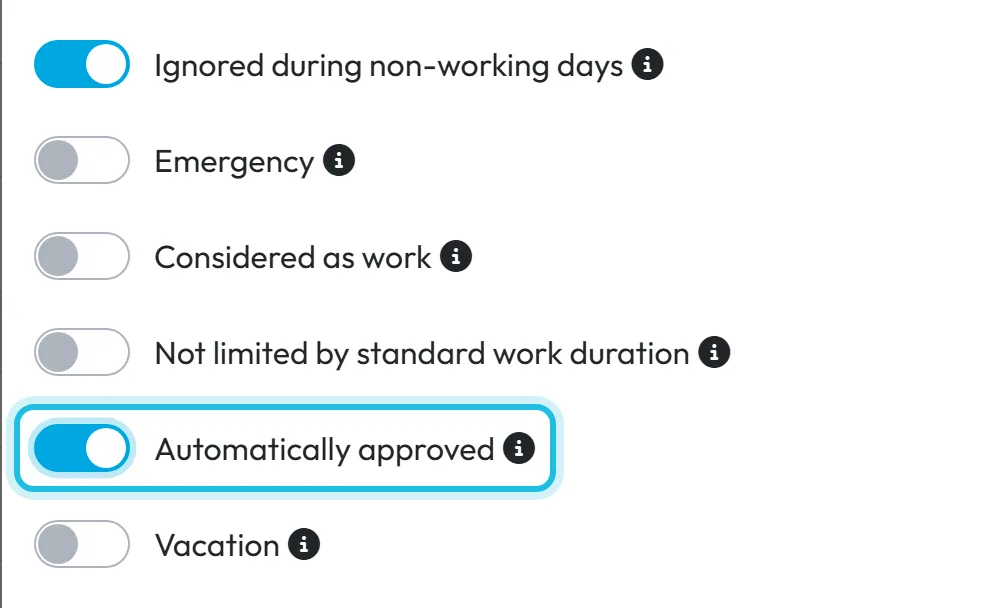
- Who can turn it on
- Owner and Administrator (only they can open the Absence types tab).
- What changes
- Requests of that type sent from the mobile app are saved straight away as Approved. The employee sees a green icon instead of the orange one, and no New absence request e-mail goes out, because nothing is waiting.
- Applies to
- One absence type, for every employee in the company. It does not change absences you enter yourself in the web app – you choose their status in the form.
#What it's good for
- One place for every request: no paper forms, no chat messages to dig out, and a clear record of what was decided and when.
- Before you decide you see how many days the employee has left and who else is off the same week, so you don’t leave a site or a shift short-staffed.
- Approved leave flows into attendance, the monthly employee report and the Excel and PDF exports without retyping. Requests that are still waiting count nowhere.
- A manager account linked to an employee sees only their own team’s requests, so each supervisor deals with their own people.
#Who it's for
A good fit for
- Companies where employees ask for time off themselves and someone has to say yes – a supervisor, a site manager or the owner.
- Shift-based teams (cleaning crews, hospitality, retail, production) where it matters how many people are off at the same time.
- Companies with several supervisors: each one approves only the people below them in the organigram.
Not the right fit for
- If nobody approves anything and the office simply records leave, enter the absences yourself with status Approved, or switch the absence type to Automatically approved.
- Employees who don’t use the FreshQR app: enter their absences for them in the web app, as they can’t send requests themselves.
#Step by step
-
Open Absences.
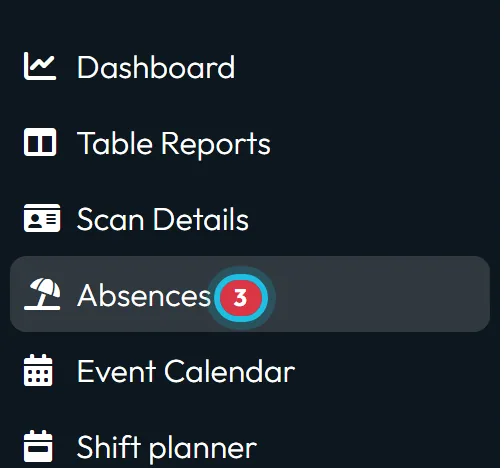
In the left menu, click Absences. The red number next to it is the count of requests with status Entered – that is the EN app’s word for a request that is waiting for a decision.
Requests come from the employees’ phones. How they send one is described in Requesting leave and other absences.
The red number shows requests waiting for a decision -
Find the request in the list.
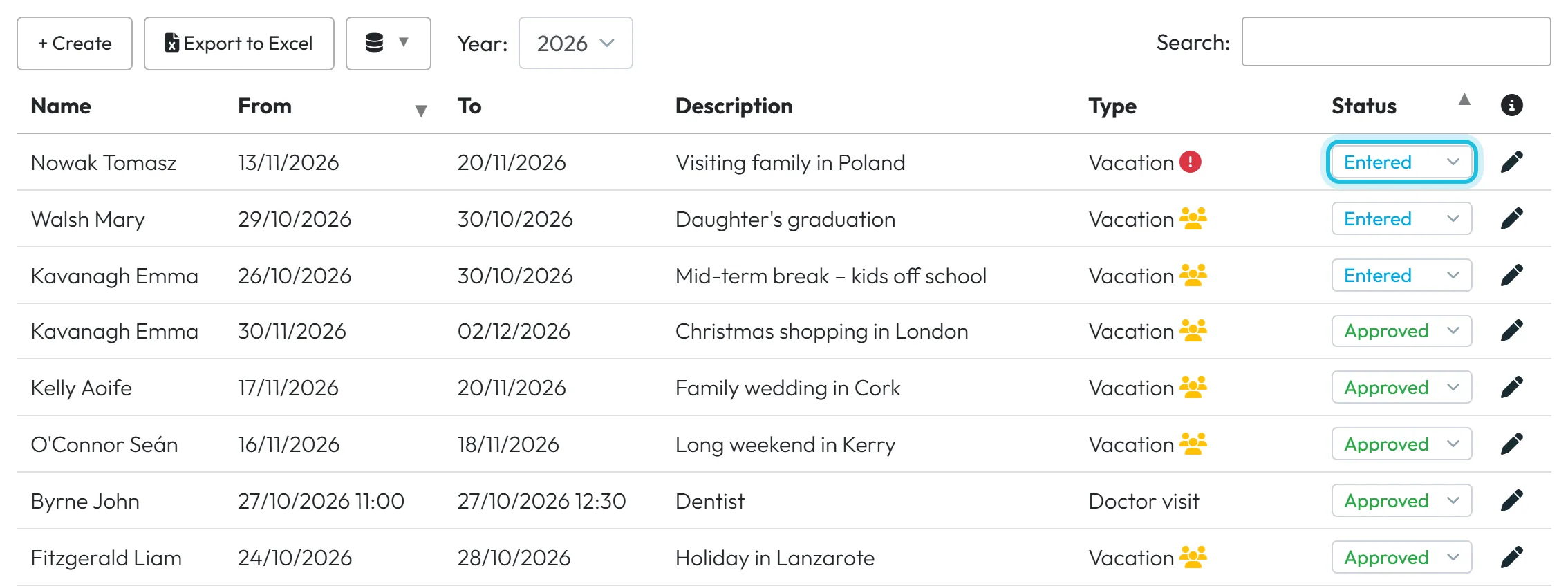
The Absences tab lists the absences of the year chosen in Year (the current year by default). Requests with status Entered are always at the top, then everything else from the newest start date.
Each row shows Name, From, To, Description, Type and Status. Click the pencil at the end of the row to open the request.
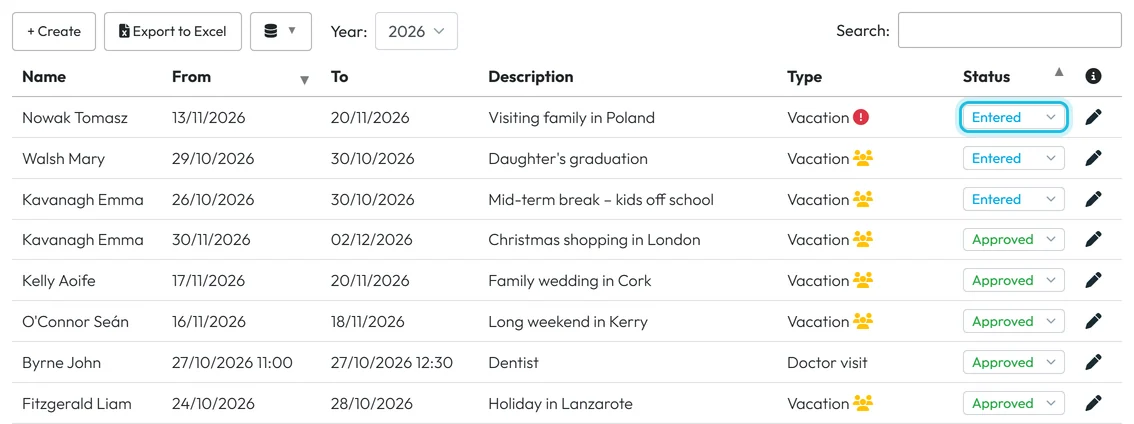
Requests waiting for approval are listed first -
Check the leave balance.
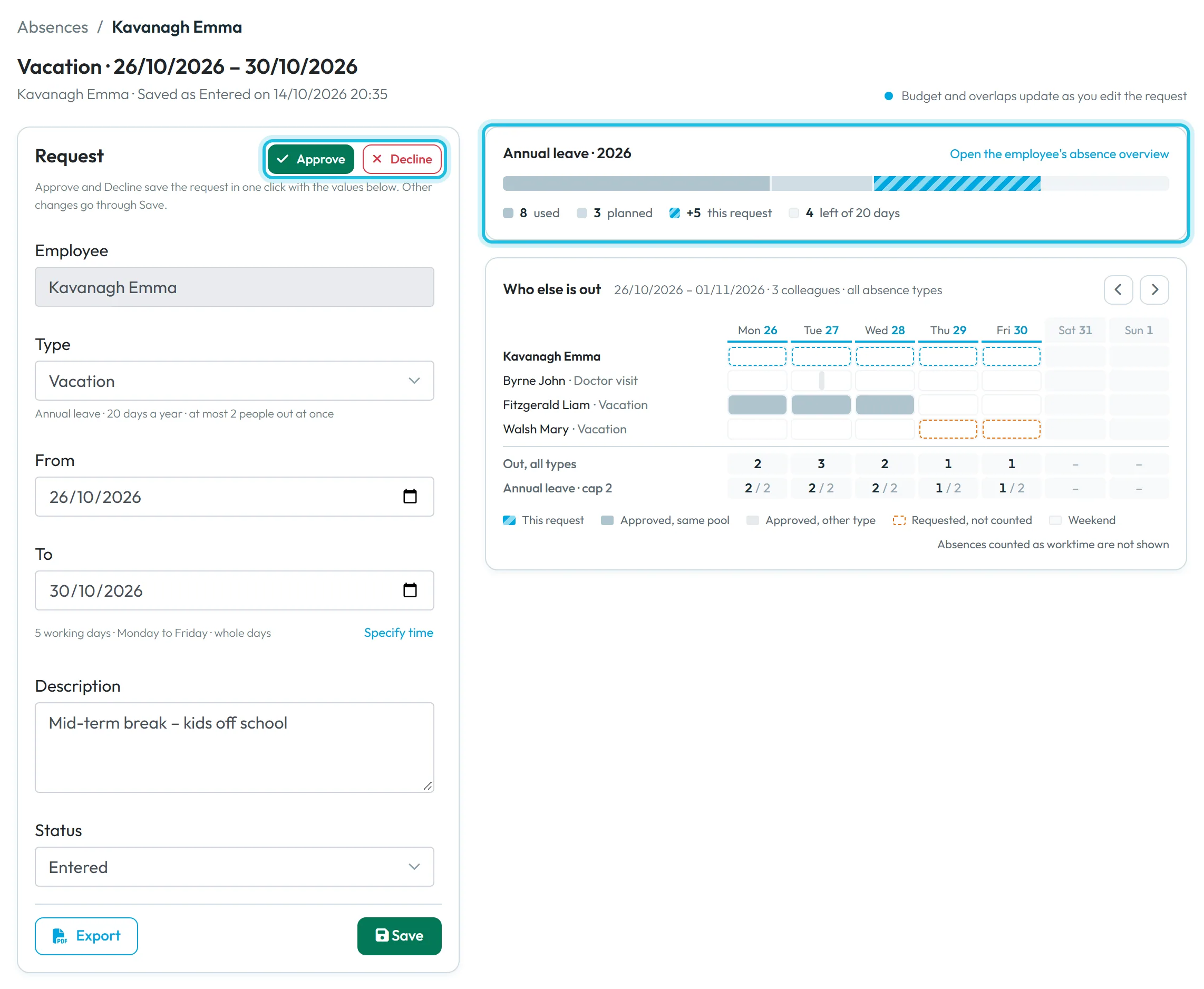
The detail page has the Request card on the left and a live preview on the right. Under the dates you see how many working days the request covers, for example 5 working days · Monday to Friday · whole days.
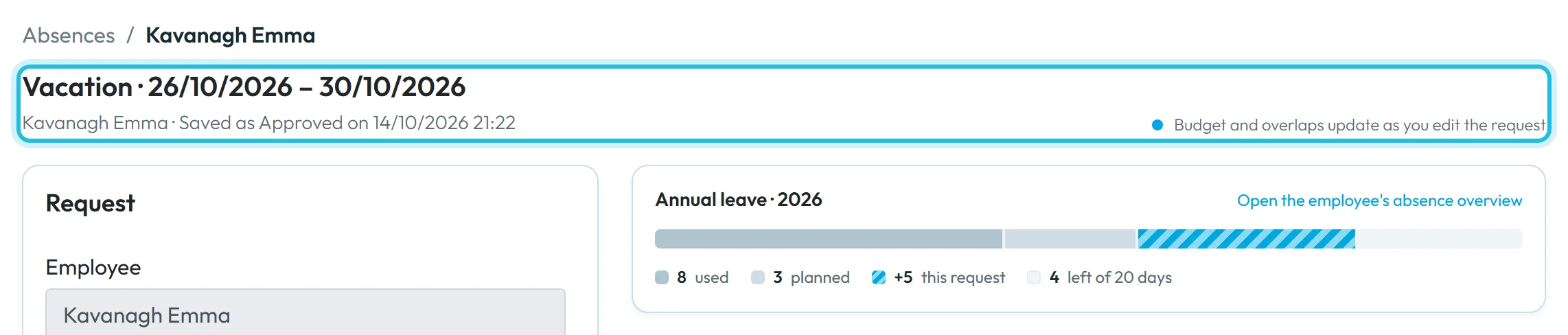
The balance card is titled with the limit and the year (for example Annual leave · 2026). Its bar shows Used (approved days already taken), Planned (approved days still ahead), This request and how many days are left of the allowance. Days on which the employee has no scheduled work – a weekend, a day off in the schedule, a public holiday – take nothing from the balance. Where the numbers come from is explained in Leave allowance and absence pools.
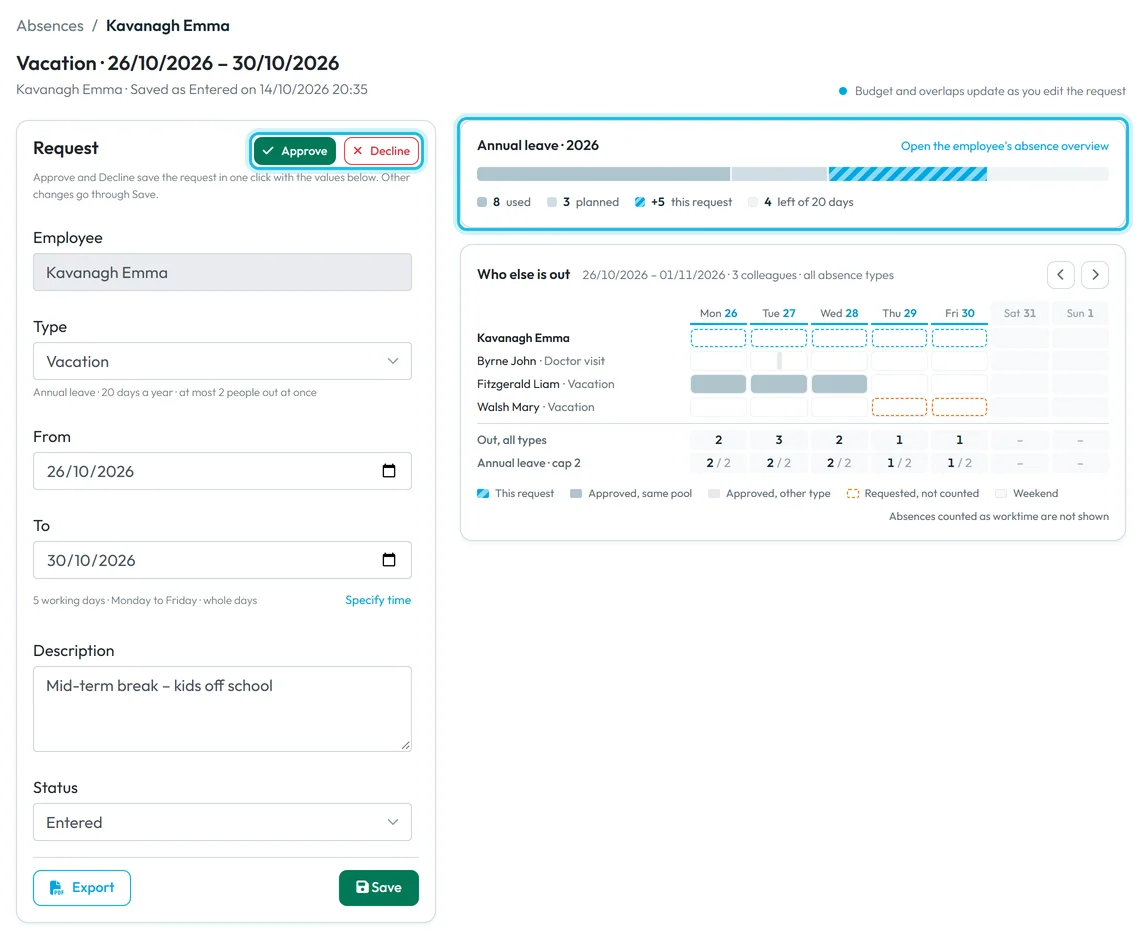
Approve or decline with one click; the balance shows what is left -
See who else is out that week.
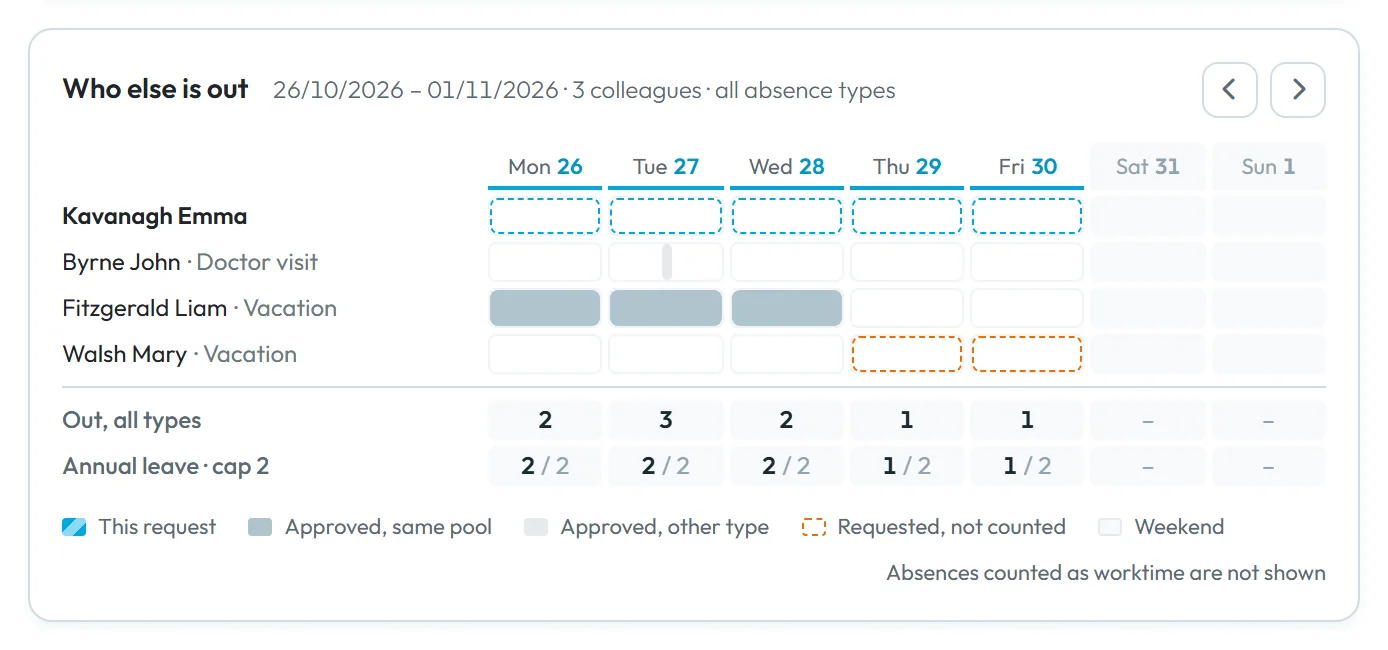
The Who else is out panel shows the Monday-to-Sunday week in which the request starts. The employee’s own row comes first, then the colleagues you are allowed to see. The legend tells them apart: Approved, same pool (the same leave allowance), Approved, other type and Requested, not counted. Weekends are shaded.
Use Previous week and Next week to page through a longer request. If you have set a maximum number of people off at once, an extra row shows the count per day – see Concurrent absence limit.
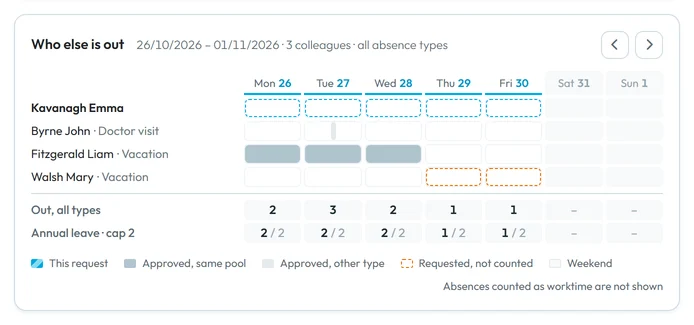
Who else is out in the same week -
Click Approve or Decline.
Click Approve or Decline. As the hint under the buttons says, they save the request in one click with the values in the form – there is no extra confirmation, except when the request goes over the yearly allowance. Then a yellow box asks first:
Approving this request will exceed the employee's absence pool limit. Are you sure you want to proceed?
Click Approve anyway to approve it, or Cancel to go back. If you want to change the dates or the type first, edit the fields and click Save instead.When it is saved, the header reads Saved as Approved on … with the date and time, and the two buttons disappear. They are shown only while a request is still Entered.
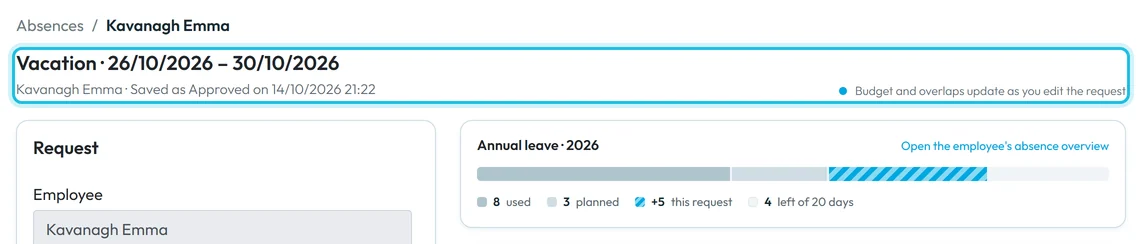
After approval the header shows Saved as Approved -
Let the employee know.
The employee does not get a push notification. The next time they open Absences in the app (or pull the list down to refresh it), the icon next to the request has changed: green for approved, red for declined. The app shows the status only as an icon. If the answer is urgent, tell them yourself.
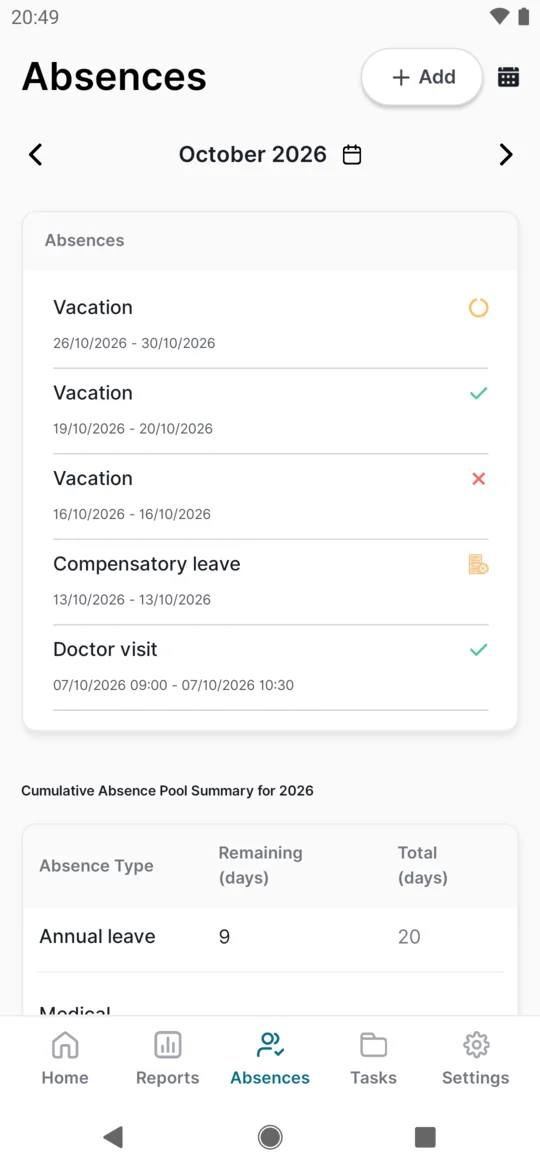
Once approved, the icon turns green -
Optional: get an e-mail when a request comes in.
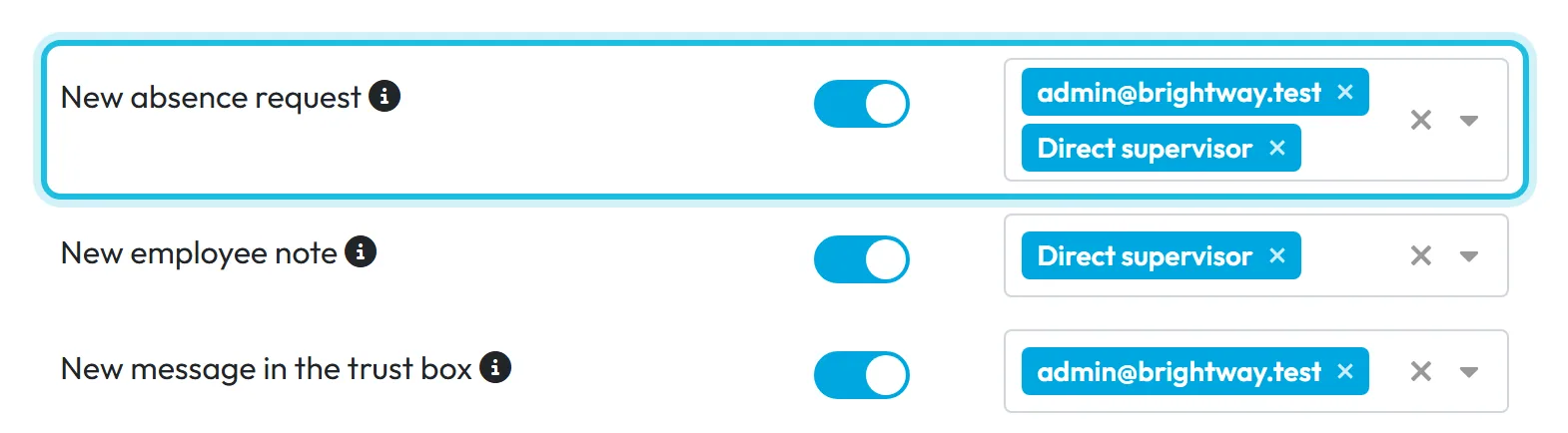
Go to My Company › Notifications, switch on the rule New absence request and choose who gets it. Pick Direct supervisor and each request goes to the person above the employee in the organigram. The e-mail arrives within about 10 minutes; several requests are bundled into one message. The rule is off until you switch it on. More in Email notifications.
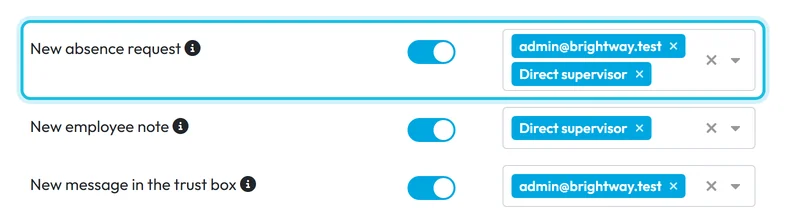
E-mail approvers about new requests
#Other ways to approve leave
- Straight from the listIn the Absences list, the Status column is a dropdown. Choose Approved or Declined and the row is saved immediately. It is the fastest way when you already know the answer, but you don’t see the balance or the week overview.
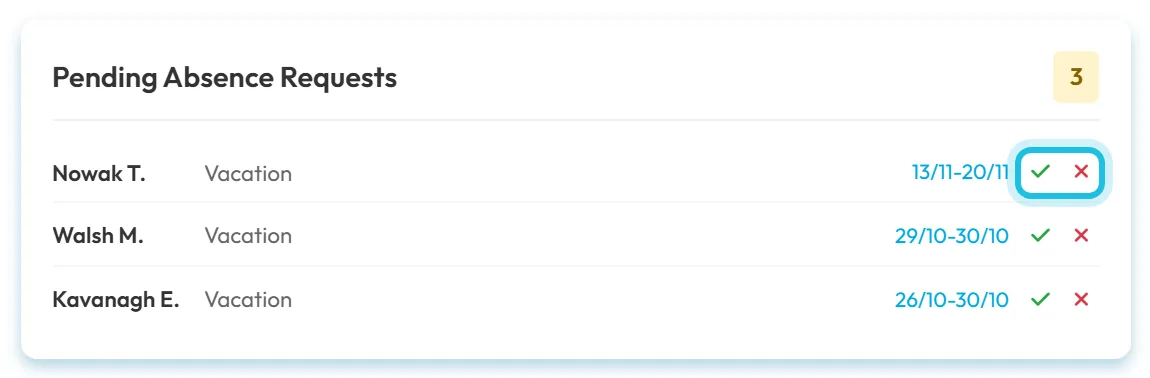
- From the DashboardThe Pending Absence Requests card lists waiting requests with the name, type and dates. The tick and cross icons in each row approve or decline it. When nothing is waiting, the card says No pending requests.
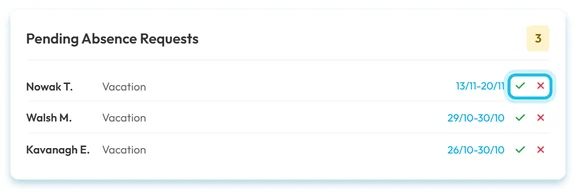
Approve straight from the dashboard - From the Event CalendarRequests show as blue bars in the Event Calendar. Click one to open the same detail page, with the rest of the month in view.
#Special cases and tips
- You approved by mistake
- Open the absence and change Status back to Entered, or set it to Canceled, then click Save. Reports are recalculated. While it is Entered again, the employee can also edit or delete it in the app.
- The request goes over the allowance
- The balance card shows the excess in red, for example
3 over the limit
, and in the absences list the request has a yellow triangle:This absence exceeds the pool limit
. It never blocks you. Whether you approve in the detail or by changing the Status in the list, FreshQR asks for confirmation and approves once you click Approve anyway. A monthly limit, if you set one, also only warns you. - Too many people off at once
- If the leave allowance has a Max Concurrent Employees value, a red box warns you:
Approval will exceed the concurrent limit!
It is a warning only – you can still approve. Details in Concurrent absence limit. - “No scheduled working days in this range”
- The employee has no scheduled work on those days – no published shift, a day off in their schedule, or a public holiday – so the absence takes nothing from the allowance. Check the employee’s schedule if that looks wrong.
- Changing leave that is already approved
- You can still edit the type, dates, times and description and click Save; reports are recalculated for both the old and the new dates. To take leave back, set the status to Canceled; absences aren’t deleted in the web app.
- The form is read-only
- The dates fall inside a locked period. You see a lock icon and the message
This date falls within a locked period and cannot be modified.
Unlock the period first if the change is really needed. - Every change is logged
- Each status change and edit made in the web app is written to the Change Log, so you can see later who approved what.
#Frequently asked questions
Who can approve leave requests?
The Owner, an Administrator, a user with the role Manager: Full Access except Company settings and a user with Absences: View & Edit. View-only roles see the list but no dropdown or Approve button. A user account linked to an employee sees only that employee and everyone below them in the organigram.
Does the employee get a notification when I approve?
No. There is no push notification about the decision. The employee sees a green (approved) or red (declined) icon the next time they open Absences in the app.
How do I approve several requests quickly?
Use the Status dropdown in the Absences list or the tick icons on the Dashboard card – one click per request, and each is saved on its own. There is no multi-select.
Can I approve a request when the employee has no days left?
Yes. The yearly allowance never blocks approval in the web app. The balance card shows how far over it goes, and you confirm with Approve anyway.
Can I turn off approval for some absences?
Yes. Switch on Automatically approved for that absence type under Absences › Absence types. It applies to requests sent from the mobile app.
Does a request count before I approve it?
No. Only approved absences count in reports, payroll exports and the leave balance. A request with status Entered waits until you decide.
#Related
You are hereApproving leave requests
Administrator
Employee
Web app (administrator)Mobile app (employee)



