Approve attendance and lock the month before payroll
On this page
Quick answer
To approve attendance in FreshQR, open Table Reports › Calendar, add the Approval status row type and click the Approve band under an employee – that person’s period is then locked. To freeze a whole month for everyone, add a period in My Company › Locked Periods: Lock keeps the data visible, Hide hides it too.
How to turn it on
Approving needs nothing switched on. For locked periods, there are none at the start, so every month can be edited. Create the first one with Lock your first period; later periods are added with Add new.
- My Company
- Locked Periods
- Lock your first period

- Who can turn it on
- Locked periods: the Owner, Administrators and the role Company Settings: View & Edit.
- What changes
- Records in the period can’t be edited in the web app. In Scan Details their row menu shows Locked, and the reports for the period are no longer recalculated.
- Applies to
- All employees or specific employees – you choose for each period.
#What it's good for
- A clear “done” for each person and month – everyone can see what has been checked.
- A month you have paid stays as it was paid: no late edit, and no recalculation after a schedule or rounding change.
- Branch managers can approve their own people before head office runs payroll.
- One person can be unlocked for a few days without opening the month for everyone.
- The lock history shows who locked what and when.
#Who it's for
A good fit for
- Companies that run payroll monthly, where a site manager checks the month before the office pays wages.
- Bookkeepers who need closed months to stay closed.
- Companies that want very old attendance hidden completely – Hide mode hides it from everyone, in reports, scans and absences.
#Month-end step by step: approve, then lock
-
To approve attendance, open the Calendar report.
Go to Table Reports and open the Calendar tab. Check that the month filter shows the month you want to approve – it doesn’t always open on the current one.
-
Add the Approval status row.
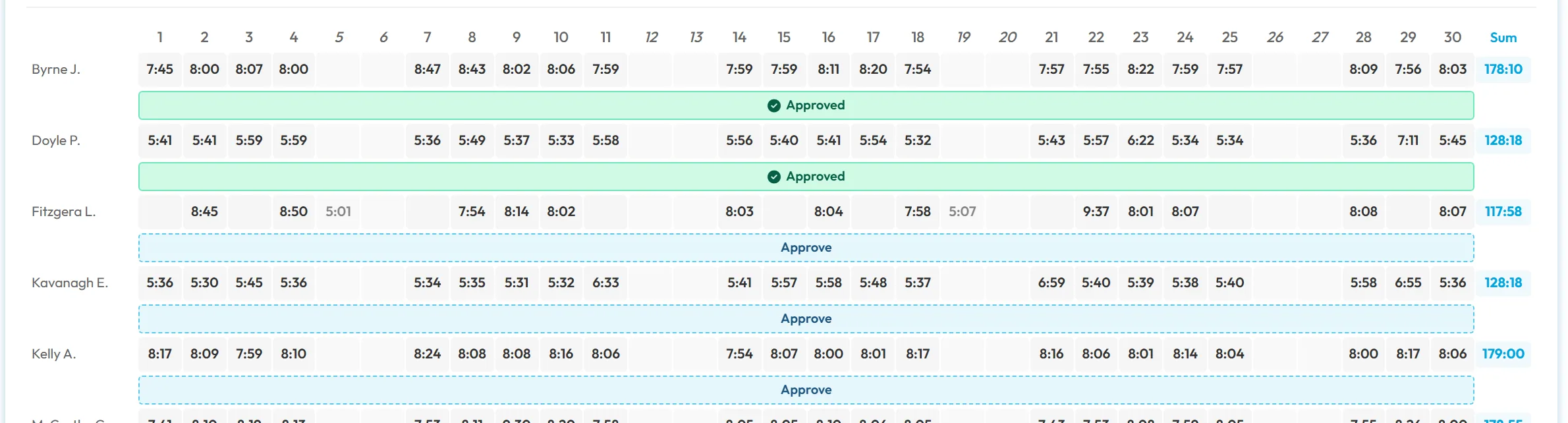
Open the Row types menu and tick Approval status. Under every employee’s hours a band appears: Approve with a dashed border where the days are waiting, or a green Approved where they are done.
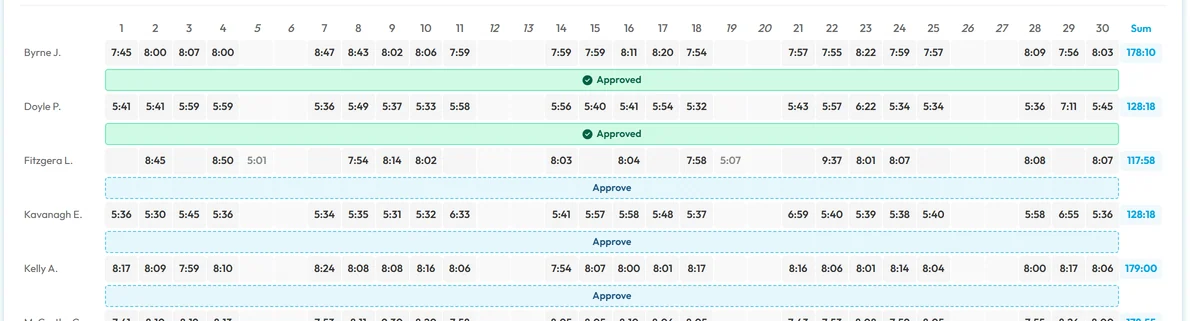
Each employee has a row with the approval state -
Check the hours.
Look through the employee’s days before you approve. Missing clock-outs, unusually long days and days without any record are easiest to spot in the Checks report – see Checks (Beta). Fix what is wrong in Scan Details first, because approved days can’t be edited.
-
Click Approve and confirm.
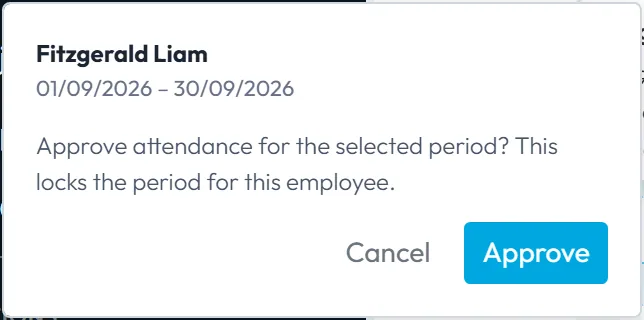
Click the Approve band. A small window shows the name and the period, and asks:
Approve attendance for the selected period? This locks the period for this employee.
Click Approve. The band turns green.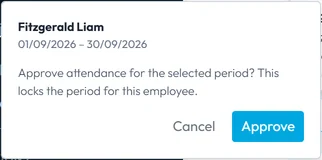
Approving locks the period for that employee -
Days still in progress are left out.
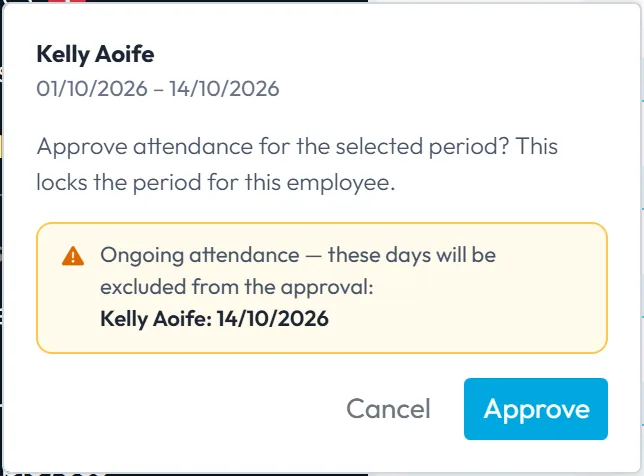
If the employee has a record without a clock-out, the window warns:
Ongoing attendance — these days will be excluded from the approval:
followed by the name and dates. Those days stay open; approve them later, once the record is closed. Approval covers past days up to today, not the future.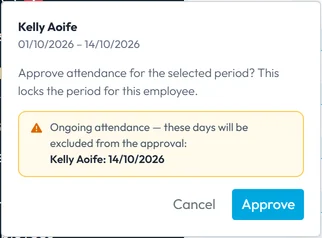
Days with an open record are not approved -
Approved days are locked.
In Scan Details, the row menu of an approved or locked day shows only Locked and Open Map. Anyone trying to change such a record sees
This date falls within a locked period and cannot be modified.
The approval is also written to the lock history in My Company › Locked Periods, marked via approval. See Scan details.
Approved and locked days can no longer be edited in Scan Details -
To freeze the whole month for everyone, add a locked period.
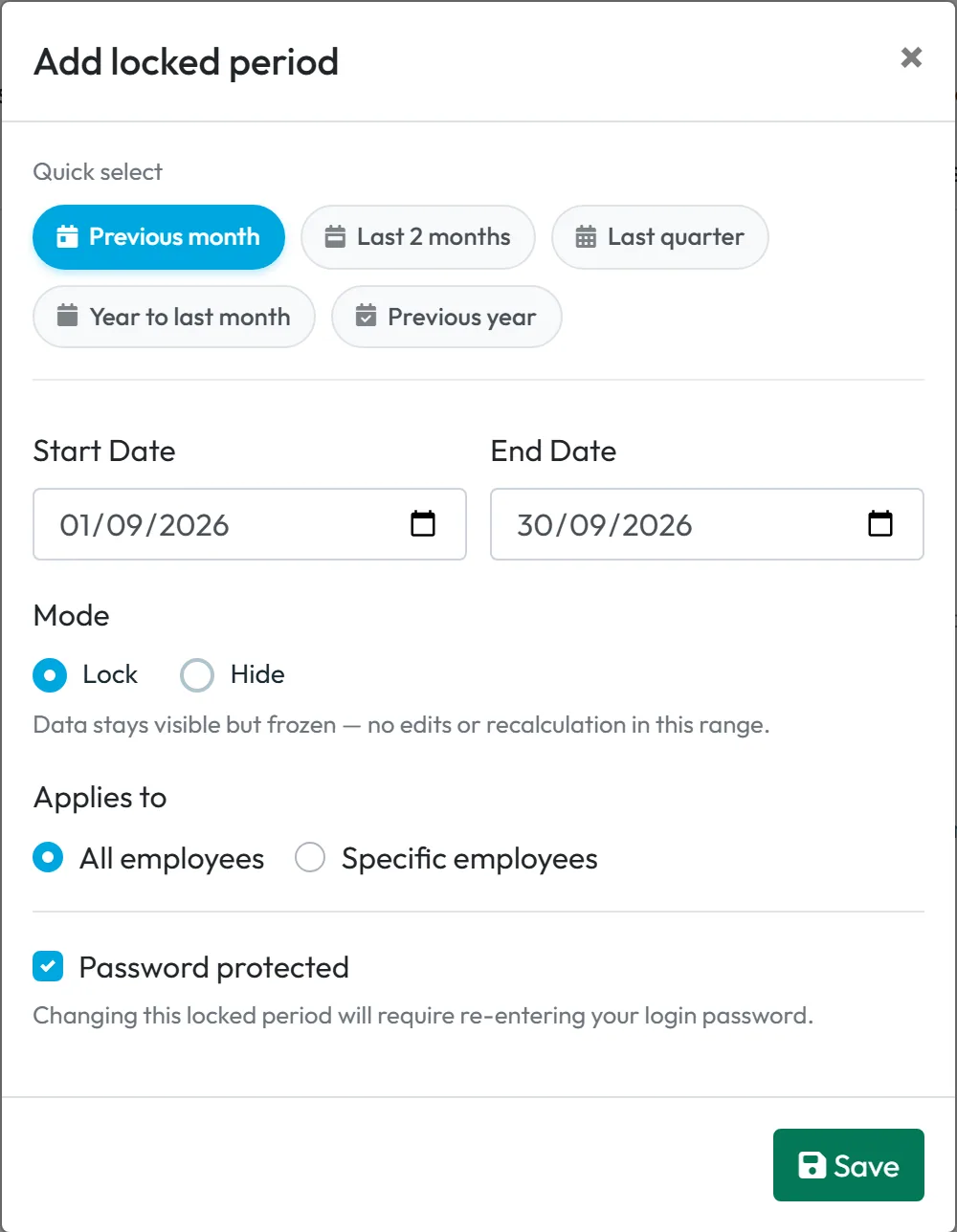
Once payroll is done, go to My Company › Locked Periods and click Lock your first period (or Add new if you already have one). Under Quick select pick Previous month, Last 2 months, Last quarter, Year to last month or Previous year, or enter the Start Date and End Date yourself.
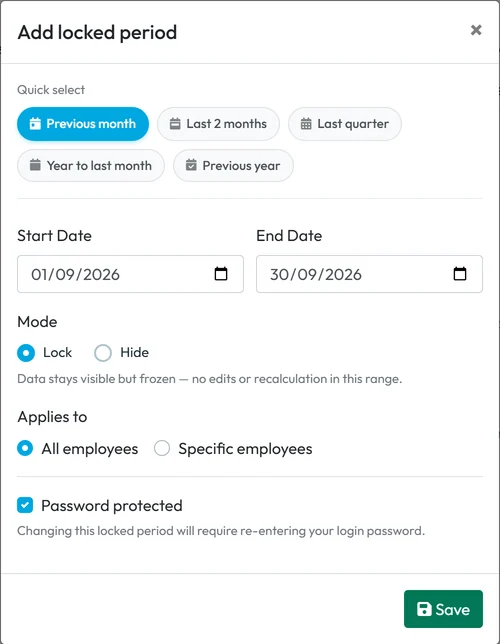
Quick select Previous month fills in the dates for you -
Choose Lock or Hide.
Under Mode:
- Lock –
Data stays visible but frozen — no edits or recalculation in this range.
This is the usual choice after payroll. - Hide –
Data is also hidden everywhere — reports, scans and absences show nothing for this range.
Use it for old data that people shouldn’t browse any more.
- Lock –
-
Choose who it applies to and protect it.
Under Applies to choose All employees or Specific employees. Tick Password protected if changes to this lock should need extra care:
Changing this locked period will require re-entering your login password.
Click Save. -
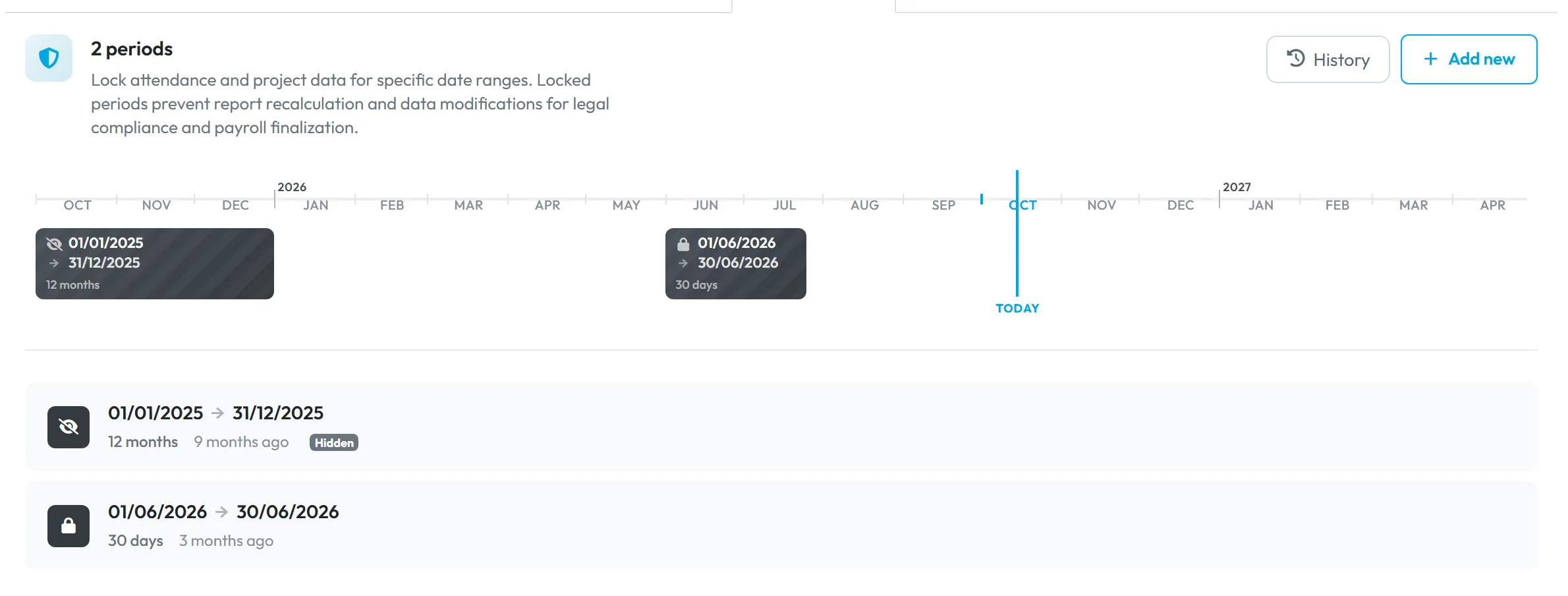
Check the list.
The tab shows a timeline with a TODAY marker and a list of periods. A hidden period has the Hidden badge. Click a period to edit it.
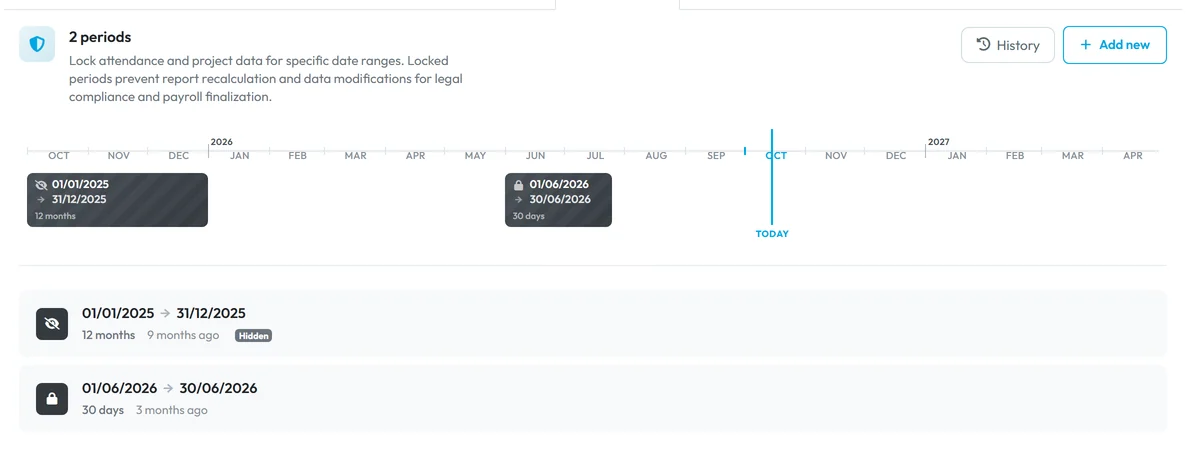
A locked and a hidden period in the list

#Unlocking, corrections and history
- Un-approve to make a correctionAn administrator clicks the green Approved band and confirms
Un-approve attendance for the selected period? This also unlocks the period.
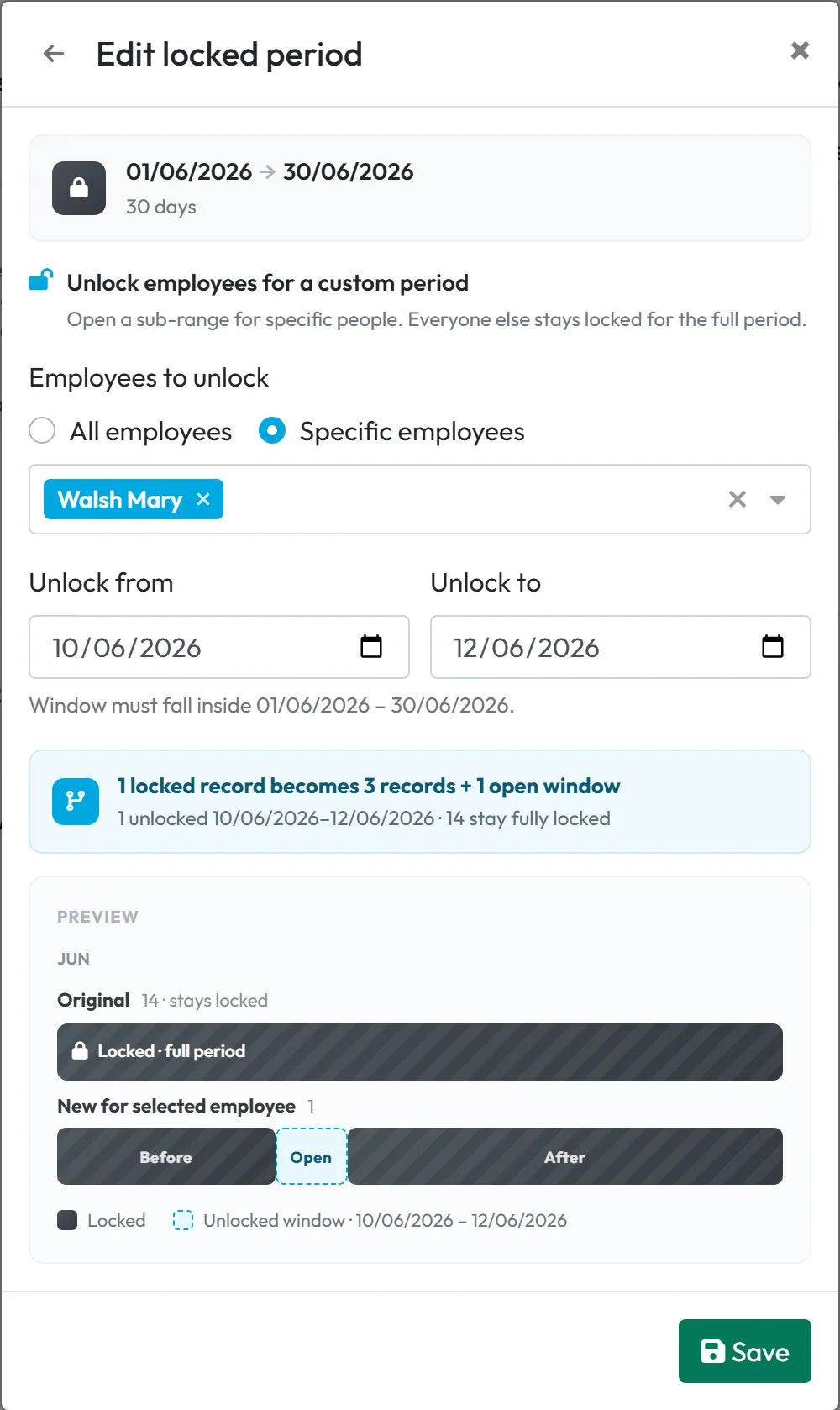
Fix the record, then approve again. Other managers have to ask an administrator. - Unlock one employee for a few daysMary Walsh’s June needs a late correction, but June is locked. Open the period and choose Unlock employees for a custom period:
Open a sub-range for specific people. Everyone else stays locked for the full period.
Pick the employee, Unlock from and Unlock to. The preview shows how the lock is split – for example1 locked record becomes 3 records + 1 open window
– with the parts Before, Open and After. Save, then make the correction in Scan Details.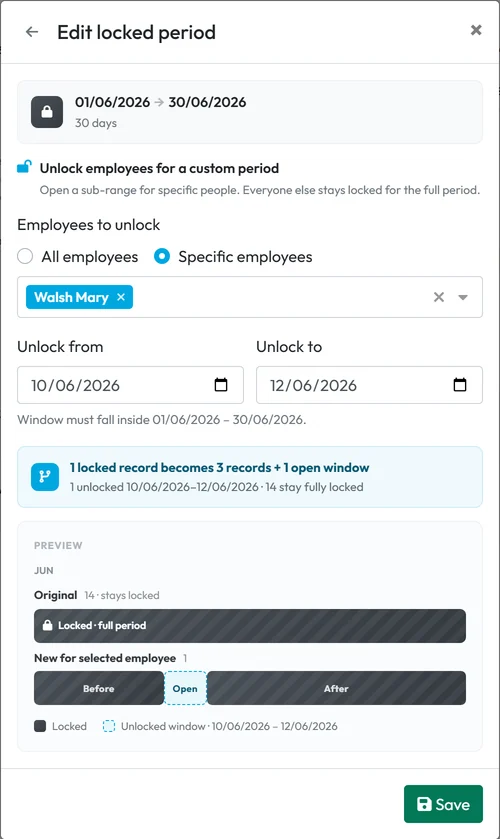
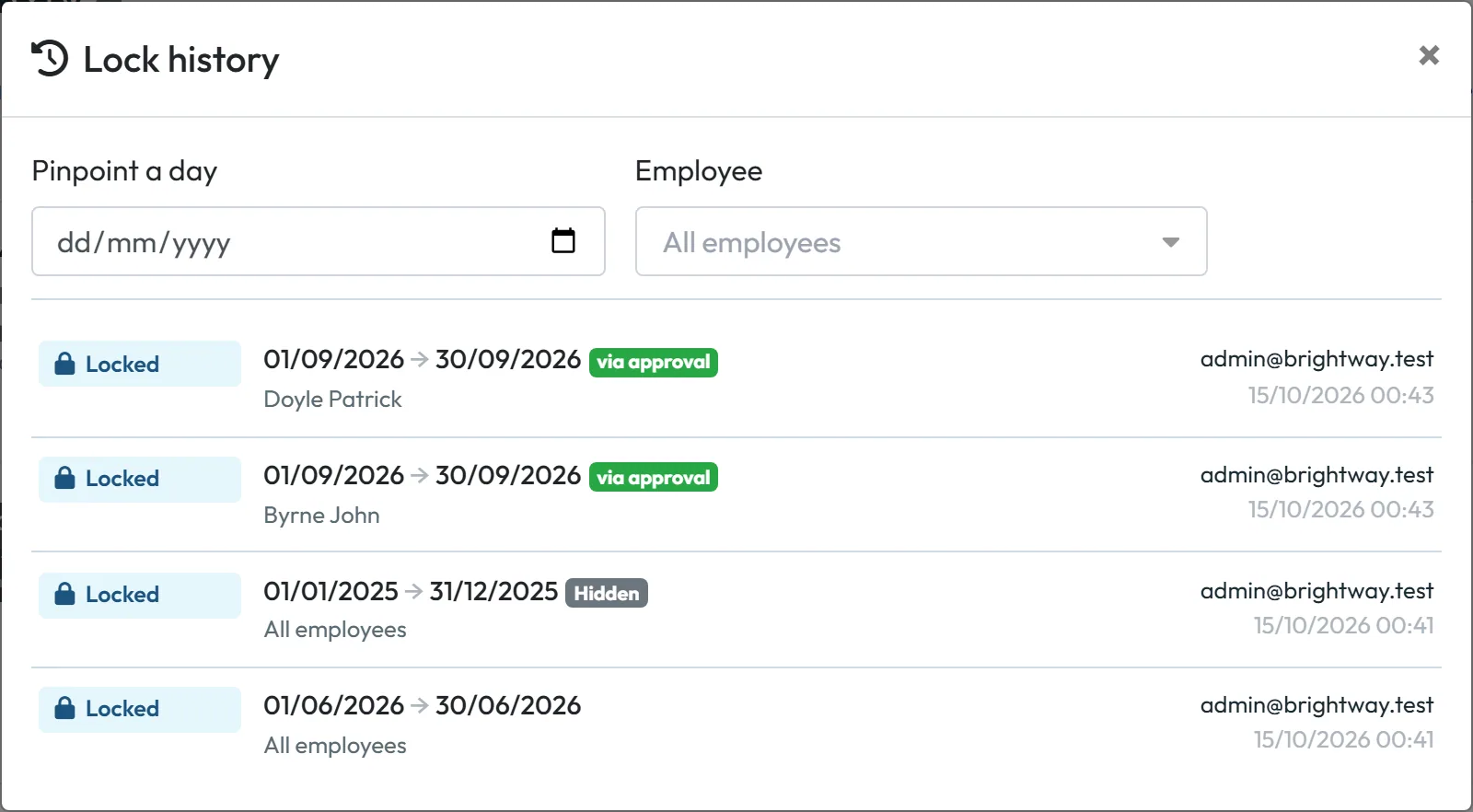
Unlock one employee for a few days only - Lock history: what is approved and lockedThe green bands in the Calendar show approvals at a glance. In My Company › Locked Periods, the History button opens the Lock history. Filter by Pinpoint a day or by Employee. Each entry shows the period, who it applies to, the user who made the change and when. Locks created by approving attendance are marked via approval.
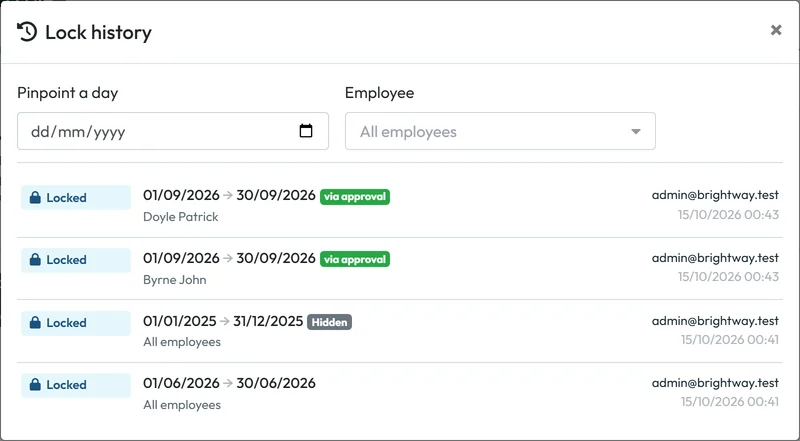
The history shows who locked what and when - Print the month for a signatureIf an employee should sign their hours, print their monthly report as a PDF. See Monthly employee report and PDF for signing.
#Special cases and tips
- Branch managers
- A Branch Manager approves only the days that belong to their own branches. Days that belong to another branch are shown as a grey band with a lock and that branch’s name; an administrator approves those.
- Who can approve
- The Owner, Administrators, Manager: Full Access except Company settings and Branch Managers for their branches. Undoing an approval is for administrators only.
- Employees aren’t told
- The employee gets no message about the approval and sees no approval state in the app.
- A mistake found after locking
- Unlock the person for the affected days, or edit the period and shorten it. With Password protected, you’ll be asked for your login password.
- Locking the current month
- You can, but records added later in the month can’t then be corrected. Usually it’s better to lock a month once it has ended and payroll is done.
- Absences in a locked month
- The lock also protects absences in the web app. Enter or approve absences before you lock the month – see Adding an absence for an employee.
- Exports for payroll
- Approve and lock first, then export. The exported numbers then match what stays in FreshQR and can’t change afterwards. See Export to Excel and PDF.
#Frequently asked questions
Is approving the same as a locked period?
Approving creates a lock for that one employee and period. A locked period in My Company locks a date range for everyone or for chosen people.
Can I approve the current month?
You can approve the days up to today. Days with an open record are left out.
Who can undo an approval?
Only an administrator, with Un-approve on the green band.
How do I edit an approved day?
Click Un-approve first, make the change, then approve the period again. While it is approved, the day is locked against edits.
Can I still see locked data?
Yes, in Lock mode. In Hide mode it isn’t shown in reports, scans or absences.
Which password does Password protected ask for?
Your own login password for the web app.
Does changing a work schedule alter a locked month?
No. Locked periods are not recalculated.
Can I remove a lock?
Yes. Open the period and delete it. The records can then be edited again.
#Related
You are hereApproving attendance and locked periods
Web app (administrator)Mobile app (employee)



