Check my shifts: schedule, shift requests and swaps in the app
On this page
Can't see this option in the app? Your employer has to turn it on.
Guide for administrators: Turning on the shift planner →
Quick answer
To check your shifts, tap the My Shifts card on Home: you see this week and next week. To ask for a shift or a day off, tap a free day and then Request for this day. A shift you can’t work, offer to colleagues with Offer this shift. There are no notifications, so check the app.
#What it's good for
- Your schedule is always on your phone – no more photos of the paper schedule in the group chat.
- You see the time, the branch, the break and any note from whoever plans the shifts.
- Your planner knows which days you’d like to work or have free before they make the schedule.
- A swap goes straight into the schedule – no chat agreements that get forgotten.
#Who it's for
A good fit for
- Part-timers and students who want extra shifts or need a particular day free.
- Teams where people in the same role can cover for each other – cleaners, porters, kitchen staff.
Not the right fit for
- Proper leave – request it under Absences, see Requesting leave.
- Companies where a manager must approve every swap – the Swap board has no approval step.
#How to use My Shifts
-
Look at the My Shifts card on Home.
The card shows today’s shift, for example
Today 15:00 – 21:00
, or your next one under Next shift, with the branch.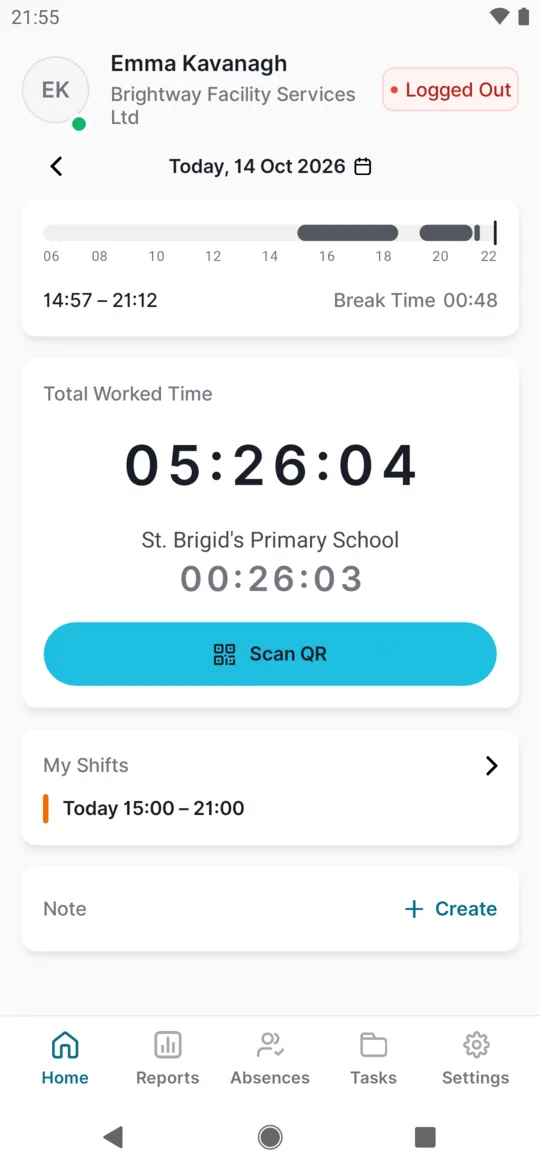
Today’s shift right on Home -
Tap the card to see two weeks.
My Shifts opens with This week and Next week. Each shift has a colour for its type – for Aoife, a school cleaner, that’s After school – and the legend is below. Each week also shows its total hours. Days without a shift say Day off. You see only your own shifts, and only from a published schedule.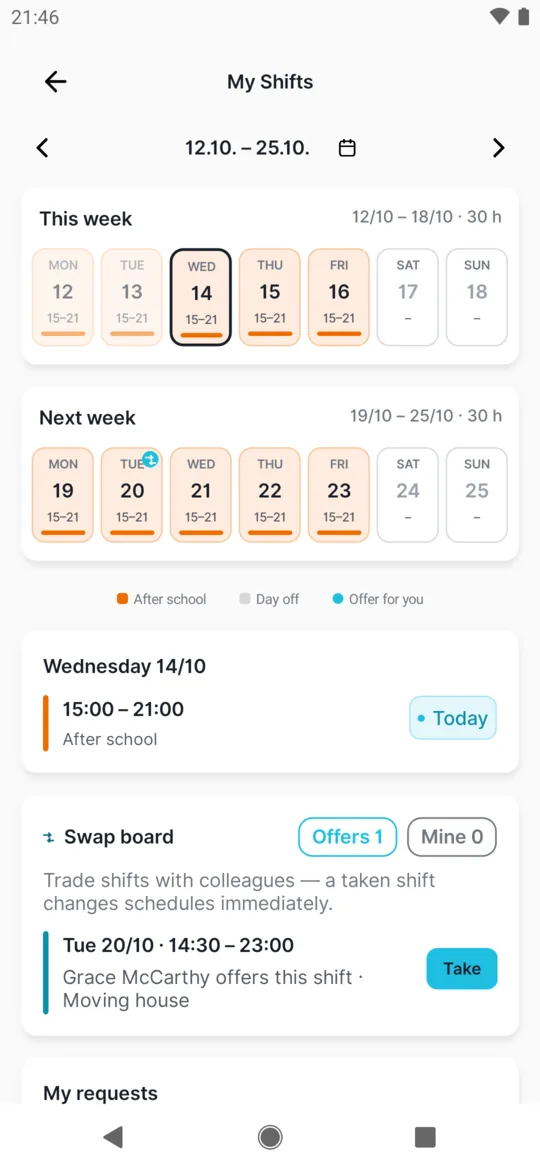
Two weeks of shifts at a glance -
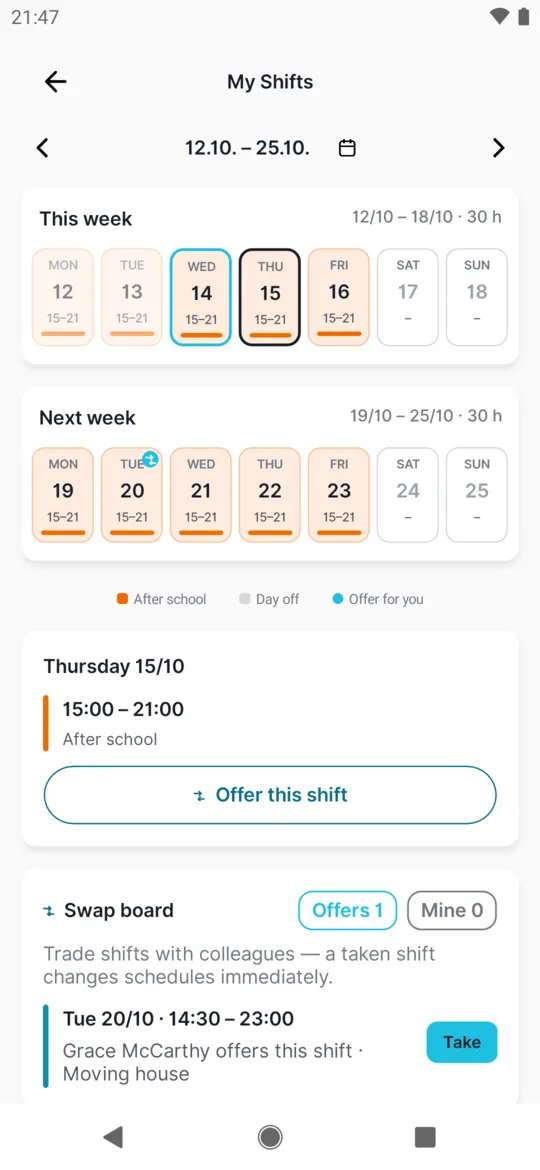
Tap a day to see the detail.
The detail shows the time from – to, the shift type, the branch, the break and any note from the planner. For a future shift there is also the Offer this shift button.
The detail of one shift -
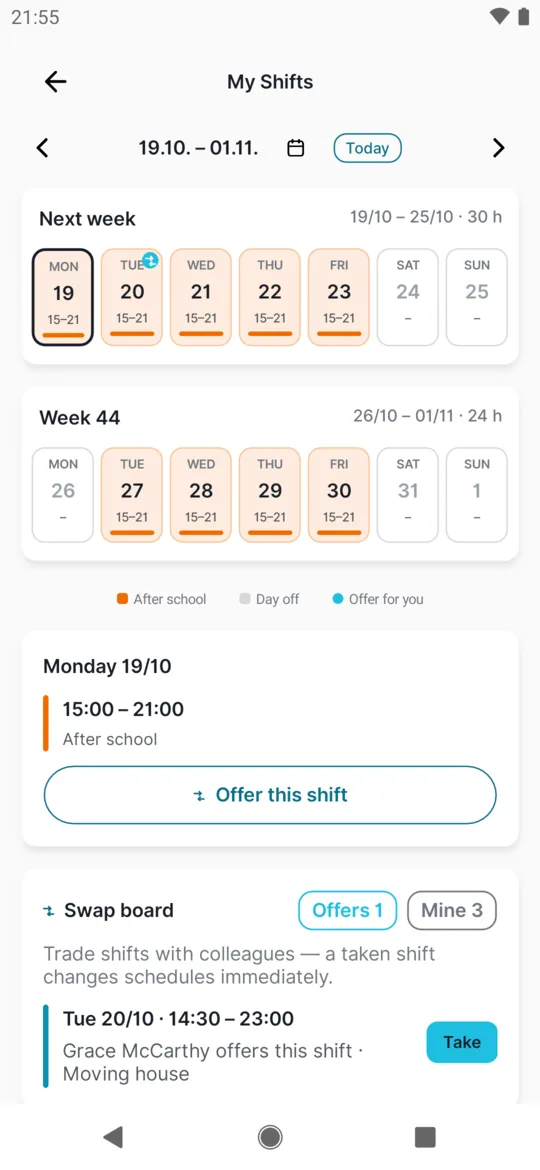
Move to other weeks.
Use the arrows to go to earlier or later weeks. Tap the date to open a calendar and jump to any week.
Use the arrows to move between weeks -
To ask for a shift or a day off, tap a free day.
In My Shifts, tap a future day with no shift. The Request for this day button appears; tap it. Below it you may see the deadline for requests.
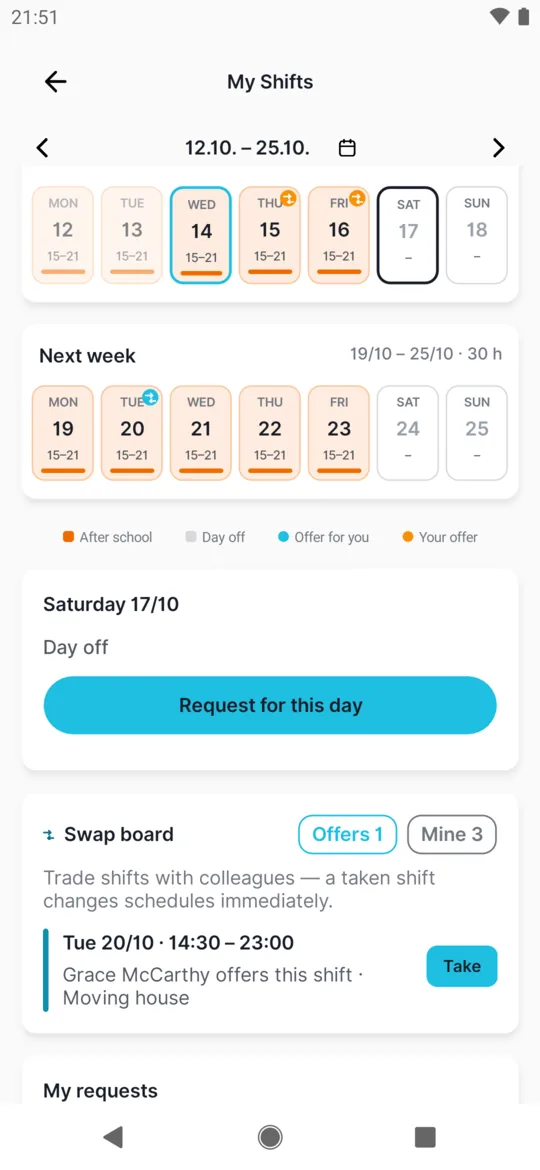
Request a free day -
Choose I want to work or Prefer not to work.
The Shift request window opens. Pick an option. In Add a note for your planner (optional) you can add something like “mornings only”. The window reminds you:
This is a preference for your planner, not a guarantee. The final schedule may differ.
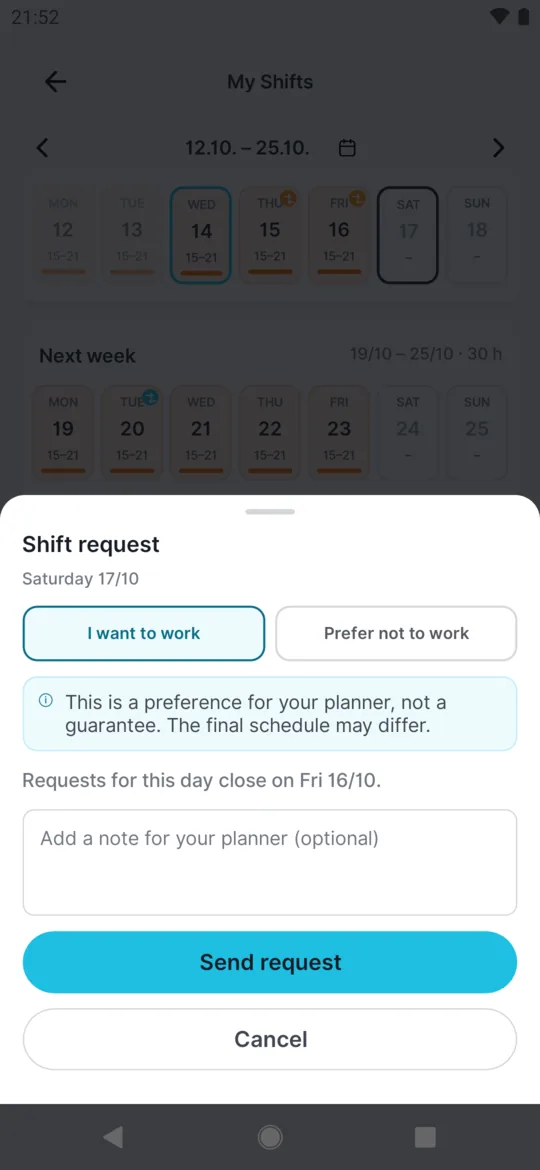
Choose I want to work or Prefer not to work -
Tap Send request.
The day gets a Requested label and the request appears under My requests. The planner sees it in the shift planner. Whether you got the shift or the day off, you see in My Shifts once the plan is published – nobody gets a notification, neither you nor the planner.
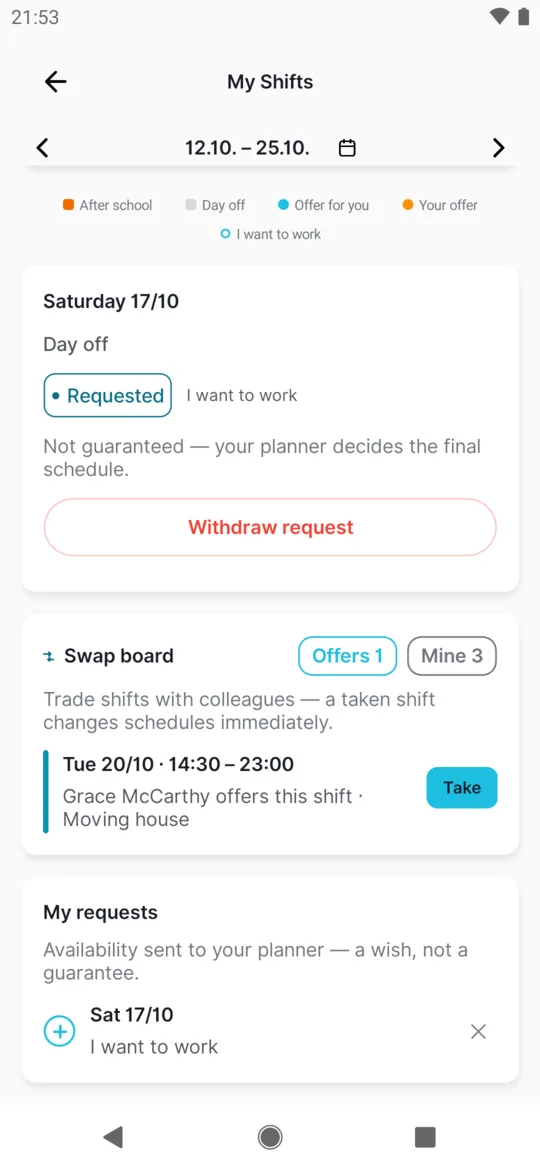
Your sent request under My requests -
To swap a shift with a coworker, tap it and then Offer this shift.
In My Shifts, tap the day with the future shift you can’t work. In the detail, tap Offer this shift. The offer goes to the Swap board.
-
Choose who you are offering it to.
In the Offer your shift window, pick Anyone – everyone with your work position sees the offer – or A colleague and choose them from the list. You can add a note in Add a note for your colleagues (optional), for example “Dentist appointment”.
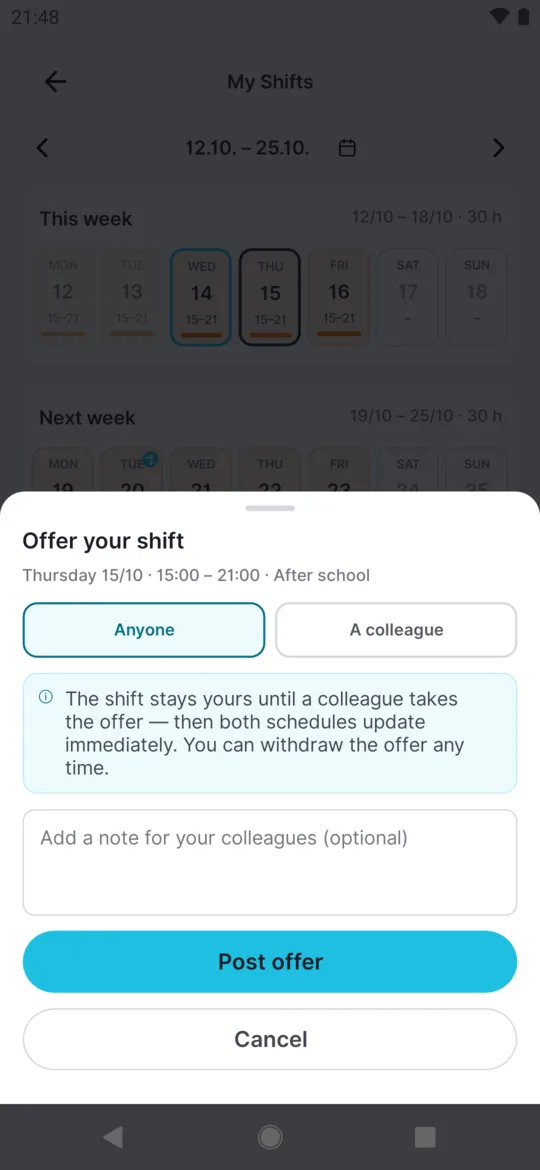
Offer a shift to anyone or to one colleague -
Tap Post offer.
The window reminds you:
The shift stays yours until a colleague takes the offer — then both schedules update immediately. You can withdraw the offer any time.
Until someone takes it, you work the shift.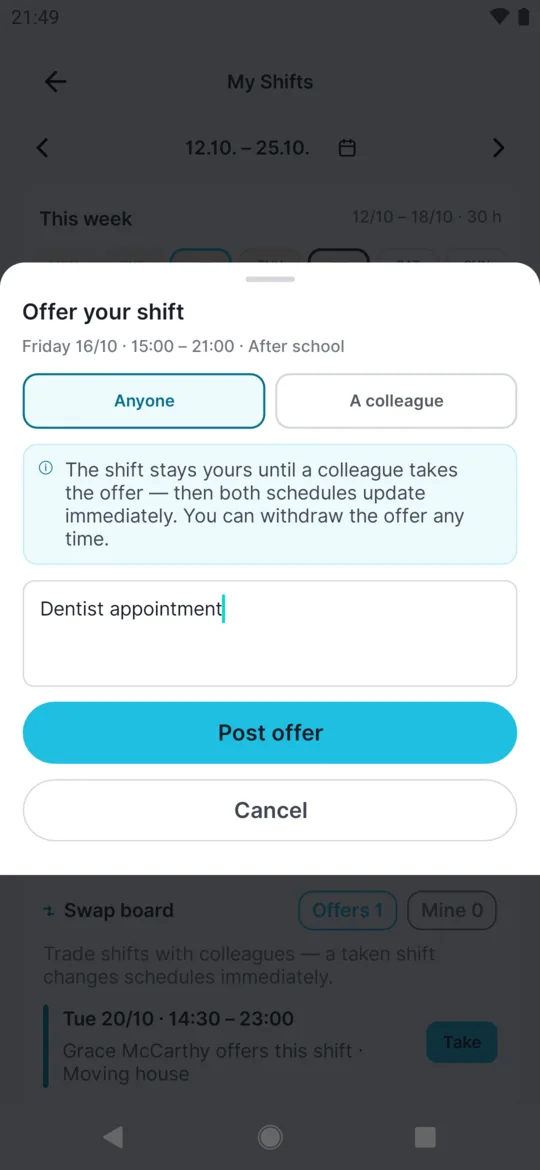
An optional note for colleagues -
Follow the status on the Mine tab.
On the Swap board, the Mine tab lists your offers. Pending means nobody has taken it yet. When a colleague takes it, you see Taken with their name, and the shift disappears from your schedule. You don’t get a notification – look here. Your manager sees the offers in the shift planner.
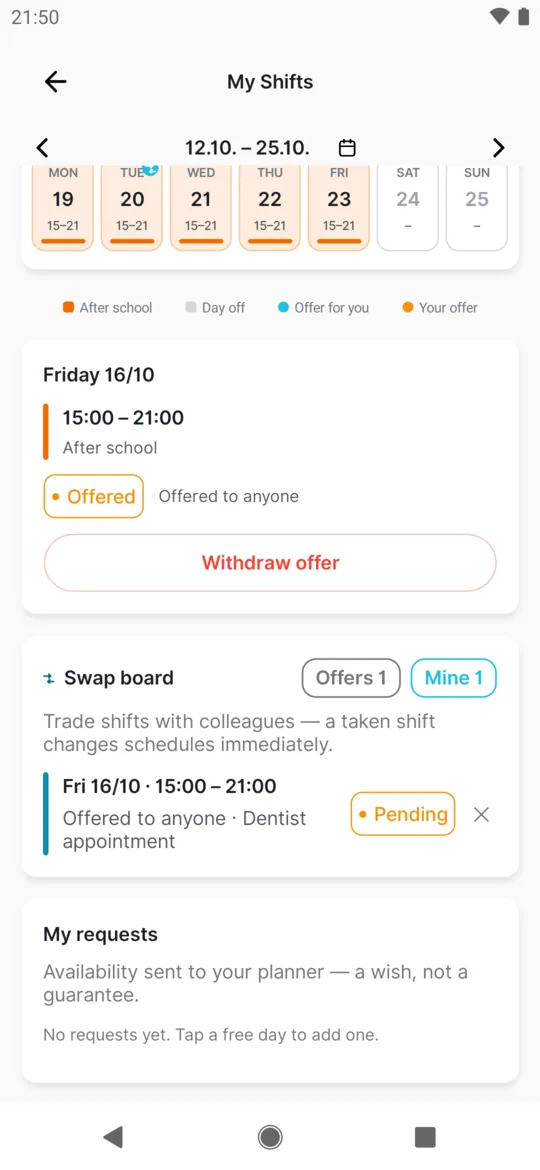
The status of your own offer
#How to take a colleague’s shift
- Open the Swap board and the Offers tab. Offers made just to you are labelled For you.
- Next to the shift you want – say Grace McCarthy’s Tuesday 14:30 – 23:00 – tap Take.
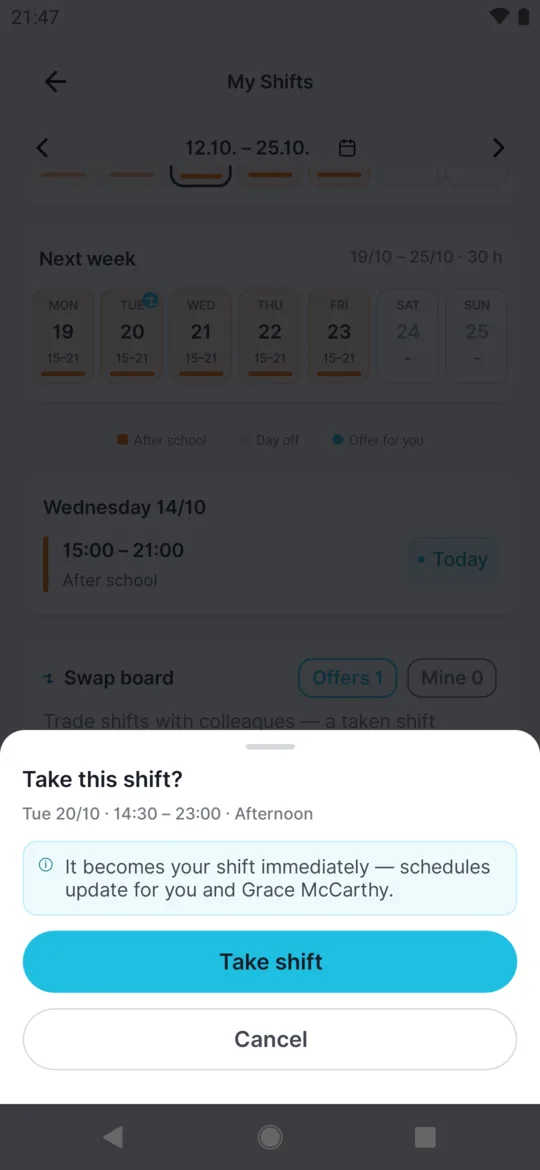
- Confirm
Take this shift?
It becomes your shift immediately and both schedules update.
You see the shift in My Shifts straight away. If you had sent a shift request for that day, the app withdraws it.
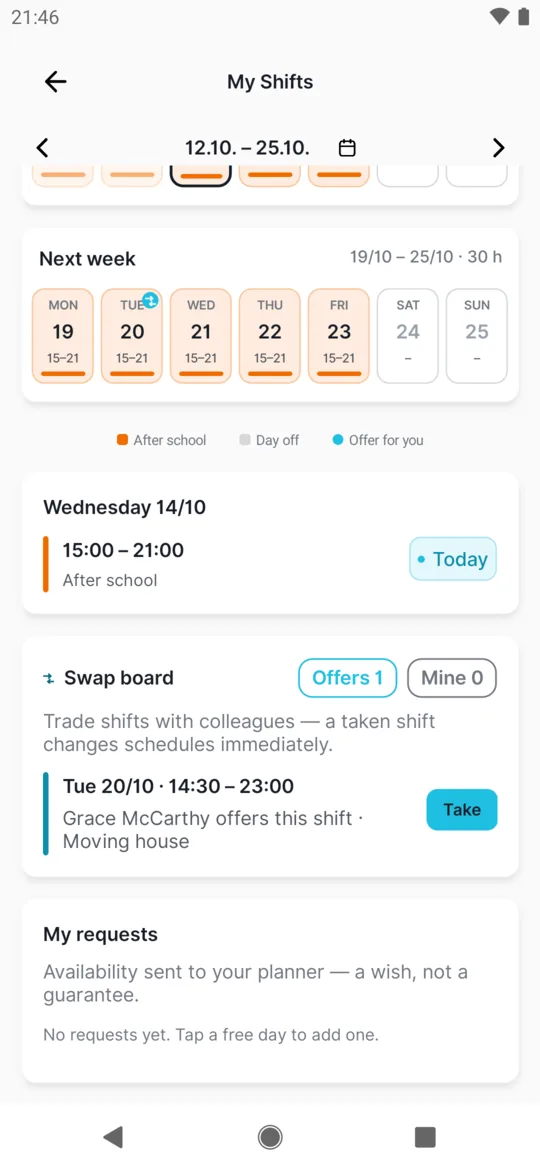
#Confirming the take
Taking a shift needs a confirmation. It can’t be undone in the app – if you made a mistake, ask your colleague to offer it back to you, or talk to your manager.
#Withdrawing and declining
- Withdraw requestUnder My requests, tap Withdraw request next to the request. You can do this any time before the day.
- Withdraw your own offerAs long as nobody has taken it, tap Withdraw offer. The shift stays yours.
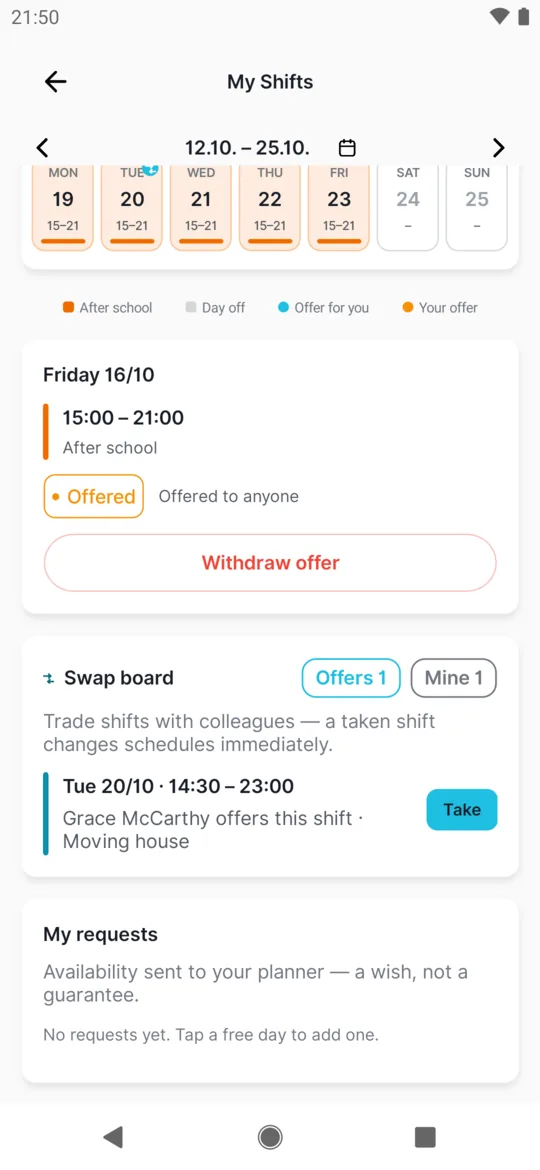
You can withdraw the offer - Decline an offerIf a colleague offered a shift to you personally and you can’t do it, tap Decline.
#Special cases and tips
- A shift says Cancelled
- The planner has cancelled this shift. If you’re not sure whether to come in, ask your manager.
- Night shifts
- A shift that runs past midnight is shown on the day it starts.
- Request deadline
- The earliest day you can request is tomorrow. A day may show
Requests for this day close on Fri 16/10.
– that’s your last chance. After that you seeRequests for this day are already closed.
- Too far ahead
- You can request up to 3 months ahead. For a later day you see
Requests can be made up to 3 months ahead.
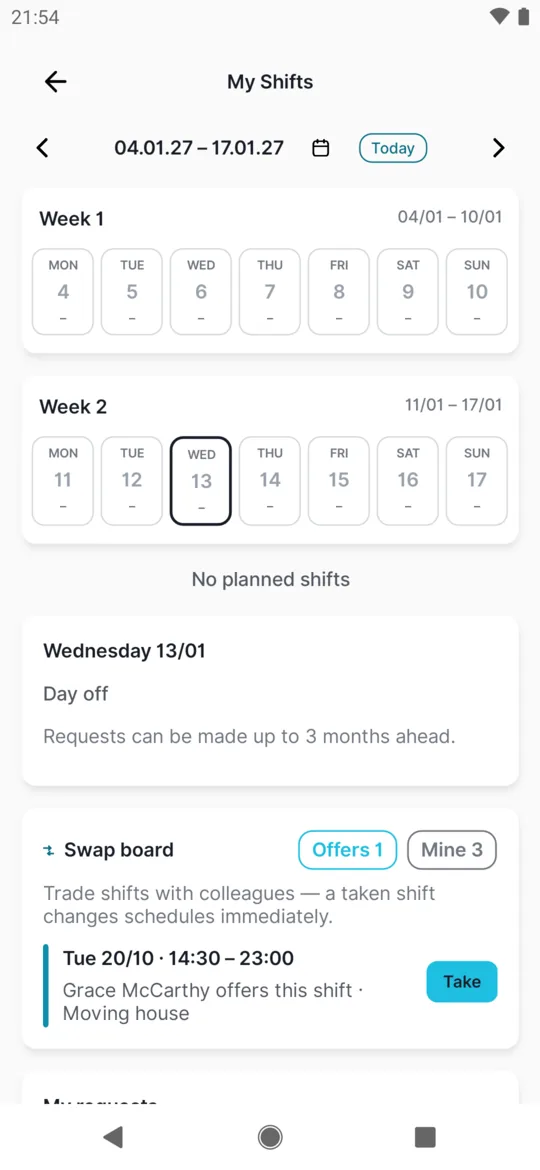
Requests are possible up to 3 months ahead - One request per day
- Each day has one request – a new one replaces the old one. You can have up to 30 open future requests; after that you see
You have reached the limit of open requests
. - A day with an absence
- On a day with an approved or pending absence you can’t send a request or take a shift – the app answers
You have an absence on this day
. - “You already have a shift at that time”
- An offer that overlaps one of your shifts still shows a Take button, but after you confirm, the app answers
You already have a shift at that time
and the shift isn’t taken.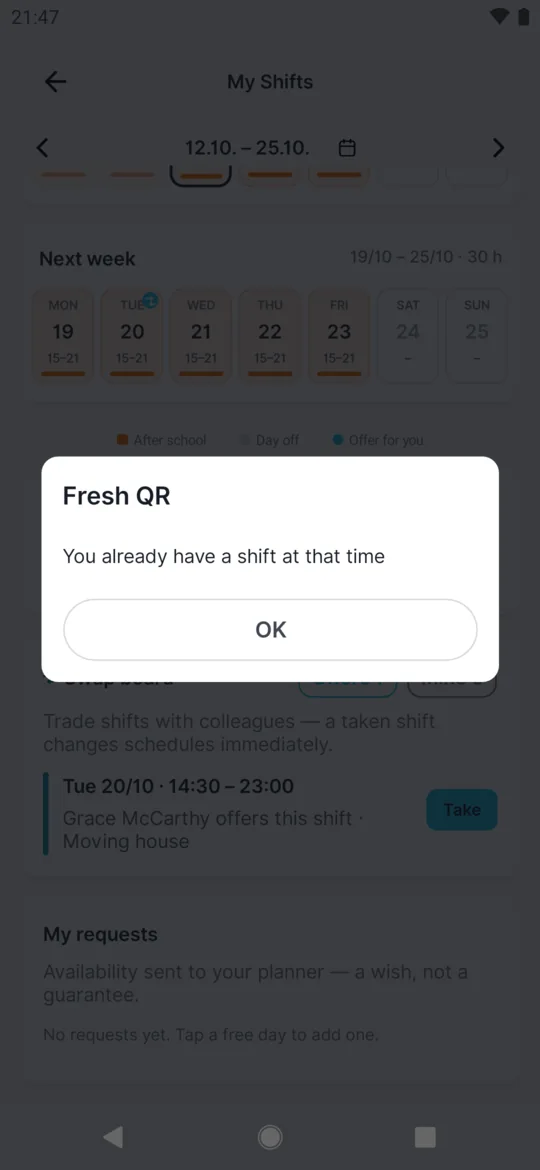
You cannot take a shift that overlaps your own - “No colleagues with your work position.”
- Only colleagues with the same work position can swap shifts. If nobody else has yours, the list is empty. Your employer sets positions – see Job positions.
- “This offer is no longer available”
- Someone else took it first, your colleague withdrew it, or your manager changed the shift.
- Getting back to Home
- Use the arrow top left to leave My Shifts. The Android Back button doesn’t work on this screen.
- No internet
- Your shifts don’t load without internet. Connect and open the screen again.
#Frequently asked questions
Why can’t I see My Shifts?
Your employer doesn’t use shift planning, or has only just turned it on – then restart the app.
My manager says I’m on the schedule, but I see nothing.
The plan isn’t published yet. Drafts don’t show in the app.
Do I get notifications about my shifts, requests or swaps?
No. The app sends no reminder before a shift and nothing when the plan changes, when the planner handles your request or when you post an offer. Check My Shifts yourself, and tell your colleague about an offer – they find it on the Swap board.
How do I ask for a particular day off?
If you have no shift that day yet, tap it and choose Prefer not to work – it only tells the planner your preference; it isn’t leave. If you already have a shift, offer it on the Swap board. Request proper leave under Absences.
Can I send a shift request for today?
No, tomorrow at the earliest.
Does my manager have to approve the swap?
No. The shift moves straight away, and your manager sees the result in the schedule.
Can I offer a shift that has already started?
No, only a future shift from a published schedule.
Where does my manager see requests and offers?
In the shift planner. Their side is described in Shift requests and swaps.
#Related
You are hereMy shifts, requests and shift swaps
Web app (administrator)Mobile app (employee)



