How to add an absence for an employee
On this page
Quick answer
To add an absence for an employee, go to Absences, click + Create, pick one or more employees, the absence type and the dates, and click Save changes. The status is Approved by default, so the absence counts in reports straight away. Select several people and each of them gets the same absence.
#What it's good for
- Absences that never start as a request in the app – sick leave reported by phone, a business trip decided by the boss – still end up in attendance and payroll.
- One form covers the whole team: a company closure or a bridge day is entered for everyone in a single step.
- Employees without a smartphone, or who never use the app, are recorded the same way as everyone else.
- When you start using FreshQR mid-year, you can back-fill leave already taken so the balance for the year is right.
#Who it's for
A good fit for
- Payroll staff and office managers who keep the absence records.
- Companies with collective leave or site closures, where one entry should cover many people.
- Firms onboarding during the year that want past leave in the system.
Not the right fit for
- Teams where every absence arrives as a request from the phone – there you only approve leave requests.
- Short doctor visits that employees already mark on their scan, if you use automatic absences – those absences are created for you.
#Step by step
-
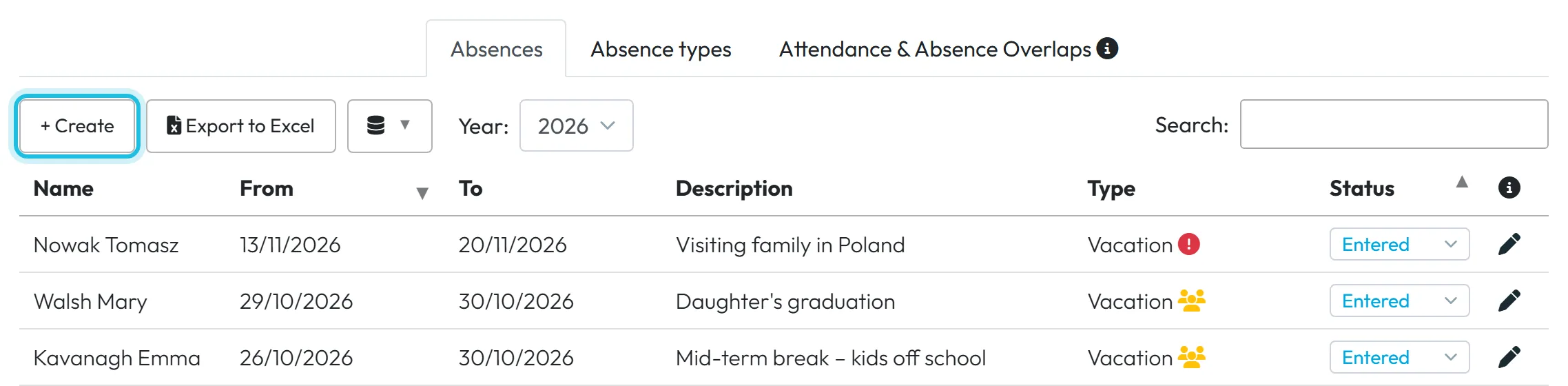
Click + Create in Absences.
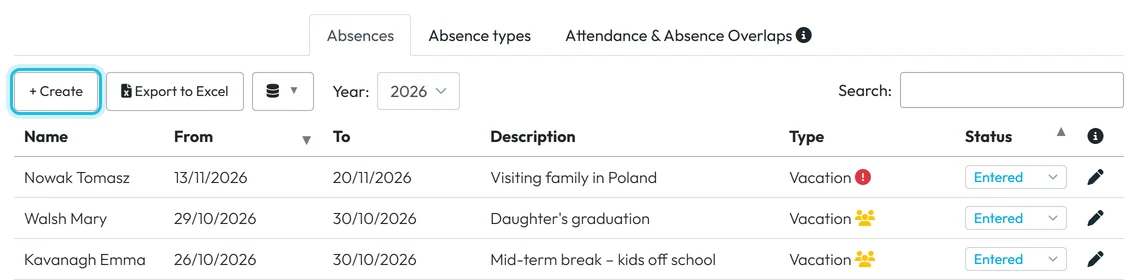
In the left menu, click Absences and stay on the Absences tab. Click + Create in the toolbar. The Create New Absence form opens.
The button is there for the Owner, Administrators, Manager: Full Access except Company settings and Absences: View & Edit. View-only roles don’t see it.
Add an absence with + Create -
Choose one or more employees.
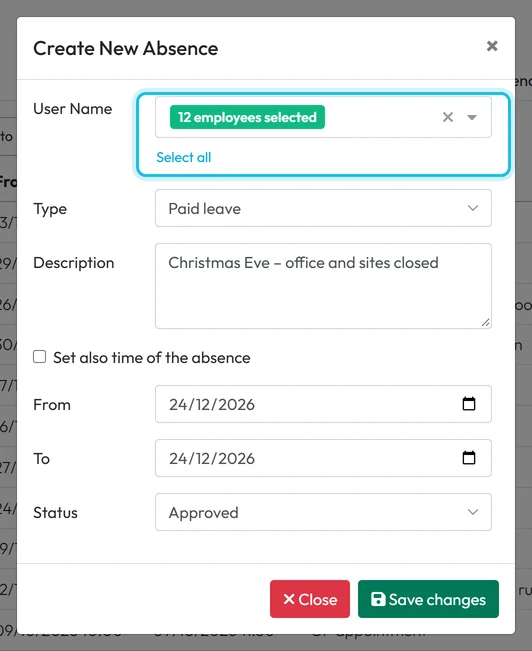
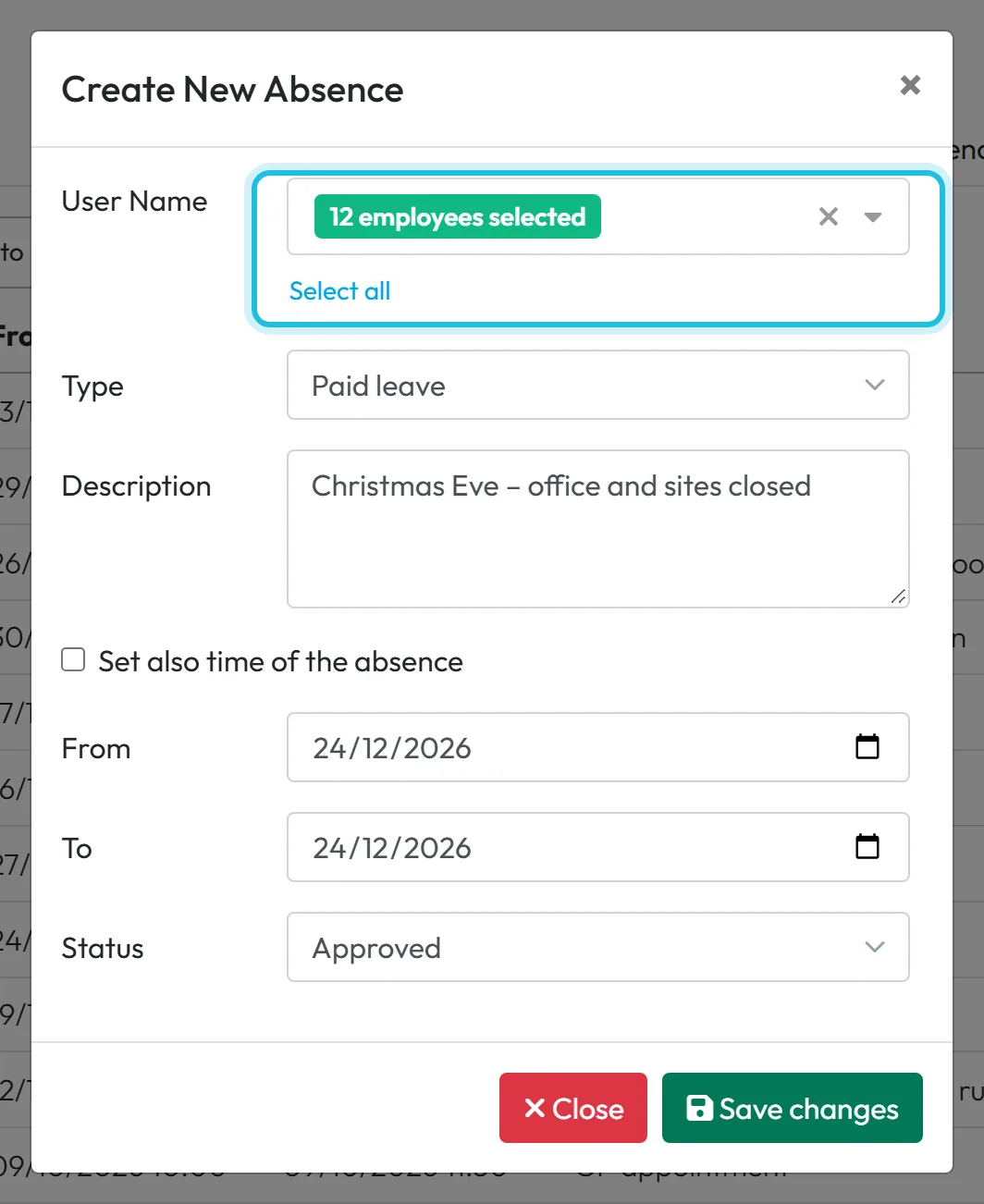
Click the User Name field (placeholder Select employees) and tick the people the absence is for. Select all picks everyone you are allowed to see. The field then shows a count, for example 12 employees selected, rather than the names – open the list again if you want to check who is ticked.
A manager account linked to an employee only lists that employee’s team.
One absence for the whole team at once -
Fill in the type, dates and status.
Pick the Type – the list shows your company’s absence types in alphabetical order. Add a Description if it helps (for example “Phoned in sick”). Set From and To; for a single day, use the same date twice.
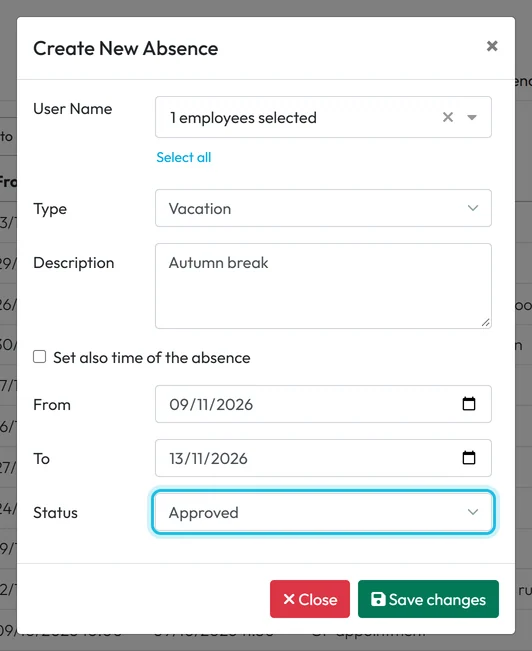
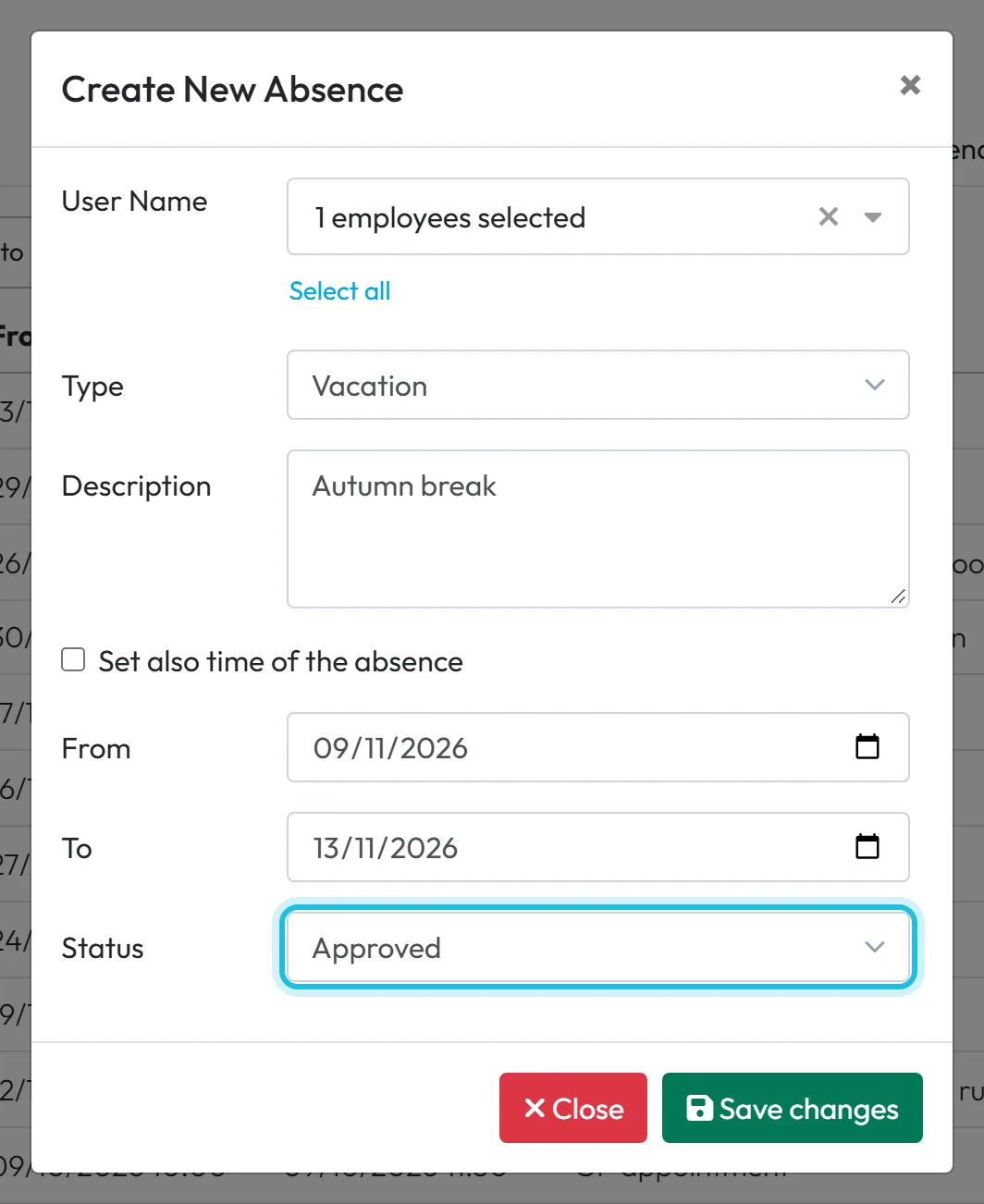
Status is Approved by default, which is right when you are the one deciding. Choose Entered instead if another manager should still confirm it – then it waits in their list like a request from the app, and the New absence request e-mail goes out if you use it.
An absence you enter is Approved by default -
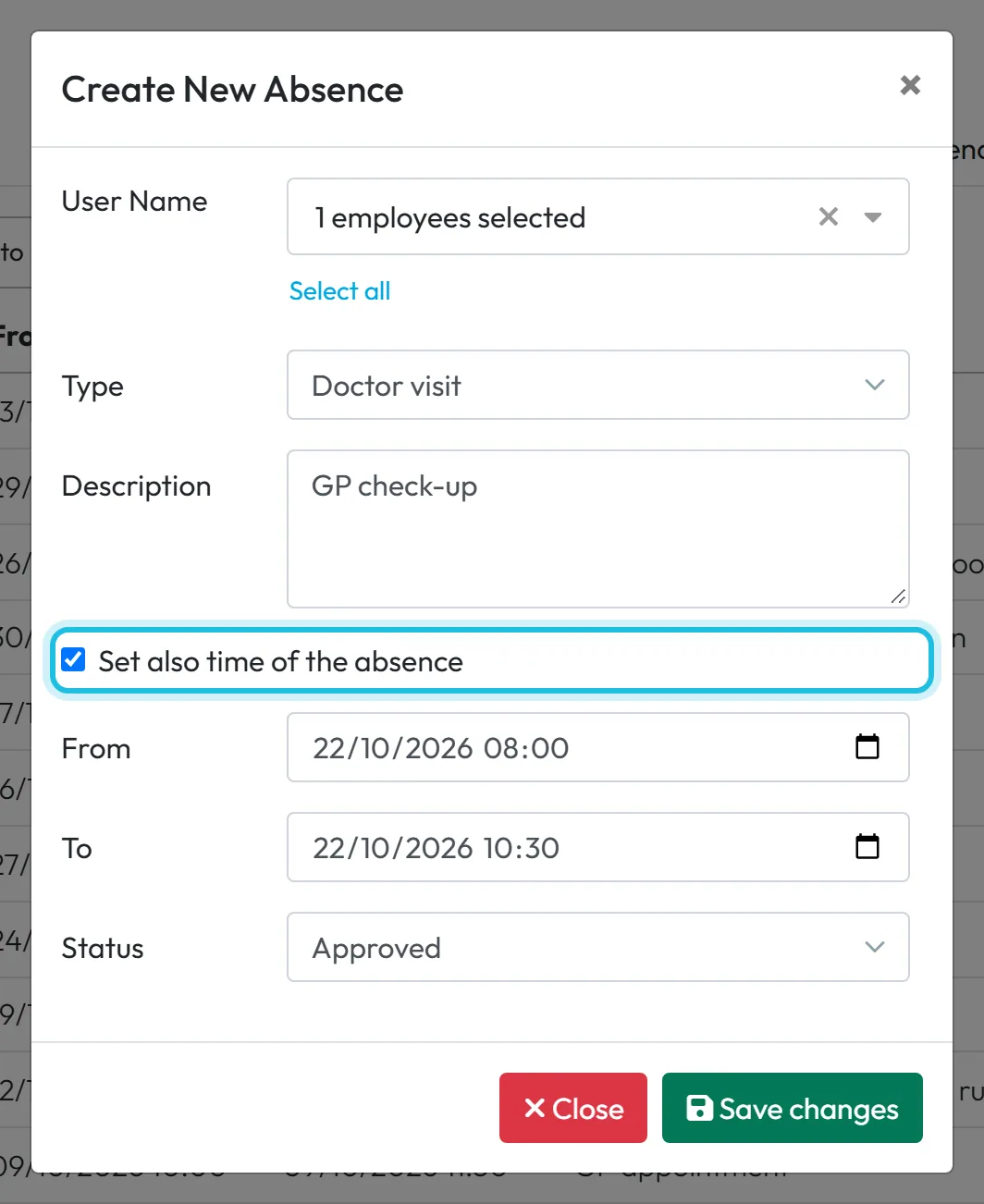
For part of a day, add the times.
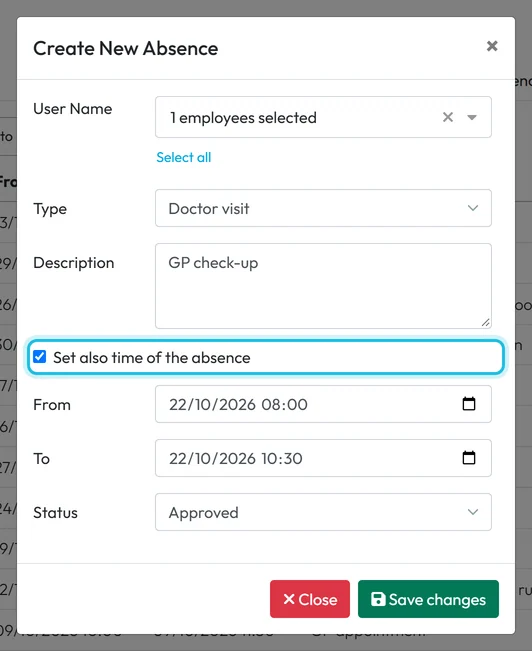
Tick Set also time of the absence. From and To change to date-and-time fields, for example a doctor visit from 08:00 to 10:30. Only that span counts.
Without times the absence covers whole days, and each day is worth the employee’s standard working day from their schedule.
Tick the box to enter a time range -
Click Save changes.
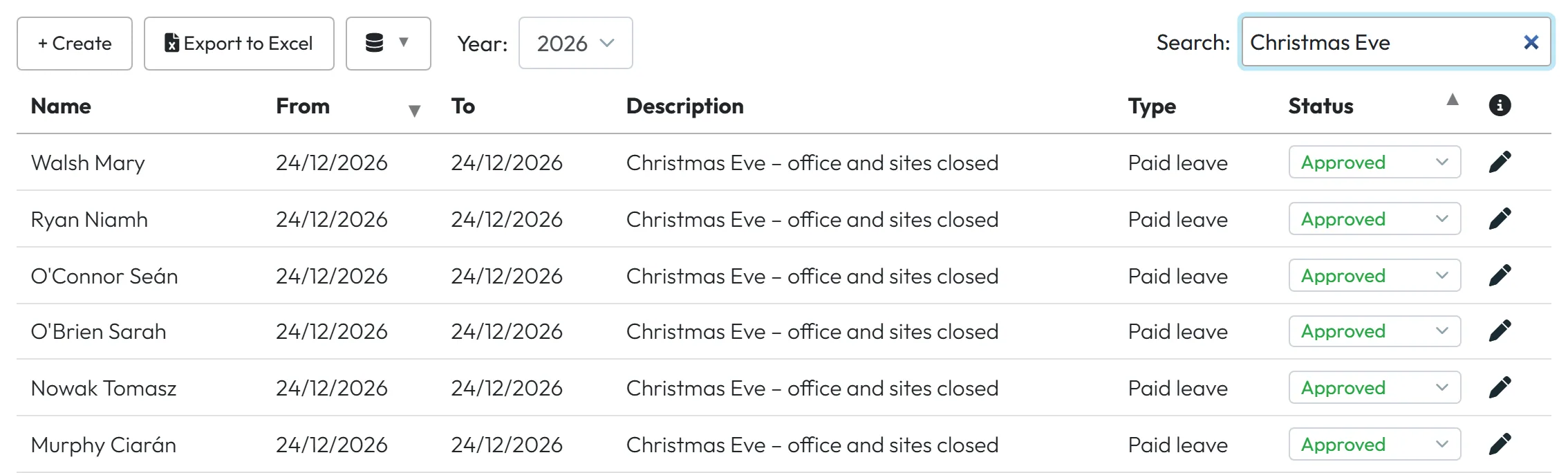
Click Save changes. FreshQR creates one absence per selected employee, all with the same type, dates, status and description, and the list reloads with the new rows. An absence saved as Approved counts in reports and the monthly report immediately.
The employee sees it in the Absences screen of their app, in the month it starts, with a green icon. They are not notified, and they can’t change or delete an absence that is already decided.
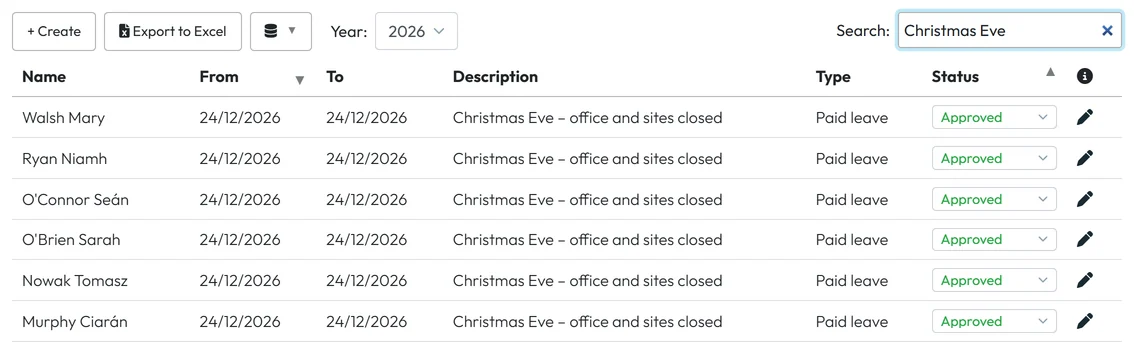
New absences appear in the list straight away
#Approved or Entered – which status to choose
| Situation | Status | What happens |
|---|---|---|
| You decide, or the absence is a fact (sick leave, closure) | Approved | Counts in reports, payroll exports and the leave balance at once. |
| Someone else should confirm it | Entered | Waits in the Absences list and the menu badge; counts only after approval. |
| You entered it, but it should not count after all | Canceled | Stays on record but counts nowhere. |
#Other ways to record an absence
- The employee sends a requestEmployees with the app can request leave from their phone; you then only approve or decline it.
- Automatically from marked scansIf an employee marks a scan as a doctor visit and your company uses automatic absences, FreshQR creates the approved absence afterwards.
- Edit an existing absenceClick the pencil in the Absences list to open the detail page, where you can change the type, dates, times, description and status, then click Save.
#Special cases and tips
- No check of the leave allowance
- The form does not check the yearly allowance or the concurrent absence limit. Check the balance afterwards in the absence detail or in Table Reports › Absences usage.
- Duplicates are possible
- Nothing stops you from adding an absence for days the employee already has one – for example when they also sent a request from the app. Set one of the two to Canceled.
- Dates before 2020
- The form refuses older dates with
Absence date cannot be before January 1st, 2020
. Past dates after that are fine. - Locked period
- If the dates fall inside a locked period for any of the selected employees, saving is refused with
This date falls within a locked period and cannot be modified.
- Wrong order of dates
- If the end is before the start, you get
'To' must be greater than 'from'
. Empty required fields showField is required
. A single absence can last at most one year. - After a bulk entry
- If saving fails completely, the form shows
Failed to create absences
. When you add an absence for many people at once, glance at the list afterwards to make sure every row is there. - Undoing an absence
- Open it and set Status to Canceled – that is how you undo an entry, because absences aren’t deleted in the web app. A bulk entry is undone row by row.
#Frequently asked questions
How do I give the whole company a day off?
Click + Create, use Select all, choose a type such as Paid leave, set the day and save. Each employee gets their own absence, which you can later edit or cancel one by one.
Can I enter an absence in the past?
Yes, back to 1 January 2020, unless the month is in a locked period.
Does the employee get notified when I add an absence?
No. They see it with a status icon the next time they open Absences in the app.
How do I record half a day?
Use the 1/2 Vacation type if you have it, or tick Set also time of the absence and enter the hours.
Does adding an absence reduce the leave balance?
Yes, once it is Approved and the type belongs to a leave allowance – for the days the employee is scheduled to work. An absence saved as Entered counts only after approval.
#Related
You are hereAdding an absence for an employee
Web app (administrator)Mobile app (employee)



