Assign tasks to employees with Todos
On this page
Quick answer
To assign tasks to employees in FreshQR, open Todos in the left menu, type the task into What needs to be done?, pick who it is for and a due date, and press Enter. The employee sees it under Tasks in their app, ticks the checklist, adds photos and comments and finishes it. You see what was done and when.
How to turn it on
Todos is an add-on module. Turn it on once under My Company › Extra services with the switch on the Todos — quick tasks for employees card. It saves straight away, and Todos appears in the left menu. For the current terms of add-on modules see the pricing page.
- My Company
- Extra services
- Todos — quick tasks for employees

- Who can turn it on
- The Owner, Administrators and Company Settings: View & Edit.
- What changes
- Todos appears in the web menu, and employees get a Tasks tab in the bottom bar of their app the next time they open Home with an internet connection. Switching it off hides both again.
- Applies to
- The whole company.
#What it's good for
- Small jobs no longer get lost in chat groups: “restock hand towels at Sandyford”, “order floor machine pads”.
- The employee gets the steps as a checklist and sends a photo as proof, right in the app they already use to clock in.
- You see at a glance what is open, what is overdue and who finishes on time.
- Comments stay with the task, not scattered across phones.
#Who it's for
A good fit for
- Cleaning and facility teams with client-site jobs that need photo proof.
- Opening and closing checklists, orders and maintenance in hospitality, retail or production.
- Teams where everyone already uses the FreshQR app for attendance.
Not the right fit for
- Project management with sub-tasks, priorities, dependencies or time tracking per task. Todos has none of these; for time spent on a job use project time tracking.
- Urgent jobs. Employees get no notification about a new todo or comment – phone them.
- People who don’t use the FreshQR app. They can’t see or finish todos.
#Step by step
-
Open Todos.
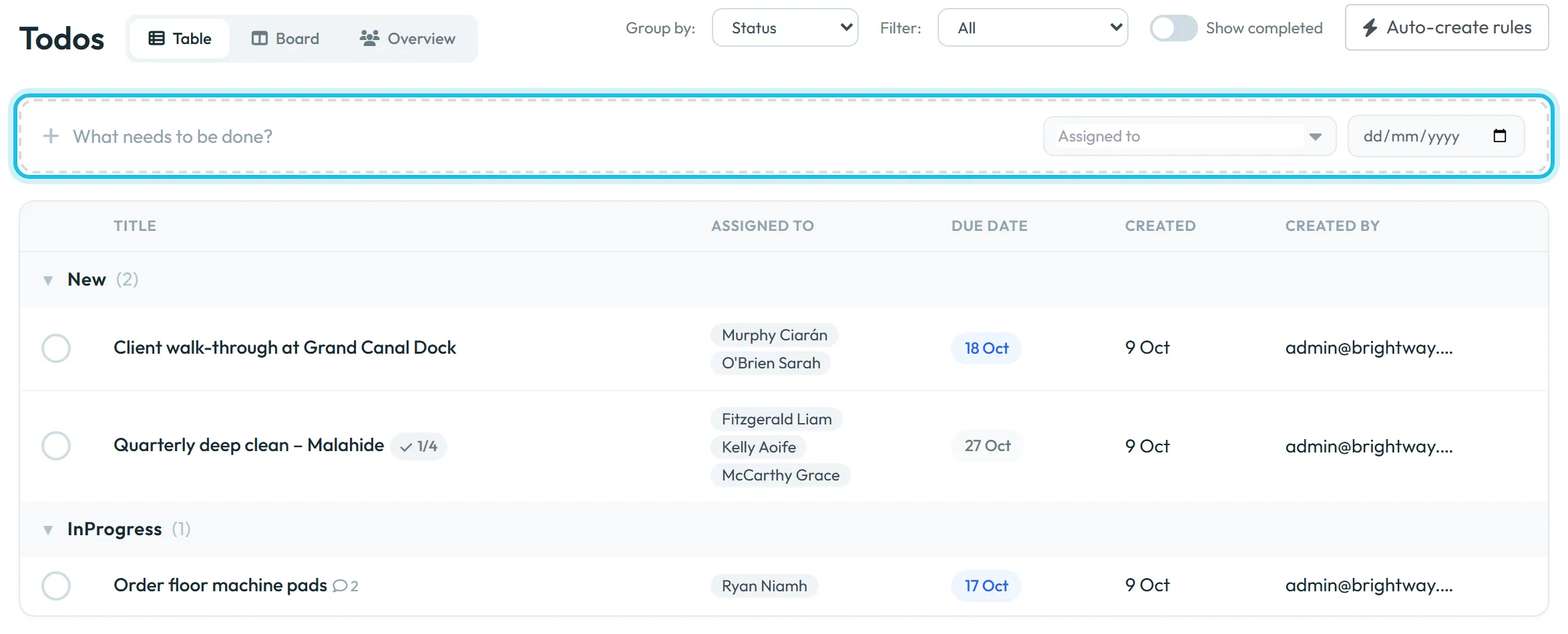
Click Todos in the left menu. There are three views at the top: Table, Board and Overview. The table groups todos by status; Group by also offers due date, assignee or alphabetical order.
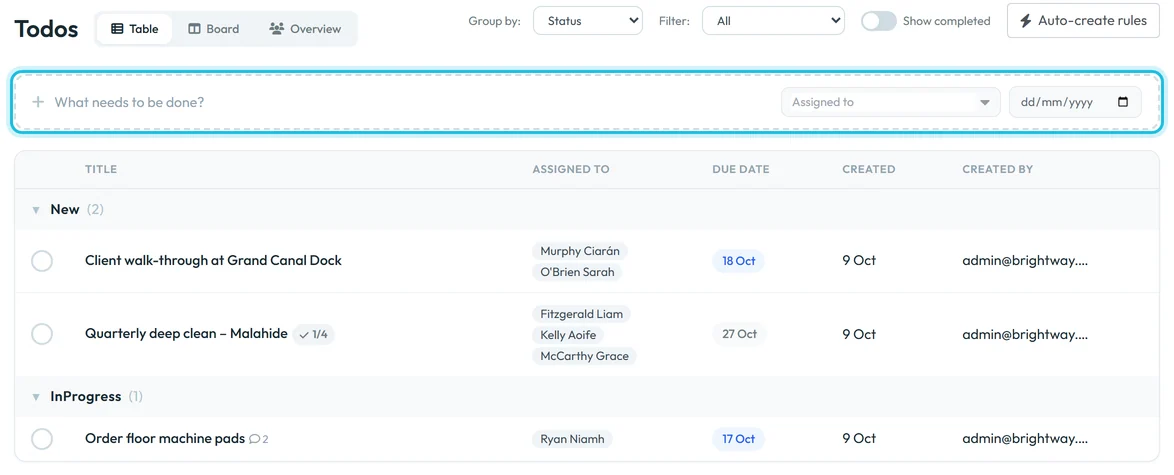
Type a new todo into the row above the table -
Create a todo.
Type the title into What needs to be done?, for example “Restock hand towels at Sandyford”. In Assigned to choose one or more employees, pick the due date, and press Enter or the + button. The todo is created with you as Created by.
A todo with nobody assigned is Unassigned and nobody sees it in the app.

Title, assignee, due date – then Enter -
Add the details, a checklist and options.
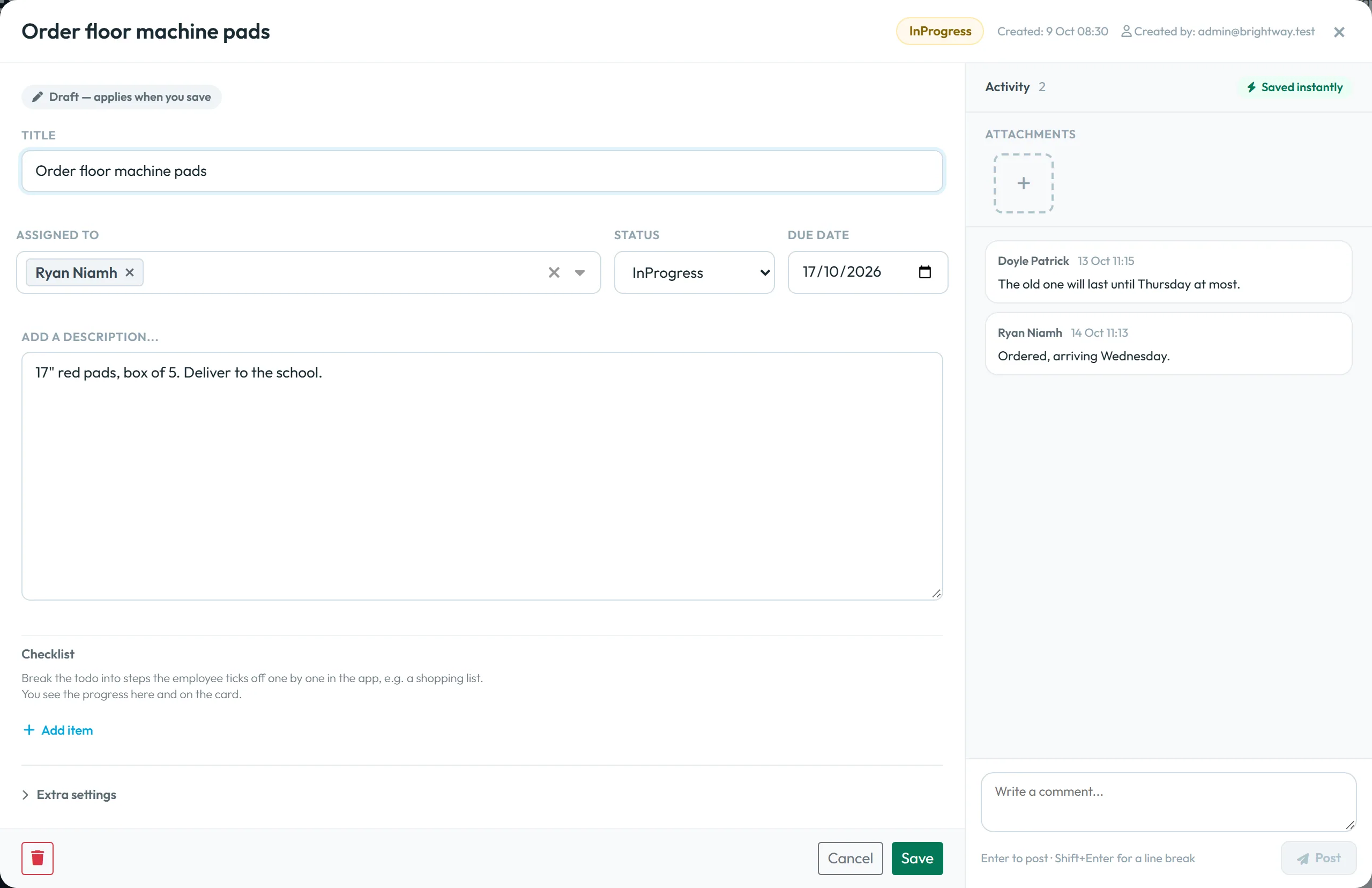
Click the todo’s title to open it. The left side is a draft –
Draft — applies when you save
– with the title, Assigned to, Status, Due date and a description.- Checklist: click Add item for each step, for example the rooms of a deep clean. The employee ticks them off in the app and you see 1 / 4 done on the card.
- Extra settings: Employees can reopen a finished todo is on by default; switch it off and only the web app can reopen it. Require every checklist item before finishing (offered when there is a checklist) stops anyone finishing until every item is ticked.
Click Save. Cancel throws the draft changes away.
-
Talk and share files in the Activity panel.
The right side, Activity, is
Saved instantly
. Write into Write a comment... and press Enter to post (Shift+Enter for a new line). Add photos or PDFs under Attachments – JPG, PNG, WEBP or GIF images, or PDF documents, up to 10 MB each. Comments and photos from the employee’s app appear here with their name.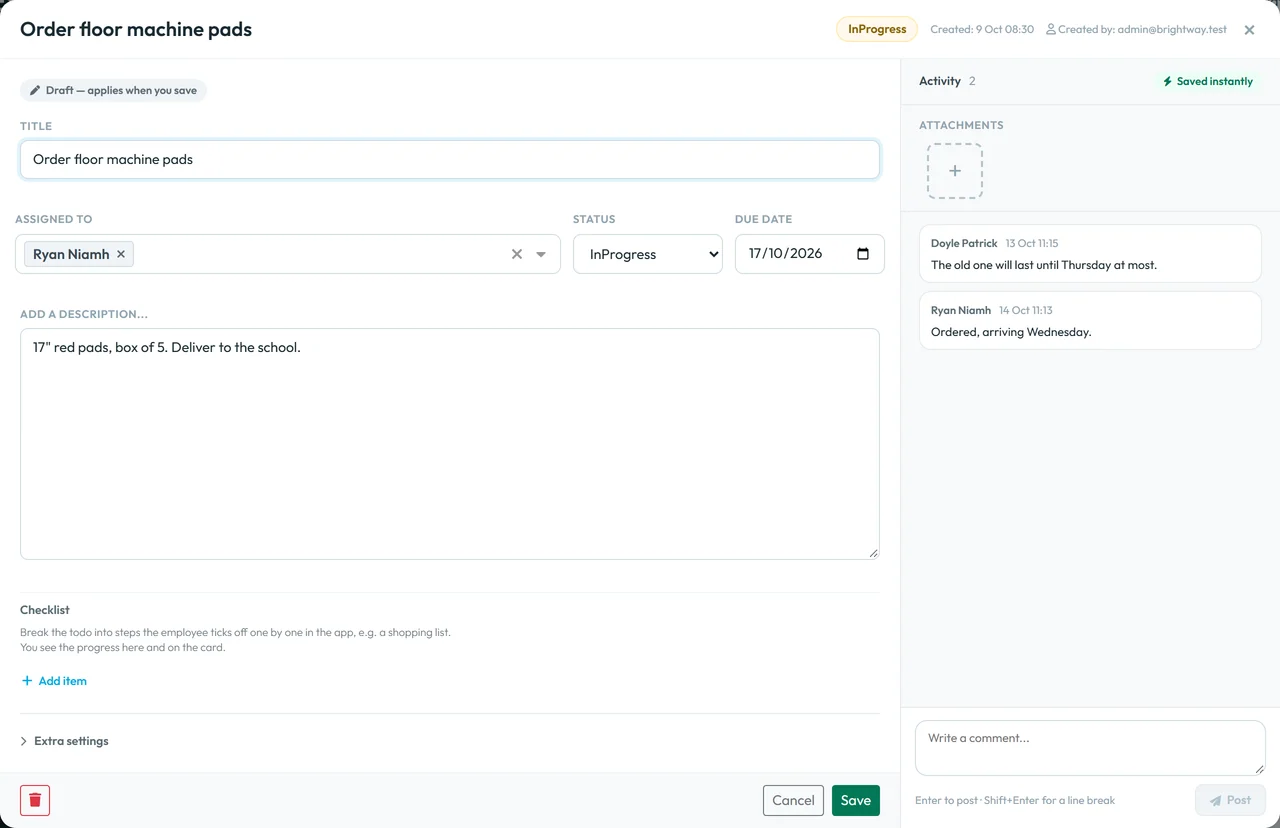
Details on the left, comments and files on the right -
Follow progress on the Board.
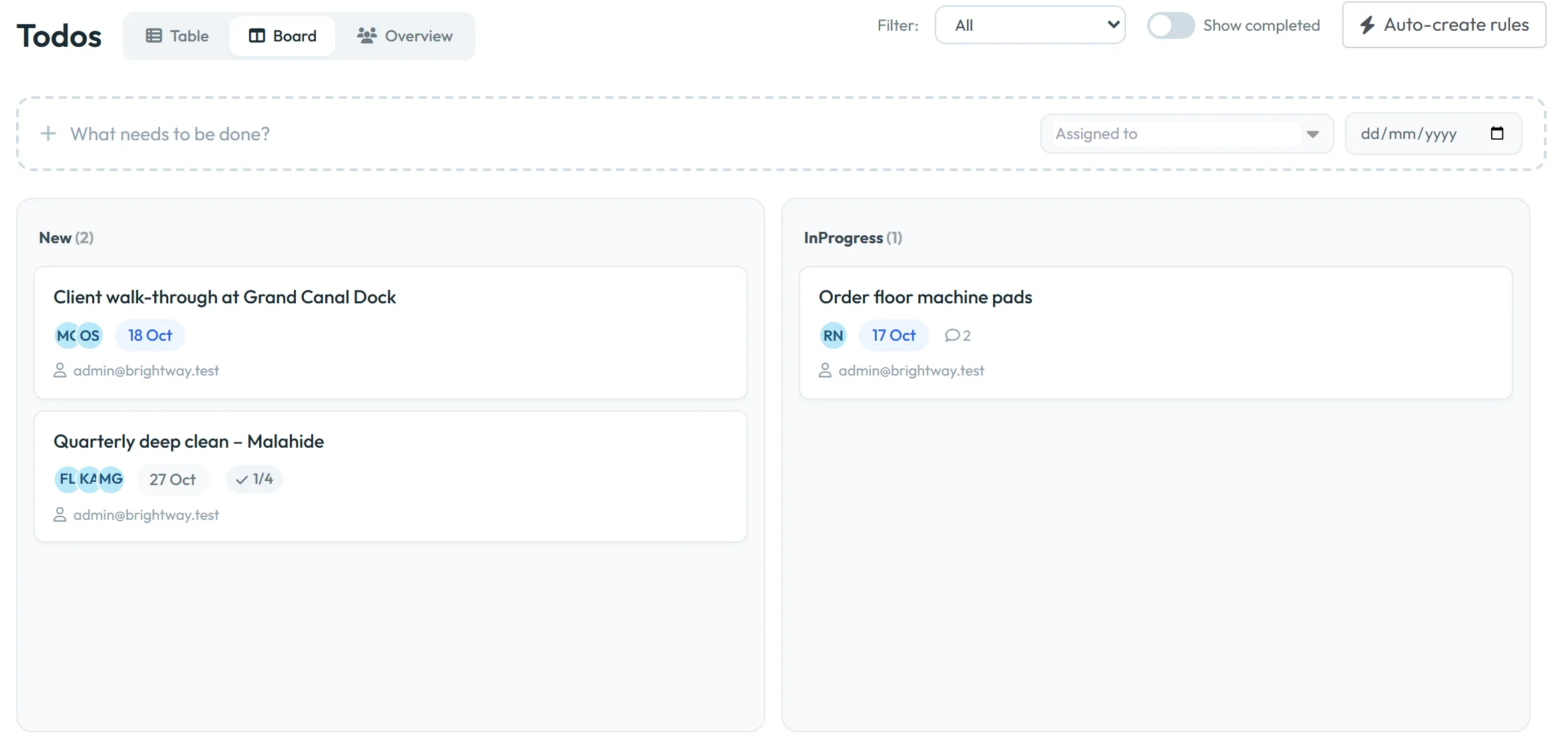
The Board shows a column for new todos and one for todos in progress; turn on Show completed to add a column for finished ones. Drag a card to another column to change its status. If the checklist is required and not complete, the card won’t move into the finished column. In the table, the round button left of the title marks a todo as done, or new again.
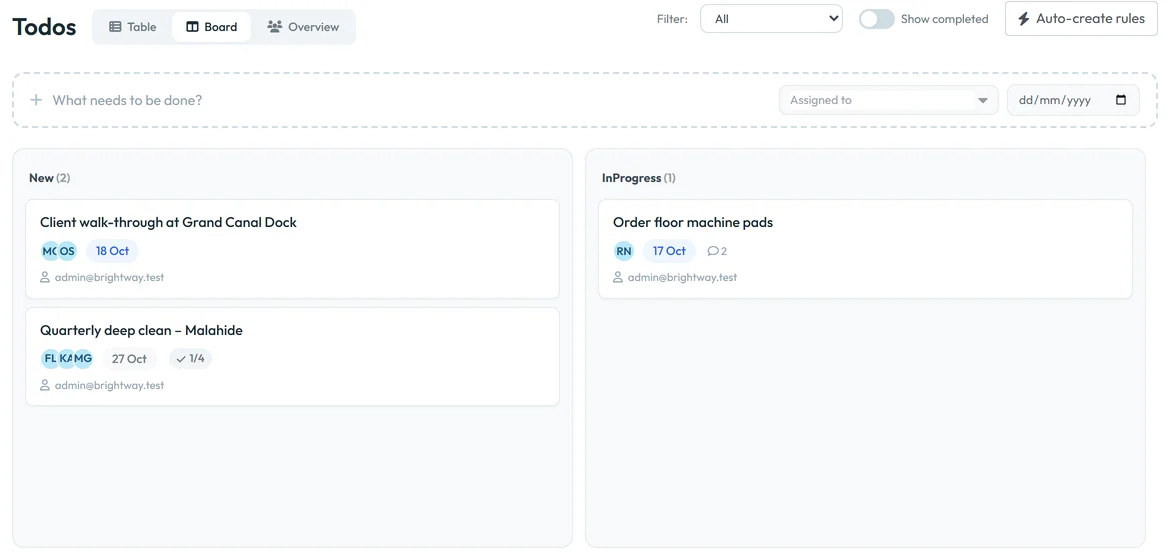
Drag todos between columns -
Check who finishes on time.
Finished todos get a badge: On time (done on or before the due date), Late or No deadline. The Filter can show only Completed on time or Completed late. The Recently Completed card below the list shows what was finished in the last 7 days, this or last week, or this or last month. A time with “≈” in front is approximate.
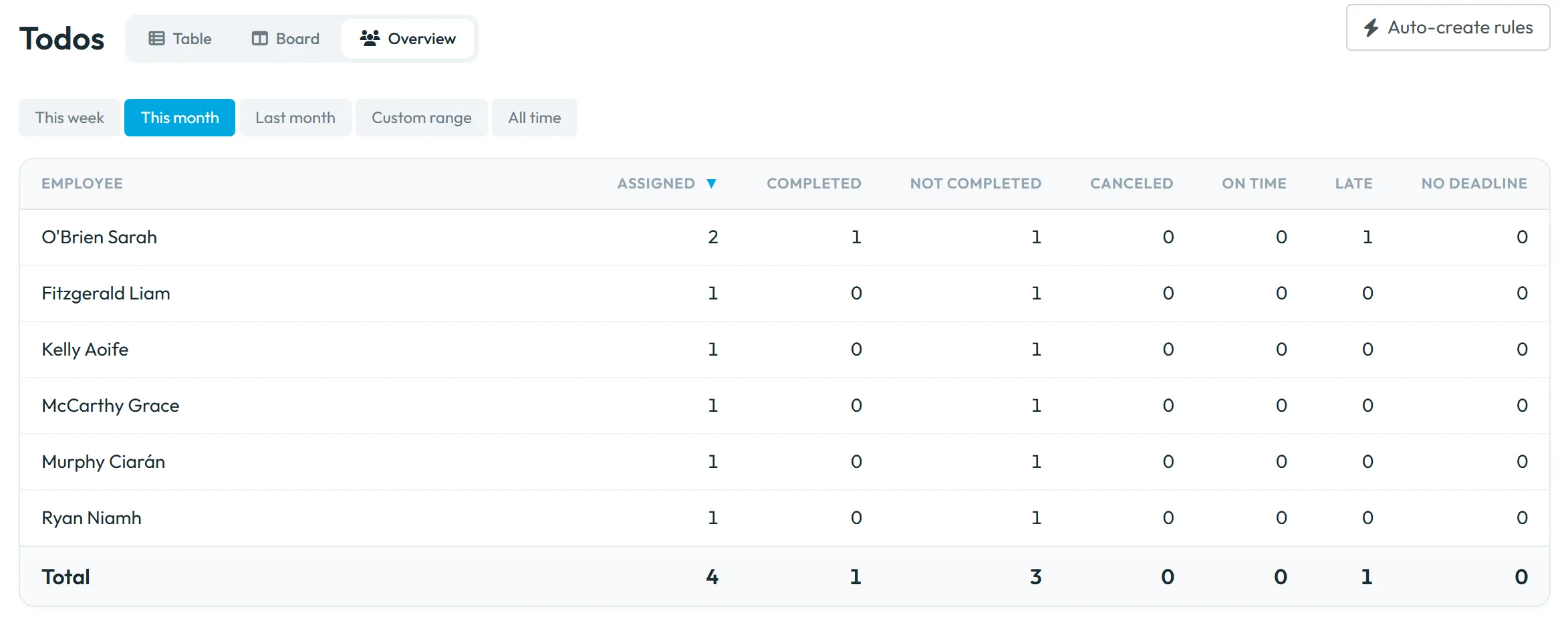
The Overview tab counts todos per employee for a period: Assigned, Completed, Not completed, Canceled, On time, Late, No deadline. Click a row to see that person’s todos.
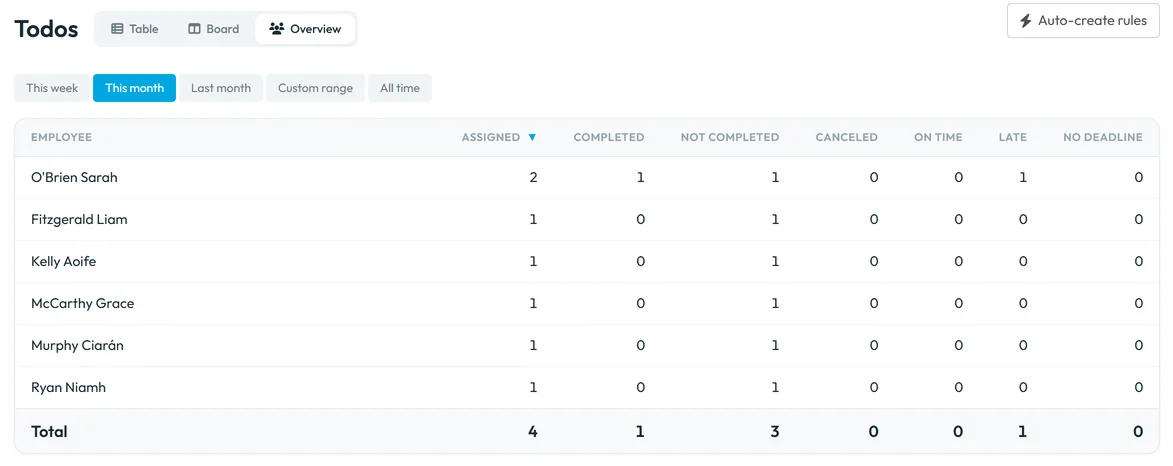
Who finishes todos, and on time

#What the employee sees
In the app the module is called Tasks. The Tasks tab in the bottom bar shows the number of open tasks, and Home shows a New tasks card for tasks the employee hasn’t seen yet. Both update when the employee opens Home with an internet connection – there is no push notification and no e-mail. The employee can tick the checklist, add photos, PDFs and comments, and finish the task, but can’t change the title, due date or description. Their side is described in Task checklist app for employees.
#Other ways to create todos
- Recurring todosFor chores that come back every week, click Auto-create rules at the top right and let FreshQR create them – see Auto-create ToDo rules.
- Recently CompletedBelow the list, the card shows the latest finished todos with the employee and an On time or Late badge.

The latest finished todos

#Special cases and tips
- One todo, several people
- A todo with several assignees is shared: one status, one checklist. Whoever finishes it closes it for everyone. If each person must do the job, create a separate todo for each.
- Reopening
- You can always reopen a todo in the web app. Employees can reopen one in the app only while Employees can reopen a finished todo is on.
- Deleting a todo
- Use the bin icon in the open todo, or the × on the row or card. FreshQR asks “Are you sure you want to delete this todo?” There is no undo, and its attachments are removed too.
- No e-mail for todos
- You don’t get an e-mail when an employee comments or finishes. Check the Board, the Recently Completed card or the counts on each row.
- Not the same as notes
- A todo comes from you and asks for work. A note comes from the employee and explains their day – see Employee notes.
#Frequently asked questions
Does the employee get a notification about a new todo?
No. The app shows a number on the Tasks tab and a New tasks card on Home the next time the employee opens it with internet. For anything urgent, call them.
Can I assign one todo to several employees?
Yes. It is one shared todo, and the first person who finishes it closes it for all.
What counts as on time?
Finished on or before the due date. The time of day doesn’t matter.
Can I attach Word or Excel files?
Save them as PDF first: todos take images (JPG, PNG, WEBP, GIF) and PDF documents, up to 10 MB each.
Do todos affect worked hours?
No. Todos have no time tracking and don’t appear in attendance reports.
Who can create todos?
The Owner, Administrators, Manager: Full Access except Company settings and Todos: View & Edit. Employees can’t create todos.
#Related
You are hereTodos – table, board and checklist
Administrator
Web app (administrator)Mobile app (employee)



