Company billing details and general settings
On this page
Quick answer
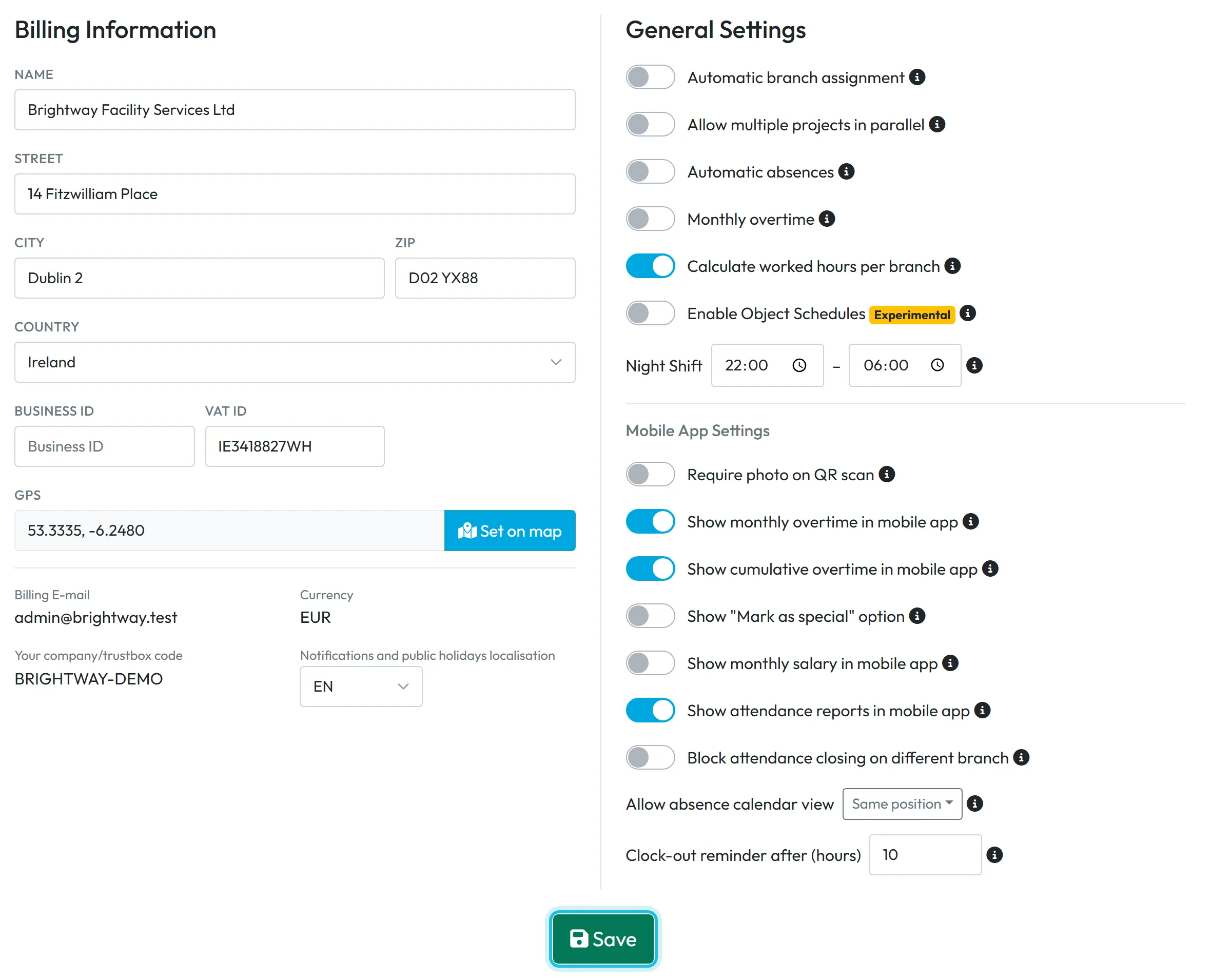
Company billing details live in My Company › Company Details. On the left, fill in Billing Information – name, address, country, Business ID and VAT ID – and set the head office on the map. On the right are General Settings and Mobile App Settings for the whole company. One Save button saves it all.
#What it's good for
- Your FreshQR invoices carry the right company name, address and tax numbers.
- The company code employees need to connect without a QR code is right here.
- Company-wide options that change how hours are counted – night shift window, monthly overtime, hours per branch – are in one place.
#Who it's for
A good fit for
- Every new customer before the first purchase of credits.
- Companies that move office, change their VAT number or want to switch on a calculation option.
Not the right fit for
- Setting up individual branches – that is Branches.
- Uploading a logo or setting a time zone. Neither is on this page.
#Step by step
-
Open Company Details.
Click My Company in the left menu. Company Details is the first tab. Billing Information is on the left, General Settings and Mobile App Settings on the right, and Save at the bottom.
The tab is visible to the Owner, Administrators and accounts with Company Settings: View & Edit. Manager: Full Access except Company settings doesn’t see it.
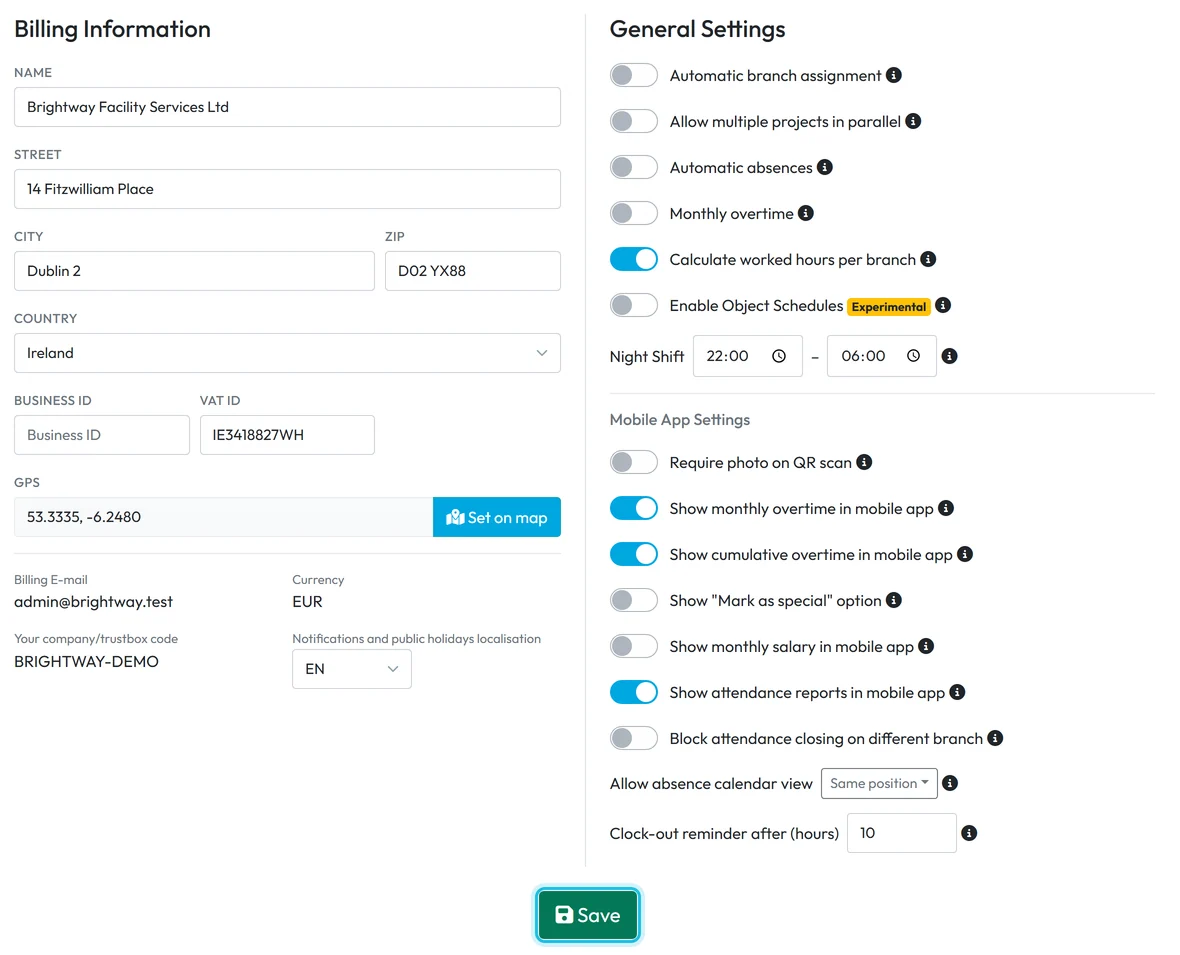
Billing details and company settings on one tab -
Fill in the billing information.
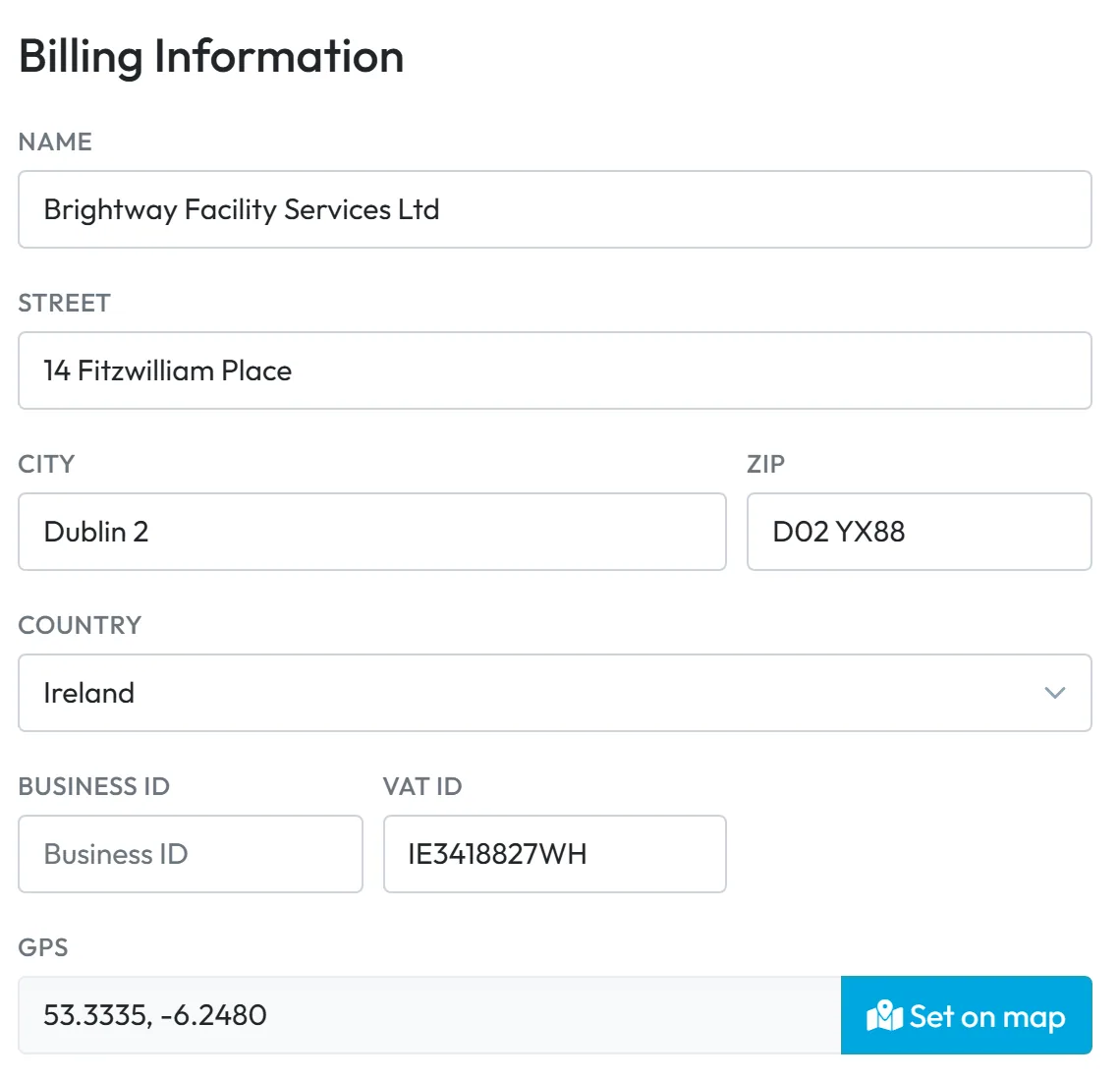
Enter Name, Street, City, Zip and Country – for example Brightway Facility Services Ltd, 14 Fitzwilliam Place, Dublin 2, D02 YX88, Ireland. These are required when you save. Add your Business ID and Vat ID as they appear on your company registration.
The billing details have to be complete before you can buy credits – see Credits and invoices. The copy icon next to Billing Information copies the details to the clipboard, handy for your accountant.
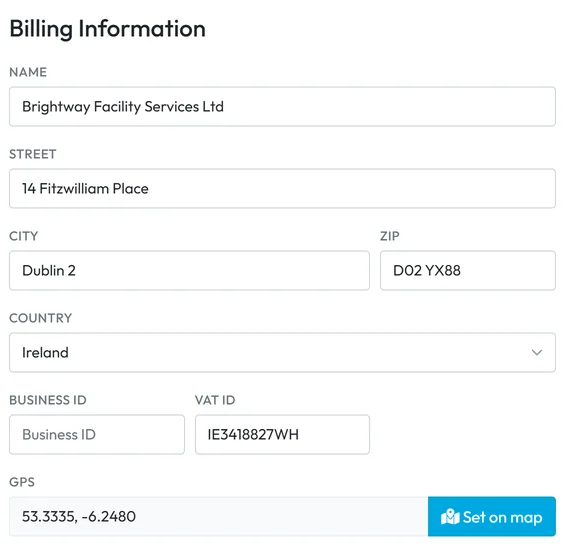
Billing details with the VAT ID -
Set the head office on the map.
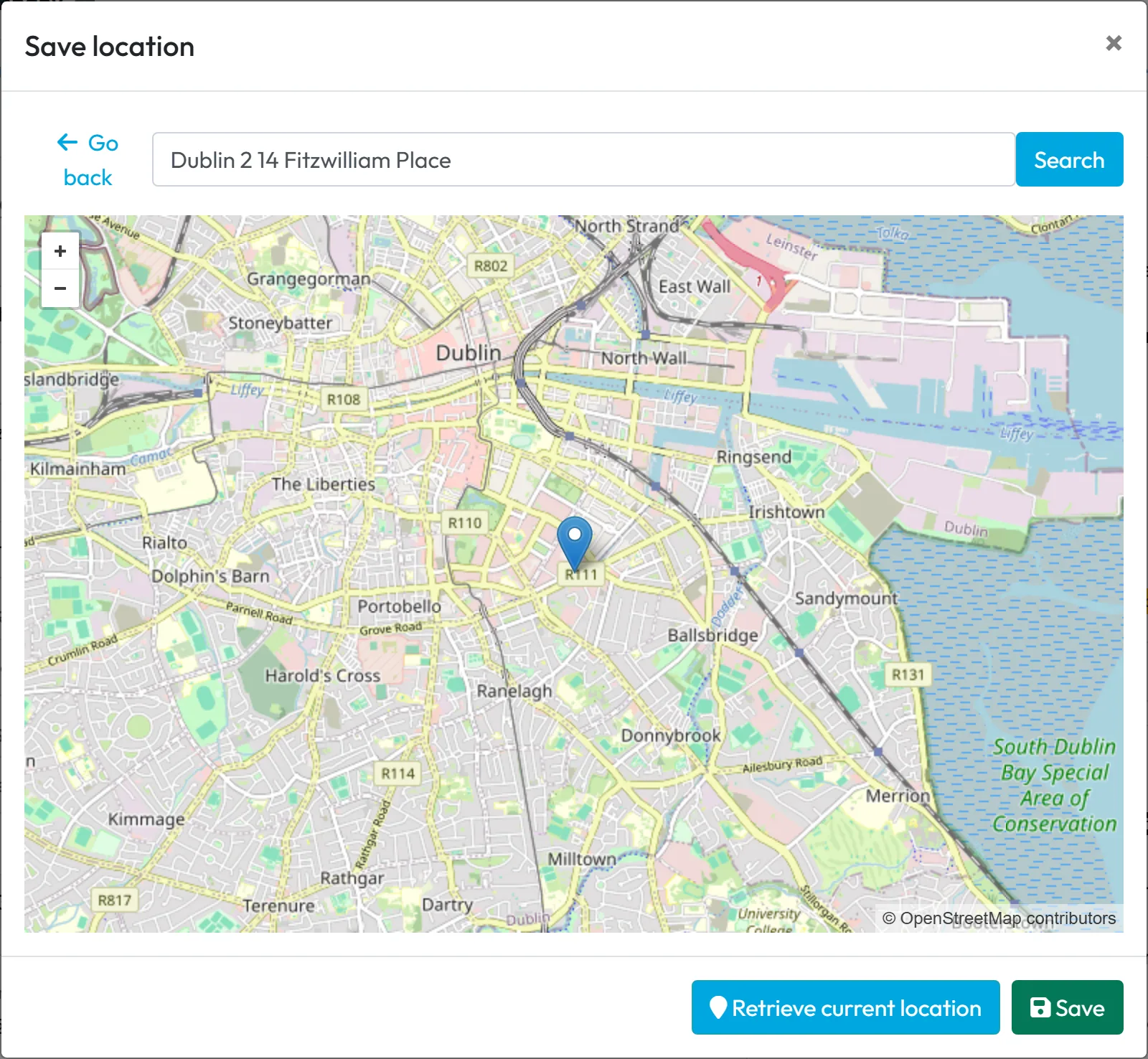
Click Set on map. In the Save location window, search for the address, use Retrieve current location if you are at the office, or click the map. Click Save in the window, then save the form.
The billing address and this GPS point are the same record as your main branch. Change one and the other changes too. The point is used to show how far scans at the main branch were from it – see GPS attendance tracking.
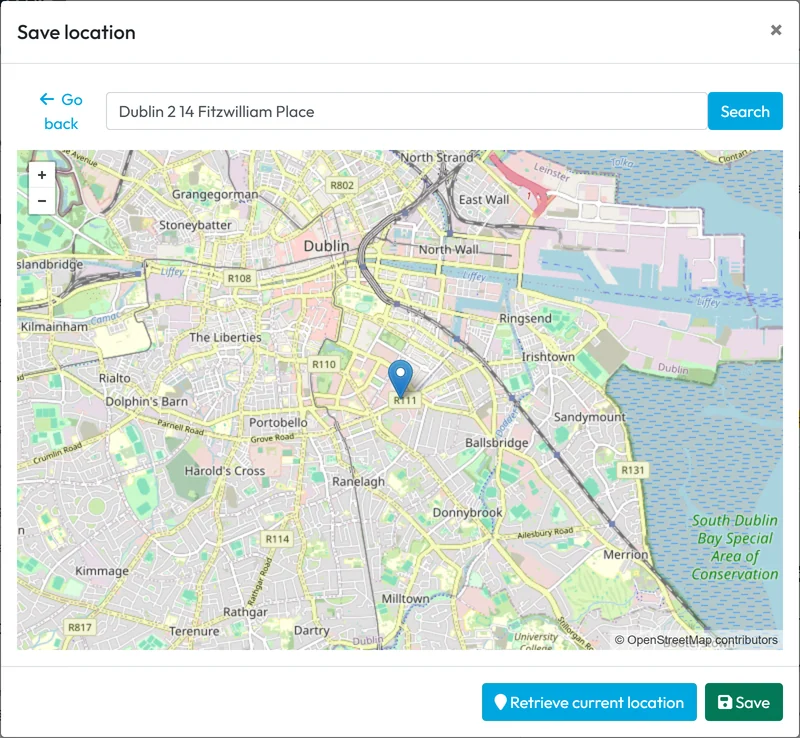
Pin the head office on the map -
Check the details below the address.
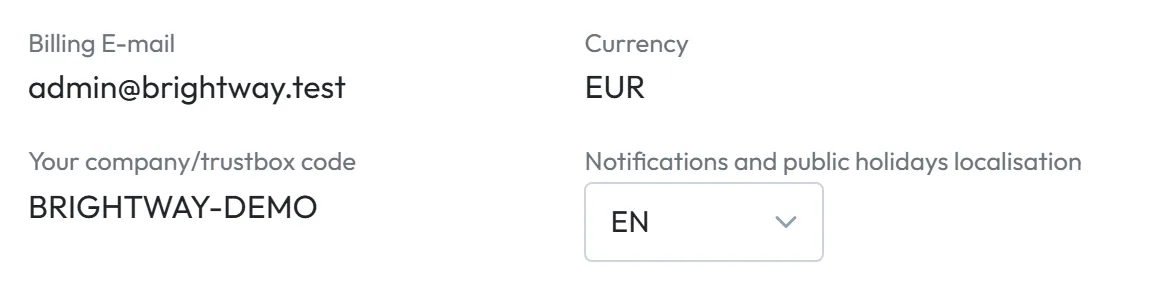
- Billing E-mail – the login e-mail of the Owner account. It can’t be changed here.
- Currency – shown for information, for example EUR.
- Your company/trustbox code – the code employees type in the app to join your company without a QR code, for example when you want to connect them before their first day. See Adding employees. Keep it internal: anyone who has it can join your company in the app.
- Notifications and public holidays localisation – the company’s language setting for notifications and public holidays. It doesn’t change anyone’s web or app language.
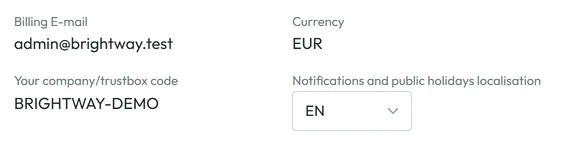
Billing e-mail, currency and company code -
Switch on general settings you need.
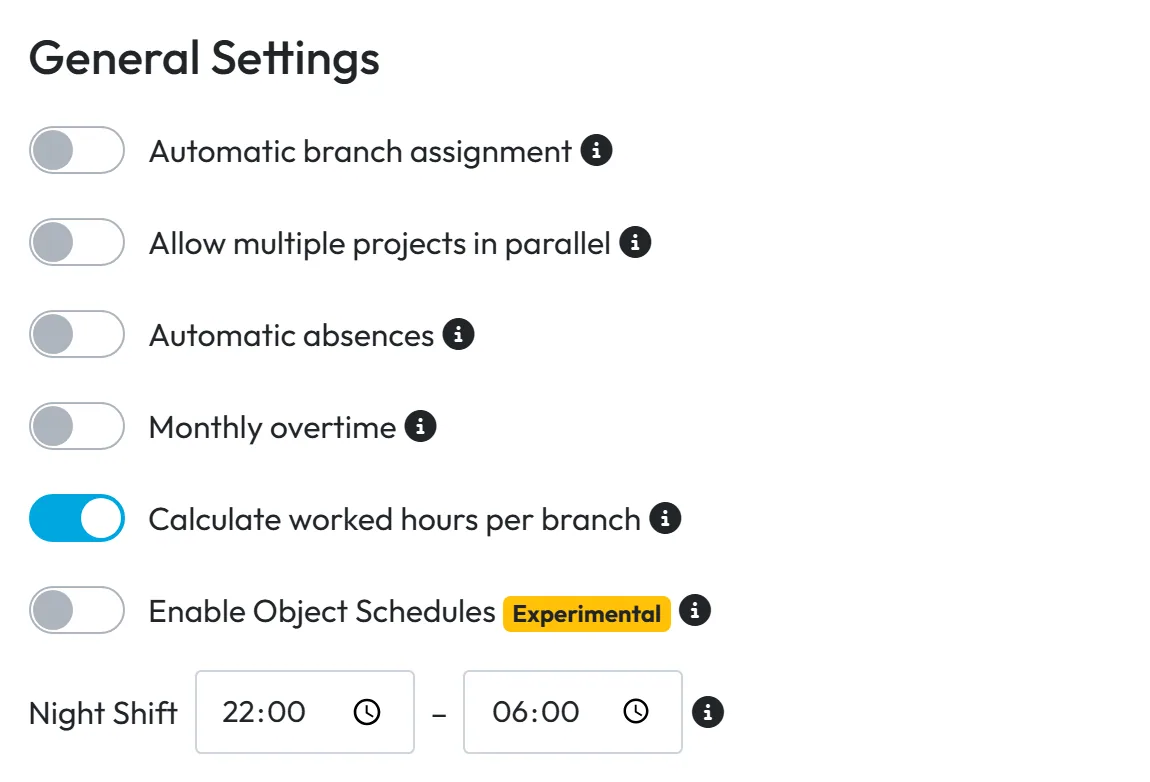
The switches under General Settings apply to the whole company. Each has an ⓘ with a short explanation; the details are on their own pages:
- Automatic branch assignment – each day, the employee’s assigned branch follows the first QR code they scanned that day. See Branches.
- Allow multiple projects in parallel – employees can work on several projects at the same time. See Start work on a project.
- Automatic absences – marked breaks such as a doctor’s visit become approved absences. See Automatic absences.
- Monthly overtime – overtime is counted for the month as a whole. See Overtime tracking.
- Calculate worked hours per branch – adds the branch overviews to Table Reports. See Hours worked by branch.
- Enable Object Schedules (Beta, marked Experimental in the app) – schedules per branch or per project. See Employee work schedule.
- Night Shift – the window for night hours, for example 22:00 – 06:00. It must cross midnight. See Night shift hours.
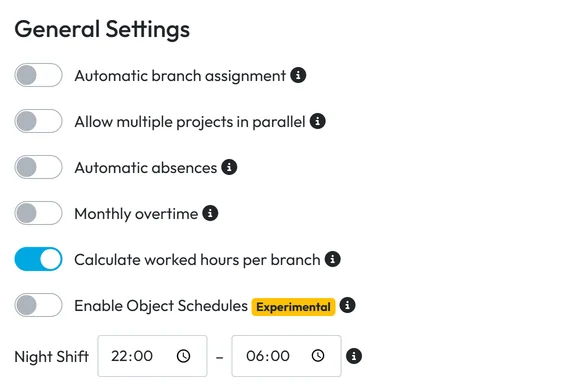
Company-wide calculation options -
Set the mobile app defaults.
The Mobile App Settings block below decides what employees see in their app – photo on scan, overtime, salary, reports and more. It has its own page: Mobile app settings.
-
Click Save.
Click Save at the bottom. It saves the billing information, the general settings and the mobile app settings together; Data has been successfully saved confirms it. Employees’ phones pick up changes to the app settings the next time they open the app’s Home screen.
#Special cases and tips
- Moving the head office
- Change the address here or in the main branch – it is the same record. Then check the GPS point with Set on map.
- A colleague should manage billing
- Give their user account the role Company Settings: View & Edit – see User accounts and roles.
#Frequently asked questions
How do I pay for credits afterwards?
On the Invoices tab, click Buy and pay by card on the secure Stripe payment page. Credits don’t expire, and each month’s usage is deducted on the 5th day after the month ends. Prices are on the pricing page.
Where do I upload our logo?
FreshQR has no company logo setting. You can change the style of your printed QR codes instead.
How do I get a new company code?
Write to FreshQR support at info@freshqr.online or on WhatsApp and they will help you. The code can’t be changed in the app itself.
Does the localisation setting change my language in FreshQR?
No. Each user picks their own language in the web app, and employees pick theirs in the mobile app.
Why can’t I buy credits?
The billing information isn’t complete yet. Fill in the name, address and country, add your tax numbers and click Save.
Who can change these settings?
The Owner, Administrators and accounts with Company Settings: View & Edit.
#Related
You are hereCompany Details and billing information
Administrator
Web app (administrator)Mobile app (employee)



