Employee app settings: what staff see on their phones
On this page
Quick answer
Employee app settings decide what your staff see and do in the FreshQR app. Set them for the whole company in My Company › Company Details › Mobile App Settings and click Save. For one person, change the same switches in their employee profile; the badge then reads Custom settings.
How to turn it on
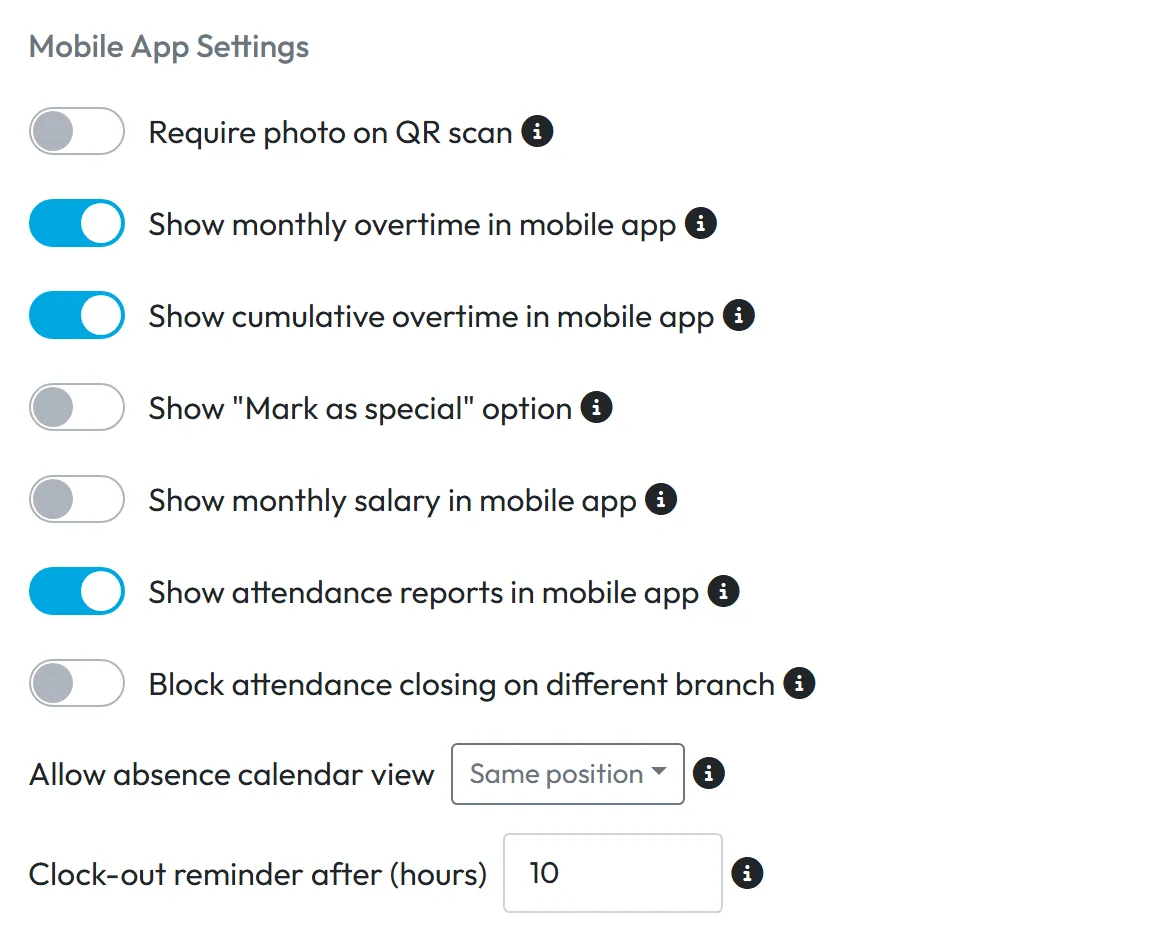
The company defaults are the lower block on the right of Company Details, under General Settings. Change the switches, then click Save at the bottom of the page.
- My Company
- Company Details
- Mobile App Settings
- Who can turn it on
- Company defaults: the Owner, Administrators and Company Settings: View & Edit. One employee’s settings: everyone who can edit employees, including Employees: View & Edit.
- What changes
- The employee’s app shows or hides the matching buttons, tabs and numbers the next time they open Home. There is no push; nothing changes on screen until then.
- Applies to
- Company-wide by default. Any employee can get custom settings in their profile.
#What it's good for
- A photo on every scan where you need proof of presence, and none where you don’t.
- Overtime and salary visible to staff who should see them, hidden from the rest.
- A reminder on the phone when someone has been clocked in too long.
- Exceptions for one person – a shift lead, a part-timer – without changing the whole company.
#Who it's for
A good fit for
- Mixed teams, for example office staff and cleaning crews, who should see different things.
- Companies that want to keep pay figures in the office, or show them openly.
Not the right fit for
- Employees themselves. They can’t change these settings in the app.
- GPS accuracy – that is set per employee in their profile, see GPS attendance tracking.
#What each setting does in the app
| Setting | What the employee sees |
|---|---|
| Require photo on QR scan | After each QR scan the camera opens for a photo of the workplace. See Photo clock-in. |
| Show monthly overtime in mobile app / Show cumulative overtime in mobile app | Overtime figures in the app’s reports. See Monthly hours report. |
| Show "Mark as special" option | The Mark next scan as… button on Home, for lunch breaks, doctor visits and similar. See Clock out for a lunch break. |
| Show monthly salary in mobile app | The month’s salary in the app’s reports. See Employee hourly rate. |
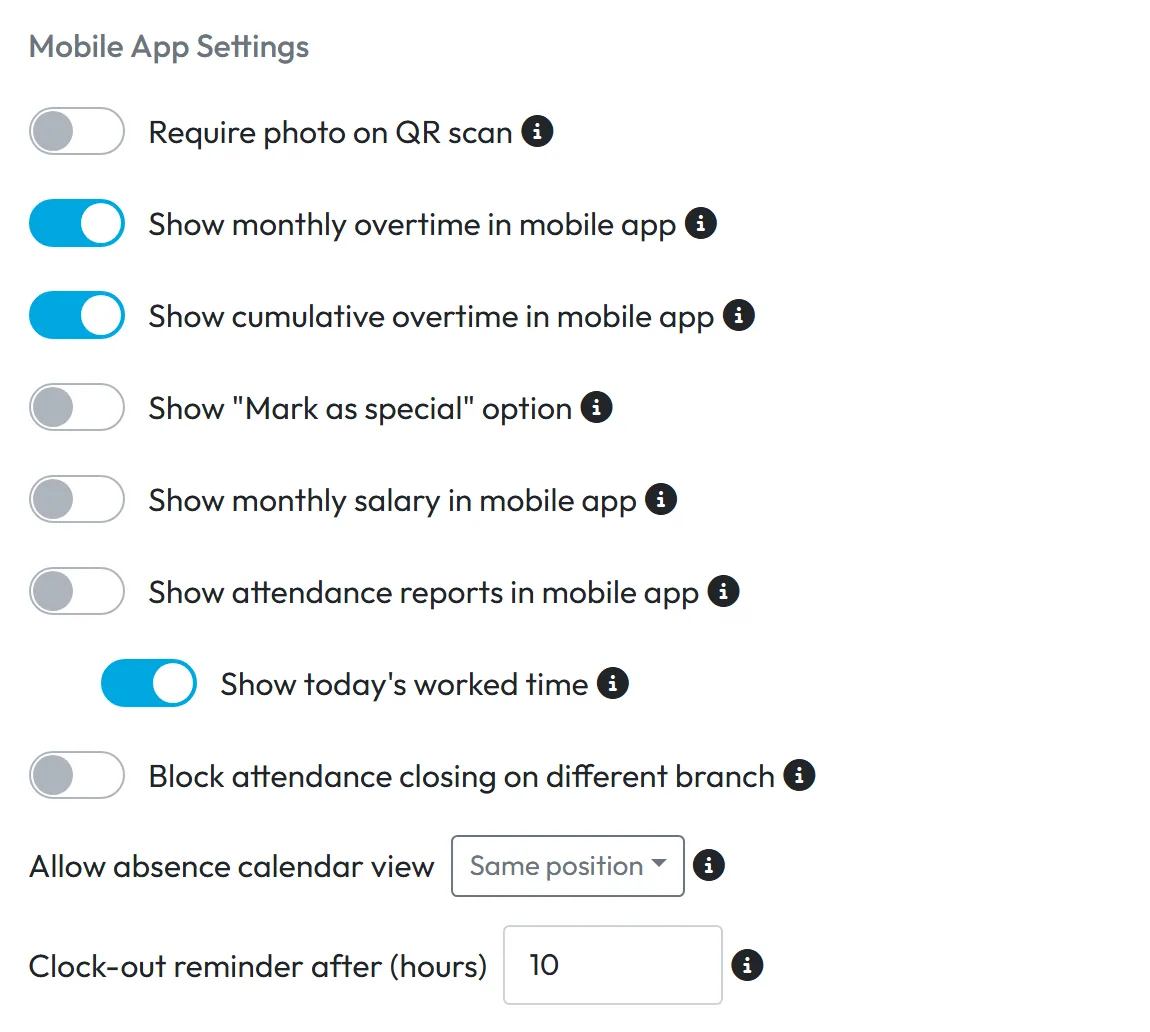
| Show attendance reports in mobile app | The Reports tab and earlier days. Switched off, the employee sees no history; then Show today’s worked time appears and decides whether they at least see today’s running time. |
| Block attendance closing on different branch | A departure scan at a different branch from the arrival is refused. |
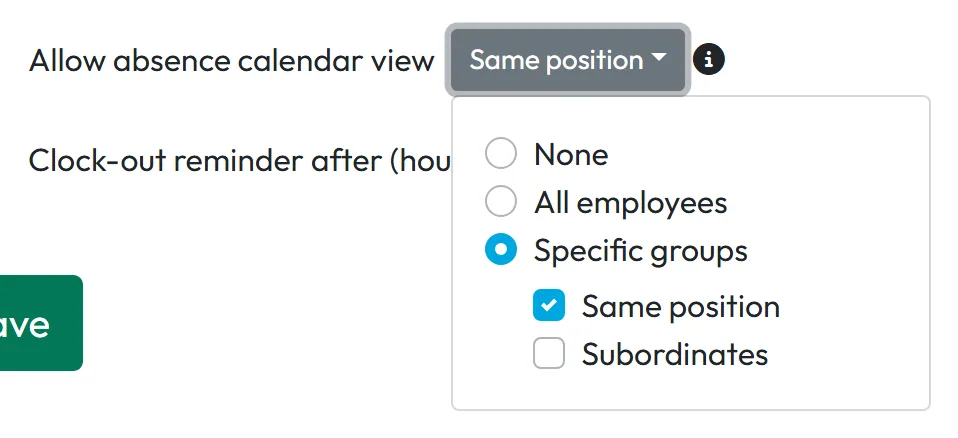
| Allow absence calendar view | Whose approved absences the employee sees in the app: None, All employees, or Specific groups – Same position and/or Subordinates. The absence type is shown too. See Team absence calendar. |
| Clock-out reminder after (hours) | A Still at work? reminder from the phone after that many hours clocked in. Empty means no reminder. See Clock-out reminder. |
#Step by step
-
Open the company defaults.
Go to My Company › Company Details and scroll to Mobile App Settings in the right column. The ⓘ next to each setting explains it.
-
Change what you need.
Flip the switches, choose the calendar view, or type the reminder hours (for example 10). If you switch off Show attendance reports in mobile app, a second switch appears below it: Show today’s worked time. Turn that off too if employees should see only whether they are clocked in.
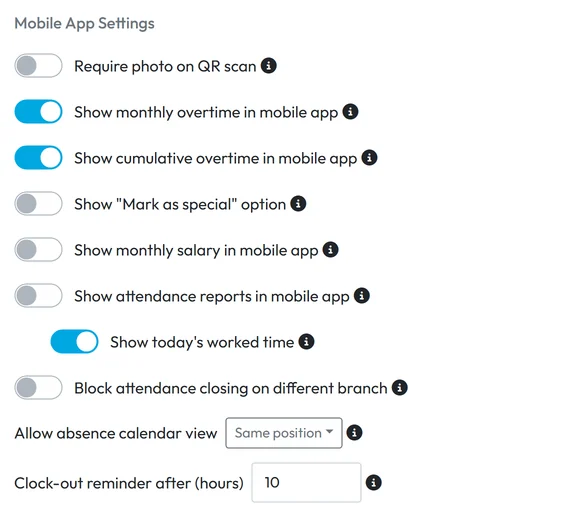
Without reports, employees can still see today’s time -
Pick who sees colleagues’ absences.
Click the Allow absence calendar view button. Choose None, All employees, or Specific groups and tick Same position, Subordinates or both. A cleaner with Same position sees when other cleaners are off; a supervisor with Subordinates sees their own crew.
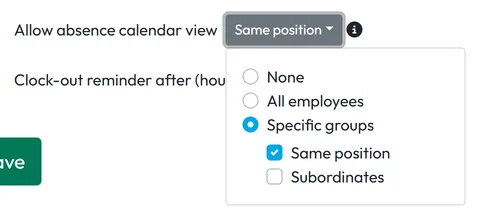
Who sees colleagues’ absences in the app -
Click Save.
Click Save at the bottom of Company Details. It saves the billing information and general settings on the same page as well – see Company billing details. Employees get the new settings the next time they open the app’s Home screen.
-
Give one employee different settings (optional).
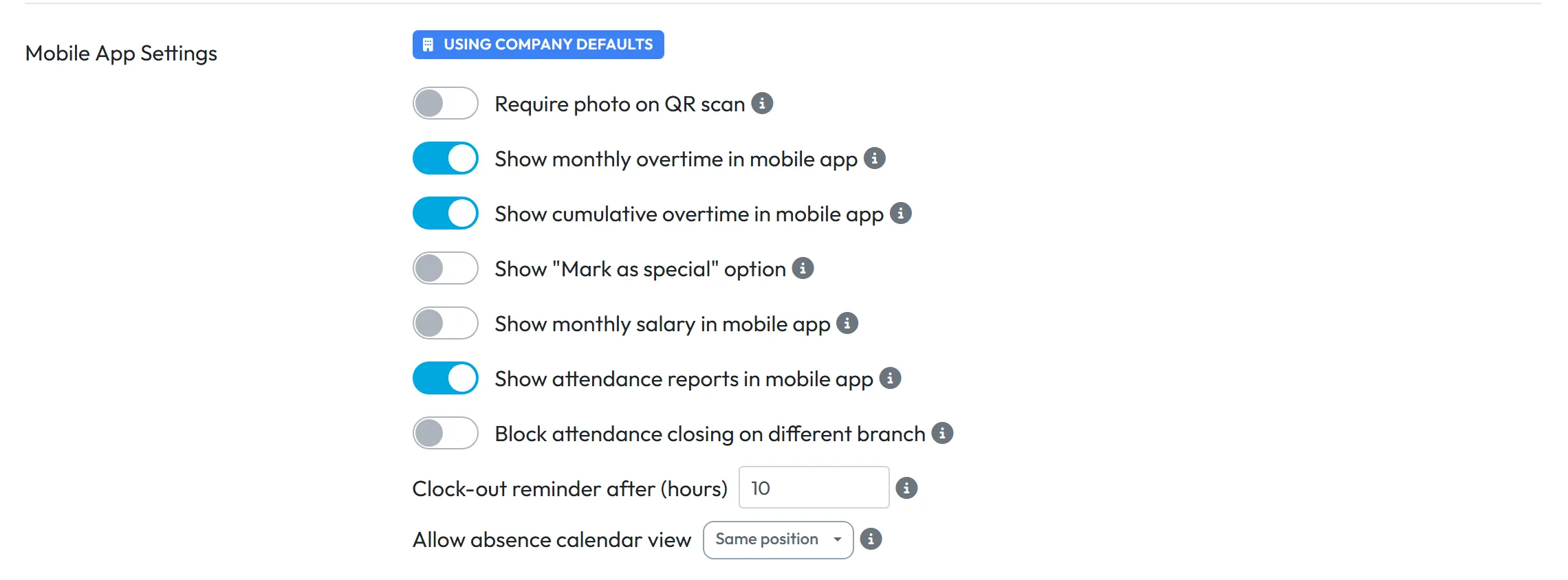
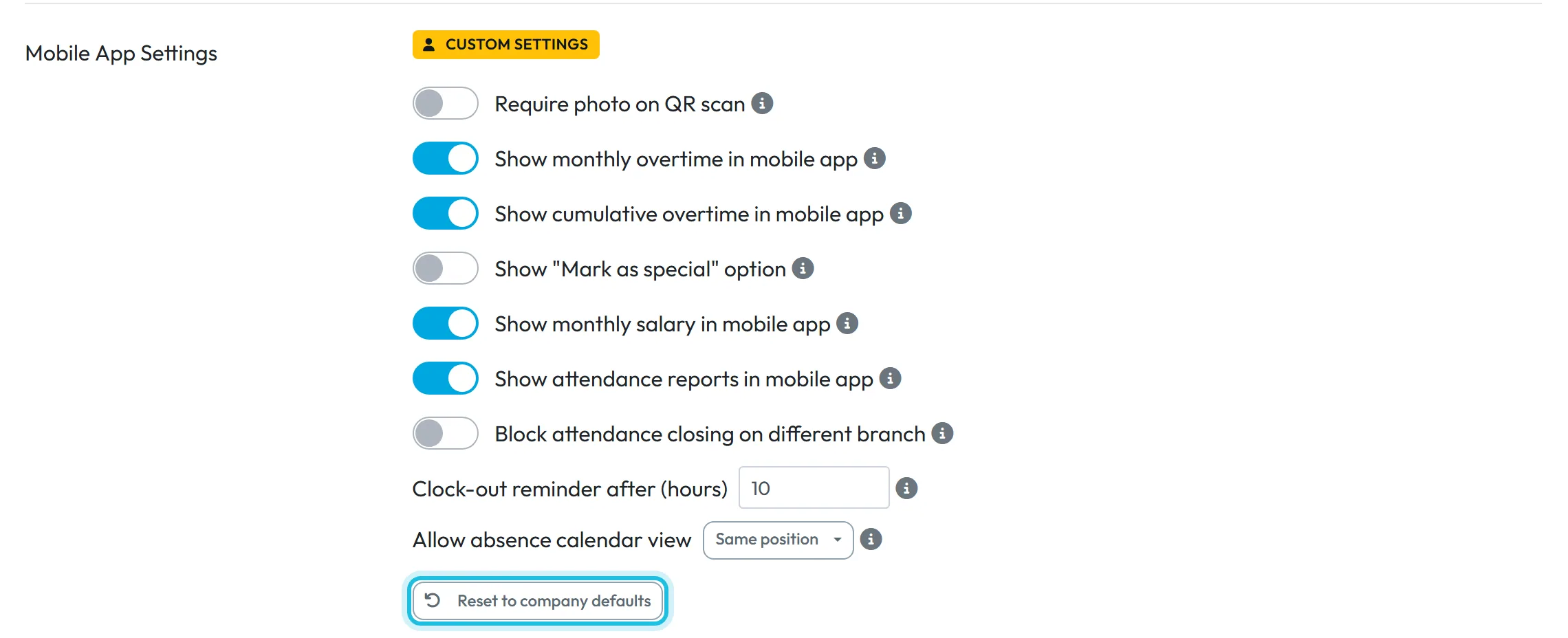
Open the employee’s profile (see Employee profile). The Mobile App Settings block shows the blue badge Using company defaults. Change a switch – for example turn on Show monthly salary in mobile app for the shift lead – and click Update. The badge turns yellow: Custom settings.
An employee with custom settings keeps their own values: later changes to the company defaults don’t reach them.
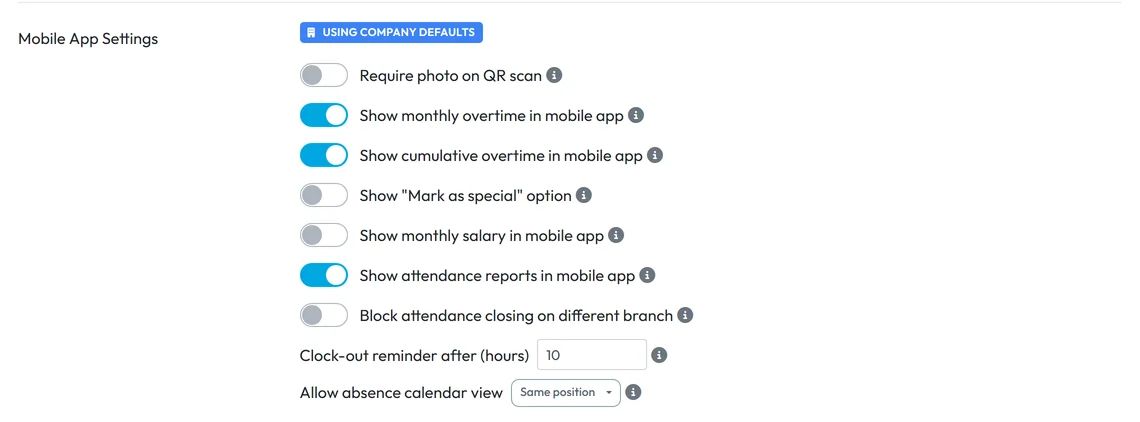
An employee without own settings follows the company -
Put the employee back on company settings.
In the same block, click Reset to company defaults. It takes effect straight away, without Update, and the badge turns blue again.
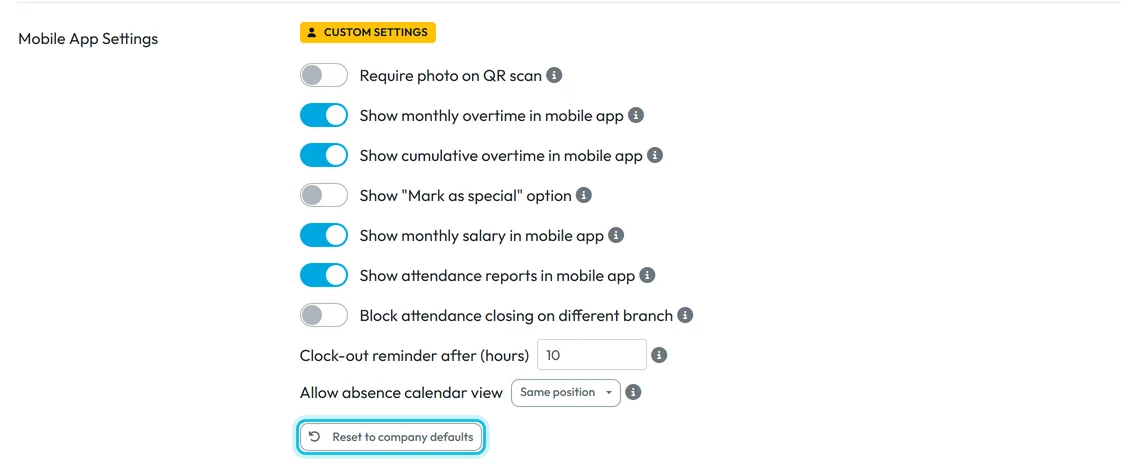
Reset brings back the company defaults
#Special cases and tips
- One employee still sees the old setting
- Either they have Custom settings – reset them – or their app hasn’t reloaded yet. Ask them to open Home and pull the screen down.
- Photo on scan doesn’t work
- The phone needs camera permission for FreshQR. See Camera or location not working.
- The reminder doesn’t clock anyone out
- It only reminds. To close forgotten departures automatically, see Forgot to clock out.
- Options that aren’t here
- Clocking in without a QR code has no switch on this page; FreshQR support turns it on – see Clock in without a QR code. Shift planning and Todos are turned on in Extra services.
#Frequently asked questions
Can employees change these settings themselves?
No. Only the company sets them in the web app.
Is salary visible in the app?
Only if Show monthly salary in mobile app is on – for the company or for that employee.
Can I hide salary from everyone except one person?
Yes. Leave it off for the company and turn it on in that person’s profile.
Do employees get a notification when I change a setting?
No. The app simply shows the new state the next time it loads Home.
Is the clock-out reminder a push notification?
It is a reminder the phone schedules itself, Still at work?. It doesn’t come from the server.
#Related
You are hereMobile app settings
Administrator
Web app (administrator)Mobile app (employee)



