How to add employees to the attendance app
On this page
Quick answer
To add employees to the FreshQR attendance app, let them do it themselves. The employee installs the Fresh QR app, enters their name and scans any company QR code, usually Clock in. At that moment they appear under Employees with the branch where they scanned. You then add their position, supervisor and schedule. The scan creates the profile.
#What it's good for
- No typing in names or phone numbers. Each employee adds themselves on their first day.
- No passwords to hand out. The phone joins your company with the first scan.
- A new person gets the branch of the code they scanned, and that branch’s default supervisor.
- They show up in the reports as soon as they have their first clock-in and clock-out.
#Who it's for
A good fit for
- Every company. This is how every employee is added, whether a weekend cleaner or the operations manager.
- Teams with frequent new starters – send them the app link and show them the QR code.
Not the right fit for
- People who only work in the web app, such as your bookkeeper. They don’t need an employee profile but a user account – see User accounts and roles.
- People without their own phone. FreshQR has no shared-device mode; everyone scans on their own phone. For staff with fixed hours who don’t scan, see Automatic attendance. If you only need them in the employee list, add them by hand on the Candidates tab.
#Step by step
-
Open Employees.
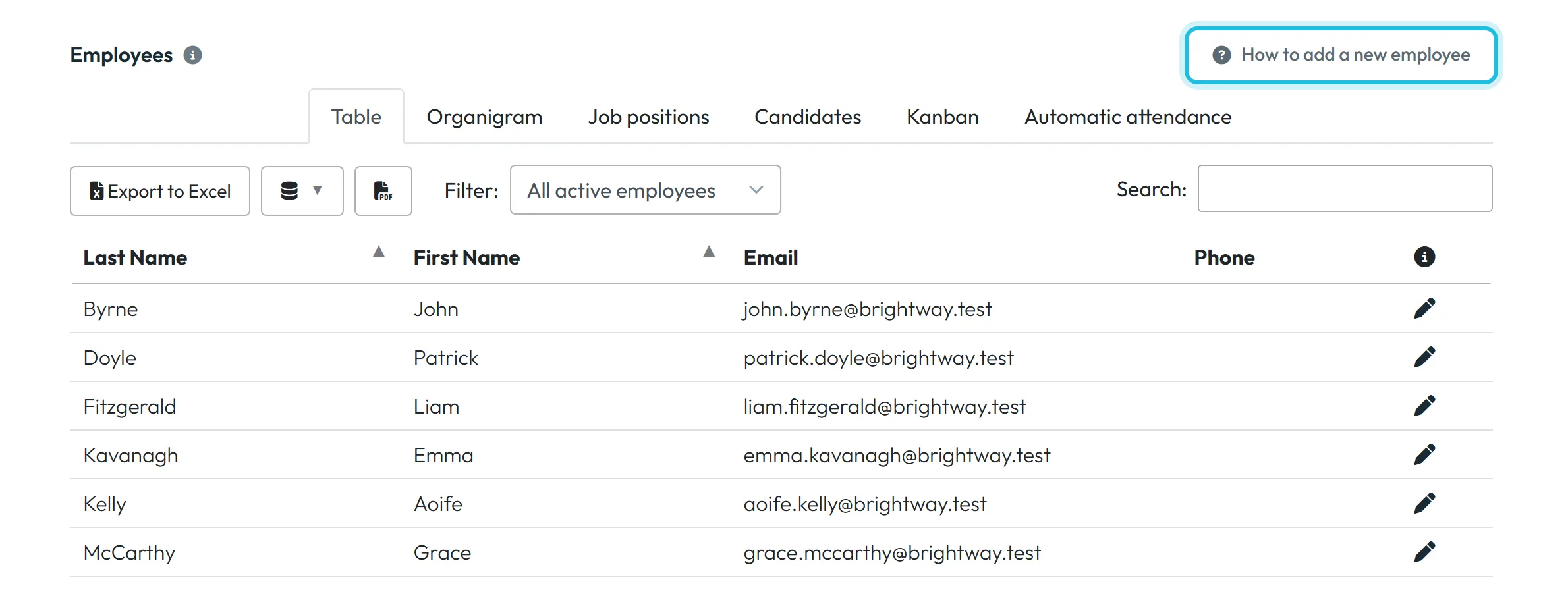
In the left menu, click Employees. Above the table the page explains that employees are created automatically once they connect from the mobile app. Top right is the How to add a new employee button.
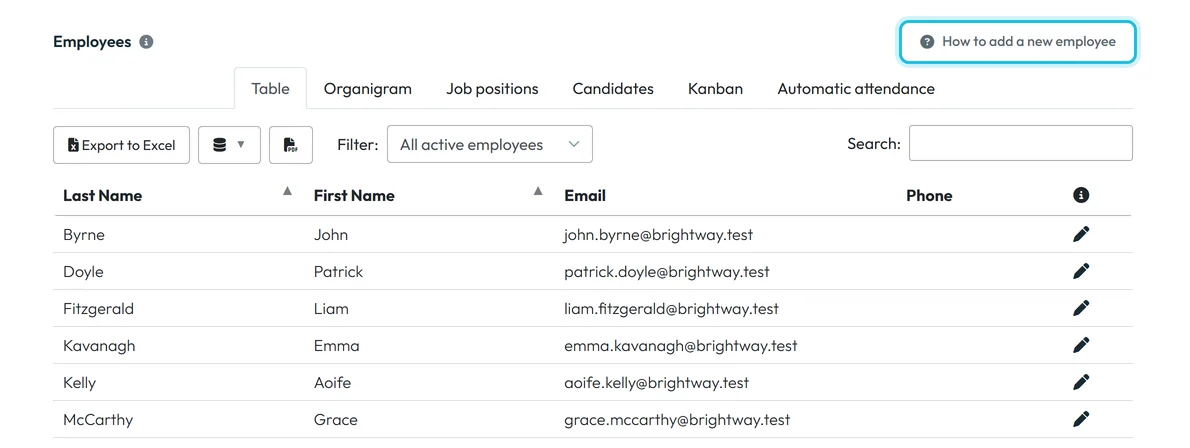
The how-to is right on the Employees page -
Send the employee the app link.
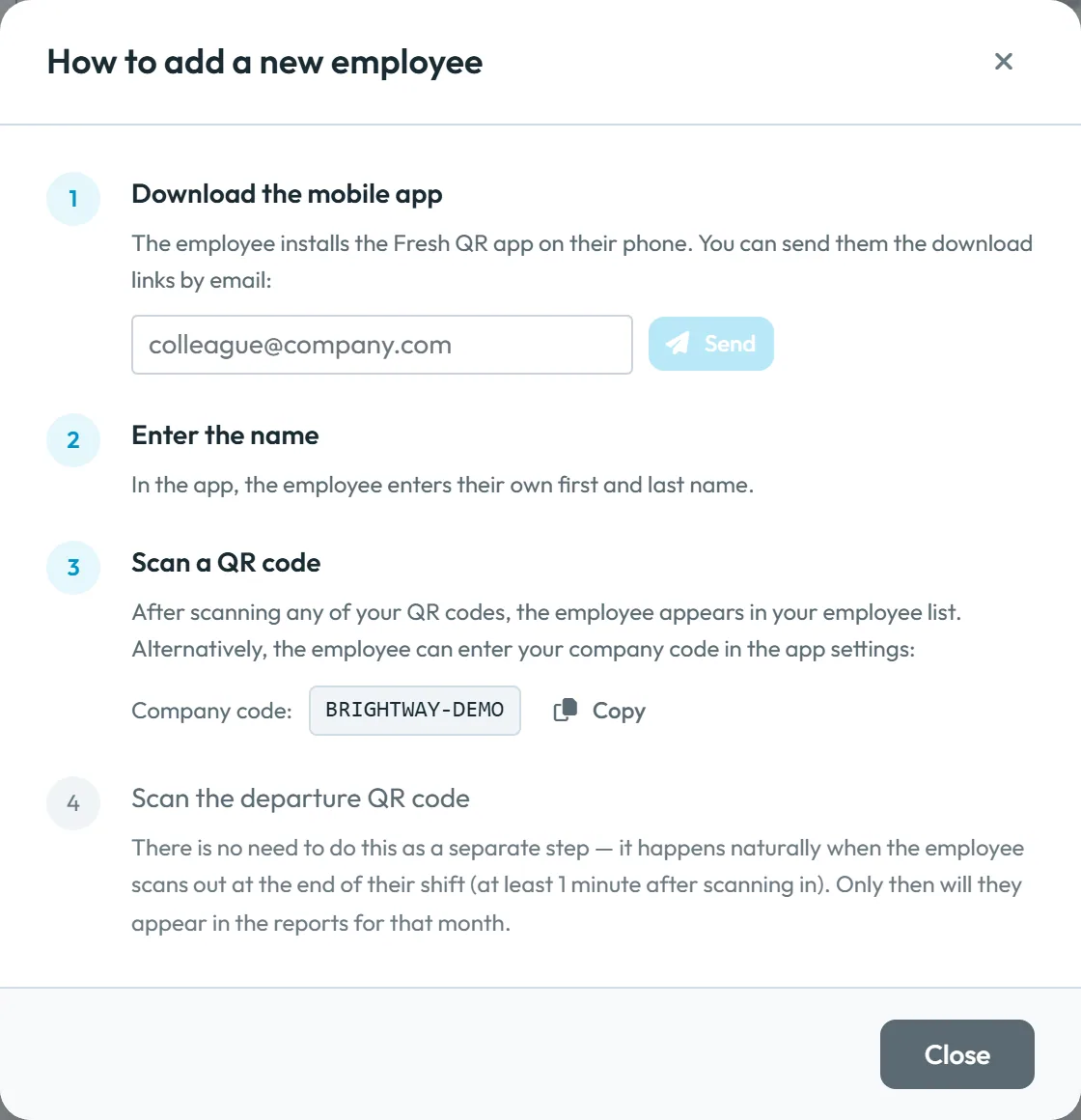
The button opens a window with four steps. The first has an email field – type the employee’s address and click Send. They get an email with links to the app stores. The app is free for employees. You send to one address at a time; repeat for the next person.
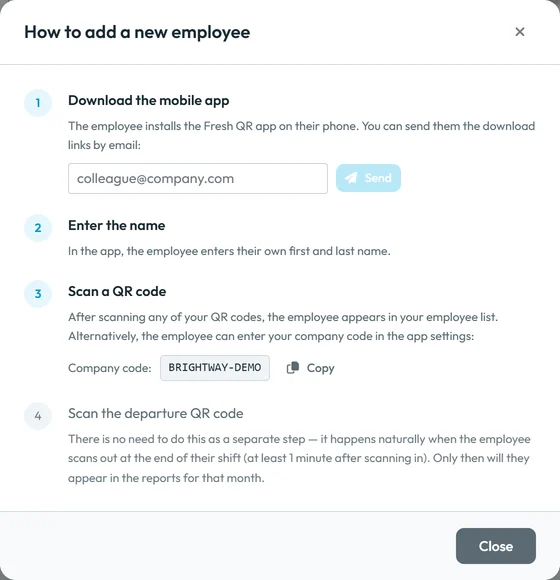
The four steps the employee goes through -
The employee enters their name and scans a QR code.
After installing, the employee accepts the data consent and enters their first and last name. Then they scan any of your QR codes – ideally Clock in at the start of their shift. That scan links the phone to your company and the employee appears in your list. What this looks like on the phone is in Installing the app and joining your company.
-
At the end of the shift they scan Clock out.
Nothing special is needed – they scan the Clock out code as usual when they leave, at the earliest one minute after clocking in. Once the employee has both a clock-in and a clock-out, they appear in the reports for that month.
-
Complete the profile.
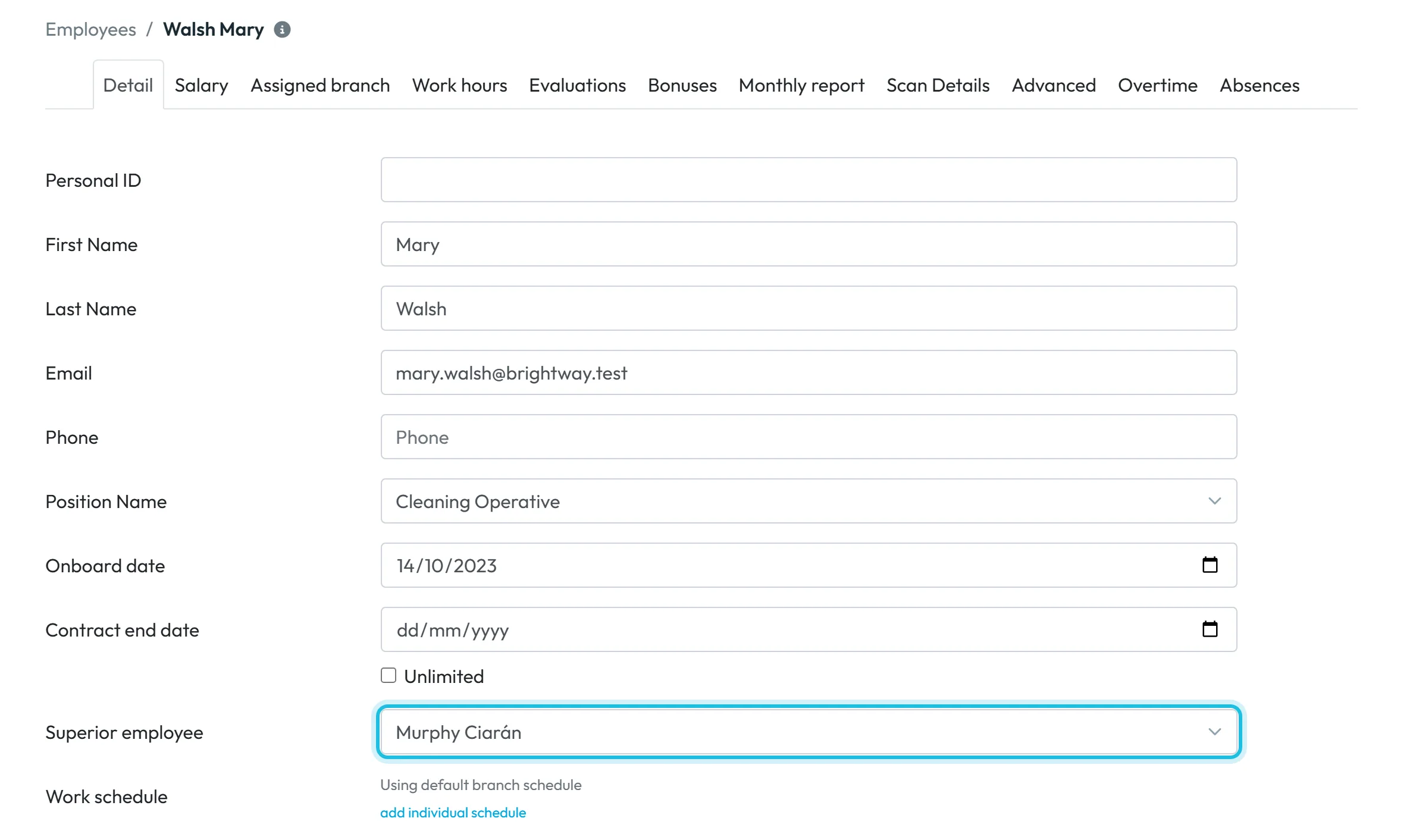
Click the new employee’s name. On the Detail tab fill in Position Name, Onboard date, Superior employee and, if needed, an individual work schedule. If the employee didn’t enter their name, type it here. The branch is on the Assigned branch tab. Every field is explained in Employee profile.
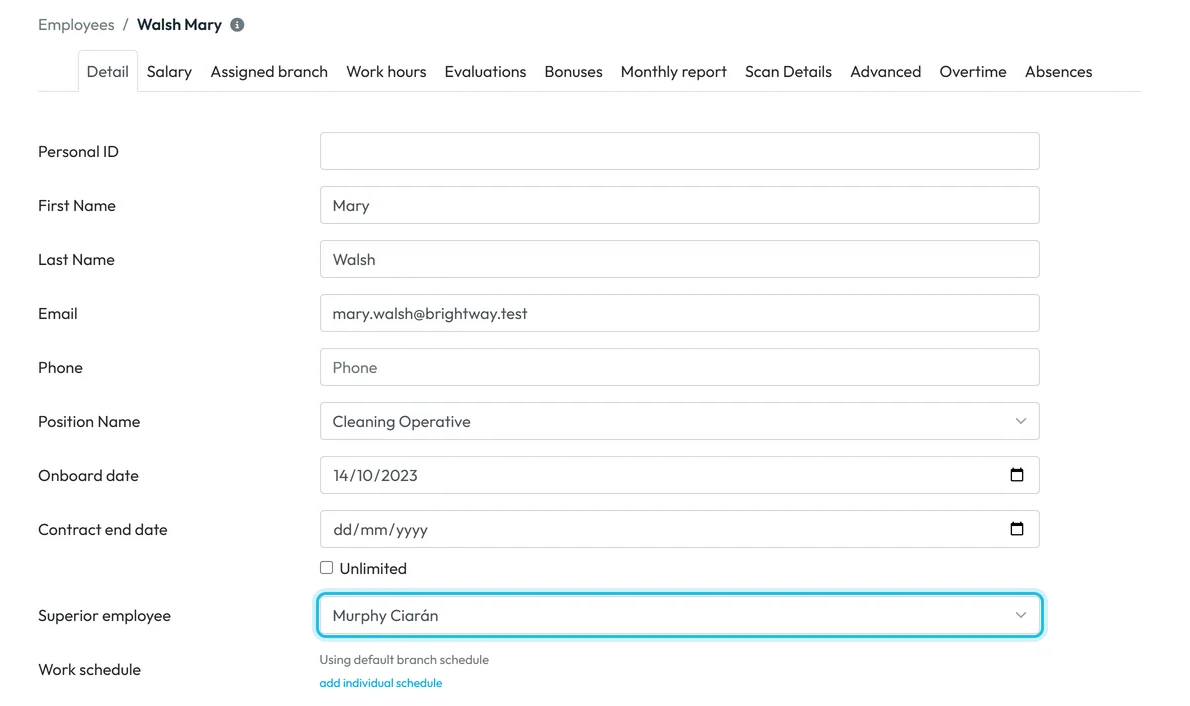
After the first scan, fill in the position and supervisor
#Other ways to add employees
- The link from the QR codes pageThe same email field is at the bottom of the Attendance (QR Codes) page: Send link to apps to email:. The store badges are next to it.

You can also send the app link from the QR codes page - Company codeIf an employee can’t get to a QR code right now – they’re at home, or you want to connect them before their first shift – give them the company code. You’ll find it in My Company › Company Details under Your company/trustbox code, and in the How to add a new employee window. The employee enters it in the app’s Settings under Company Code and taps Connect. This way no branch or supervisor is assigned, so set both in their profile straight away. If the QR code is to hand, the first scan is simpler.
- A whole team at onceWhen several people start together, print the Clock in code and send each of them the app link. On the first day they just scan the code with their own phone when they arrive. By the evening everyone is in the list.
- An email when someone joinsTo know who has joined, switch on the rule New employee profile created in My Company › Notifications. See Email notifications.

#Special cases and tips
- An employee without a name
- If they didn’t enter a name in the app, you’ll see a row without one. Fill it in on their profile or ask them to add it in the app – see Personal details and app language.
- A new phone
- When an employee changes phone and scans again, a new profile is created. Join the two with Merge Duplicate Profiles – see Merging duplicate profiles and unlinking a phone.
- They scanned another branch’s code
- The branch is taken from the first scan. If it’s wrong, change it on the Assigned branch tab of their profile.
- An employee is leaving
- How to end someone’s employment in the app is covered in Employment contract end dates and Employee list and filters.
#Adding someone who doesn’t clock in: the Candidates tab
The Candidates tab under Employees is an older feature and not part of the usual setup. Its one practical use is adding someone by hand who never scans – for example a person you only plan or whose absences you record – so that they appear in your employee list. It isn’t meant for recruiting or tracking applicants.
- Open Employees › Candidates and click + Create New. You don’t need the Status column or the Kanban tab.
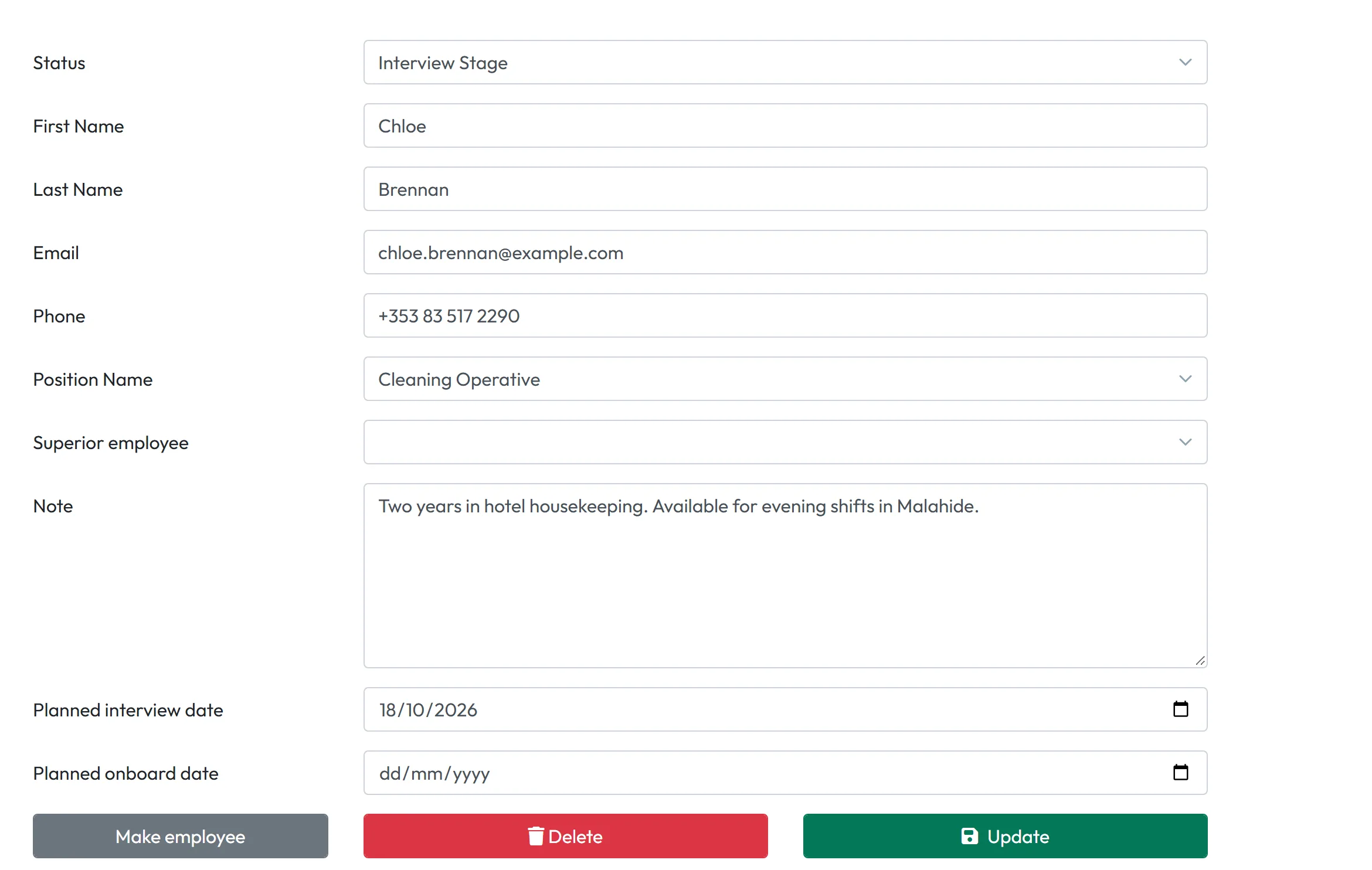
- Enter the first and last name and, if useful, the email, phone, Position Name and Superior employee. Leave the other fields empty and click Create.
- Open the record, click Make employee and confirm with Save. The person moves to Employees › Table and disappears from Candidates. This can’t be undone in the app.
A profile added this way isn’t linked to any phone, and FreshQR sends the person nothing – Make employee doesn’t connect them to the mobile app. So don’t add anyone by hand who is going to scan; let them join with their own phone. A record created by mistake can be deleted with Delete as long as you haven’t clicked Make employee; it can’t be restored. The Owner, Administrators, Manager: Full Access except Company settings and Employees: View & Edit can add people this way; View Only accounts see the tab but can’t change it.
#Frequently asked questions
How do I add a new employee in the web app?
Simply let them join: the employee installs the app and scans a company QR code or enters the company code. Their profile is created automatically, and you then add their position, supervisor and pay in the web app. To have someone who won’t scan in the list too, add them by hand on the Candidates tab.
Does the employee need an email or password?
No. The app works without a login. You only use their email to send the store link.
Do employees pay for the app?
No, the Fresh QR mobile app is free for employees. The company pays for FreshQR with credits, as shown on the pricing page.
When does a new employee appear in the reports?
After their first completed record, that is, once they have both a clock-in and a clock-out.
Can an employee scan on a colleague’s phone?
No. A scan is always recorded for the person the phone belongs to. That is why everyone scans on their own phone.
#Related
You are hereHow to add employees
Administrator
Web app (administrator)Mobile app (employee)



