Start work on a project: clock in and out at a client site
On this page
Can't see this option in the app? Your employer creates the projects. FreshQR support switches on the Start Project and End Project buttons at your employer’s request.
Guide for administrators: Projects and project QR codes →
Quick answer
To start work on a project, scan the project’s QR code. The first scan starts your work on the project; the next scan of the same code finishes it. If your company has it switched on, you can tap Start Project instead and pick the project from a list, then finish with End Project.
#What it's good for
- Your hours go to the right job, building or client – not just “at work”.
- One code per project: no separate arrival and departure codes.
- While you work, you can see how long you have been on the project.
#Who it's for
A good fit for
- Cleaning crews, maintenance, building and fit-out teams, catering, agencies – anyone whose time is counted per job.
Not the right fit for
- People who always work at the same branch – clocking in and out with a QR code is enough.
#Projects with a QR code, step by step
-
At the site, scan the project’s QR code.
Tap Scan QR and point the phone at the project’s code. Your employer prints it from the web app and leaves it at the site, in the van or at the client’s reception – for example at St. Brigid’s Primary School, where Brightway cleans after school hours. You see a confirmation such as
Started at 17:05
. The confirmation doesn’t name the project; Home does.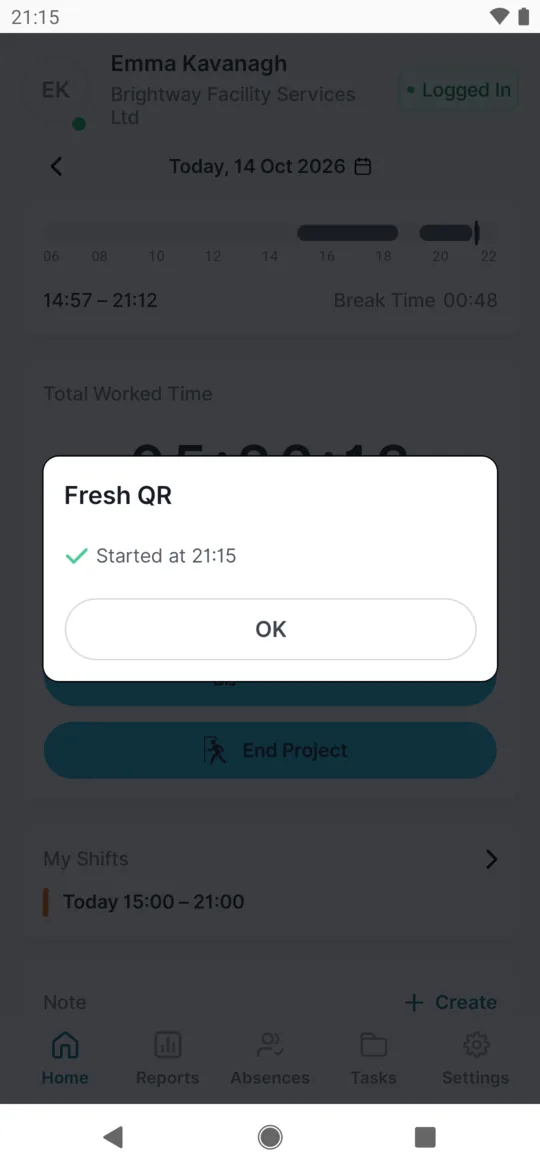
The app confirms the project start -
Watch the project time on Home.
While the project is open, Home shows its name and how long it has been running.
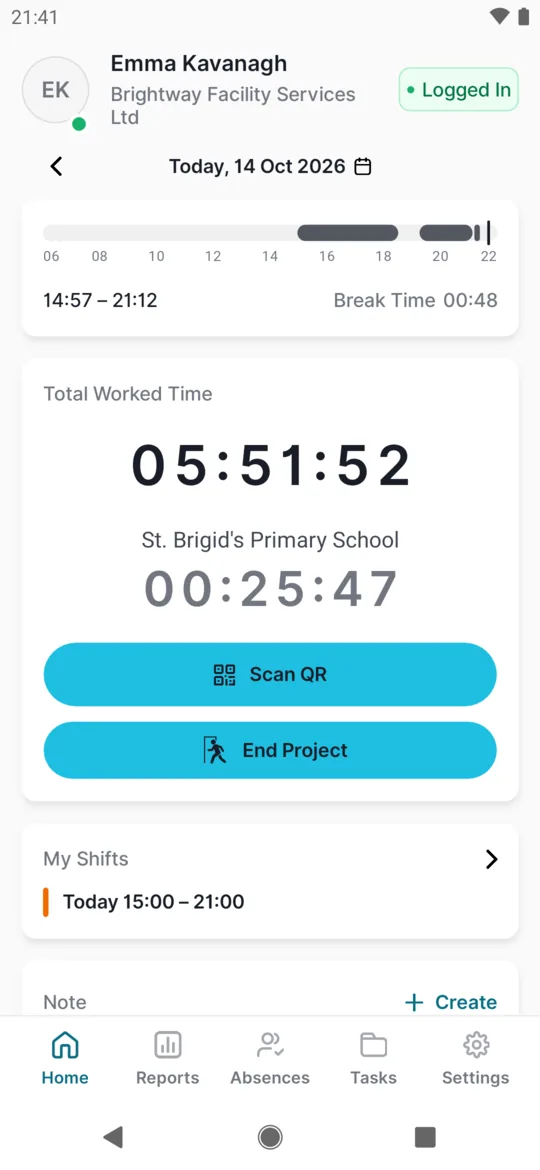
While on a project you see its time -
When you leave, scan the same code again.
The second scan of the same code finishes your work on the project. You see something like
Closed at 20:40 Duration: 03:35
.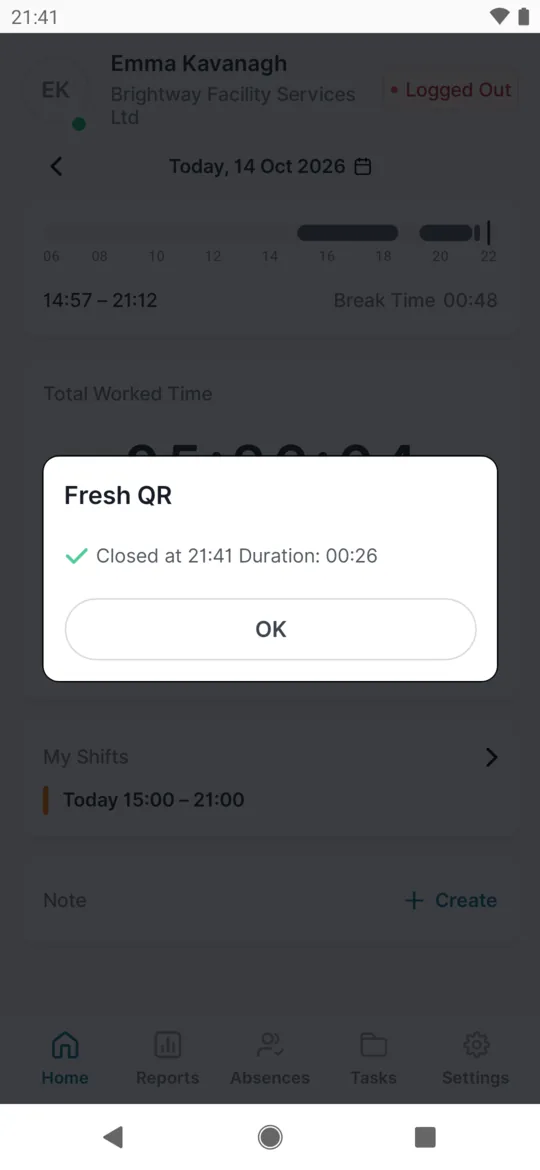
Ending a project is confirmed too
#Moving from one project to the next
Your employer can allow several open projects at once – for example when a supervisor looks after two crews on the same evening. Then each project runs on its own and ends only with its own code or End Project.
If you don’t know how your company has it set up, end the previous project before you start the next one. Say Seán finishes at Grand Canal Dock at 13:00 and drives to Sandyford: he scans the Grand Canal Dock code as he leaves, then the Sandyford code when he arrives. That way his hours are right either way.
#Projects and branches together
Project time is recorded separately from your attendance at a branch. Your manager tells you whether to scan both. The difference is explained in Branches or projects.
#Projects without a QR code
- Start ProjectIf your company has the buttons, tap Start Project under Scan QR. With several projects, the Select Project for Arrival list opens – tap the one you are starting. If only one project is available, it starts straight away, without a list.
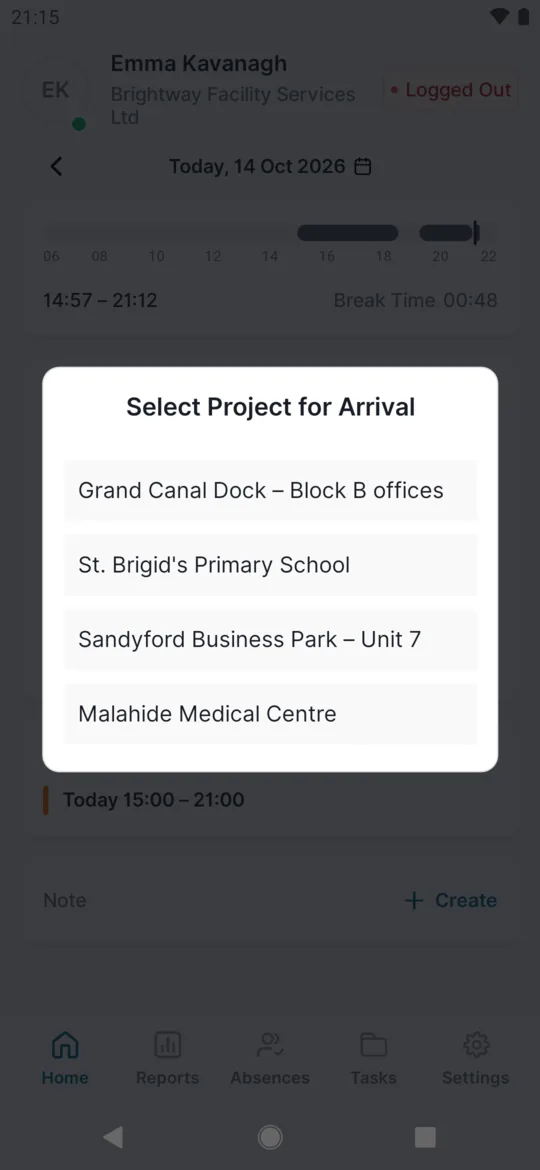
With several projects you pick one from the list - End ProjectWhile a project is open, Home shows End Project. Tap it when you finish there. If your company doesn’t allow several projects at once, Start Project is hidden in the meantime – you start the next project after ending the first.
#Special cases and tips
- A project is missing from the list
- The project may be inactive, finished or deleted – or you are already working on it. If it should be there, tell your manager.
- “There is no project to start”
- This message means no project is available. The app shows the same wording when there is nothing to end.
- No signal
- The project scan goes into the Scan Queue and is sent later. See Scanning without internet.
#Frequently asked questions
Do I also need to clock in at the branch?
That depends on your company. Projects and branches are recorded separately, so your employer may want both or only the project.
Why don’t I have a Start Project button?
FreshQR support switches it on at your employer’s request. Without it, you start a project by scanning its QR code.
Where does my manager see my project hours?
In the web app, in the project report.
#Related
You are hereProjects – start, finish and several at once
Employee
Web app (administrator)Mobile app (employee)



