Attendance exceptions report: Checks (Beta), Breaks and Farthest GPS scans
On this page
Quick answer
The attendance exceptions report is the Checks tab in Table Reports, still in Beta. For one month it lists missing days, days under 5 or over 11 hours, weekend work, high overtime, unapproved absences and unread notes. Two more tabs help before payroll: Breaks lists every break, Farthest GPS scans the clock-ins made farthest from the site.
#What it's good for
- One list instead of scrolling through every employee’s month before payroll.
- Forgotten clock-outs show up as unusually long days, so you can correct them before anyone is paid for a 14-hour shift.
- Automatic breaks from the schedule and breaks employees marked themselves sit in one list.
- Scans made far from the site – from home, a car park, the wrong building – come up without checking every map, and an e-mail rule tells you within half an hour.
#Who it's for
A good fit for
- Companies that close attendance once a month and have more than a handful of employees.
- Office teams on a Monday-to-Friday week.
- Companies with automatic or flexible breaks in their work schedules.
- Cleaning, facility and field teams that clock in at client sites, and any company that checks GPS positions of clock-ins.
Not the right fit for
- Teams working only in shifts, part-time or on projects get many Missing lines that are not real problems (see the limits below). Use the Calendar and attendance approval for them instead.
- If GPS is switched off for your employees, Farthest GPS scans has nothing to measure – see GPS check and accuracy.
#What Checks looks for
| Section | Status | What it means |
|---|---|---|
| Missing Arrival/Departure or Absence | Missing | A Monday to Friday with neither attendance nor an absence. |
| Unusual Work Hours | Less than 5 hours / More than 11 hours | The day’s worked time after rounding and breaks. |
| Weekend Attendance | Weekend work | Any attendance on a Saturday or Sunday. |
| High Daily Overtime | High overtime | A day with more than 2.5 hours of overtime. |
| Unapproved Absence & Unread Notes | Unapproved / Unread | Absence requests still waiting for a decision, and employee notes no admin has read yet. |
The limits are fixed; you can’t change them.
#Limits of the Beta
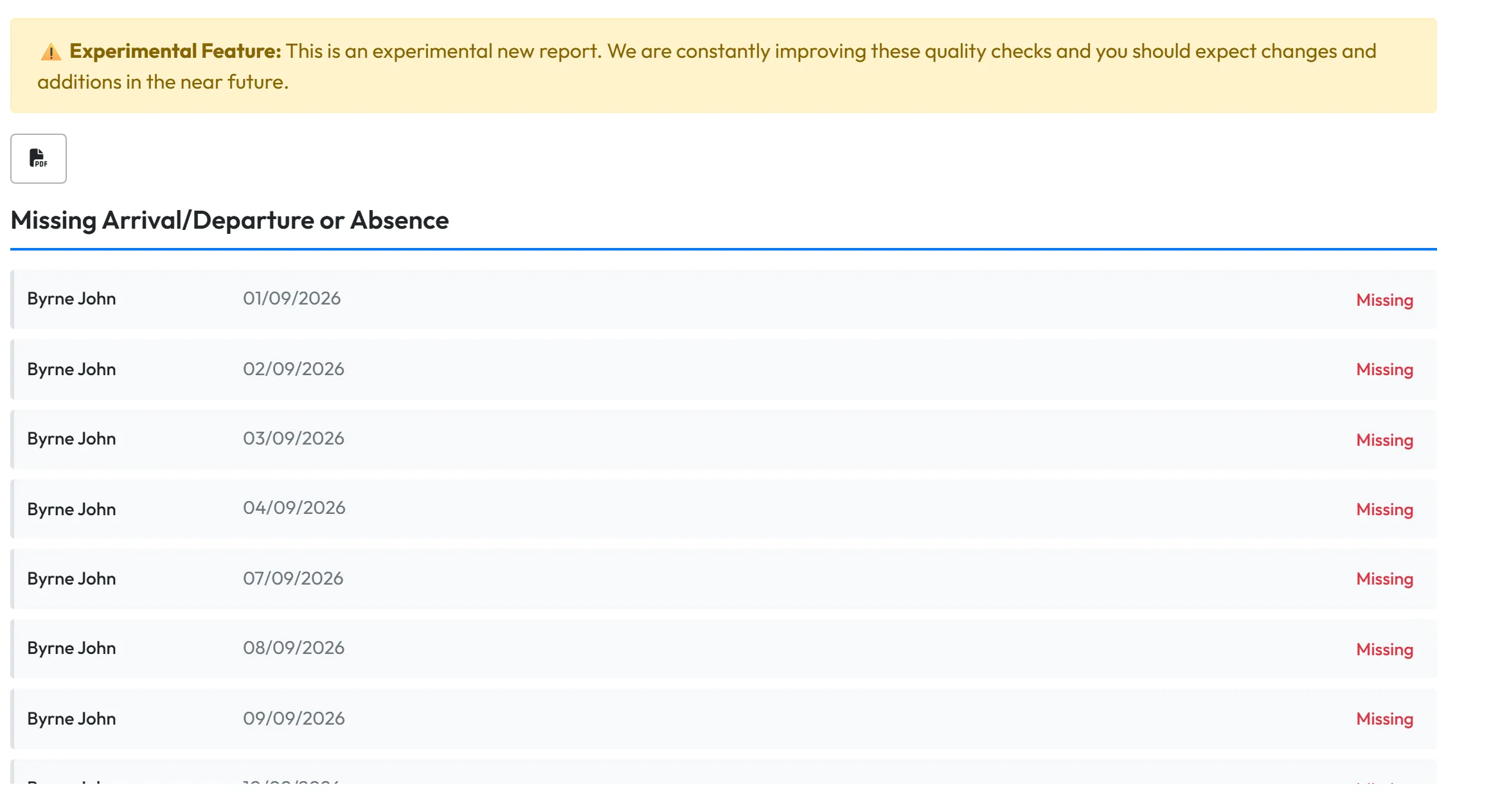
The first section assumes everyone works Monday to Friday and doesn’t look at work schedules or the shift plan. A public holiday, a part-timer’s day off, a day off in the shift plan or a day someone worked only on a project can therefore show as Missing. Read that section as a list of days to double-check, not as a list of errors.
#Check attendance before payroll
-
Open the Checks tab.
Go to Table Reports and click Checks. Pick the month you are about to close. The tab starts with the notice
Experimental Feature
:This is an experimental new report. We are constantly improving these quality checks and you should expect changes and additions in the near future.
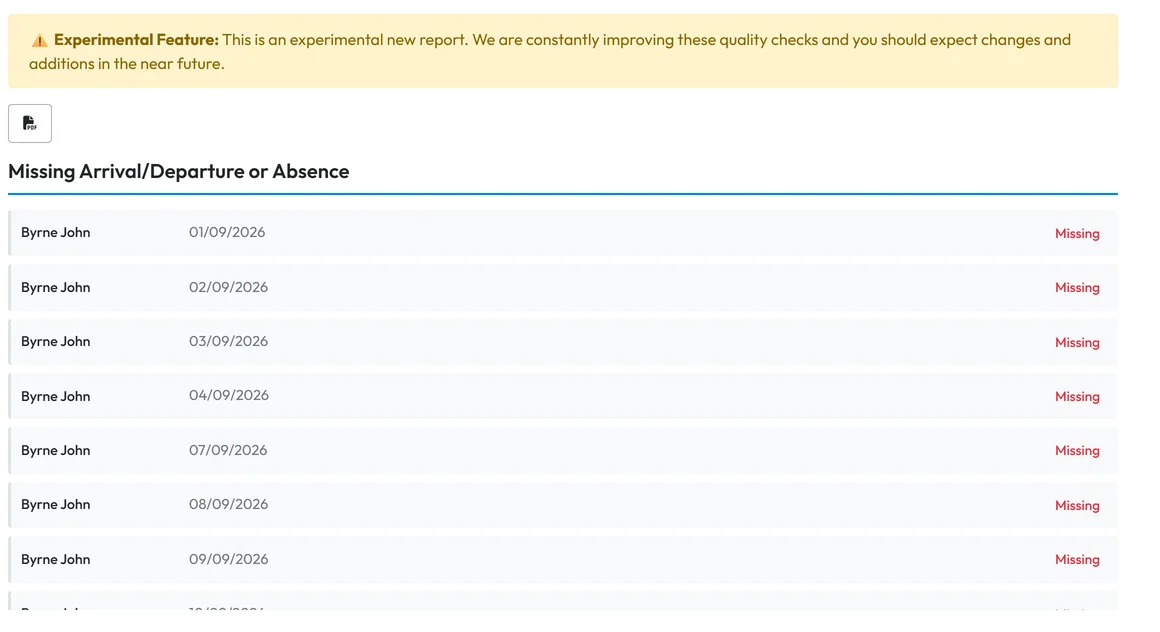
Checks is still in Beta -
Go through the sections.
Each section lists employee, date and status. A section with nothing to report says
No issues found
; when every section is clean you seeAll checks passed - no issues to review
.
A section without findings -
Fix each item where it lives.
The lines are plain text, not links. Fix them in the right place:
- a forgotten departure or a missing day – in Scan Details or with the pencil in Per employee;
- an Unapproved absence – in Absences, see Approving leave requests;
- an Unread note – in Notes, see Employee notes;
- weekend work – check that the weekend rate surcharges are set if you pay them.
Reload the tab afterwards to see the updated list.
-
Send the list as a PDF.
The Export to PDF button saves the findings of the month as a PDF. Send it to a site supervisor and ask them to confirm or correct their people’s days.

#Breaks report
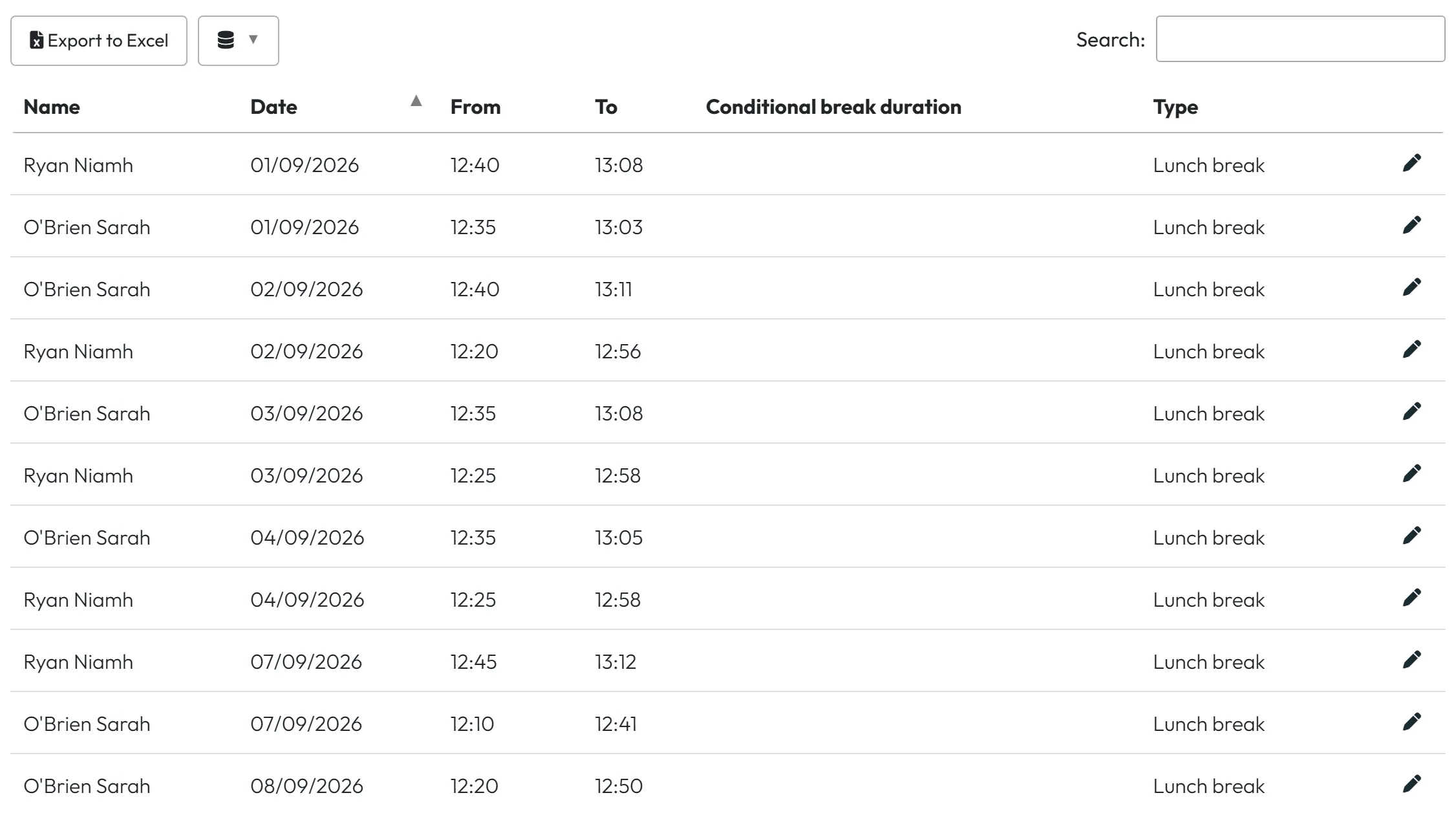
The Breaks tab lists every break of the month, whether it comes from the work schedule or from the employee.
- Open the Breaks tab. Go to Table Reports › Breaks and choose the month. Each row shows Name, date, Type, From, To and Conditional break duration. Filter by employee or branch with Add filter. In the example, Niamh Ryan and Sarah O’Brien at the Dublin head office take a lunch break of about half an hour between 12:10 and 13:15 every day.
- Read where each break comes from. Fixed breaks (for example 12:30–13:00 every day) and flexible breaks (for example 30 minutes after 6 hours of work) are set in Work Schedules or on shift templates. Breaks an employee marks in the app with Mark next scan as… appear as well – see Marking a break in the app.
- Correct a break. Each row has a pencil that opens the day’s records. Change or remove the break there and the reports recalculate. Editing is described in Scan Details.
#Farthest GPS scans
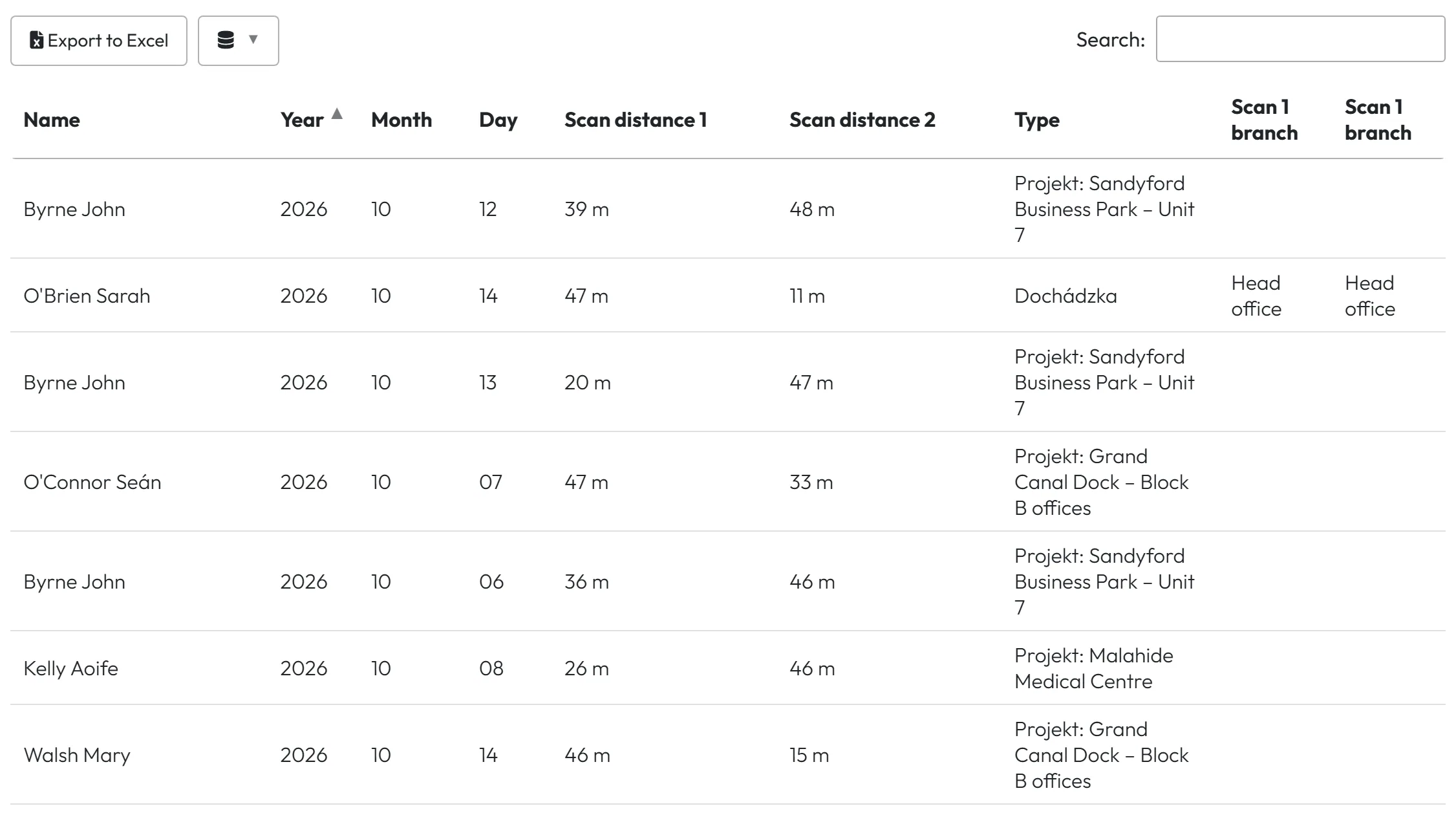
Click Farthest GPS scans in Table Reports. The tab lists the month’s attendance records with the greatest distance between the scan position and the nearest company branch – or the project’s location for project scans. Scan distance 1 and Scan distance 2 are the distances of the arrival and the departure scan; click a column header to sort by it. The Project filter narrows the list to Attendance (branch scans only) or one project.
In the example every distance is under 50 metres – the Brightway cleaners scanned on site at Sandyford, Grand Canal Dock and Malahide. A few kilometres on several days in a row would be worth a conversation.
#E-mail about far scans
Go to My Company › Notifications, switch on Far GPS scan detected, choose the recipients and set the Minimum distance, for example 500 m. As the hint says, Notifications are sent within 30 minutes.
More in Email notifications.

#Other ways to catch mistakes
- Breaks in the monthly reportThe Per employee tab and the employee’s Monthly report have break columns per day – see Monthly employee report.
- The scan mapThe Dashboard map shows where scans happened today, this month or last month – see Scan map.
- One scan in detailScan Details shows each scan with its map position and distance – see GPS check and accuracy.
- Prevent forgotten departuresRules in Forgotten Departure Scans end a day automatically when someone forgets to clock out.
- Approve attendance per periodThe Calendar tab lets you go through the month day by day and approve it – see Approving attendance.
#Special cases and tips
- Branch and Project Manager accounts
- Checks is not offered to Branch Manager and Project Manager accounts. Branch Managers see Farthest GPS scans for their own branches but not the Breaks tab.
- The Breaks tab is empty
- No automatic breaks are set in the schedules and nobody marked a break in the app.
- A far scan isn’t listed
- Farthest GPS scans shows the farthest records of the month. Filter by project or employee to look further down. A scan without GPS – for example when GPS is turned off for that employee – can’t be measured and isn’t listed.
- Indoor scans look far away
- Phones are less accurate inside buildings. A few hundred metres is usually noise; several kilometres on several days is a pattern.
- Days in a hidden period
- Days inside a locked period with the mode Hide are not checked.
#Frequently asked questions
Can I change the 5-hour and 11-hour limits?
No. The limits are fixed in this Beta.
Are employees told about the findings?
No. Checks is a report for managers only; nothing is sent to employees.
Is Checks finished?
No. It is marked Experimental in the app and will change. Suggestions are welcome at info@freshqr.online.
Does FreshQR track employees’ location all day?
No. The position is taken only at the moment of the scan.
What distance should I set for the far-scan e-mail?
The notification hint recommends a range; 500 m is a common start. Too small a value sends e-mails for normal GPS drift.
Can I export the break report?
Yes, with Export to Excel above the table.
Is the GPS distance measured to the project or to the branch?
For project scans to the project’s location if it has one, otherwise to the nearest branch.
#Related
You are hereChecks (Beta), Breaks and Farthest GPS scans
Web app (administrator)Mobile app (employee)



