User roles and permissions for managers and office staff
On this page
Quick answer
User roles and permissions are set in My Company › User accounts. Click + Create user account, enter the e-mail and a password, switch on one or more roles under Assign role and save. Link the account to the person’s employee profile if they should see only their own team. Employees don’t need an account.
#What it's good for
- Nobody shares the owner’s login. Each person signs in with their own e-mail.
- Each account sees only what it needs: the payroll clerk reports and absences, a branch lead their branch, a site manager their projects.
- Linked to their employee profile, a team lead sees only the people below them in the organigram.
- The Change Log shows which account changed what.
#Who it's for
A good fit for
- Every company with more than one person in the office: supervisors, payroll, an accountant.
- Companies with branch leads or site managers who should see only their part of the company.
Not the right fit for
- Employees who only clock in. They use the mobile app with their own profile and never need a web login.
- A one-person business where the owner does everything.
#The roles in short
| Role | What the account can do |
|---|---|
| Owner | Everything. The account created at registration; there is exactly one, and it can’t be deleted. |
| Administrator | Everything, including all My Company tabs, user accounts and API keys. |
| Manager: Full Access except Company settings | Sees and edits everything in the menu. In My Company only Branches, Work Schedules and Tags – no billing, user accounts, notifications or API keys. |
| Manager: View Only except Company settings | The same areas, read-only. |
| Area roles, e.g. Absences: View & Edit, Reports: View Only | Only that menu area, with or without editing. Areas: Dashboard, Reports, Scans Detail, Absences, Calendar, Notes, QR Codes, Projects, Todos, Employees, Branches & Schedules, Company Settings, Shift Planner. |
| Branch Manager / Branch Manager: View Only | Only the branches you pick, with a separate Branches menu for them. |
| Project Manager / Project Manager: View Only | Only the projects you pick – see Project manager access. |
| Workplace board status | Alone, the account opens only the attendance board for a TV – see Attendance board on a TV. |
Roles add up: an account with Reports: View & Edit, Absences: View & Edit and Calendar: View & Edit sees exactly those three menu items. Company Settings: View & Edit opens all My Company tabs, including user accounts – give it only to people you trust with the whole company.
#Step by step
-
Open User accounts.
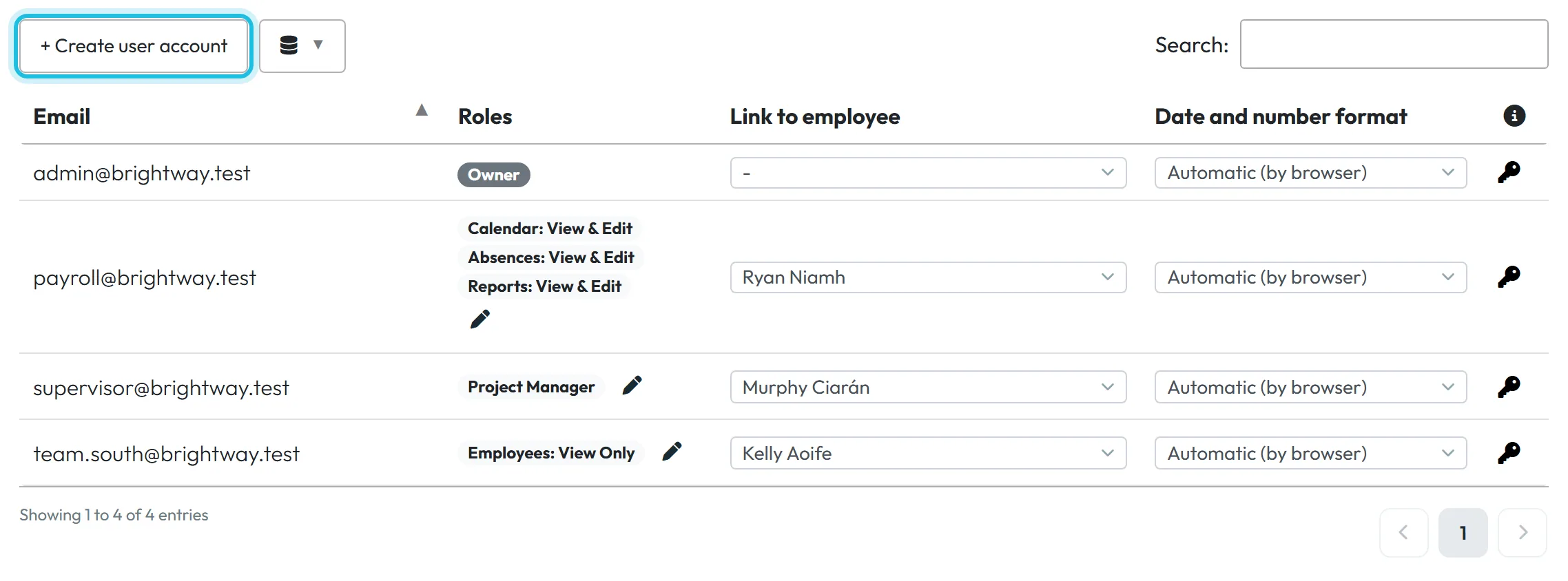
Go to My Company › User accounts. The table lists each login with its Roles, Link to employee and Date and number format. The tab is visible to the Owner, Administrators and Company Settings: View & Edit.
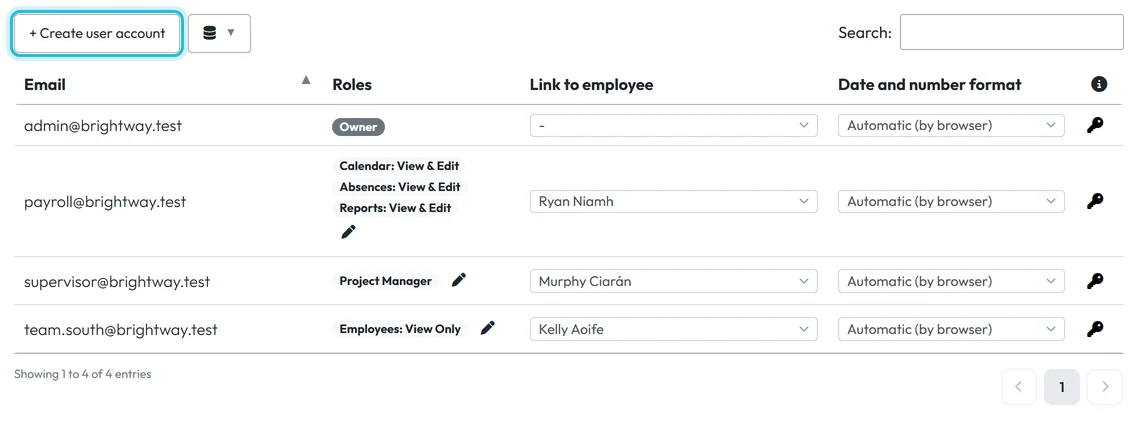
All logins of the company at a glance -
Create the account.
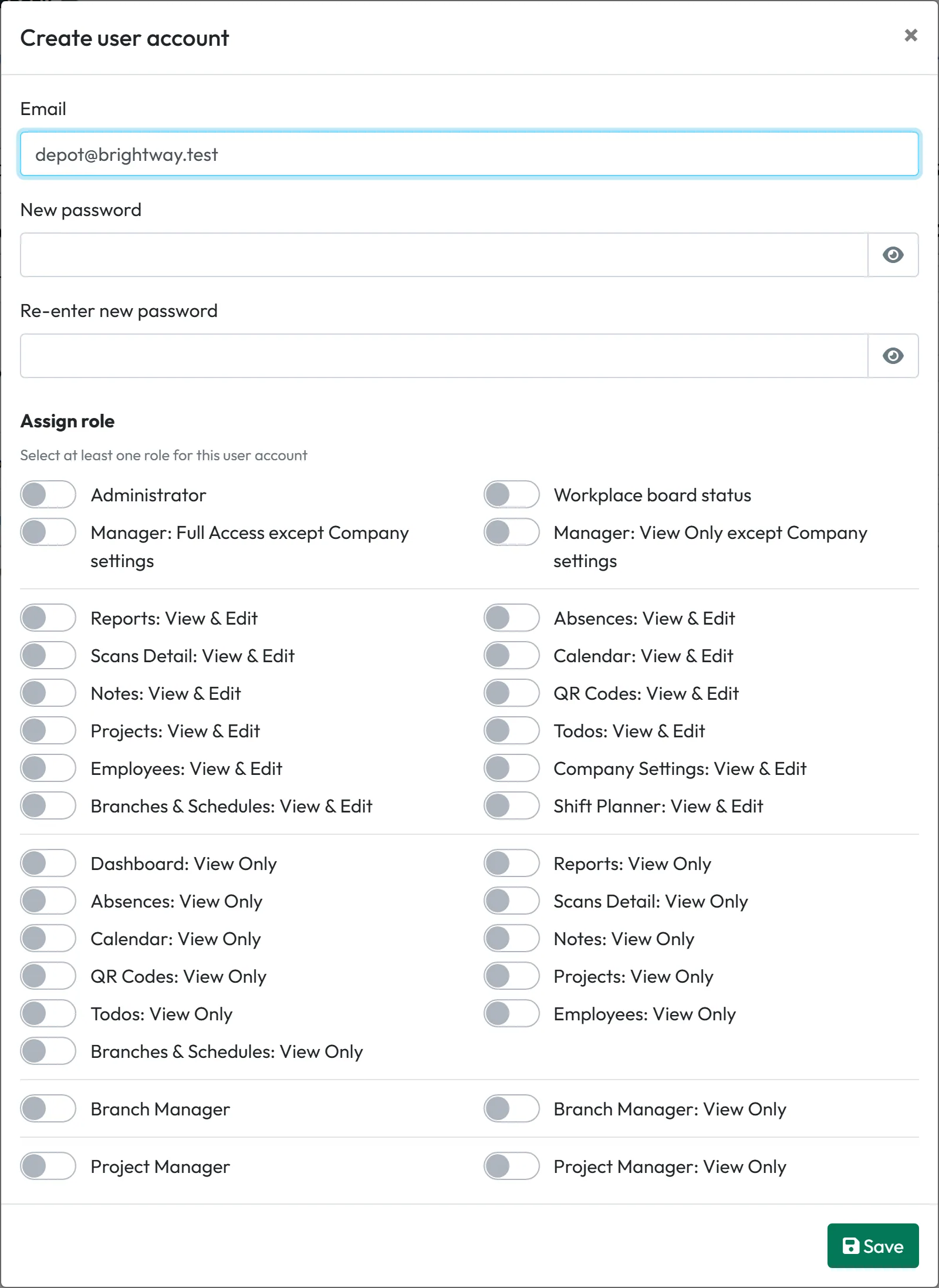
Click + Create user account. Enter the Email, a password in New password and again in Re-enter new password. We recommend a password of at least 8 characters.
-
Assign roles.
Under Assign role, switch on at least one role. The window groups them: overall roles at the top, then all View & Edit roles, then all View Only roles, then Branch Manager and Project Manager.
Example: Niamh does payroll at Brightway. She gets Reports: View & Edit, Absences: View & Edit and Calendar: View & Edit – nothing else.
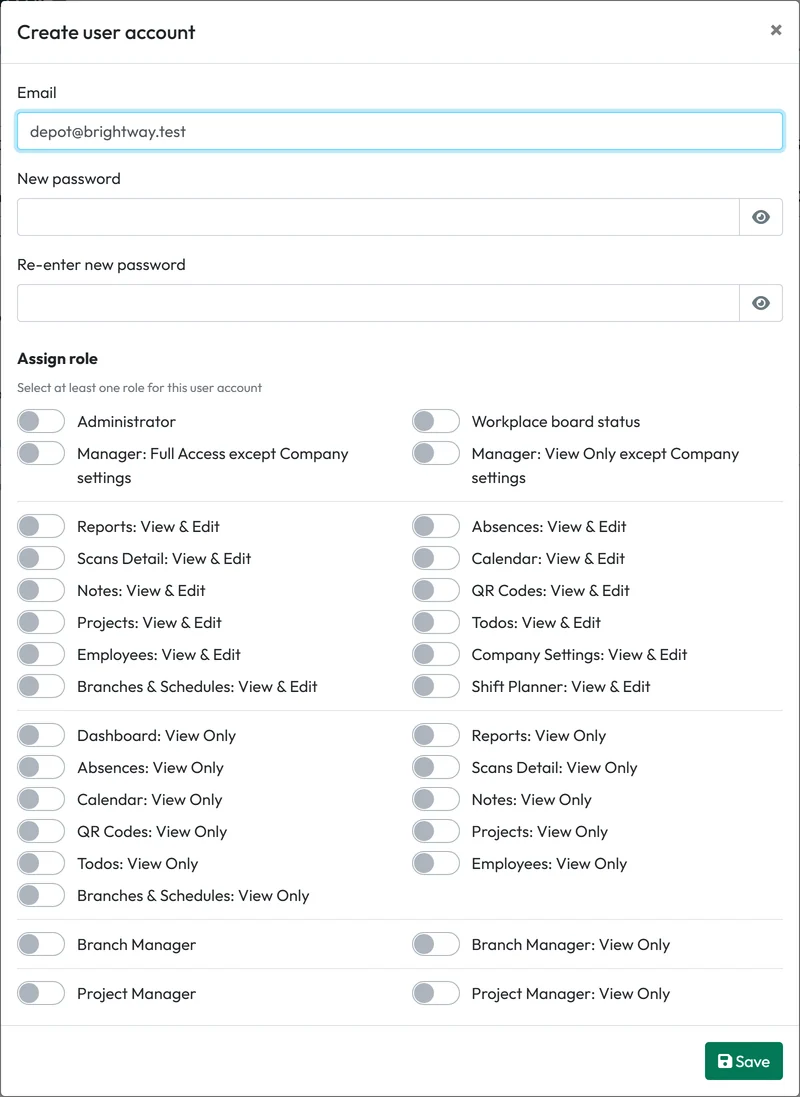
Pick the roles of the new account -
Limit a branch or project manager to their places.
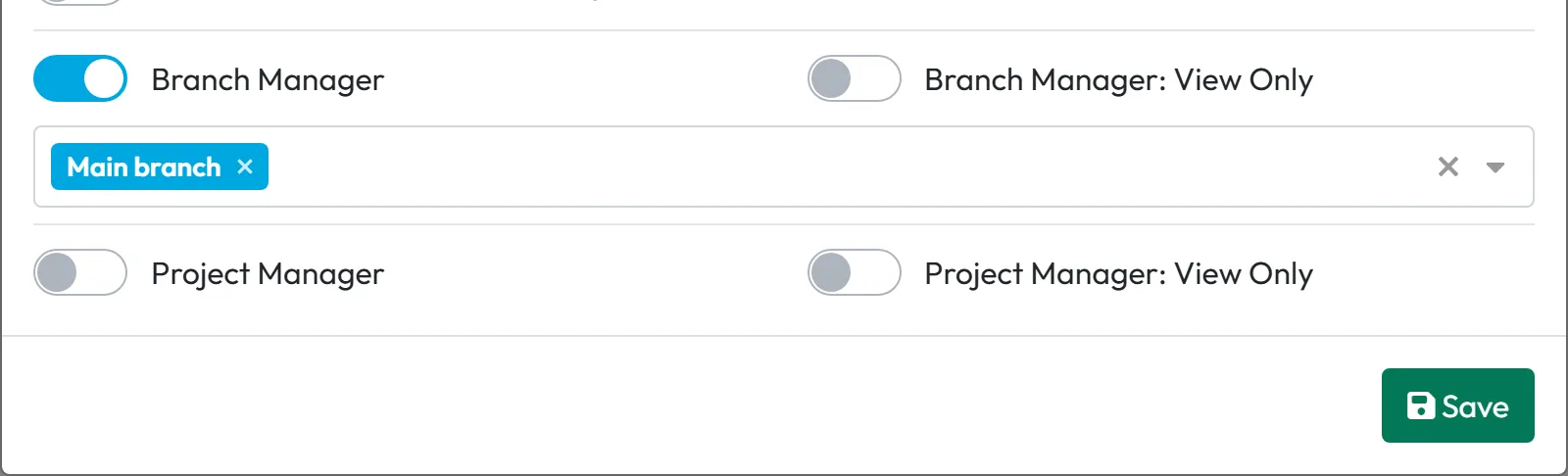
Switch on Branch Manager (or its View Only version) and choose the branches in the field that appears. For Project Manager you choose projects the same way.
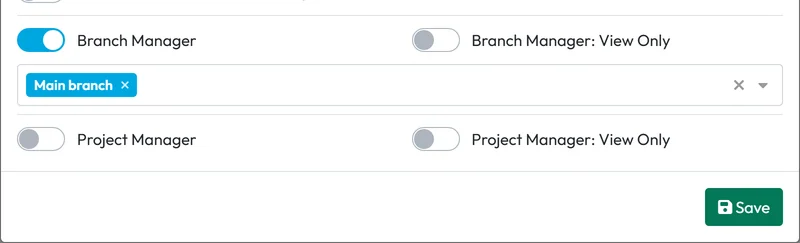
A branch manager sees only the branches you pick -
Save and hand over the login.
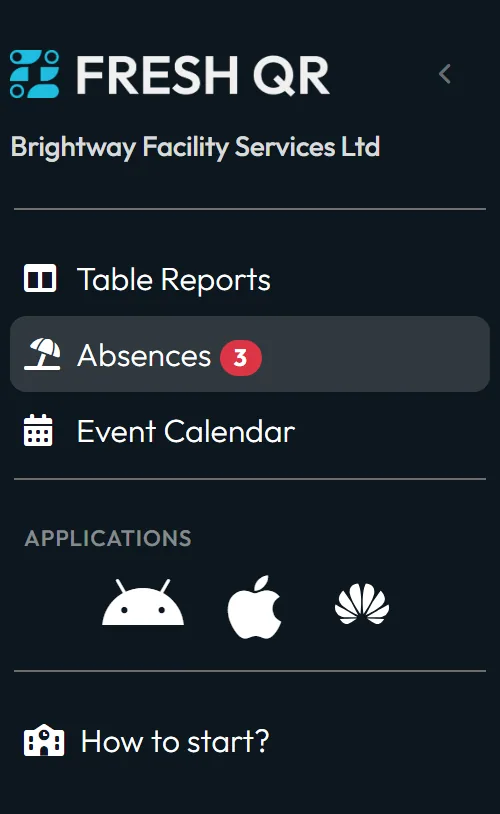
Click Save. Hand the login e-mail and password over to your colleague. They can set their own password later with Forgotten password on the login page (see Forgot FreshQR password). When they log in, they see only the menu items their roles allow.
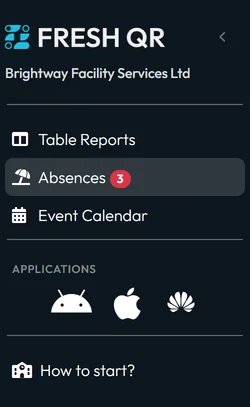
An account sees only what its roles allow -
Link the account to an employee (team leads).
In the Link to employee column, choose the person’s own employee profile. It saves straight away. From then on the account sees that employee and everyone below them in the organigram – in the employee list, absences, scans and most reports. Choose - to unlink; the account then sees the whole company again.
Linking also makes Direct supervisor e-mails work for that person – see Email notifications. Linking an Owner or Administrator changes nothing: they always see everyone.
#Other things you can change
- Change rolesClick the pencil next to the role badges, switch roles on or off and save. The user sees the change on their next click in FreshQR. The Owner’s roles can’t be changed.
- Reset a colleague’s passwordClick the key icon at the end of the row, type the new password twice and save.
- Date and number formatPick a format per account – Automatic (by browser) or a fixed one. It changes how dates and numbers look in that person’s reports and exports, handy for an accountant used to a different format.
- Remove accessClick the key icon, then the bin, and confirm with Yes, delete. The account can’t log in any more. An account can’t be switched off temporarily, only deleted. The Owner account can’t be deleted.
#Special cases and tips
- A manager sees the whole company
- Their account isn’t linked to an employee. Link it, and make sure their team has them as supervisor.
- “Manager: Full Access except Company settings” can still edit branches
- Branches, Work Schedules and Tags count as everyday work, so this role can change them. Everything else in My Company is out of reach.
#Frequently asked questions
Do employees need a user account?
No. Employees use the mobile app with their own profile. User accounts are for people who work in the web app.
Is there a limit on user accounts?
No. Pricing is per active employee, not per login – see the pricing page.
How does a new colleague log in for the first time?
Give them the login e-mail and the password you entered for the account. They can set their own password with Forgotten password on the login page.
What is the difference between Owner and Administrator?
They have the same rights. The Owner is the account created at registration; there is one per company and it can’t be deleted.
Can a manager see only their own team?
Yes. Link their account to their employee profile and set them as the supervisor of their people. For whole branches or projects, use Branch Manager or Project Manager.
#Related
You are hereUser accounts and roles
Web app (administrator)Mobile app (employee)



