Enable the shift planner: start employee shift scheduling
On this page
Quick answer
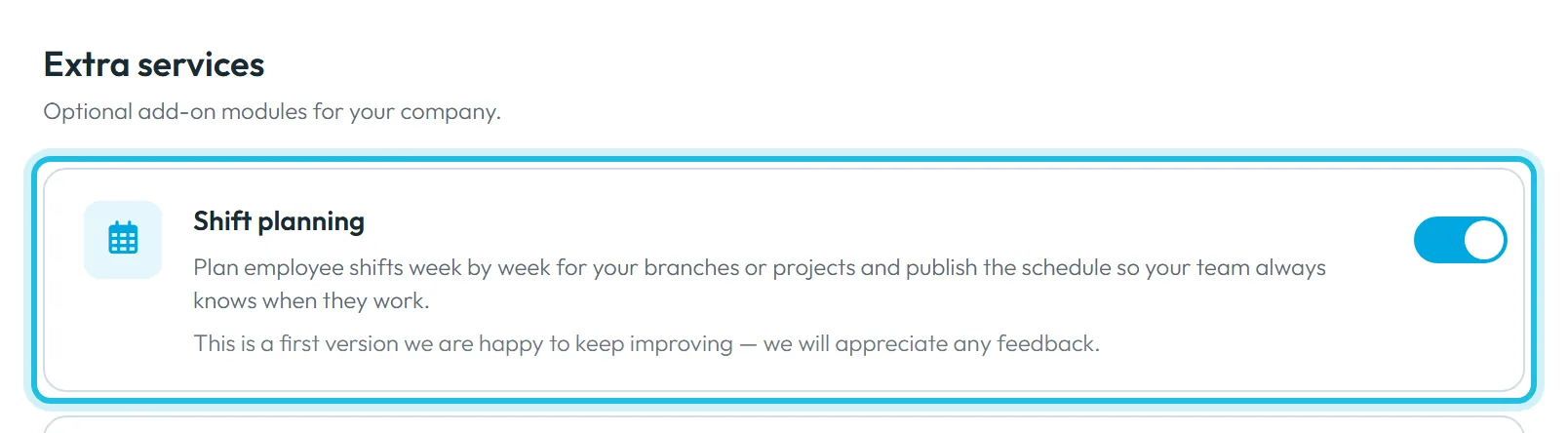
To enable the shift planner, go to My Company › Extra services › Shift planning. Turn on the switch and Shift planner appears in the left menu. From that day, published shifts become the expected working time in reports, and employees see their shifts in the app under My Shifts.
How to turn it on
Click the switch on the Shift planning card. It saves at once – there is no extra confirmation. Read “Before you switch it on” below first.
- My Company
- Extra services
- Shift planning
- Who can turn it on
- The Owner, Administrators and accounts with the role Company Settings: View & Edit.
- What changes
- The left menu gets Shift planner. Employees get a My Shifts card in the app, where they see their published shifts and can send requests and offer shifts to colleagues. In reports, published shifts replace work schedules as the expected working time from the day you first switch the planner on.
- Applies to
- The whole company. There is no switch per branch or per employee.
#What it's good for
- The weekly plan lives in one place instead of a spreadsheet or a group chat.
- Employees see their own shifts in the app and stop asking “when am I on next week?”.
- Reports compare actual attendance with the published plan, so overtime and missing hours follow the shifts.
- Requests (“I want to work”, “I can’t work”) and shift swaps reach you in the planner.
#Who it's for
A good fit for
- Cleaning, hospitality, retail and care teams whose hours change week by week.
- Companies where everyone, or nearly everyone, works to a published plan.
Not the right fit for
- Offices with the same hours every day: a work schedule is simpler.
- Companies where only a few people work shifts – see “Before you switch it on”.
#Before you switch it on
Switching the planner on changes how reports calculate expected hours for the whole company. From the day you first switch it on, standard work schedules and personal working times are no longer used. The expected working time for each day comes from published shifts instead. The Work Schedules tab then shows the note Standard schedules and personal worktime are ignored since … — expected working time comes from the Shift Planner.
In practice: an employee without a published shift on a day has no expected hours that day, so all their work that day counts as overtime. If only part of your team works shifts, talk to FreshQR support at info@freshqr.online or on WhatsApp before you switch the planner on.
Also check that employees have a Job position (used for coverage and for swaps between colleagues) and that your branches and projects exist – you plan one branch or project at a time.
#Step by step
-
Switch on Shift planning.
Go to My Company › Extra services (
Optional add-on modules for your company.
). On the Shift planning card –Plan employee shifts week by week for your branches or projects and publish the schedule so your team always knows when they work.
– click the switch. -
Find Shift planner in the menu.
The item Shift planner appears in the left menu. It opens the week grid for one branch or project. The planner is made for a computer screen; plans are not created on a phone.
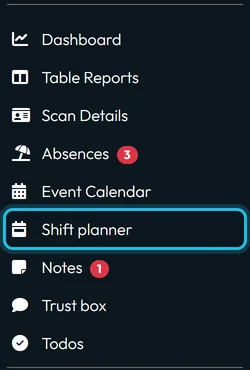
Once switched on, Shift planner appears in the menu -
Give your planners access.
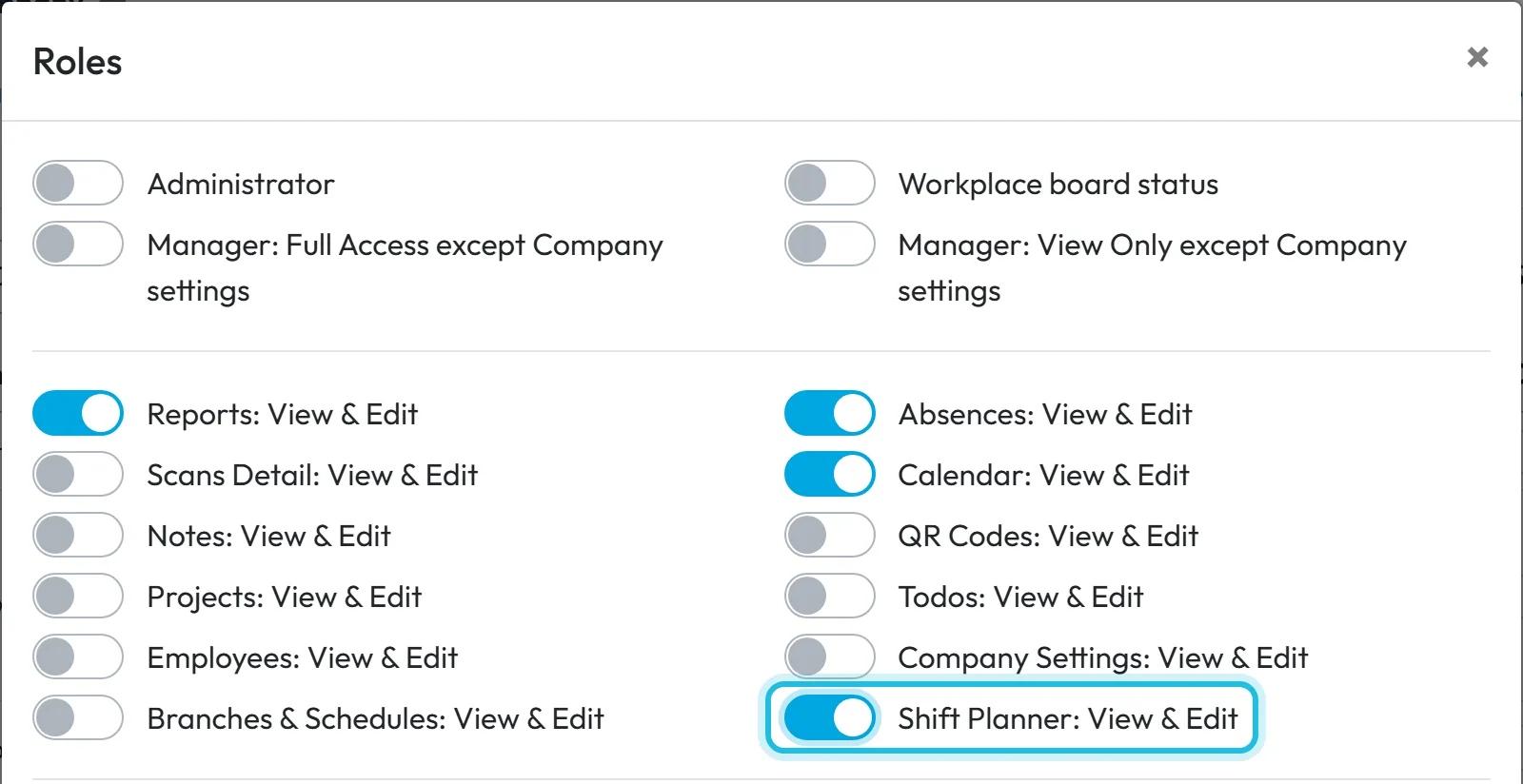
The Owner, Administrators and managers with full access can plan. For someone who should only plan shifts, open My Company › User accounts, edit their roles and switch on Shift Planner: View & Edit. A Project Manager account doesn’t get the planner. More in User accounts and roles.
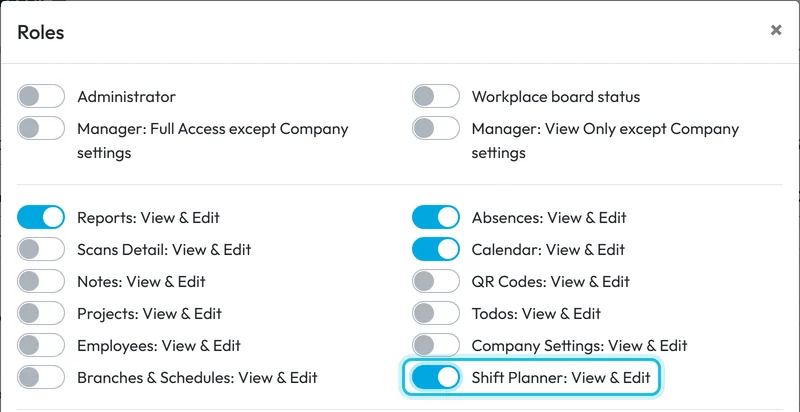
The Shift Planner: View & Edit role gives access to the planner only -
Create your shift templates.
Before the first week, set up templates such as Early 06:00–14:30 or Evening 14:30–23:00 – see Shift planner templates. Then build and publish the week – see Building the schedule.
-
Tell your employees.
FreshQR doesn’t send a notification when you publish. Tell the team that their shifts are in the app under My Shifts – what they see is described in My Shifts.
#More about shift planning
- Overview of the featureA short tour of what the planner does is on the shift planning page.
- Other extra servicesThe same tab has other optional modules – see Extra services.
#Special cases and tips
- Employees don’t see My Shifts
- Nothing is published yet for them, or their app hasn’t refreshed. Ask them to close and reopen the app.
- Overtime jumped after switching on
- Employees without published shifts have no expected hours, so all their work counts as overtime. Plan everyone who works, or contact support (see above).
- A manager can’t open the planner
- Give them Shift Planner: View & Edit or the role Manager: Full Access except Company settings. The Project Manager role doesn’t include the planner.
#Frequently asked questions
Can I switch the planner on for one branch only?
No. The switch is company-wide; you then plan each branch or project separately.
Does publishing a schedule notify employees?
No. Employees see published shifts the next time they open My Shifts in the app. Tell them when a new week is ready.
Can I plan shifts on my phone?
No. The planner runs in the web app on a computer. Employees view their shifts on their phones.
Does the planner check rest times or maximum hours?
No. It shows coverage and absences, but it doesn’t check working-time limits. That stays with you.
#Related
You are hereTurning on the shift planner
Employee
Web app (administrator)Mobile app (employee)



