Change the app language, add your name and lock the FreshQR app
On this page
Quick answer
To change the app language, open Settings and tap English, Slovenský, Česky or Українська under Language – the app switches at once. On the same screen, type your First Name and Last Name and tap Save. Biometric Access optionally locks the app with your fingerprint, face or phone PIN.
#What it's good for
- Your manager sees your name in the web app instead of an empty row.
- Colleagues from Ukraine, Slovakia or the Czech Republic can use the app in their own language.
- If someone borrows your phone, they can’t get into your attendance without your fingerprint or PIN.
- You know what you agree to on first start and what the app stores about you.
#How to add your details and change the language
-
Look for the reminder on Home.
If you joined by scanning a QR code, your employer doesn’t know your name yet. Home shows
Please enter your personal info
at the top until you add it.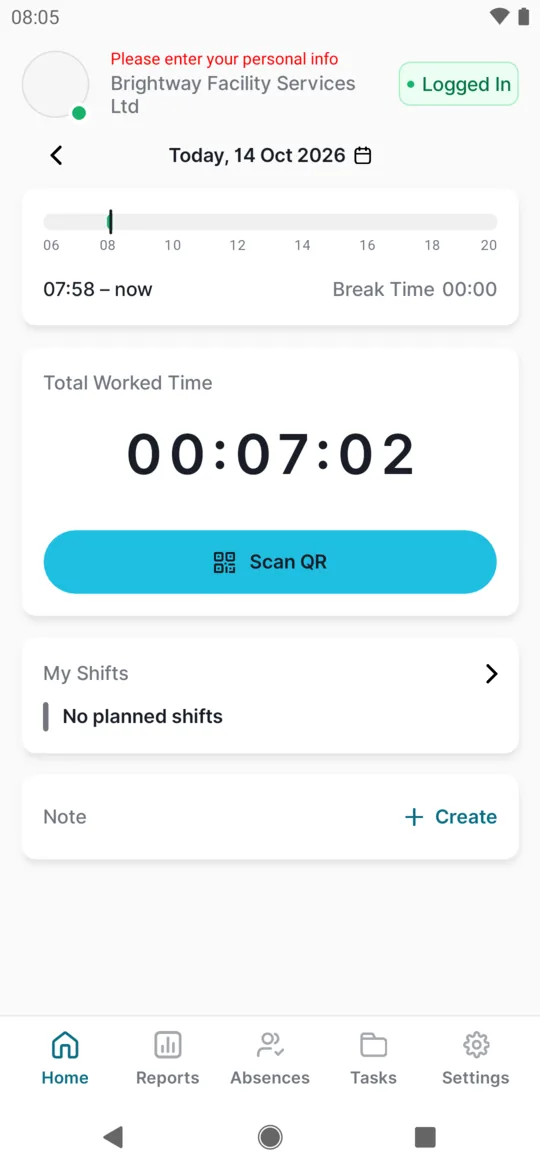
Until you add your name, Home reminds you -
Open Settings and fill in your details.
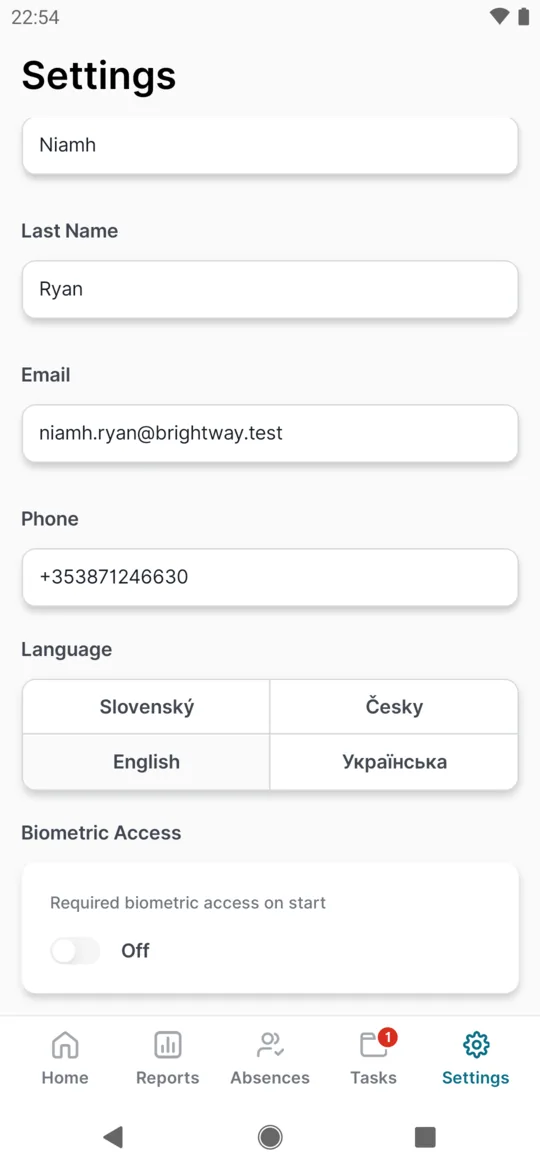
Tap Settings in the bottom bar. Type your First Name and Last Name the way your employer knows you – “Niamh Ryan”, not a nickname. Email and Phone are optional. As soon as you change something, Save appears top right (in an empty field, after the second letter). Tap it.
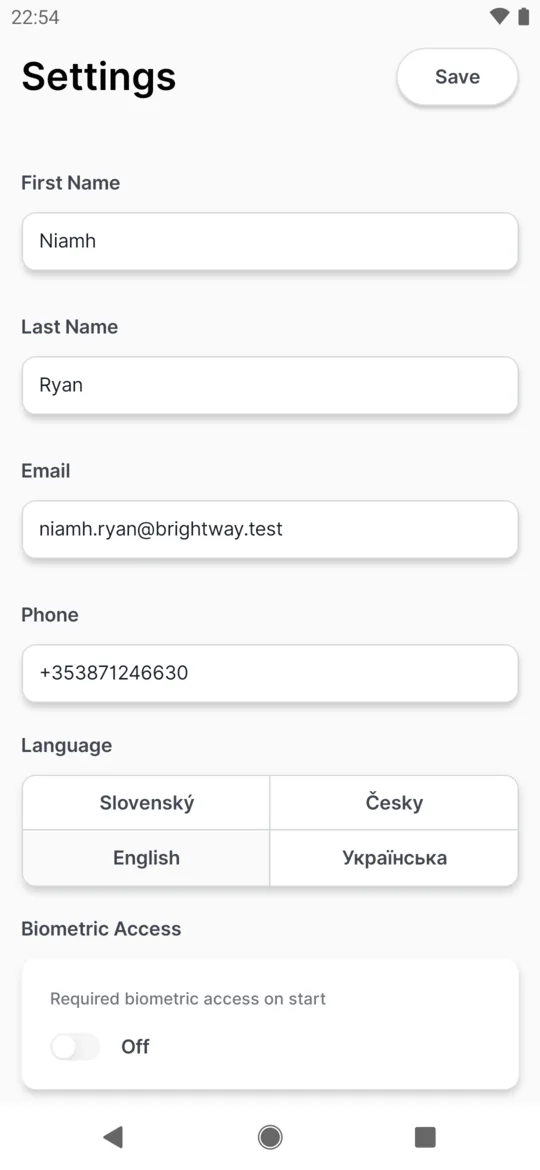
After a change the Save button appears -
Wait for the confirmation.
The app confirms
Profile successfully updated
. Your name appears at the top of Home and the reminder goes away. Your manager sees the name straight away.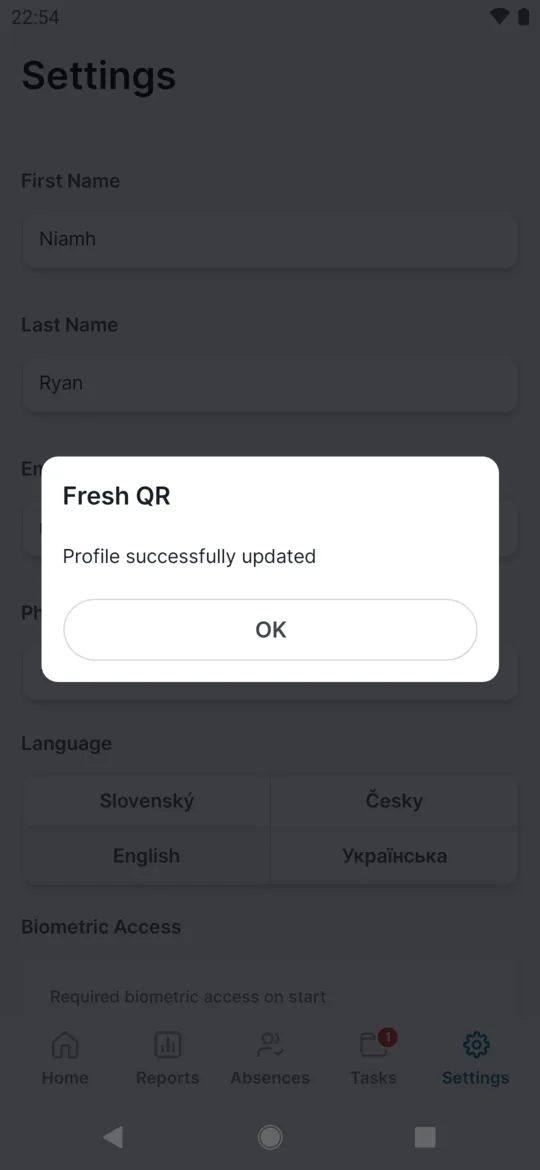
A short message confirms the change -
Pick your language.
Further down in Settings is Language with Slovenský, Česky, English and Українська. Tap one and the whole app switches immediately – you don’t need to tap Save for this. Scan confirmations such as “Started at 07:58” then come in the language you picked.
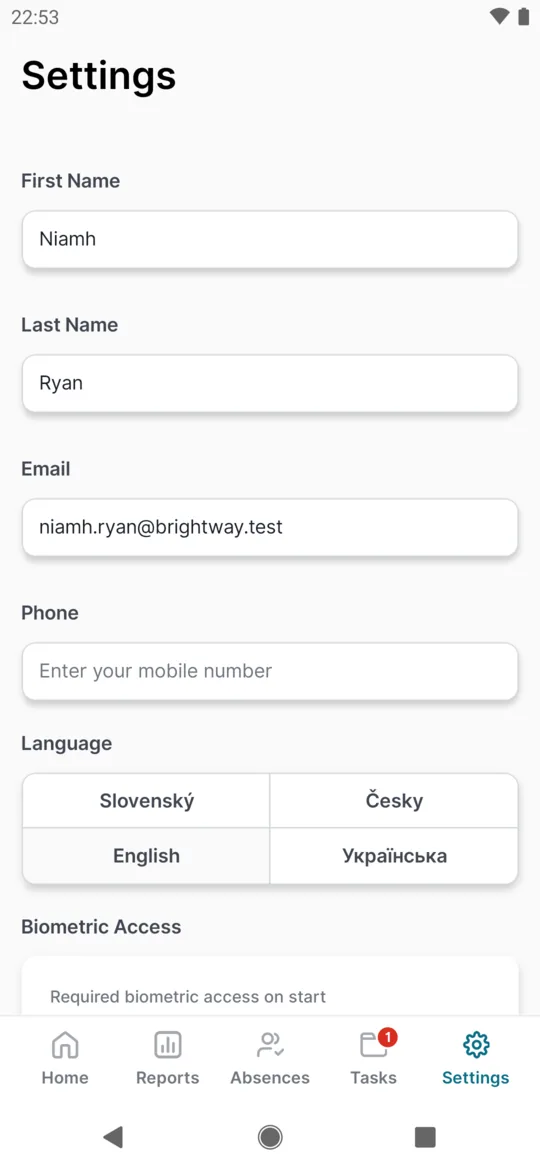
Tap a language to switch the app
#Lock the app with Biometric Access
Biometric Access is optional. With it on, the app asks for your fingerprint, face or phone PIN when you open it – useful if you leave your phone in the staff room or lend it to the kids at home. If your phone is always with you and always locked, you don’t need it. You switch it on and off yourself; your employer can’t change it.
- Open Settings and find Biometric Access. Tap Settings in the bottom bar and scroll to Biometric Access. The switch Required biometric access on start is Off to begin with.
- Turn the switch on and confirm it’s you. Your phone shows its own Biometric Request window – touch the sensor, look at the camera or type your phone PIN. When it works, you see
Biometric authentication is turned on
. - Unlock the app next time you open it. If you cancel, you see
Your Fresh QR app is locked.
Tap UNLOCK and try again.
To switch it off, tap the switch again. It turns off straight away, without a check.
#Data consent on first start
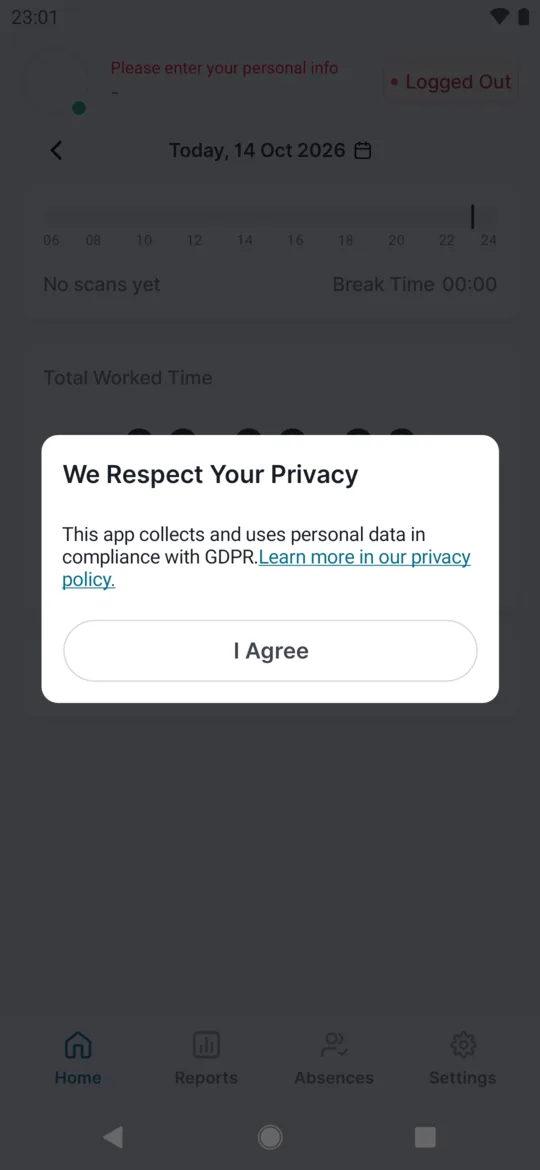
The We Respect Your Privacy window appears the first time you open the app with an internet connection. It says the app collects and uses personal data in compliance with GDPR, and Learn more in our privacy policy. opens the full text. There is only one button, I Agree. Back and tapping outside don’t close the window.
What the app stores about you
- your first and last name, email and phone number, if you fill them in;
- the time of every scan;
- your GPS position at the moment of a scan – only if your employer uses location;
- workplace photos, if your employer asks for them;
- technical details: phone model, system and app version, and whether notifications are allowed.
The app does not follow you around during your shift. It reads your location only at the moment you scan.
#Special cases and tips
- “User profile update is not allowed”
- If you see
User profile update is not allowed
after saving, your employer has turned off changes from the app. Ask your manager to update your details in the web app. - Your manager changed your details
- Your employer can edit the same details in the employee detail in the web app. You see their change after the app refreshes.
- Date and time format
- Whether you see 12- or 24-hour times, and how dates look, follows your phone’s settings, not the app language.
- Your phone has no screen lock
- Biometric Access needs a fingerprint, face unlock or screen lock set up on the phone. Without one the switch goes back off and you see
Biometrics are not set
orBiometric Authentication is not available
. Set up a screen lock in your phone settings first.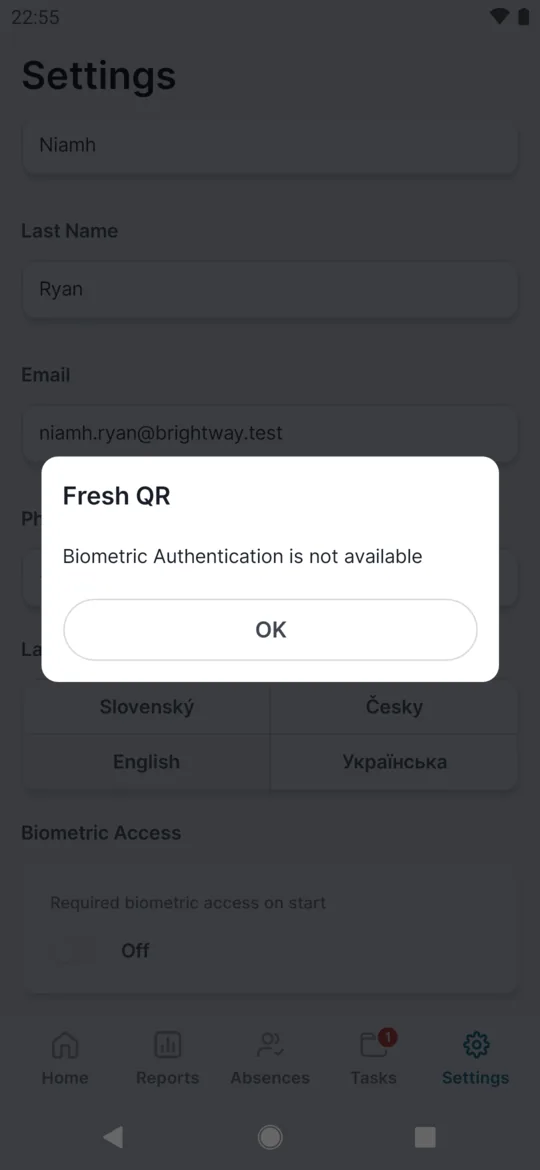
The phone needs a fingerprint or face unlock first - The consent window never appeared
- If you were offline the first time you opened the app, the window shows up later, once you are online.
#Frequently asked questions
Does changing the language change it for my manager too?
No. The app language applies only to your phone. The web app has its own setting.
Which languages are there?
English, Slovak (Slovenský), Czech (Česky) and Ukrainian (Українська).
Do I have to give my email address?
No. You don’t log in with an email. Your first and last name are enough.
Who can see my phone number?
People in your employer’s web app who have access to the employee list.
Does FreshQR store my fingerprint or my face?
No. Your phone does the check, and the app only learns whether it worked.
Can my employer see whether I use Biometric Access?
No. The setting is stored only on your phone.
Can I say no to the privacy notice?
The app can’t be used without it. If you have questions about your data, ask your employer.
Is this biometric attendance?
No. You clock in by scanning a QR code – FreshQR is attendance without biometrics. Biometric Access only locks the app on your phone.
#Related
You are herePersonal details, language and Biometric Access
Web app (administrator)Mobile app (employee)



