Task checklist app for employees: your tasks in FreshQR
On this page
Can't see this option in the app? Your employer has to turn it on.
Guide for administrators: Todos – table, board and checklist →
Quick answer
Your tasks are under Tasks in the bottom bar; the number on it shows how many are open. Tap a task, tick off the Checklist, add a photo or PDF and write a comment if needed. When you’re done, tap Finish. Your employer creates the tasks; on your phone, Tasks works as a simple task checklist app for employees.
#What it's good for
- Everything you need to do is in one place – with the deadline and the steps.
- You attach the photo as proof to the task itself, not to a chat.
- Your manager sees what’s done without phoning you.
#Who it's for
A good fit for
- Anyone who gets tasks from their employer: deep cleans, checks, restocking, getting ready before a shift.
#Step by step
-
Open Tasks.
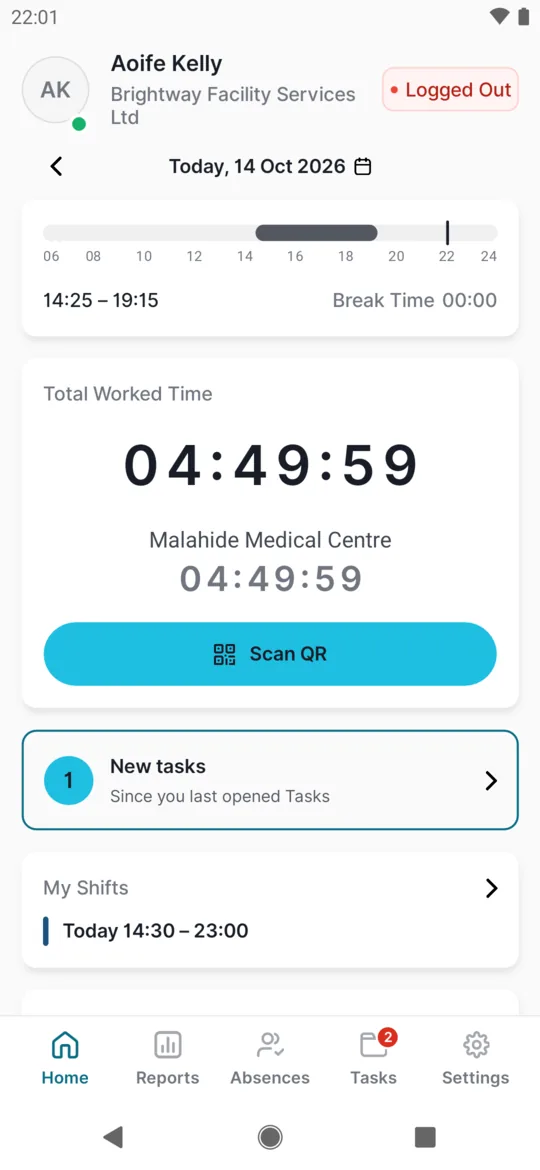
Tap Tasks in the bottom bar. When new tasks arrive, Home also shows a New tasks card – tapping it brings you here too.
A card tells you about new tasks -
Pick a task from the list.
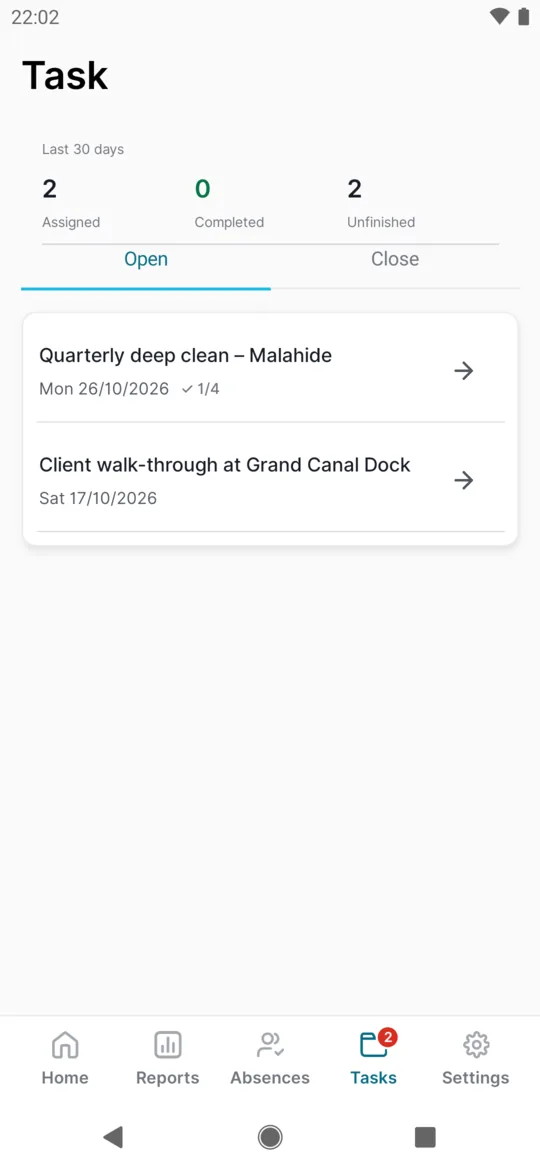
The Open tab lists tasks that aren’t finished yet. Each shows its deadline, a status such as Late or Paused, and how many checklist items are ticked. Above the list is a summary of the last 30 days. Finished and canceled tasks are on the second tab, Close. Pull the list down to refresh it.
The list of open tasks -
Read the task and tick off the checklist.
The detail shows the Deadline, who assigned it, the Description and the Checklist. If the task is shared, Assigned to lists everyone on it – You first. Tap an item to tick it; tap again to untick. It saves straight away and shows who ticked it. If the list says
All items must be checked before finishing
, you can finish only when everything is ticked.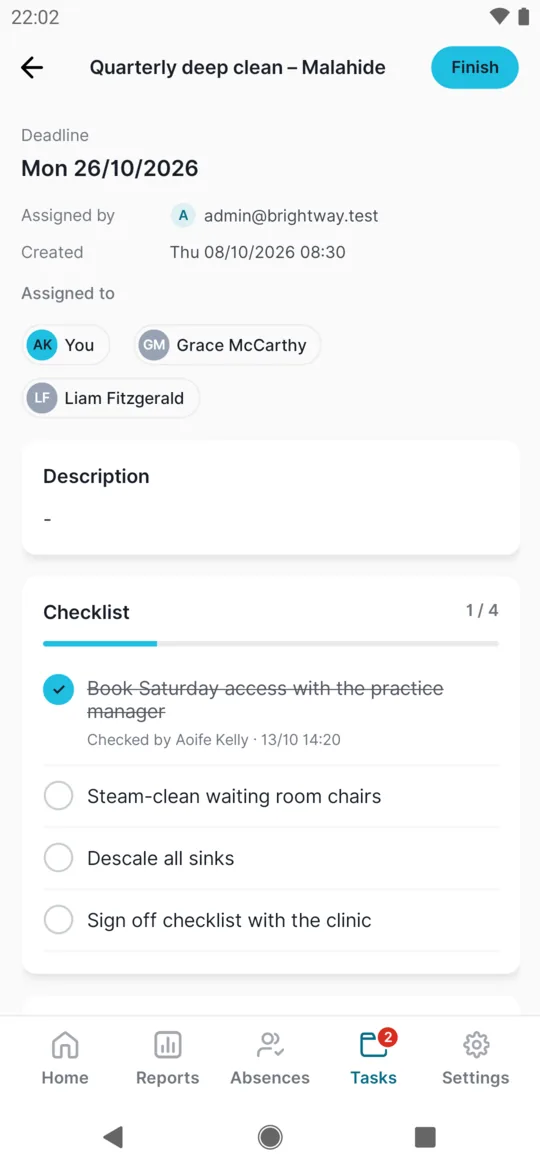
A shared task with a checklist -
Add a photo or a document.
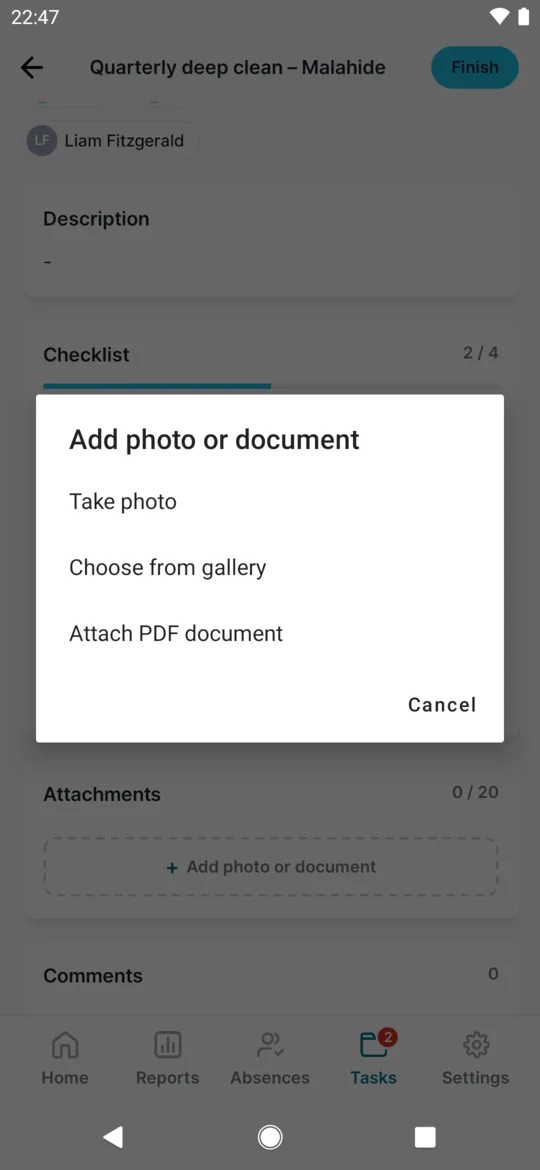
Under Attachments, tap Add photo or document and choose Take photo, Choose from gallery or Attach PDF document – say, a photo of the steam-cleaned waiting room at Malahide Medical Centre. Tap a photo to see it full screen.
Attach a photo or a PDF -
Write a comment.
Type a question or an update for your manager in Write a comment… and send it. You can only delete your own latest comment. You see your manager’s reply when you open the task again – there’s no notification.
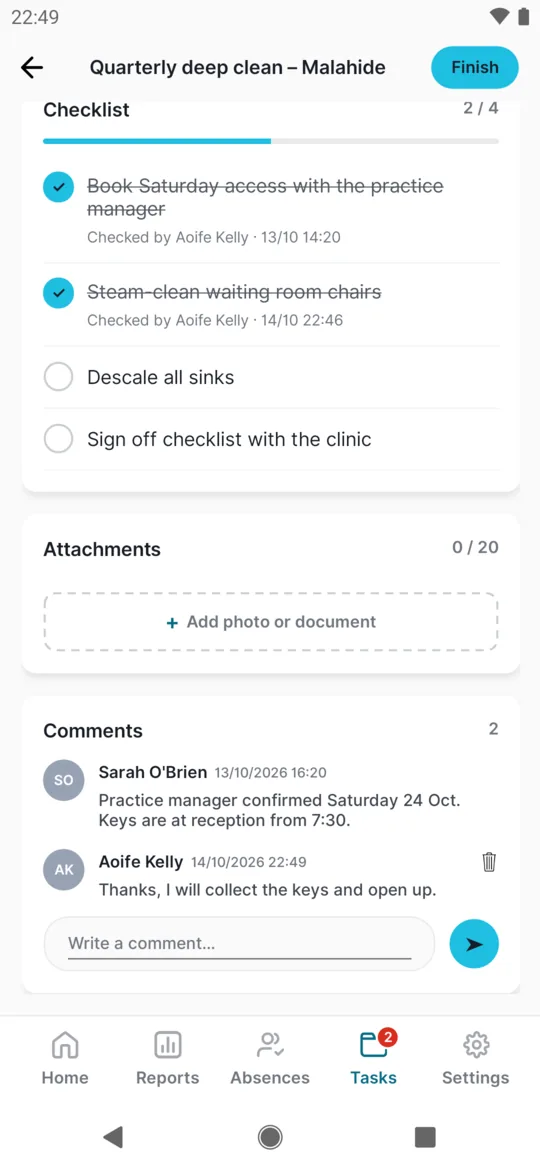
Comments on a task -
Tap Finish.
The Finish button is at the bottom. The app doesn’t ask “are you sure?” – the task moves straight to the closed tab. If the task is shared with others, it is finished for everyone.
#Other ways
- Reopen a task you finished by mistakeOn the closed tab, open the task and tap Reopen. If you see
Finished · can be reopened only in the web app
instead of the button, your employer hasn’t allowed it in the app – ask your manager.
#Special cases and tips
- The whole checklist is required
- A hint under the checklist tells you every item must be ticked first.
- “Check every checklist item before finishing this todo”
- The task has a required checklist and something is still unticked. Tick the remaining items and try again.
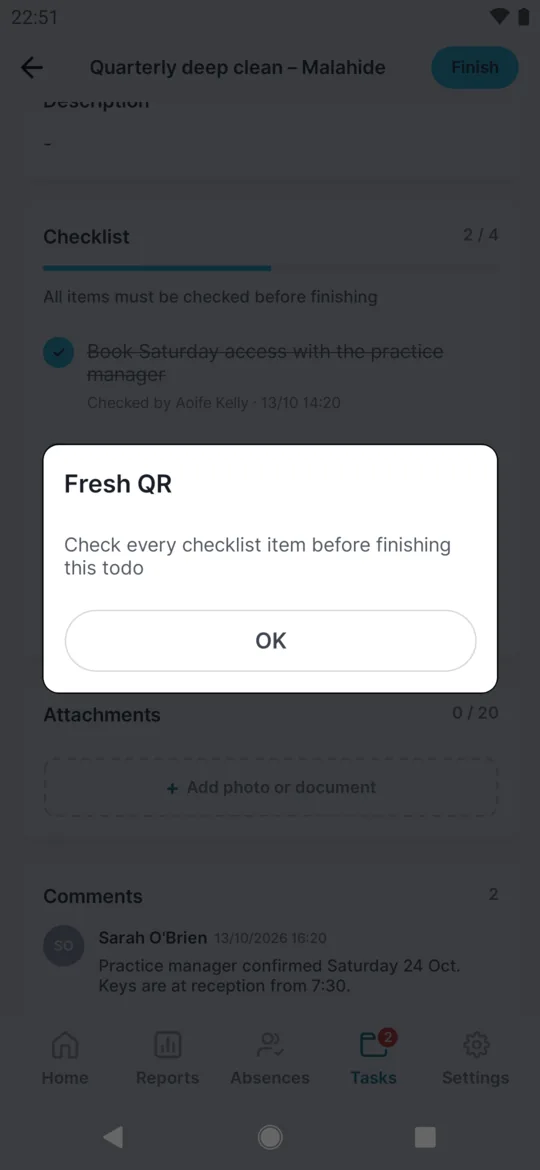
Unticked items block Finish - Attachment limits
- A task can have up to 20 attachments. A PDF can be up to 10 MB. Videos and Word documents can’t be attached.
- A closed task
- The checklist of a finished or canceled task can’t be changed any more. Its comments and attachments stay visible.
- No internet
- Tasks need a connection. Offline you can’t tick, comment or finish anything, and nothing is saved for later. Try again when you have signal.
- Getting back to the list
- Use the arrow top left to leave a task. The Android Back button doesn’t work there.
#Frequently asked questions
Will I get a notification about a new task?
No. Keep an eye on the number on the Tasks tab and the New tasks card on Home.
Can my colleagues see my tasks?
Only colleagues who are assigned to the same task.
Can I create a task myself or change its deadline?
No. Your employer creates and edits tasks in the web app.
Why don’t I have a Tasks tab?
Your employer doesn’t use tasks, or has just turned them on – open Home with internet, or restart the app.
Does a task count towards my worked time?
No. Tasks and attendance are separate.
#Related
You are hereTasks, checklists, attachments and comments
Administrator
Web app (administrator)Mobile app (employee)



