Shift coverage: set how many people you need
On this page
Quick answer
Shift coverage tells the planner how many people you need. In Shift planner open a branch or project and click Add coverage. Add a time window, choose all positions or one position and enter the headcount for each weekday. The coverage strip above the grid then shows each day’s percentage and the gaps.
#What it's good for
- Gaps show while you plan, not when a site calls to say nobody turned up.
- Separate rows for a position make sure there is, say, always one supervisor among the cleaners.
- Set it once: the requirements apply to every week and every draft of that branch or project.
#Who it's for
A good fit for
- Sites with a fixed minimum crew, such as two cleaners every weekday evening at a clinic.
- Restaurants, shops and care teams with peak hours.
Not the right fit for
- A team of two or three on one shift sees the gaps without help.
- Coverage doesn’t fill the plan for you; it only shows where people are missing.
#Step by step
-
Open the coverage editor.
In Shift planner choose the branch or project. Click Add coverage – or the pencil in the coverage strip if requirements already exist (Edit coverage). The window Coverage requirements opens.
-
Add time windows and headcounts.
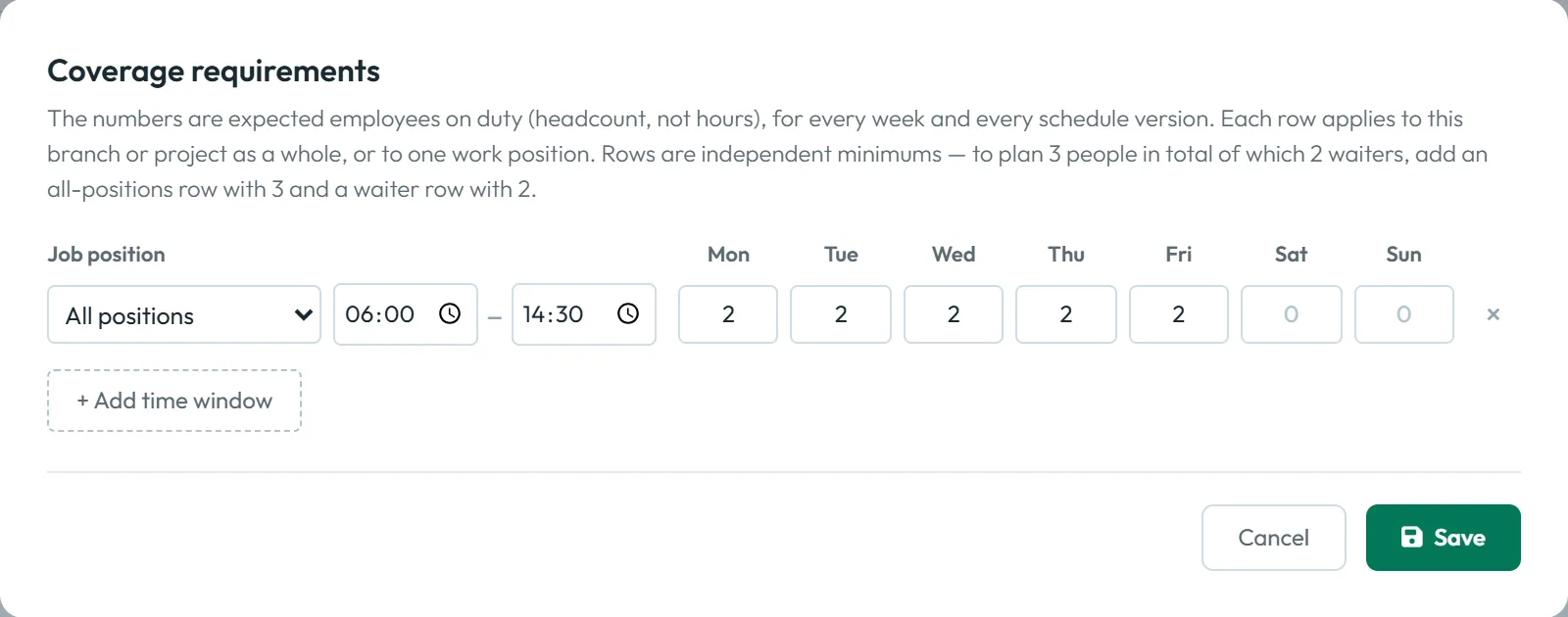
Each row is a time window, for example 06:00–14:30, with a headcount for each day from Mon to Sun. In the Job position column choose All positions or one position. + Add time window adds a row; the × removes it.
As the window explains:
Rows are independent minimums — to plan 3 people in total of which 2 waiters, add an all-positions row with 3 and a waiter row with 2.
The numbers are people on duty, not hours. Click Save; the planner confirmsCoverage saved.
At Sandyford Business Park, Brightway needs two people on the early clean, 06:00–14:30, Monday to Friday, and nobody at the weekend.
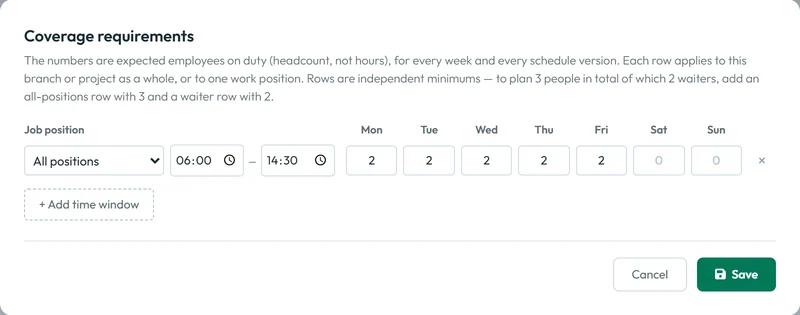
Coverage requirements apply to every week and every schedule version -
Read the coverage strip while you plan.
Above the day headers the Coverage strip shows one line per window with the percentage covered for each day. Coverage is worked out from how long the planned shifts overlap the window. The strip heading summarises the week, for example fully covered or 6 h uncovered; a day can also say how many employees are missing.

Coverage shows where people are missing -
Fill the gaps and publish.
Drag more shifts onto the days below 100 % until the strip reads fully covered, then publish – see Building the schedule. If you filter the grid by name or position, the strip adds — across all … employees to remind you it still counts everybody.

#Where coverage shows up
- In the printed weekThe PDF export of the week has a coverage section – see Exporting the schedule.
- After accepting a “can’t work” requestAccepting removes the shift and the planner reminds you:
Check coverage for the gap.
See Employee shift requests and swaps.
#Special cases and tips
- Three people planned but only 80 % covered
- Their shifts don’t cover the whole window, for example one starts at 08:00 in a 06:00–14:30 window. Coverage counts the overlapping time.
- A different need on one date
- The editor has one headcount per weekday, not per date. Plan the extra people on that day and watch the strip.
- Two rows with the same times
- Each window needs its own time range; the editor refuses two windows with the same range.
#Frequently asked questions
Does coverage stop me from publishing an understaffed week?
No. It only shows the gaps. You decide whether to publish.
Can the planner fill the gaps automatically?
No. You place the shifts yourself.
Do requirements apply to drafts as well?
Yes. They belong to the branch or project and apply to every week and every schedule version.
Can I set coverage for one position only?
Yes. Choose the position in the Job position column of that row.
#Related
You are hereCoverage requirements
Web app (administrator)Mobile app (employee)



