Employee bonus types and automatic bonus rules
On this page
Quick answer
To give an employee bonus, first create a bonus type in My Company › Bonuses & surcharges. Then add bonuses on the employee’s Bonuses tab, or let Automatic bonus rules create them from monthly attendance – for example 75 EUR for full attendance or 2 EUR for every hour over 160.
How to turn it on
Automatic bonus rules work once at least one bonus type exists – each rule creates bonuses of a type you choose. Add the types first, then the rules.
- My Company
- Bonuses & surcharges
- Automatic bonus rules
- Add rule
- Who can turn it on
- The Owner and Administrators, who manage the company settings.
- What changes
- Each active rule adds bonuses (or deductions) to the employees it applies to, dated on the day of the month you set. They appear on the employee’s Bonuses tab and in the costs in Table Reports.
- Applies to
- Each rule applies to all employees or to the employees you pick, between its Active from and Active until dates.
#What it's good for
- Extras like a performance bonus or a client-compliment reward sit next to the hours, not in a separate list.
- Rules pay the same bonus every month to everyone who qualifies, without anyone checking attendance by hand.
- Deductions for absences work the same way, with a negative amount.
- Bonuses are part of Total expenses, so labour costs include them.
#Who it's for
A good fit for
- Companies that reward full attendance or long hours with a fixed amount.
- Teams where supervisors hand out occasional bonuses, such as weekend cover or praise from a client.
Not the right fit for
- Extra pay per hour for weekends, nights or a site belongs in Rate surcharges – as the rules section itself says, amounts here are fixed sums.
- If bonuses are handled only in your payroll software, you don’t need to enter them here.
#Step by step
-
Create bonus types.
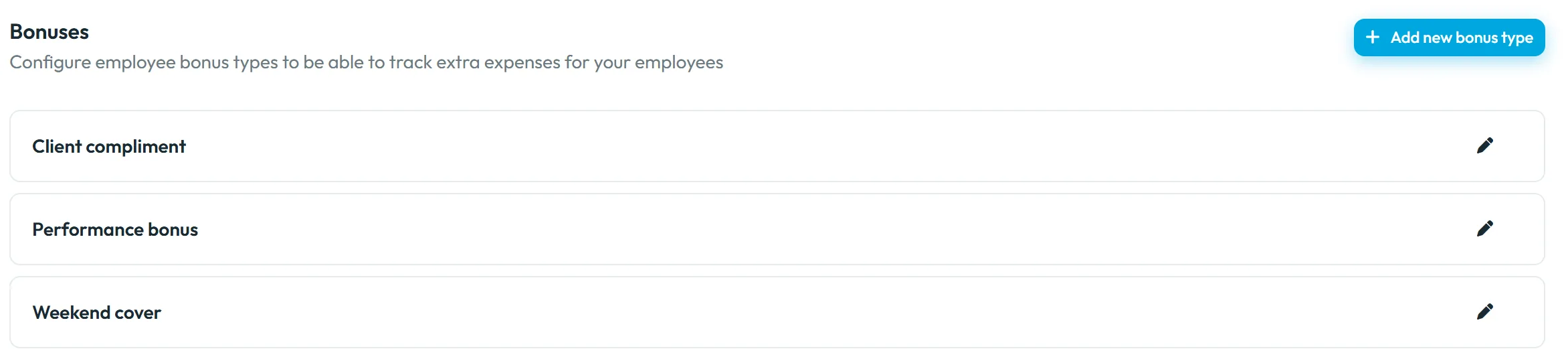
Go to My Company › Bonuses & surcharges. In Bonuses (
Configure employee bonus types to be able to track extra expenses for your employees
) click Add new bonus type. Brightway uses three: Performance bonus, Client compliment and Weekend cover.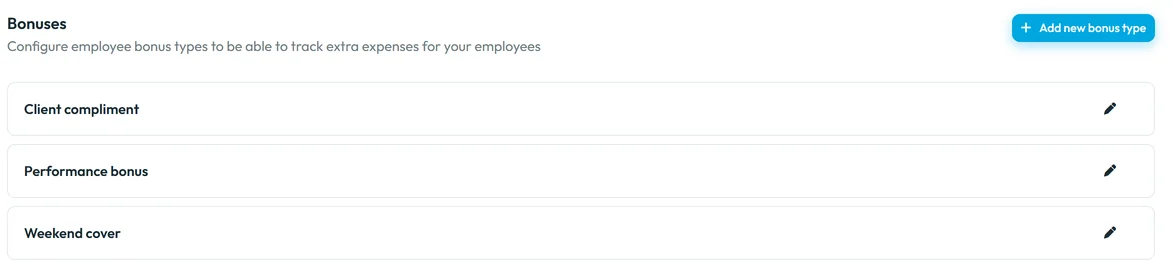
The company’s bonus types -
Give a one-off bonus.
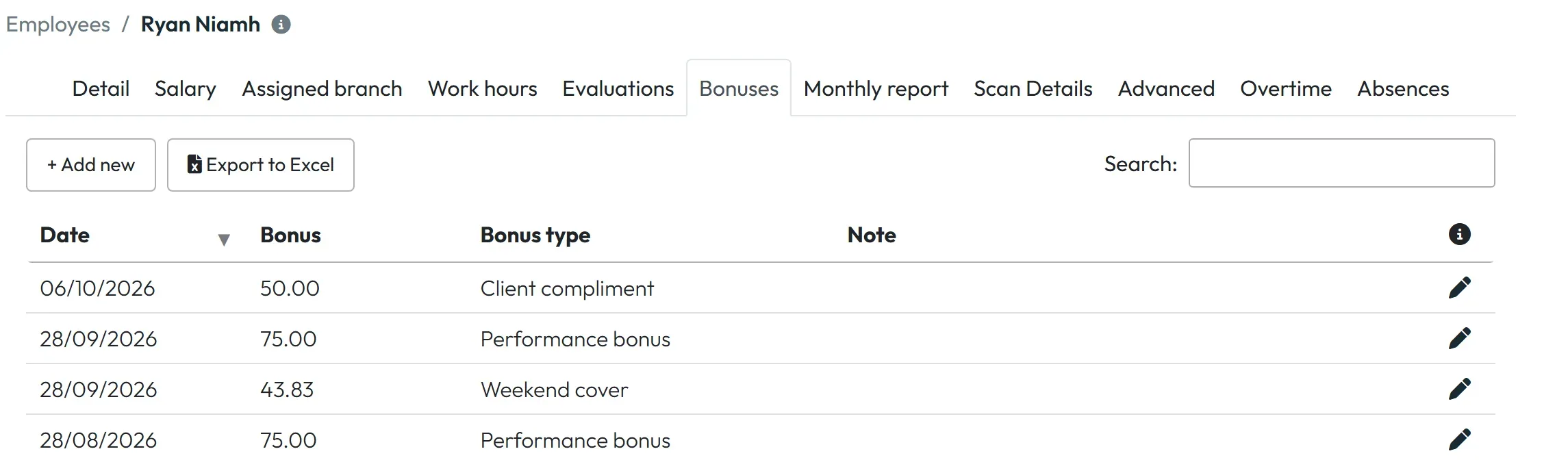
Open the employee and go to the Bonuses tab – it appears once at least one bonus type exists. Click Add new, choose the Bonus type, enter the Bonus amount, the Date and a Note, for example “Malahide clinic praised the evening team”. Save.
-
Add an automatic rule.
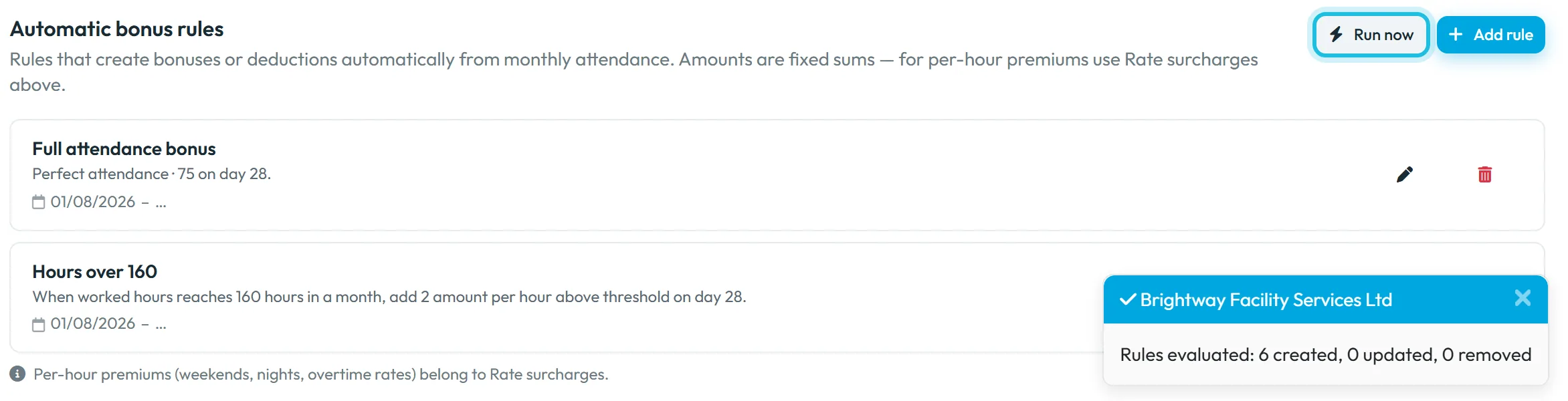
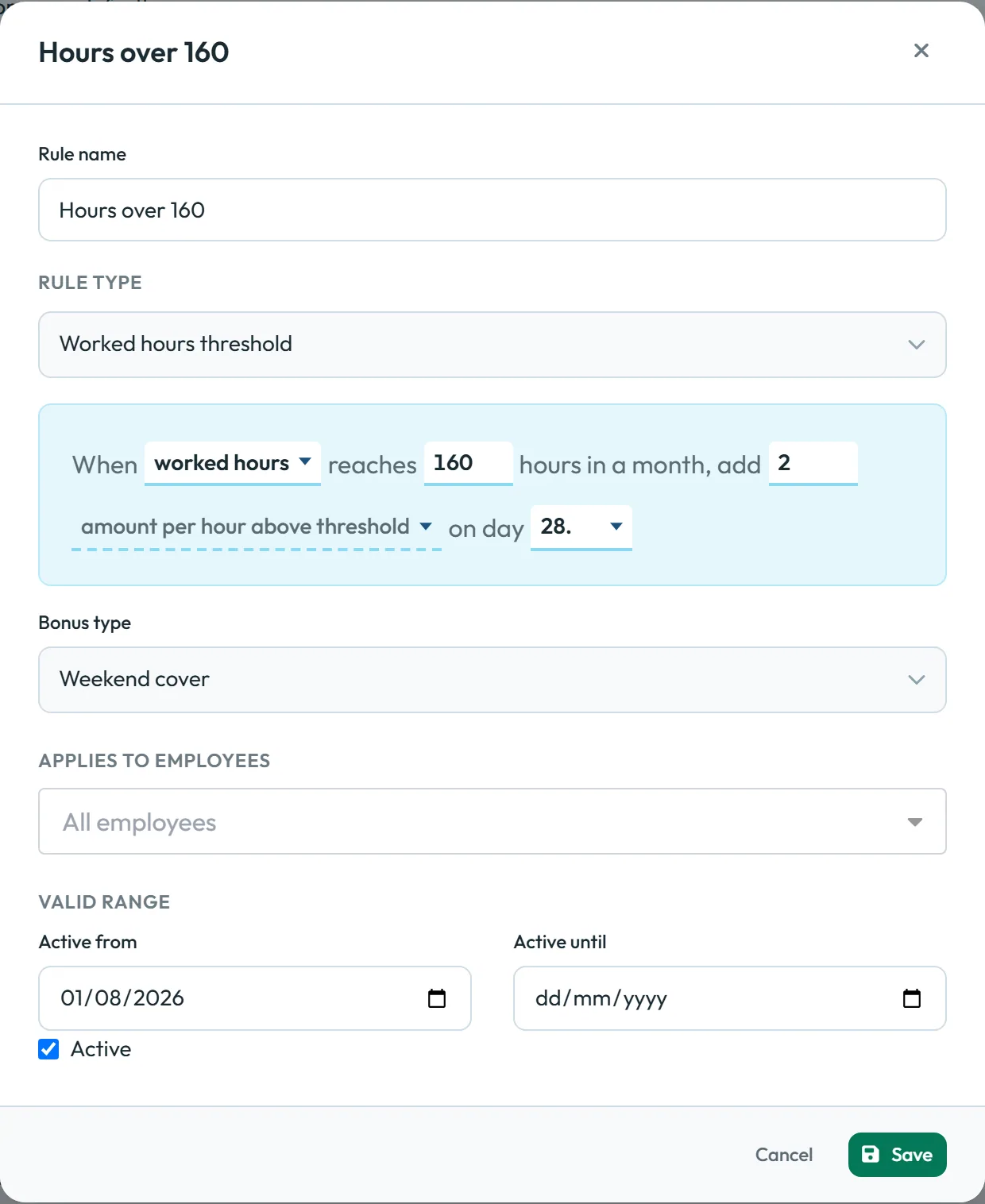
Under Automatic bonus rules –
Rules that create bonuses or deductions automatically from monthly attendance.
– click Add rule. Give it a Rule name and a rule type: Worked hours threshold, Perfect attendance, Absence deduction or Work anniversary.The rule reads like a sentence. For “Hours over 160”: When worked hours reaches 160 hours in a month, add 2 amount per hour above threshold on day 28. Pick the Bonus type, who it applies to (All employees or selected people) and the Active from date, keep Active ticked and save.
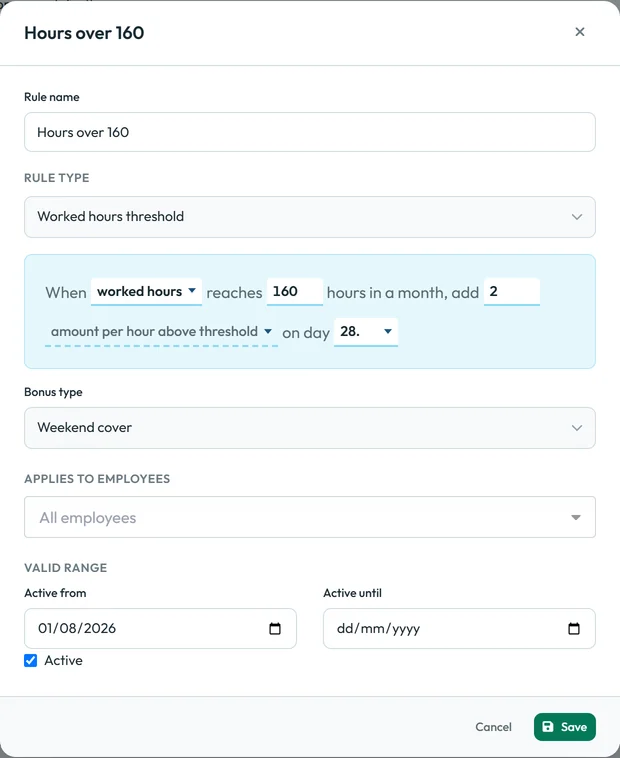
The rule reads like a sentence -
Run the rules.
Rules are evaluated on their own, but Run now does it at once and reports the result, for example
Rules evaluated: 6 created, 0 updated, 0 removed
.A rule creates bonuses from the month in which you created it onwards, even if its Active from date is earlier.
-
Check the employee’s bonuses.
The employee’s Bonuses tab lists all bonuses with type, amount, date and note. Bonuses created by a rule look the same as the ones entered by hand.
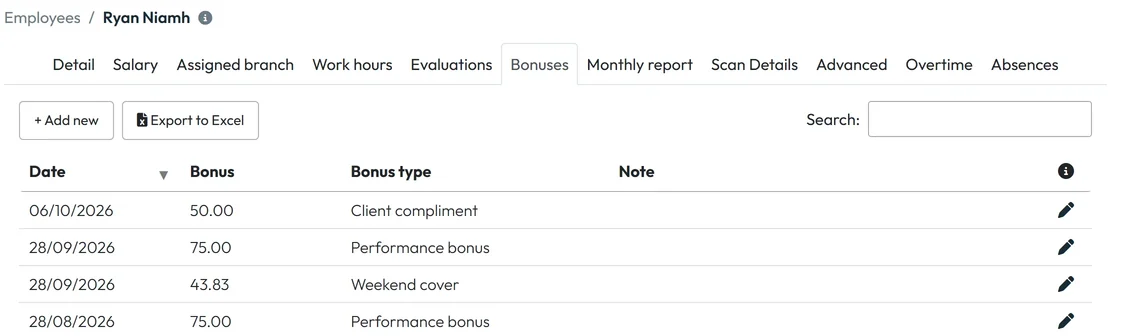
Automatic and manual bonuses in one list
#The four rule types
| Rule type | What it does | Example |
|---|---|---|
| Worked hours threshold | Pays a bonus when an employee’s hours in the month reach the number you set. You choose which hours count (for example worked hours or overtime hours) and whether the bonus is a fixed amount or an amount for every hour above the threshold. | 2 EUR per hour over 160: 172 hours worked = 12 × 2 = 24 EUR |
| Perfect attendance | Rewards a month without absences. Once the month is over, everyone who worked that month and had no absence of the selected types gets a fixed amount. You pick the types in Absence types that count (default All absence types); late arrivals don’t matter. | 75 EUR full attendance bonus on day 28 |
| Absence deduction | Lowers pay for the days an employee was absent. You pick the absence types, for example unexcused absence, and a negative amount per day (Use a negative amount for deductions.). The rule multiplies it by the number of such days in the month and adds the result as one entry. | −20 EUR per day: 2 days of unexcused absence = −40 EUR |
| Work anniversary | Pays a bonus in the month when the employee’s start date comes round again, so once a year per employee. The start date must be filled in the employee’s profile. | 100 EUR in the month of each work anniversary |
#Related pay settings
- Per-hour premiumsWeekend, night, holiday and site premiums are rate surcharges.
- Labour costsBonuses are included in Total expenses; Expenses without bonuses leaves them out – see Hourly rate and salary.
#Special cases and tips
- A new rule created nothing for last month
- Rules start in the month you create them. Enter last month’s bonuses by hand.
- The Bonuses tab is missing on an employee
- Create at least one bonus type first.
- Work anniversary does nothing
- The employee needs a start date in their profile.
#Frequently asked questions
Can a bonus be negative?
Yes. Use a negative amount for a deduction, by hand or with an Absence deduction rule. That rule multiplies the amount by the days of the selected absences in the month, for example −20 EUR × 2 days = −40 EUR.
Does a late arrival break the perfect attendance bonus?
No. The rule looks at absences of the selected types, not at arrival times.
How do I stop a rule?
Untick Active or set an Active until date.
Are bonuses paid by FreshQR?
No. FreshQR records them and adds them to the labour costs. Payment happens in your payroll.
#Related
You are hereBonuses and automatic bonus rules
Web app (administrator)Mobile app (employee)



