How to request leave in the FreshQR app and see what you have left
On this page
Can't see this option in the app? The team absence calendar appears only if your employer turns it on.
Guide for administrators: Mobile app settings →
Quick answer
To request leave in the FreshQR app, open Absences, tap Add, pick the Start Date, End Date and Type, and tap Finish. An orange icon means the request is waiting for your manager. Below the list you see how many days you have left; the calendar icon shows which colleagues are off.
#What it's good for
- No paper forms and no chasing your manager: the request lands straight in their list with the dates and type filled in.
- You can see at any time whether it was approved – the icon next to the request changes colour.
- You know how many days you have left without asking HR.
- You see who is already away before you ask for the same days, so your request is less likely to be turned down.
#Who it's for
A good fit for
- Anyone who uses the FreshQR app and wants a day off, a holiday or time for a doctor visit.
- Reporting a part-day absence, such as a dentist appointment from 08:00 to 10:30.
Not the right fit for
- If you don’t use the app, your manager can enter the absence for you in the web app.
- A short doctor visit during the working day can also be marked on your scan instead – see Marking the next scan – if your employer uses that.
#Step by step
-
Open Absences and tap Add.
Tap Absences in the bottom bar. The screen lists your absences that start in the month shown at the top; the arrows next to the month switch months. Tap Add at the top of the screen. The New Absence form opens, with today’s date filled in.
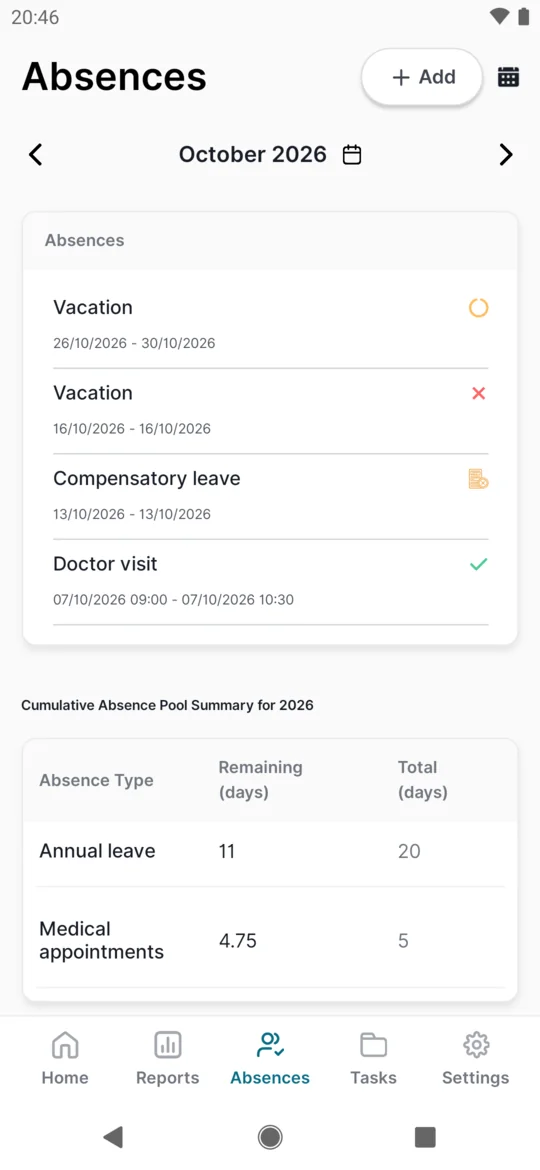
Absences: an icon shows the status of each request -
Pick the start and end date.
Tap Start Date and choose the first day in the calendar. The end date moves to the same day. Then tap End Date and choose the last day – days before the start are greyed out. For a single day, leave both the same.
You can also pick a day in the past, for example to report yesterday’s doctor visit.
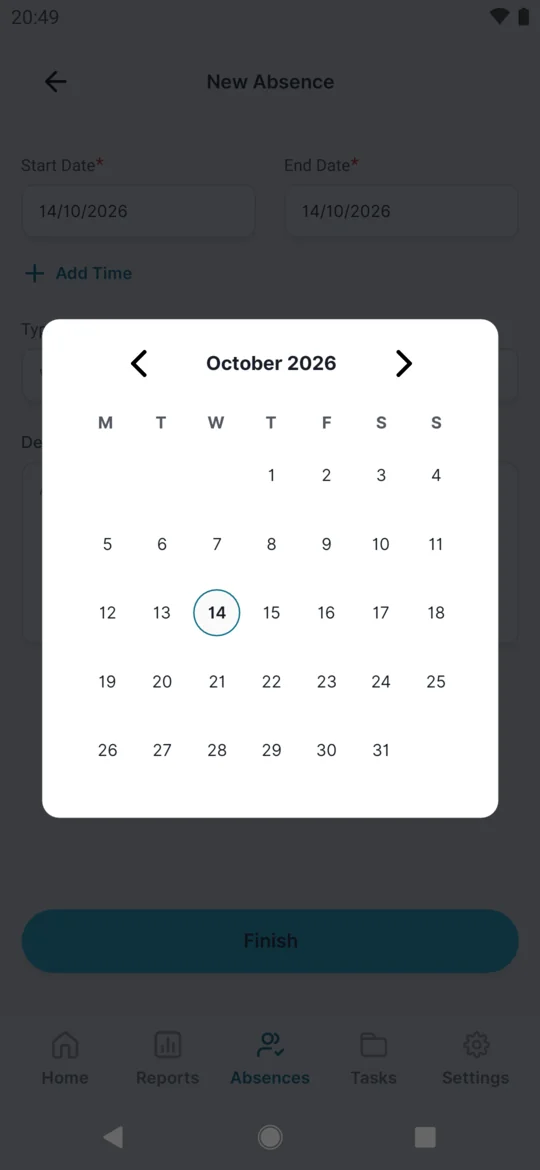
Tap a day to pick the date -
Choose the type of absence.
Tap Type and pick from the list – your employer decides which types there are and in which order, and the first one is pre-selected. Check it before you send – the pre-selected type is shown in light grey. The types are set up by your employer as described in Absence types.
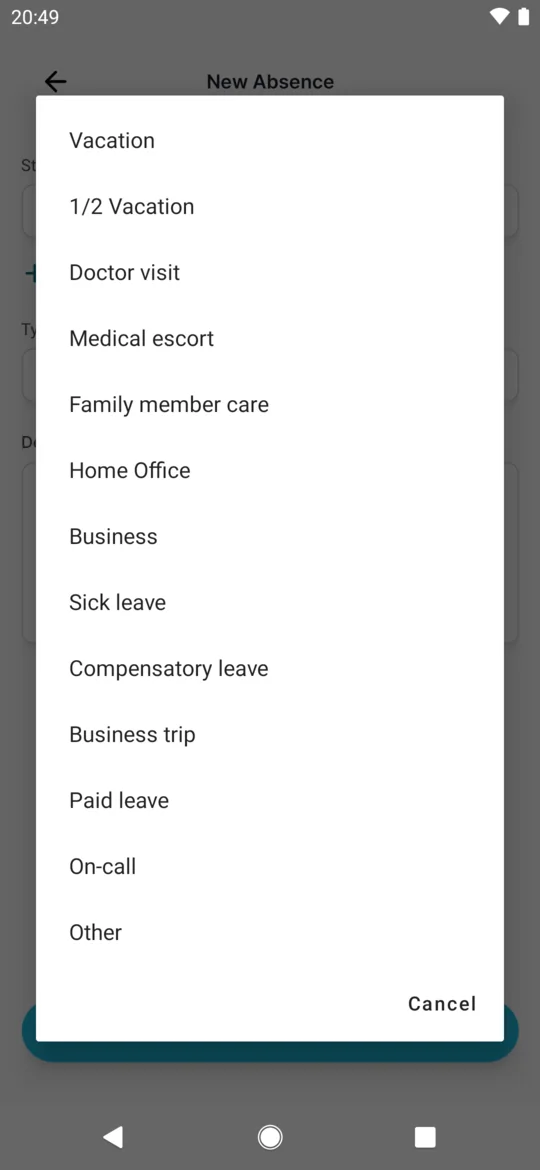
Your employer sets the absence types -
For part of a day, add the times.
Tap Add Time and set Start time and End time, for example 08:00 to 10:30 for a doctor visit. Set both times. Without times the absence covers whole days; Delete Time removes them again.
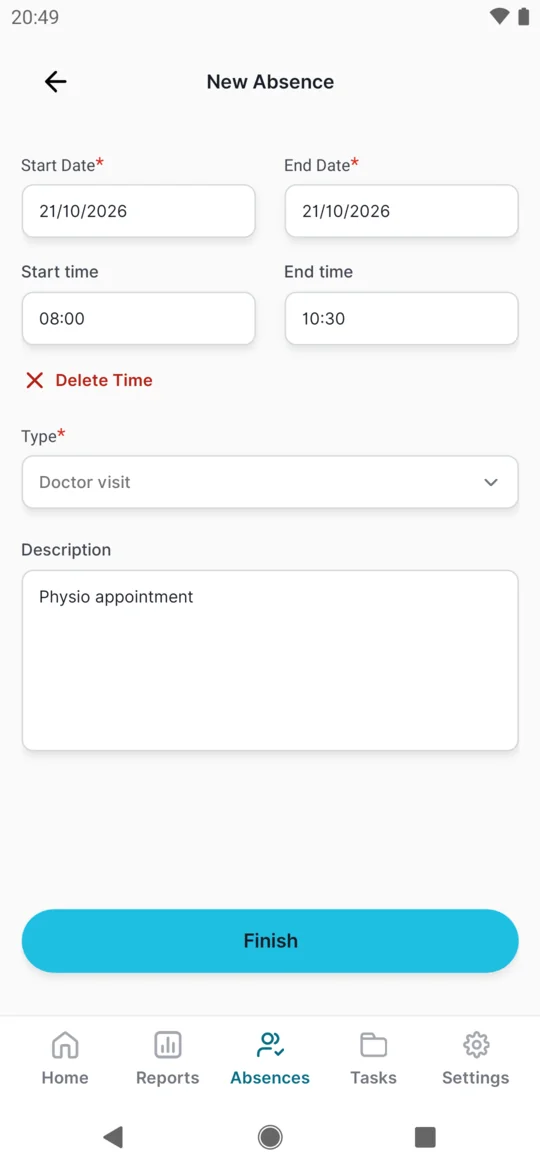
Part of a day: Add Time, then from – to -
Add a note and tap Finish.
In Description you can write a short note for your manager, for example “Moving house”. It is optional. Tap Finish. The app returns to the list.
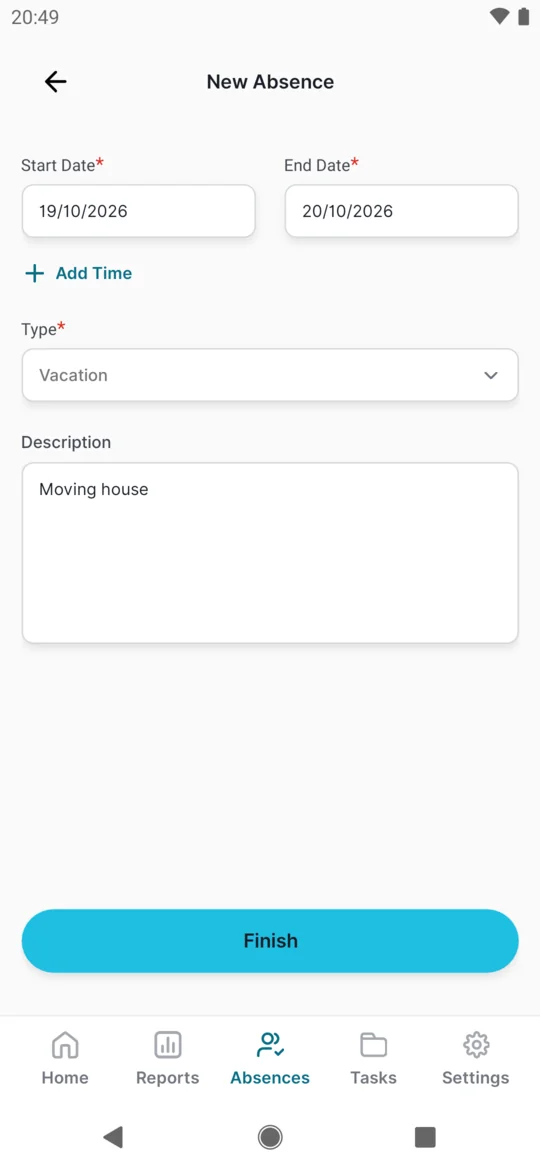
Leave request ready to send -
Watch the status icon.
The new request appears with an orange icon: it is waiting for approval. Some types, such as a doctor visit, may be approved automatically – then the icon is green straight away. Your manager decides in the web app (see Approving leave requests).
-
Check later whether it was approved.
You don’t get a notification when your manager decides. Open Absences again, or pull the list down to refresh it, and look at the icon:
- green – approved,
- red – declined,
- orange ring – still waiting,
- orange document with a cross – canceled by your employer.
The app shows only the icon, no status text.
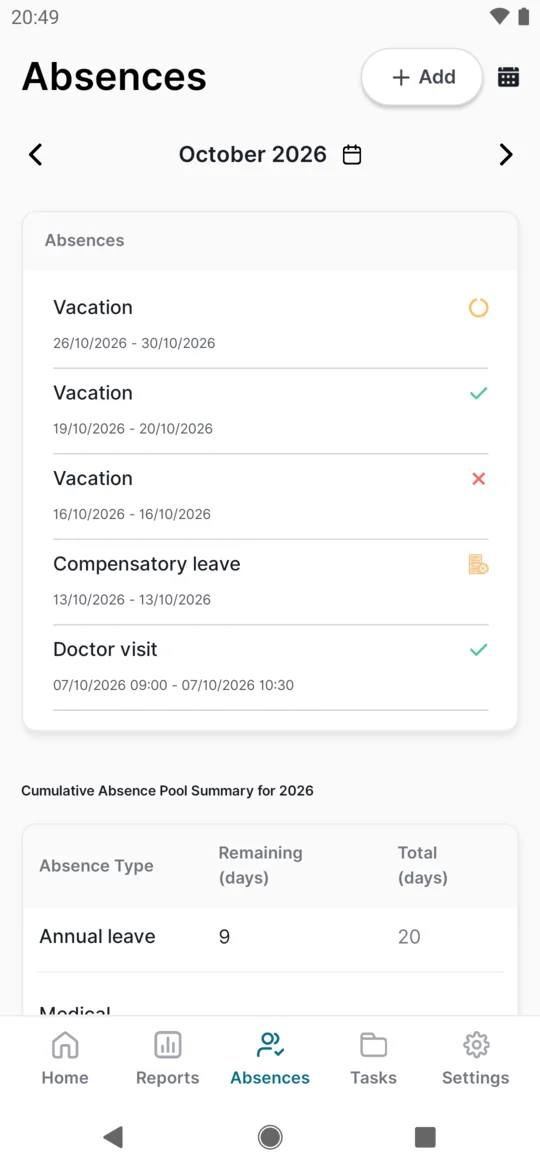
Once approved, the icon turns green -
Change or delete a request that is still waiting.
Tap the request. The same form opens with Save and Delete. Fix the dates or type – for example if you picked the wrong type – and tap Save, or tap Delete to withdraw it. This works only while the icon is orange.
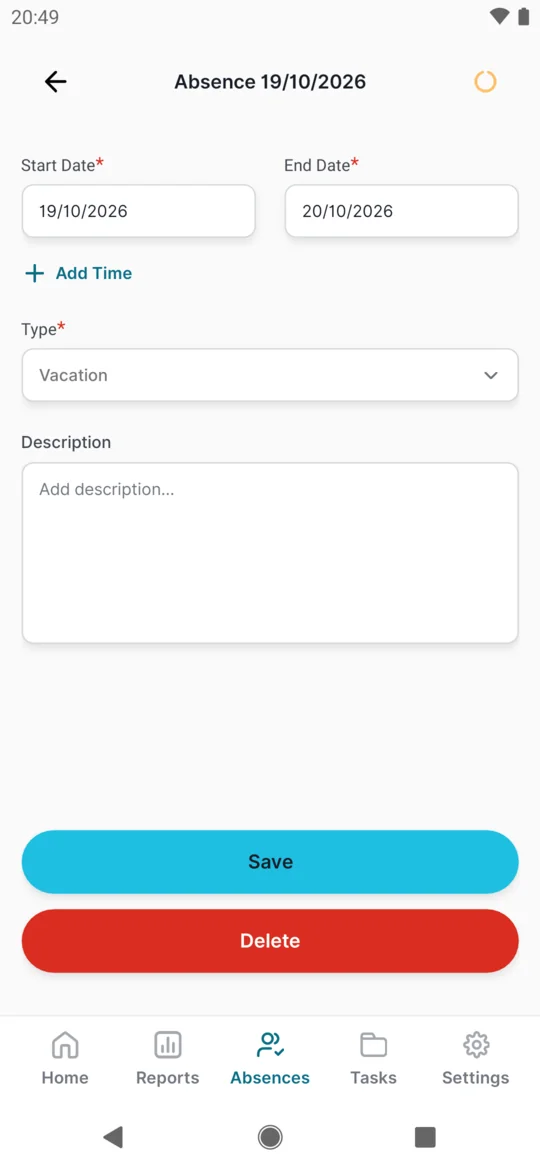
A pending request can be changed or deleted -
Confirm the deletion.
The app asks
Delete absence?
Tap Delete to remove the request for good, or Cancel to keep it.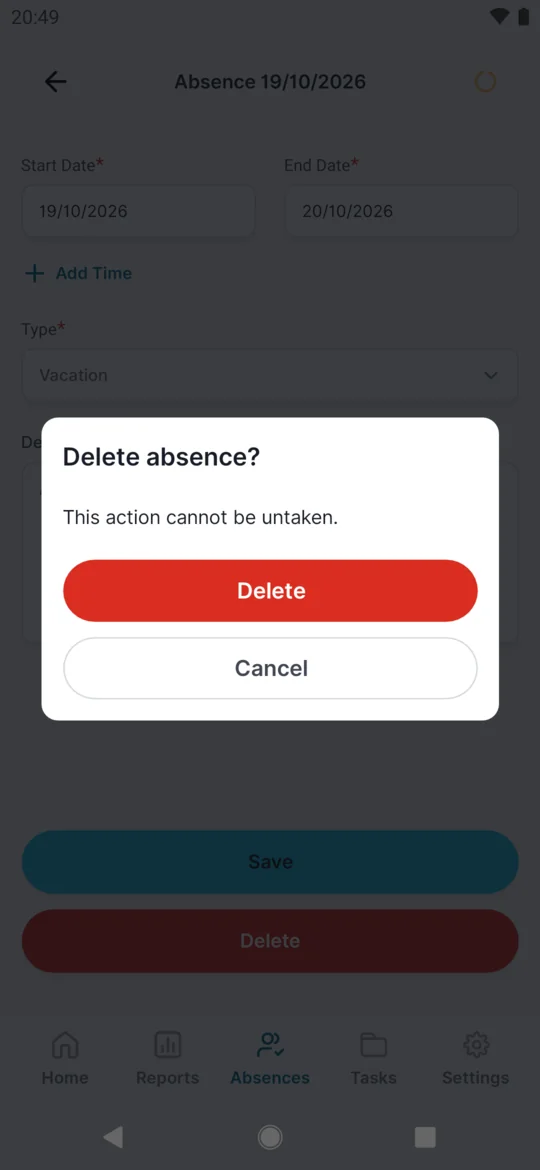
Deleting needs a confirmation
#How many days of leave you have left
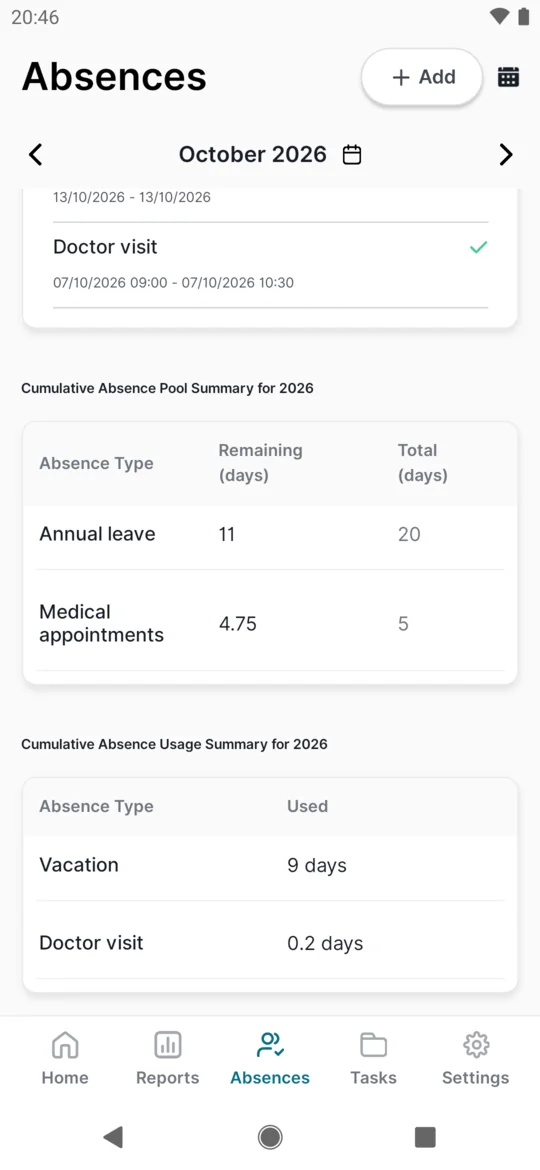
Your leave balance is on the same Absences screen – scroll below your list of absences. The tables appear once your employer has set up a leave allowance in the web app (see Leave allowance and absence pools).
Remaining and Total
The first table is titled Cumulative Absence Pool Summary for and the year. Each row is one leave allowance – for example Annual leave or Medical appointments – even though the column is headed Absence Type.
- Total – your allowance for the year, in days or, if your employer measures it that way (doctor visits, say), in hours.
- Remaining – what is left after all approved absences of that allowance this calendar year, including approved leave still to come.
Used
The second table, Cumulative Absence Usage Summary for the year, lists every absence type you have used with the approved amount under Used, in days. It includes all types – also Home Office or business trips that don’t reduce any allowance.
The tables show the year of the month selected at the top of the Absences screen. Move to a month in another year with the arrows, and the tables follow.
#See who else is off: the team absence calendar
Before you ask for leave, check which colleagues are already away and pick dates when fewer people are off.
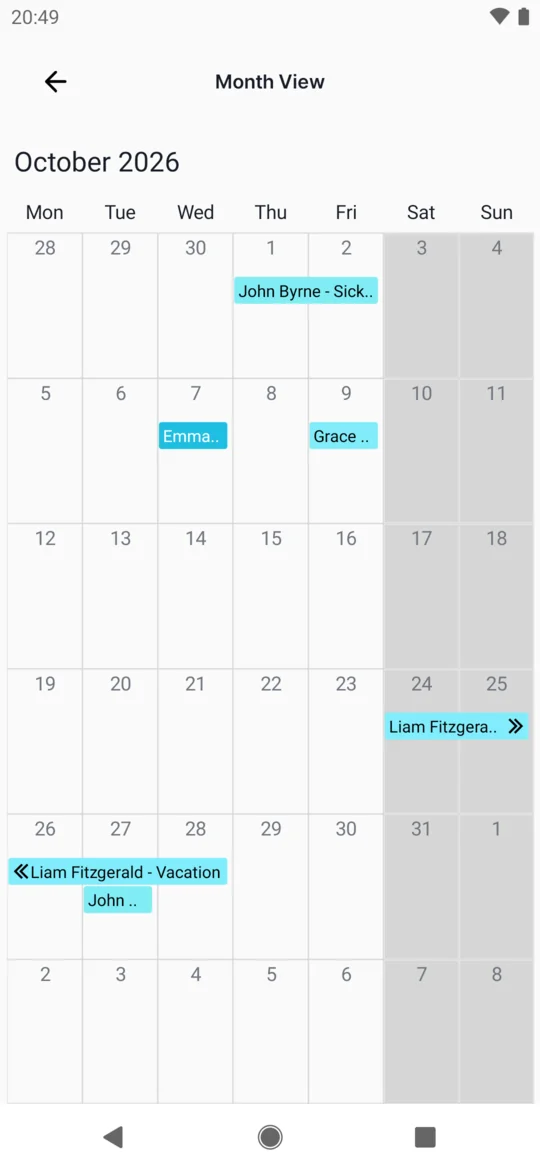
- Tap the calendar icon on the Absences screen. It sits at the top, next to Add. If there is no icon, your employer hasn’t turned the calendar on, or you are offline.
- Browse the month. The Month View opens on the month you had selected. Swipe left or right to change months. Each approved absence is a bar from its first to its last day. Your own absences are cyan; each colleague gets a colour of their own. On one-day bars the name may be cut short – tap the day to read it in full. Times of day are not shown.
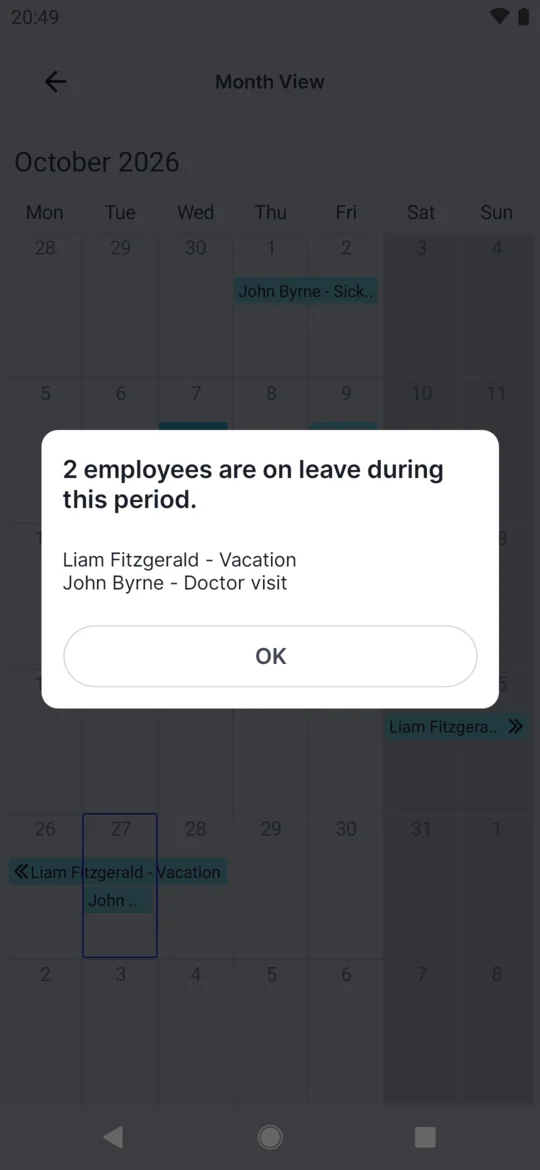
- Tap a day to see who is off. A pop-up says, for example,
1 employee is on leave during this period.
and lists each person with the absence type, such as “John Byrne – Doctor visit”. - Go back and request a free date. Return to Absences and tap Add, as in the steps above.
#Whose absences you can see
An administrator sets this in the web app under My Company › Company Details › Mobile App Settings, option Allow absence calendar view. It can also be set differently for one employee (Custom settings in their profile).
| Setting | Whose approved absences you see |
|---|---|
| None (default) | No calendar icon in the app |
| All employees | Everyone in the company |
| Specific groups › Same position | Colleagues with the same job position as you |
| Specific groups › Subordinates | People who report to you |
You always see your own approved absences. Colleagues who can see the calendar see your name and the type of each approved absence – for example Vacation or Sick leave. Companies that treat absences as private leave the calendar off. Admins: details in Mobile app settings.
#Other ways
- Ask your managerIf you can’t use the app, your manager can enter the absence for you.
#Special cases and tips
- “Too many colleagues are already off”
- If you see
Sorry, too many colleagues (2) are already off from "Annual leave" on 2026-11-17. Please choose a different date.
, the maximum number of people your employer allows off at once is already reached on that day. Nothing was saved. Pick other dates or talk to your manager. The number in brackets is the allowed maximum. This can happen even when the dates look free in the team absence calendar – you may not see every colleague who counts. See Concurrent absence limit for how the limit works.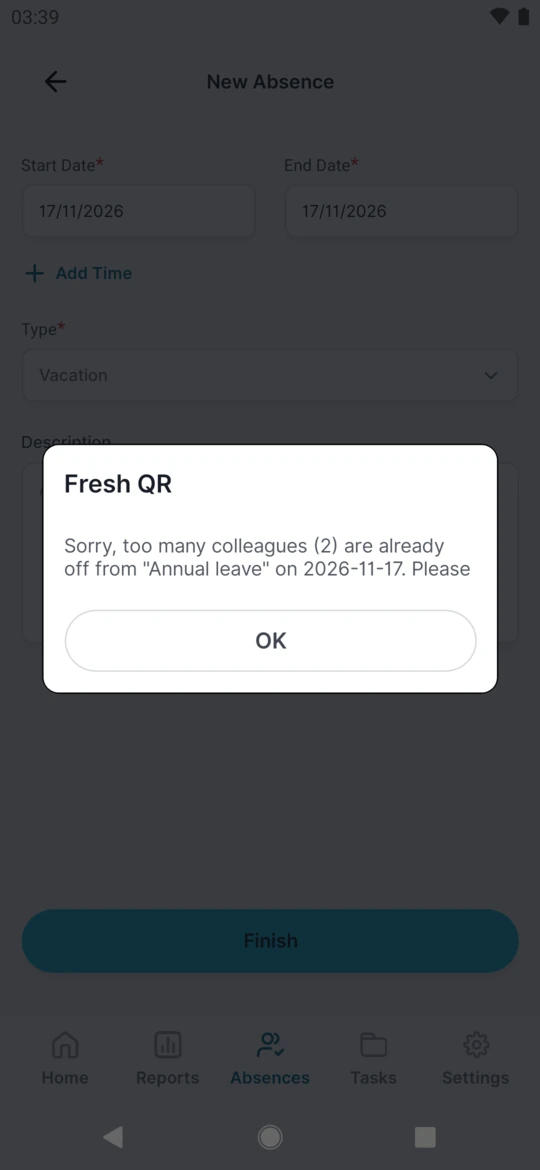
On a full day the app does not save the request - You’re offline
- Requests need an internet connection. Offline, the form shows
No internet connection
and the request is not sent – send it again once you are back online. The leave balance and the team absence calendar also load only when you are online. - End time before start time
- The app refuses with
The end time cannot be earlier than the start time.
Check both times. - Changing an approved absence
- Ask your manager to change it in the web app. In the app, approved and declined absences can’t be changed; it answers
Approved absence update is not allowed
. - Leave across two months
- A request appears in the month it starts. Leave from 28 October to 5 November is listed under October only.
- No company yet
- If you see
You don't have any company assigned, so you cannot create an absence.
, your phone isn’t connected to your employer yet – see Installing the app and joining your company. - The balance didn’t change after I sent a request
- Only approved absences are deducted. Your balance changes once your manager approves the request.
- Some days weren’t deducted
- Days on which you had no scheduled work – no shift, a day off in your schedule, a public holiday – take nothing from your allowance.
- Remaining is a minus number
- You have more approved absences than your allowance. If Total shows 0, your employer hasn’t entered a yearly number for that allowance – ask them.
- A colleague’s request isn’t in the calendar
- Only approved absences appear. Requests that are still waiting, declined or canceled are hidden – including your own.
- Same position shows nobody
- If you have no job position in FreshQR, the Same position option has nobody to show. Ask your employer to set your position.
#Frequently asked questions
Will I get a message when my request is approved?
No. Open Absences in the app and check the icon: green means approved, red means declined.
How do I change leave that is already approved?
Ask your manager – they can change or cancel it in the web app. In the app, a request that has been decided can’t be edited.
How do I request half a day?
Use a half-day type such as 1/2 Vacation if your employer has one, or tap Add Time and enter the hours.
Can I request leave for a day in the past?
Yes. The app allows past dates; your manager then decides.
Can I send a request if I have no days left?
Yes, the app doesn’t stop you. Your manager sees your balance when deciding.
Why is my balance lower than I expected?
Approved leave later in the year is already deducted, not only days you have taken.
The balance looks wrong. Who can fix it?
Your manager or HR. They set your yearly allowance in the web app, including any days carried over from last year.
Can colleagues see that I am off sick?
If your employer allows the calendar, colleagues who can see it see your name and the type of your approved absences, including sick leave. Talk to your employer if this concerns you.
#Related
You are hereLeave and absences in the app
Administrator
Employee
Web app (administrator)Mobile app (employee)



