Install the time tracking app and join your company
On this page
Quick answer
Install the time tracking app Fresh QR for free from Google Play or the App Store, open it, tap I Agree on the privacy notice and scan your company’s Arrival QR code. That first scan connects your phone to your employer and records your arrival. You don’t need an email or a password.
#What it's good for
- Nothing to remember: no username, no password. Your phone is your login.
- It takes seconds. The first scan connects you and clocks you in at the same time.
- Your manager doesn’t have to set you up first. You appear in the company’s employee list by yourself.
- The employee app costs you nothing.
#Who it's for
A good fit for
- Every employee with their own Android phone or iPhone.
Not the right fit for
- People without their own phone. Each person clocks in on their own phone – FreshQR has no shared phone or tablet for a whole team.
#Step by step
-
Install the Fresh QR app.
Search for Fresh QR in Google Play or the App Store and install it. Your employer may also send you the link. Be online when you open the app for the first time – that is when it creates your profile. There is no sign-up form and no password.
-
Agree to the privacy notice.
The We Respect Your Privacy window appears. Tap I Agree. The app can’t be used without it. More about this window, and about locking the app with your fingerprint, is in Data consent on first start.
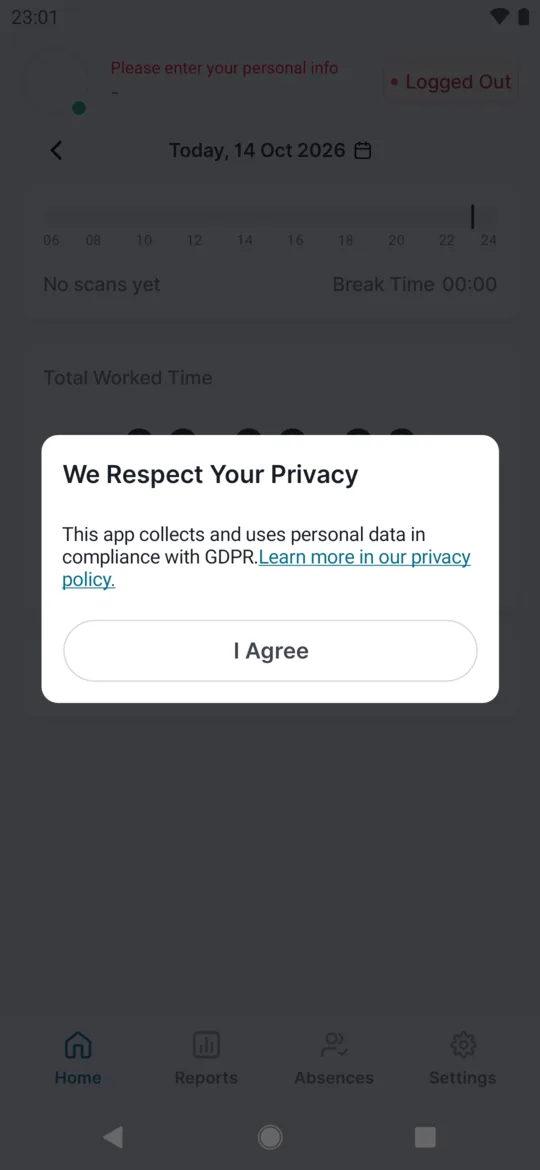
On first start you confirm the privacy notice -
Allow notifications.
The app asks once whether it may show notifications. Say yes – otherwise you won’t get reminders such as Still at work? when you forget to clock out. All the reminders are explained in Clock-out reminder.
-
At work, tap Scan QR.
Until you are connected, the Home screen shows no company name. Tap Scan QR and allow the camera. If your employer uses location, allow that too – the app only checks your location at the moment you scan.
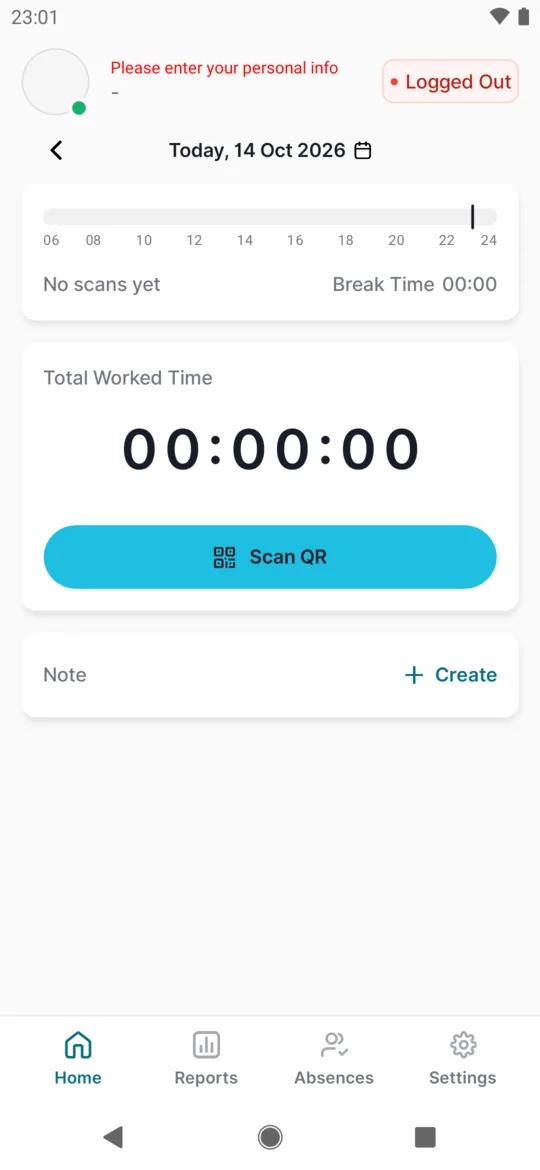
The phone is not linked to a company yet -
Scan the Arrival QR code.
Point the camera at your company’s Arrival code – for example the sticker by the staff entrance at the depot. After a moment you see something like
Started at 07:58
. You are now connected to your company and your arrival is recorded. How to clock in and out every day is in Clocking in and out with a QR code.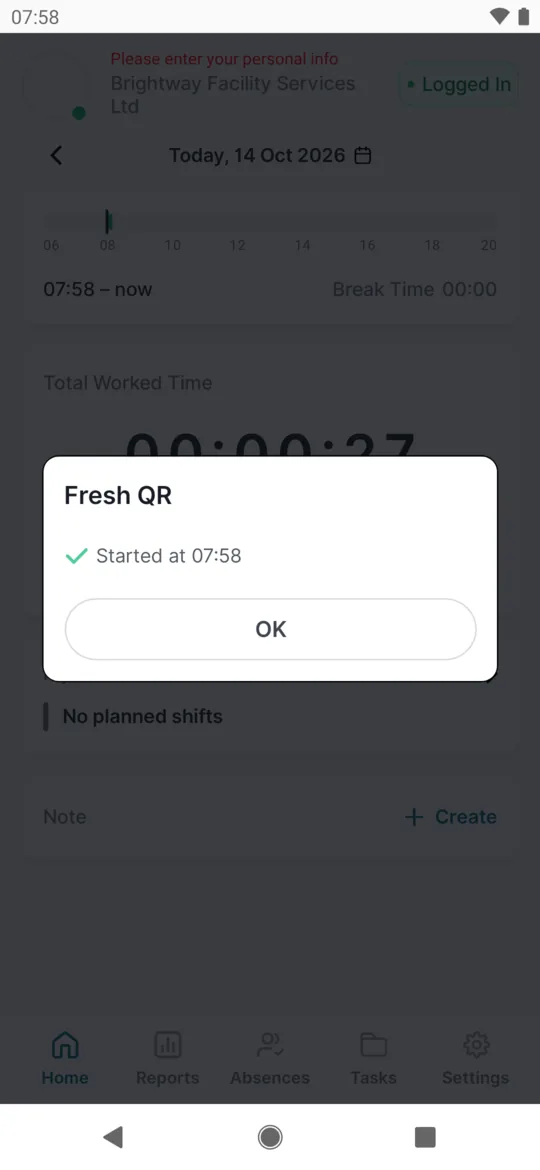
The first arrival scan connects the phone -
Add your name.
Until you fill in your details, the top of Home shows
Please enter your personal info
and your manager sees you without a name. Open Settings, type your first and last name and save. See Personal details and app language.
#No QR code nearby? Use the company code
- Connect with the Company Code
The company code is for when you can’t get to a QR code – say you are at home and want the app ready before your first shift, or your employer wants to connect you in advance. Your manager gives you the code.
- Tap Settings in the bottom bar.
- Under Company Code, type the code into Enter your Company Code.
- Tap Connect.
Once you are connected, the Company Code section disappears from Settings. With the code, the app doesn’t give you a branch or a supervisor – your employer sets those in the web app. If you can reach a QR code, scanning it is the better way.
If the code is wrong, you see
No company with code
. Check it with your manager.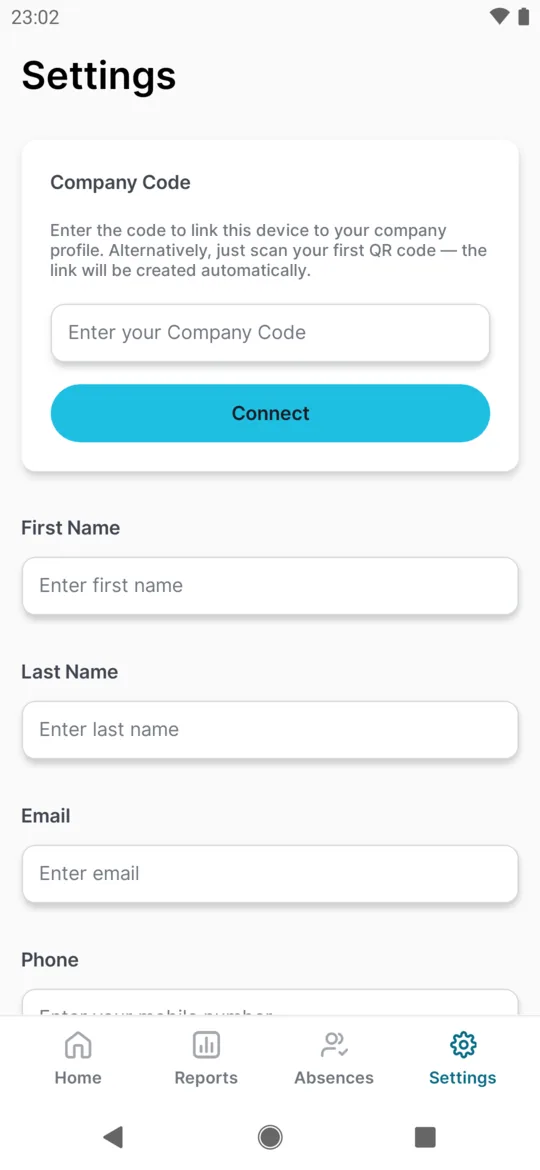
Connecting with a company code in Settings
#Special cases and tips
- Make your first scan on the Arrival code
- If the first code you scan is Departure, the app answers
Scan Arrival first, please
and nothing is saved. Scan Arrival. - You scanned another company’s code
- Your phone joins the company whose QR code you scanned, and you can’t leave it yourself in the app. Ask a manager of that company – they can disconnect you in the web app.
- New phone
- Your profile lives on your phone. When you switch phones, tell your manager. If you show up twice in the company, they can merge the two profiles.
#Frequently asked questions
Do I need an email address or a password?
No. The app knows you by your phone. Install it and scan your company’s QR code.
Does the app cost anything?
No. The FreshQR app for employees is free.
Can a colleague clock in on my phone?
No. One phone belongs to one person, and every scan is recorded for the owner of the phone. Everyone clocks in on their own phone.
Where do I get the company code?
From your manager or your company’s administrator. They can see it in the web app.
How does my employer know I have joined?
After your first scan you appear in their employee list automatically. What they see is described in How to add employees.
#Related
You are hereInstalling the app and joining your company
Administrator
Web app (administrator)Mobile app (employee)



