Scanning problems in the FreshQR app: error messages, camera and GPS
On this page
Can't see this option in the app? The Attendance Arrival button is switched on by FreshQR support when your employer asks for it.
Quick answer
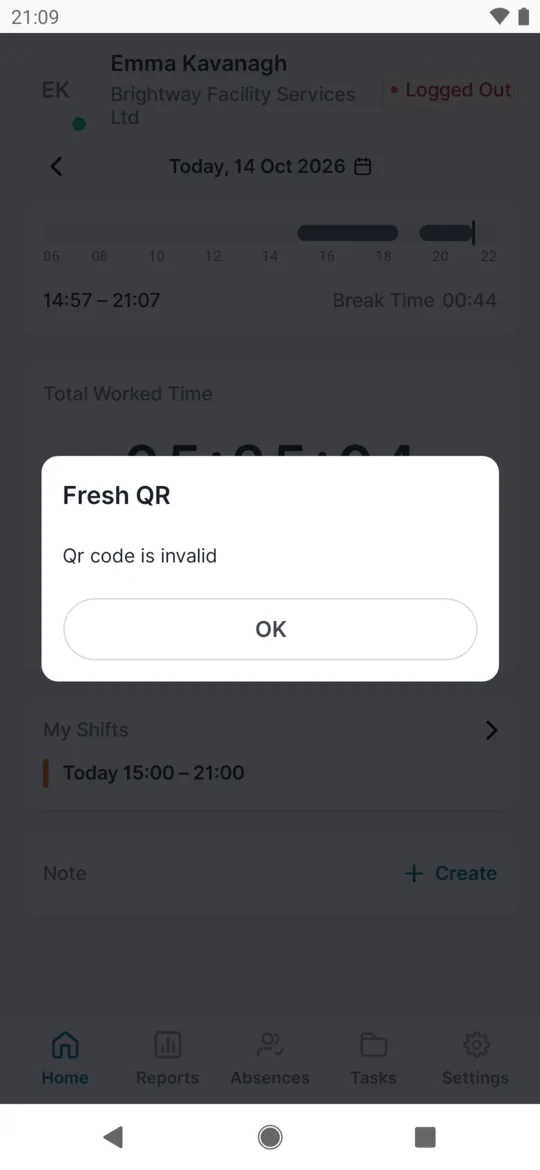
Most scanning problems show up as a message. Qr code is invalid means the code isn’t your company’s attendance code; You have already scanned this code means you are already clocked in. For Allow access to camera, tap Open settings and allow the camera and location. If you can’t scan at all, your company may offer Attendance Arrival.
#What it's good for
- You know straight away whether your scan counted and what to do next.
- You don’t have to ring your manager over every error message.
- You know what your employer can and can’t see from your location.
- Where there is no QR code – at a client’s, on the road or at home – you may be able to clock in with one tap.
#Invalid or already scanned QR code
A recorded scan always ends with a confirmation with a green tick, such as Started at 07:58
. Without internet, it’s the message that your scan is saved and will be sent later. Any other message means nothing was recorded. Find it below – usually all you need is to scan the right code.
Qr code is invalid
You scanned something that isn’t a FreshQR attendance code: a web link, a payment QR, a menu, a poster, another system’s code or a damaged print. Nothing was recorded. Scan your company’s Arrival or Departure code. If you get the message on your company’s code too, ask your manager for a new print.
You have already scanned this code
You scanned Arrival while you are already clocked in. Your first arrival counts and nothing changed. If you want to leave, scan Departure. If the open arrival is from yesterday because you forgot to clock out, tell your manager. You get the same message offline if you scan Arrival (or Departure) twice in a row – the second scan isn’t saved.
Scan Arrival first, please
You scanned Departure but have no open arrival – you forgot to scan in the morning, or your manager or an automatic rule already closed your attendance. Scan Arrival and tell your manager when you really started.
Closing attendance on a different branch is not allowed
Your company doesn’t allow clocking out at a different branch from where you clocked in. Scan Departure where you scanned Arrival.
If none of this helps, tell your manager. They can check whether the code is current and add or correct your attendance in the web app.
#What to do step by step
-
If the camera won’t open, allow it on the first scan.
The first time you tap Scan QR, Android asks
Allow Fresh QR to take pictures and record video?
Tap While using the app. On iPhone, tap Allow.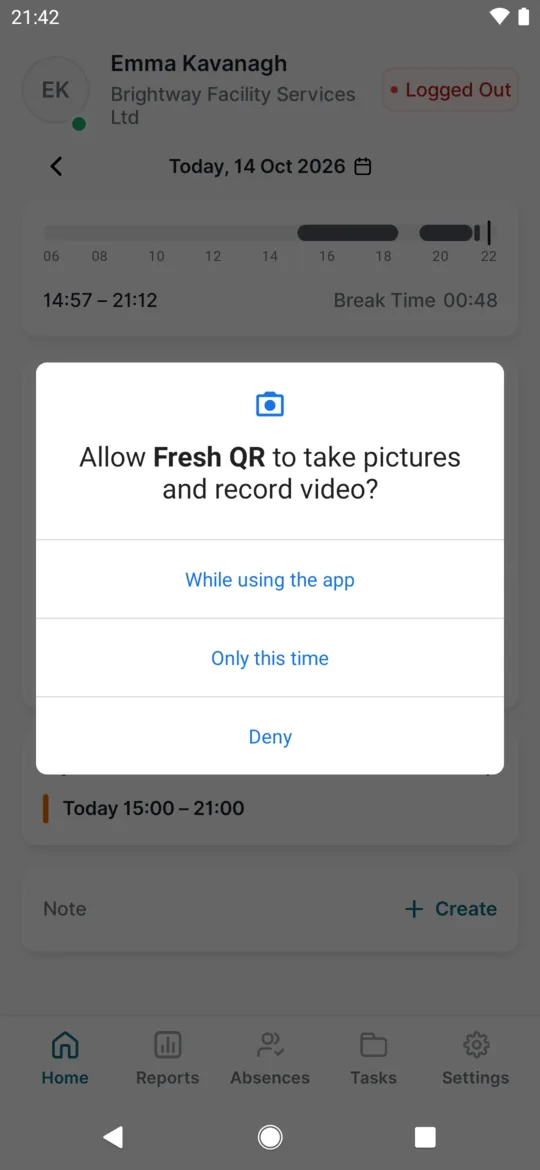
On the first scan Android asks for the camera -
If you said no, tap Open settings.
After a refusal the app shows
Allow access to camera
–Fresh QR needs access to the camera.
Without the camera you can’t scan. Tap Open settings.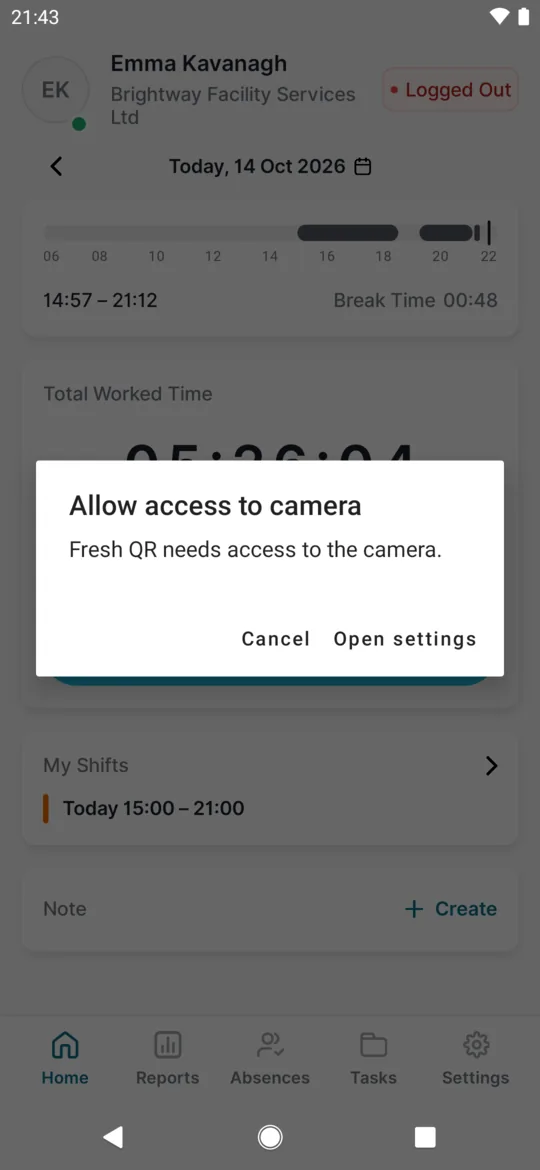
Without the camera you cannot scan -
Under Permissions, allow Camera and Location.
Your phone opens the app’s settings page. Tap Permissions, then Camera, and allow it. If your employer uses location, allow Location the same way – Allow only while using the app with precise location on is enough. On an iPhone you find the same under Settings › Fresh QR.
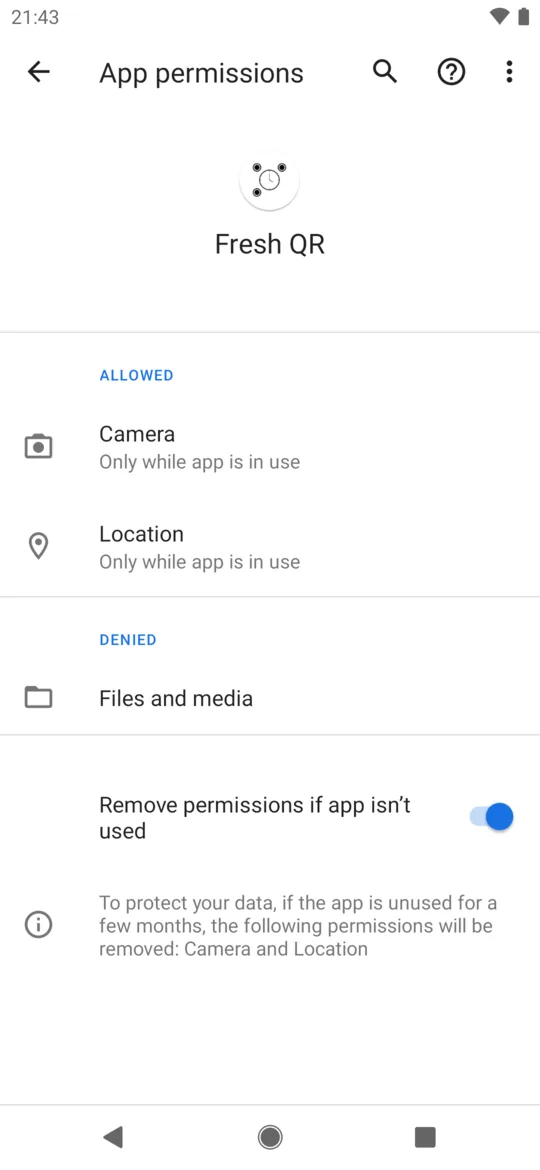
Permissions are in the phone settings -
Go back to the app and scan again.
Tap Scan QR. A scan that failed was not recorded, so do it again.
-
If you can’t scan at all, tap Attendance Arrival.
Some companies let you clock in without a QR code – drivers, maintenance technicians, cleaners at clients’ premises or people working from home. The Attendance Arrival button is on Home, under Scan QR, if FreshQR support has switched it on at your employer’s request. One tap records your arrival at the branch your employer has assigned to you. The app doesn’t ask “are you sure?”. If your employer uses location, allow it; if they want a workplace photo, take it. Where there is a printed code, scan it as usual.
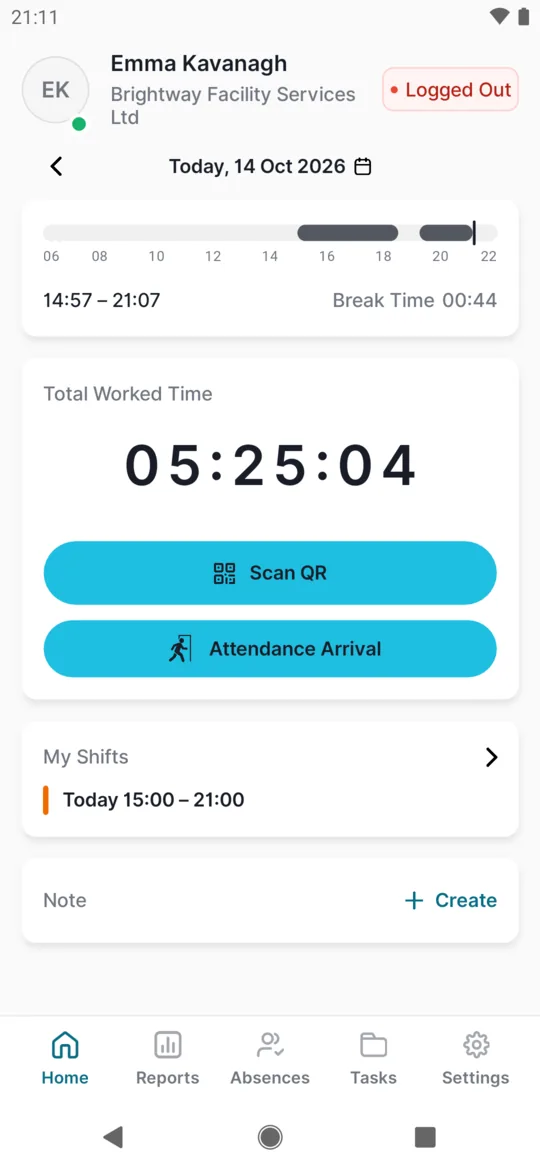
Attendance Arrival sits under Scan QR -
Check the confirmation.
After a moment you see the same confirmation as with a QR code, for example
Started at 08:05
. Your status changes to Logged In.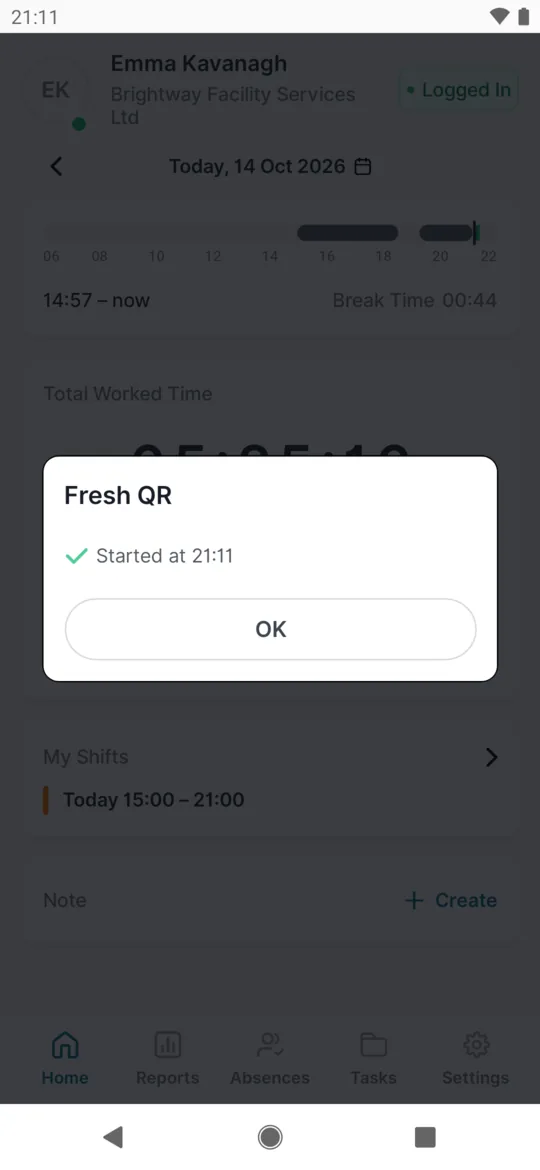
Arrival without a QR code -
When you finish, tap Attendance Departure.
After your arrival the button reads Attendance Departure. Tap it when you finish. You see something like
Closed at 16:10 Duration: 08:05
.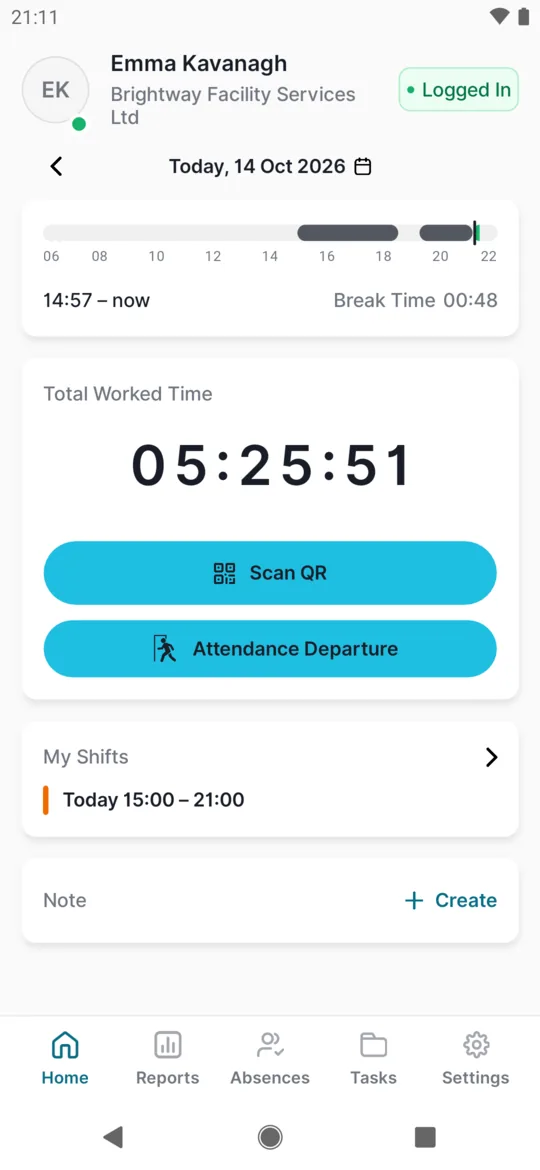
After arrival the button changes to Attendance Departure
#Location messages
Allow access to location
The app isn’t allowed to use location, but your employer uses it. Allow it as described in the steps above.
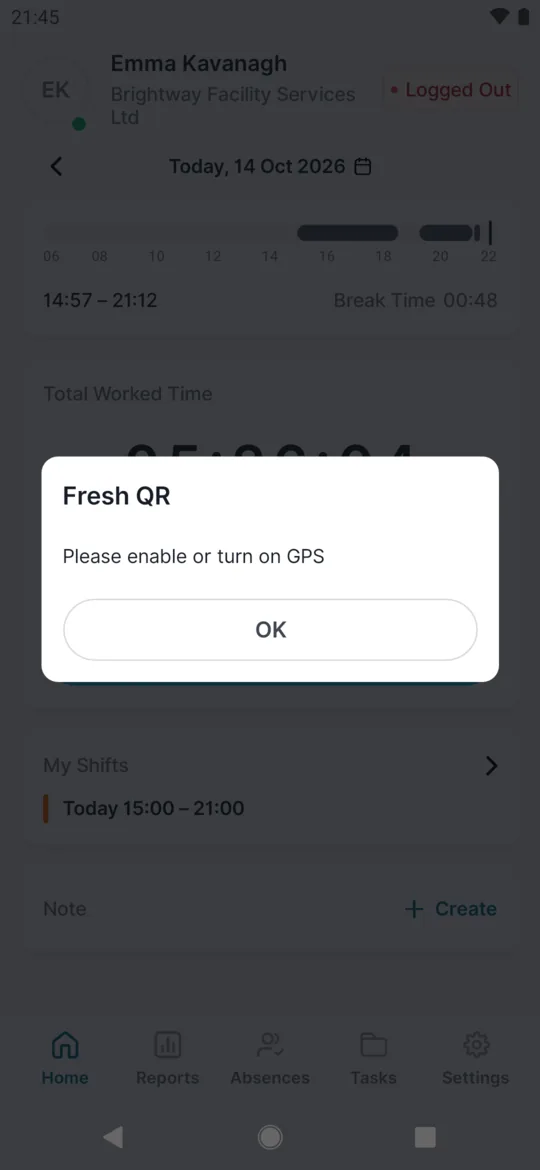
Please enable or turn on GPS
Location is switched off on your phone. Turn it on in quick settings (swipe down from the top of the screen and tap Location). Android may first ask with its own window; this message appears on your next try.
Unable to get location
Your phone couldn’t find its position in time. Move to a window or step outside, turn on Wi-Fi and try again. The scan was not recorded.
#GPS location when you clock in away from the branch
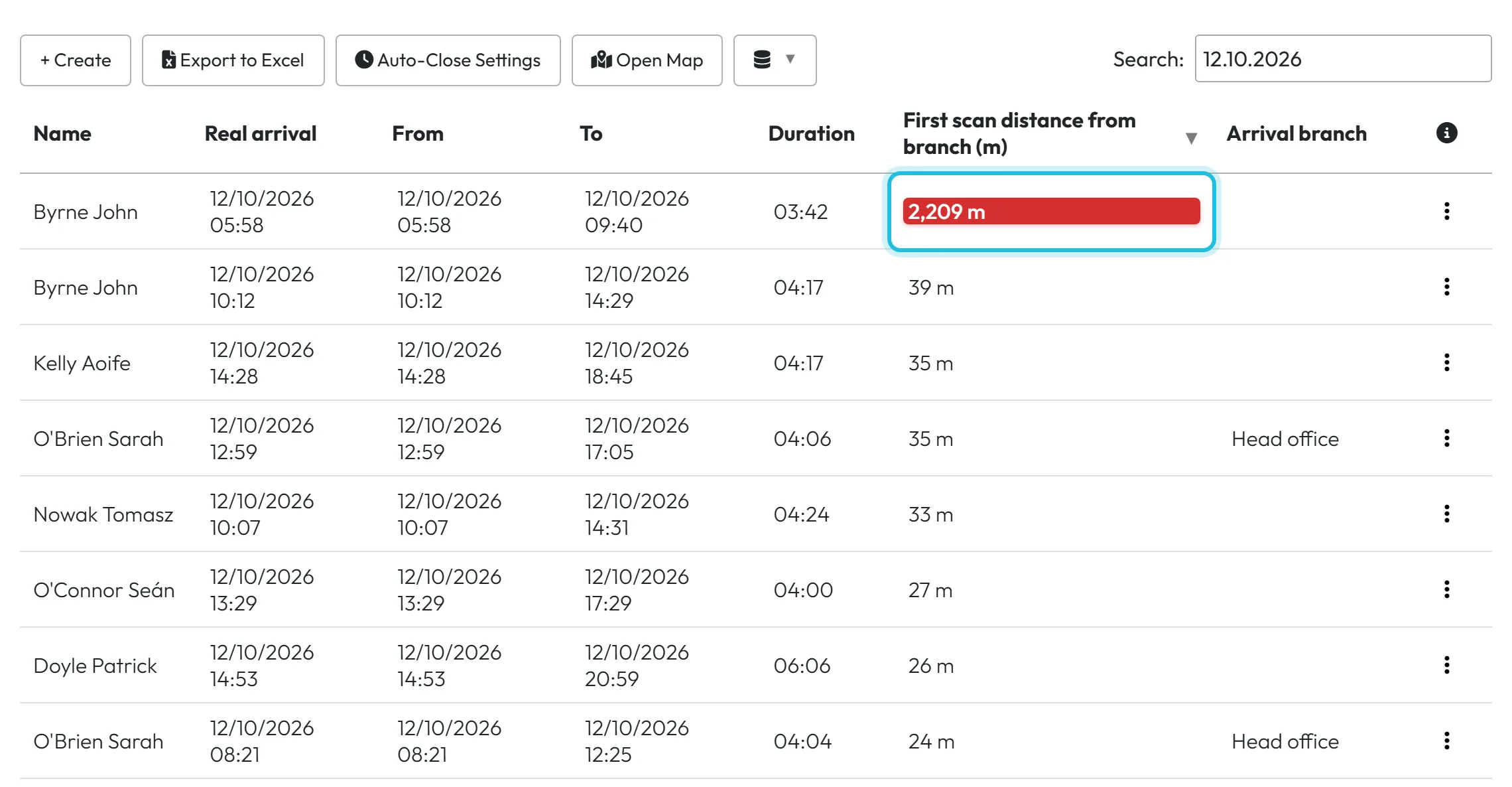
The app never refuses a scan because of your GPS location. If your employer uses location, every scan stores your position and you see the normal confirmation. In the web app your manager sees how far the scan was from the branch (for a project, from the project’s location) and can open it on a map. Far-away scans are highlighted. Your employer can also get an email when a scan is further away than a distance they choose. The same applies to a tap on Attendance Arrival.
The app reads your location only at the moment you scan, not during your whole shift. Indoors the position can be off. To get an accurate one:
- Open the app a few seconds before you scan. The app starts finding your location as soon as Home opens, and after a few seconds the position is usually more accurate.
- Turn on Wi-Fi and location. Wi-Fi helps your phone find its position inside buildings. Keep precise location allowed for the app, as in the steps above.
- Scan at your workplace. Scan the code when you are actually there, not on the way in from the car park. If the signal in the building is weak, try nearer a window.
- If the position keeps being wrong, tell your manager. They can check that the branch pin on the map is in the right place, or change the GPS accuracy set for you.
#Scanning without internet: the Scan Queue
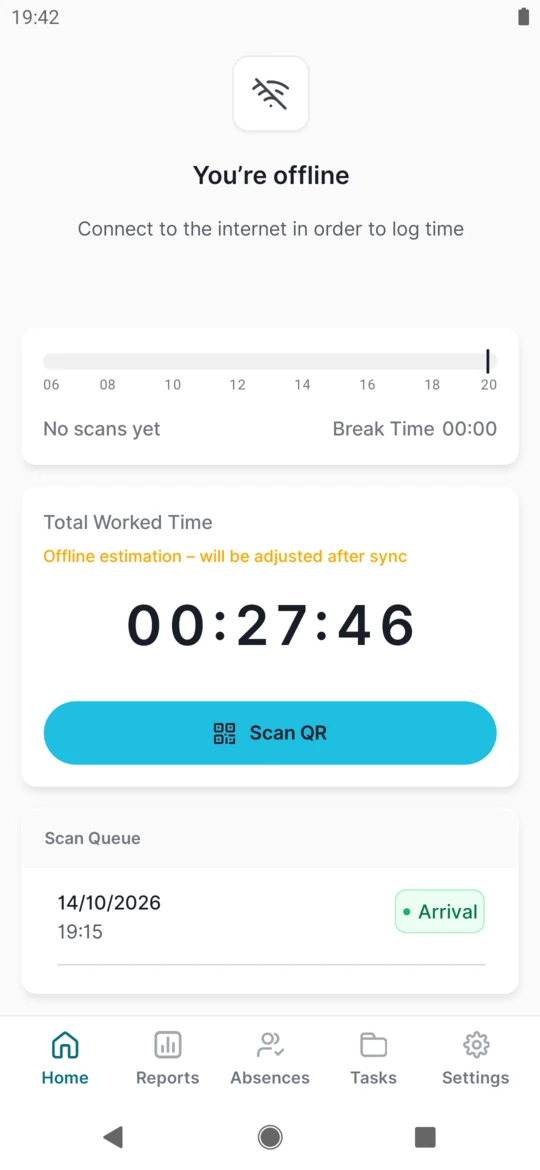
No signal is not a problem: scan as usual. Home shows the status Offline, and GPS location works without internet too. Instead of the usual confirmation you see No internet connection, but your scan is saved and will be sent later
. A Scan Queue card appears on Home with the date, the time and an Arrival or Departure label, and your worked time is marked Offline estimation – will be adjusted after sync
. At the top you also see You’re offline
and a note to connect to the internet to log time – but your scan is already saved. Your timesheet gets the time you scanned, not the time the scan was sent. Clocking in without a QR code and project scans go into the queue too.
Scans are sent while the app is open and online – when you open it, when the signal comes back while it is open, or with your next scan made online. They are not sent in the background with the app closed, and there is no button to send them by hand. When everything is sent, you see Your saved scans have been successfully processed
and the Scan Queue disappears. If scans stay in the queue, your phone shows a Reminder notification about unsynchronized offline scans – at 19:00 the same day if that is at least 2 hours away, otherwise at 08:00 the next day.
Leave and other absence requests don’t work offline – they are neither sent nor saved, so send them once you are online (see Requesting leave). Reports, My Shifts and Tasks need a connection too.
#Special cases and tips
- A second arrival
- The app refuses a second scan of the Arrival code.
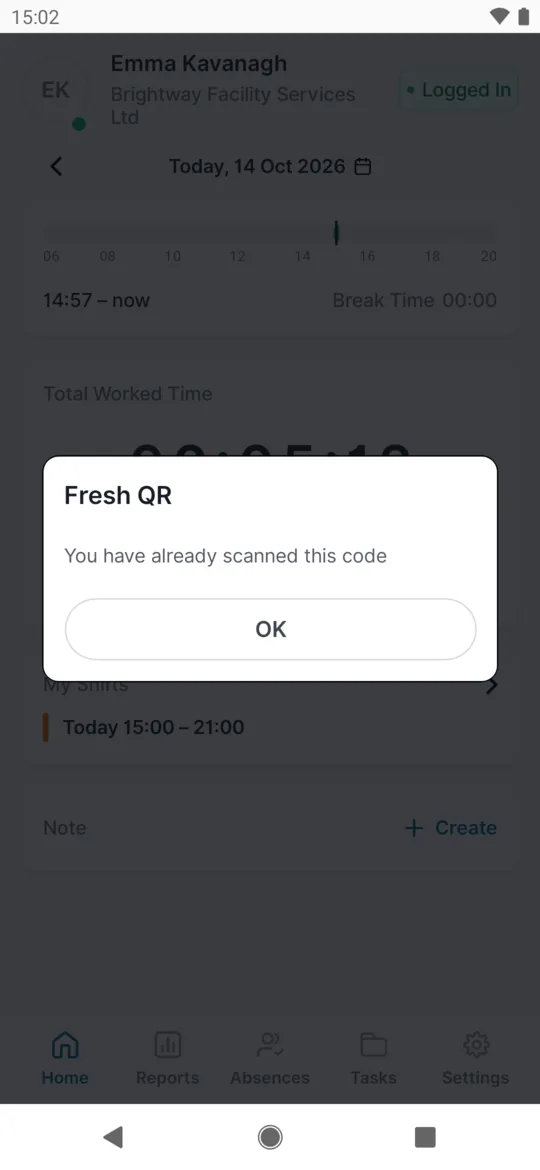
The arrival cannot be scanned twice - A departure without an arrival
- The app refuses it with
Scan Arrival first, please
.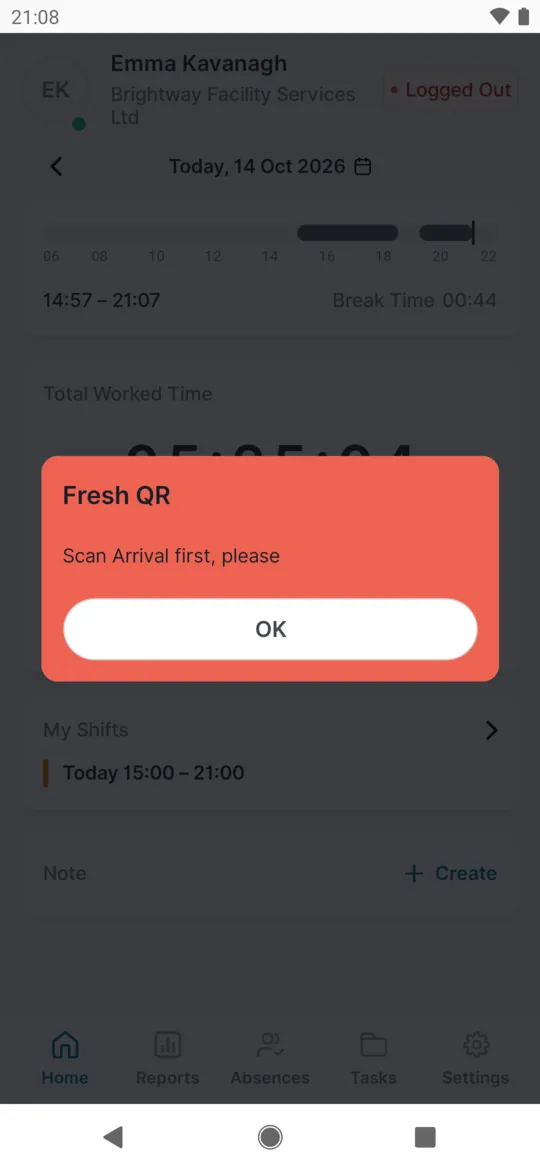
A departure without an arrival - An old QR code after a reprint
- When your company prints new codes, a scan of an old code is still recorded and you see the normal confirmation. Your employer, though, sees in the web app that you scanned an old version. Use the new print. The manager’s side is in QR codes for arrival and departure.
- The code works for a colleague but not for you
- Then the code is fine. Check that you are scanning the right one (Arrival or Departure) and what your status on Home says – Logged In or Logged Out.
- The camera opens but won’t read the code
- Wipe the lens, switch a light on, hold the phone 15 to 30 cm from the code and avoid glare on laminated paper.
- The app never asks for location
- Your employer has switched location off for you. Your scans are saved without it and no distance is worked out; there’s nothing to do.
- Why a correct scan can look far away
- In concrete buildings and basements, GPS is often tens or even hundreds of metres out.
- If the phone can’t get a new fix in time, it uses its last known position – which might be from home.
- The branch pin on the map may be set somewhere other than the entrance you use.
- “No assigned company found for the user”
- You may see this after tapping Attendance Arrival. Despite the wording, it means you have no branch assigned – it can happen when you joined with the company code. Ask your manager to set your branch.
- “QR Code not found for the specified scan type”
- Your branch has no arrival or departure code set up, so Attendance Arrival can’t record anything. Let your manager know.
- No signal when you tap Attendance Arrival
- Your arrival or departure goes into the Scan Queue and is sent later – just like a scan without internet. The Mark next scan as… switch works with this button too.
- An error appeared after offline scans were sent
- Some rules are only checked by the server – for example, a departure without an arrival. If an error comes up while sending, such as
Your scan at 07:58 … Error: …
, that scan was not recorded. Tell your manager so they can add it by hand. - Don’t uninstall the app with scans in the queue
- Unsent scans are kept only inside the app. While the Scan Queue has scans in it, don’t uninstall the app or switch phones.
- Storage access when taking a photo
- If your employer requires a workplace photo, older Android phones also ask for storage access. Allow it.
#Frequently asked questions
Did my scan count?
Only if you saw a confirmation with a green tick – or, without internet, the message that your scan is saved and will be sent later.
Why does the app say “already scanned” when I want to leave?
You scanned the Arrival code instead of Departure. Scan the Departure code.
Who corrects a wrong time?
Your manager, in Scan Details in the web app.
Will the app refuse my scan if I’m not at work?
No. It records where you were, and your employer decides what to make of it.
Does the app track me while I work or when it’s closed?
No. It reads your location only at the moment you scan, which is why while using the app is enough.
Why don’t I have the Attendance Arrival button?
Your company doesn’t have it switched on. FreshQR support turns it on at your employer’s request.
Can I scan without location?
Only if your employer has switched it off for you. Otherwise, allow location.
My manager says I scanned from home.
If the phone couldn’t get a new fix in time, it may have used its last known position – from home, say. Explain this to your manager, and next time keep the app open for a few seconds before you scan. How your manager checks scan locations is described in GPS check and location accuracy.
#Related
You are hereScanning problems
Administrator
Employee
Web app (administrator)Mobile app (employee)



