Overtime tracking in FreshQR: daily, monthly and cumulative
On this page
Quick answer
FreshQR does overtime tracking automatically: each day it compares worked hours plus absences with the expected hours from the work schedule or shift. The difference is that day’s overtime, positive or negative. You see it in Table Reports and on the employee’s Overtime tab, where you approve days, correct them and follow the cumulative balance.
How to turn it on
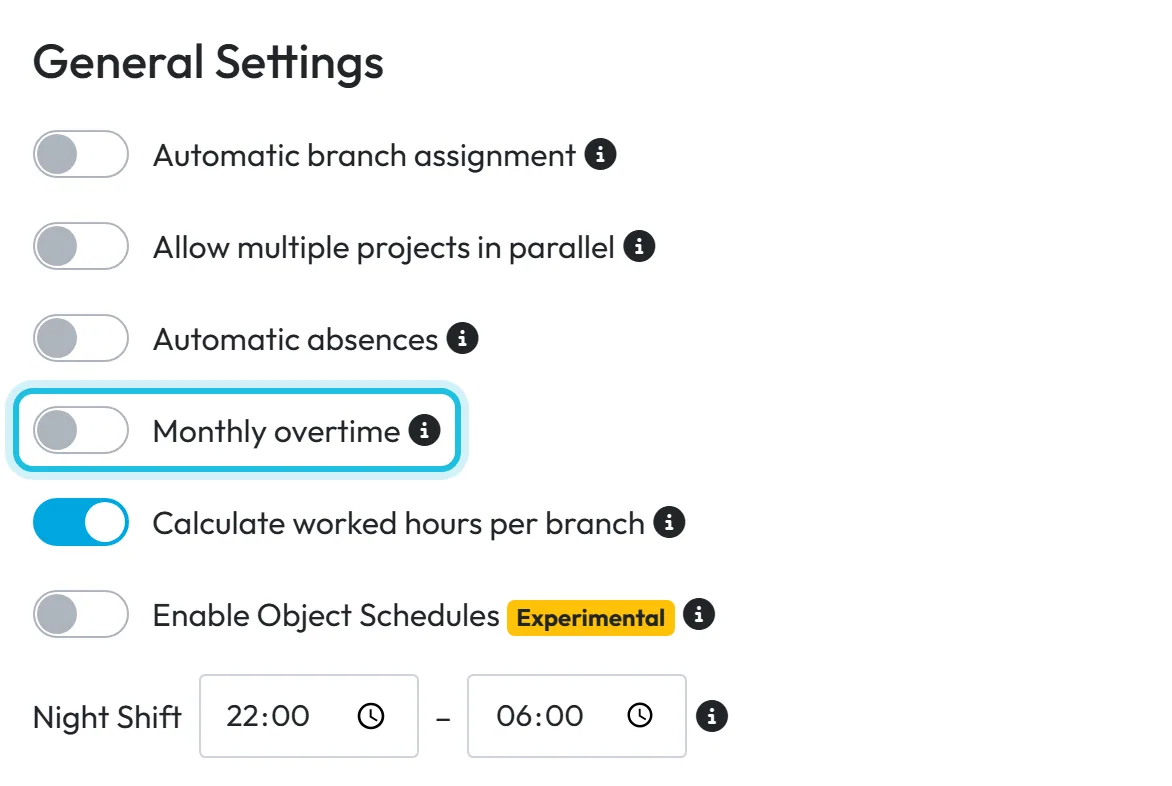
Overtime is counted day by day without any setup. If your staff work flexible hours within the month, switch on Monthly overtime. Its tooltip says: If enabled, overtime is calculated as monthly overtime, not daily overtime sums
. It is off until you turn it on.
- My Company
- Company Details
- General Settings
- Monthly overtime
- Who can turn it on
- The Owner, Administrators and accounts with the role Company Settings: View & Edit.
- What changes
- Overtime is worked out over the month instead of adding up daily differences. Employees see the result in the app under Reports if overtime is shown there.
- Applies to
- The whole company. Approval rules are set per branch (see below).
#What it's good for
- Overtime comes straight from the clock-ins and the schedule – nobody adds up hours by hand.
- You decide per branch whether extra hours count at once or wait for a manager’s approval.
- Each employee has a running balance month by month, useful for time off in lieu.
- A starting balance carries over the hours from paper or your old system.
#Who it's for
A good fit for
- Companies that pay overtime or keep an hours account for each employee.
- Teams with fixed contracted hours, for example an 8-hour day or a 39-hour week.
- Managers who want to confirm every extra hour before it counts.
Not the right fit for
- Staff on a fixed salary whose extra hours are never paid or compensated. You can keep the defaults and ignore the numbers.
#How overtime is counted
Day overtime = worked hours + counted absences − the expected hours for that day. The expected hours come from the employee’s work schedule or, on planned days, from the published shift. Example with a standard 8-hour day:
| Day | Worked | Overtime |
|---|---|---|
| Monday | 9:30 | +1:30 |
| Tuesday | 7:00 | −1:00 (negative overtime) |
| Saturday – not a working day in the schedule | 4:00 | +4:00 |
Work on a day that isn’t a working day in the schedule counts entirely as overtime. A day with no attendance and no absence gives no overtime at all. Approved compensatory time off lowers the overtime balance – see Automatic absences.
#Step by step
-
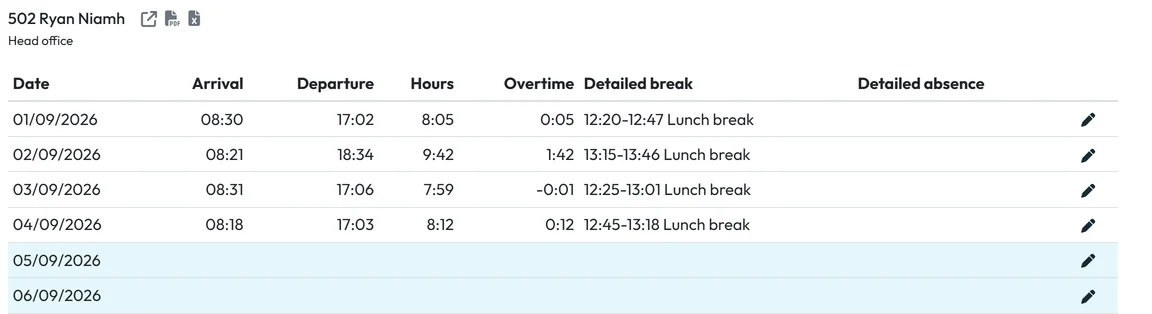
See daily overtime in the reports.
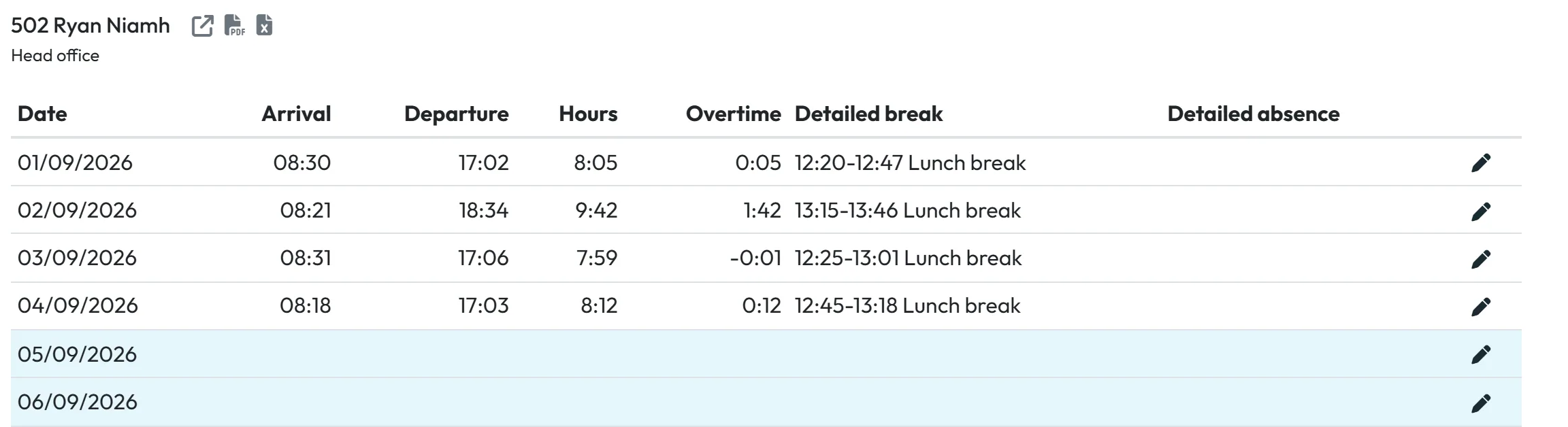
In Table Reports › Per employee each day has an Overtime column, and the summary adds it up for the month. The same column is in the employee’s monthly report.
Overtime day by day -
Decide per branch whether overtime counts at once.
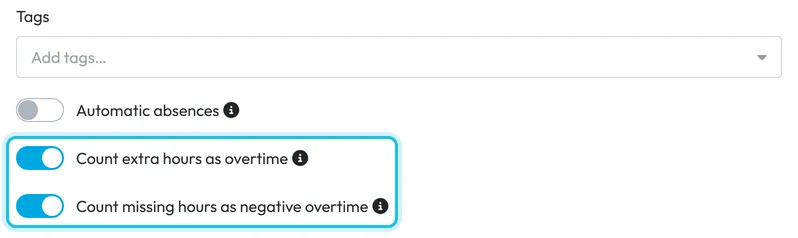
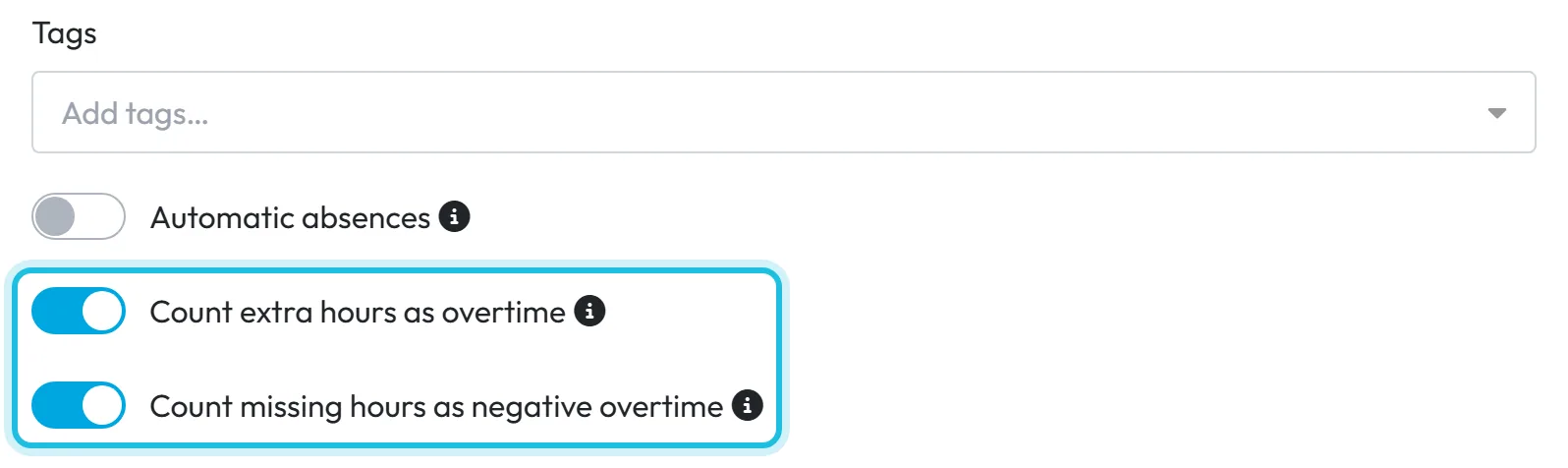
Open My Company › Branches and edit a branch. Two switches, both on by default:
- Count extra hours as overtime –
When an employee works longer than their scheduled hours, the extra time is counted as overtime immediately. Turn off if a manager should review and confirm each overtime first.
- Count missing hours as negative overtime – the same for days shorter than planned.
Good to know: while a switch is off, the extra time isn’t lost but it isn’t counted either. The day’s worked time is capped at the expected hours in every report until a manager approves the overtime (next steps).
Automatic overtime approval per branch - Count extra hours as overtime –
-
Open the employee’s Overtime tab.
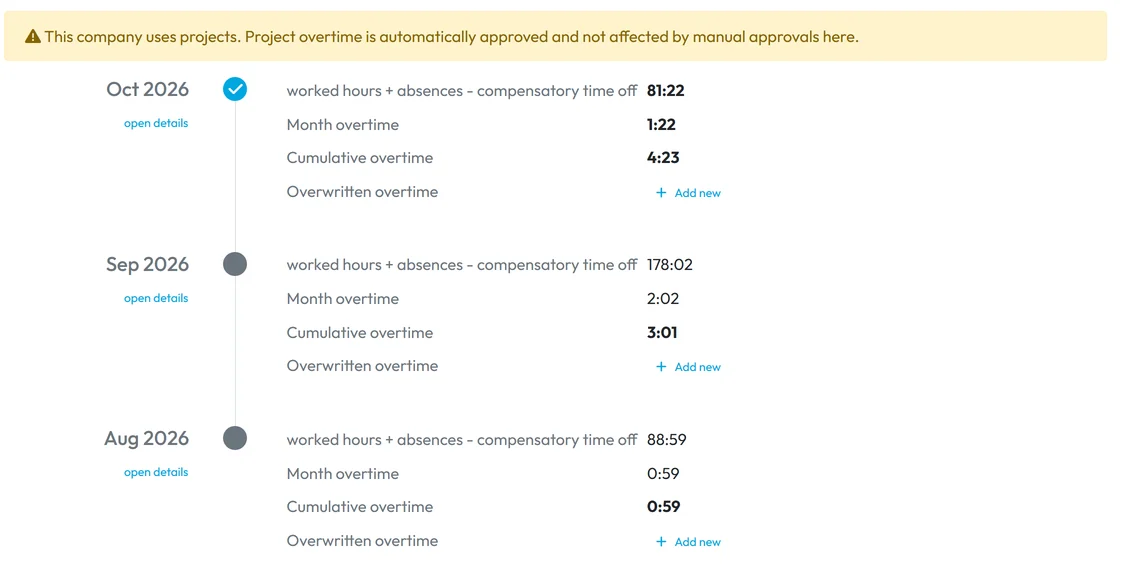
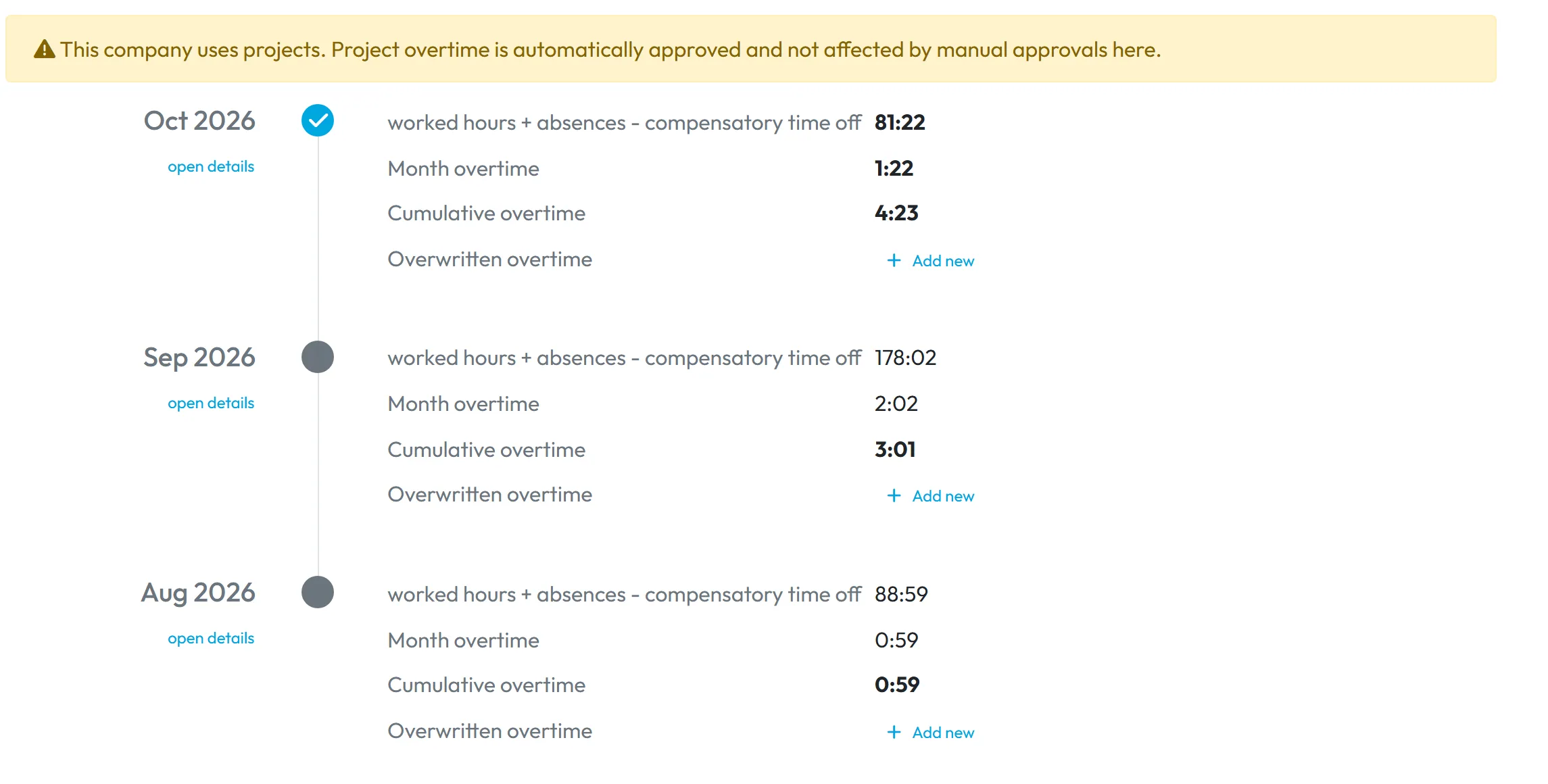
In Employees, open the person and click Overtime. A timeline lists each month with worked hours + absences - compensatory time off, Month overtime, Cumulative overtime (the running balance) and Overwritten overtime.
In companies that use projects, the tab starts with the note
This company uses projects. Project overtime is automatically approved and not affected by manual approvals here.
Cumulative overtime month by month -
Approve or correct overtime day by day.
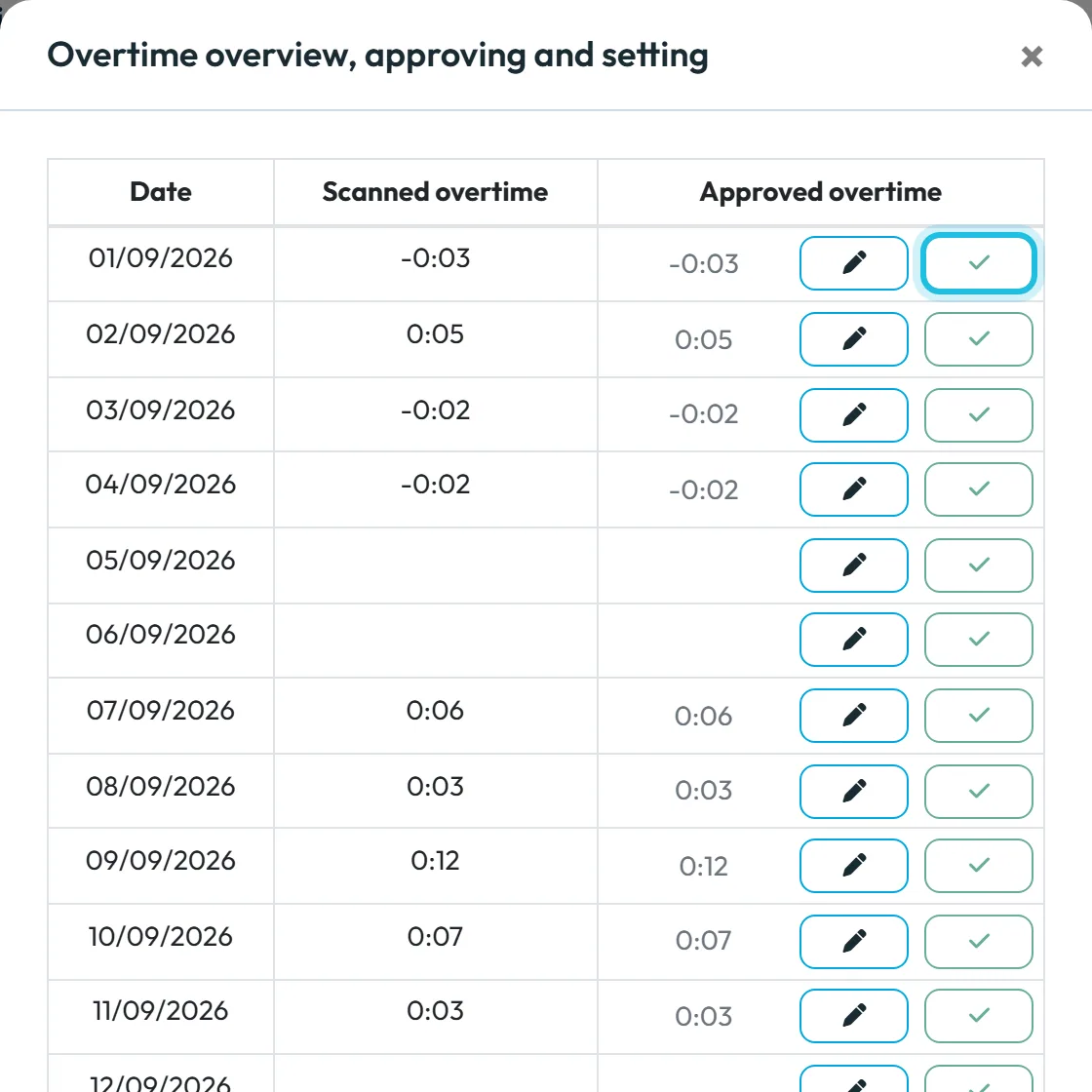
Click open details under a month. The window Overtime overview, approving and setting lists each day with Date, Scanned overtime and Approved overtime. The tick approves the scanned value; the pencil lets you type another one – for example approve 1 hour of the 2 someone stayed. A manual approval always wins over the automatic rules.
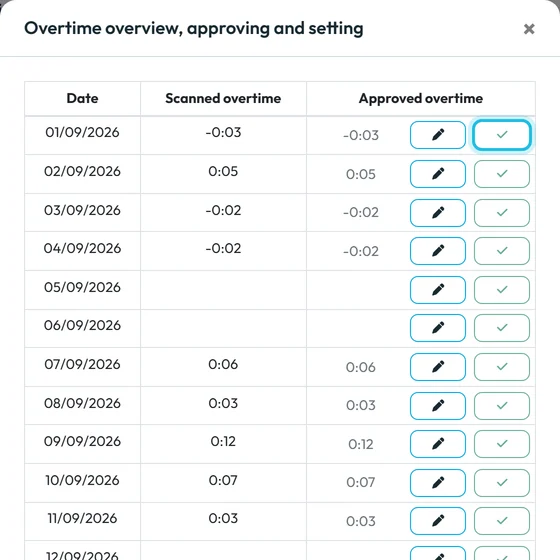
Approve a day’s overtime with the tick -
Set a starting balance.
Moving from paper or another system? Next to Overwritten overtime in the month you start from, click Add new, enter the month and the overtime hours and save. The cumulative balance continues from that value. Remove it with the bin icon if you made a mistake.
-
Show overtime to employees.
In My Company › Company Details › Mobile App Settings, Show monthly overtime in mobile app and Show cumulative overtime in mobile app are on by default. Employees then see Overtime and Cumulative Overtime in the app under Reports. Both can be changed for one employee – see Reports in the mobile app.
#Related settings
- Overtime on planned shiftsOn days planned in the shift planner, the shift template’s own overtime switches decide instead of the branch – see Shift planner templates.
- Pay more for overtime hoursA rate surcharge for Overtime hours adds a percentage or an amount per hour – see Rate surcharges.
- Time off in lieuAn absence type marked as compensatory time off reduces the balance. Automatic compensatory time off has no switch in the app; FreshQR support turns it on or off (info@freshqr.online or WhatsApp). See Automatic absences.
#Special cases and tips
- Someone worked 10 hours but the report shows 8
- Count extra hours as overtime is off for their branch, so the day is capped until a manager approves the overtime on the Overtime tab.
- Overtime is empty on some days
- Same cause: it is waiting for approval. On shift days, check the two overtime boxes on the shift template.
- All Sunday work is overtime
- Sunday isn’t a working day in that person’s schedule, so every hour counts as overtime. That is intended.
- Hours look rounded
- Rounding set in Work Schedules also applies to the worked time that overtime is based on.
- Who can approve
- Approving, correcting and setting a starting balance need edit rights on Employees.
#Frequently asked questions
Is negative overtime deducted from the balance?
Yes, when Count missing hours as negative overtime is on for the branch or a manager approves it. The cumulative balance adds positive and negative days together.
Do employees get a message when I approve overtime?
No. They see the updated numbers in the app under Reports if overtime is shown there.
Can I see the balance across several months?
Yes. Cumulative overtime on the employee’s Overtime tab is the running balance month after month.
Should I use monthly overtime?
Use it when people may work longer one day and shorter another within the same month. Keep the daily count when every day is expected to match the schedule.
Does FreshQR pay the overtime?
No. It counts the hours and, with an hourly rate, the cost. Payment happens in your payroll.
#Related
You are hereOvertime – monthly, cumulative and approval
Administrator
Employee
Web app (administrator)Mobile app (employee)



