Check hours worked: today on Home, the month in Reports
On this page
Can't see this option in the app? Your employer has to turn it on.
Guide for administrators: Mobile app settings →
Quick answer
You can check hours worked on the Home tab of the FreshQR app: your status, a timeline of today’s scans, Break Time and Total Worked Time. The arrows by the date take you to earlier days. Reports in the bottom bar shows the whole month, your overtime and each day’s detail. Your employer decides what you see.
#What it's good for
- You see straight away whether your arrival was recorded.
- You know how long you have worked today and this month – without asking your manager or payroll.
- You find a missing scan before payday, not after, and you see your overtime and running balance.
- A note tells your manager why you left early or worked somewhere else, right next to your attendance.
#How to check your hours
-
Look at your status and the timeline.
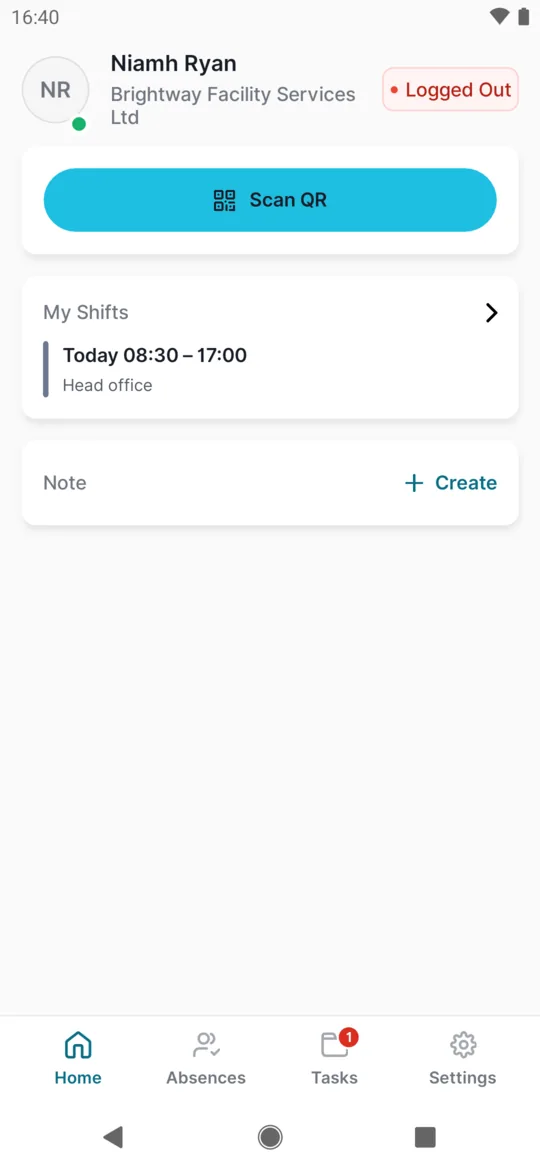
Top right on Home says Logged In (you are at work) or Logged Out. The timeline shows your scans during the day; below it you see the time from – to and Break Time.
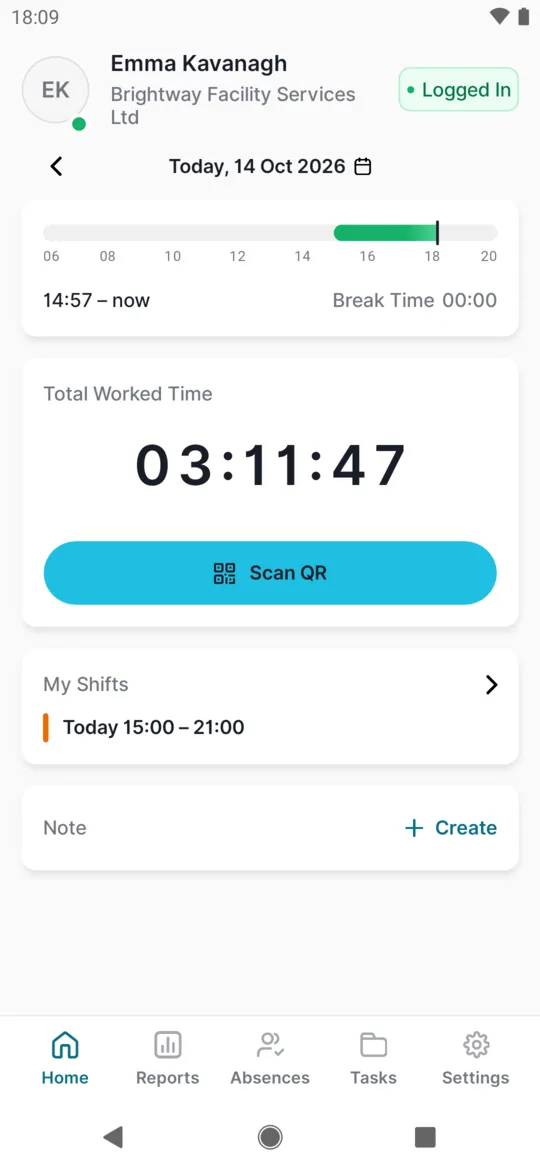
Worked time is counted as you go -
Watch Total Worked Time.
The Total Worked Time counter runs while you are clocked in. When you clock out it stops and shows what you worked that day. If you work on projects, you also see the time per project.
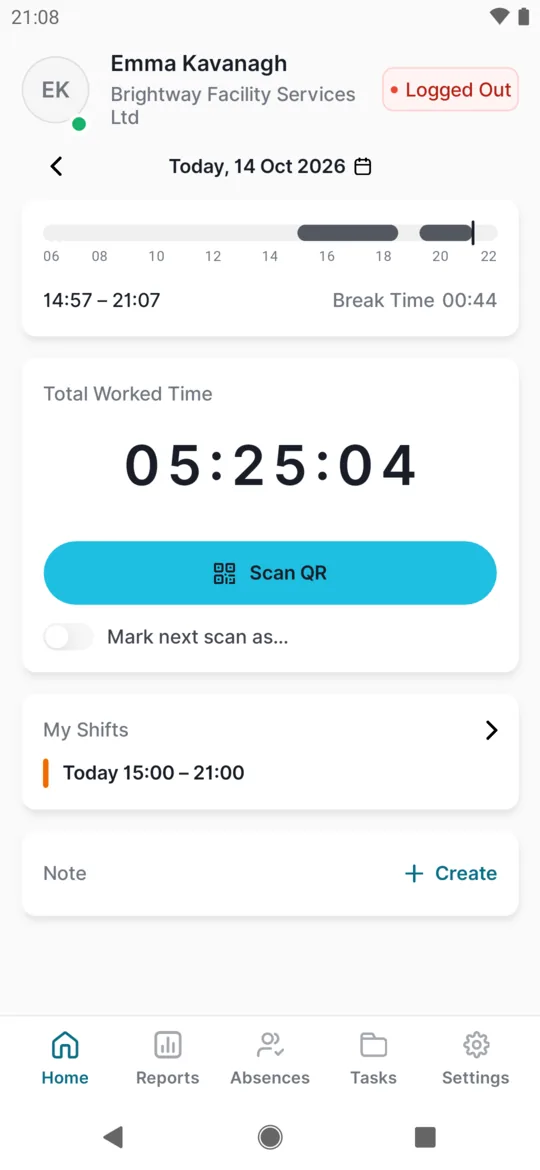
After departure you see the whole day and the break -
Go back to an earlier day.
The arrow left of the date moves one day back; the calendar icon lets you pick any day. You scan for today only, so past days have no Scan QR button. If you missed a scan on an earlier day, ask your manager to add it in the web app.
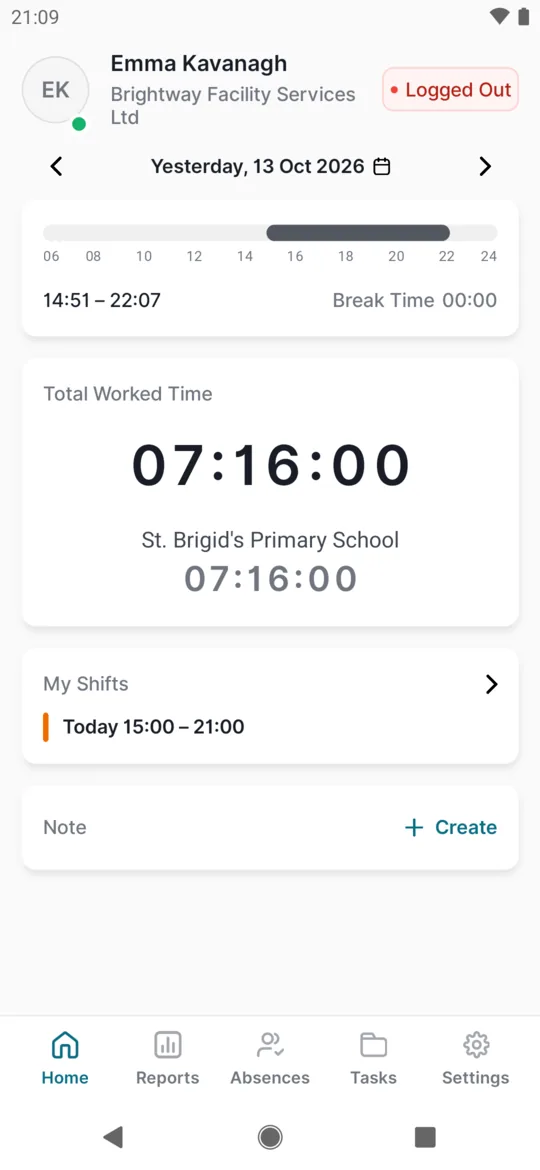
Use the arrows to look at earlier days -
Check the cards below the counter.
Further down there may be a My Shifts card with your next shift, a New tasks card, and the Note section for notes about the day. Without internet you also find the Scan Queue here.
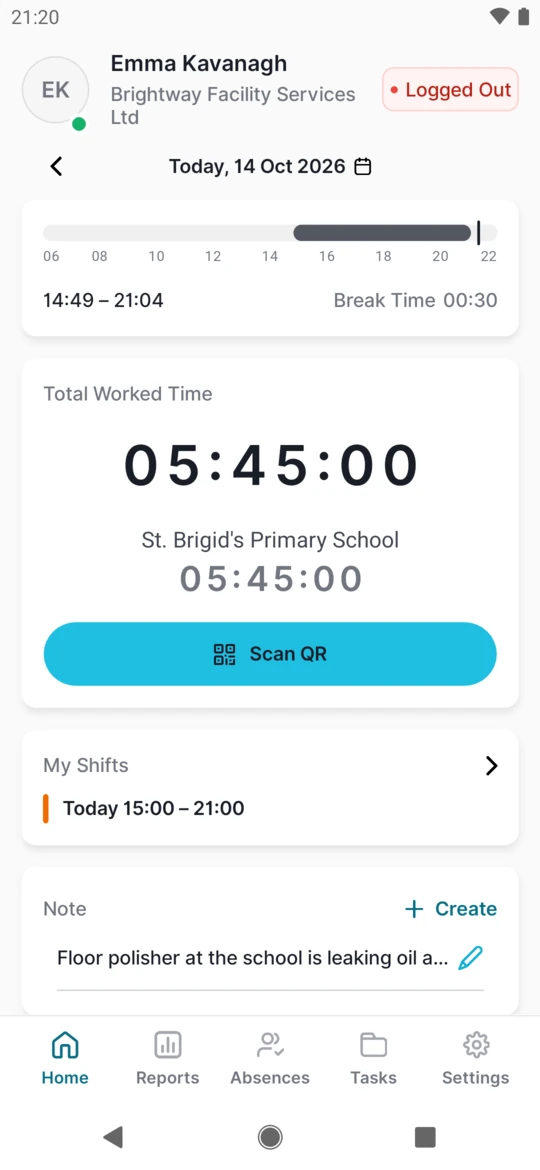
A note for the day on Home -
For the whole month, tap Reports.
Tap Reports in the bottom bar. The current month opens; pick another one with the arrow or the calendar icon next to the month name. On the Attendance tab, the top shows your total hours for the month and Clean time – the time after breaks and your employer’s rules, such as rounding. Below that are the figures your employer shows: Overtime for this month, Cumulative Overtime for the whole period, and possibly Bonuses, Absences or Monthly Salary.
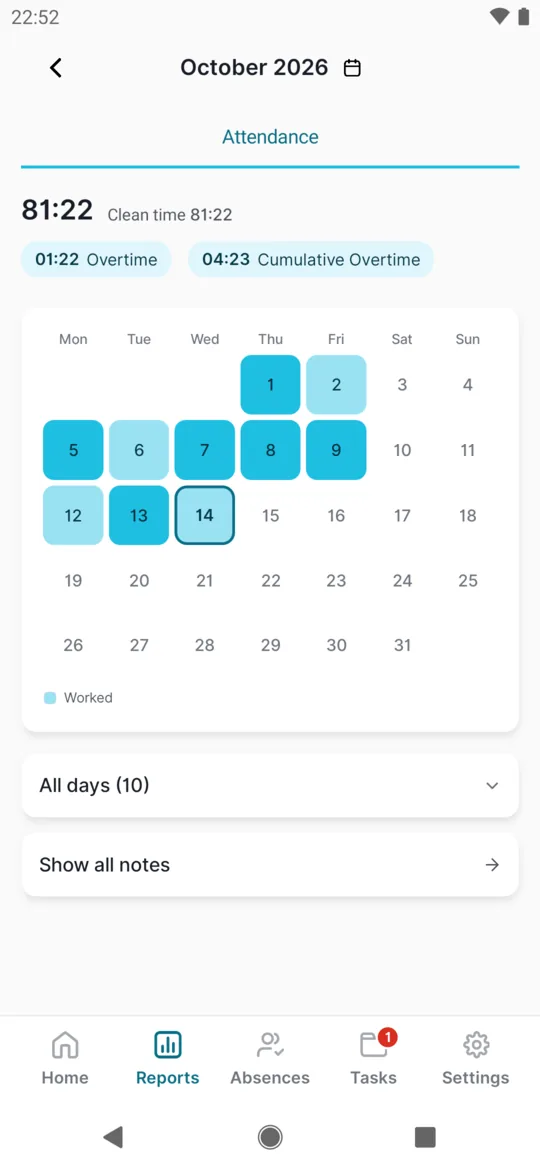
Reports with the month calendar -
Look at the colours in the calendar.
A day’s colour tells you what happened that day. The legend under the calendar lists only the colours that occur that month: Worked, Absence, Holiday and Check. A Check day means you scanned but no time was recorded – usually a missing departure.
-
Open the All days list.
Tap All days. A table opens with each day and its hours; some rows also show the branch.
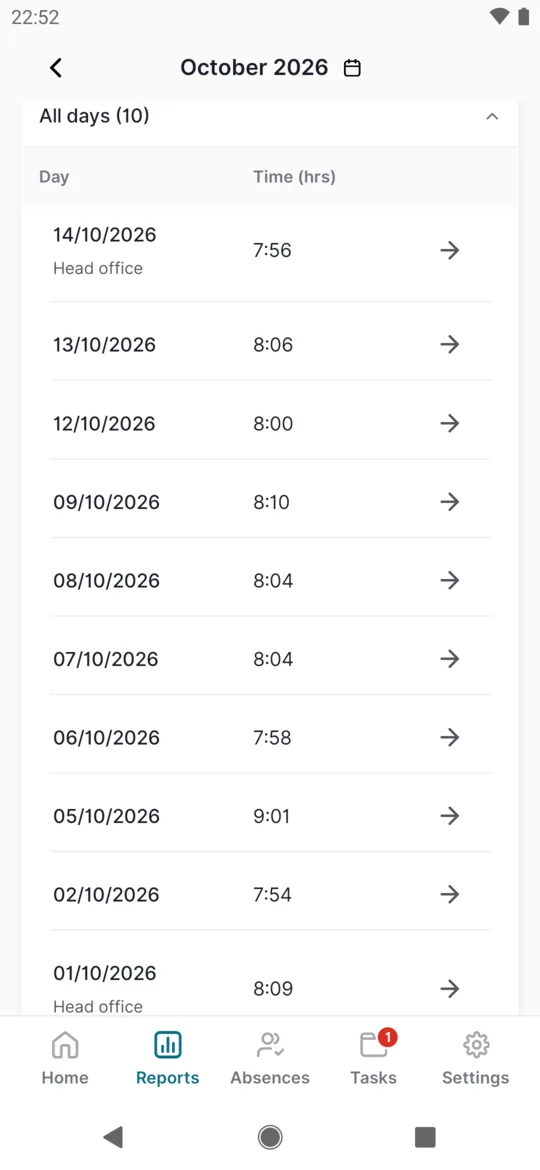
The table of all days -
Tap a day to see the detail.
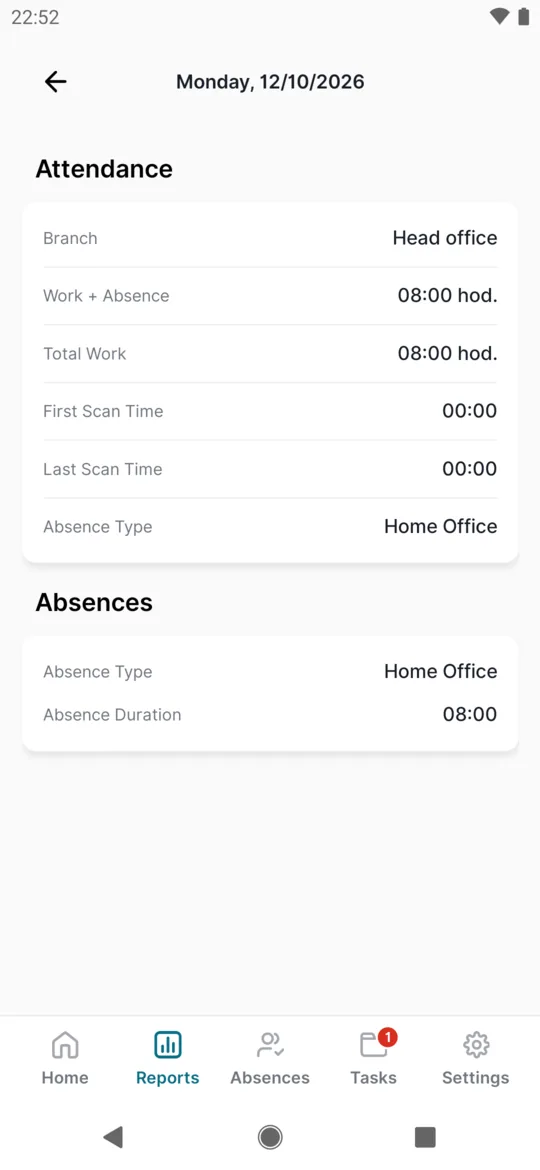
The day detail shows a timeline with your arrival, work, breaks and departure, and an attendance summary. If you had an absence or worked on a project that day, you find it here too – for example a Home Office day.
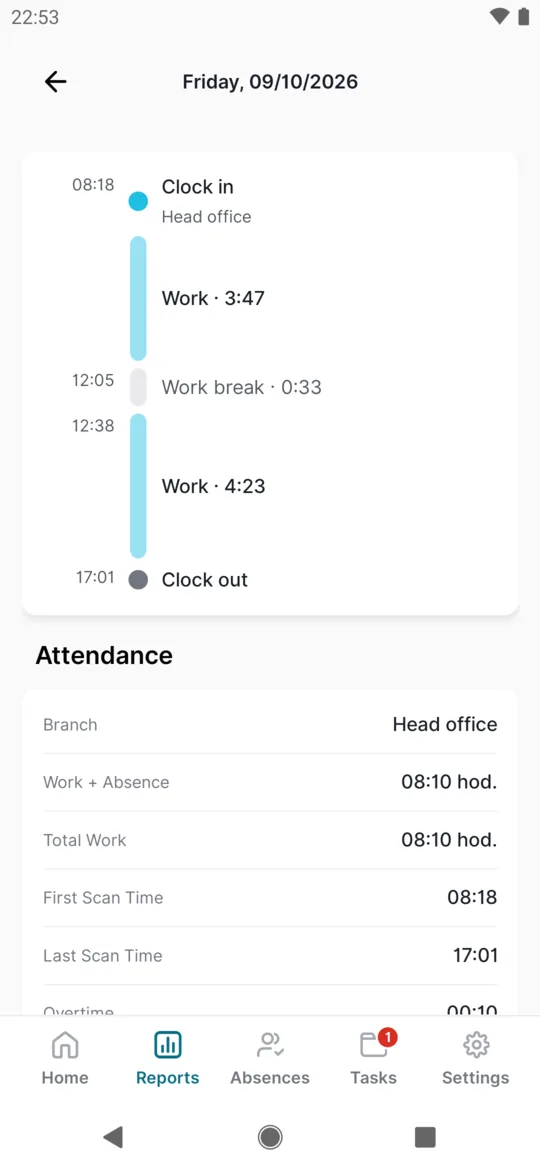
Detail of one day with the break
#When your employer hides worked time
Your employer can choose not to show worked time in the app. Home is then simpler: you see your status, Scan QR, your shifts and the note. There is no timeline, no counter, no arrows by the date and no Reports tab. Your attendance is recorded the same way.
#Add a note to your timesheet
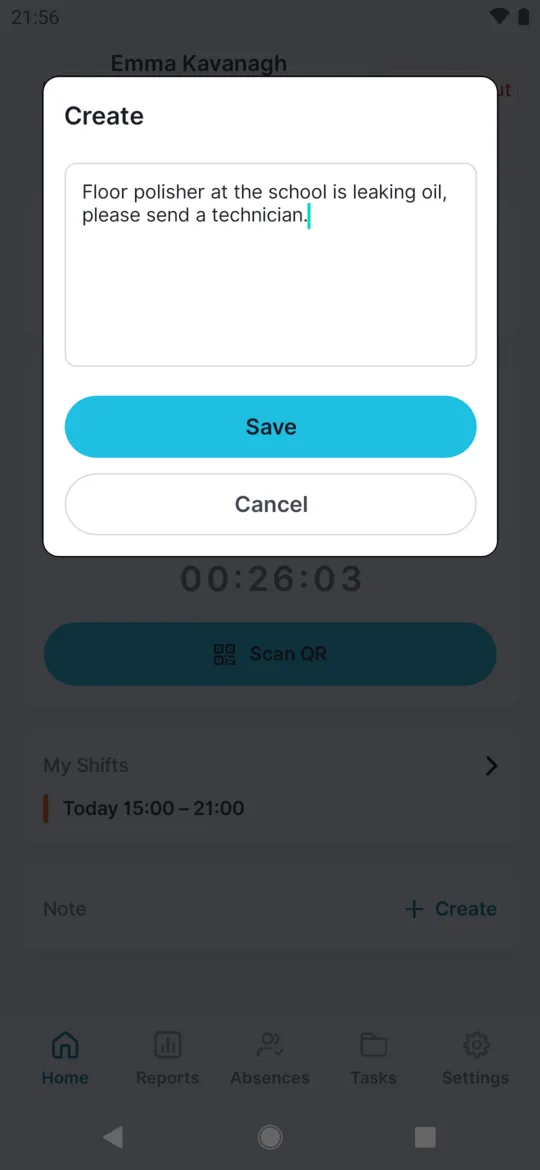
A note tells your manager something about the day – for example “Floor polisher at Sandyford is leaking, left it in the store room”. It belongs to the day you have open on Home, and your manager sees it next to your attendance in the web app.
- Tap Create. The Note section is always on Home. For a note about yesterday, first go back to yesterday with the arrow by the date – if your employer allows that.
- Type your text and tap Save. In the Enter Note... field, write what your manager needs to know, then tap Save. The app won’t save an empty new note – it tells you
Note is empty!
- Tap a note to change it. The Edit window opens; fix the text and tap Save. There is no delete button – to delete a note, clear all the text and save.
#More in Reports
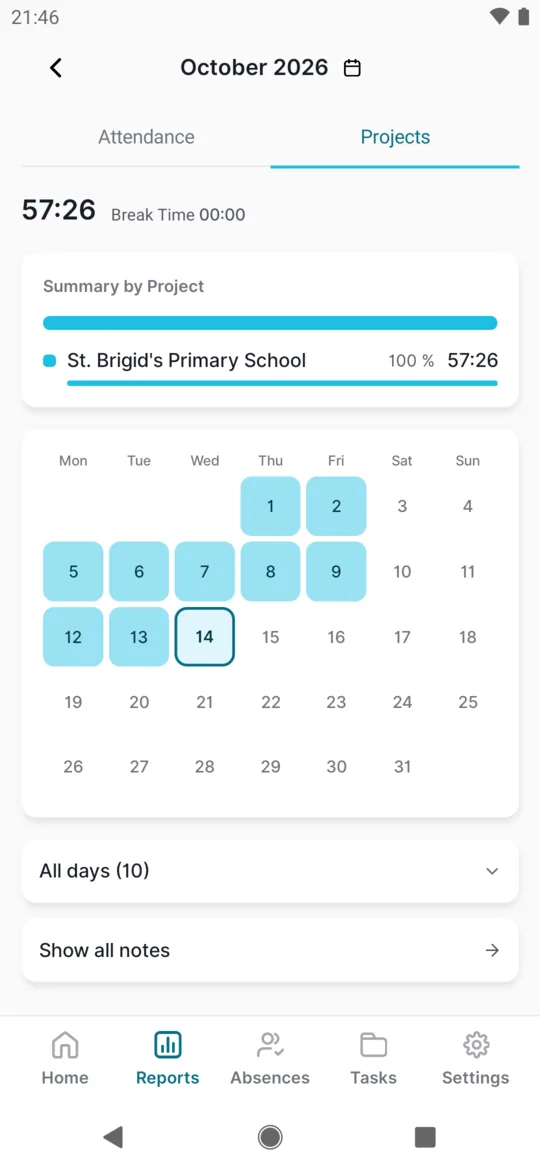
- Projects tabIf you work on projects, the Projects tab shows your hours per project under Summary by Project – for example 57:26 at St. Brigid’s Primary School – and its own All days table.
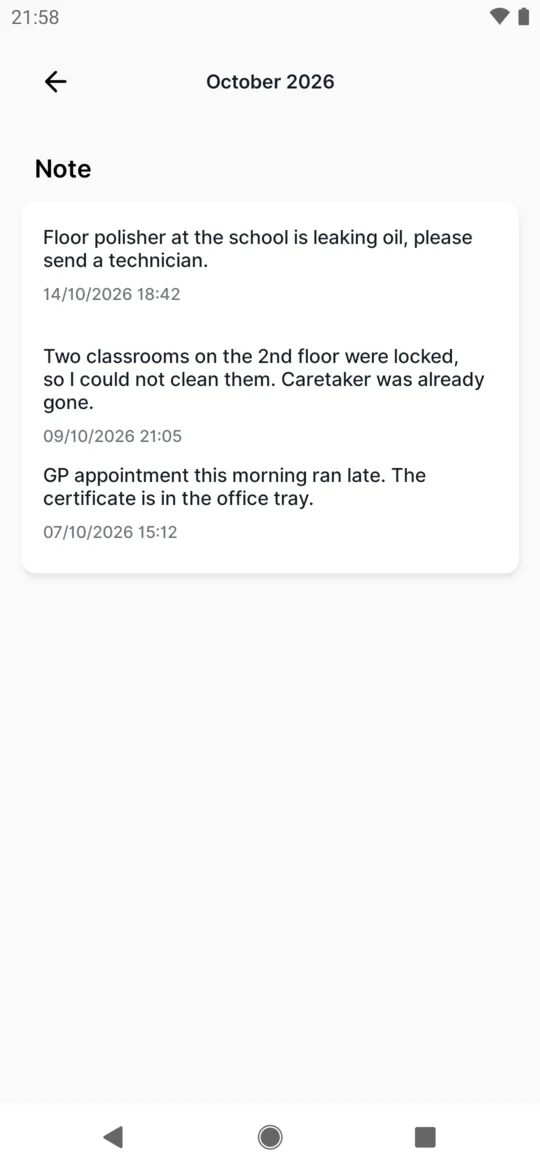
Time per project - All notes for the monthAt the bottom of Reports, tap Show all notes. You get a list of the month’s notes with the date and time.
All notes in Reports
#Special cases and tips
- The time differs from your timesheet or your own count
- The counter on Home shows the time from your scans. In the timesheet your employer may round it or take off an automatic break according to the work schedule. That’s why Reports shows both the total and the Clean time. If something looks wrong, show the day to your manager.
- A day with an absence
- Absences such as Home Office or leave appear in the day detail with their hours.
A day with an absence - Overtime is negative
- For example -02:30 means that so far this month you have worked less than planned. How your employer counts overtime is explained in Overtime.
- You can’t see your salary
- Showing the salary is a separate setting for your employer, and it is off unless they turn it on.
- No internet
- Reports need an internet connection. On Home, the time may say
Offline estimation
: some scans are still waiting to be sent. Open the app with internet and the time is corrected. - Your employer changed a setting but the app looks the same
- Changes your employer makes reach the app after a restart. Close it completely and open it again.
#Frequently asked questions
Why can’t I see my worked time or Reports?
Your employer doesn’t show them in the app. Your attendance is still recorded. If they have just turned them on, restart the app.
Why can’t I go back to earlier days?
The arrows by the date only appear when your employer allows reports in the app.
I forgot to scan out. What now?
Tell your manager – they correct the time in the web app.
How many days of leave do I have left?
That’s under Absences – see How many days of leave you have left.
How do I get my monthly timesheet as a PDF?
Ask your employer – they download the PDF for signing in the web app. The app itself shows your hours but doesn’t create the PDF.
Can my colleagues see my notes?
No. People in your employer’s web app see them, under Notes.
Will my manager reply to my note in the app?
No, you can’t reply to a note in the app. If needed, your manager gets in touch another way.
Is a note a request for time off?
No. Request leave or a doctor visit under Absences – see Requesting leave.
#Related
You are hereHours worked, reports and notes
Administrator
Web app (administrator)Mobile app (employee)



