Employee profile: complete and edit an employee’s details
On this page
Quick answer
Every employee has an employee profile in FreshQR. Open Employees, click the pencil next to the person and you land on the Detail tab. Fill in the name, personal ID, position, supervisor, start date and schedule, then click Update. The other tabs hold salary, branch history, evaluations, the monthly report, overtime and absences.
#What it's good for
- The phone creates the profile with whatever the employee typed. Here you turn it into a proper record that payroll and reports can rely on.
- Position, supervisor and schedule decide who approves the person’s leave, which hours count as overtime and who they can swap shifts with.
- Exceptions for one person – weaker GPS, a photo on every scan, salary visible in the app – without changing the rest of the company.
- Everything about one employee in one place: one click from the list to their monthly report, overtime or absences.
#Who it's for
A good fit for
- Administrators who have just seen a new person appear in the employee list.
- Payroll staff at month end, checking salary, overtime and the monthly report of one employee.
- Supervisors who need one person to work differently from the rest, for example with a custom schedule.
Not the right fit for
- Adding new employees. They join by scanning in the app and their profile is created automatically; you then complete it here. How it works, including people who won’t scan, is in Adding employees to the attendance app.
- The employee. The profile lives in the web app; in the mobile app employees see only their own name and contact details.
#Step by step
-
Open the profile.
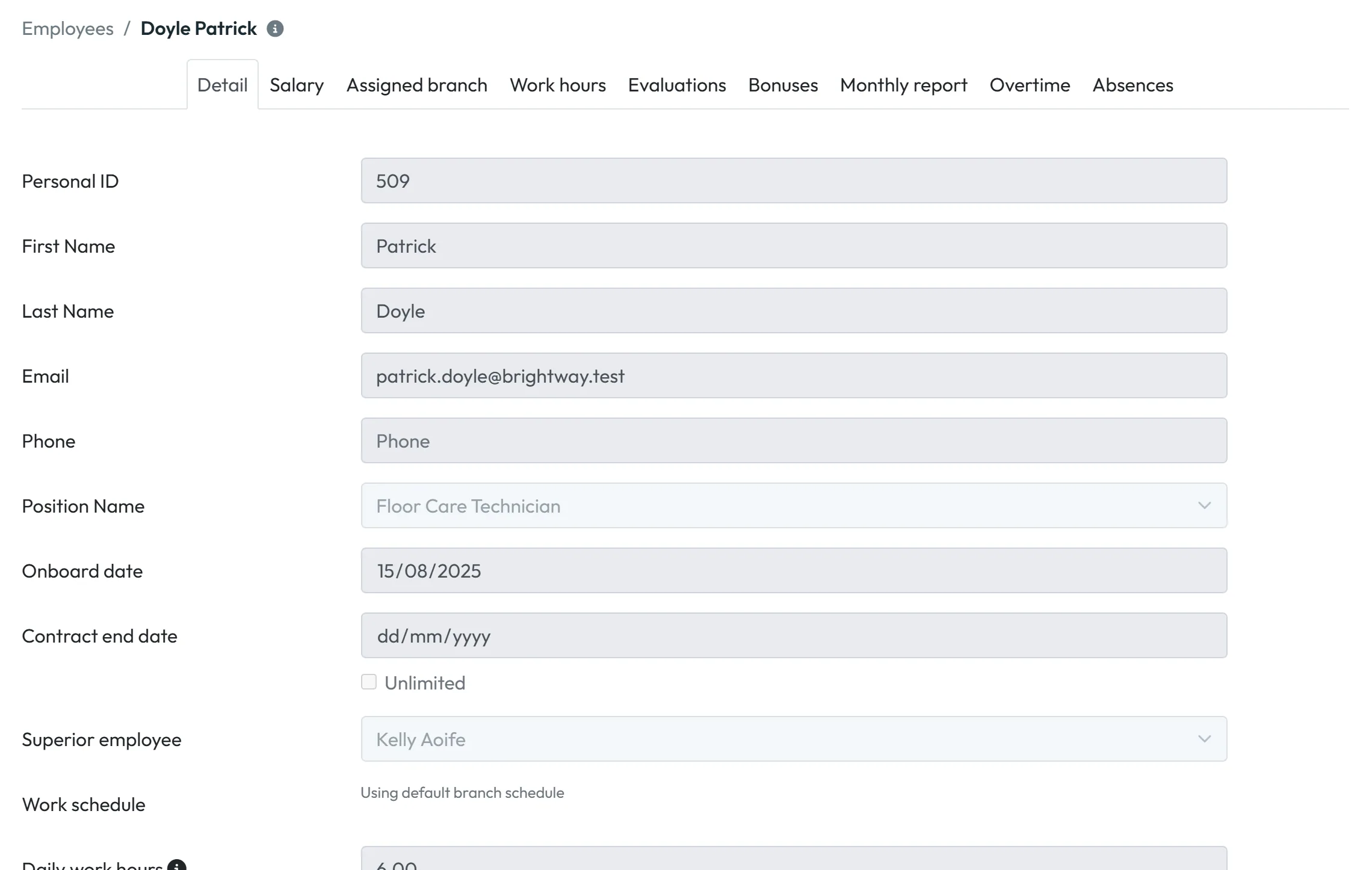
Go to Employees and click the pencil next to the person – see Employee list and filters. The breadcrumb at the top reads Employees / Last name First name, and the Detail tab is open.
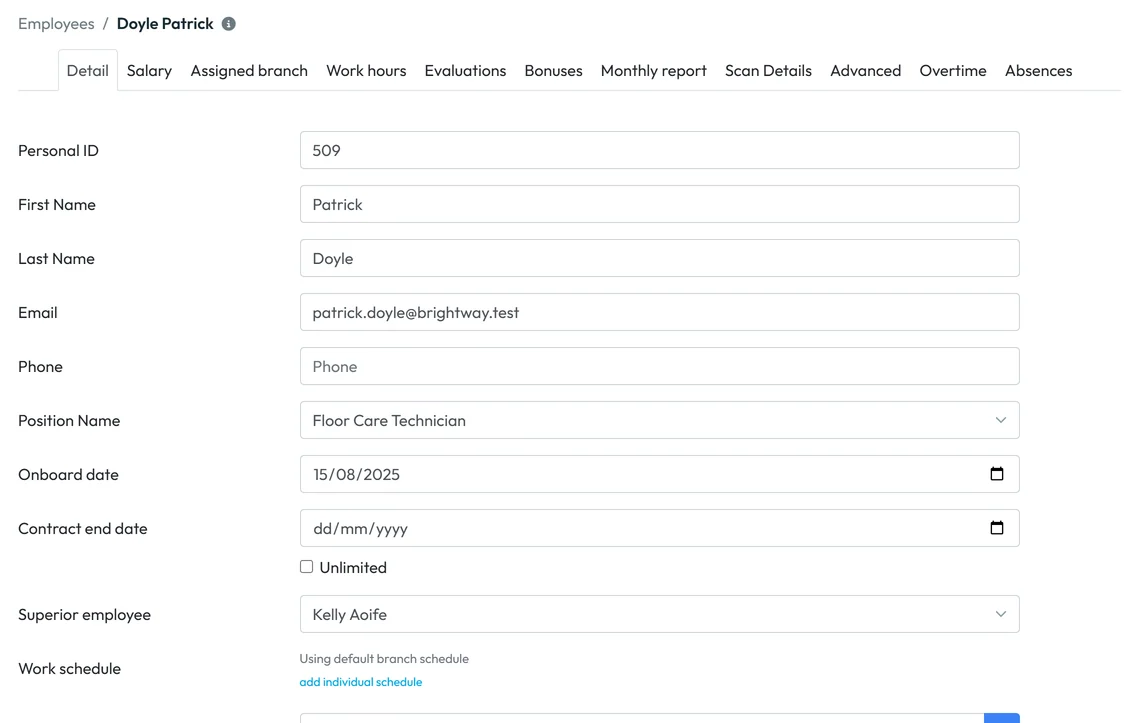
The top of the Detail tab -
Fill in the personal data.
Check First Name and Last Name – the app may have saved a nickname or nothing at all. Add Email and Phone if you want them in the list.
Personal ID is optional. Use the number your payroll uses, for example 509. It also helps you tell two people with the same name apart when you merge duplicate profiles.
-
Set the position, dates and supervisor.
- Position Name – pick one from your job positions, for example Floor Care Technician.
- Onboard date – the first day of work.
- Contract end date – the last day of a fixed-term contract, or tick Unlimited. With the e-mail rule on, FreshQR reminds you before the date; see Employment contract end dates.
- Superior employee – the person this employee reports to. It builds the organigram, which decides which manager sees this employee and who gets e-mails sent to the Direct supervisor. If the person first scanned at a branch with a default supervisor, this is already filled in.
-
Check the work schedule.
Under Work schedule you usually see Using default branch schedule. That is fine for most people. If this employee works different hours – a part-timer on four mornings a week, say – click add individual schedule and choose a schedule with its valid-from date. How schedules work, and which one wins when several apply, is explained in Employee work schedule.
The Note field below is for the office only. The employee doesn’t see it in the app. It is not the same as the notes employees write from the app, which you find under Employee notes.
-
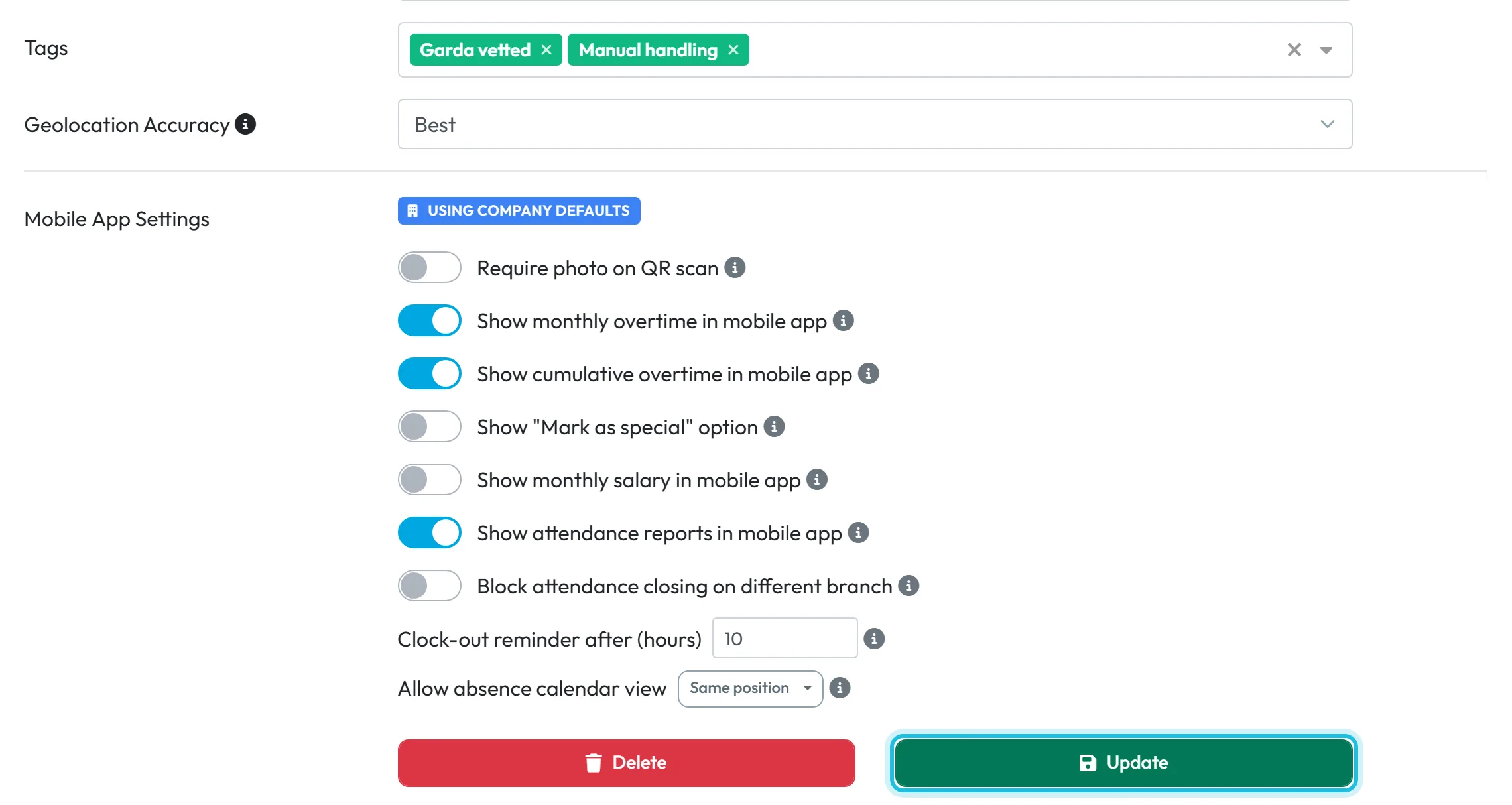
Add tags and set GPS accuracy.
Tags are your own labels, for example “Garda vetted” or “Keyholder”. Type a name and press Enter, or pick an existing one. You can then filter reports by tag – see Employee tags.
Geolocation Accuracy is Best by default. Lower it for an employee whose phone has weak GPS, or choose None (GPS disabled) if no location should be recorded for them. The ⓘ icon shows the approximate range of each level. More in GPS attendance tracking.
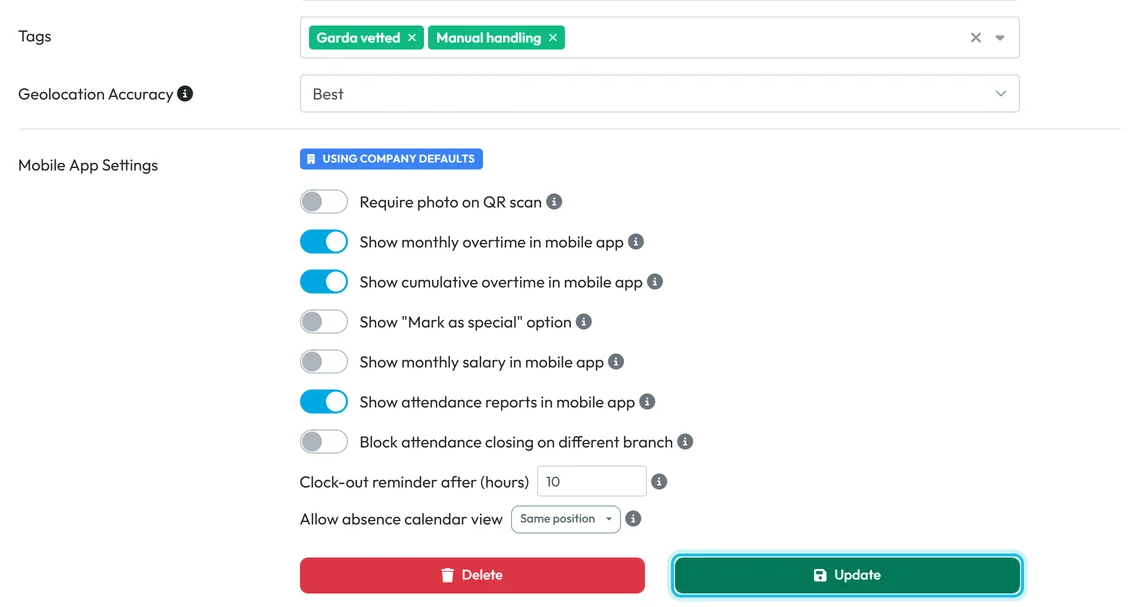
Tags, GPS and mobile app settings for one employee -
Change the app settings for this person only (optional).
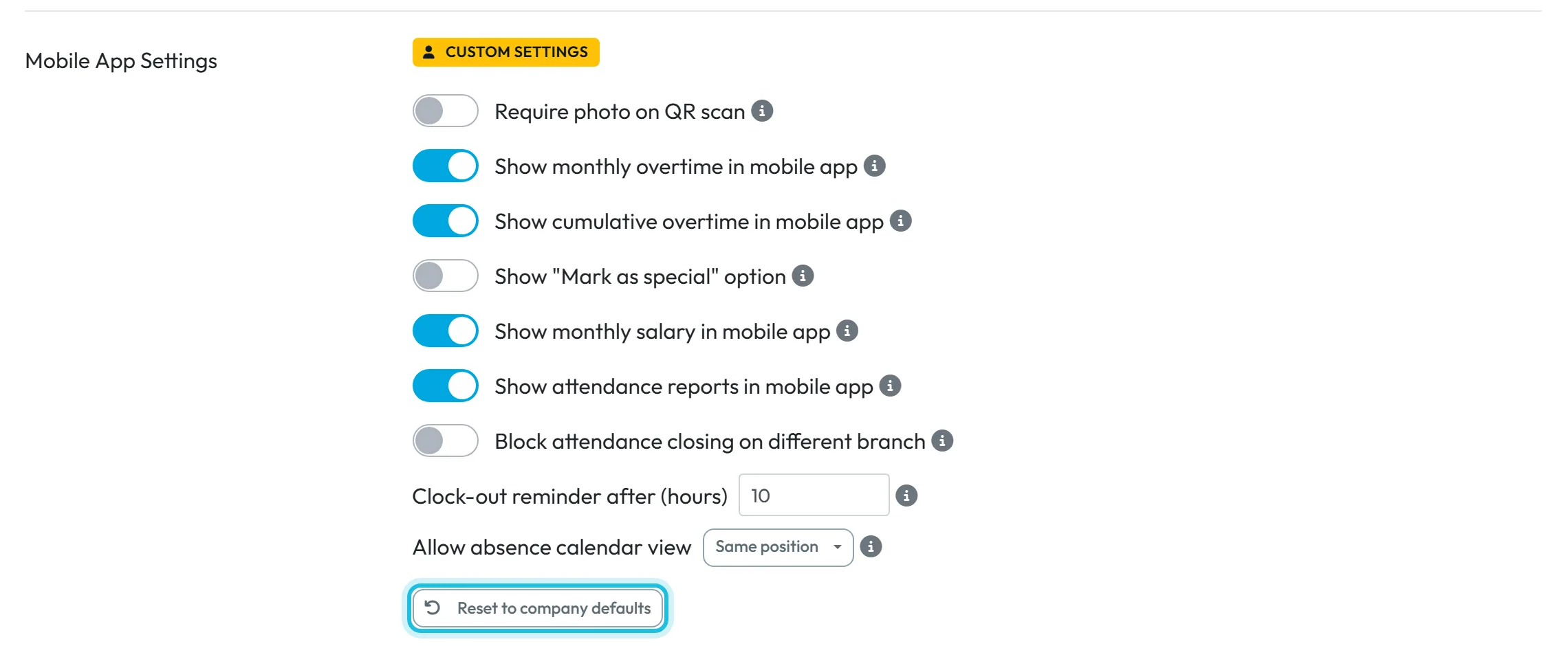
The Mobile App Settings block shows the blue badge Using company defaults: the employee’s app follows the settings in Mobile app settings. Change any switch here – for example turn on Show monthly salary in mobile app for one person – and after Update the badge turns yellow: Custom settings.
Custom settings replace the company defaults for this employee. To put the person back on the company settings, click Reset to company defaults.
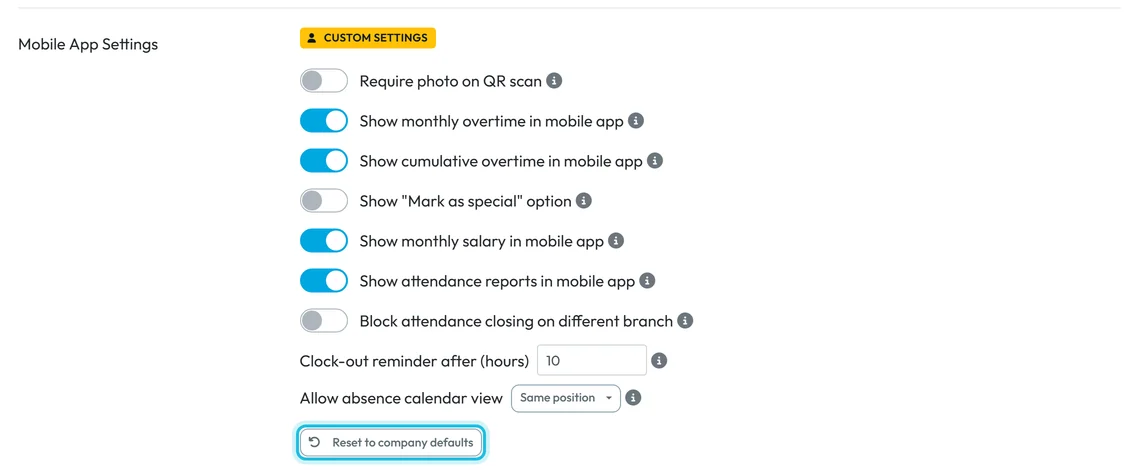
Custom settings for one employee -
Click Update.
Click the green Update button at the bottom. The message Data has been successfully saved confirms it. The switches in the mobile settings block are saved together with the rest of the form, so don’t leave the page before you click it.
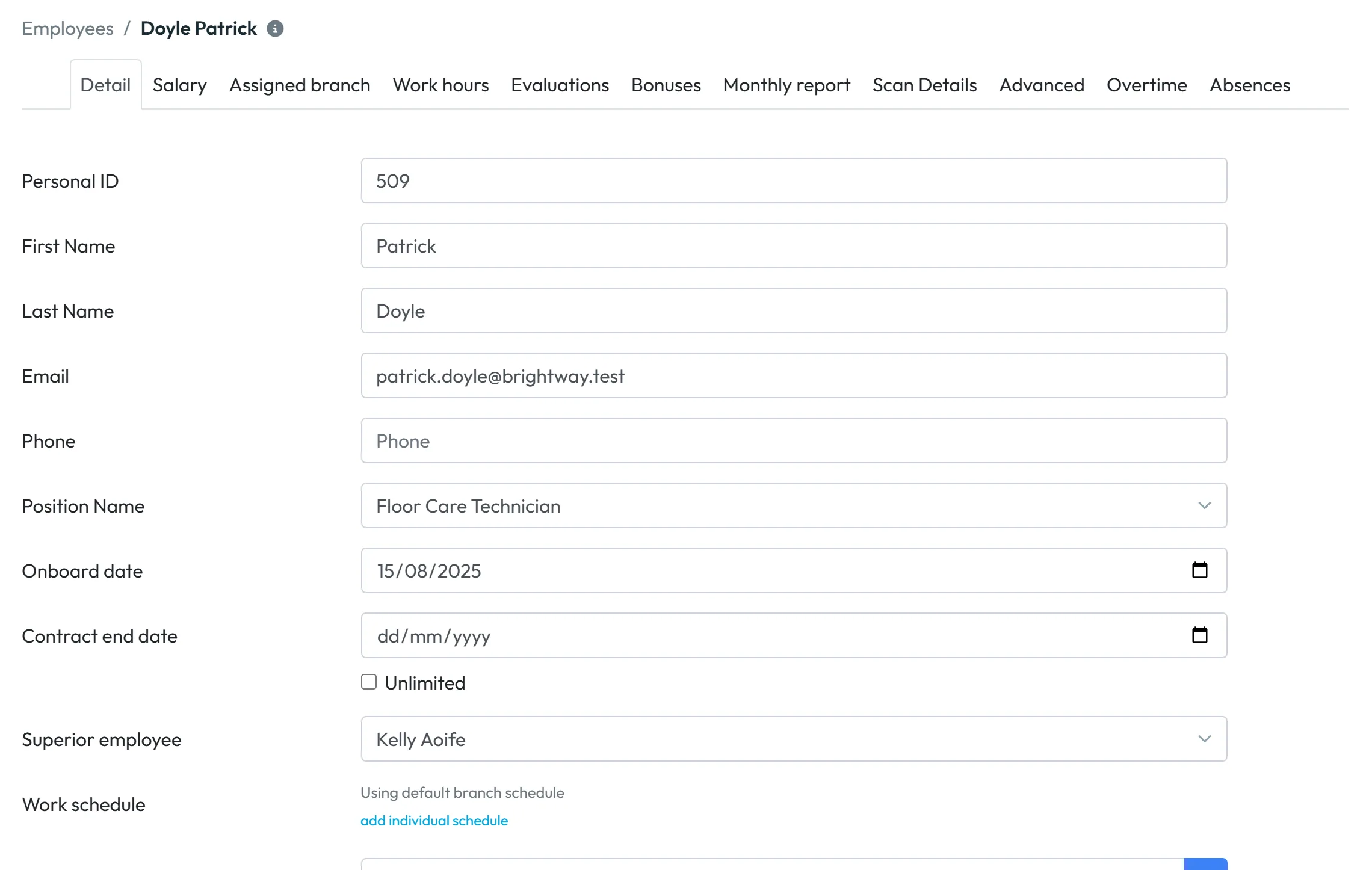
#What the other tabs are for
The tabs sit under the employee’s name. Some appear only when they are relevant – Bonuses, for example, once your company has a bonus type.
| Tab | What you find there |
|---|---|
| Salary | Hourly rate or monthly salary with valid-from and valid-to dates, and personal surcharges. See Employee hourly rate. |
| Assigned branch | Which branch the person belongs to over time, with a month check against real scans. See Attendance tracking for multiple locations. |
| Work hours | Older per-person working hours. New setups use work schedules instead. |
| Evaluations | Dated notes about the person’s work, for the office only – see the section further down this page. |
| Bonuses | One-off bonuses. See Employee bonus. |
| Monthly report | The person’s month day by day, with a PDF to sign. See Monthly timesheet. |
| Scan Details | All scans of this person, with the map and editing. See Edit attendance records. |
| Advanced | Merging a duplicate profile and deleting data from the employee’s phone. See Merging duplicate profiles. |
| Overtime | Approving overtime and setting a starting balance. See Overtime tracking. |
| Absences | Leave used per year, personal limits and the person’s absences. See Leave allowance. |

#Employee evaluation notes on the Evaluations tab
The Evaluations tab holds short dated comments on the person’s work. At the yearly talk, before a pay rise or at the end of a trial period you have the whole year in front of you, not just last month. Only the office sees them – the employee doesn’t, in the app or anywhere else, so feedback meant for them has to be given in person.
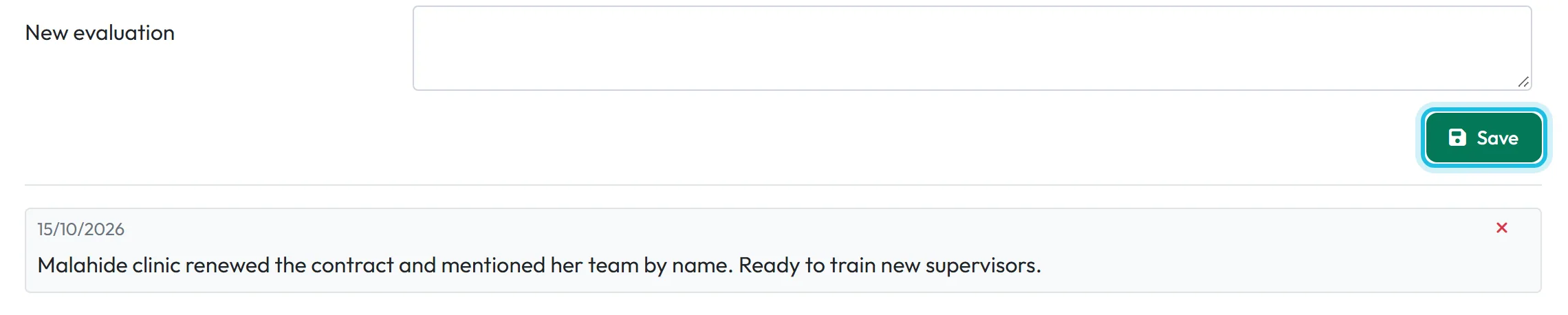
- Open the Evaluations tab. Notes are listed newest first, each with its date.
- Type into New evaluation, for example: “Malahide clinic renewed the contract and mentioned her team by name. Ready to train new supervisors.”
- Click Save. The note appears in the list with today’s date.
Evaluations are plain text with a date – no scale, no categories, no export. Write a score into the text if you need one, for example “Quality 4/5”. The Dashboard’s attendance metrics are numbers FreshQR calculates; a reward goes in as a bonus.
#Who can read evaluations, and how to correct one
- Reading: every account that can open employees, including Employees: View Only. View Only accounts see the notes without the form and the ×. A team lead whose account is linked to their profile sees only their own team’s evaluations. Check the roles in User accounts and roles before you write anything sensitive.
- Author: the app doesn’t record who wrote a note. If that matters, add your initials at the end.
- Corrections: notes can’t be edited. Click the red × next to the note, confirm with Yes, delete and write it again.
- Merging: when you merge two profiles of the same person, the evaluations of the old profile move to the kept one.

#Other ways to reach a profile
- From the organigramIn Employees › Organigram, the pencil on a card opens that person’s profile in a new browser tab.
- Straight to a tabLinks to a profile can open a specific tab – for example the absences of one employee. Bookmark the page you use most.
#Special cases and tips
- Fields are greyed out
- Your account has a View Only role for employees. You see the data but there is no Update button, and the Scan Details and Advanced tabs are hidden. The Salary tab is still visible to this role, so give it only to people who may see pay.
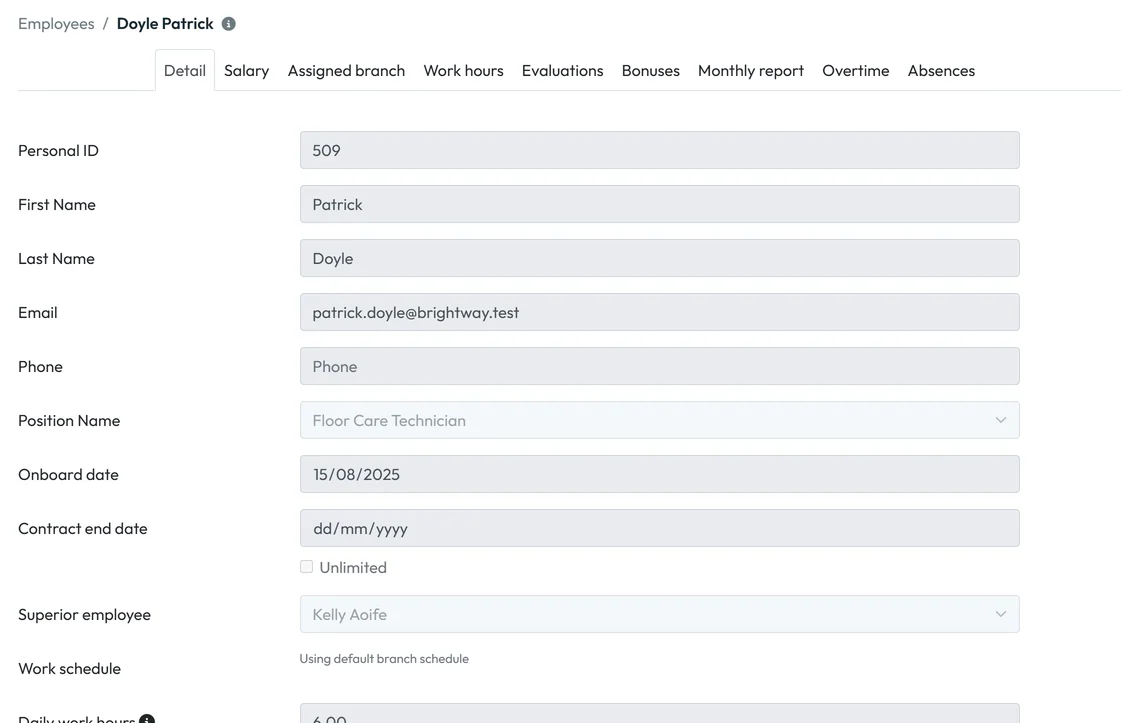
A View Only account can read but not change the profile - Removing an employee
- The red Delete button deactivates the profile; history stays and you can reinstate the person later. Give their team a new supervisor first. Details in Employee list and filters.
- Picking a supervisor
- The supervisor list includes everyone in the company. Don’t choose someone who reports to this employee – that would make a loop in the organigram.
#Frequently asked questions
Does the employee see the Note field?
No. The Note on the Detail tab is for the office only and isn’t sent to the mobile app.
Is the Personal ID required?
No. It is useful if your payroll has its own employee numbers, and it helps you tell two people with the same name apart when you merge profiles.
How do I add a new employee?
Simply: the employee installs the app and scans a company QR code or enters the company code. Their profile is created automatically, and here you then add their name, position or pay. The full process is in How to add employees. To have someone who won’t scan in the list too, add them on the Candidates tab.
Why don’t I see the Monthly report or Scan Details tab?
Your account doesn’t have the right to see them. Ask the Owner or an Administrator to check your roles in My Company › User accounts.
How do I give one employee different app settings?
Change the switches in Mobile App Settings on their Detail tab and click Update. The badge changes to Custom settings; Reset to company defaults undoes it.
#Related
You are hereEmployee profile
Web app (administrator)Mobile app (employee)



