Hours worked by branch: branch reports and comparison
On this page
Quick answer
To see hours worked by branch, switch on Calculate worked hours per branch in My Company › Company Details › General Settings. Then Table Reports offers four tabs: Per branch (hours and costs), Branches detail (plan against reality), Branches/Projects Overview and Branches/Projects Comparison.
#What it's good for
- Hours and labour costs per branch for the month, without splitting timesheets by hand.
- Day by day, you see where a branch had more or fewer hours than planned.
- A weekly workload heatmap shows which branch is busiest on which day.
- Two months side by side show whether a location is growing or shrinking.
#Who it's for
A good fit for
- Companies with two or more branches – offices, depots, shops, restaurants.
- Owners who want labour cost per location and set hourly rates for their staff.
- Firms where people work at more than one branch in a day.
Not the right fit for
- A company with one location gains little; the other report tabs give the same totals.
- To compare projects (client sites, jobs), start with the project report; the same Overview and Comparison tabs can show projects as well.
#Step by step
-
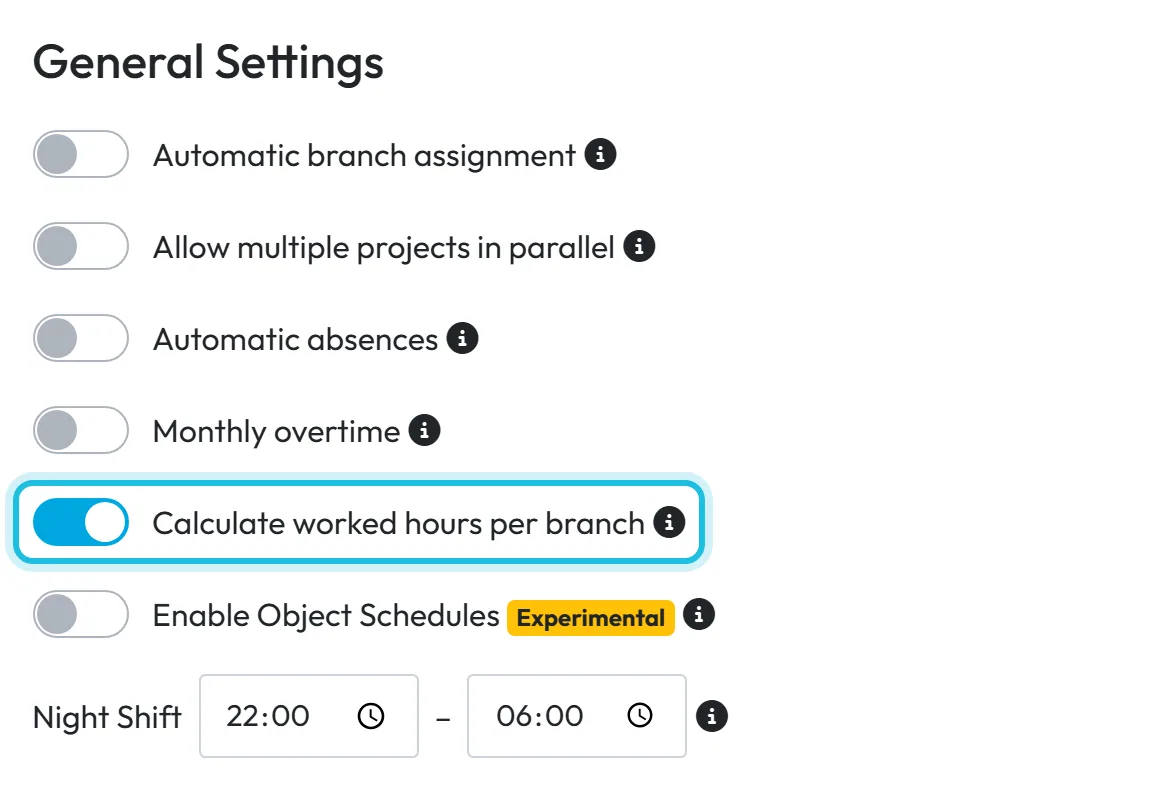
Switch on Calculate worked hours per branch.
Go to My Company › Company Details › General Settings and turn on Calculate worked hours per branch. By default FreshQR counts each person’s day across all branches together; with this setting it also splits the day by branch. Reports are recalculated, which can take a moment.
Without the setting, the Overview and Comparison tabs stay hidden. The Owner, Administrators and accounts with the role Company Settings: View & Edit can change it. Nothing changes in the employees’ app.
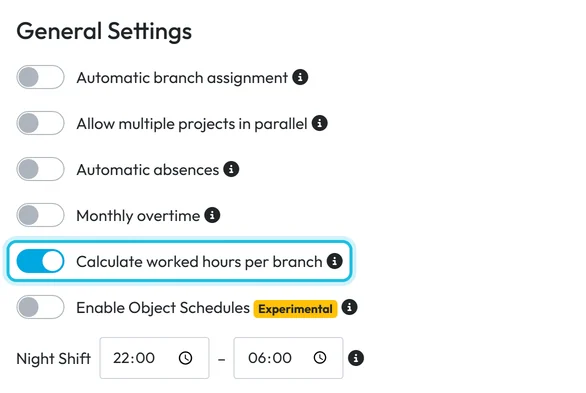
Without this switch the branch overviews stay hidden -
See hours and costs in Per branch.
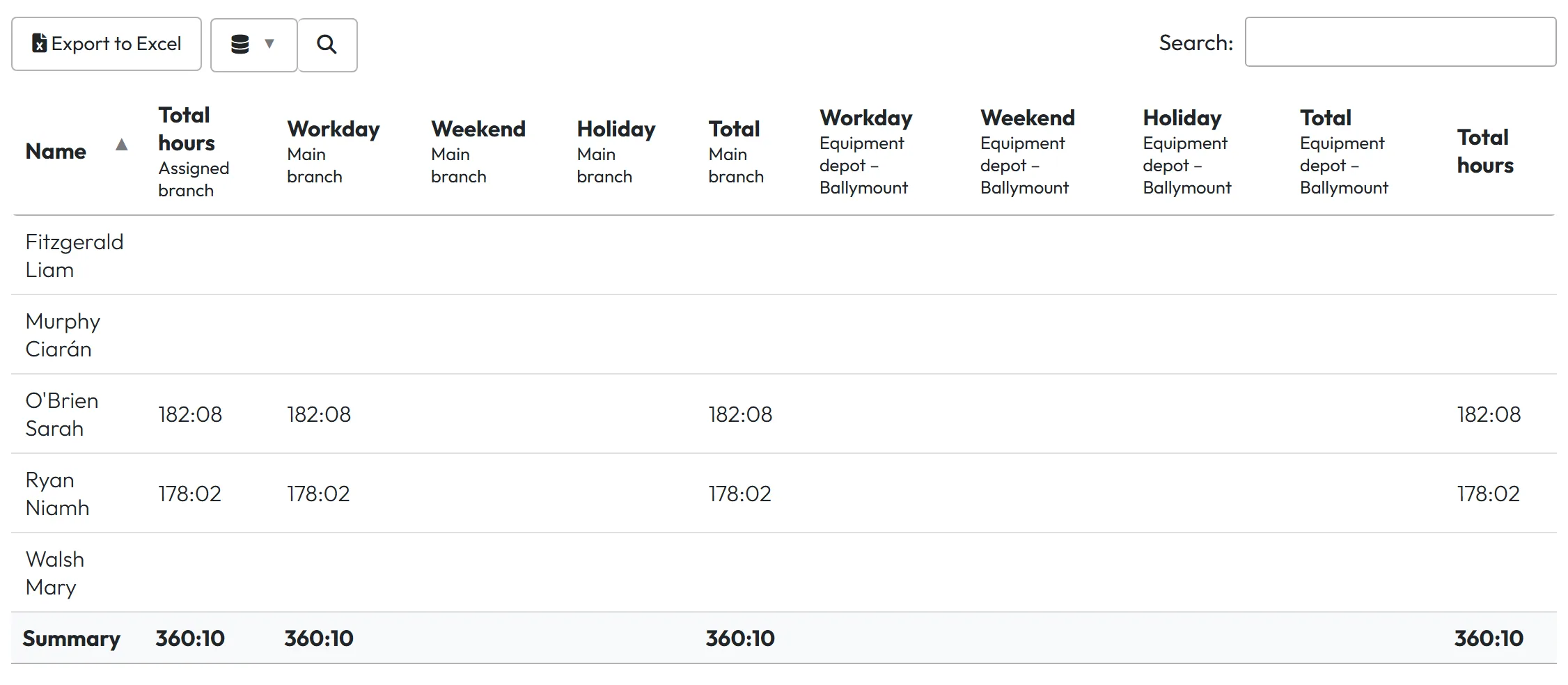
Open Table Reports › Per branch. Each employee’s month is split by branch into working days, weekends and holidays. The Type filter switches what you see: Worked hours, Number of Hours with absences, Absences or Expenses without bonuses. Costs need an hourly rate or salary on the employee – see Hourly rate and salary.
If your schedules use flexible (conditional) breaks, the tab tells you so:
Note: you use 'Conditional Breaks', therefore the report calculates time only for the assigned branch setting each day. Multiple branches in a single day cannot be calculated.
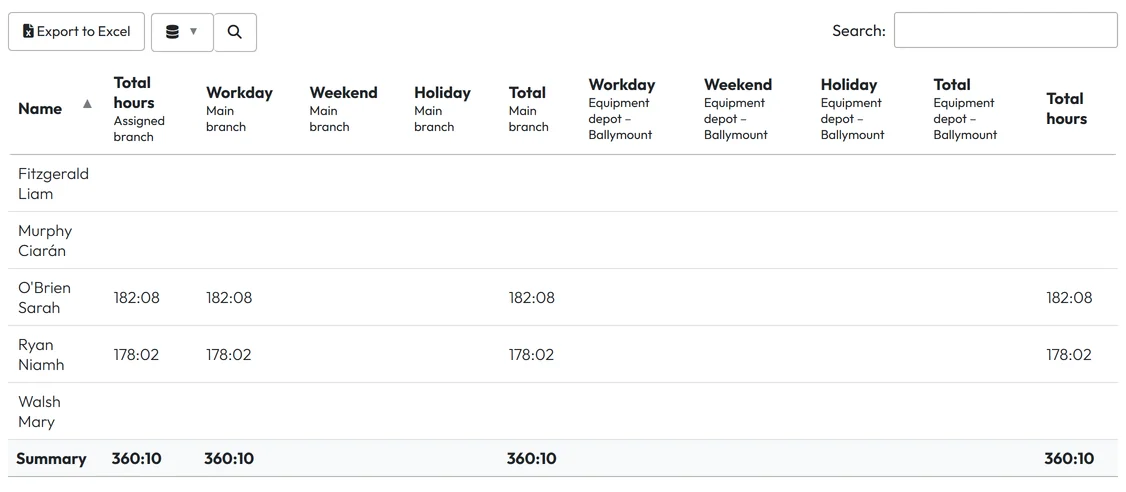
Hours per branch -
Find the busy days in Branches/Projects Overview.
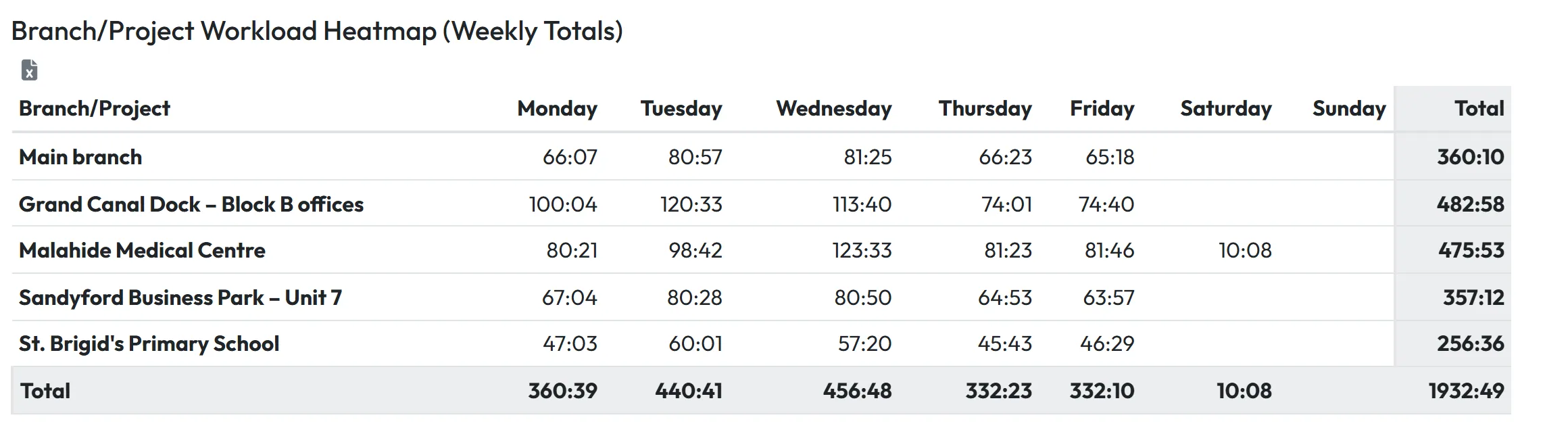
Branches/Projects Overview shows Branch/Project Statistics – hours, Avg Hours, Workday Hours, Weekend Hours, Number of check-ins, Total expenses – and the Branch/Project Workload Heatmap (Weekly Totals): the darker the cell, the more hours that branch has on that weekday. Use Export to PDF to keep a copy.
Overtime in this tab is worked out per branch and can differ from the overtime in Months or Per employee. For pay, use the employee reports.
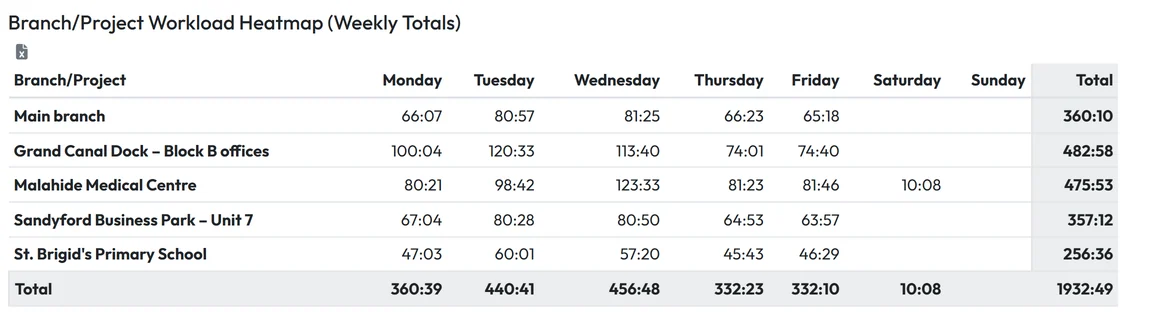
Which branch is busiest on which day -
Compare months in Branches/Projects Comparison.
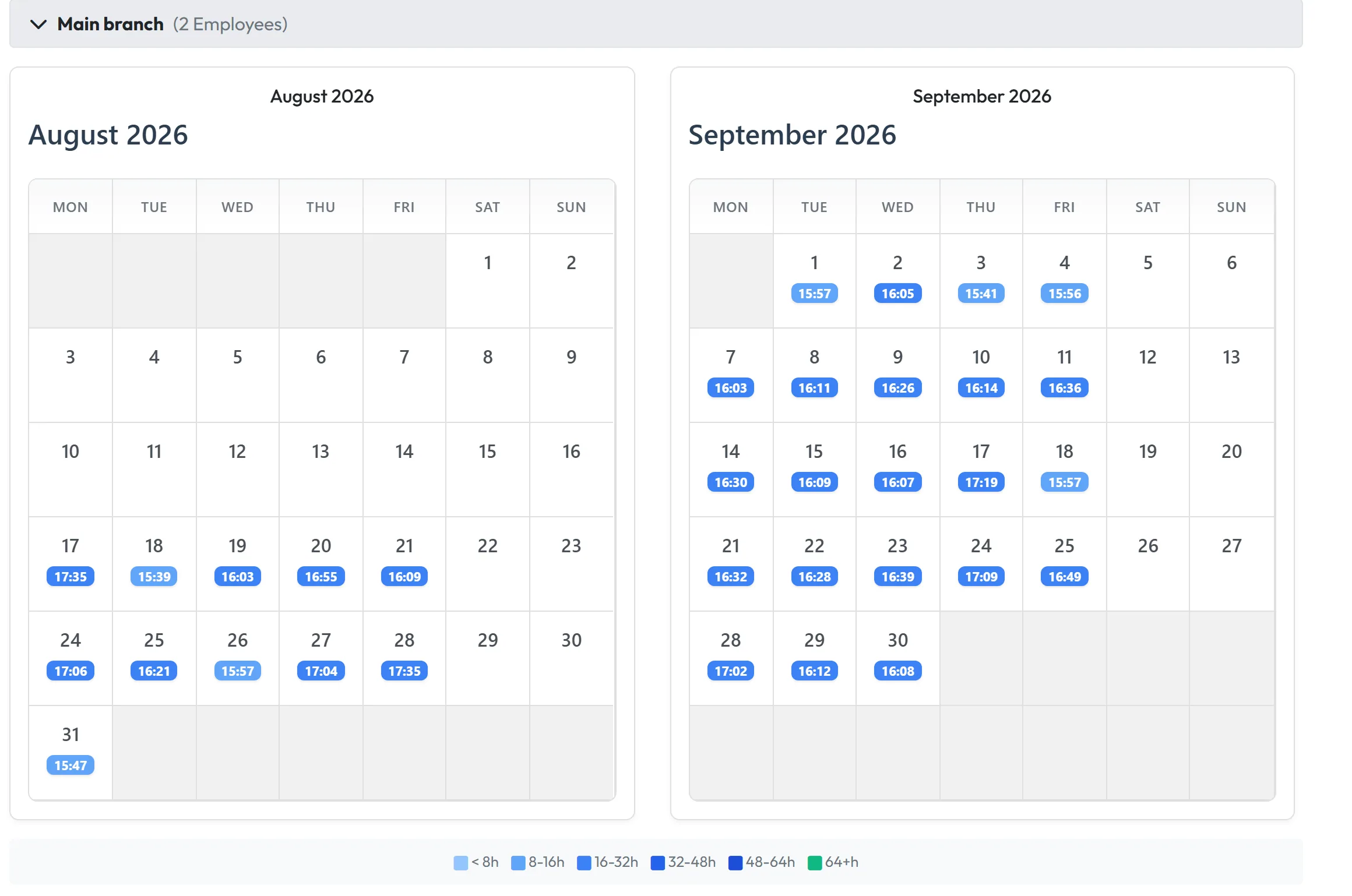
Branches/Projects Comparison puts periods next to each other: two monthly calendars with the hours worked per day and a colour legend. Filter one branch to see, for example, whether the depot had a quieter October than September.
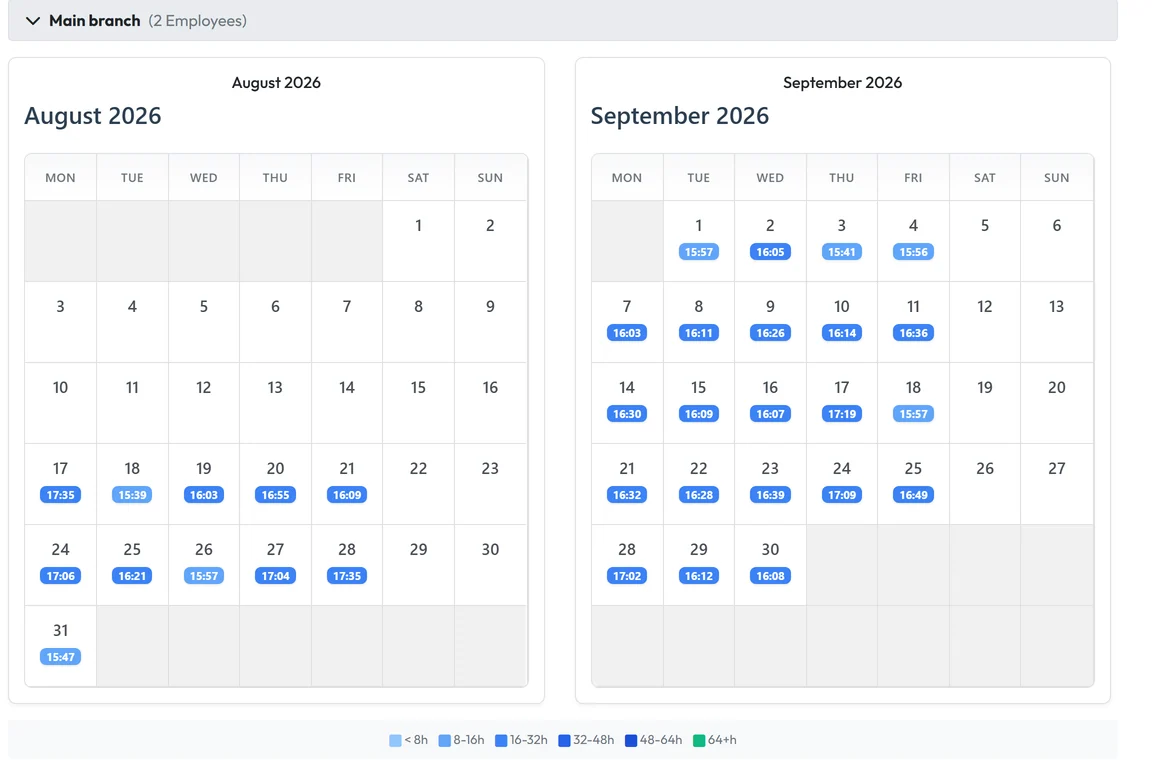
Comparing months for one branch -
Check plan against reality in Branches detail.
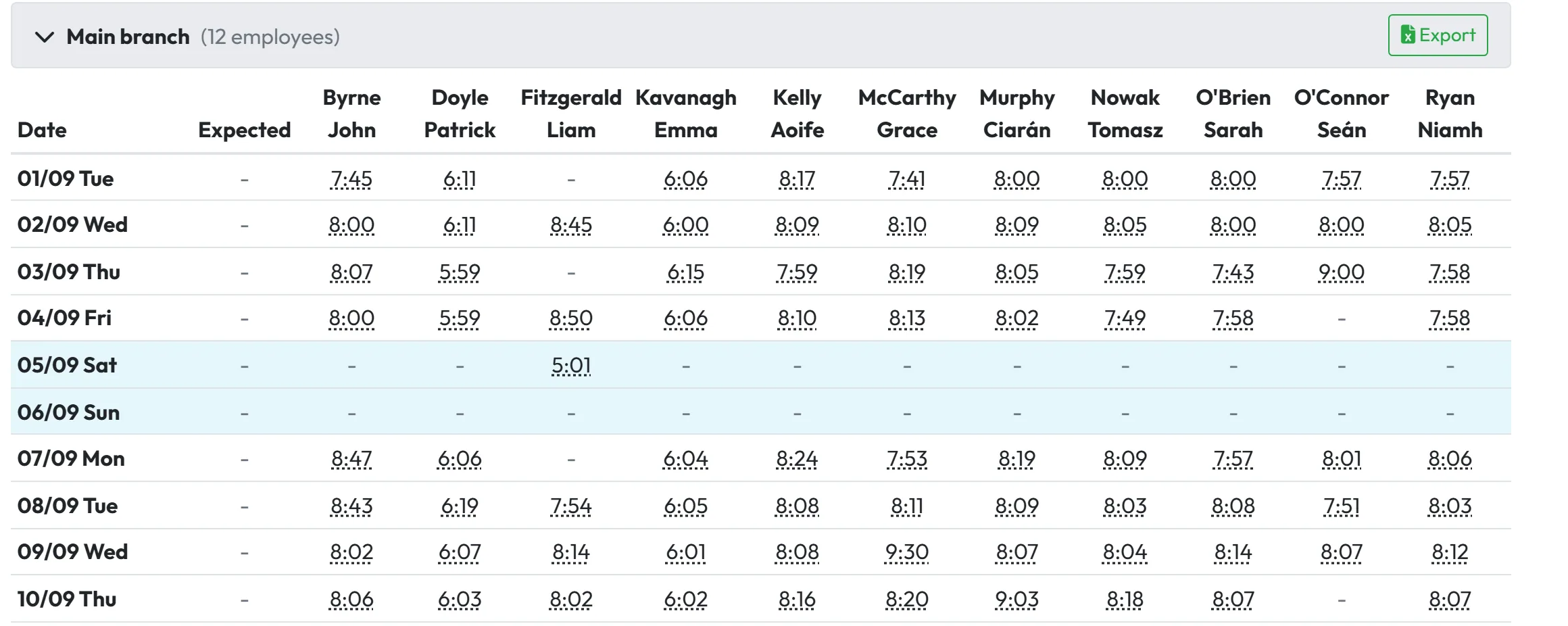
Branches detail shows each branch day by day: Expected employees, Time per employee, Total expected time, and every employee’s worked time coloured by the Color Legend – Above scheduled hours, Below scheduled hours, Exactly as scheduled, No scheduled time. Show scheduled hours only hides days without a plan.
The expected time comes from published shifts in the shift planner. A second source, object schedules, is an Experimental setting (Beta). Without either, cells show No scheduled time. The tab uses raw scans:
This report shows raw attendance data from QR code scans. Automatic breaks and time roundings are not applied.
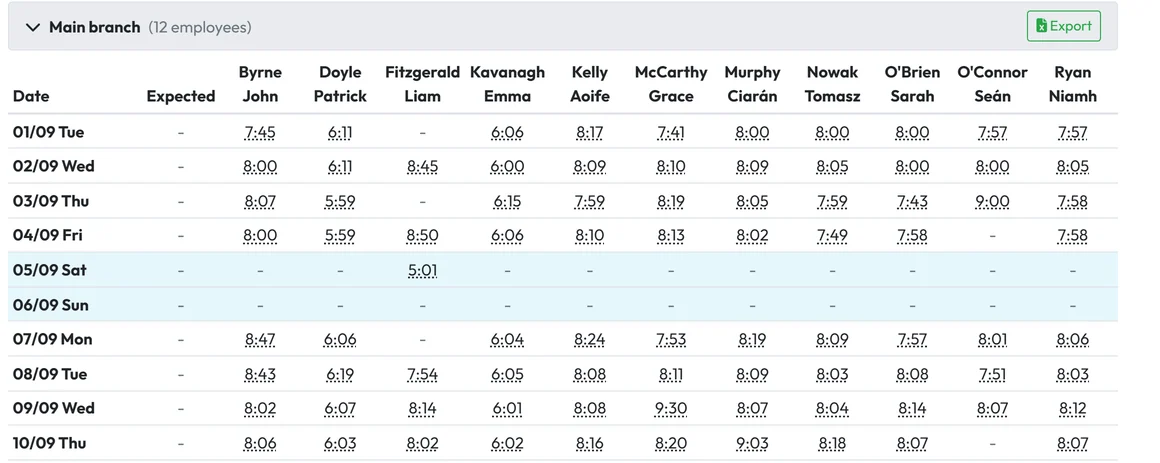
Planned vs. worked, day by day
#Other ways to look at branches
- Highlight one branch in employee sheetsIn Per employee, the filter Highlight branch paints the days and totals of one branch yellow – useful when people work at several locations. See Monthly employee report.
- Filter any tab by branchMost tabs accept Add filter › Branch – see Table reports – tabs and filters.
- Export to ExcelBranches detail has Export all branches to Excel; every branch also has its own button. See Export to Excel and PDF.
#Special cases and tips
- The Overview tab is missing
- Turn on Calculate worked hours per branch (step 1). If it is off and you have several branches, the Overview shows a reminder:
You have multiple branches but the "Calculate worked hours per branch" setting is turned off.
- Costs are zero
- The employees have no hourly rate or salary for that period. Add one in the employee’s Salary tab – see Hourly rate and salary.
- Branch hours don’t add up to Per employee
- Branches detail uses raw scans without rounding and automatic breaks; Per employee uses the final worked time. Flexible breaks also limit the split to the assigned branch, as the note in Per branch says.
- A Branch Manager doesn’t see Per branch
- By design: Branch Manager and Project Manager accounts don’t get Per branch and Branches detail. They can still use the Overview and Comparison tabs for their own branches or projects.
#Frequently asked questions
Do I need the setting for Per branch?
Can I compare projects instead of branches?
Yes. Overview and Comparison cover both; filter by project to see projects.
Where does the expected time in Branches detail come from?
From published shifts in the shift planner, or from object schedules, an Experimental setting. Without a plan the cells say No scheduled time.
Are bonuses part of the costs?
No. Per branch shows Expenses without bonuses – the cost of hours from hourly rates and salaries.
#Related
You are hereBranches detail, Overview and Comparison
Web app (administrator)Mobile app (employee)



