Set up QR code attendance: your first steps after sign-up
On this page
Quick answer
To set up QR code attendance in FreshQR, follow the wizard after sign-up. Scan the left QR code with your phone camera to install the app, then scan the right one inside the app, straight from your screen. Your record appears in Scan Details. Then check the schedule, print the codes and send the app to your team.
#What it's good for
- You try the system before printing anything. The first scan takes about two minutes.
- You see exactly what your staff will see – the same app and the same scan.
- Day one with the team goes smoothly, because you’ve checked the settings beforehand.
#Who it's for
A good fit for
- Anyone who has just signed up and wants attendance running this week.
- A manager who will show the others how to scan. It’s easiest to explain once you’ve done it yourself.
Not the right fit for
- Employees. Their steps are in Installing the app and joining your company.
#Step by step
-
Start the wizard.
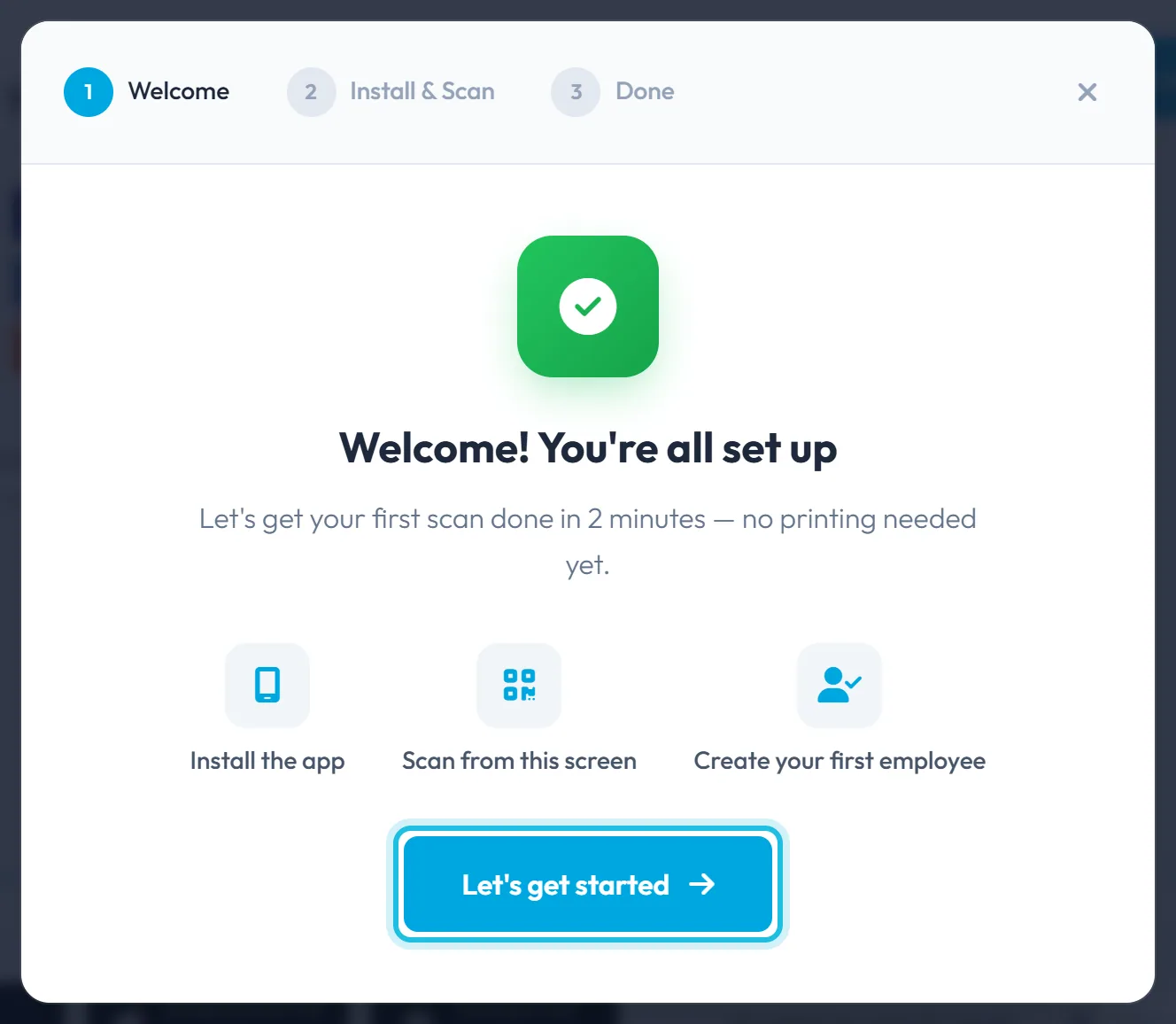
After sign-up the Attendance (QR Codes) page opens with a wizard on top. It has three steps: Welcome, Install & Scan and Done. Click Let’s get started. You can close the wizard at any time with the × – every step is also described here.
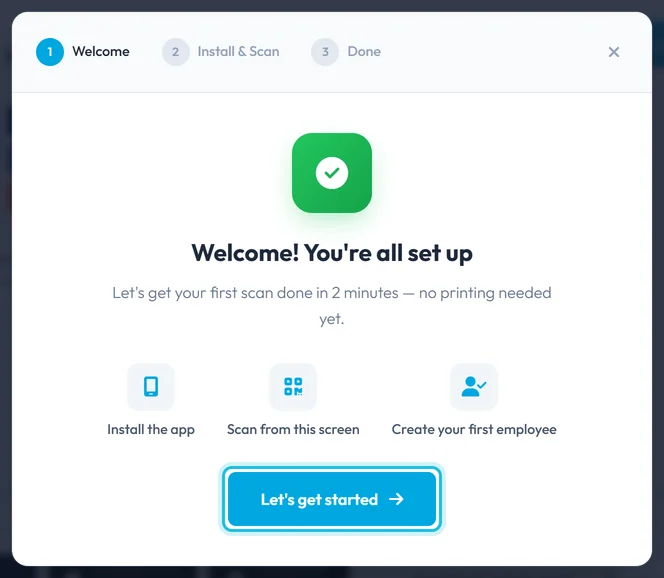
The wizard has three short steps -
Install the app and scan the code on your screen.
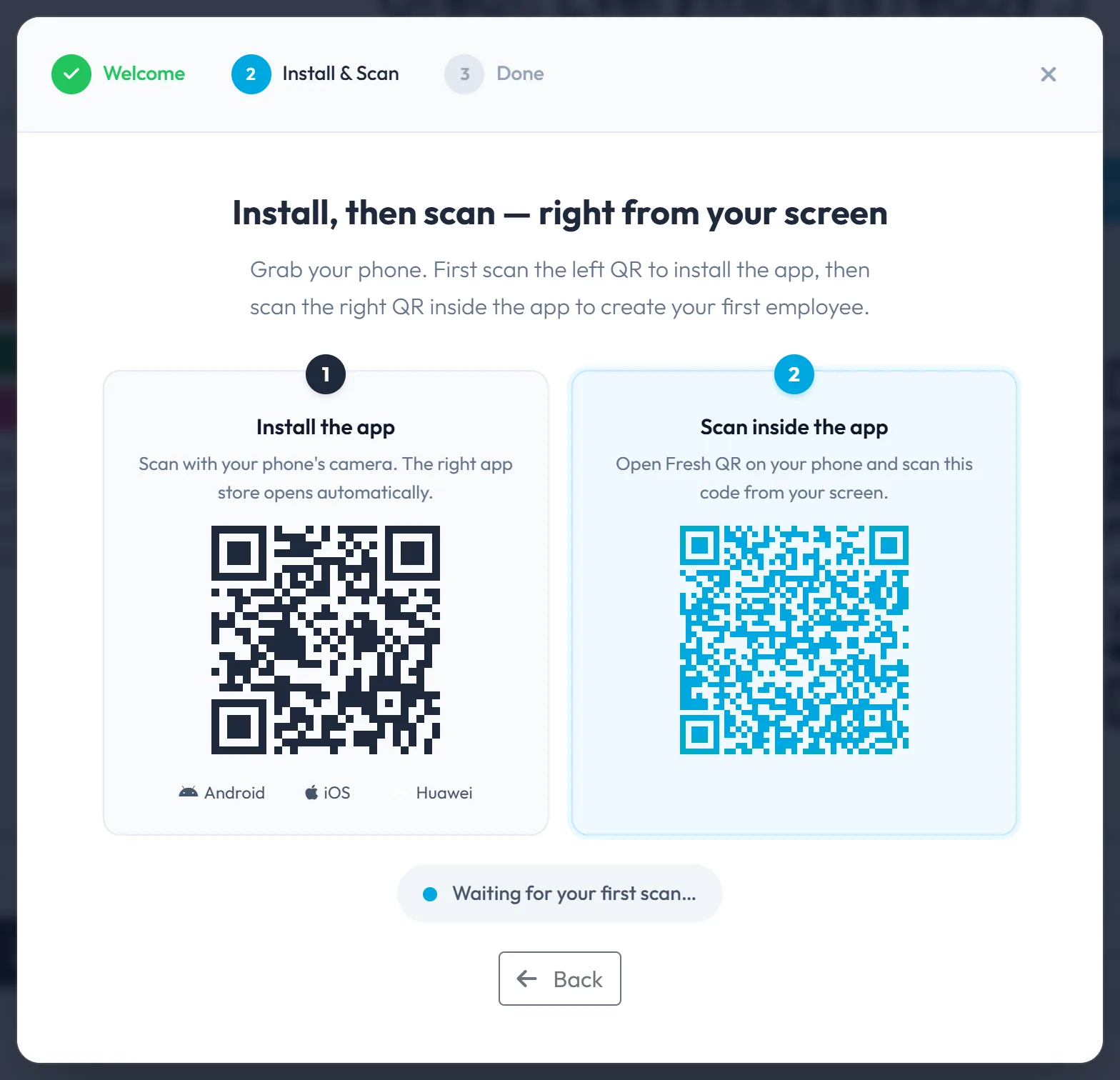
Pick up your phone. Scan the left QR code with the phone camera – the right app store opens, Google Play or the App Store. Install the Fresh QR app and accept the data consent.
Then, inside the app, scan the right QR code straight off your monitor. The wizard picks up the scan and moves on to Done by itself. You have now created your first employee – yourself, on your own phone.
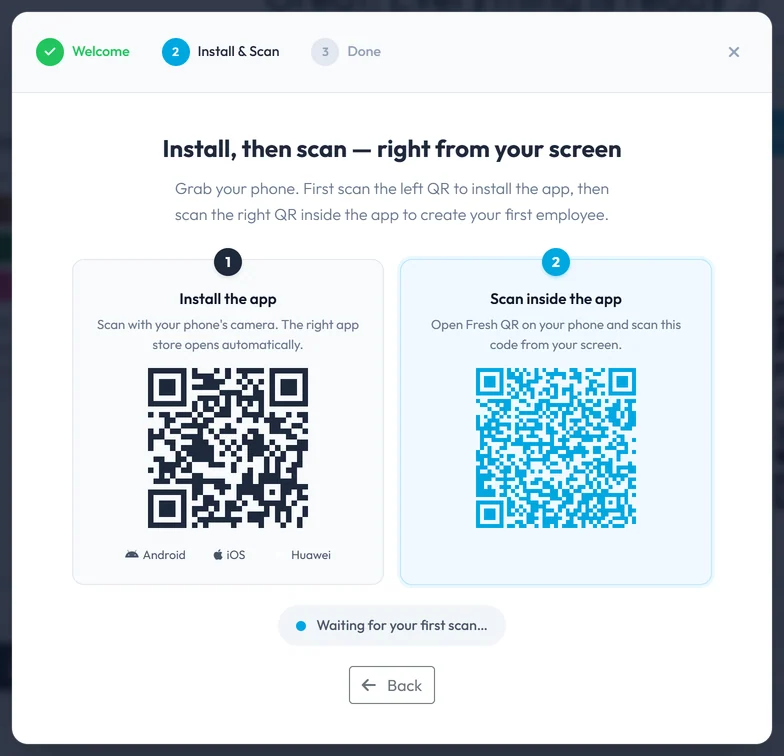
Left code installs the app, right code is your first scan -
Look at the next steps.
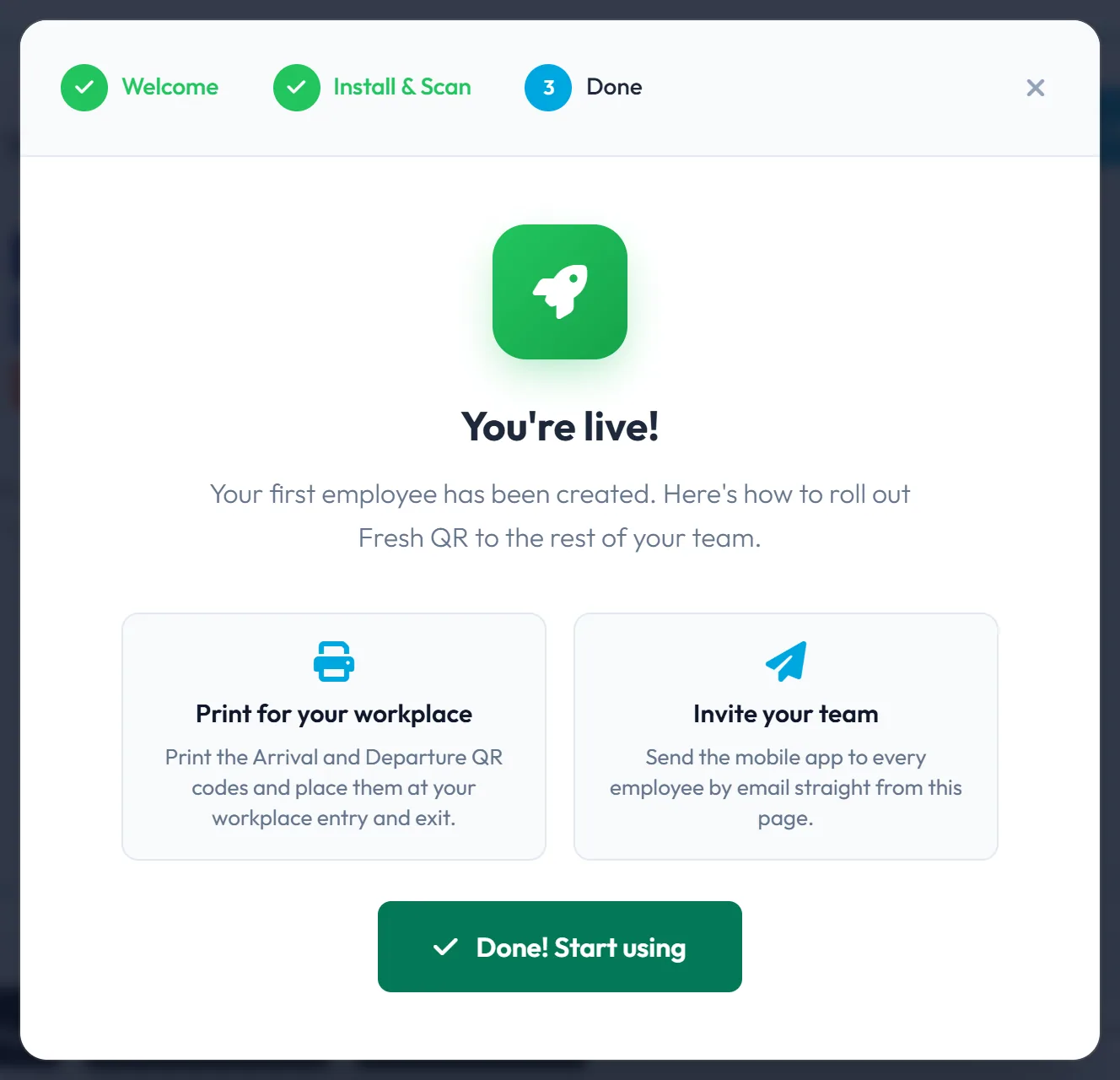
The Done step shows two tasks for the coming days: Print for your workplace and Invite your team. The wizard talks about Arrival and Departure codes; on the page itself they are called Clock in and Clock out. Close the wizard with Done! Start using.
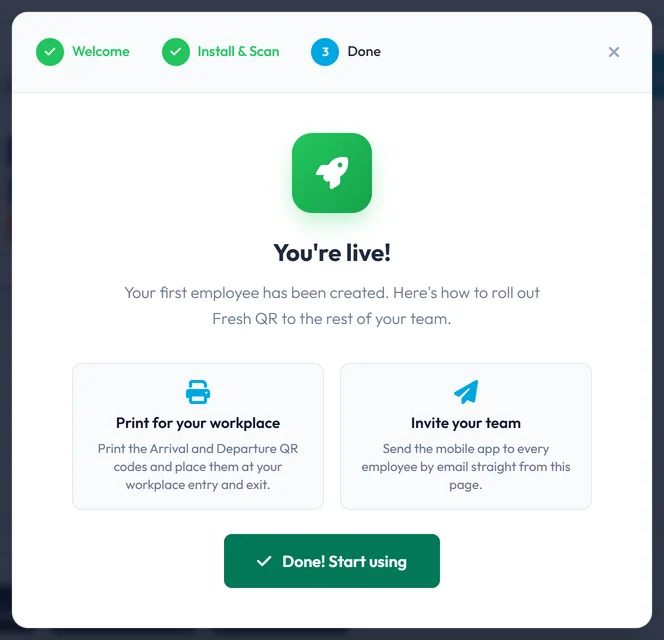
After the first scan: print the codes and invite your team -
Check the record in Scan Details.
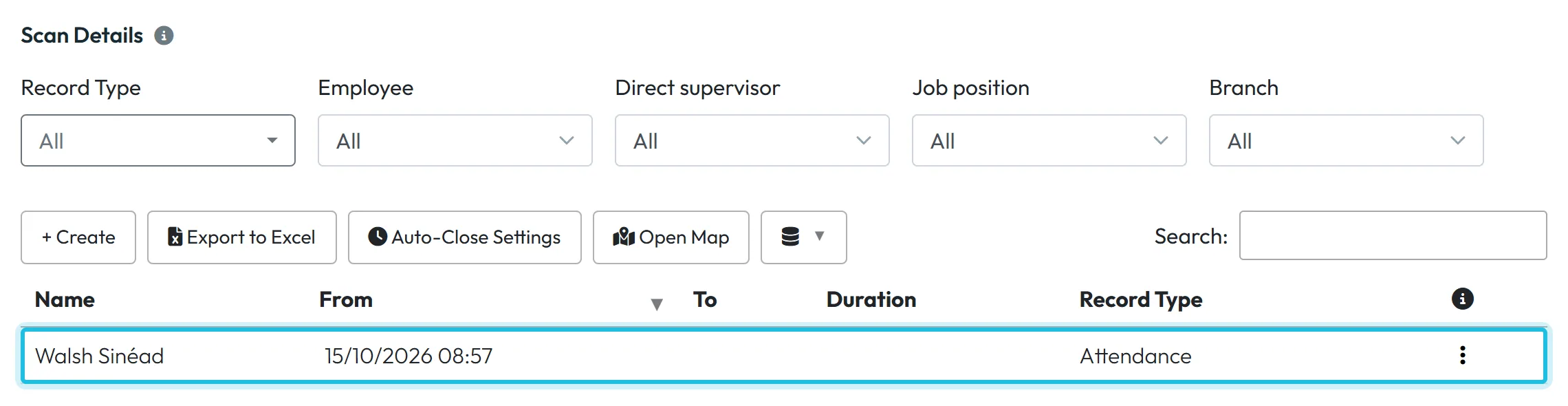
In the left menu, open Scan Details. Your scan is there as a clock-in at the main branch. The clock-out is still empty, so the record is open. When you scan the Clock out code in the app, the record closes. Everything else in Scan Details is explained in Scan details – reviewing and editing attendance.
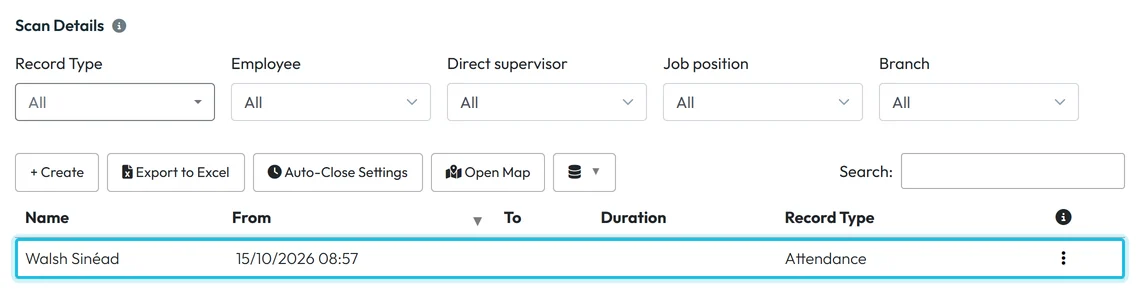
Your test scan shows up in Scan Details right away -
Check the settings before the team starts.
It takes a few minutes. Look at these places first:
- Work schedule. The default schedule counts 8 hours Monday to Friday. If your hours differ, change it in My Company › Work Schedules – see Work schedules, rounding and breaks. Overtime is calculated from the schedule.
- Branches. If you have more than one site, add them and set their location on the map. See Branches.
- Mobile App Settings. Decide whether staff see their own reports, whether a scan needs a photo and when their phone reminds them to clock out. See Mobile app settings.
- Notifications. Emails about new absence requests or scans far from the site. See Email notifications.
-
Print the QR codes.
On the Attendance (QR Codes) page, click Download both QR codes on the same PDF. Put Clock in by the entrance and Clock out by the exit – or both side by side, for example next to the staff room. Details, including your own colours, are in Clock-in and clock-out QR codes.
-
Send the app to your team.
At the bottom of the Attendance (QR Codes) page there is a field Send link to apps to email:. The employee gets the store links, installs the app and scans the Clock in code when they first arrive. That scan adds them to your employee list automatically. The full process is in How to add employees.
#Other ways to make the first scan
- Without the wizardIf you closed the wizard, that’s fine. Install the Fresh QR app from Google Play or the App Store and scan the Clock in code straight from the screen on the Attendance (QR Codes) page. The result is the same.
- From a printed codeIf you’ve already printed the codes, make your first scan from the paper. What a scan looks like on the phone is shown in Clocking in and out with a QR code.
#Special cases and tips
- The phone won’t scan
- The app needs access to the camera and to location. If you refused either when the app first started, allow it in the phone settings – see Camera or location not working.
- Scanning from the monitor doesn’t work
- Turn up the monitor brightness and move the phone a little closer or further away. Making the browser window bigger also helps.
- Your test record shows up in reports
- Your test scan is an ordinary attendance record. If it gets in the way, correct or delete it in Scan Details.
- Your staff work at client sites
- If people don’t come to one workplace but go to client buildings or building sites, read Branches or projects – which to choose before you print any codes.
#Frequently asked questions
Do I have to print QR codes to try the system?
No. You make the first scan straight from your computer screen. Printing is only needed for the team.
Why am I listed as an employee after the test?
The first scan from a phone that isn’t connected to a company yet creates an employee. That is how everyone gets into the system, you included.
How long does it take to set up the whole company?
The first scan takes a few minutes. Printing the codes and inviting the team can be done the same day. Employees add themselves when they first arrive.
Do employees need an email or a password?
No. The app joins the company with the first scan of a company QR code.
#Related
You are hereGetting started after sign-up
Administrator
Web app (administrator)Mobile app (employee)



