How to export timesheets to Excel and PDF in FreshQR
On this page
Quick answer
To export timesheets to Excel, open Table Reports › Per employee, choose the month and click Export all employees to Excel. The PDF button next to it exports everyone as one PDF or as a ZIP with one PDF per person. Every other table tab has its own Export to Excel button.
#What it's good for
- The accountant gets a file, not a login: one Excel for the month or a PDF per employee for the archive.
- Exports follow your filters and column choice, so a file for one branch or one supervisor’s team takes the same two clicks.
- The bulk PDF export turns a whole team’s month into one document, ready to print.
- Every report tab can be exported, from monthly totals to the breaks list.
#Who it's for
A good fit for
- Companies with an external accountant or payroll bureau.
- Firms that archive monthly timesheets as PDF.
- Managers who send hours for one branch or site to someone outside FreshQR.
Not the right fit for
- Shift plans are exported from the planner itself – see printing the shift schedule.
#Which export to use
| You need | Where | Format |
|---|---|---|
| Monthly hours of all employees for the accountant | Per employee › Export all employees to Excel | Excel |
| A printable timesheet for everyone | Per employee › PDF button in the toolbar | One PDF, or a ZIP with one PDF per employee |
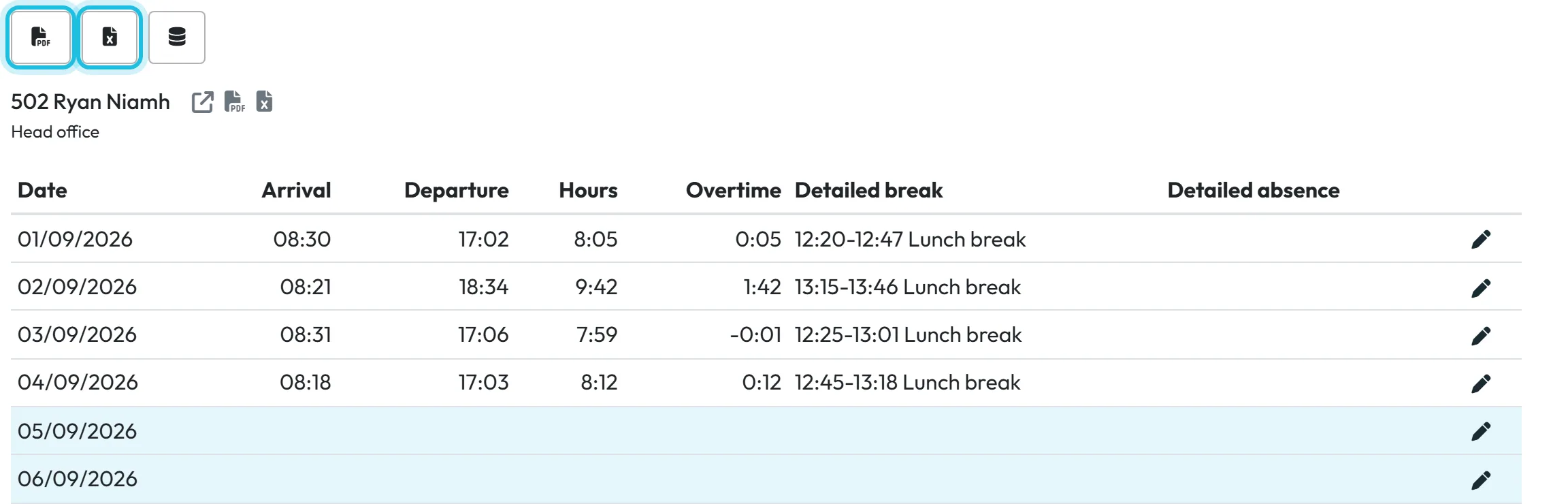
| One person’s month | Icons next to the name in Per employee, or the employee’s Monthly report tab | PDF or Excel |
| Totals per month, week or day | Years, Months, Weeks, Days › Export to Excel | Excel |
| Breaks, farthest scans | Breaks, Farthest GPS scans › Export to Excel | Excel |
| Hours per branch day by day | Branches detail › Export all branches to Excel | Excel |
| Checks, project time sheets, branch statistics | Checks, Project detail, Branches/Projects Overview |
#Step by step
-
Open Per employee and choose the month.
Go to Table Reports › Per employee and pick the month in the period selector. If you need only part of the company, add a filter first – for example Branch = Head office. The toolbar above the employees has the export buttons for everyone on the list.
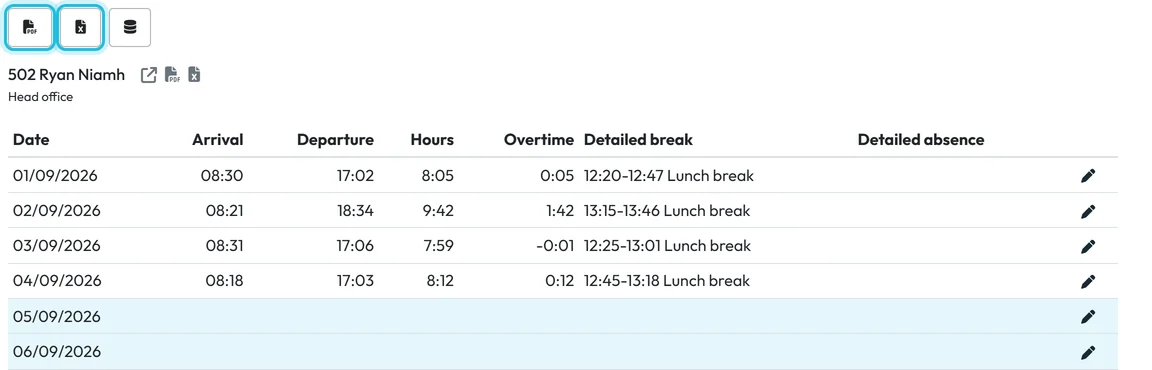
Export all employees at once -
Export everyone to Excel.
Click Export all employees to Excel. The file has the columns you chose in Customize report (see Custom columns and report templates). The Excel icon next to a single name exports just that employee.
-
Export everyone to PDF.
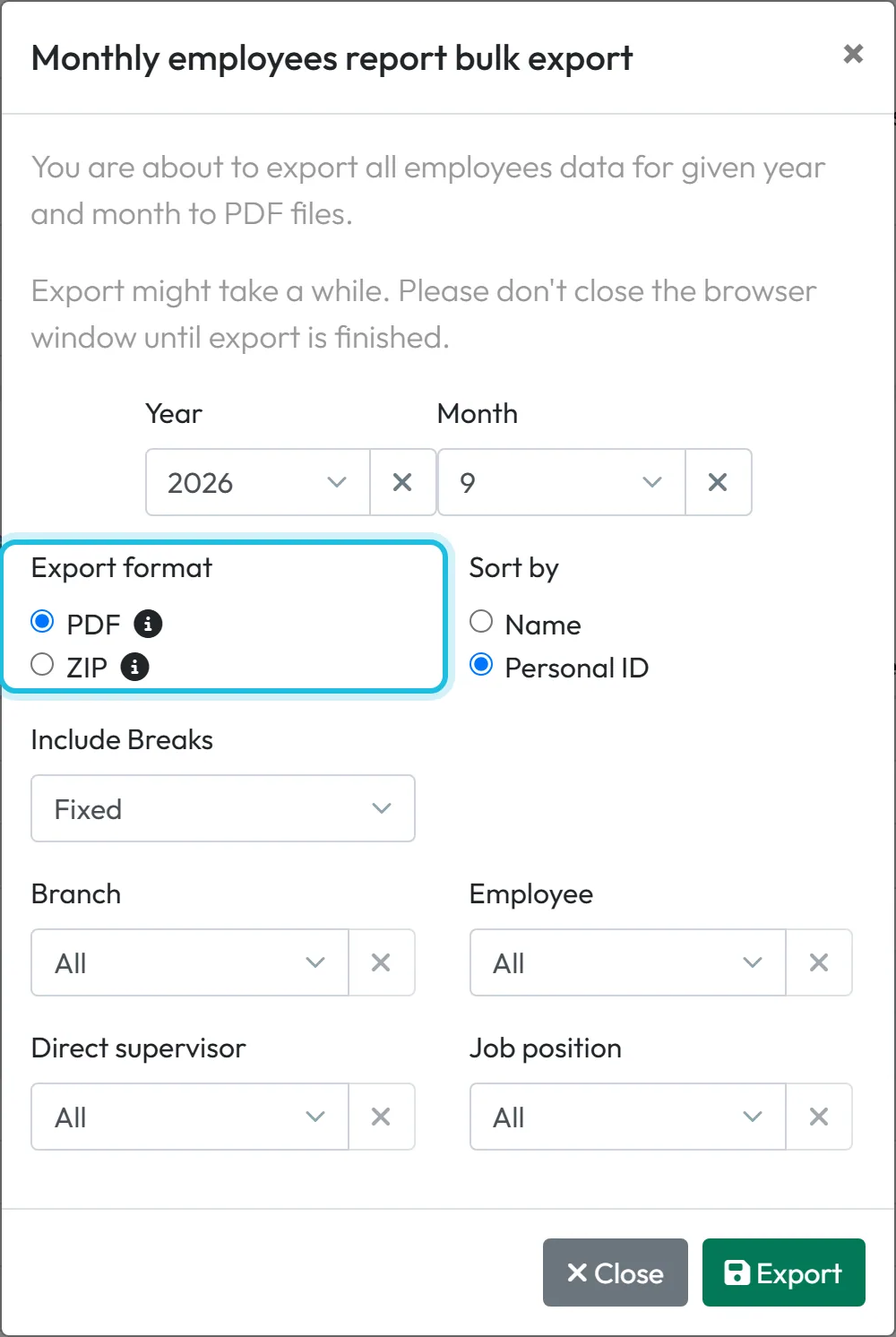
Click the PDF button –
Export all employees data for given year and month to PDF files
. The window Monthly employees report bulk export opens. Set:- Year and month;
- Export format: PDF (
All employees in single file
) or ZIP (Each employee is exported to individual PDF file
); - Sort by: name or Personal ID;
- Include Breaks: Fixed or All;
- optionally one filter: Branch, Employee, Direct supervisor or Job position.
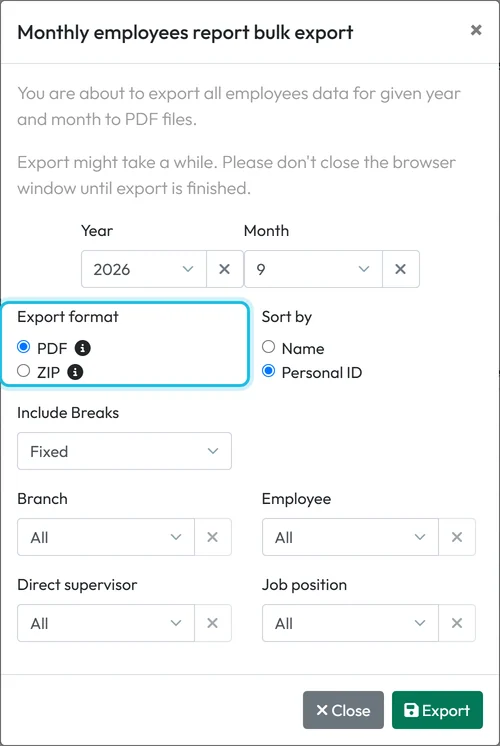
PDF = one file, ZIP = one PDF per employee -
Click Export and wait for the download.
Click Export. For a large team the file takes a while; as the window says,
Export might take a while. Please don’t close the browser window until export is finished.
If you exported one employee from the icon next to their name just before, clear the Employee field so the file covers everybody.
-
Export totals from the other tabs.
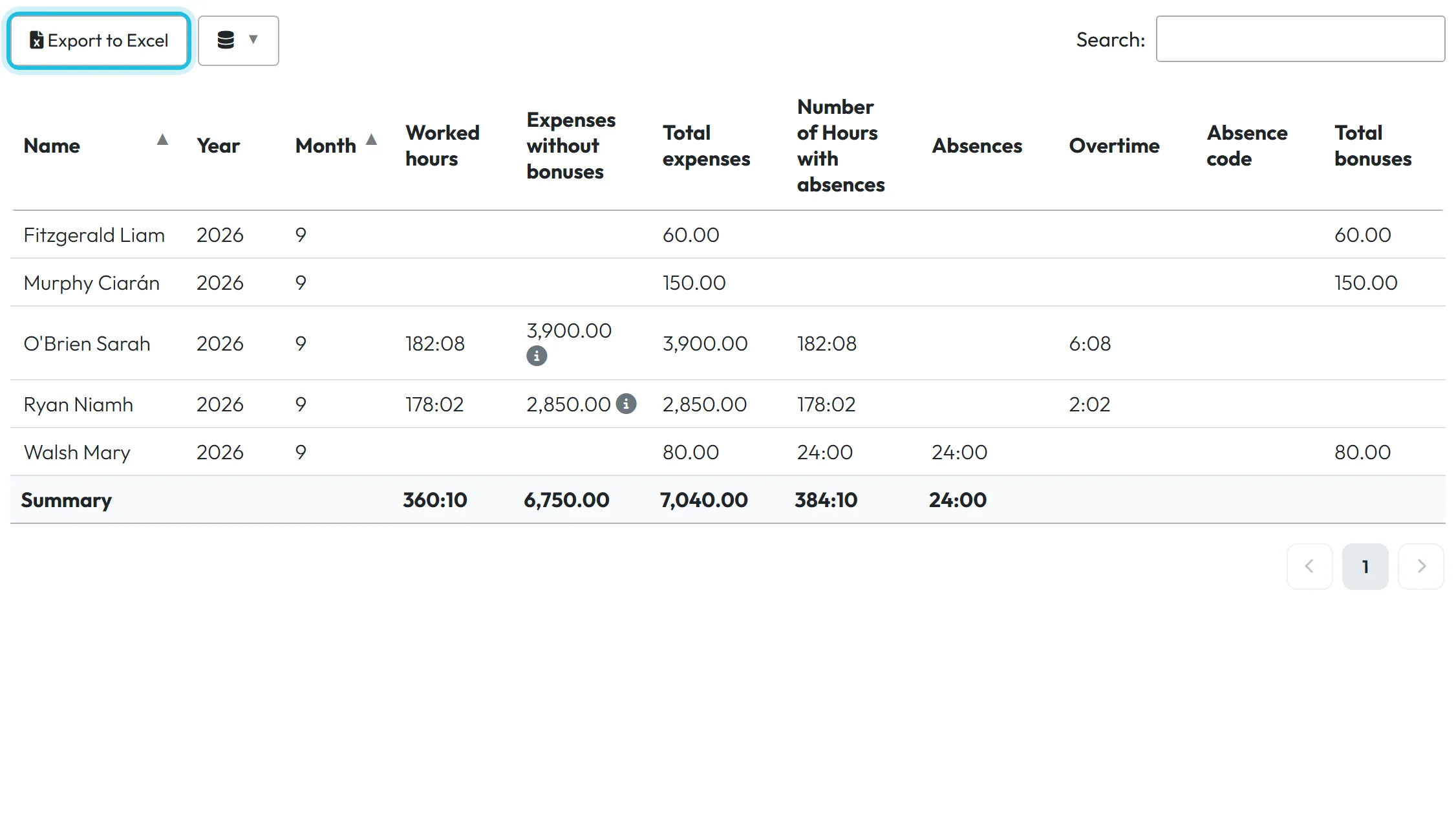
On Years, Months, Weeks, Days, Breaks and Farthest GPS scans, the Export to Excel button above the table downloads the table as shown. The database icon next to it hides columns you don’t want in the file.
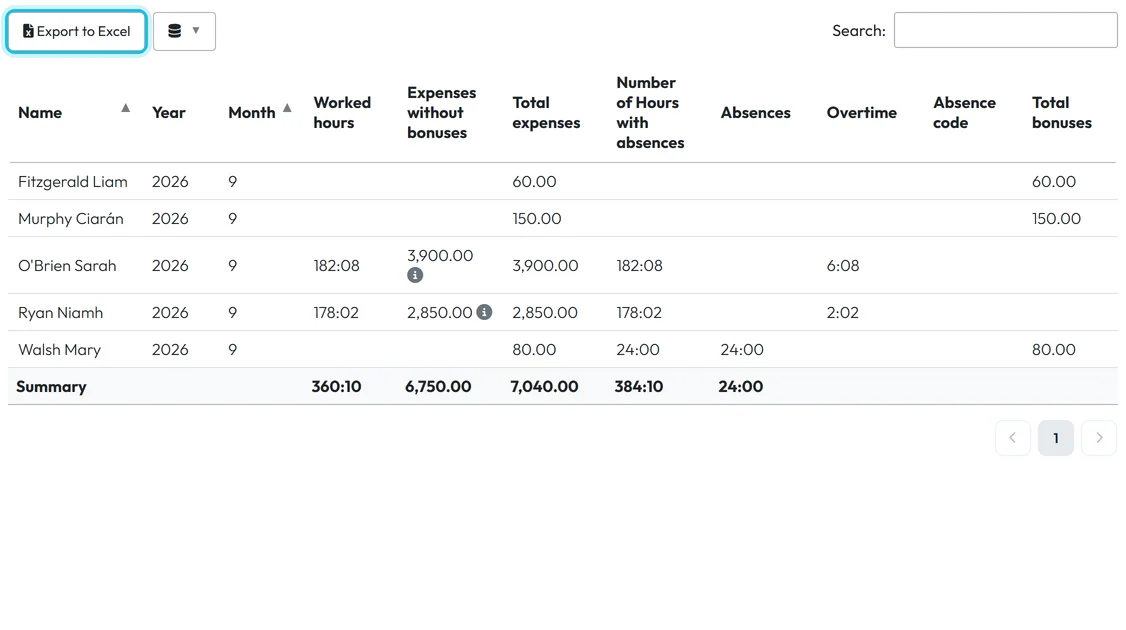
Every table tab has its own Excel export -
Export hours per branch.
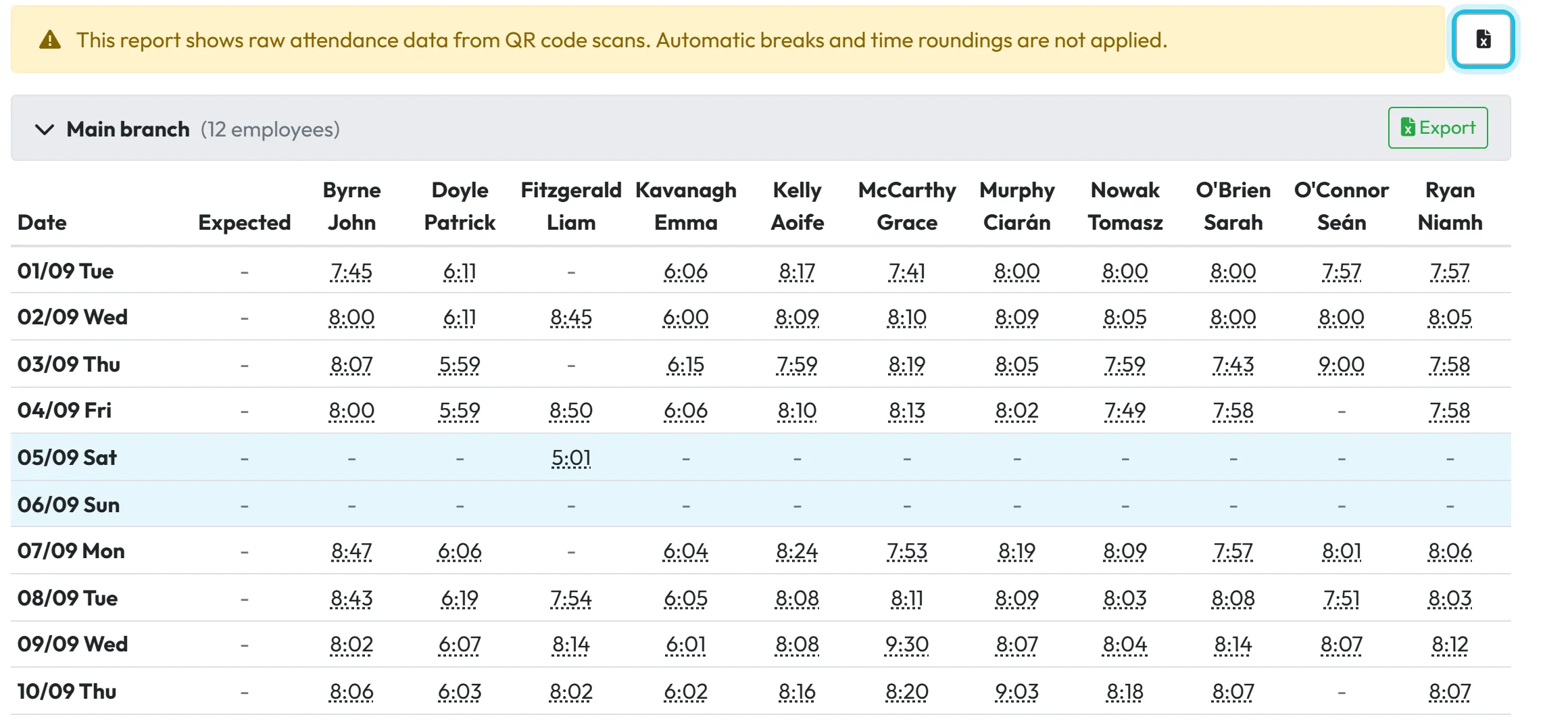
In Branches detail each branch has its own Excel button, and Export all branches to Excel exports them all. The tab shows raw scan data –
This report shows raw attendance data from QR code scans. Automatic breaks and time roundings are not applied.
– so its numbers can differ from Per employee. More in Branch reports.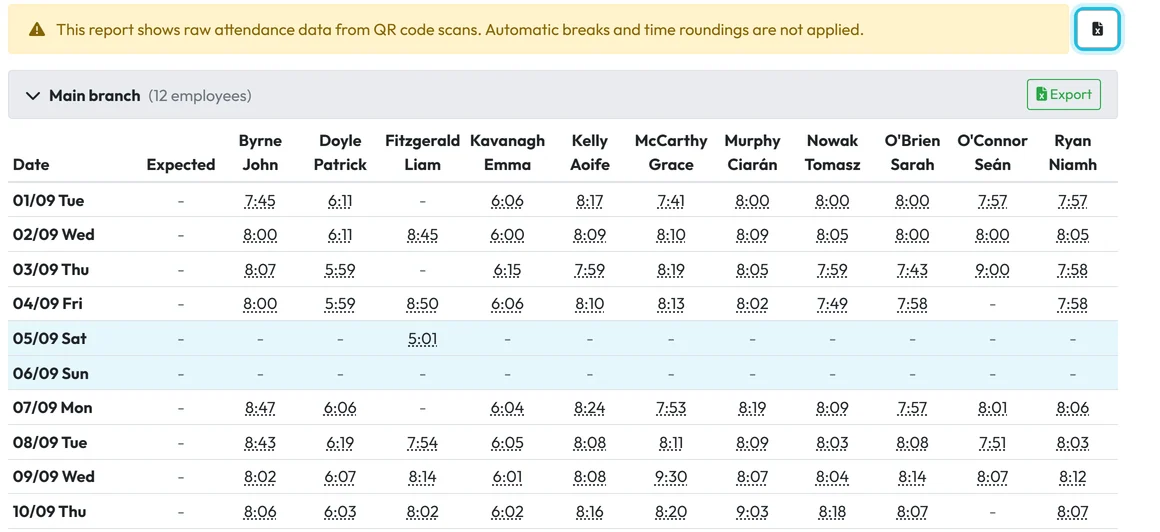
Branches detail exports branch by branch
#Other exports
- One employee’s timesheetThe Monthly report tab in the employee detail has its own PDF and Excel buttons – see Monthly employee report.
- PDF of ChecksThe Checks tab exports its list of findings to PDF, handy to send to a supervisor – see Checks.
- Project time sheetsProject detail exports a PDF per project and month, and the project report exports to Excel and PDF – see Project report.
#Special cases and tips
- The PDF has fewer columns than the table
- A PDF fits at most 10 data columns. Choose the ten that matter in Customize report; Excel keeps them all.
- No signature lines in the PDF
- Turn on Display signature inputs under PDF Content Options – see Monthly employee report.
- A manager’s export has fewer people
- Exports contain only what the account may see. A Branch Manager gets their branches, a user account linked to an employee gets that person’s team.
- An absence is missing in the file
- Only approved absences are exported. Approve the request first – see Approving leave requests.
- A month is missing entirely
- It is in a locked period with the mode Hide, which removes it from all reports and exports.
#Frequently asked questions
Can I export timesheets to CSV?
The reports export to Excel and PDF. Excel opens in every spreadsheet program and can be saved as CSV from there.
How do I get the export to my accountant every month?
Download it and send the file, or give your accountant their own user account with the role Reports: View Only so they can download the reports themselves – see User accounts and roles. FreshQR doesn’t e-mail exports automatically.
What is the difference between PDF and ZIP?
PDF puts all employees into one file, one after another. ZIP contains a separate PDF for each employee, which is easier to file or send person by person.
Do my filters apply to the export?
Yes. The Excel files use what you see on screen. In the bulk PDF window you can also limit the export to one branch, employee, supervisor or position.
What does “Include Breaks: Fixed / All” change?
It decides which breaks the break column of the PDF counts: Fixed counts the automatic breaks from the schedule, All counts every break.
#Related
You are hereExport to Excel and PDF
Web app (administrator)Mobile app (employee)



