Merge duplicate profiles after a new phone
On this page
Quick answer
To merge duplicate profiles, open the profile the employee uses now (the one with the latest scans), go to the Advanced tab and use Merge Duplicate Profiles. Pick the old profile as the source, check both cards and click Merge Profiles twice. The whole history moves into the current profile and the old one is closed.
#What it's good for
- One person, one profile again: reports, the monthly timesheet, leave balances and overtime are no longer split in two.
- The history built up over months – scans, absences, salary, schedule – follows the employee to their new phone.
- A leaver’s phone can be disconnected from your company while you keep every record.
#Who it's for
A good fit for
- Any company where employees change phones, reinstall the app or clear its data.
- Companies with turnover that want to disconnect the app of people who have left.
Not the right fit for
- Two different people with the same name. Don’t merge them – give each a different Personal ID instead.
#Why duplicates appear
The FreshQR app has no username or password. Each installation creates its own profile, which joins your company on the first scan or with the company code (see Adding employees). So when Grace McCarthy gets a new phone and scans in on Monday, a second “McCarthy Grace” appears in the employee list – usually without an e-mail. The old profile holds two months of scans and her absences; the new one has today’s scan.

#Step by step
-
Open the profile the employee uses now.
In the employee list, open the new profile – the one the phone uses today, with the most recent scans. That profile stays. Go to the Advanced tab.
The tab is visible to accounts that can edit employees: the Owner, Administrators, Manager: Full Access except Company settings and Employees: View & Edit.
-
Choose the old profile as the source.
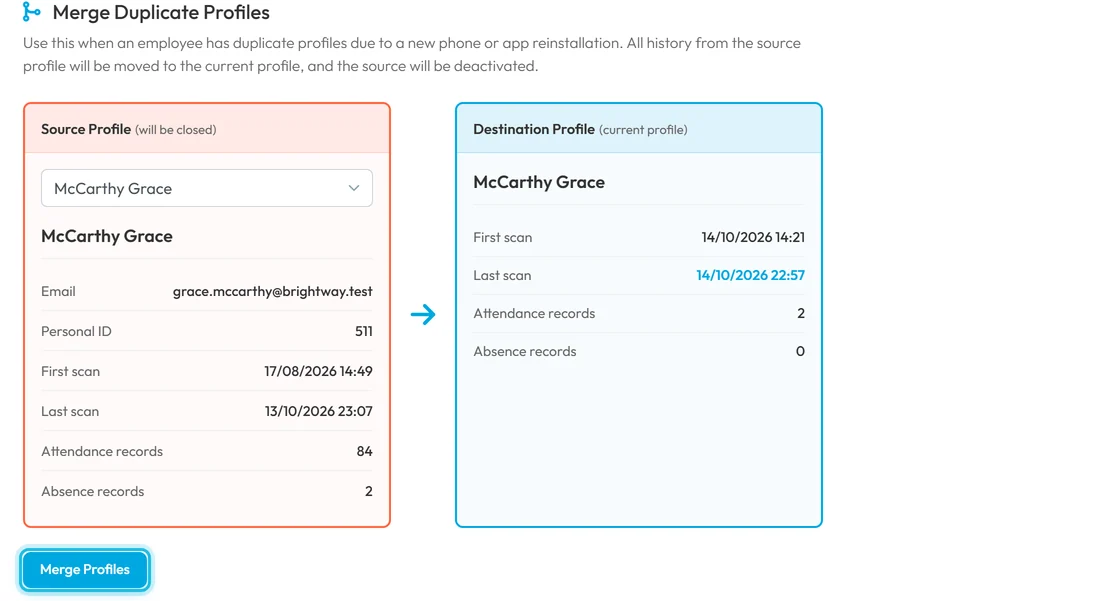
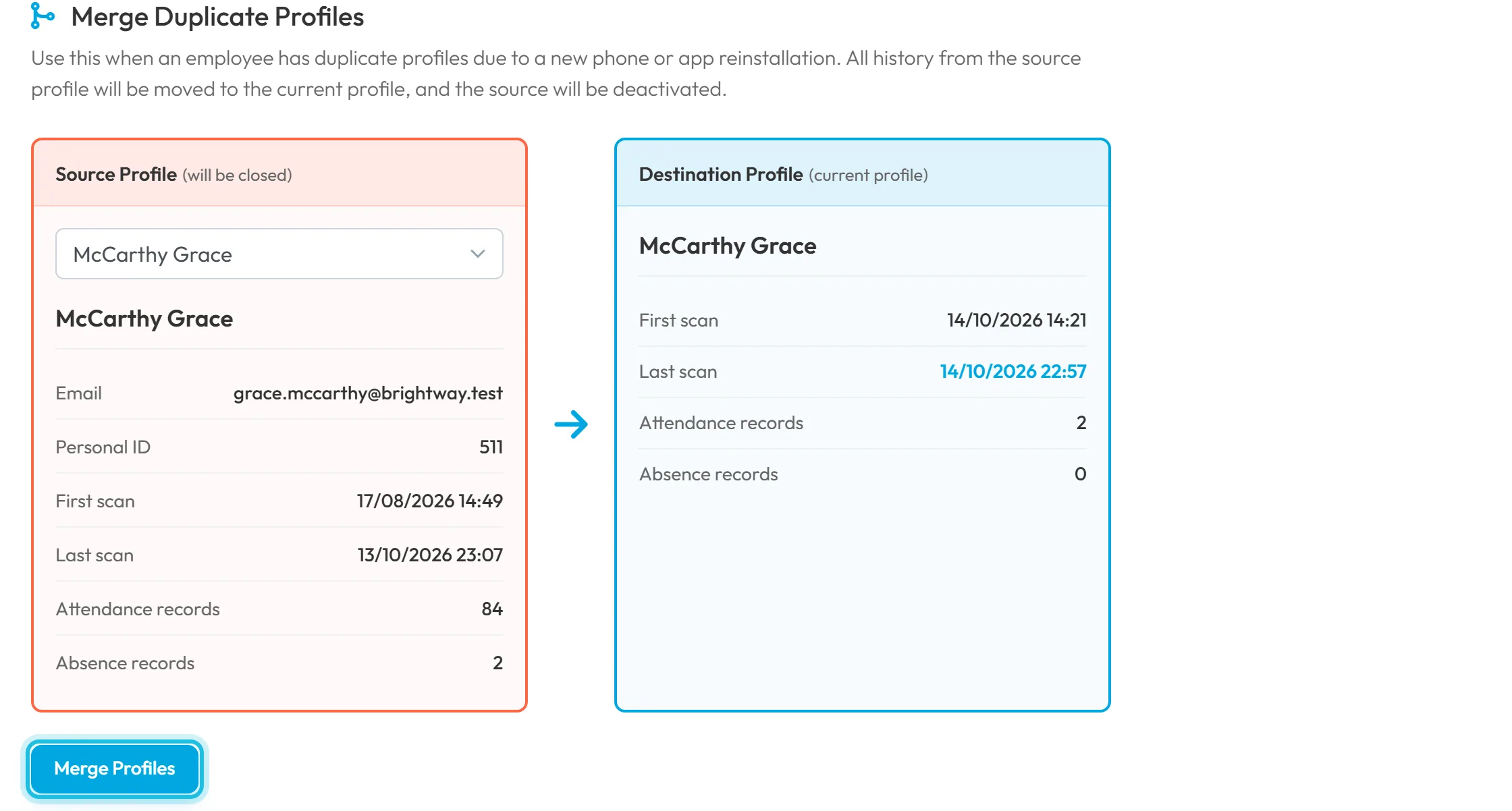
Under Merge Duplicate Profiles, click Select source profile and pick the old profile. Two cards appear: Source Profile (will be closed) on the left, Destination Profile (current profile) on the right. Each shows the e-mail, Personal ID, First scan, Last scan, Attendance records and Absence records.
Check that the source has the older history and the destination the newest last scan.
Check both profiles before merging -
Read the warnings.
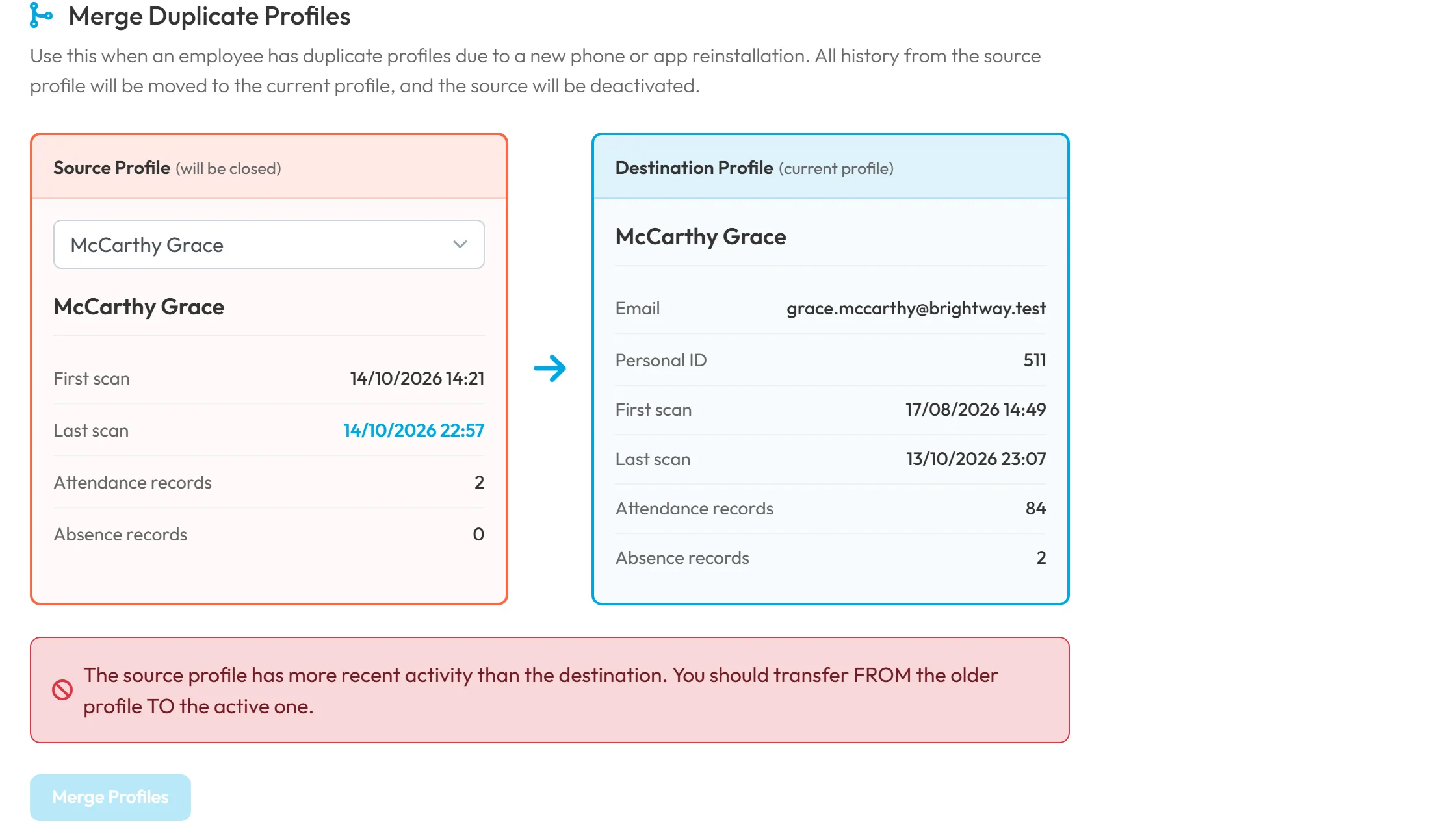
If the source has newer activity than the destination, a red box says
The source profile has more recent activity than the destination. You should transfer FROM the older profile TO the active one.
and the button stays disabled. You are on the wrong profile: open the other one and start again.If both profiles have a Personal ID and the numbers differ, a warning says
Personal IDs don’t match. These may not be duplicates.
Stop and check it really is the same person.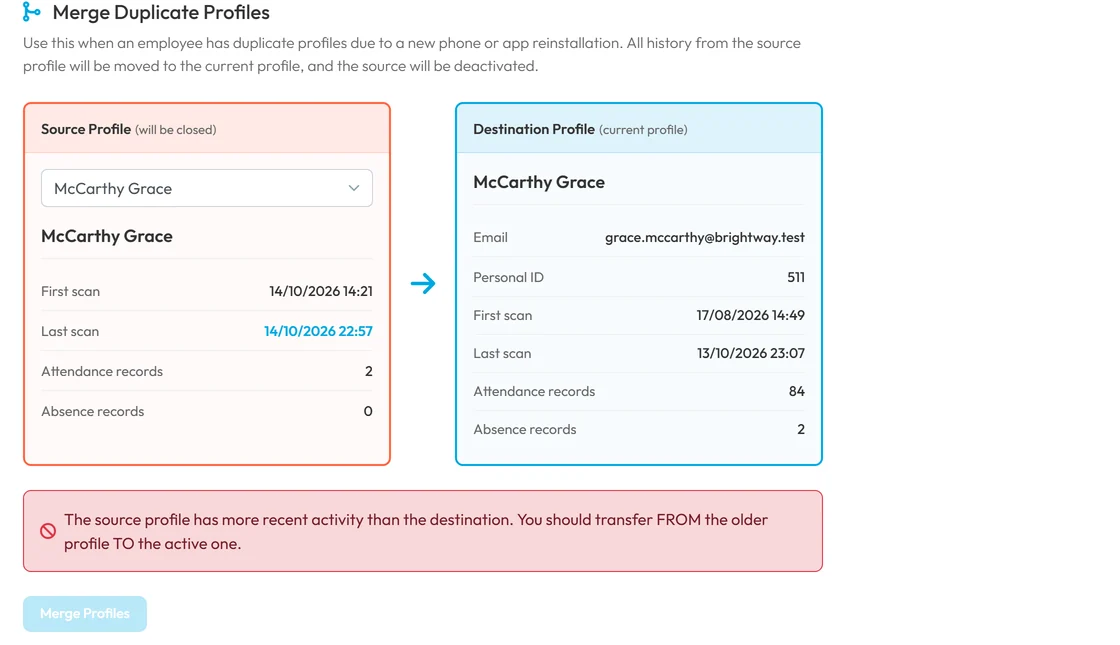
Merged the wrong way round? FreshQR stops you -
Confirm the merge.
Click Merge Profiles. A yellow box sums it up:
This action cannot be undone
, all attendance, absences and history will be moved to the destination profile, and the source profile will be permanently closed. Click Merge Profiles again, or Back if you are not sure.After the merge, you find the old profile in the Deleted employees filter.

Merging can’t be undone -
Check the kept profile.
Open the Detail tab of the kept profile. Name, e-mail, phone, position, supervisor, Personal ID and the office note are copied from the old profile where the new one had none. Before you merge, note the old profile’s tags, onboard date, contract end date and geolocation accuracy, and set them on the kept profile afterwards if they are missing.
If a manager’s user account was linked to the old profile, link it to the kept one in User accounts – otherwise they see nobody.

#Disconnect the phone of someone who has left
- Delete data from mobile
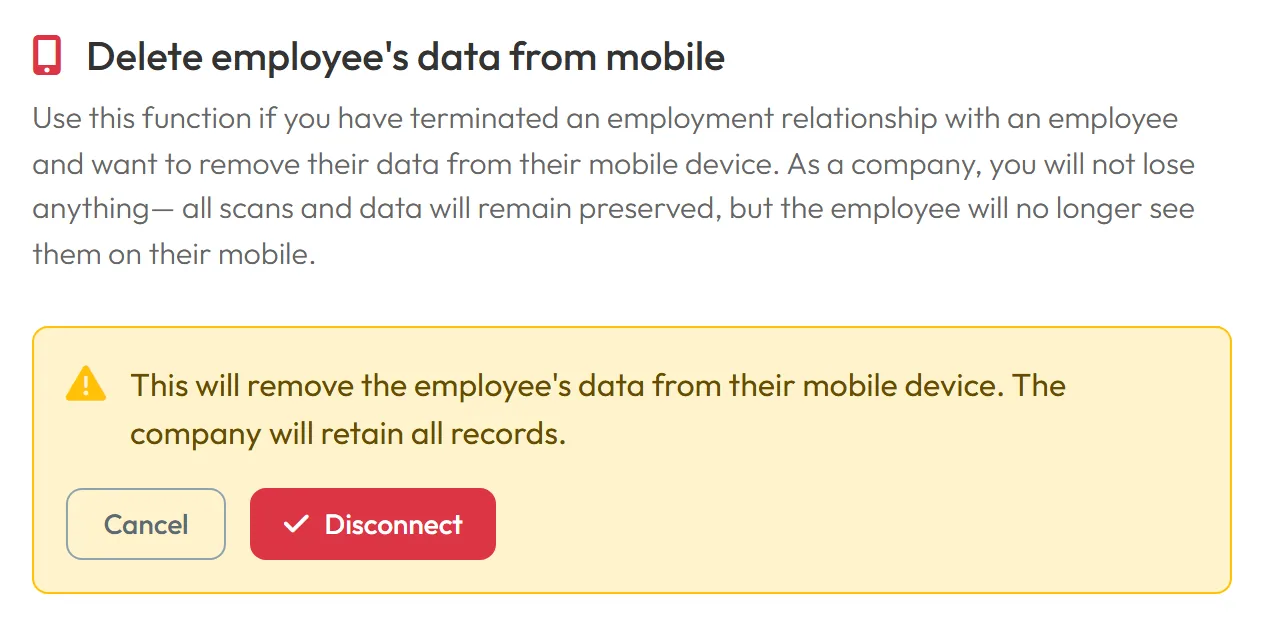
When someone leaves, their app still shows your company’s data. On the Advanced tab of their profile, Delete employee’s data from mobile removes it from their phone. As the app explains, the company loses nothing: all scans and data stay, but the employee no longer sees them on their mobile.
Click Delete data from mobile, read the box
This will remove the employee’s data from their mobile device. The company will retain all records.
and confirm with Disconnect. Then, if the person should leave the list, delete their profile as described in Employee list and filters.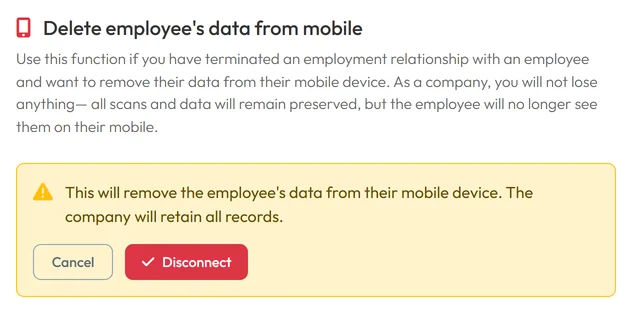
Disconnect a leaver’s phone, keep the records
#Special cases and tips
- Three profiles of one person
- Merge them one at a time into the same current profile.
- The old profile is already deleted
- Deleted profiles aren’t offered as a source. Reinstate it first in the Deleted employees filter, then merge.
- Planned shifts and todos
- If the employee had future shifts or open todos on the old profile, check them in the shift planner and in Todos and assign them to the kept profile.
#Frequently asked questions
Which profile do I open, the old or the new one?
The new one – the profile the phone uses now, with the latest scans. The old one is the source and gets closed.
Why does a new phone create a new profile?
The app has no login. Each installation is its own profile, which joins your company on the first scan or with the company code.
Can I undo a merge?
No. FreshQR warns you twice before it merges. Check both cards carefully.
Does Delete data from mobile delete the employee’s records?
No. Your company keeps all scans and data. The employee just no longer sees them in their app.
Who can merge profiles?
Accounts that can edit employees. View Only accounts don’t see the Advanced tab.
#Related
You are hereMerging duplicate profiles and unlinking a phone
Administrator
Web app (administrator)Mobile app (employee)



