Shift swap requests and employee requests in the planner
On this page
Quick answer
Shift swap requests and other requests from the app arrive in the Requests panel of the Shift planner. Switch to a draft, then plan a wants to work request with Choose shift, or Accept or Dismiss a can’t work request. Swaps between colleagues on the app’s Swap board need no approval.
#What it's good for
- “I can do Saturday” and “I can’t on Thursday” no longer get lost in a group chat.
- Each request shows the date, the time and the employee’s note, right next to the plan.
- A wanted shift is planned straight from the card, in the draft you are working on.
- Colleagues can hand over shifts among themselves on the Swap board, and the plan updates with the new name.
#Who it's for
A good fit for
- Teams with part-timers or students who change their availability often.
- Managers who want staff to sort out swaps among themselves.
Not the right fit for
- Companies that want to approve every swap between colleagues: swaps taken on the Swap board apply without an approval step.
#Step by step
-
Open the Requests panel.
In Shift planner choose the branch or project and the week, then click Requests next to Library. The number shows open requests. The panel explains:
From the employee mobile app. Choose the shift to plan for a “wants to work” request — or drag its card onto a cell.
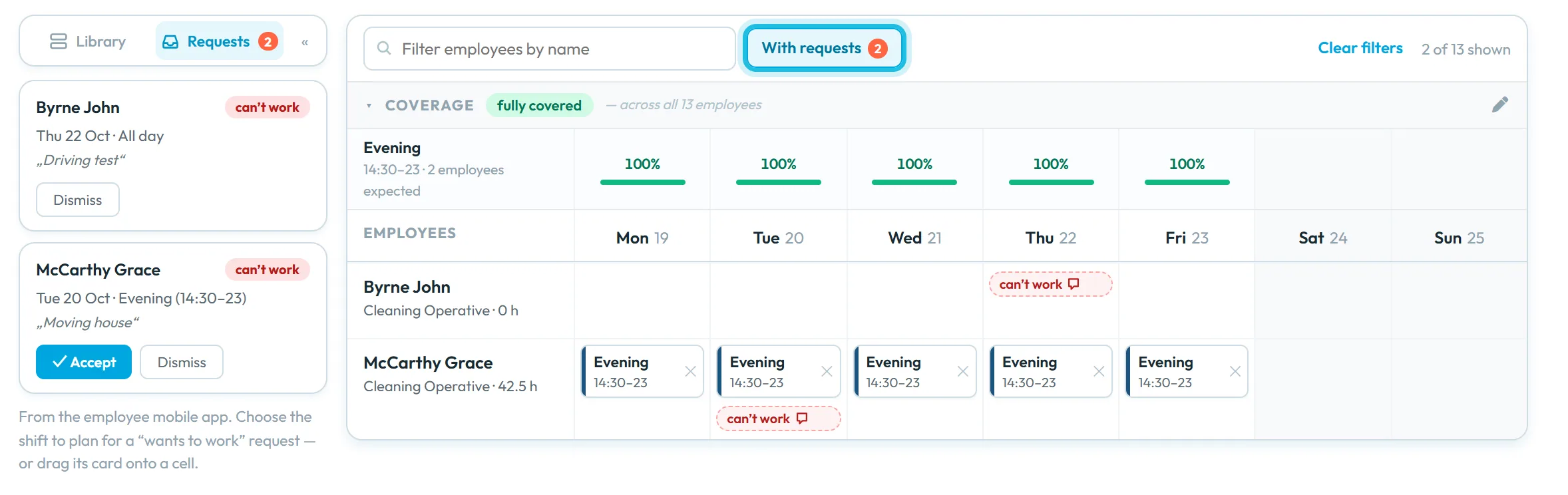
The filter With requests above the grid shows only employees with open requests this week.Each card has a kind – wants to work, can’t work or swap – with the day, the time (or All day) and the note. In the example, John Byrne can’t work on Thursday because of his driving test, and Grace McCarthy can’t do her Tuesday evening shift because she is moving house.
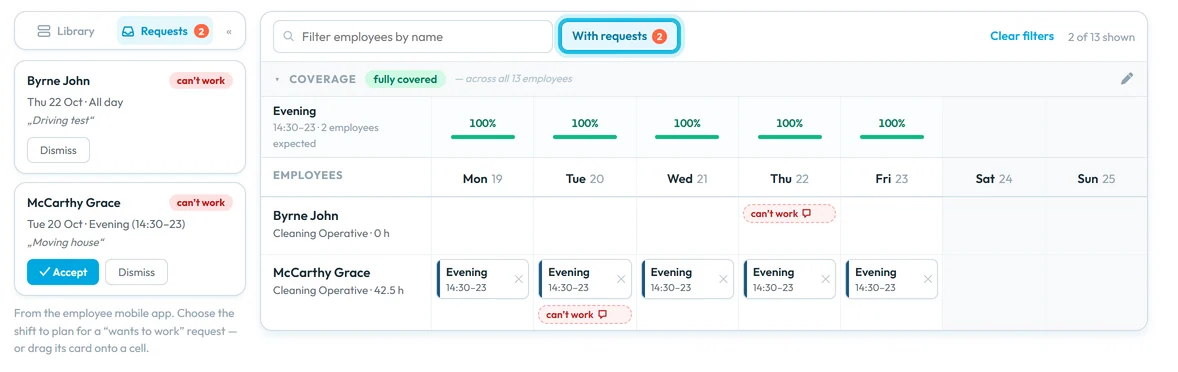
Employee requests from the app appear in the Requests panel -
Switch to a draft.
Requests are handled in a draft, like any other change to the plan. On the published week the planner says
Switch to a draft to act on requests.
Choose a draft in the version menu or start one with New draft… – see Building the schedule. -
Plan a “wants to work” request.
On the card click Choose shift and pick a template, or drag the card onto the employee’s day. The shift is added to the draft –
Request placed — … (draft).
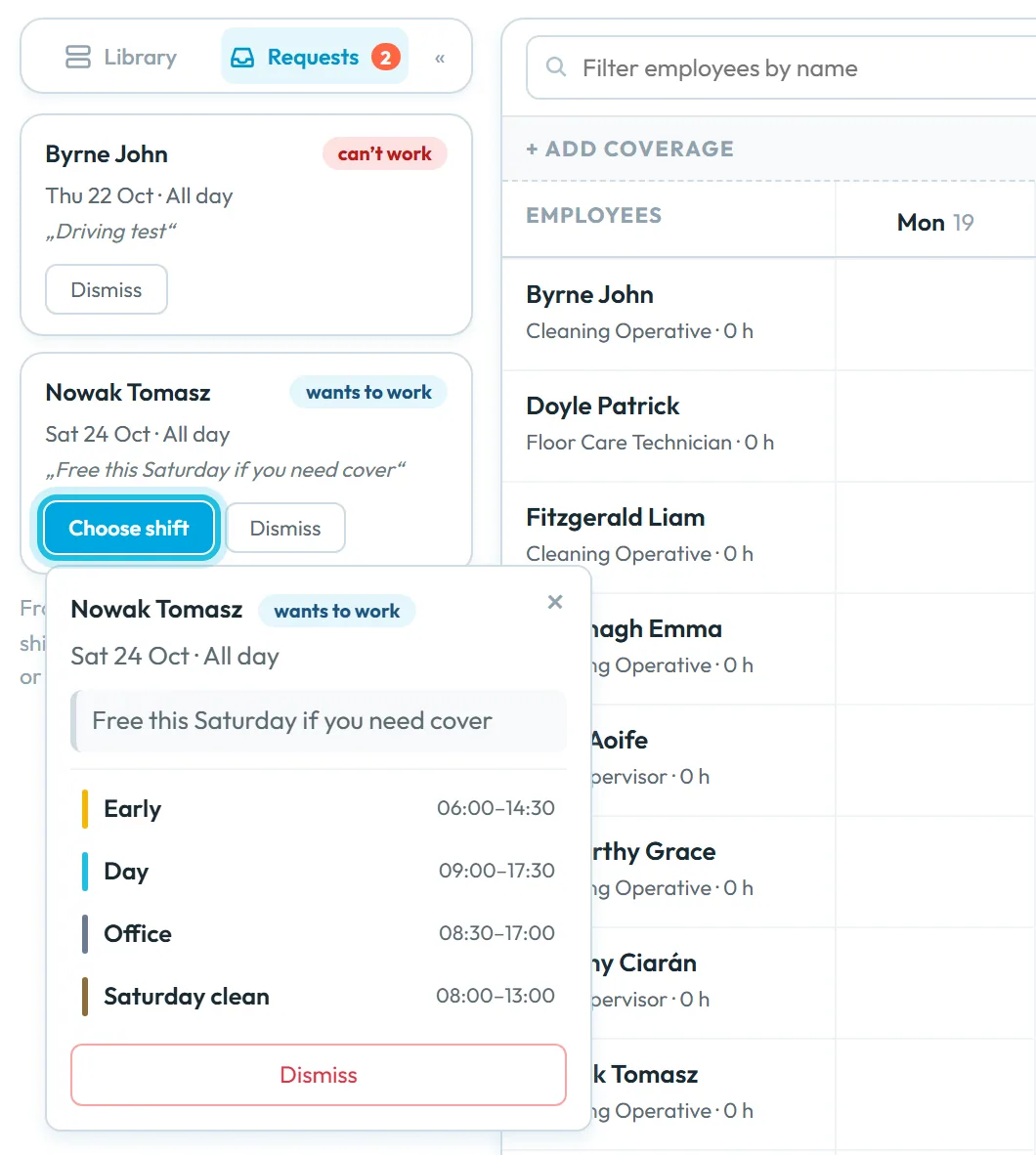
In the example, Tomasz Nowak offers to work on Saturday and gets the Saturday clean.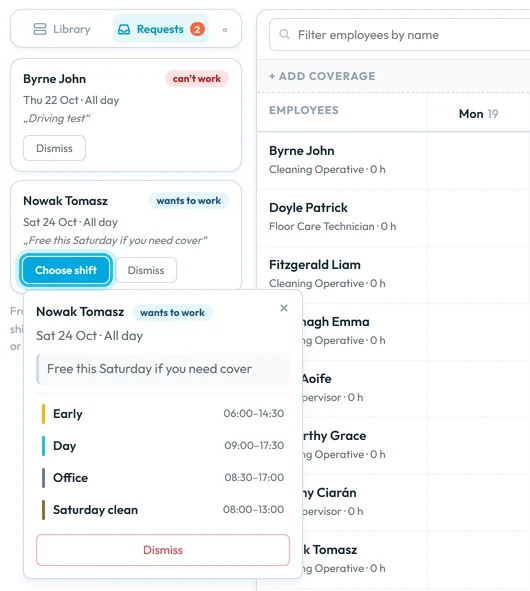
For a “wants to work” request, pick the shift to plan -
Accept or dismiss a “can’t work” request.
If the employee has a shift that day, Accept removes it from the draft:
Accepted — …’s shift removed. Check coverage for the gap.
Dismiss closes the request and keeps the shift. If there is no shift that day, the card only offers Dismiss – it is for your information.The request also shows as a red label in the employee’s day cell.
An offer an employee puts on the Swap board in the app also appears here as a can’t work card; accepting it removes the shift, even if a colleague might still have taken it in the app.

The request also shows in the day cell -
Handle a swap card.
A swap card proposes exchanging two shifts. Accept swaps both in the draft (
Swap accepted — both shifts updated (draft).
); Dismiss leaves the plan as it is. -
Publish and tell the employee.
Publish the draft when you are done. The employee gets no notification about your decision; a handled request simply leaves their list. Tell them yourself if the answer matters.

#What employees can send from the app
| In the app | In the planner |
|---|---|
| I want to work on a free day | wants to work card |
| Prefer not to work on a day | can’t work card |
| Offer this shift on the Swap board | can’t work card bound to that shift |
| A colleague uses Take shift | No card: the shift moves to the colleague in the published plan |
How employees send requests and use the Swap board is described in Shift requests in the app and Swapping shifts.
#Special cases and tips
- The buttons do nothing
- You are on the published week. Switch to a draft first.
- A request disappeared
- It was handled, or it no longer applies – for example a shift was planned on that day or the offered shift is gone.
- A day-off request shows on every site
- A can’t work for a whole day is listed in the grid of every branch and project. On sites where the employee has no shift, just dismiss it.
- Who can swap with whom
- On the Swap board colleagues take shifts from people with the same job position. Make sure employees have a position.
#Frequently asked questions
Do I have to approve swaps between colleagues?
No. When a colleague takes an offered shift on the Swap board, the published plan changes straight away and you see the new name in the grid.
Does the employee get a message when I accept or dismiss?
No. The request just leaves their list in the app. Tell them yourself if needed.
Why can’t I accept a request on the published week?
Requests change the plan, and changes are made in a draft. Switch to a draft, handle the request, then publish.
Can employees request specific hours?
Yes. A request can be for the whole day or for a time range, which the card shows as the requested time.
#Related
You are hereEmployee shift requests and swaps
Administrator
Employee
Web app (administrator)Mobile app (employee)



