Monthly timesheet for each employee: report and PDF for signing
On this page
Quick answer
Your monthly timesheet for one person is in Employees › employee › Monthly report: pick the year and month and click the PDF icon. For everyone at once, open Table Reports › Per employee. The PDF can end with lines for the employee’s and the manager’s signature.
#What it's good for
- One sheet per person and month with every day: arrival, departure, hours, breaks, absences and overtime – no copying from clock-in lists.
- A PDF ready to print and sign, with the employee’s branch and two signature lines at the bottom.
- The same report for the whole team in one file, or as a ZIP with one PDF per employee.
- You choose the columns once; every PDF and Excel file after that uses your layout.
#Who it's for
A good fit for
- Companies that keep a signed monthly record of hours for each employee.
- Payroll clerks and accountants who check hours person by person before paying.
- Firms that pay by the hour and want the employee to confirm the hours with a signature.
Not the right fit for
- If you only need totals for the accountant, the Excel export of the Months tab is quicker – see Export to Excel and PDF.
- Electronic signing. The timesheet is signed on paper: print the PDF, which ends with signature lines.
#Step by step
-
Open the employee’s Monthly report tab.
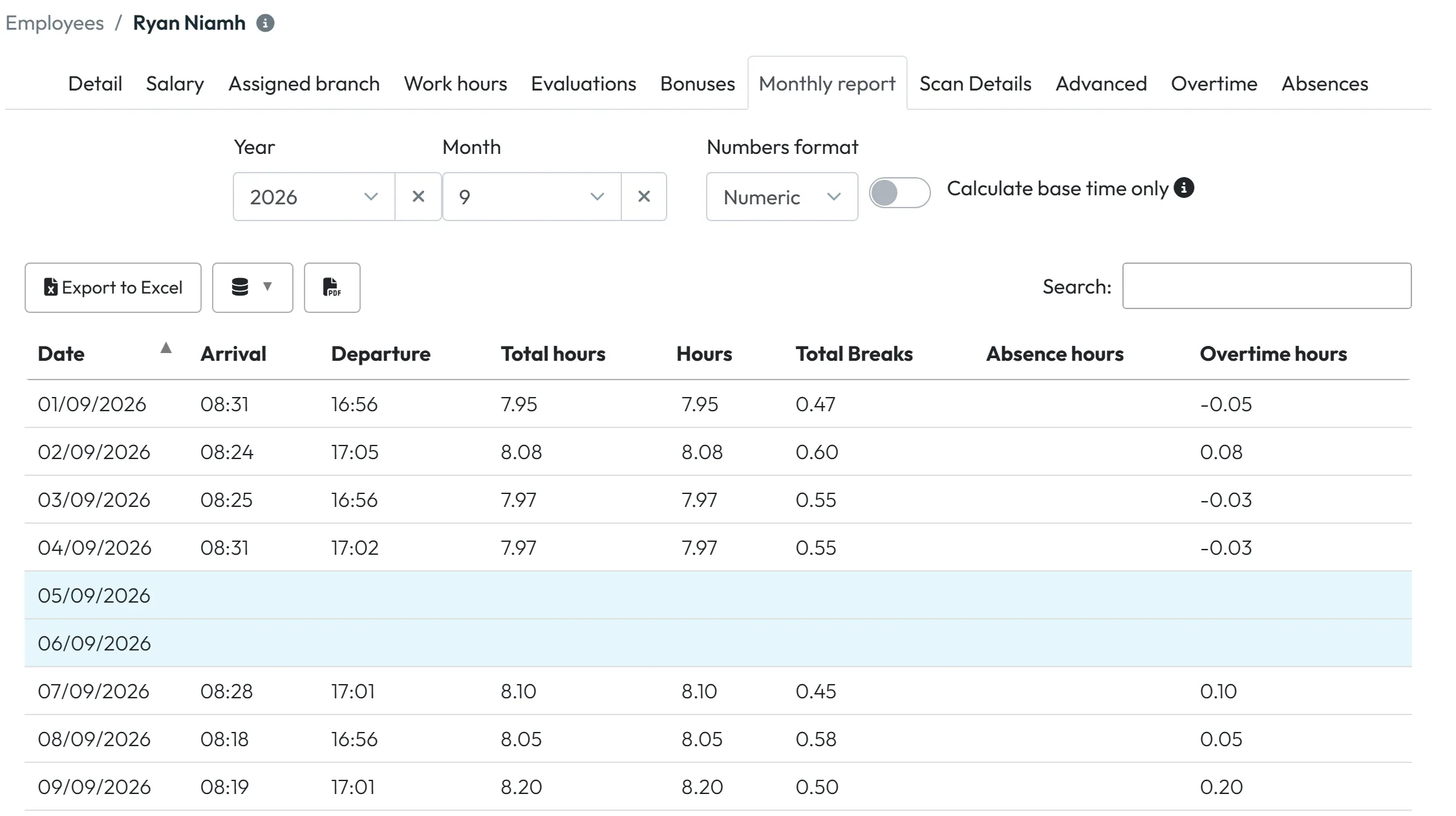
Click Employees in the left menu, open the person (for example Niamh Ryan, office administrator at the Dublin head office) and click the Monthly report tab. Choose Year and Month.
The table lists every day of the month with arrival, departure, hours, breaks, absence hours and overtime. Weekends are shaded. Numbers format switches between decimal hours (Numeric, e.g. 7.95) and hours with minutes.
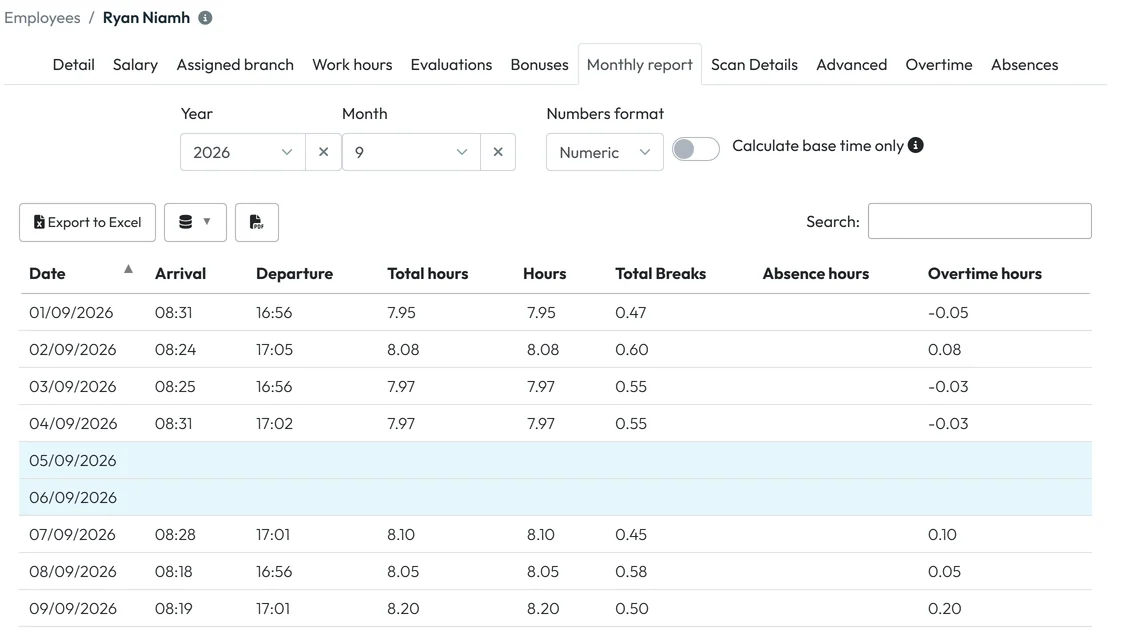
One employee’s monthly report -
Check the totals under the table.
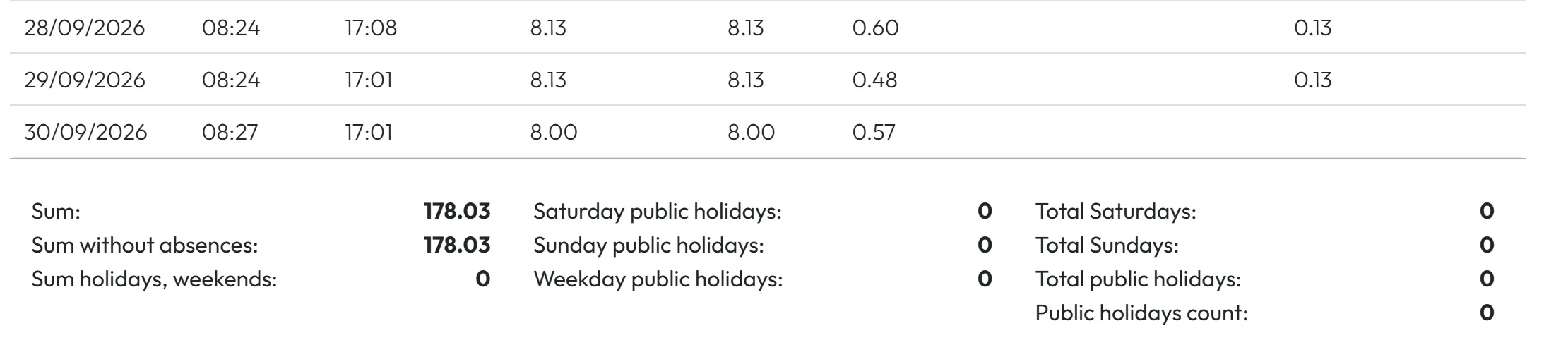
Below the table you find the summary: Sum, Sum without absences, Sum holidays, weekends, Total Saturdays, Total Sundays, Total public holidays and Public holidays count. Those are the numbers most payroll clerks copy.
The switch Calculate base time only next to the month picker does what its tooltip says:
Calculate work hours per day that is within the standard work day length
.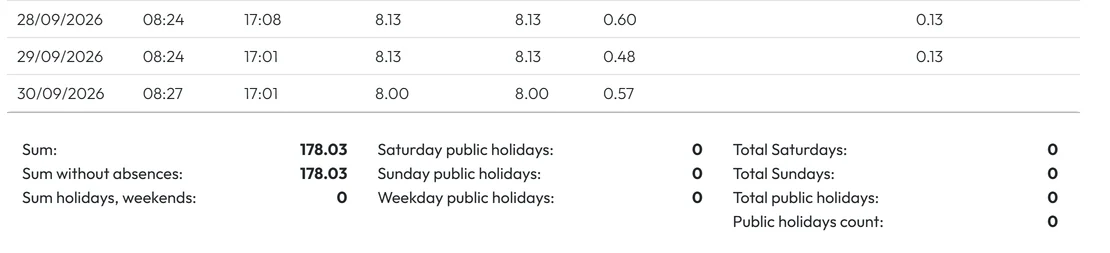
Monthly totals sit below the table -
Download the PDF.
Click the PDF icon above the table. The PDF for that employee and month downloads straight away – there is no extra window on this tab.
The PDF starts with the employee’s name, branch with its address, the company and the month. Then come the days, the totals and, at the end, two lines: Employee signature and Manager signature. A small note at the bottom says when the file was exported.
-
Choose what the PDF contains.
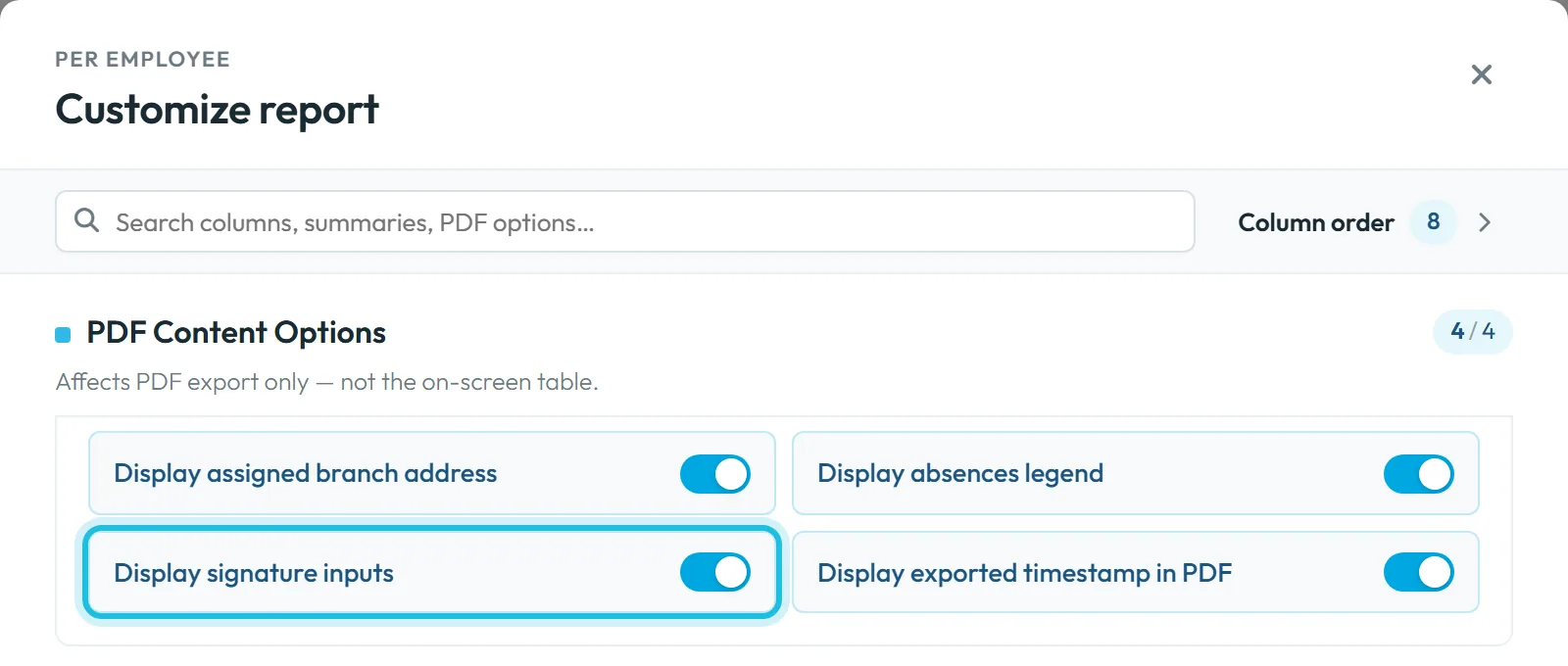
In Table Reports › Per employee, the icon with the database symbol opens Customize report. Its section PDF Content Options –
Affects PDF export only — not the on-screen table.
– has four switches, all on until you change them: Display assigned branch address, Display absences legend, Display signature inputs and Display exported timestamp in PDF.Turn off Display signature inputs if you don’t collect signatures. Which columns appear is chosen in the same window – see Custom columns and report templates. These choices are saved for your user account and apply to the PDFs you export, including the one from the employee’s tab.
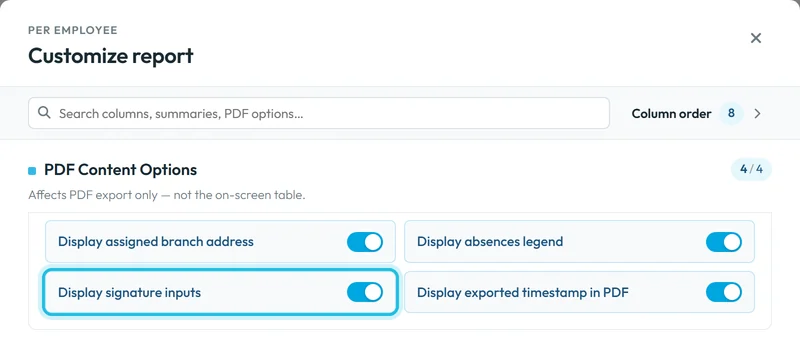
Signature fields are switched on under PDF content -
Export timesheets from Table Reports.
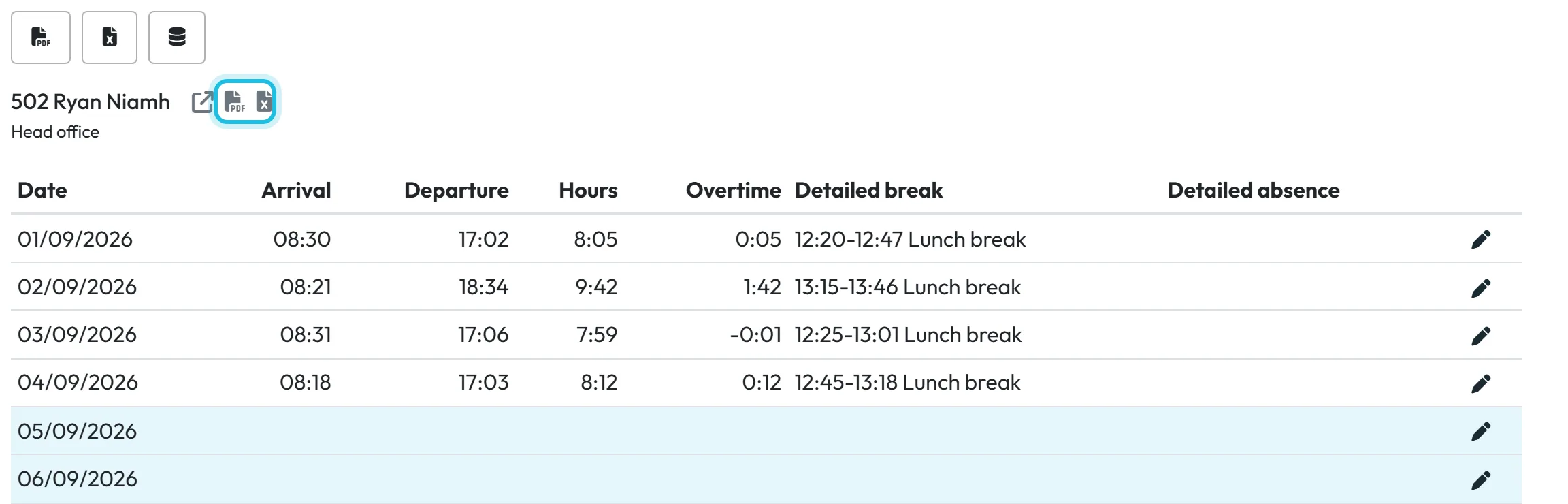
Open Table Reports › Per employee and choose the month. Every employee gets a block with their name and, next to it, a PDF and an Excel icon. The PDF icon opens the export window for that one person.
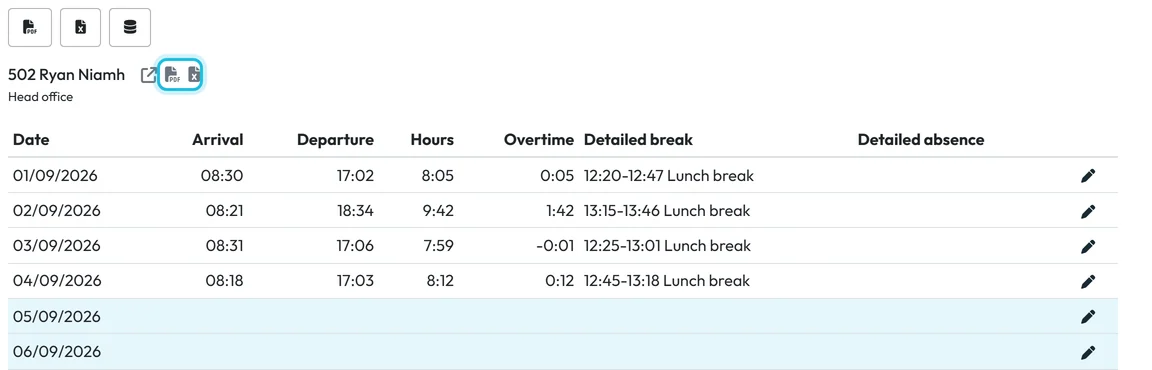
One employee’s PDF, ready to sign -
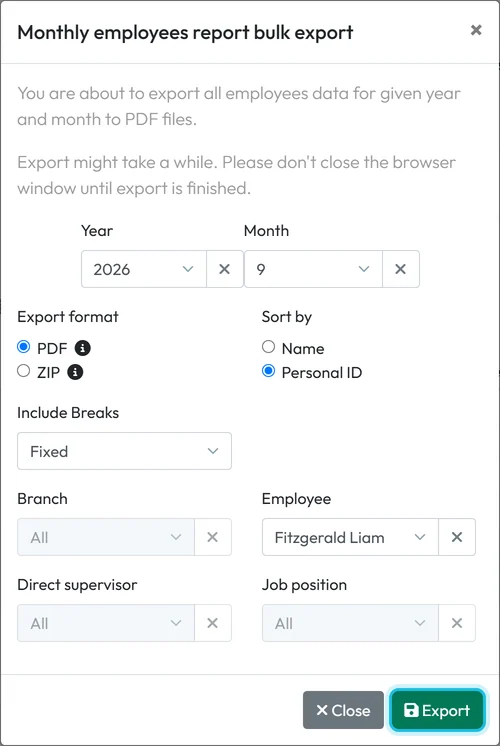
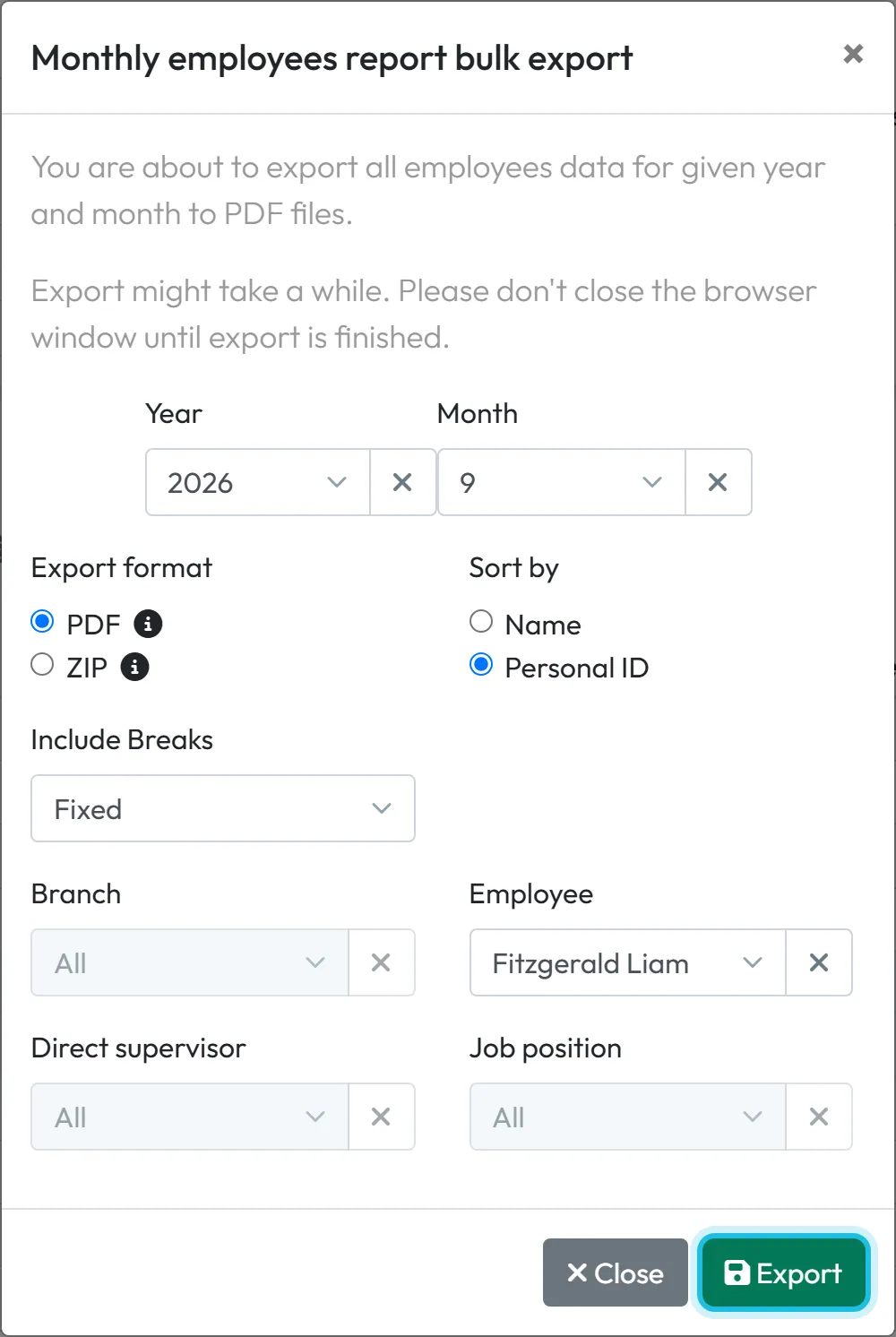
Check the export window and download.
In the window you can still change the month, the format (PDF or ZIP) and the sorting before you click Export. With the employee filled in, it exports only that person – clear the Employee field before your next company-wide export.
To print timesheets for the whole team, use the PDF button in the toolbar instead: one file, or a ZIP with one PDF per employee. Details in Export to Excel and PDF.
Export downloads the PDF
#Other ways to get the monthly hours
- Excel instead of PDFThe Excel icon next to an employee’s name in Per employee exports the same month to Excel. Export all employees to Excel does it for everyone.
- The employee’s own viewEmployees can see their hours in the app under Reports if you allow it – see Reports in the mobile app.
#Special cases and tips
- Correct a day before printing
- In Per employee each day row has a pencil that opens the day’s records. Fix a forgotten departure there, then export again. More in Scan Details.
- The signature lines are missing
- Turn on Display signature inputs in Customize report › PDF Content Options. The setting is per user account, so a colleague’s PDF can look different from yours.
- Too many columns for a page
- A PDF fits at most 10 data columns. If you tick more, choose the ten that matter for the signed copy; the Excel export can carry the rest.
- Hours differ from the scan times
- The report shows worked time after rounding, anchoring and breaks set in Work Schedules, not the raw scans.
- “No attendance records for this period”
- The employee didn’t scan that month, or the month sits in a locked period with the mode Hide.
- Close the month after signing
- Approve the month and lock it so nobody changes the hours after the employee has signed – see Approving attendance and locked periods.
#Frequently asked questions
How does the employee sign the timesheet?
On paper: print the PDF – it ends with the lines Employee signature and Manager signature. The app shows the hours but has no electronic signature.
Can I export timesheets for all employees at once?
Yes. In Table Reports › Per employee use the PDF button in the toolbar: one PDF for everyone, or a ZIP with one PDF per employee.
Why does a colleague’s PDF look different?
Columns and PDF options are saved per user account, so each colleague’s exports follow their own layout.
Are absences included?
Yes, approved absences are. Requests still waiting for approval are not counted.
Where are overtime totals?
Day by day in the Overtime column and in the summary. The running balance over months is on the employee’s Overtime tab – see the overtime guide.
#Related
You are hereMonthly employee report and PDF for signing
Administrator
Employee
Web app (administrator)Mobile app (employee)



