Recurring tasks for employees: auto-create todo rules
On this page
Quick answer
Recurring tasks for employees are set up as rules. In Todos, click Auto-create rules › Add rule. Enter the title, pick one employee, then choose On selected weekdays with a time, or X days after previous instance is done. FreshQR creates the todo for you; a new one never comes while the last one is still open.
How to turn it on
Rules are part of the Todos module. Once Todos is on in My Company › Extra services (see Assign tasks to employees with Todos), the Auto-create rules button sits at the top right of the Todos page. A rule runs as long as today is inside its active period.
- Todos
- Auto-create rules

- Who can turn it on
- Accounts that can edit todos: the Owner, Administrators, Manager: Full Access except Company settings and Todos: View & Edit. Team leads linked to their profile see and assign only their own team.
- What changes
- The assigned employee gets an ordinary task in the Tasks tab of the app each time the rule fires. There is no notification.
- Applies to
- One rule, one employee. Each rule has its own active period.
#What it's good for
- Routine chores – restocking trolleys every Monday, deep-cleaning the floor scrubber every two weeks – appear on their own.
- Nothing piles up: if last week’s todo isn’t done yet, the rule skips this week and notes it in the rule’s history.
- For jobs that depend on when they were last done, the next todo is planned from the day the previous one was closed.
#Who it's for
A good fit for
- Cleaning, maintenance and checking routines on client sites or in your own premises.
- Weekly orders and restocking in hospitality, retail or production.
Not the right fit for
- A job for the whole team at once. A rule has one assignee, so create one rule per person.
- Monthly patterns such as “the first Monday of the month”. Use X days after previous instance is done as an approximation.
- Todos with a checklist or attachments. A rule creates the title and description only; put the steps into the description.
#Step by step
-
Open the rules.
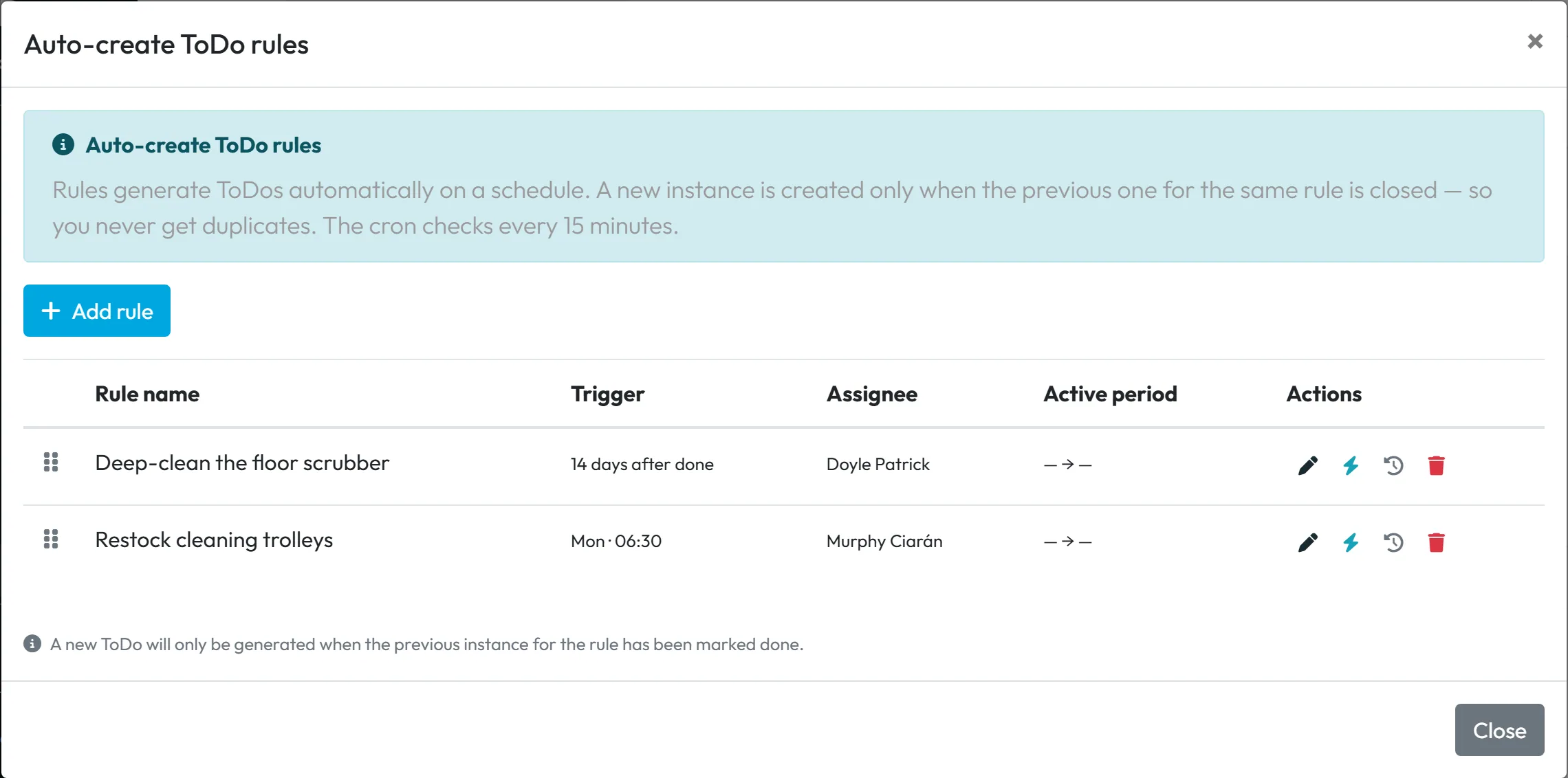
Go to Todos and click Auto-create rules. The window Auto-create ToDo rules lists your rules with Rule name, Trigger, Assignee and Active period. Click + Add rule.
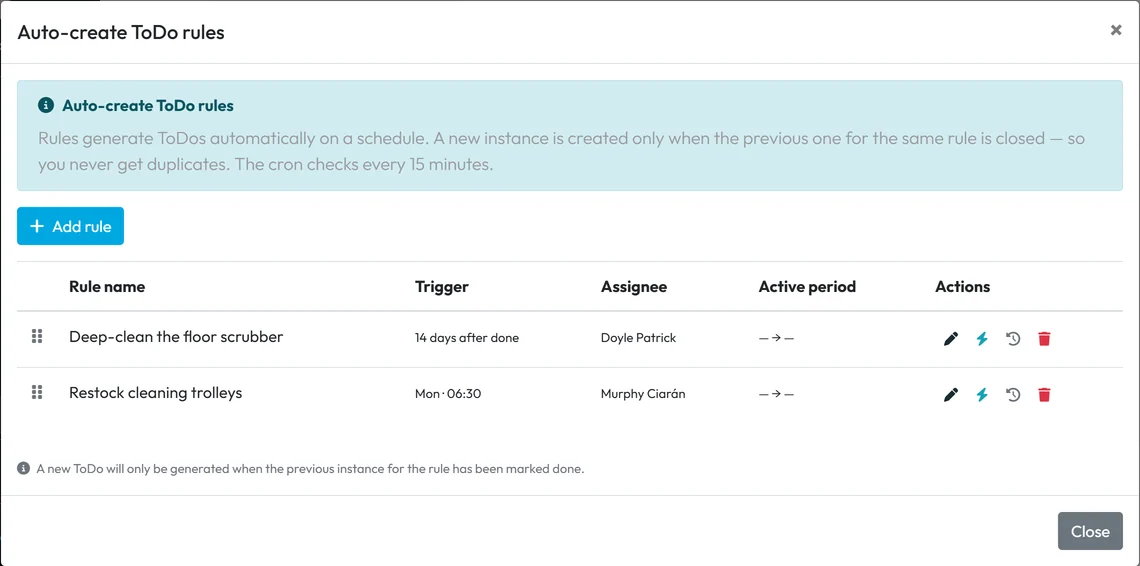
All recurring todos in one list -
Say what should be done.
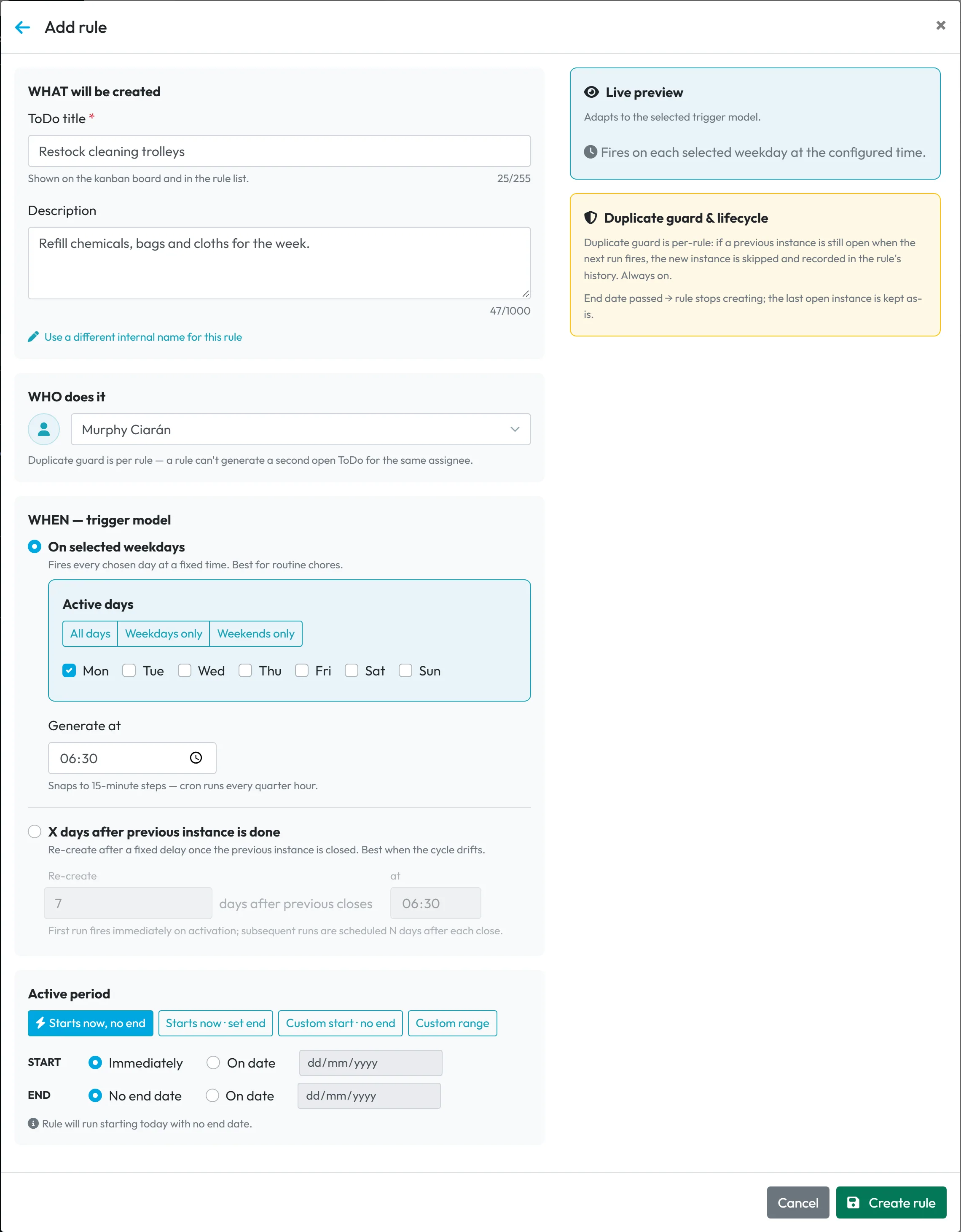
Under WHAT will be created, type the ToDo title, for example “Restock cleaning trolleys”, and optionally a Description – “Refill chemicals, bags and cloths for the week.” If you want a different name in the rule list, click Use a different internal name for this rule.
-
Choose who does it.
Under WHO does it, pick one employee. Each rule has exactly one assignee.
-
Choose when: on fixed weekdays…
Under WHEN — trigger model, choose On selected weekdays for routine chores. Tick the days or use All days, Weekdays only or Weekends only, and set Generate at. Times go in 15-minute steps (:00, :15, :30, :45), because FreshQR checks the rules every quarter of an hour.
Example: Ciarán restocks the cleaning trolleys every Monday – tick Mon and set 06:30.
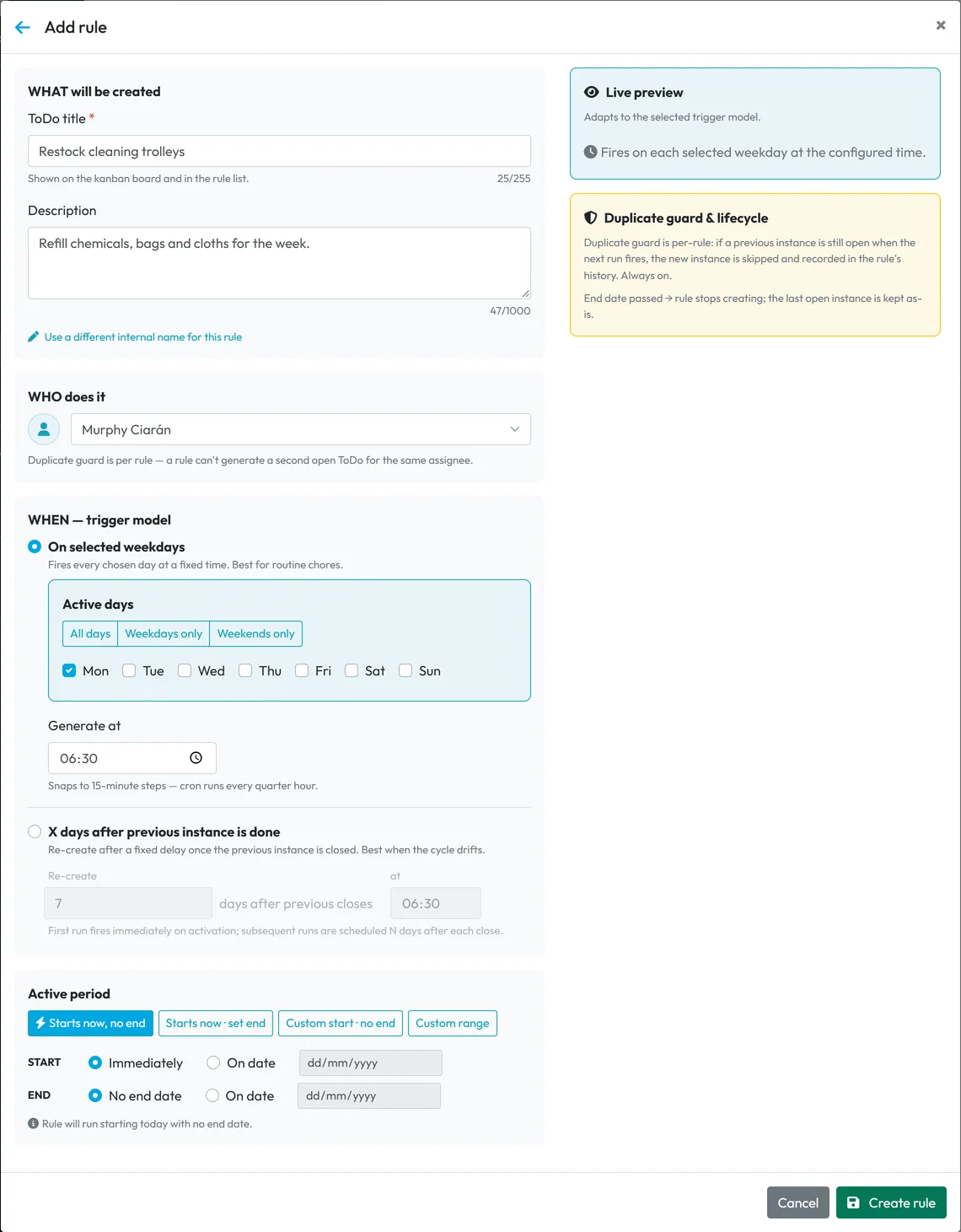
A rule on selected weekdays -
…or a number of days after the last one.
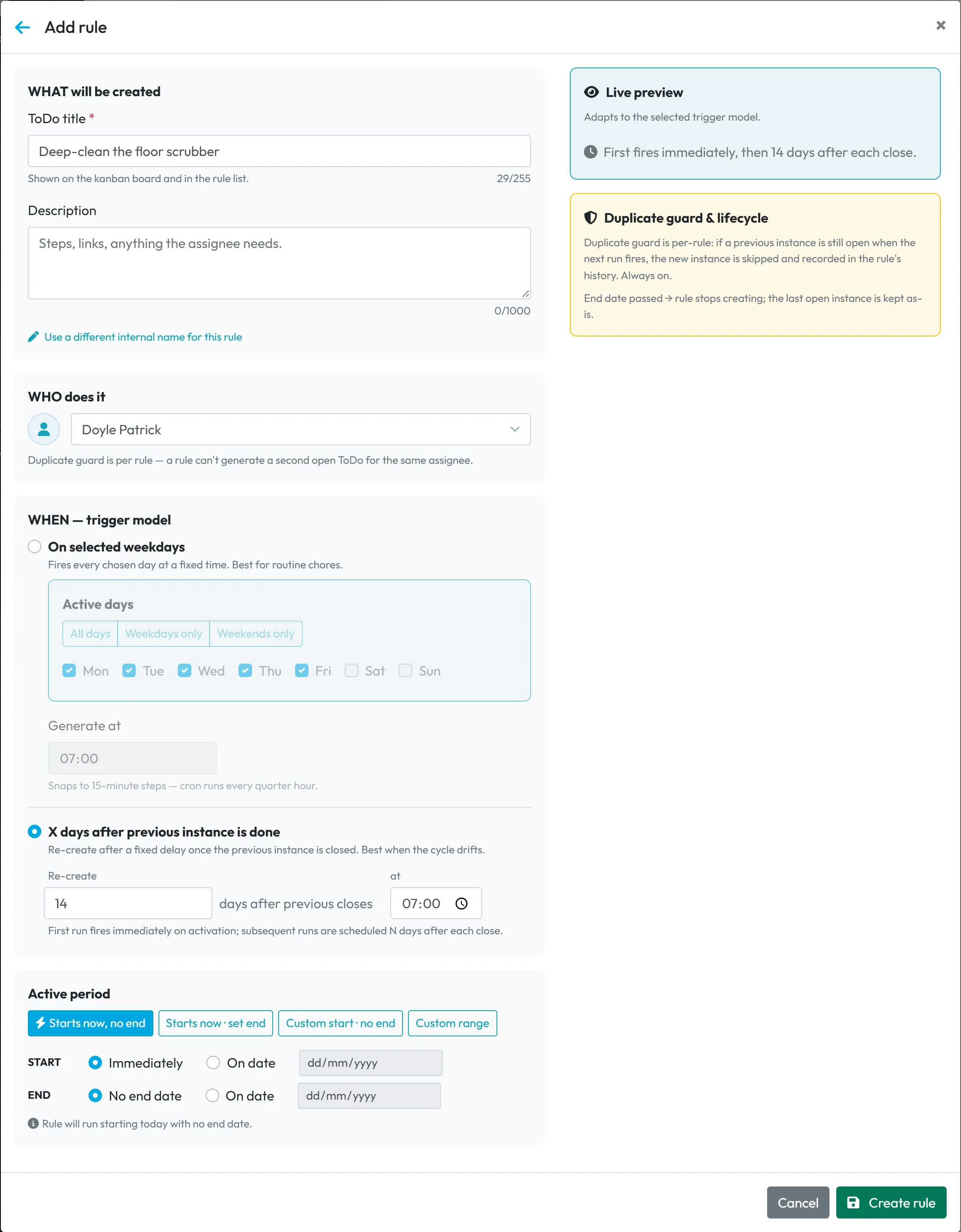
For jobs whose rhythm drifts, choose X days after previous instance is done. Enter the number in Re-create … days after previous closes and the time in at. The count starts when the previous todo is finished.
Example: Patrick deep-cleans the floor scrubber; the next one should come 14 days after he finishes the last – enter 14 and 07:00.
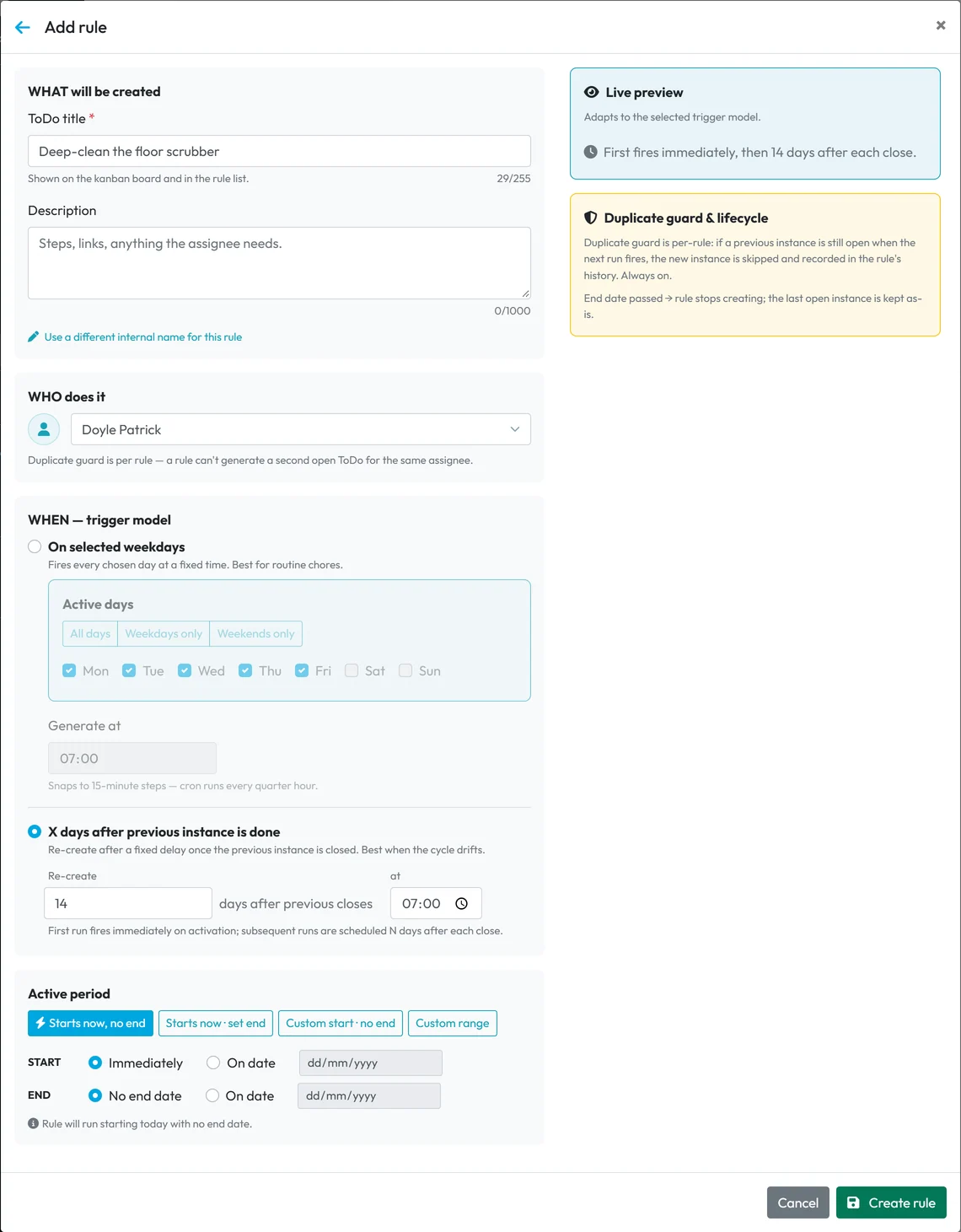
A rule X days after the previous todo is done -
Set the active period and create the rule.
Under Active period, the default is Starts now, no end. The other presets are Starts now · set end, Custom start · no end and Custom range – handy for a seasonal client contract. The line under the dates sums it up, for example Rule will run starting today with no end date. Click Create rule.
#How the duplicate guard works
A rule never creates a second open todo for the same person. If last Monday’s “Restock cleaning trolleys” is still open when next Monday comes, the new one is skipped and the skip is recorded in the rule’s history. Only a finished or canceled todo lets the next one through.
When the end date of a rule has passed, it stops creating todos; the last open one stays as it is.
#Managing your rules
- Run nowThe lightning icon in a rule’s row creates the todo straight away, without waiting for the set day and time. If the previous one is still open, FreshQR tells you it was skipped.
- HistoryThe clock icon opens Rule history: the latest checks of the rule with the result – Created, Skipped (open instance) or Skipped (out of window) – and a link to the todo it created.
- Edit and deleteThe pencil opens the same form; click Save changes. Changes apply to future todos only. The bin deletes the rule after Delete this rule?; todos it already created stay. To stop a rule temporarily, give it an end date – there is no pause switch.
#Special cases and tips
- The todo has no checklist
- Todos created by a rule have the title and description only. Write the steps into the description, or add a checklist by hand to the created todo.
- An employee leaves
- Edit or delete their rules when you delete the employee, so nothing keeps waiting for them.
- In the employee’s app
- A todo created by a rule is an ordinary task for the employee: they tick it off and finish it as described in Task checklist app for employees.
#Frequently asked questions
Does the employee get a second todo if they didn’t finish last week’s?
No. The rule skips until the previous todo is finished or canceled, and records the skip in its history.
Can one rule create todos for several people?
No. Each rule has one assignee. Create a rule for each person.
How do I pause a rule?
Give it an end date, or delete the rule and create it again later. There is no separate pause switch.
Is anyone notified when a rule creates a todo?
No. The employee sees it in the Tasks tab of the app, with the number of open tasks on the tab.
Can I choose any time?
Times go in 15-minute steps: :00, :15, :30 or :45.
#Related
You are hereAuto-create ToDo rules
Administrator
Web app (administrator)Mobile app (employee)



