Branches: add a branch, its QR codes and settings
On this page
Quick answer
To add a branch, go to My Company › Branches and click + Add new branch. Enter the name and address, set the location with Set on map, optionally assign a schedule and a default supervisor, and save. FreshQR creates a clock-in and a clock-out QR code for the branch straight away.
#What it's good for
- You see where each person clocked in, not just that they did.
- Each branch can have its own working hours, and new starters get the right supervisor automatically.
- Reports can be split and compared per branch.
- Each branch gets its own pair of QR codes, ready to print.
#Who it's for
A good fit for
- Companies with permanent places of work: a head office and a depot, several shops or restaurants, a plant and a warehouse.
- Companies whose staff move between places and where it matters which place they worked at.
Not the right fit for
- One-site companies. The main branch is created at registration; you don’t need more.
- Temporary places such as client sites or building sites. Those are better as projects – see Attendance tracking for multiple locations.
#Step by step
-
Open Branches.
Go to My Company › Branches. The list shows each branch with its Location. The main branch carries the badge Billing Information: its address is your billing address. Each row has a QR icon and a pencil.

Your branches with address, QR codes and edit -
Add a new branch.
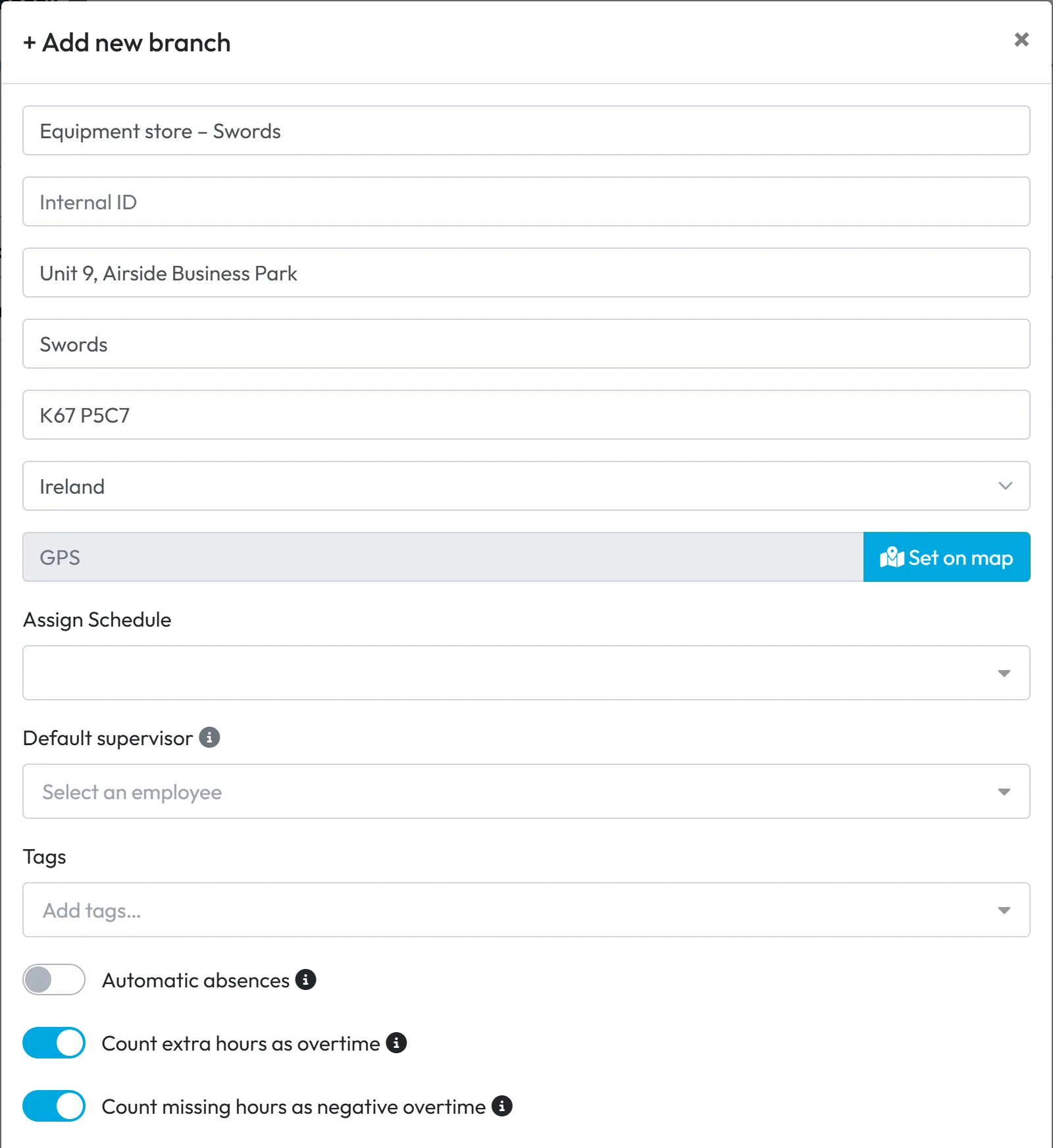
Click + Add new branch. The grey hint in each field tells you what goes where: Name (what employees and reports will show, for example “Equipment store – Swords”), Internal ID (optional, your own code), street, city, zip and Country.
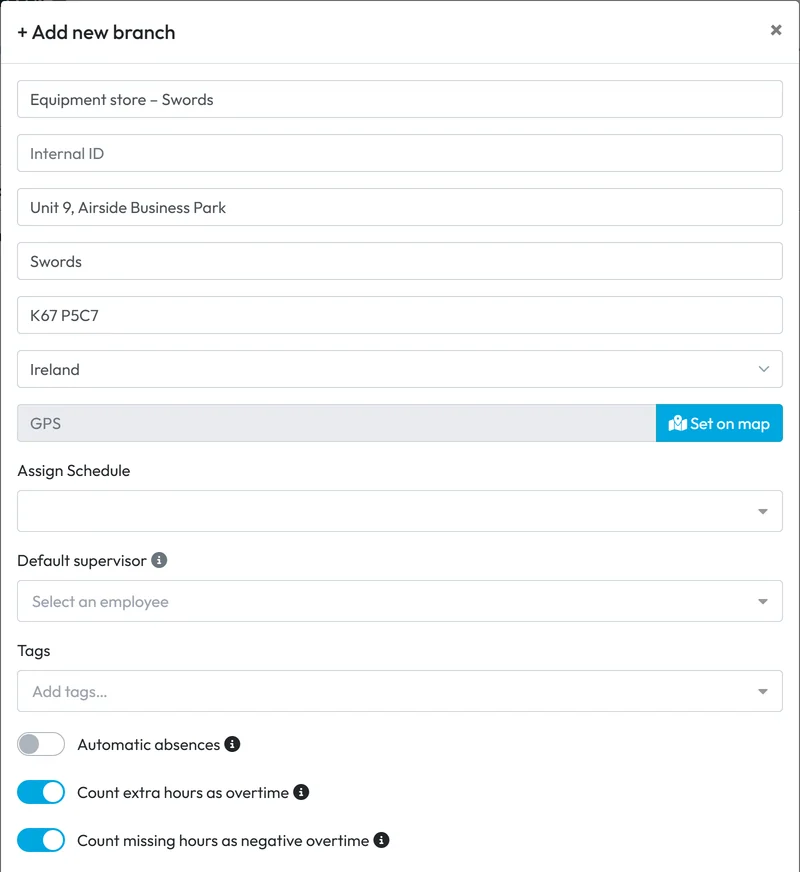
Name, address and settings of the new branch -
Set the location.
Click Set on map, search the address or click the map, and save the location. The GPS field fills with the coordinates.
The point is a reference: FreshQR shows how far each scan was from it and can e-mail you about scans that are too far away. It never blocks a scan because of distance – see GPS attendance tracking.
-
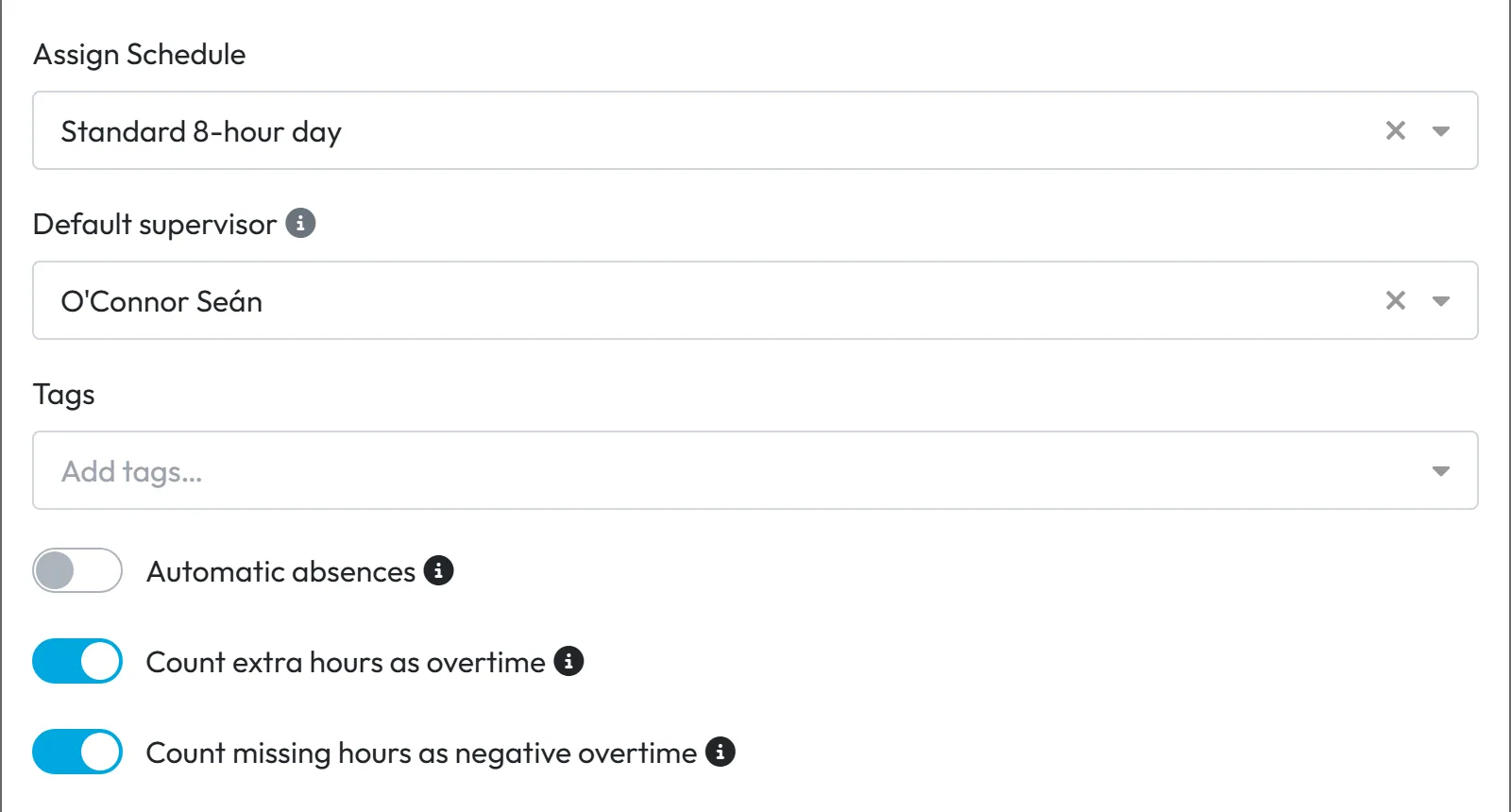
Add a schedule, a default supervisor and tags (optional).
- Assign Schedule – the working hours for employees assigned to this branch, unless they have their own. The schedules come from Employee work schedule.
- Default supervisor – new employees who first check in at this branch automatically get this person as their supervisor in the organigram. As the ⓘ says, this sets the employee’s supervisor; it is not the Branch Manager login role.
- Tags – your own labels for reports, see Employee tags.
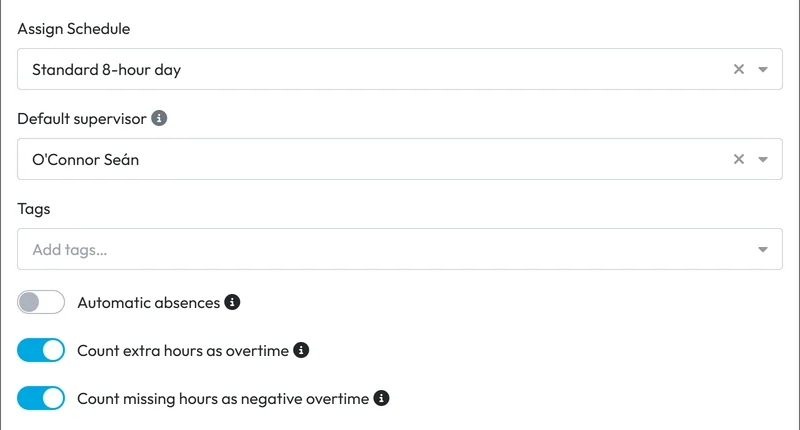
Schedule, default supervisor and tags of a branch -
Check the branch switches.
- Automatic absences – breaks marked as, for example, a doctor’s visit become approved absences for departures at this branch. See Automatic absences.
- Count extra hours as overtime and Count missing hours as negative overtime – on for a new branch. Switched off, the extra or missing hours wait for a manager’s approval. See Overtime tracking.
Click Save. The new branch appears in the list.
-
Print the branch QR codes.
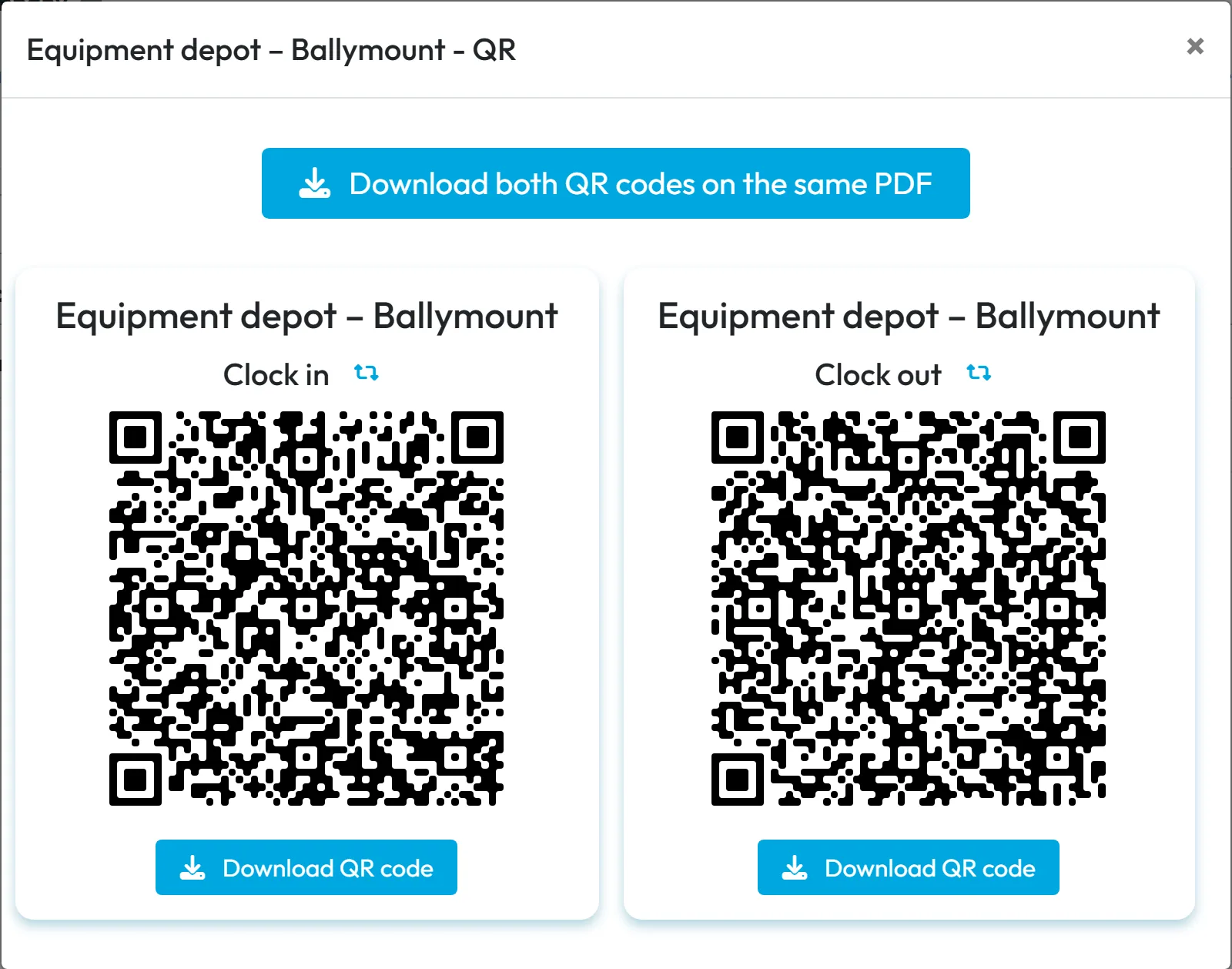
Click the QR icon in the branch row. The window shows two codes – Clock in and Clock out. Use Download QR code for each, or Download both QR codes on the same PDF, print them and put them up at the entrance. Printing, styling and regenerating codes are covered in Attendance QR codes.
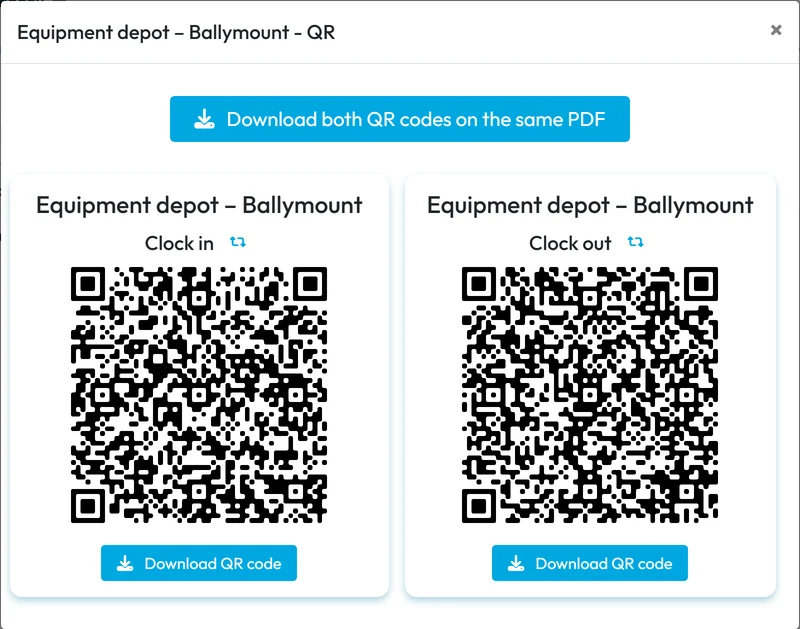
Every branch has a clock-in and a clock-out code

#Staff who move between branches
Every employee has one assigned branch. It is set by their first scan, or by you on the Assigned branch tab of their profile, and it decides which branch schedule applies to them and where their hours count in branch reports.
If people change branches often, switch on Automatic branch assignment in My Company › Company Details › General Settings. As its ⓘ says, the assigned branch is then set each day from the first QR code the employee scanned that day. The history of assignments is kept.

#Other things you can do with branches
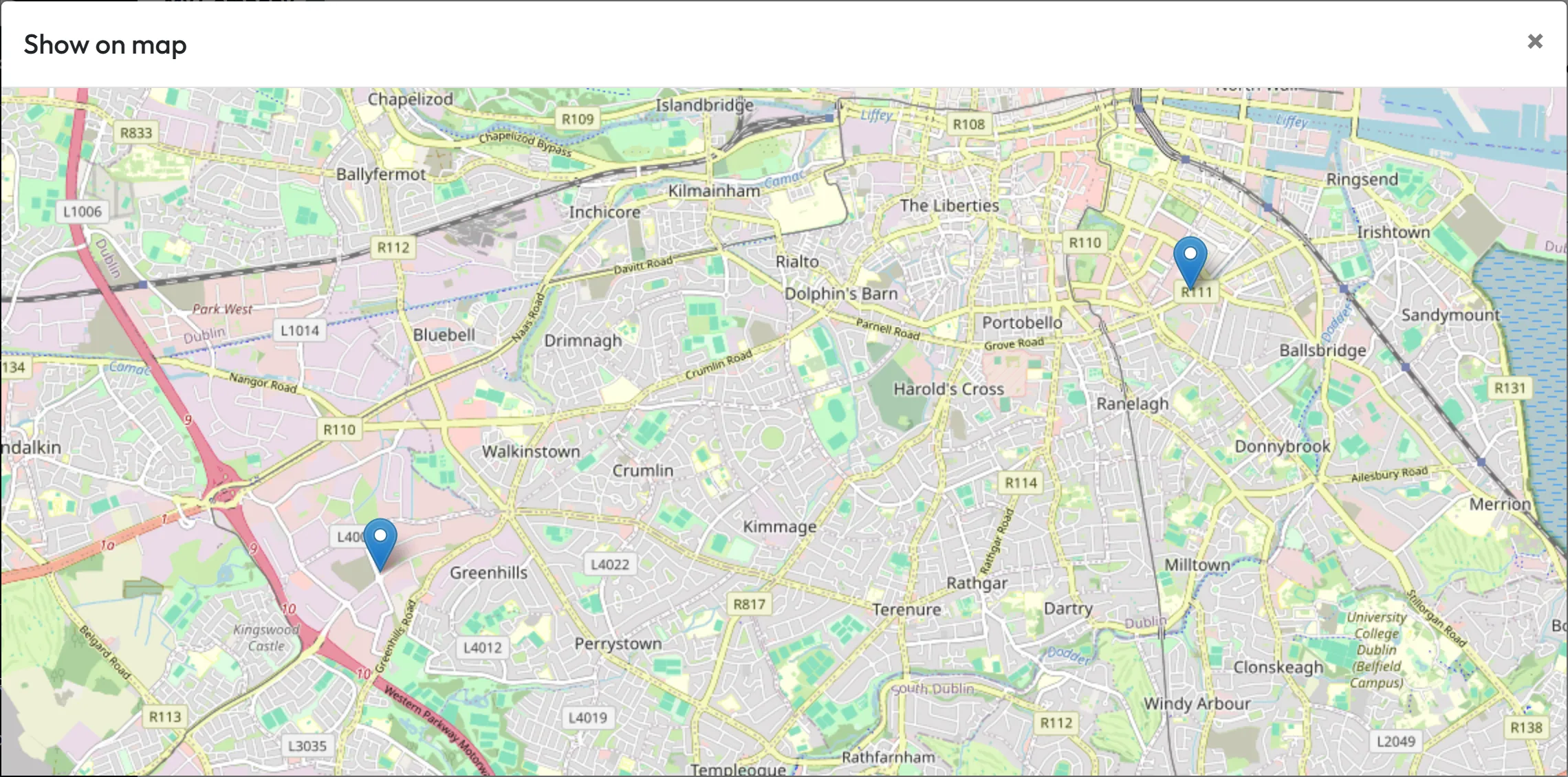
- See all branches on a mapClick Show on map above the list to see every branch with a location as a pin.
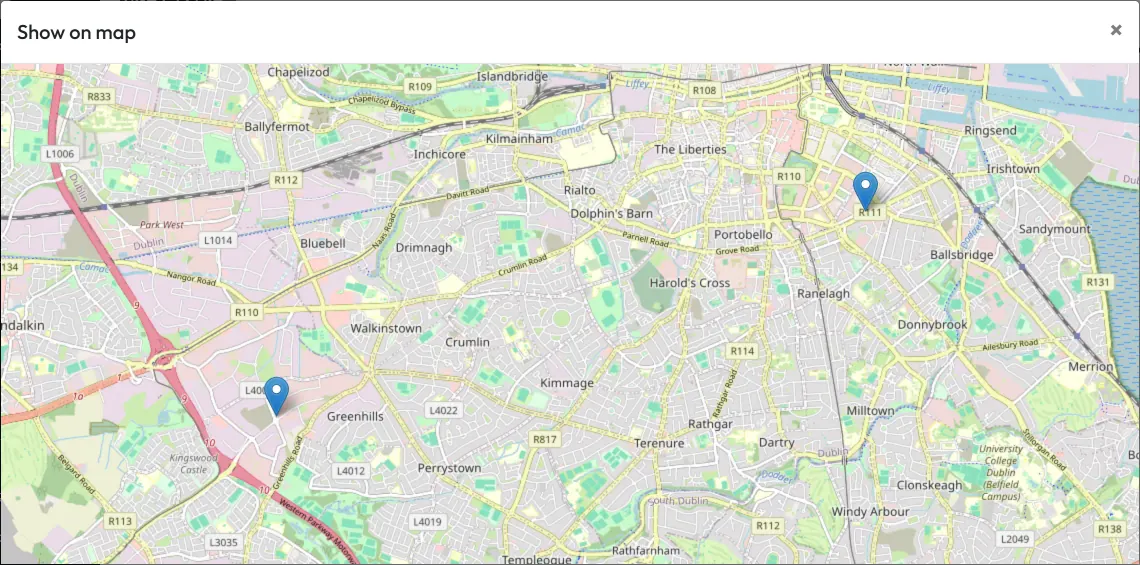
All branches on one map - Edit a branchClick the pencil, change what you need and click Save. The main branch’s address and GPS are your billing details, so you can also change them in Company Details; its form has no name, default supervisor or tags.
- Delete a branchOpen it with the pencil, click the bin at the bottom left and confirm Yes, delete next to it. Past scans and reports stay. Before you delete, take down the branch’s printed QR codes and move its employees to another branch. The main branch can’t be deleted.

Deleting a branch needs a confirmation

#Special cases and tips
- Employees can scan at any branch
- Any branch code of your company works for any employee; the scan is recorded at that branch. Only the departure can be restricted, with Block attendance closing on different branch in Mobile app settings.
- Joined with the company code
- An employee who connected with the company code instead of a QR scan gets no branch and no default supervisor. Set both in their profile.
- Who can manage branches
- The Owner, Administrators, Company Settings: View & Edit, Manager: Full Access except Company settings and Branches & Schedules: View & Edit. Branches & Schedules: View Only sees the list and QR codes but can’t change anything. A Branch Manager has a separate Branches menu with only their own branches – see User accounts and roles.
#Frequently asked questions
Do I need a branch for every client site?
No. Use projects for client and temporary sites, and branches for your own permanent places of work.
How far from the branch can someone clock in?
Any distance. FreshQR records the distance and can e-mail you about far scans, but it never blocks a scan.
Will we lose the history of a branch we close?
No. Deleting a branch keeps all its past scans and reports.
Is the default supervisor the same as a Branch Manager?
No. The default supervisor becomes new employees’ supervisor in the organigram. Branch Manager is a login role that limits a user account to certain branches.
Is there a limit on the number of branches?
No. Pricing depends on active employees, not on branches – see the pricing page.
#Related
You are hereBranches
Web app (administrator)Mobile app (employee)



