Shift templates in the FreshQR shift planner
On this page
Quick answer
Shift templates are the building blocks of your plan. In Shift planner › Library click New template, enter a name and the times, for example Early 06:00–14:30, and choose a colour. Optionally set the position, the branch or project, breaks and how attendance and overtime count. Then drag the template onto the grid.
#What it's good for
- Each recurring shift is defined once – Early, Day, Evening, Saturday clean – and placed with one drag.
- Breaks, rounding and overtime rules travel with the shift, so a night shift can count differently from an office day.
- A template made for one site shows up only when you plan that site.
- Retired templates can be archived without touching the shifts already planned with them.
#Who it's for
A good fit for
- Every company that uses the shift planner – the planner works with templates.
Not the right fit for
- Without the shift planner you don’t need templates; fixed hours are set in Work Schedules.
#Step by step
-
Open the Library.
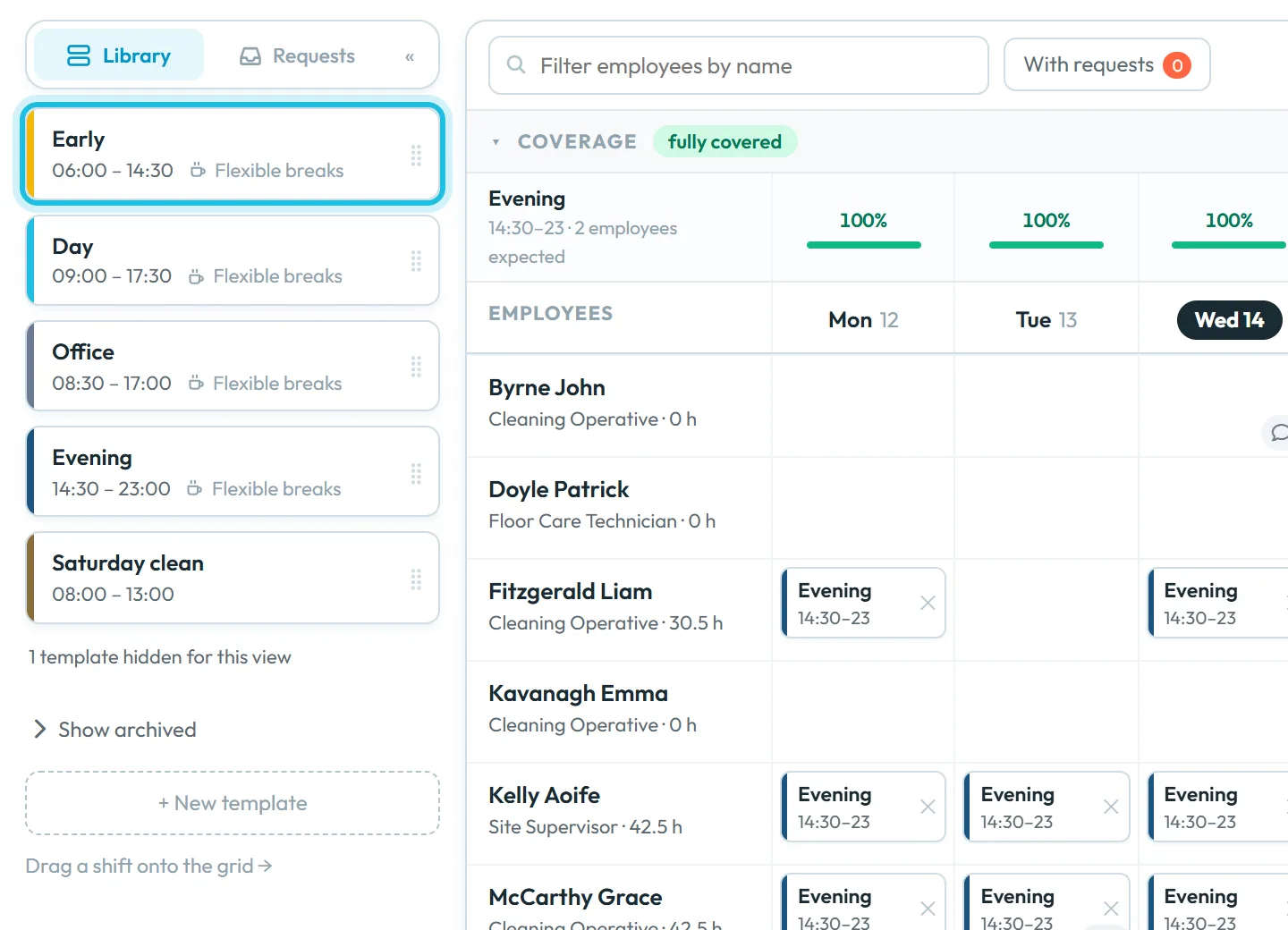
Open Shift planner and choose a branch or project. The left panel shows the Library with your templates, each with its times and break type. A line like 1 template hidden for this view means a template belongs to another branch or project.
Brightway Facility Services uses Early 06:00–14:30, Day 09:00–17:30, Office 08:30–17:00, Evening 14:30–23:00 and Saturday clean 08:00–13:00.
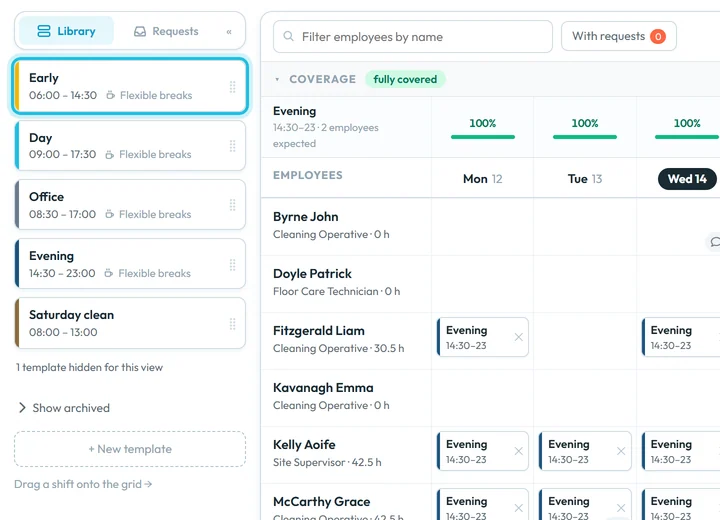
Drag a template from the library onto the grid -
Create a template.
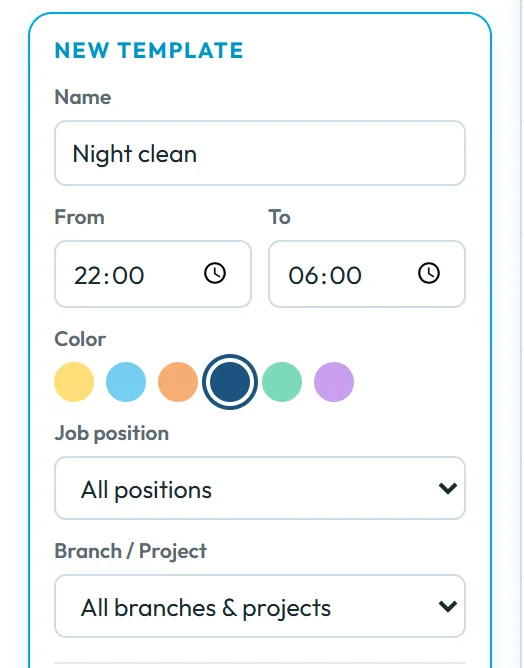
Click New template. The form opens in the left panel. Fill in Name (e.g. Night shift), From, To and Color. A shift may cross midnight – 22:00 to 06:00 is fine (see Night shifts).
Optionally choose a job position and a Branch / Project. With All branches & projects the template is offered everywhere; with one site it appears only when you plan that site.
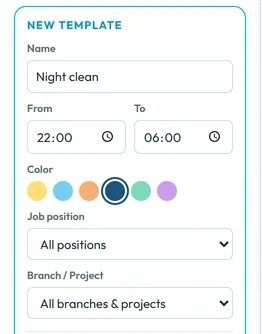
New template – the basics -
Choose how attendance counts on the shift.
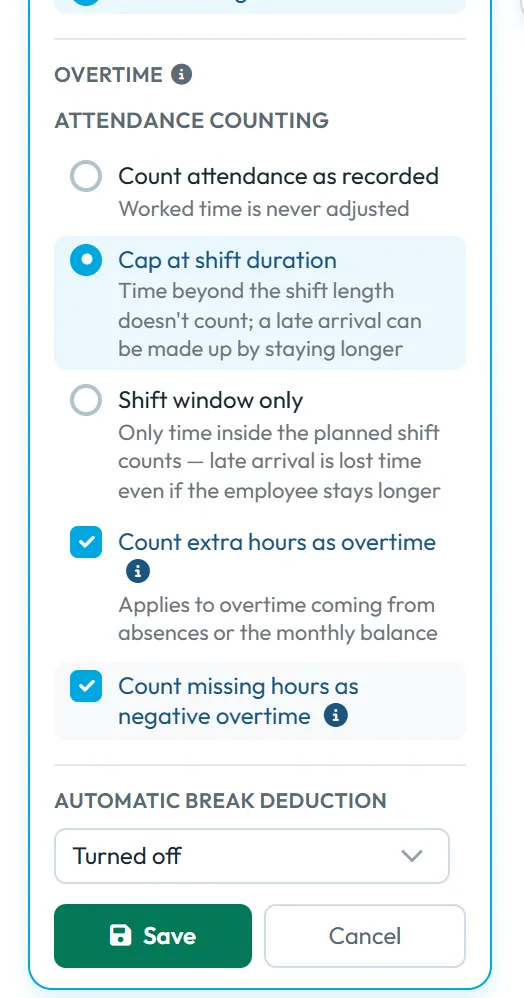
Under Overtime › Attendance counting pick one of three modes. A new template starts with Cap at shift duration.
- Cap at shift duration –
Time beyond the shift length doesn’t count; a late arrival can be made up by staying longer
. - Shift window only –
Only time inside the planned shift counts — late arrival is lost time even if the employee stays longer
. - Count attendance as recorded –
Worked time is never adjusted
.
Example with Saturday clean, 08:00–13:00, no break. Liam arrives at 08:10 and leaves at 13:20. Cap at shift duration counts 5:00. Shift window only counts 4:50. Count attendance as recorded counts 5:10.
So with the default, staying longer than the shift never adds hours. Choose Count attendance as recorded if it should.
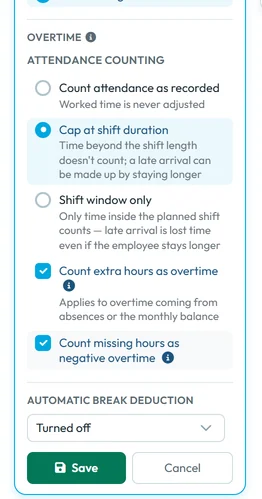
The default mode is Cap at shift duration - Cap at shift duration –
-
Set the overtime switches.
Two boxes, both ticked on a new template: Count extra hours as overtime and Count missing hours as negative overtime. On days planned with this template they decide instead of the branch settings. The hint explains what happens otherwise:
Overtime that is not approved automatically stays pending until a manager approves it. Manual overtime approvals always override these settings.
See Overtime. -
Add breaks and rounding if you need them.
Automatic break deduction is Turned off on a new template. Choose Fixed breaks for a break at a set time, or Flexible breaks for a break deducted after a number of worked hours. Rounding & Hooks sets rounding and anchoring of arrival and departure; the options are the same as in Work Schedules. Click Save.
-
Archive a template you no longer use.
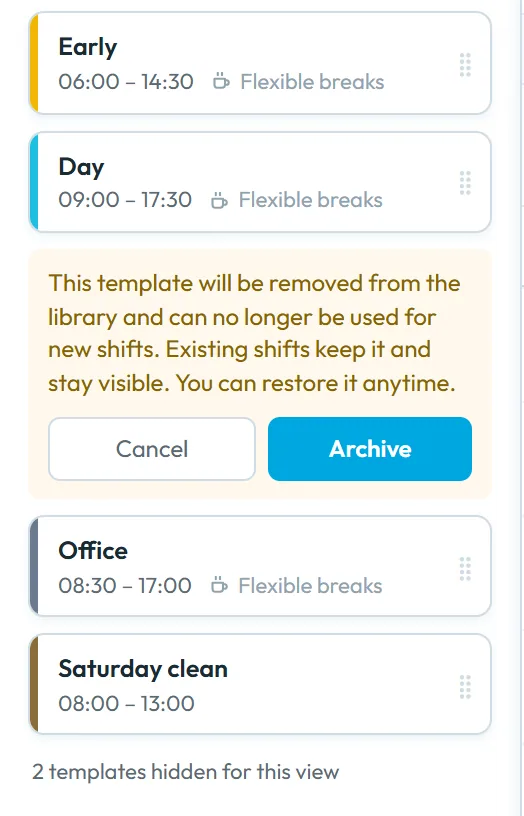
Open the template’s actions and choose Archive. The confirmation says:
This template will be removed from the library and can no longer be used for new shifts. Existing shifts keep it and stay visible. You can restore it anytime.
Archived templates are under Show archived, where Restore brings them back.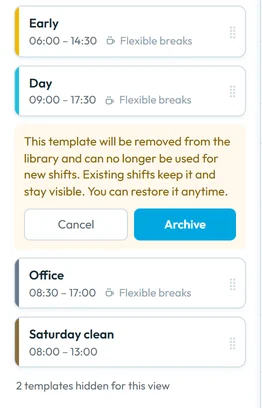
An archived template leaves the library; existing shifts stay
#Next steps
- Plan the weekDrag templates onto the grid and publish – see Building the schedule.
- Say how many people you needCoverage requirements show gaps while you plan – see Coverage requirements.
#Special cases and tips
- Someone stayed an hour longer but got no extra time
- The template uses Cap at shift duration. Switch to Count attendance as recorded if longer stays should count.
- Overtime on shift days stays pending
- Open the template and check that Count extra hours as overtime and Count missing hours as negative overtime are ticked, or approve the days on the employee’s Overtime tab.
- A template disappeared from the library
- It belongs to another branch or project (template hidden for this view) or it was archived (Show archived).
- The name is cut short on the grid
- Long names don’t fit in the narrow day cells. Short names like “Early” or “Eve” read best.
#Frequently asked questions
Can a template cross midnight?
Yes. Set From 22:00 and To 06:00.
Can I limit a template to one position?
Yes. Choose a job position in the template form.
What happens to planned shifts when I archive a template?
They stay in the plan with their name and colour. You just can’t place new shifts with it.
Do template rules replace the work schedule rules?
On days planned in the shift planner, yes: breaks, rounding, attendance counting and overtime come from the shift’s template.
#Related
You are hereShift planner templates
Web app (administrator)Mobile app (employee)



