Building the weekly shift schedule: draft and publish
On this page
Quick answer
To build a weekly shift schedule, open Shift planner, pick a branch or project and the week, then drag shift templates from the Library onto employees’ days. Changes go into a Draft that employees can’t see. Click Publish and the shifts appear in their app under My Shifts.
#What it's good for
- You can try out a plan in a draft without confusing anyone; employees only ever see the published version.
- Copy week fills next week from any earlier week in a few clicks.
- Approved and requested absences sit right in the grid, so you don’t plan someone who is on leave by mistake.
- Each day shows plan against reality: planned times next to the hours actually worked.
#Who it's for
A good fit for
- Managers who plan cleaning crews, kitchen staff, shop staff or carers week by week.
- Companies that want reports to compare attendance with a published plan.
Not the right fit for
- Planning on a phone: the planner is for a computer screen.
- Automatic rostering: FreshQR doesn’t create a plan for you; you place each shift.
#Step by step
-
Open the week of a branch or project.
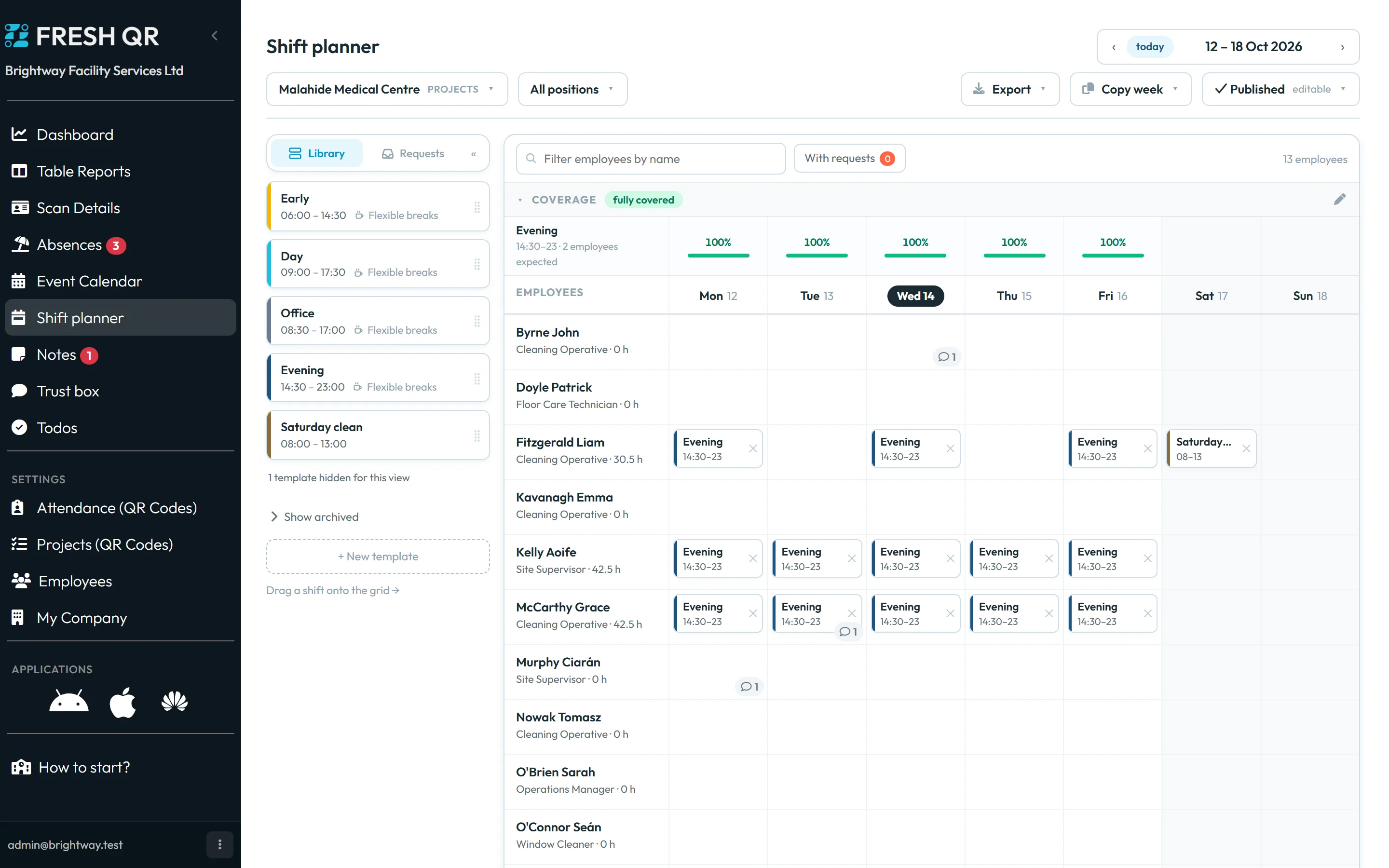
Click Shift planner. At the top left choose the branch or project (Search branches & projects), at the top right the week; today jumps back to the current week. The grid lists all active employees with their position and planned hours for the week, Monday to Sunday. Narrow it with Filter employees by name, All positions or With requests.
In the example, the evening team of Malahide Medical Centre is planned with Evening shifts, 14:30–23:00.
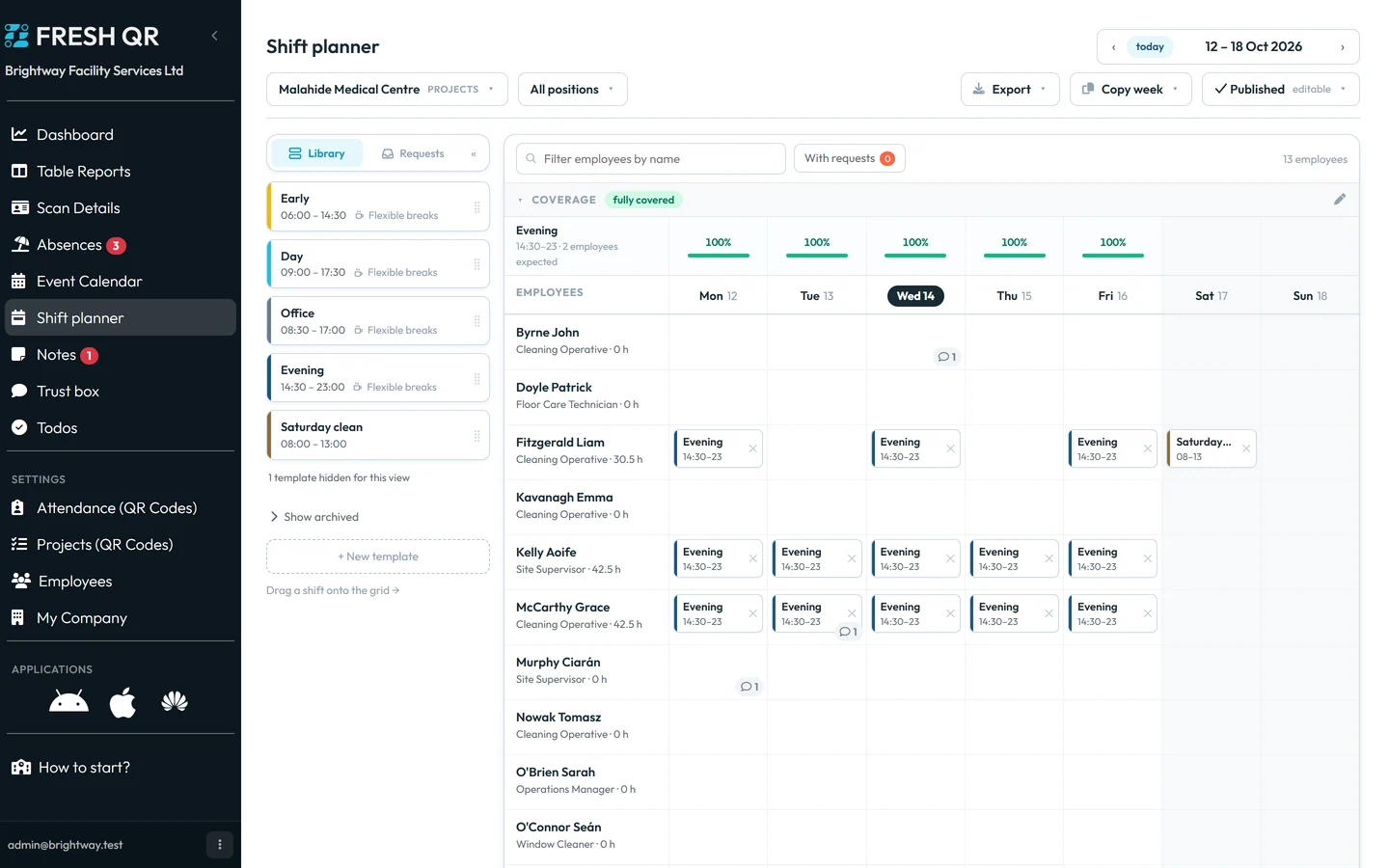
A published week for one client site in the shift planner -
Work in a draft.
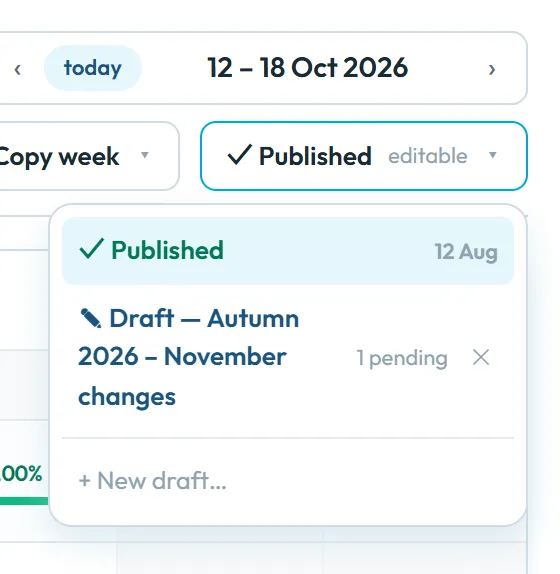
The version menu on the right shows Published and any drafts. New draft… starts one with an optional name (
Optional, e.g. summer v2
). You don’t have to: as soon as you drag a shift onto the published week, FreshQR creates a draft for you –Draft created — changes stay hidden from employees until you publish.
To throw a draft away, use Discard draft:
Discard this draft? All its changes will be lost.
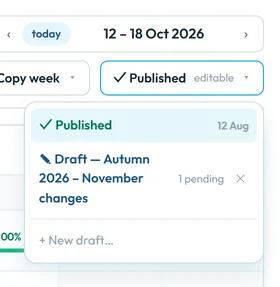
Switch between the published version and drafts here -
Place shifts.
Drag a template from the Library onto an employee’s day (
Drag a shift onto the grid →
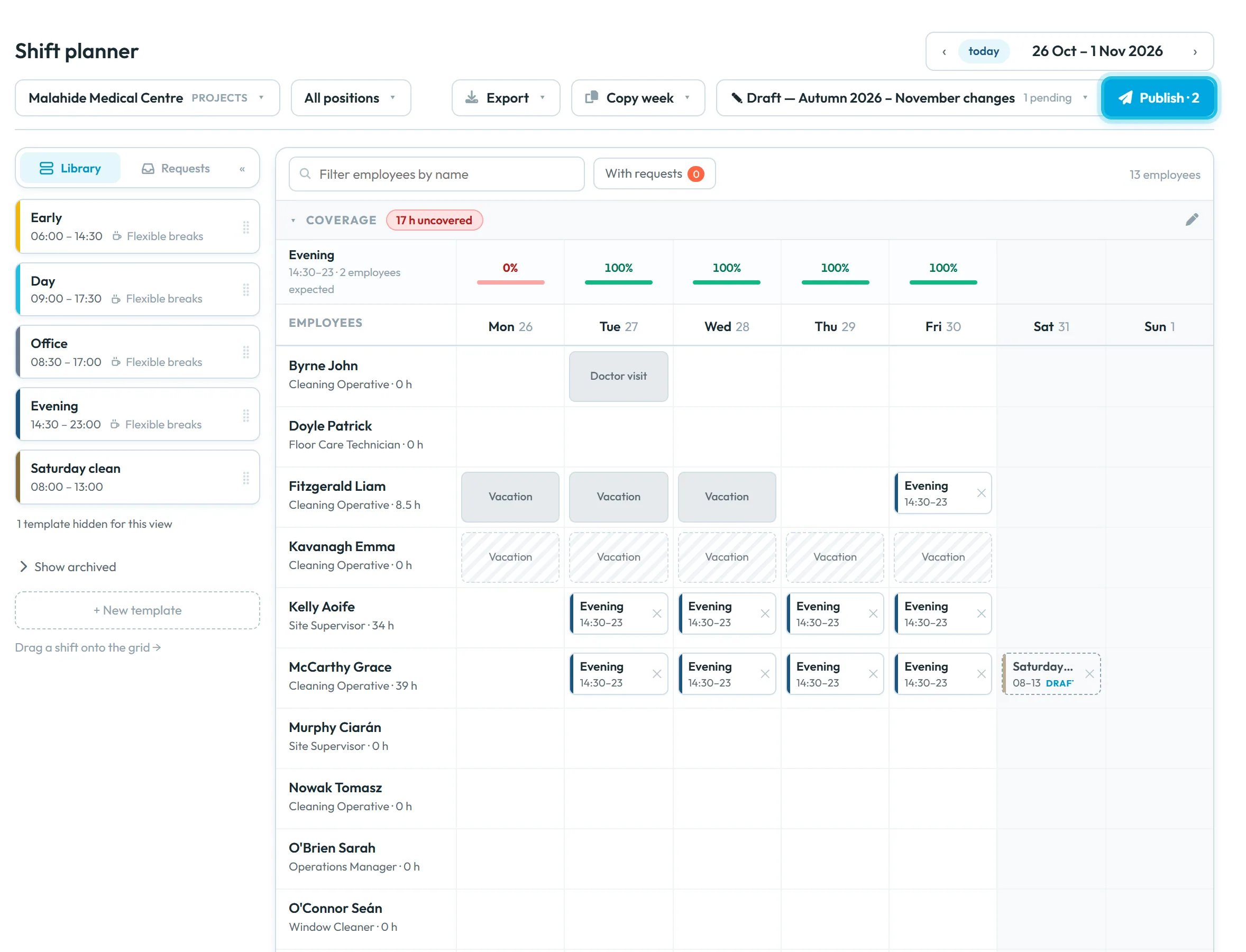
), or use Add shift in the cell. Drag an existing shift to another person or day to move it; the × removes it. Changed shifts carry a small DRAFT tag with a dashed border, and the Publish button counts the changes.The planner doesn’t stop double bookings or check rest times – look over the week before you publish.
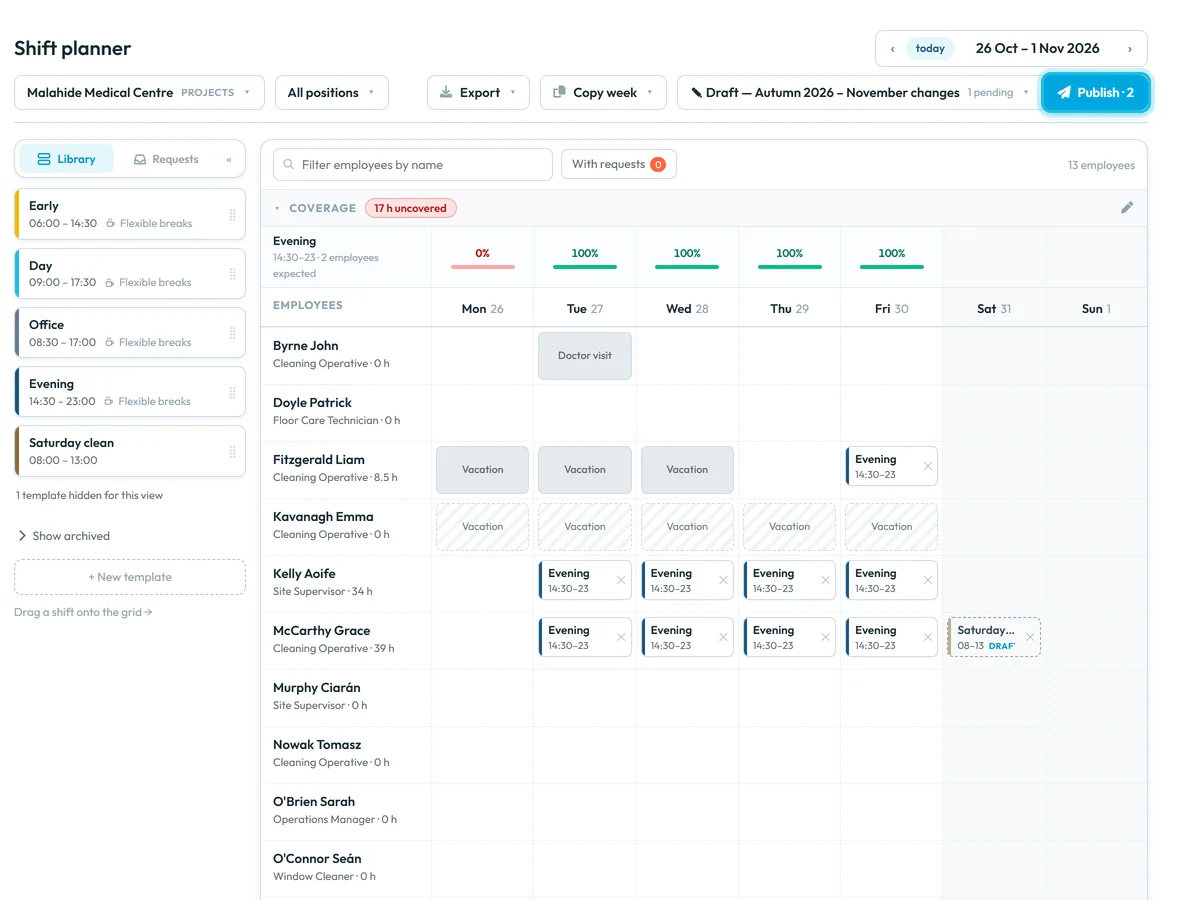
Employees don’t see draft changes until you click Publish -
Copy a week instead of starting from scratch.
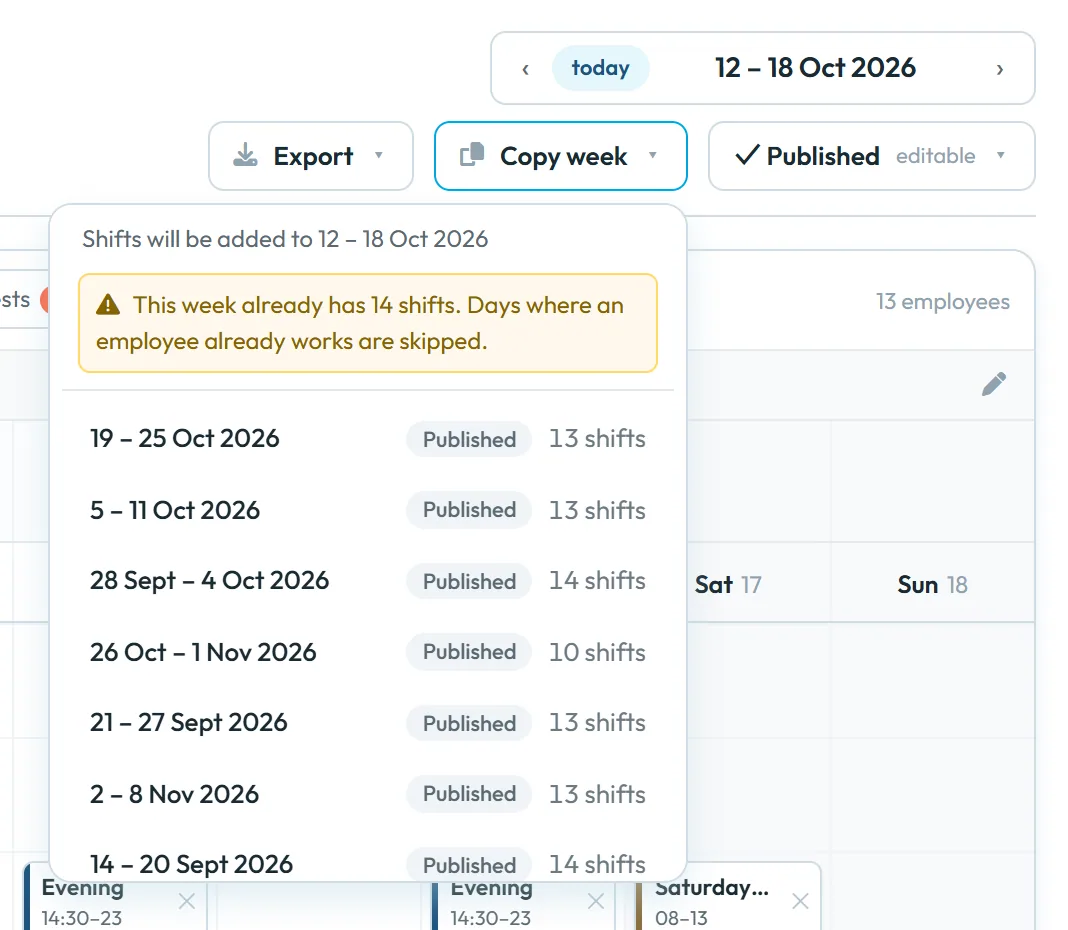
Click Copy week. The menu says where the shifts go (
Shifts will be added to 12 – 18 Oct 2026
) and lists earlier weeks with their version and number of shifts. Pick one. If the target week already has shifts, the warning applies:Days where an employee already works are skipped.
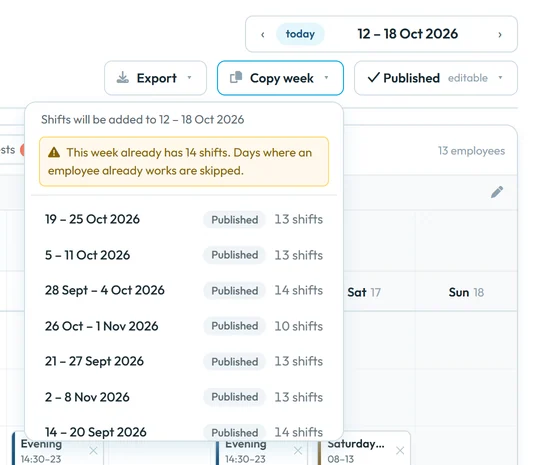
Copy week: pick the source week and version -
Mind absences in the grid.
Approved absences appear in grey, requested ones hatched. You can still plan a shift on such a day; the planner warns you (
… has an absence on …
) and marks the shift. Requests are approved in Absences.
Approved and requested absences are shown right in the grid -
Publish.
Check the week and the coverage strip, then click Publish. There is no confirmation step – the draft becomes the published schedule at once and the app confirms with Published 1 shift. (or the number of shifts). Employees see the shifts in My Shifts the next time they open the app; FreshQR sends no notification, so tell them. From then on, reports compare their attendance with these shifts.
-
Compare plan and reality.
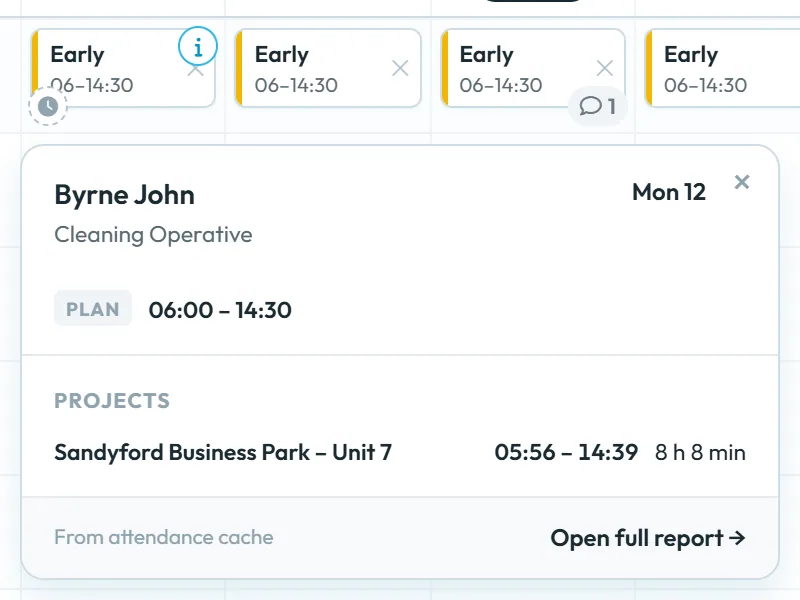
Click the small icon on a past shift to open its day details: the Plan, the worked time on the branch or project and Open full report for the whole day. In the example, John Byrne was planned 06:00–14:30 at Sandyford Business Park and worked 05:56–14:39.
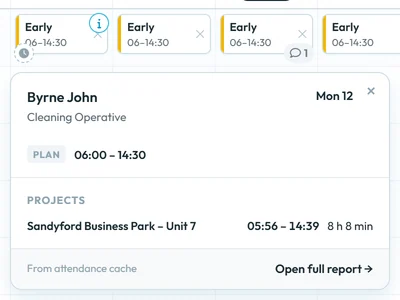
Day details compare the plan with actual attendance

#Print the shift schedule: PDF and Excel export
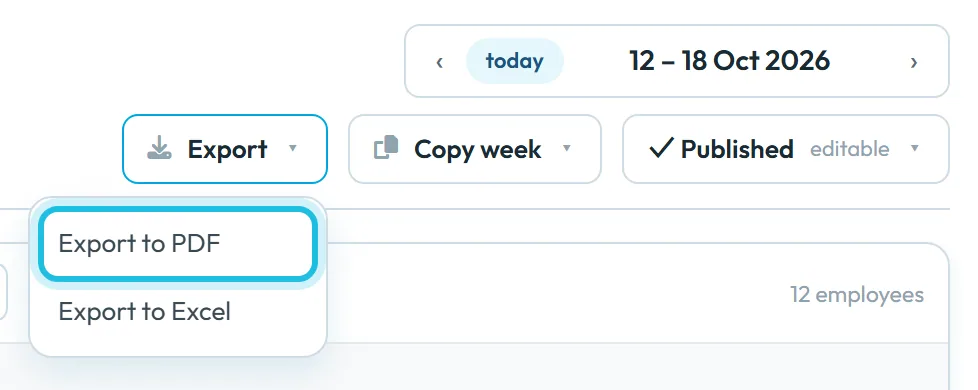
To print the week, click Export at the top of Shift planner and pick Export to PDF or Export to Excel. The export takes exactly what is on screen: the branch or project, the week and the version. For the notice board, use Published, which is what employees see in the app. A draft prints too, which is handy for discussing a plan before you publish it. Anyone who can open the shift planner can export.
#What the printed schedule shows
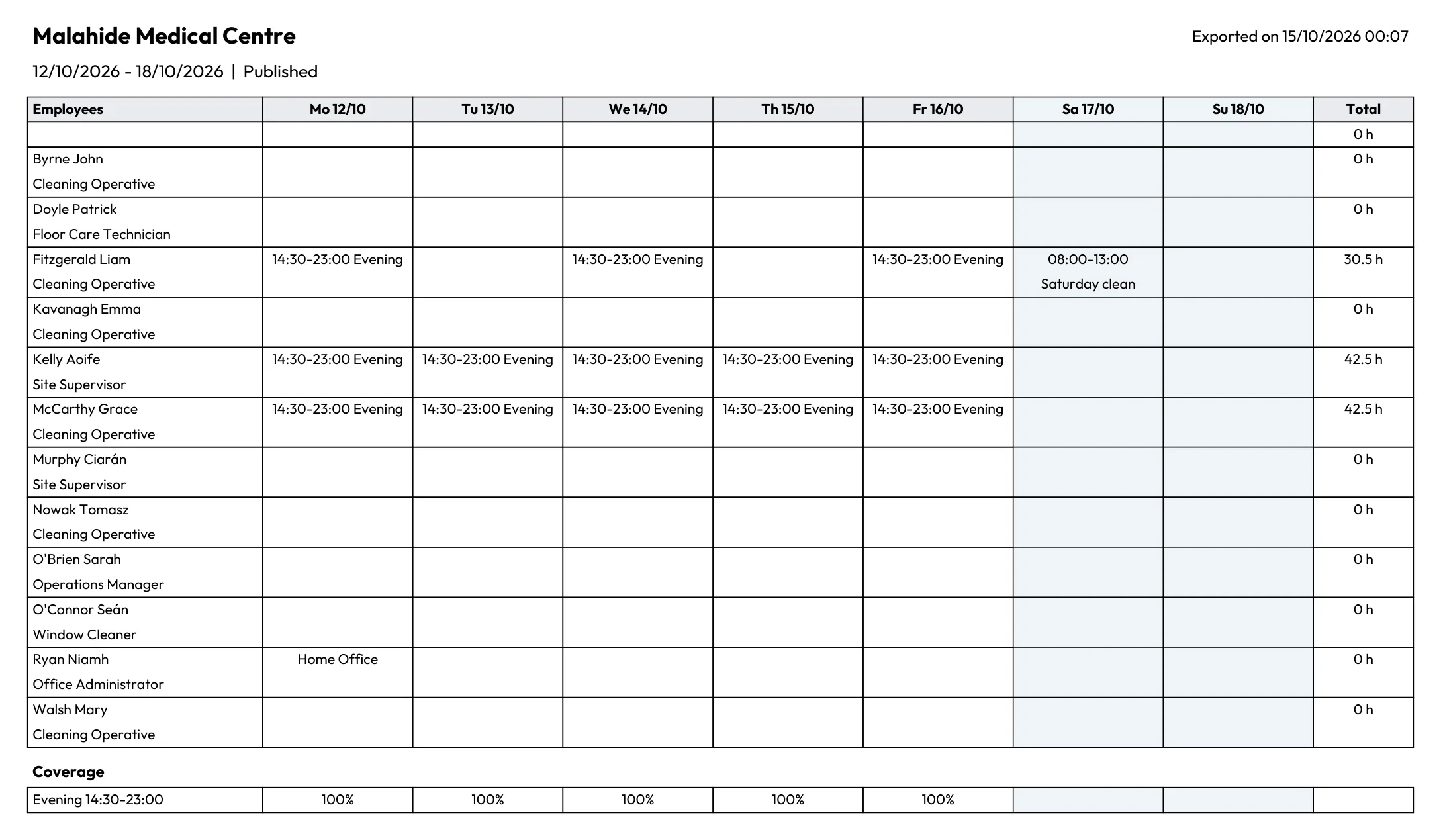
The PDF opens in a new browser tab in landscape. The header names the branch or project, the week, whether it is published or a draft, and when it was exported. Below are the employees with their shifts per day, the total hours of each person and a coverage section. Weekends are shaded and absences are shown with their status. Print it from the browser. Export to Excel saves the same week as a file you can send to a client or a partner who has no FreshQR login.
- Each export covers one branch or project and one week. For a month or several sites, export each week and site separately.
- If the printout differs from the app, you exported a draft – switch to Published and export again.
- There is no calendar file export. Employees see their shifts in My Shifts in the app.
#Around the weekly plan
- Coverage while you planSet how many people you need and the grid shows gaps per day – see Coverage requirements.
- Requests from employeesWants to work and can’t work requests show in the Requests panel – see Employee shift requests and swaps.
#Special cases and tips
- Employees don’t see my changes
- You are still in a draft. Click Publish.
- “The published schedule is read-only — switch to a draft to edit.”
- Choose a draft in the version menu, or start one with New draft….
- Planning far ahead
- You can plan up to 12 months ahead and look 12 months back.
- Someone works on two sites
- Every employee appears in every branch’s and project’s grid. Plan their shift in the grid of the site where they work that day.
#Frequently asked questions
Do employees get a notification when I publish?
No. They see the shifts in My Shifts the next time they open the app. Let them know when a new week is ready.
Can I plan a whole month at once?
The planner shows one week at a time. Plan one week, then use Copy week for the next ones.
Can several managers work on drafts?
Yes. A branch or project can have more than one draft; each has its own name in the version menu.
Does the planner warn about double bookings?
No. It warns about absences, but not about overlapping shifts or rest times.
Do published shifts change reports?
Yes. Published shifts are the expected working time, so overtime and missing hours are measured against them.
#Related
You are hereBuilding the schedule – draft and publish
Employee
Web app (administrator)Mobile app (employee)



