Edit attendance records in Scan Details: review, fix and add breaks
On this page
Quick answer
You edit attendance records in FreshQR under Scan Details. It lists every clock-in and clock-out with the branch, time and distance from the site. The three dots at the end of a row let you edit, copy or split a record, or show it on a map. Add a missing day with + Create. Every change is written to the Change Log.
#What it's good for
- A forgotten clock-out is fixed in half a minute, and the reports recalculate by themselves.
- You see both the real scan time and the time that counts in the reports. Rounding doesn’t change the original scan time.
- Suspicious scans stand out: a red time, orange branches, a large distance.
- Every edit can be traced in the Change Log.
#Who it's for
A good fit for
- Site supervisors and office managers who check every day that everyone clocked in and out.
- Whoever runs payroll, before closing the month.
- Branch managers – they see and edit only the records of their own branches.
Not the right fit for
- Bulk changes. There is no bulk edit here; for recurring cases use automatic departure closure or automatic attendance.
- Monthly totals. Those are in Table Reports.
#Step by step
-
Open Scan Details.
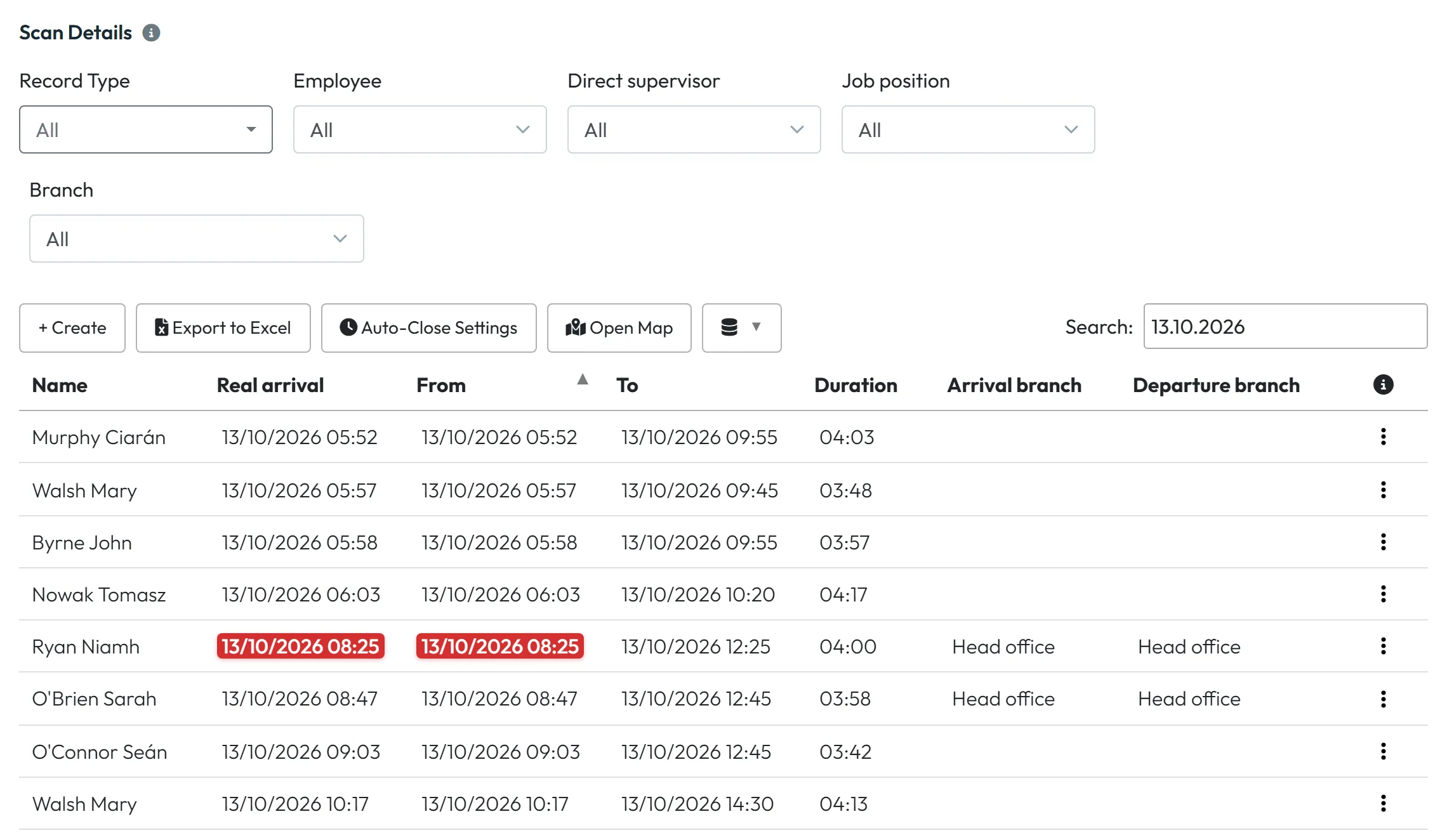
In the left menu, click Scan Details. At the top are the filters Record Type, Employee, Direct supervisor, Job position and Branch. Record Type separates branch attendance from projects.
Each record has two times on each side. Real arrival and Real departure are the exact times the phone scanned. From and To are the times after your work schedule’s rules, such as rounding. The reports use From and To. If the schedule doesn’t round anything, both times are the same. More in Work schedules, rounding and breaks.
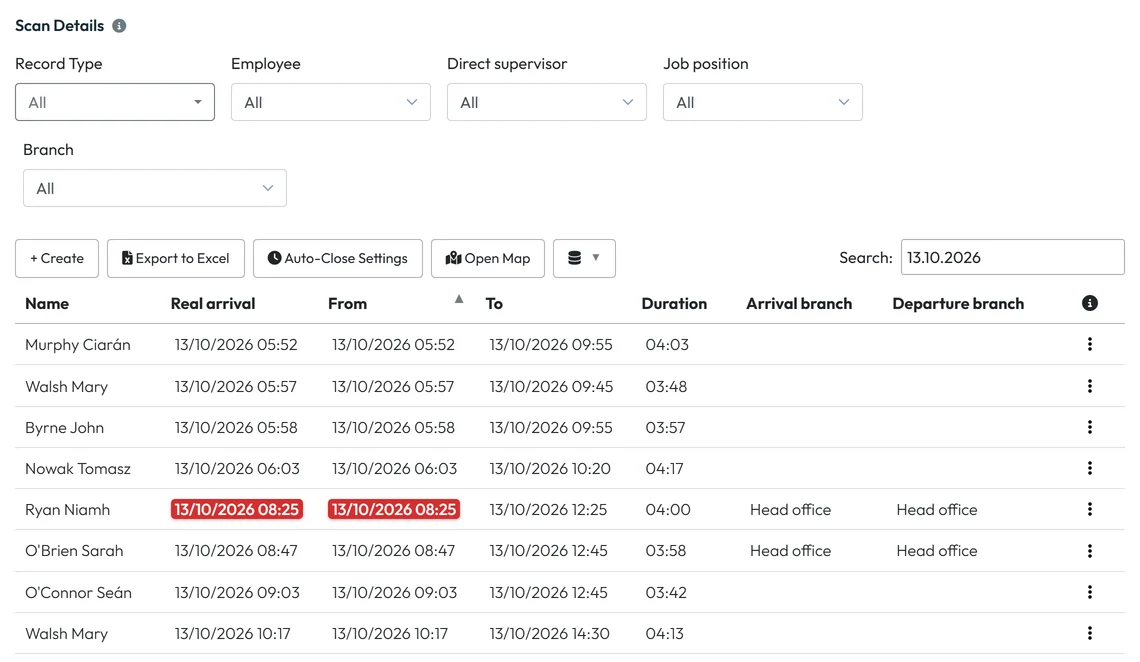
A red time means someone scanned an old QR code after you regenerated it -
Find the record.
Pick the employee in the filter, or type a name or date in the Search box at the top right. Type dates with dots, for example 13.10.2026 – the search doesn’t find them in the 13/10/2026 form. The column chooser icon next to Open Map adds more columns, such as Arrival GPS scan address, Job position or Include day name. Your column choice is remembered for your account.
-
Open the row menu.
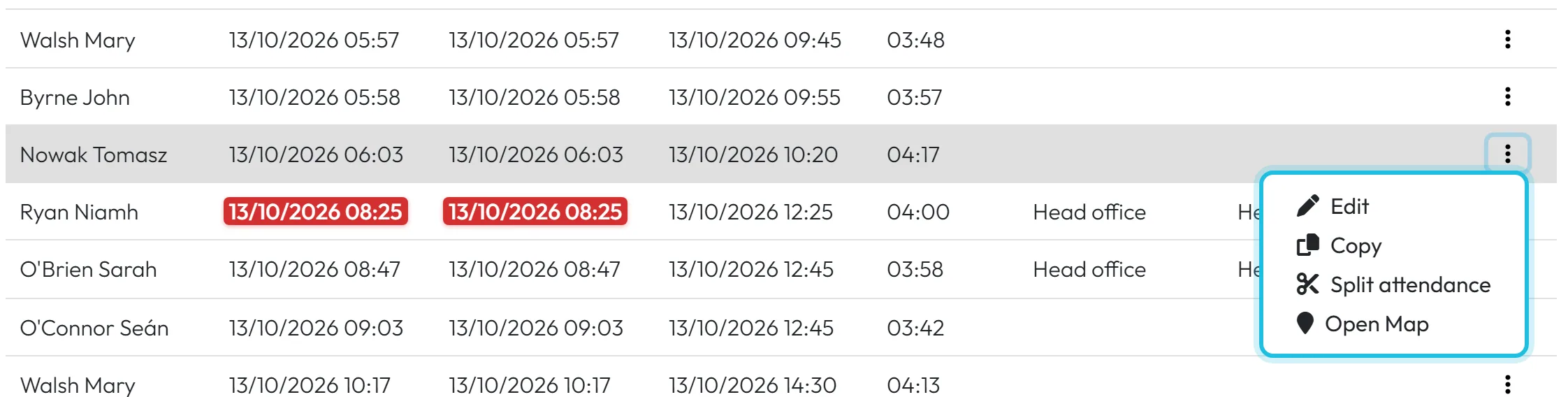
The three dots at the end of a row offer Edit, Copy, Split attendance and Open Map.
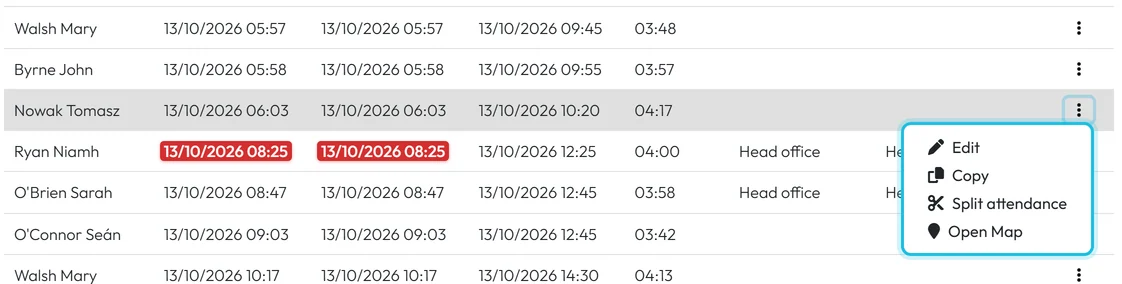
The menu behind the three dots at the end of a row -
Fix a record with Edit.
Example: John Byrne forgot to scan out on Saturday and his record is still open. Click Edit, enter the date and time he left in To, pick the departure branch next to it and click Save changes. The reports for that day are recalculated.
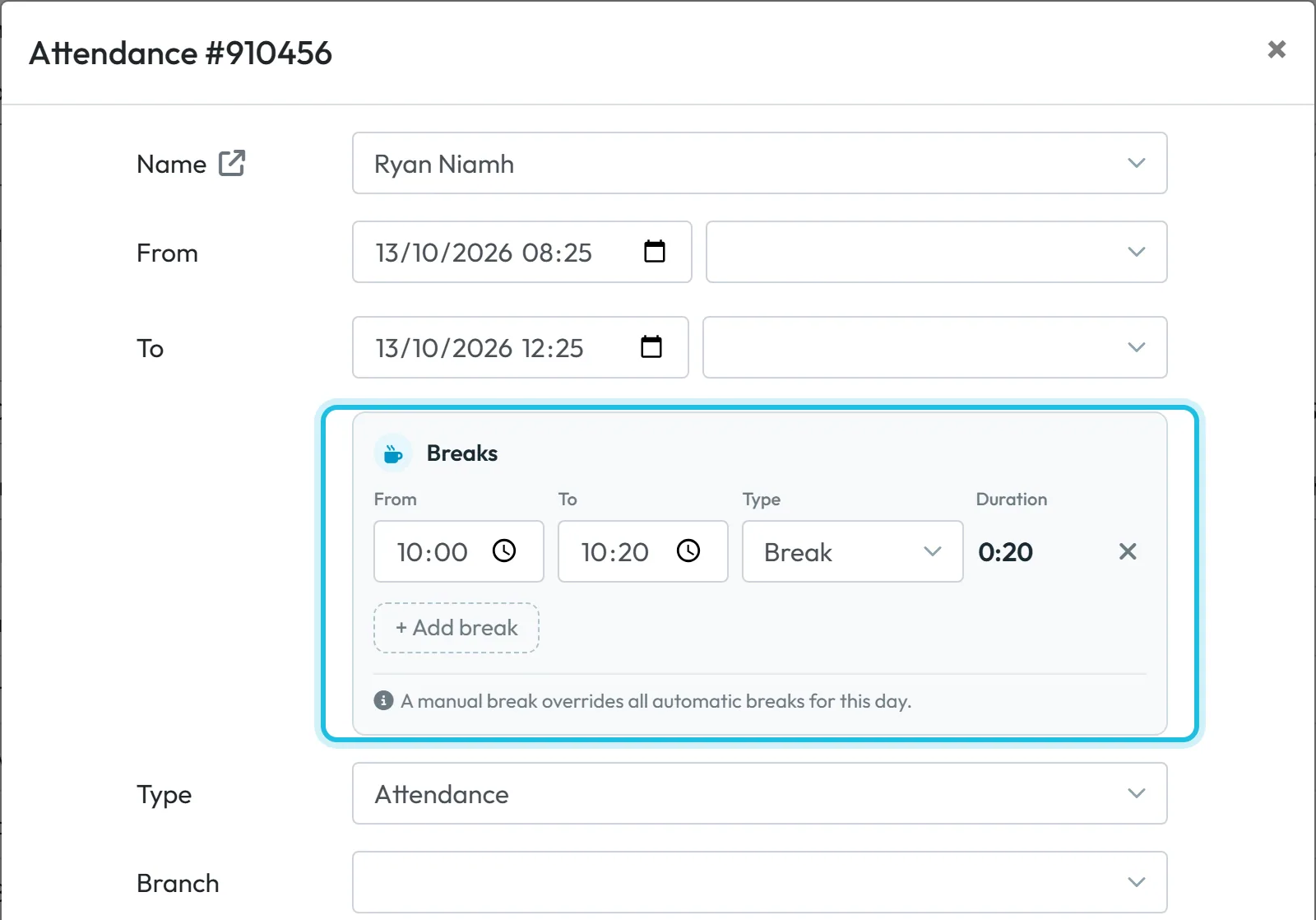
The same form lets you add a break: under Breaks click + Add break, then enter From, To and the type – Lunch break, Break, Doctor, Official break and others. Note the message
A manual break overrides all automatic breaks for this day.
If the schedule deducts lunch automatically, only the break you added is deducted for that day.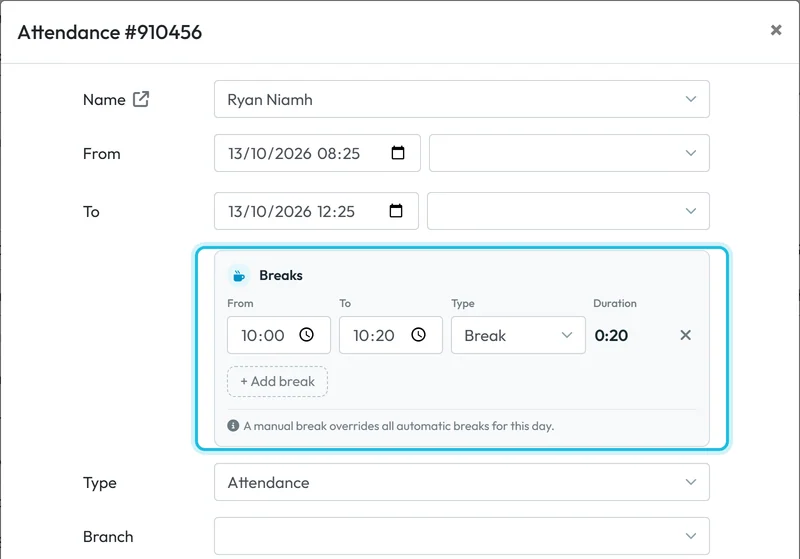
Editing a record with a manually added break -
Add a missing day with + Create.
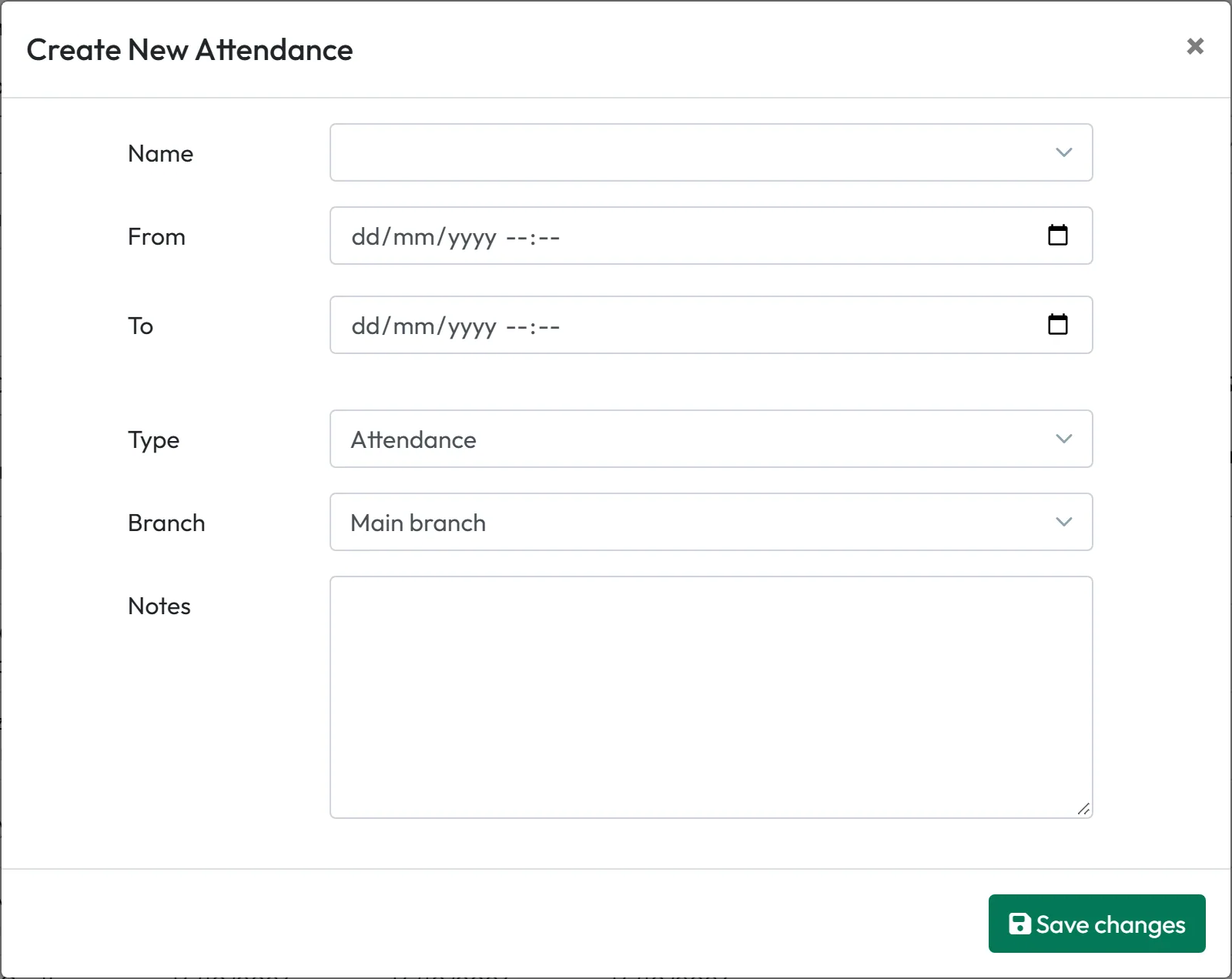
If an employee didn’t scan at all, click + Create above the table. In the Create New Attendance form choose the Name, enter From and To, the Type (attendance or a project), the Branch and, if you like, Notes. Click Save changes.
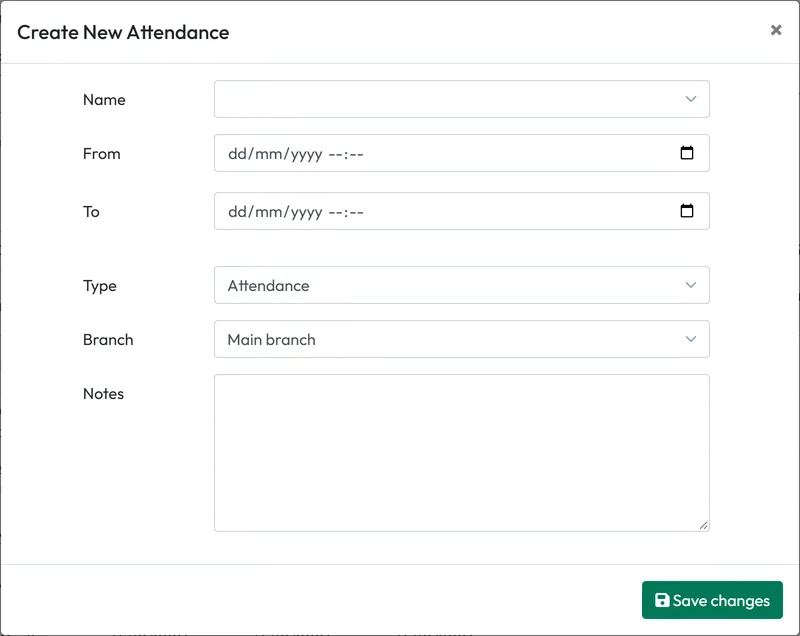
Add a missing day with + Create -
Split a long record with a break.
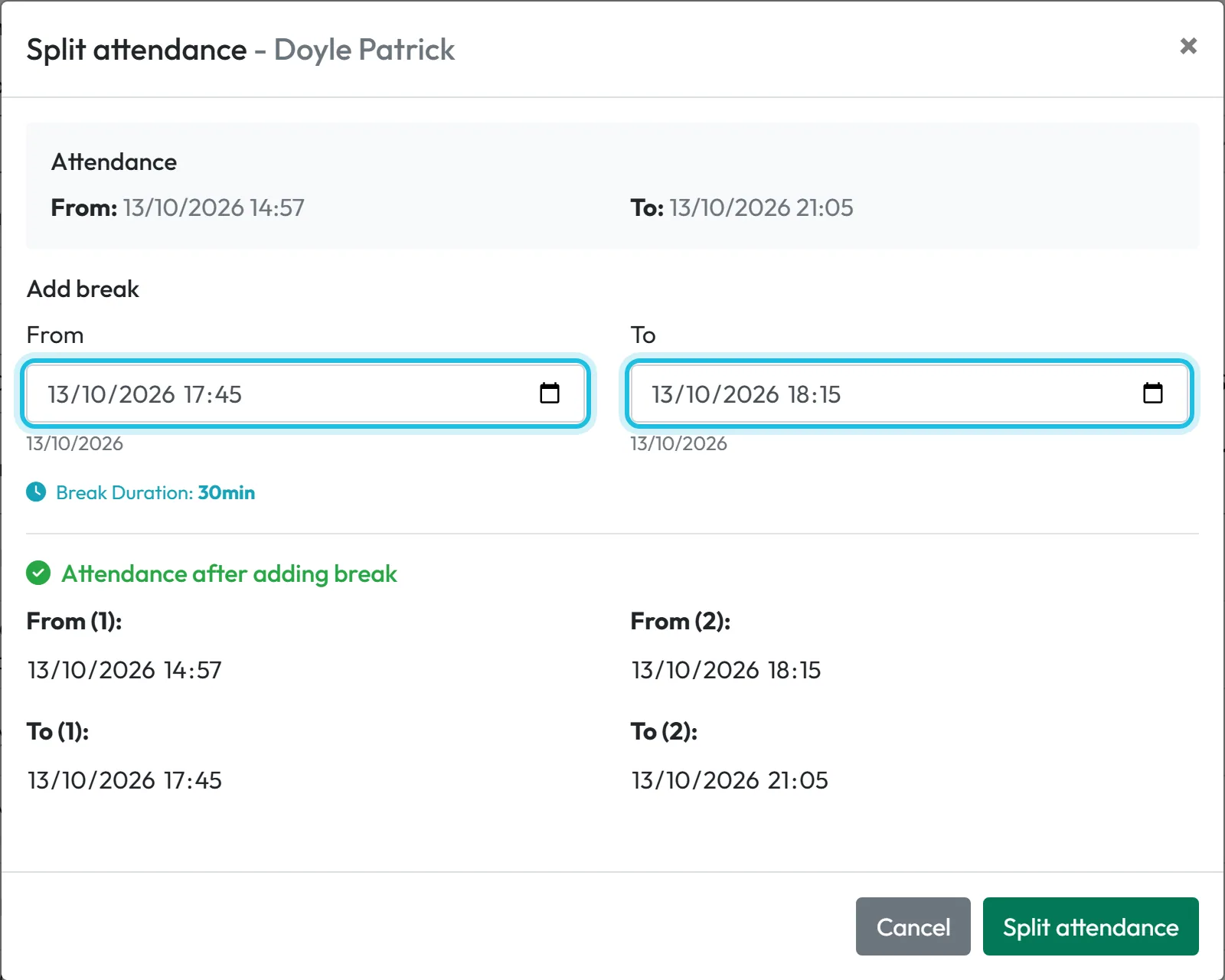
Patrick Doyle left the school for half an hour during his shift but didn’t scan out. In the row menu choose Split attendance and enter the start and end of the break under Add break. The window immediately shows Attendance after adding break with both parts and the break duration. Click Split attendance and the one record becomes two.
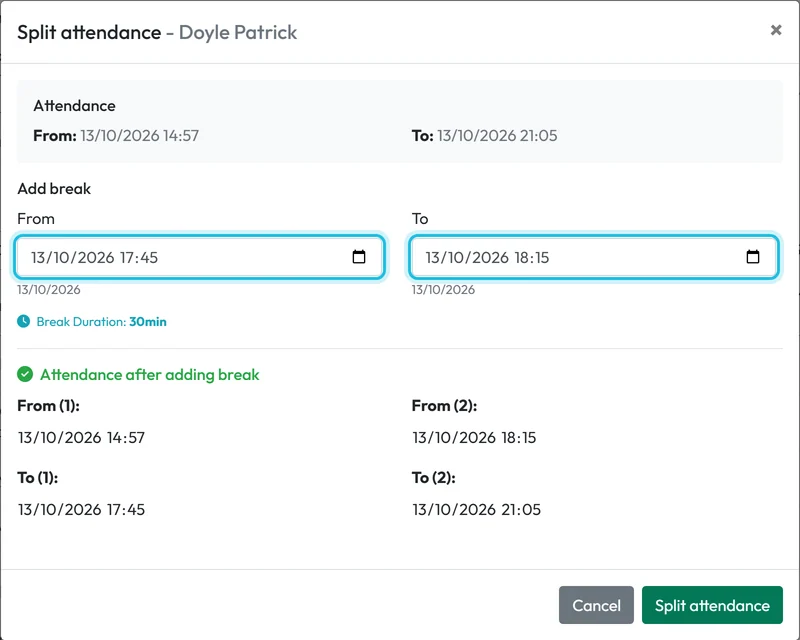
Split one long record into two with a break
#How to read the colours and columns
| What you see | What it means |
|---|---|
| Red background on Real arrival and From | The employee scanned an old version of a QR code that you have since regenerated. See Clock-in and clock-out QR codes. |
| Orange Arrival branch and Departure branch cells | Clock-in and clock-out were at different branches. |
| A red distance in First scan distance from branch or Second scan distance from branch | The scan was far from the site. See GPS location check and accuracy. |
| Empty Real departure and To | The record is open – the employee is at work or forgot to scan out. |
| Record Type Attendance / Project: name | A scan of a branch code or of a project code. |
| Duration | To minus From – the time the reports work with. |
#A typical week in Scan Details
At Brightway Facility Services, Ciarán Murphy supervises the cleaners at Grand Canal Dock and Sandyford. He spends five minutes in Scan Details each morning:
- He filters by Direct supervisor and picks himself, so he sees only his own team.
- He looks for rows with an empty To – people who forgot to scan out the evening before – and fixes them with Edit, using the time they told him.
- He checks the distance columns. A scan 2 km away from the client building gets a look on the map.
- If someone was off sick and didn’t scan, he leaves the day empty; the absence is entered under Absences, not here.
Before payroll, the office checks the whole month in Table Reports and then approves it, so nobody changes it afterwards – see Approving attendance for a period.
#More options in Scan Details
- CopyOpens the new-record form filled in with the row’s details. Useful when you want to add the same shift for another employee or another day. Change the name or the date and save.
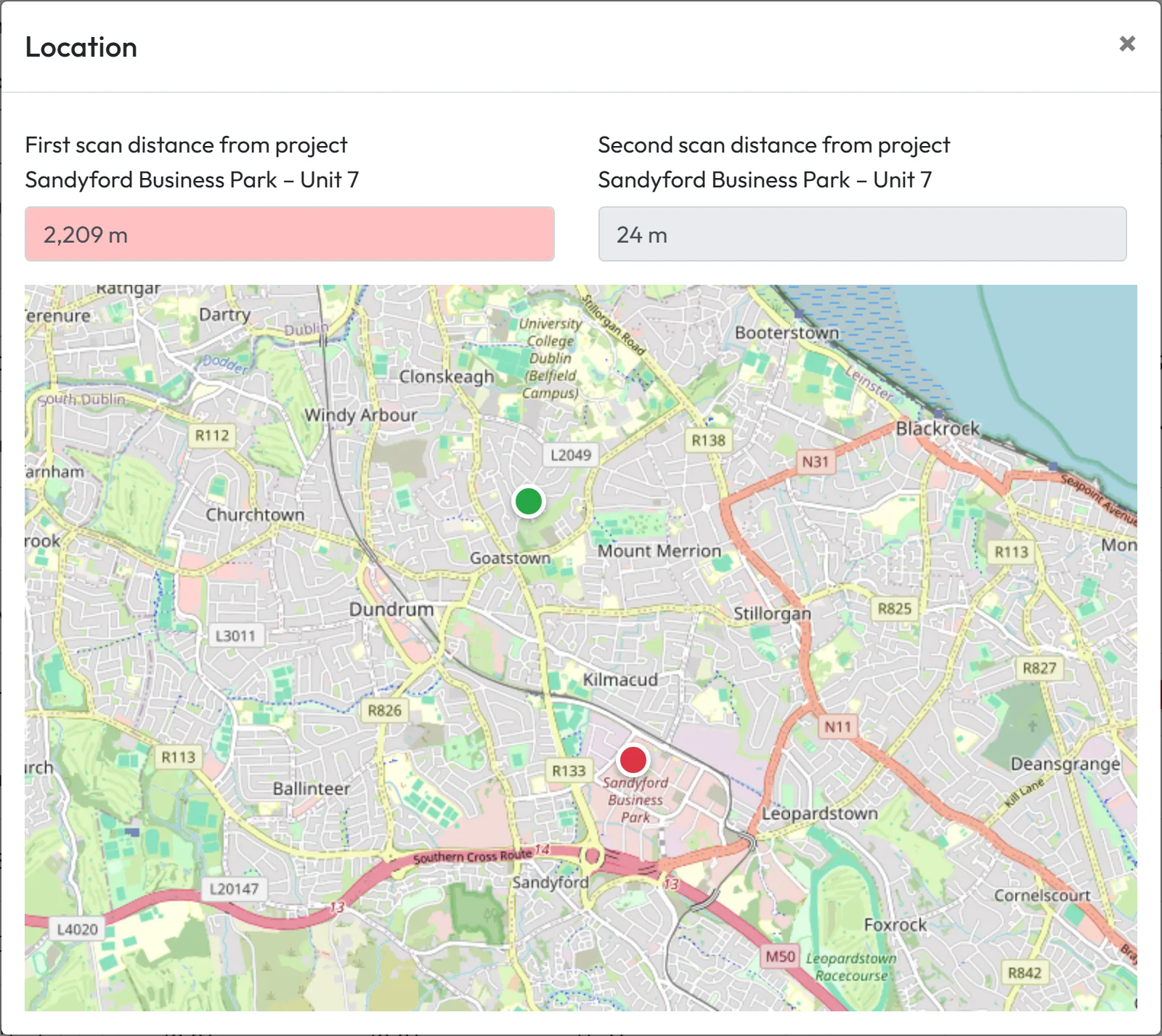
- Open MapShows the clock-in and clock-out points on a map and how far they were from the site. A large distance is highlighted in red. More about scan locations in GPS location check and accuracy.
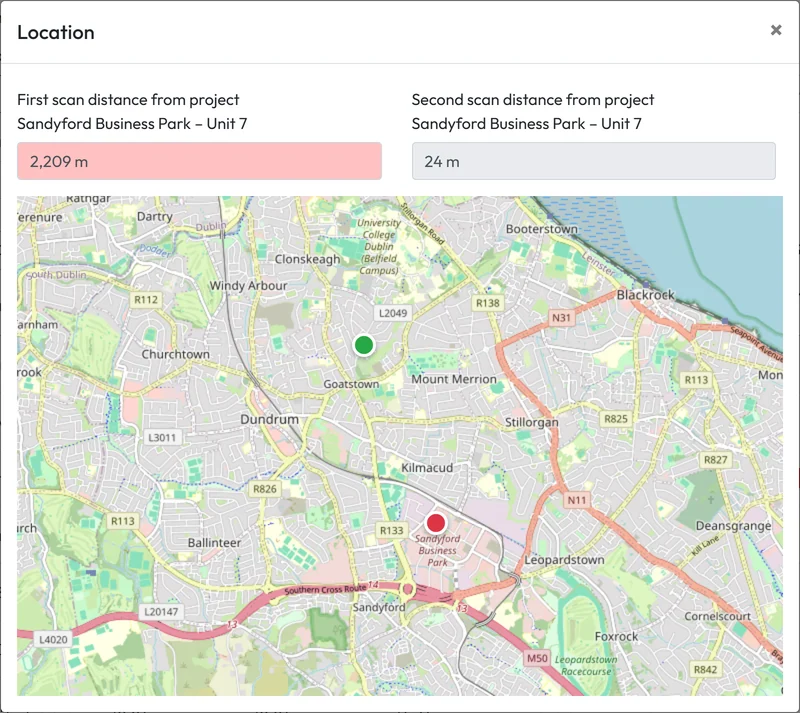
Open Map shows where the scan happened - Export to ExcelThe button above the table saves the list to Excel. For payroll, the export from Table Reports is better – see Export to Excel and PDF.
- Auto-Close SettingsIf forgotten clock-outs keep happening, set up rules that close open records by themselves. See Automatic Departure Closure.
- ChecksMissing scans and unusually long days are quicker to find in the Checks report – see Checks (Beta).
#Special cases and tips
- A locked record
- If a record falls in a locked or approved period, the row menu shows only Locked and Open Map. If you try to change it, you’ll see
This date falls within a locked period and cannot be modified.
See Locked periods.
A locked record can’t be edited - Who changed what
- All edits made in the web app are in the Change Log, in the user menu (⋮). See Change Log.
- Phone time and server time
- If you suspect an employee’s phone showed the wrong time, open Technical Details in the edit form. It shows the GPS time and the server time of each scan.
- Read-only access
- Roles with Scans Detail: View Only see the records, but the row menu has no editing items for them.
- An absence, not attendance
- Sick days and annual leave don’t belong in Scan Details. Enter them as absences – see Adding an absence for an employee.

#Frequently asked questions
Why does a record have two clock-in times?
Does the employee find out that I edited their attendance?
They get no notification. If reports are shown in their app, they see the change there.
Can I edit several records at once?
No. For recurring cases use automatic departure closure or automatic attendance.
How do I add a lunch break the employee didn’t scan?
Add a break in Edit, or split the record with Split attendance. A manual break replaces the automatic breaks for that day.
Can a branch manager see other branches’ records?
No. A branch manager sees and edits only the records of their own branches.
#Related
You are hereScan details – reviewing and editing attendance
Web app (administrator)Mobile app (employee)



