Automatic absences: turn marked breaks into approved absences
On this page
Quick answer
With Automatic absences switched on, FreshQR turns breaks that employees mark in the app – for example Doctor or Vacation – into approved absences of the matching type. Unmarked breaks stay breaks. Switch it on per branch, link each mark to an absence type, and the absences appear overnight for the previous day.
How to turn it on
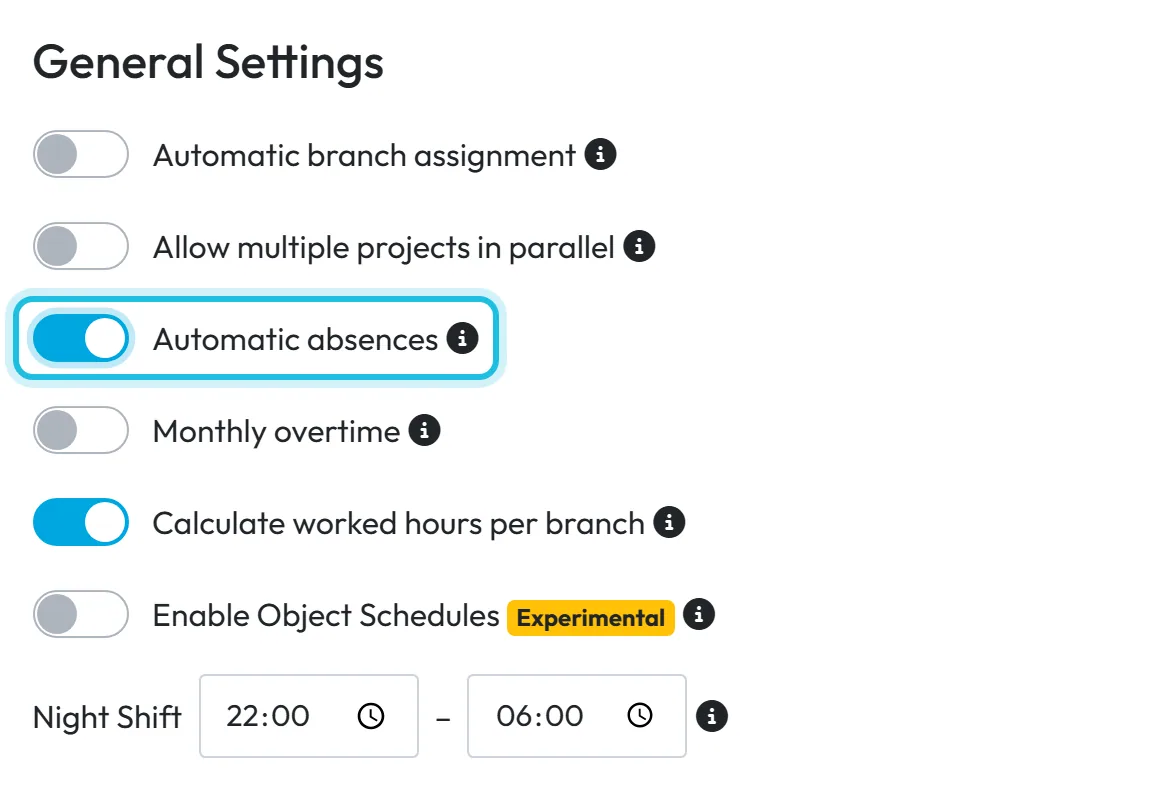
Automatic absences are off by default. Switch them on for the main branch in the company settings and, if you have more branches, in each branch where you want them.
- My Company
- Company Details
- General Settings
- Automatic absences
- Who can turn it on
- Users who can edit My Company settings, such as the Owner and Administrators.
- What changes
- Nothing changes in the employee’s app. From the next night on, gaps that employees marked with a type become approved absences in Absences, in reports and in the monthly report.
- Applies to
- One branch at a time. The branch of the QR code used for the departure scan decides; a QR code without a branch counts as the main branch. Other branches: My Company › Branches › Edit branch.
#What it's good for
- A doctor visit in the middle of the day ends up as a Doctor visit absence instead of missing hours – without anyone typing it in.
- Employees mark the reason when they scan out; the office doesn’t chase them for it later.
- The absences are approved straight away and flow into the leave balance and reports like any other.
#Who it's for
A good fit for
- Companies with fixed working hours where people step out during the day: offices, production, maintenance teams.
- Teams that already use Mark next scan as… in the app for doctor visits or half days of leave.
Not the right fit for
- Shift work without fixed start and end times in a work schedule – FreshQR measures the gap against the schedule, so without one there is nothing to measure.
- Companies whose employees don’t mark their scans; unmarked breaks are never converted.
#What gets created
| Situation | Example | Absence created |
|---|---|---|
| Late start: the first scan of the day is marked | Schedule 08:00, arrives 10:15 after the doctor | 08:00 – 10:15 |
| Early leave: the last departure is marked | Leaves at 13:00 marked as Vacation, schedule ends 16:30 | 13:00 – 16:30 |
| Gap during the day: a marked departure followed by another arrival | Out at 10:15 marked as Doctor, back at 11:40 | 10:15 – 11:40 |
The gap must lie within the employee’s scheduled hours. Each absence gets the type linked to the mark and the status Approved.
#Step by step
-
Switch it on for each branch that needs it.
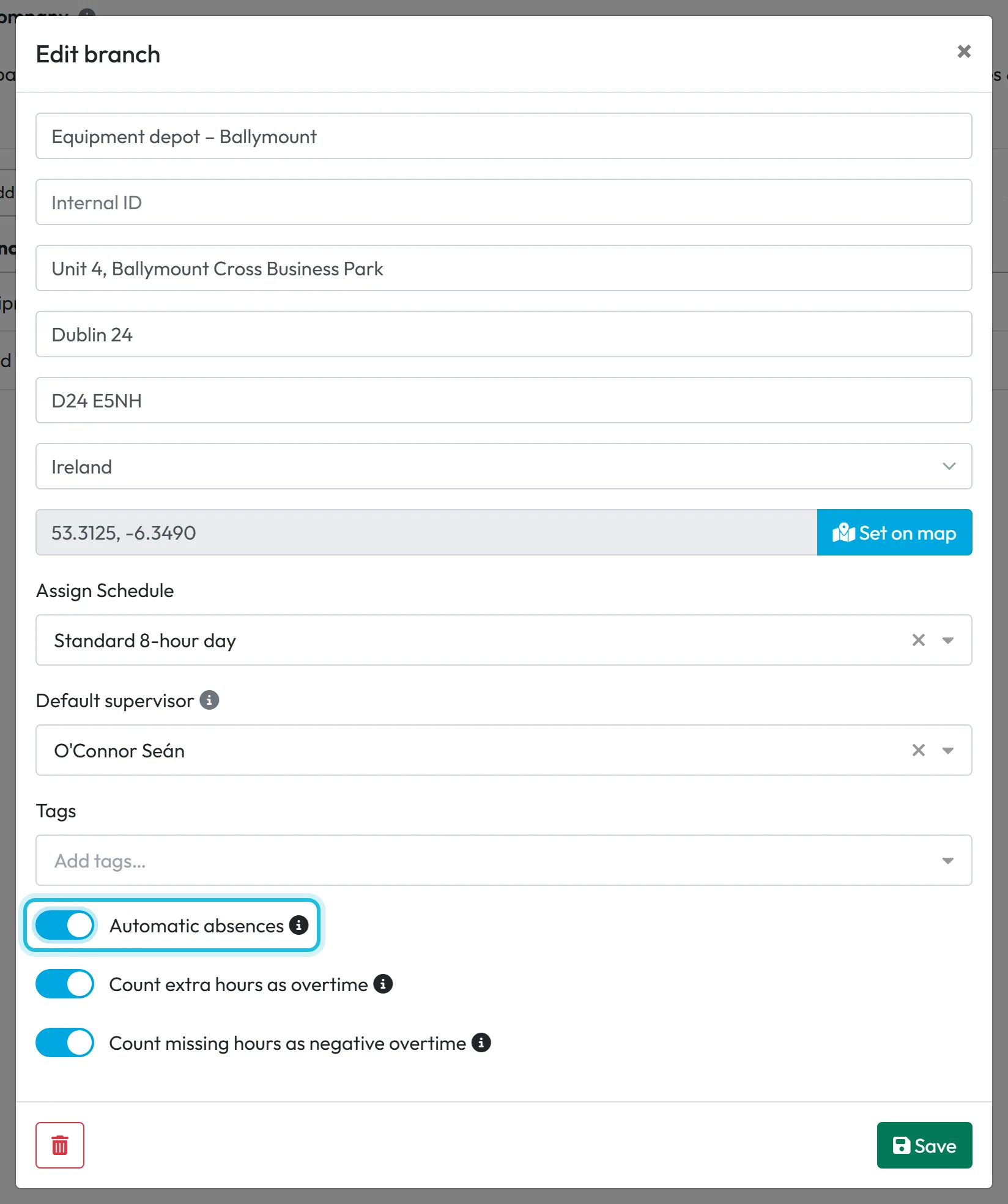
For the main branch use the switch shown above in General Settings. For another branch go to My Company › Branches, open the branch and switch on Automatic absences in the Edit branch window. Save. See also Branches.
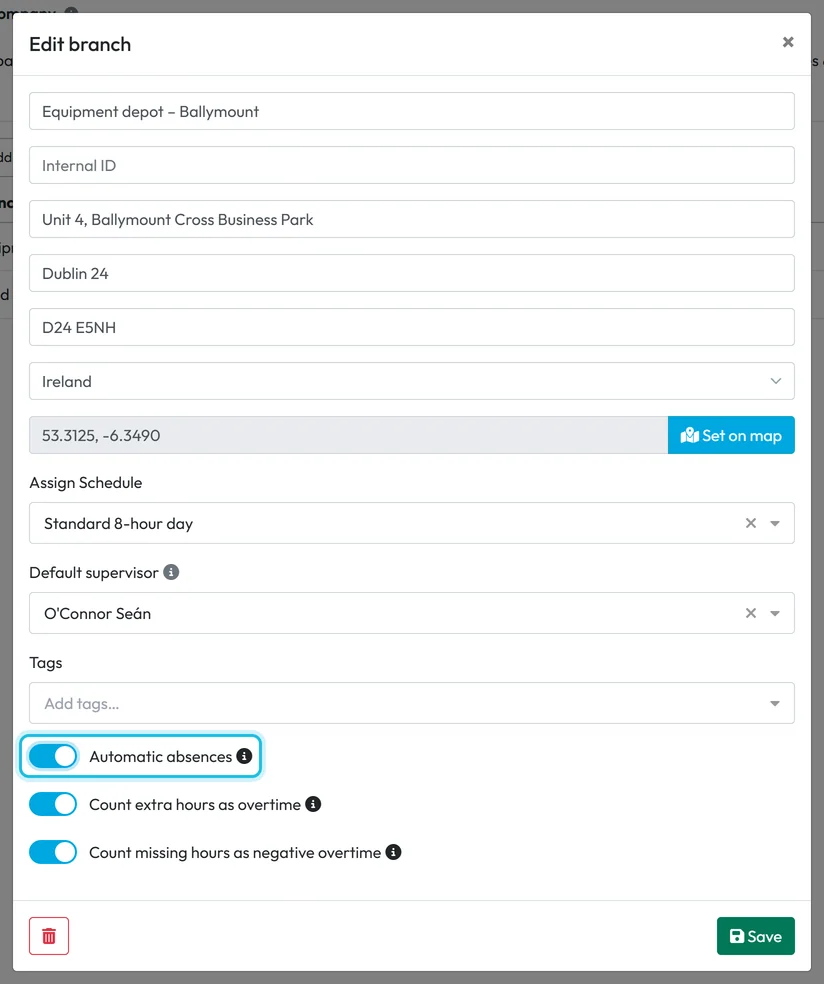
Automatic absences can be set per branch -
Link each mark to an absence type.
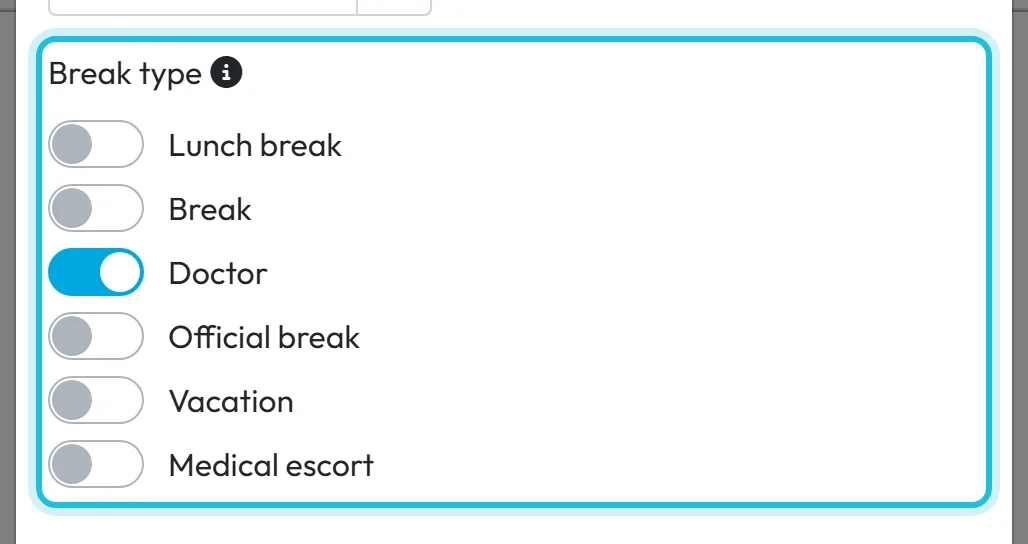
Go to Absences › Absence types, edit the type – for example Doctor visit – and under Break type switch on Doctor. Save, then repeat for every mark your employees use: Doctor escort, Vacation (usually linked to 1/2 Vacation), Official leave and so on. Each mark can be linked to one type only. Details in Absence types.
Leave Lunch break and Work break unlinked if you want them to stay ordinary breaks.
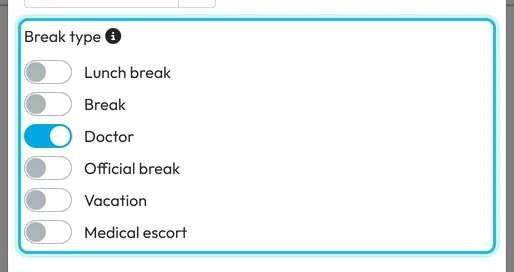
Map the Doctor mark to the Doctor visit type -
Check that employees can mark their scans.
In My Company › Company Details › Mobile App Settings, the option Show "Mark as special" option must be on. In the app the employees then see Mark next scan as…. Every employee needs a work schedule with a start and an end – see Work schedules.
-
The employee marks the scan.
Before scanning out for the doctor, the employee taps Mark next scan as…, chooses Doctor and scans as usual. When they come back, they scan in normally. How this looks on the phone is in Marking the next scan.
-
Check the absences the next day.
The absences are created overnight for the previous day, never live. The next morning you find, for example, an approved Doctor visit 10:15–11:40 in Absences, in the monthly report and in the day’s attendance. If something is wrong, edit or cancel it like any other absence.
#Compensatory time off (time off in lieu)
Compensatory time off is time off taken instead of being paid for overtime. FreshQR has a default absence type for it, Compensatory leave, with the Compensatory time off switch on. Employees request it like any other absence and you approve it as usual.
Once approved, the time is taken from the employee’s overtime balance instead of counting as paid work – at most one working day per day. If the employee is already short of hours that day, the time off only covers the shortfall; it isn’t deducted twice. This is on by default and there is no switch for it in the app: if you need it off, write to FreshQR support at info@freshqr.online or on WhatsApp. How the balance itself works is in Overtime.
Compensatory time off is also left out of the Attendance & Absence Overlaps check.
#Other ways
- Enter the absence by handIf an employee forgot to mark the scan, nothing is generated. Add the absence yourself with the right times.
- The employee requests it in advanceA planned doctor visit can also be requested in the app with a time range.
#Special cases and tips
- Link every mark you use
- If a mark at the start or end of the day isn’t linked to any absence type, an approved absence can still be created – without a type. Link each mark your employees use, or ask them not to use the ones you haven’t linked.
- New company: marks not linked yet
- On a new company the Break type links may be empty. Open Doctor visit, Medical escort, 1/2 Vacation and Business and check them before you switch the feature on.
- Description text
- Generated absences get an automatic description, which you can overwrite on the absence detail.
- Lunch became an absence
- That happens only when Lunch break is linked to a type. Remove the link under Break type.
#Frequently asked questions
When does the automatic absence appear?
The next day. Absences are created overnight for the previous day.
Does an automatic absence need approval?
No. It is created with the status Approved.
The employee forgot to mark the scan. What now?
Nothing is generated. Add the absence by hand in Absences with + Create.
Is the setting per branch?
Yes. Switch it on for each branch where you want it; the main branch is in General Settings.
How does compensatory time off affect overtime?
Approved compensatory time off is taken from the employee’s overtime balance rather than paid as work. To change this, contact FreshQR support.
#Related
You are hereAutomatic absences and compensatory time off
Web app (administrator)Mobile app (employee)



