Job positions: create roles and give each a schedule
On this page
Quick answer
Job positions are your company’s list of roles, such as Cleaning Operative or Site Supervisor. Create them under Employees › Job positions with + Create, then give each employee a position in their profile. A position can carry its own work schedule, and it affects shift swaps, coverage, the absence calendar and report filters.
#What it's good for
- One schedule for all cleaners instead of setting it person by person.
- Shift swaps only between people who can actually replace each other.
- Shift coverage and report filters per role: “at least two window cleaners on Monday”, “hours of all floor care technicians”.
- A simple picture of how roles relate, under the list.
#Who it's for
A good fit for
- Shift-based teams with clearly different jobs: cleaners, window cleaners, supervisors, office staff.
- Companies using the shift planner, where coverage and swaps depend on the role.
- Anyone who wants to filter reports by role.
Not the right fit for
- A small team where everybody does the same job. Leave positions empty – nothing breaks.
- Deciding who sees whom. Positions grant no access; that comes from the organigram.
#Step by step
-
Open Job positions.
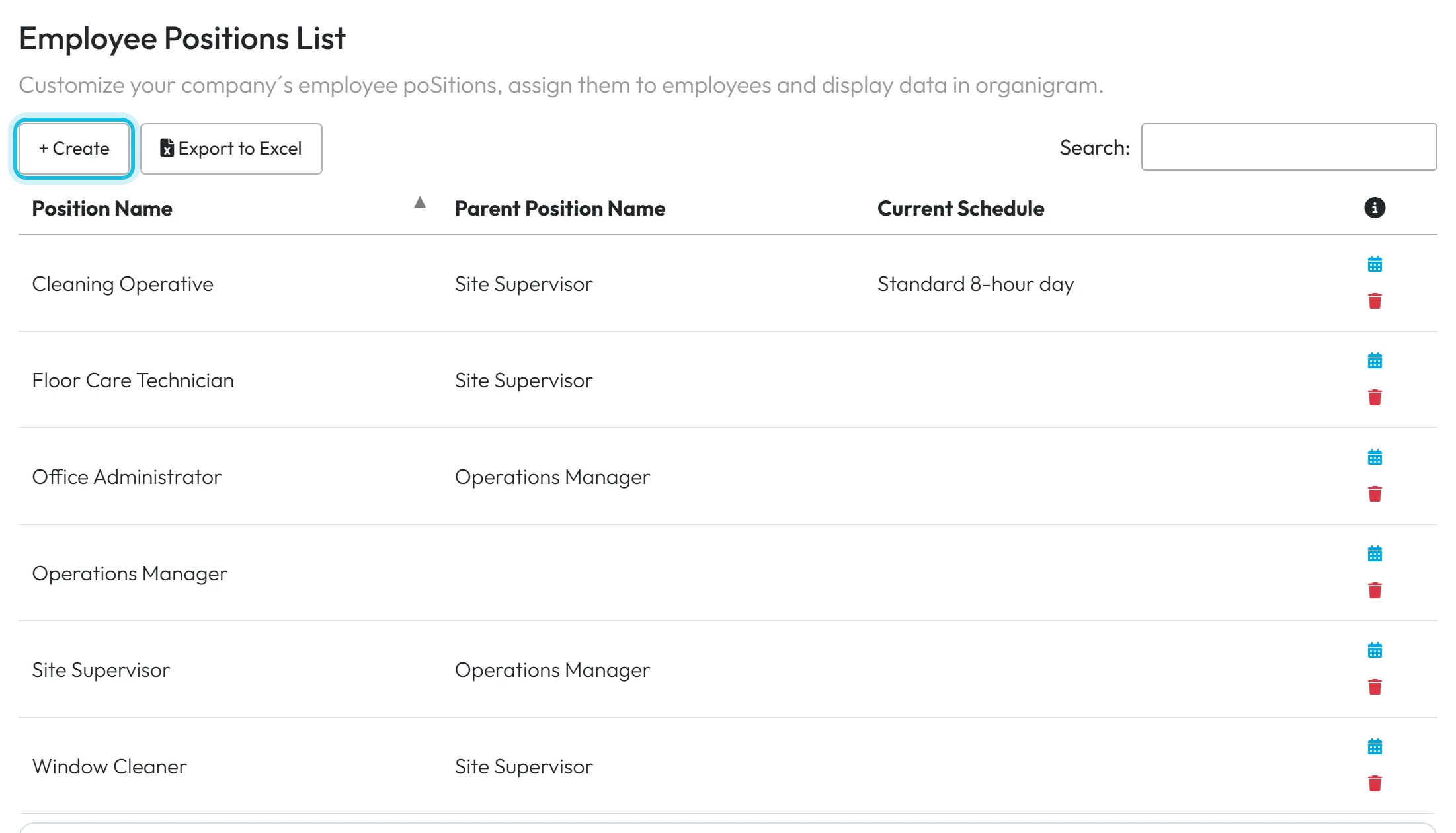
Go to Employees and click the Job positions tab. The Employee Positions List shows every position with its Parent Position Name and Current Schedule. The calendar icon in each row sets the schedule, the bin icon deletes the position.
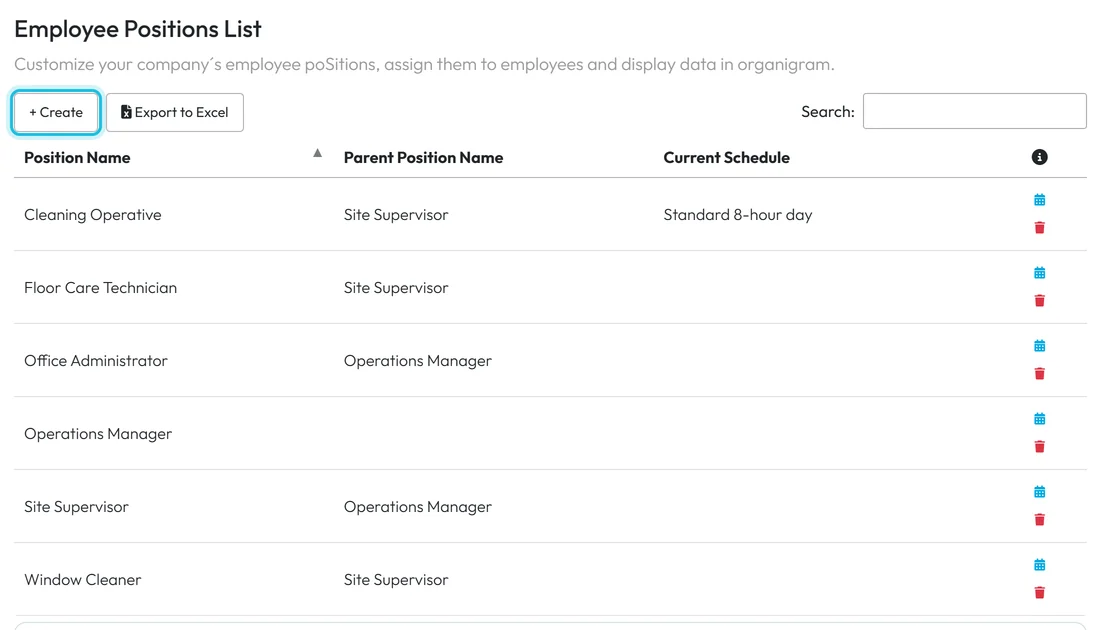
Create a position with + Create -
Create a position.
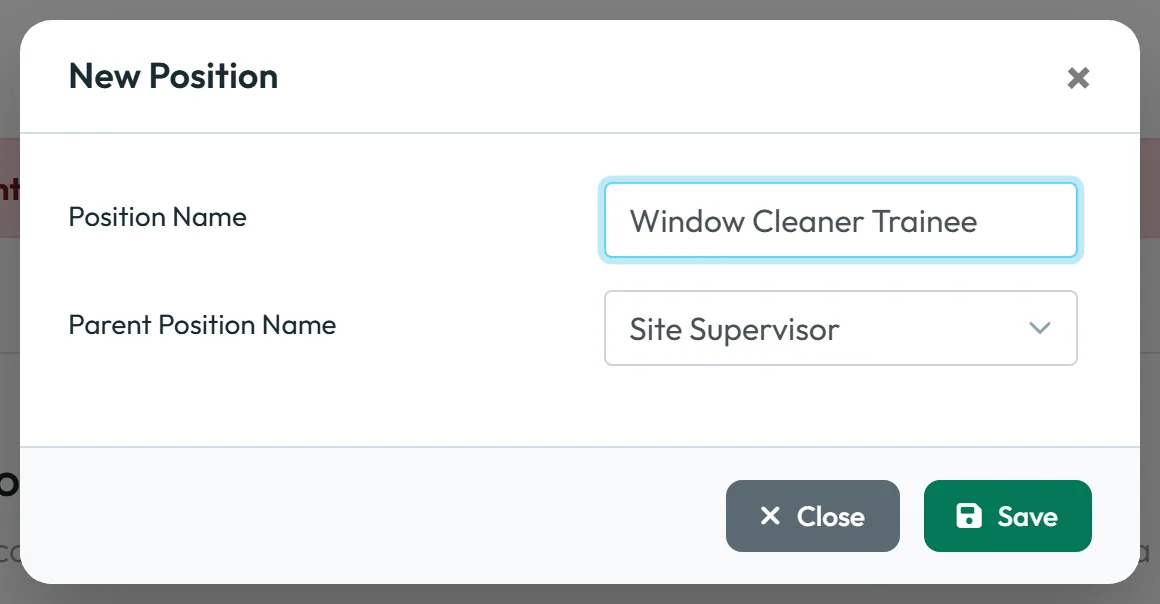
Click + Create. In the New Position window type the Position Name, for example “Window Cleaner Trainee”. Optionally choose a Parent Position Name – here Site Supervisor. Click Save.
Each name can exist only once; a duplicate gets the message Position already exists.
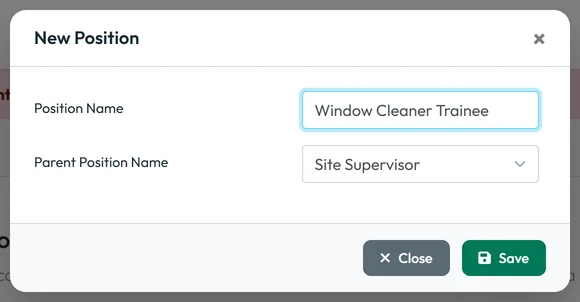
Name the position and pick its parent -
Give employees their position.
Open the employee’s profile, choose the position in Position Name and click Update – see Employee profile. Each employee has one position. You can also set it in a candidate’s form before they start.
-
Give the whole position one schedule (optional).
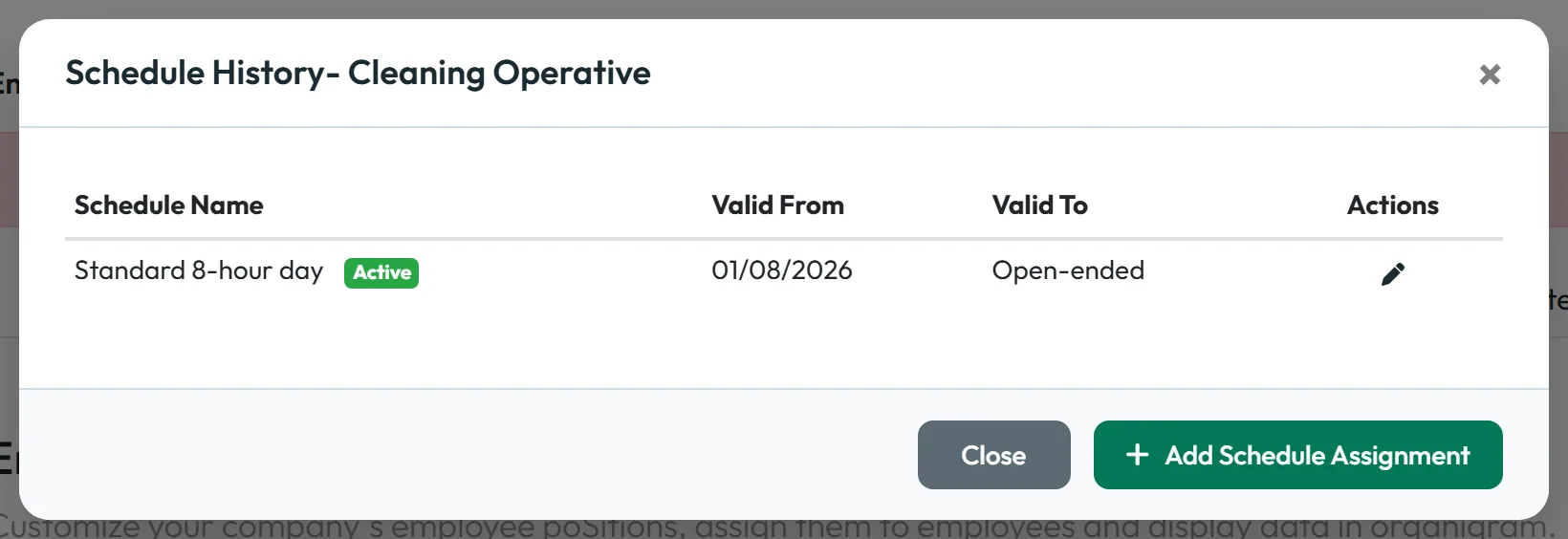
Click the calendar icon of the position. The Schedule History window lists the schedules assigned so far with Valid From and Valid To; the one in force today is marked Active. Click + Add Schedule Assignment, choose the schedule and the start date, and leave the end open if it applies until further notice.
Everyone with that position now follows it, unless they have a personal schedule. The order is: personal schedule, then position schedule, then branch schedule, then the default. Schedules themselves are set up in Employee work schedule.
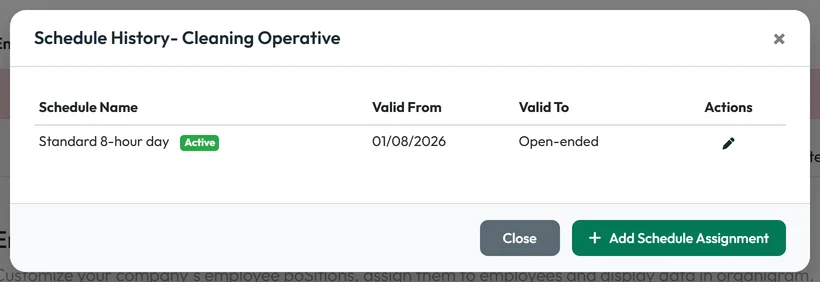
A position schedule applies to everyone in that role -
Check the chart.
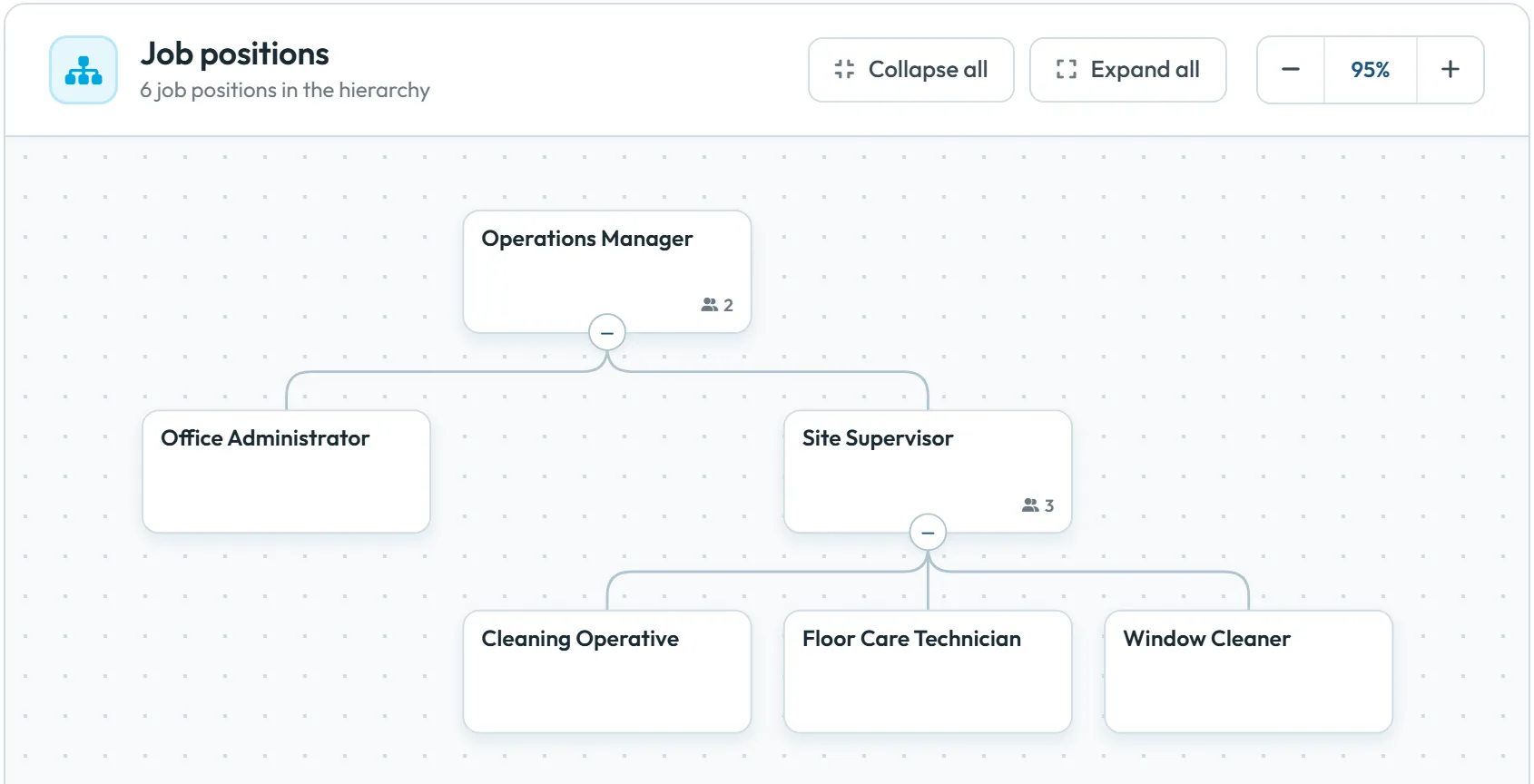
Below the list, the Job positions chart draws the hierarchy from the parent positions – for example Operations Manager › Site Supervisor › Cleaning Operative. Use Collapse all, Expand all and zoom as in the organigram.
The chart is only a picture. A parent position doesn’t make anyone a manager and doesn’t set supervisors.
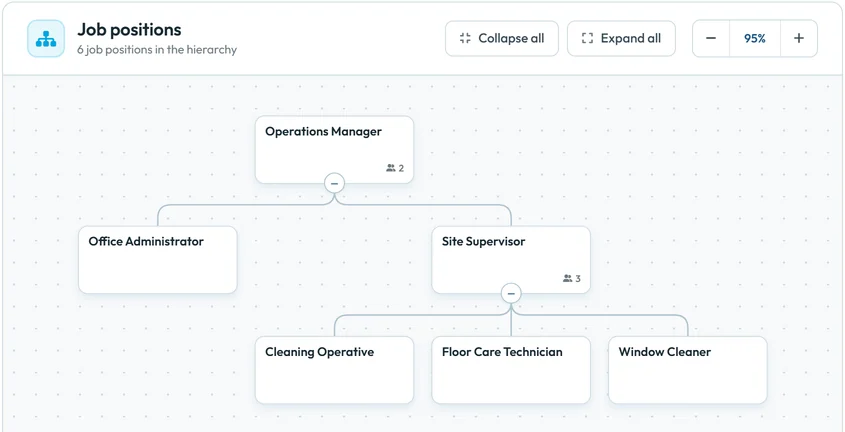
The position hierarchy at a glance
#Where a position makes a difference
| Where | What the position does |
|---|---|
| Work schedules | Expected hours for everyone in the role (step 4). |
| Shift planner | Shift templates and shift coverage can be set per position. |
| Swap board in the app | Employees swap shifts only with colleagues in the same position – see Shift swap requests. Give a position to everyone who should be able to swap. |
| Team absence calendar | The company can let employees see the absences of colleagues in the Same position – see Team absence calendar. |
| Table Reports | A Job position filter, for example only Window Cleaners. |
| Organigram | The position is printed under each person’s name. |
A position does not change pay, access rights or e-mail alerts.
#Special cases and tips
- Renaming a position
- Create the position with the new name, move the employees to it in their profiles, then delete the old one. There is no rename button.
- Deleting a position
- The bin icon deletes the position. Employees who had it are left without a position, so check who uses it first – for example with the Job position filter in Table Reports.
- A position and a tag
- Use a position when the role affects schedules, coverage or swaps. Use a tag for anything else, such as “Keyholder” or “First aid”.
#Frequently asked questions
Can an employee have two positions?
No, one. Use tags for extra skills or groups.
Does a parent position make someone a manager?
No. Who manages whom comes from the Superior employee field in each profile and the organigram.
Do employees see their position in the app?
Not as a label. It affects whom they can swap shifts with and, if you allow it, whose absences they see.
Who can create and delete positions?
Accounts that can edit employees or company settings: the Owner, Administrators, Manager: Full Access except Company settings, Employees: View & Edit and Company Settings: View & Edit.
#Related
You are hereJob positions
Web app (administrator)Mobile app (employee)



