Employee list: find, filter and export your staff
On this page
Quick answer
The employee list is under Employees › Table in the left menu. It shows everyone connected to your company with name, e-mail and phone. Search by any column, add hours or contract end dates with the column chooser, filter who is working now or who has left, and open a profile with the pencil icon.
#What it's good for
- One place to answer quick questions: how to reach someone, who is clocked in, how many hours each person did this month and last month.
- People who leave don’t clutter the list, yet nothing is lost. Their history stays and you can bring them back with one click.
- Ending contracts are flagged right in the list, so nobody slips through.
- The list goes to Excel as you see it, and the monthly reports of everyone go out as PDF files in one go.
#Who it's for
A good fit for
- Owners and office staff who look after the team’s data themselves – no separate HR system needed for the basics.
- Companies with turnover, such as cleaning crews, hospitality or seasonal work, where people come and go.
- Managers who want a quick hours check before the month is closed.
Not the right fit for
- Employees. The mobile app has no colleague list; this page is for the web app only.
- People on the Candidates tab. They move into this list as soon as you click Make employee – see Adding someone who doesn’t clock in.
#Step by step
-
Open Employees.
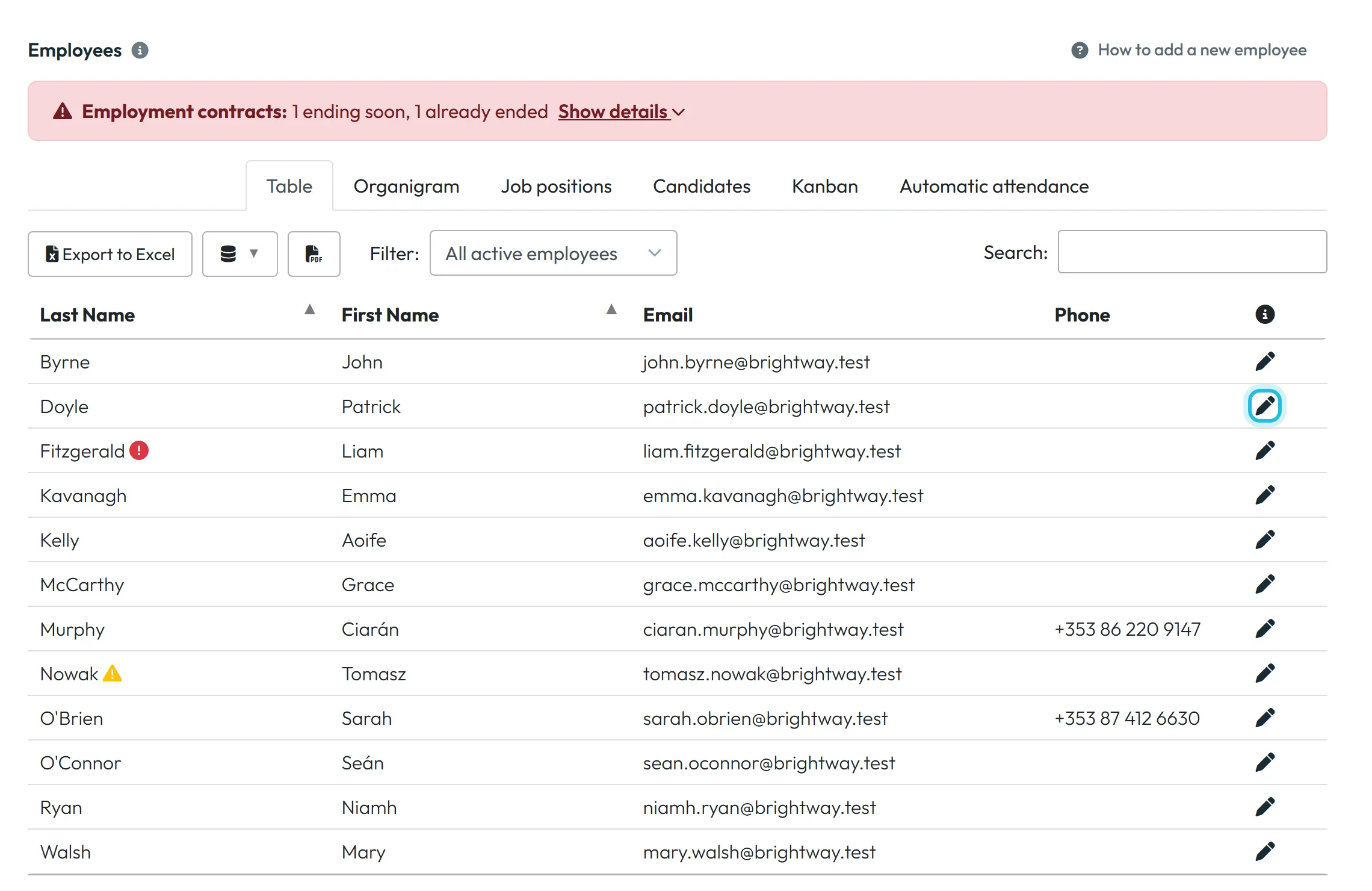
In the left menu, click Employees. The Table tab opens first. Next to it are Organigram, Job positions, Candidates, Kanban and Automatic attendance.
New people are added to this list automatically: a person appears here as soon as they install the app and scan one of your QR codes, or enter your company code. The How to add a new employee link at the top right explains it, and so does Adding employees to the attendance app.
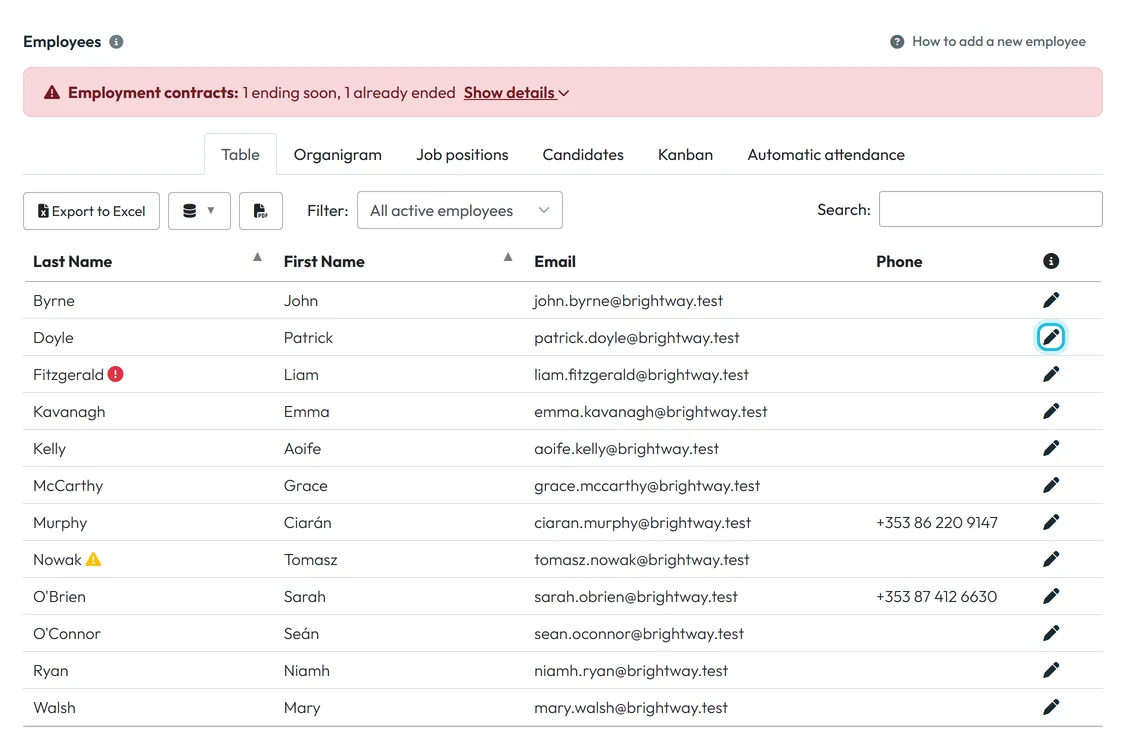
Open a profile with the pencil at the end of the row -
Find the person.
The list is sorted by Last Name, then First Name, 50 rows per page. Type into Search and the rows narrow down as you type – a surname, part of an e-mail address or a phone number all work.
A row with an empty name is usually someone who has just connected and didn’t type their name in the app. Open it and fill in the name, so they show up properly in reports.
-
Add hours and contract dates with the column chooser.
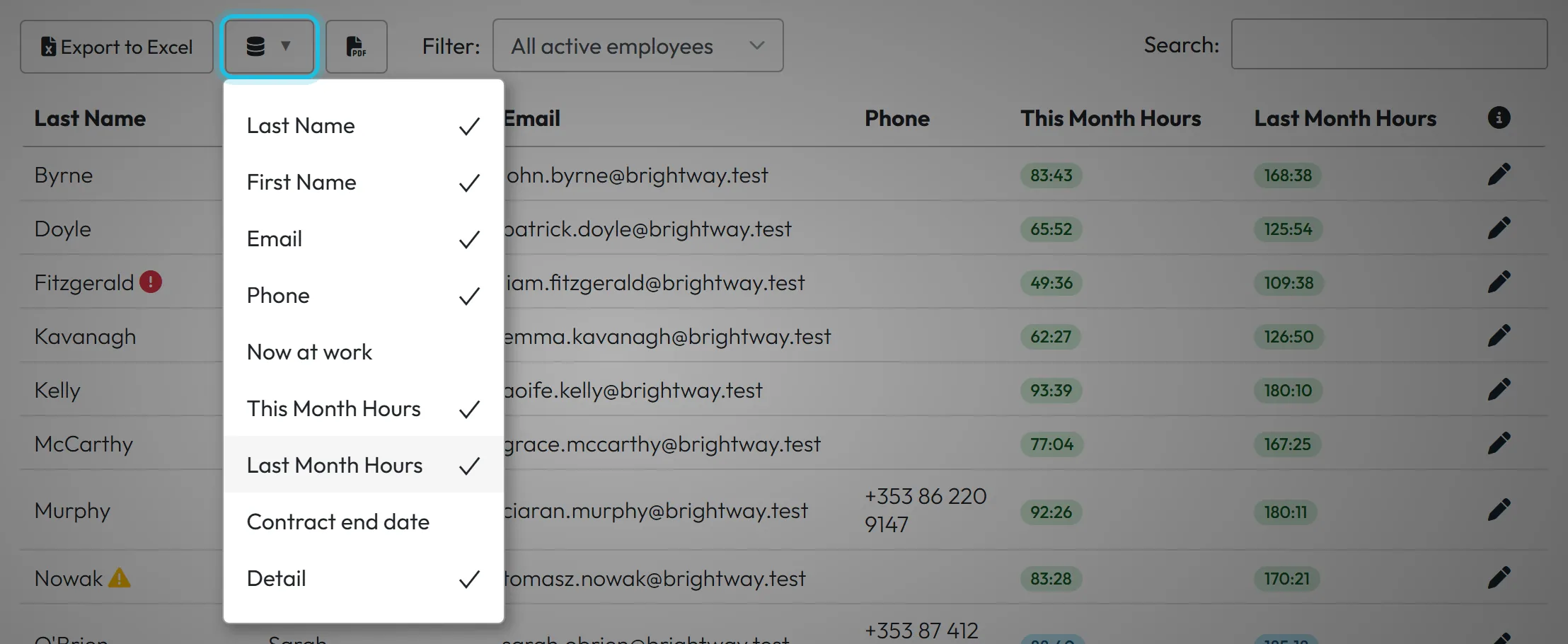
Click the database icon next to Export to Excel. A checklist of columns opens. Tick what you need:
- This Month Hours and Last Month Hours – worked time in hours and minutes, after rounding and breaks, the same numbers as in the reports. If someone worked both at a branch and on projects, the cell shows two figures. An empty cell means no time was recorded that month.
- Now at work – a tick at everyone who has clocked in and not out yet.
- Contract end date – the date, or Unlimited.
Your choice is saved for your user account, so the columns are there next time. With the hours columns on, the first load can take a few seconds while FreshQR brings the numbers up to date.
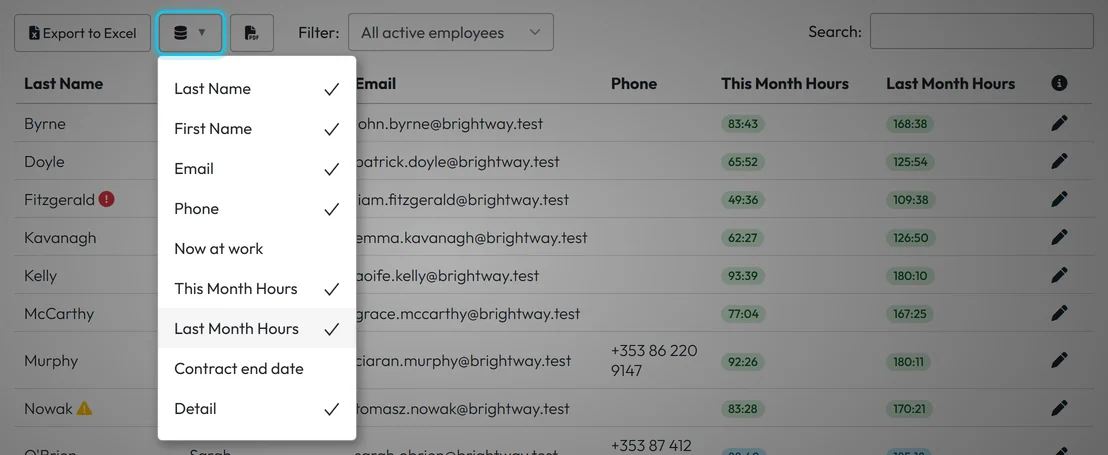
More columns behind the database icon -
Switch the filter.
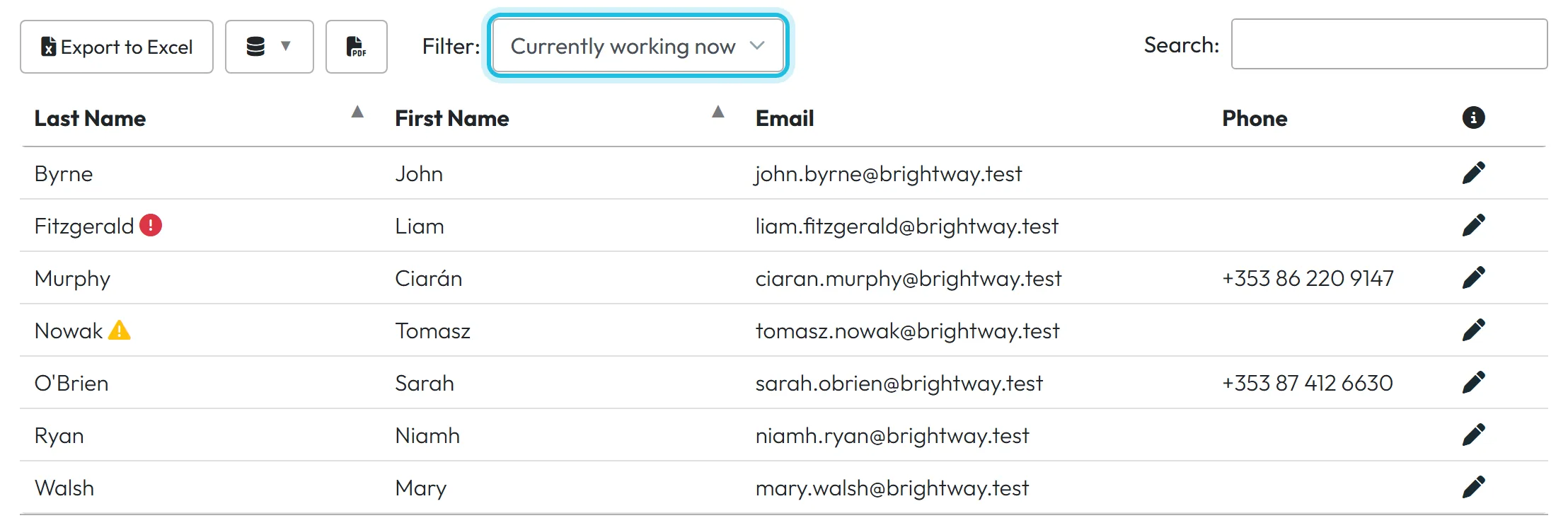
The Filter dropdown has three options:
- All active employees – the default.
- Currently working now – people with an open arrival. An old arrival that was never closed also counts here, so for a live view of who is on site use the real-time attendance overview on the Dashboard.
- Deleted employees – people who have left.
The browser remembers the filter for a week.
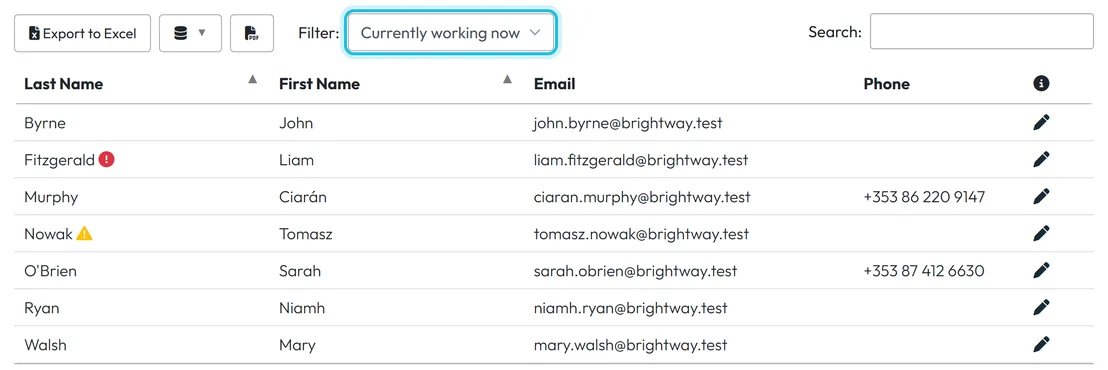
The Currently working now filter -
Open the profile.
Click the pencil at the end of the row. The employee profile opens on the Detail tab, where you set the name, position, supervisor, schedule and more – see Employee profile.
If your account can only view employees, you see an eye icon instead of the pencil and the profile opens read-only.
-
Remove someone who has left.
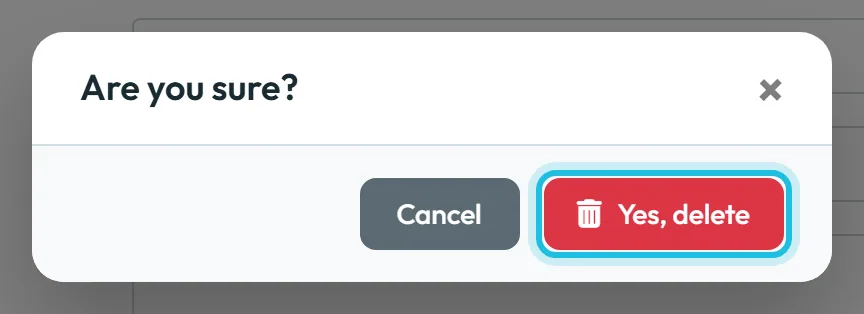
Open the profile and click the red Delete button at the bottom of the Detail tab. Confirm with Yes, delete.
Despite the name, this doesn’t erase anything. The person leaves the active list, the organigram and the pickers, but all their scans, absences, reports and wages stay. If they were someone’s supervisor, give their team a new Superior employee first, otherwise the team drops out of the view of higher managers.
To disconnect the person’s phone as well, use Delete data from mobile on the Advanced tab before you delete – see Merging duplicate profiles and unlinking a phone.
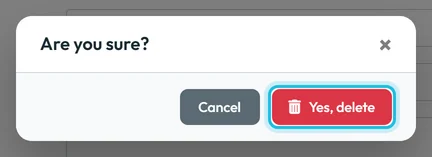
Deleting asks for a confirmation -
Bring a former employee back.
Choose Deleted employees in the filter. Instead of the pencil, each row has a reinstate icon (two arrows). Click it and the person is active again straight away, with their whole history. A deleted profile can’t be opened for editing, so reinstate first and then open it.
A typical case: Ronan worked for you last summer and comes back for the winter season. Reinstate him and he continues on the same profile.

Former employees stay in the Deleted employees filter

#Other ways to work with the list
- Export to ExcelClick Export to Excel to download the list with the columns and filter you have on screen. Handy for a quick headcount or a phone list for site supervisors.
- Monthly reports of everyone as PDFThe PDF icon next to the column chooser exports the monthly report of every employee for a chosen year and month. More in Export timesheets to Excel.
- Contract warningsWith the Employment contract ending e-mail rule on, the list shows a yellow triangle for contracts ending soon and a red mark for ended ones, plus a banner above the tabs. See Employment contract end dates.
#Special cases and tips
- The same person twice
- The employee got a new phone or reinstalled the app, and the app created a new profile. Merge the two – see Merging duplicate profiles.
- A manager sees only part of the list
- Their user account is linked to their own employee profile, so they see themselves and everyone below them in the organigram. Accounts that aren’t linked, and administrators, see everyone.
- No employees yet
- A new company sees a short explanation and a video instead of the table. Print your QR codes and let the first person scan – see Set up QR code attendance.
- Hours look different from the payslip
- The hours columns show worked time after rounding and breaks. Absences aren’t included. For the full picture open the person’s monthly timesheet.
#Frequently asked questions
How do I add an employee to the list?
Simply: the employee installs the FreshQR app and scans one of your QR codes or enters your company code, and the profile appears in the list by itself. Then you complete the name and other details. Someone who won’t scan can be added on the Candidates tab.
Is a deleted employee gone for good?
No. Delete only deactivates the profile. Everything is kept, and you can reinstate the person from the Deleted employees filter at any time.
Where can I filter employees by tag or branch?
In Table Reports – tags, branches and positions are filters there. The employee list itself has search and the three filter options.
Who can see the employee list?
The Owner, Administrators, both Manager roles and accounts with an Employees role. Accounts with Employees: View Only can open profiles but not change them.
Why is the hours cell empty for some people?
No time was recorded for them in that month. The list leaves the cell empty rather than showing 0:00.
#Related
You are hereEmployee list and filters
Administrator
Web app (administrator)Mobile app (employee)



